

Appearance
Keep UniFi's own sign-in page and send guests to CaptiFi
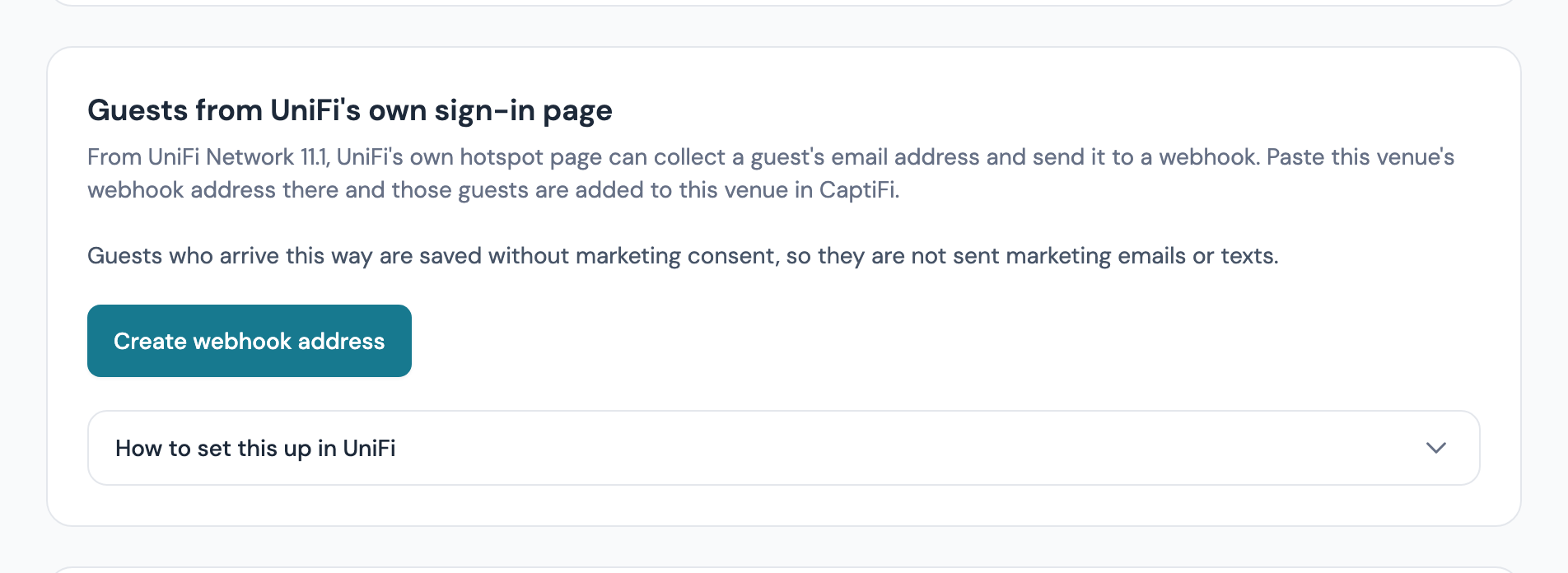
The UniFi setup guide puts the CaptiFi sign-in page on your guest network. This page covers the other arrangement: your guests sign in on the hotspot page built into UniFi, and UniFi passes each guest's email address to CaptiFi through a webhook. The guest is then added to your venue in CaptiFi.
These guests are saved without marketing consent
Nothing in Ubiquiti's release notes says its page asks guests for marketing consent, so CaptiFi saves every guest who arrives this way without it. They appear in your guest list and visit history, and they are not sent marketing emails or texts. To collect consent and market to your guests, use the CaptiFi sign-in page.
Which sign-in page to choose
UniFi's own page with the webhook gives you a contact list in CaptiFi. Choose it if you want to keep the sign-in page you already run in UniFi and only need the guests' details recorded against the venue.
The CaptiFi sign-in page records each guest's consent and shows your venue's branding, promotions and vouchers. Guests who sign in there can then receive your campaigns, review requests and rewards, and are passed to your integrations. If any of that is why you are setting up guest WiFi, follow the UniFi setup guide and use the CaptiFi page. CaptiFi works on UniFi Network 11 in the same way as on earlier versions: UniFi's External Portal Server option shows guests the CaptiFi page, and CaptiFi does everything after sign-in.
You can start with UniFi's page and move to the CaptiFi sign-in page later.
What Ubiquiti has released
Checked on 24 November 2026 against Ubiquiti's UniFi Network 11.1.58 release notes and its help article UniFi Hotspots and Captive Portals.
UniFi Network 11.1.58 was published on 24 November 2026 as a Release Candidate on a gradual rollout. It is not an Official release yet, and features in a release candidate can change before it becomes one. Under "Improved the Hotspot user experience" its notes include:
- "Added an option to collect guest email addresses and export them via CSV or send them through Webhooks."
- "Added Webhook notifications when guest access ends."
UniFi Network 11.0 is the current Official release (11.0.104, published on 20 November 2026). Its notes list hotspot fixes and "Improved guest authorization latency through the API", and nothing new for the built-in sign-in page. The webhook option is in the 11.1 notes.
Network 11 requires UniFi OS 6.0 or newer. Its notes also say "Removed Network Application Server support. Upgrade to UniFi OS Server, the official replacement." and "Removed USG gateway support."
What you need
- UniFi Network 11.1 or later on your console. On 24 November 2026 that means the 11.1.58 release candidate.
- A venue already connected to CaptiFi as a UniFi venue. If you have not connected your console yet, the UniFi setup guide covers it.
- A guest network in UniFi that shows UniFi's own landing page. A network that shows the CaptiFi sign-in page already sends its guests to CaptiFi, with the consent choice each guest made, and does not need a webhook address.
- The feature switched on for your account. While UniFi Network 11.1 is a release candidate, CaptiFi switches this on per account on request. Email support@captifi.io, name the venue and say you want guests from UniFi's own sign-in page.
- The account owner's login. Only the account owner can create the webhook address, replace it or switch it off.
Step 1: Create the webhook address in CaptiFi
- Sign in at my.captifi.io as the account owner
- Go to My Venues, open More on the venue's card and choose Connection
- Find the section Guests from UniFi's own sign-in page. It is there once support has switched the feature on for your account, and only on a UniFi venue
- Click Create webhook address
- A window titled Copy the webhook address now opens with the full address. Copy it and keep it somewhere safe until you have pasted it into UniFi
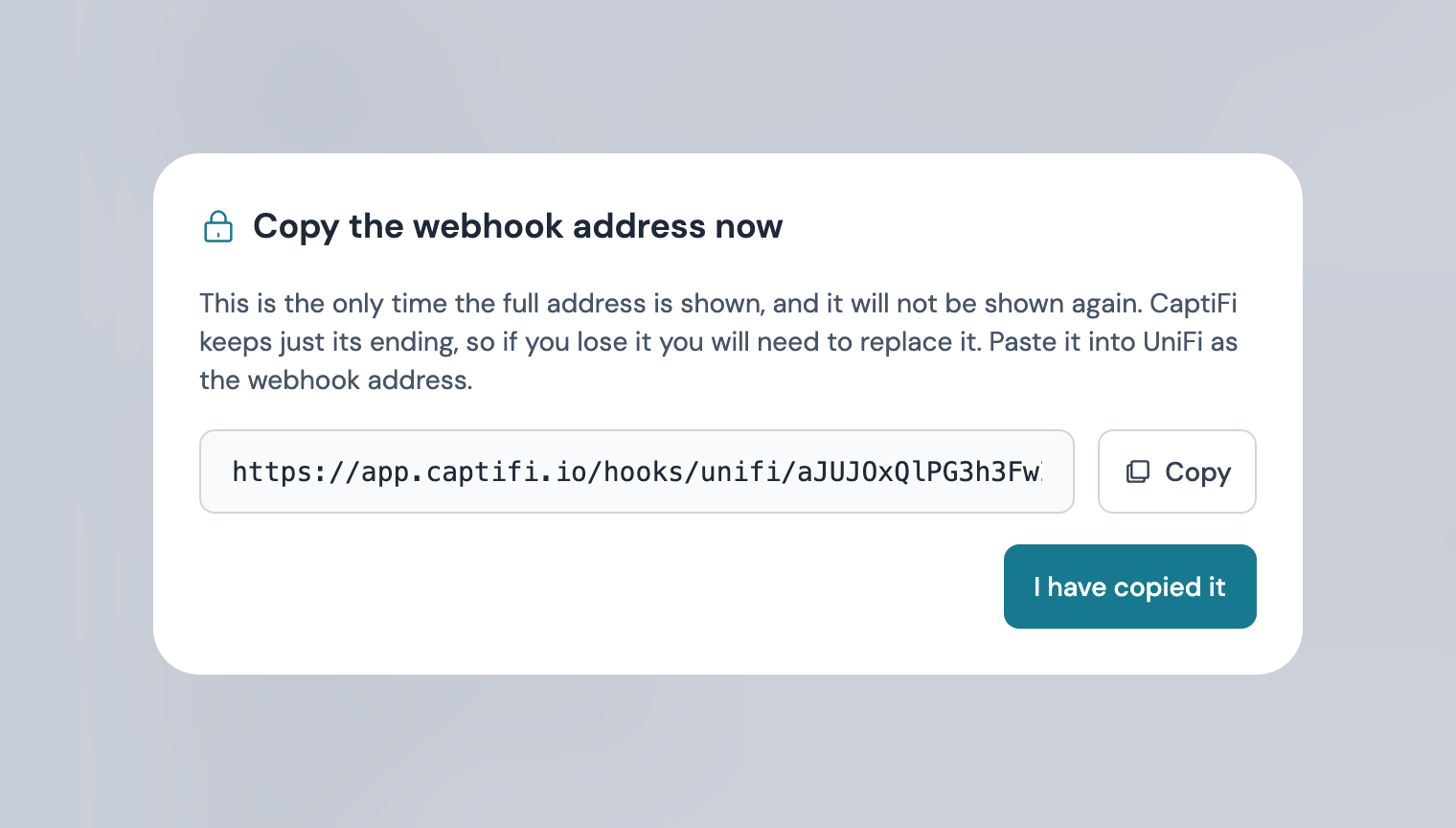
The full address is shown this one time. CaptiFi keeps only its ending, which the section shows afterwards beside Webhook address as Ends in and four characters. If you close the window without copying the address, replace it to get a new one.
Treat the address like a password
Anyone who has the full address can add guests to this venue. Paste it into UniFi and nowhere else.
Step 2: Paste the address into UniFi
These settings are in a release candidate, so this guide names the option and leaves the exact menu path to your console.
- On your console running UniFi Network 11.1 or later, open your hotspot settings
- Switch on the option to collect a guest's email address and send it to a webhook
- Paste the address from Step 1 as the webhook address
- Save
The same steps are in the section itself, under How to set this up in UniFi.
Leave Re-apply settings and Change network alone
On the venue's Connection page, Re-apply settings and Change network put the CaptiFi sign-in page on your guest network. Use them only when you want to move to the CaptiFi page.
Step 3: Test it with a phone
- On a phone, turn WiFi off and on, then join your guest network
- Sign in on UniFi's page with an email address you can recognise
- Check the phone can browse
- Open the venue's Connection page in CaptiFi and look at Guests from UniFi's own sign-in page. The section refreshes on its own while the page is open
- Last received shows the time of your sign-in, Last result reads Guest added, and the delivery is listed under Recent deliveries
- Open Guest Visits. The guest is listed with the email address you used
Because UniFi Network 11.1 is a release candidate, what the console sends can change. If Last result reads anything other than Guest added, email support@captifi.io with the time shown.
Until the first delivery arrives, Last received reads Nothing yet, Last result reads No deliveries, and Recent deliveries says "Nothing has arrived yet. Sign in on the guest WiFi once and the delivery appears here."
What the section shows
| Label | What it tells you |
|---|---|
| Webhook address | The last four characters of the address in use, so you can tell which one UniFi should hold |
| Created or replaced | When the address in use was made |
| Last received | When UniFi last sent something to the address |
| Last result | What CaptiFi did with that delivery |
| Deliveries | How many deliveries the address has received |
| Guests added | How many of those deliveries added a guest |
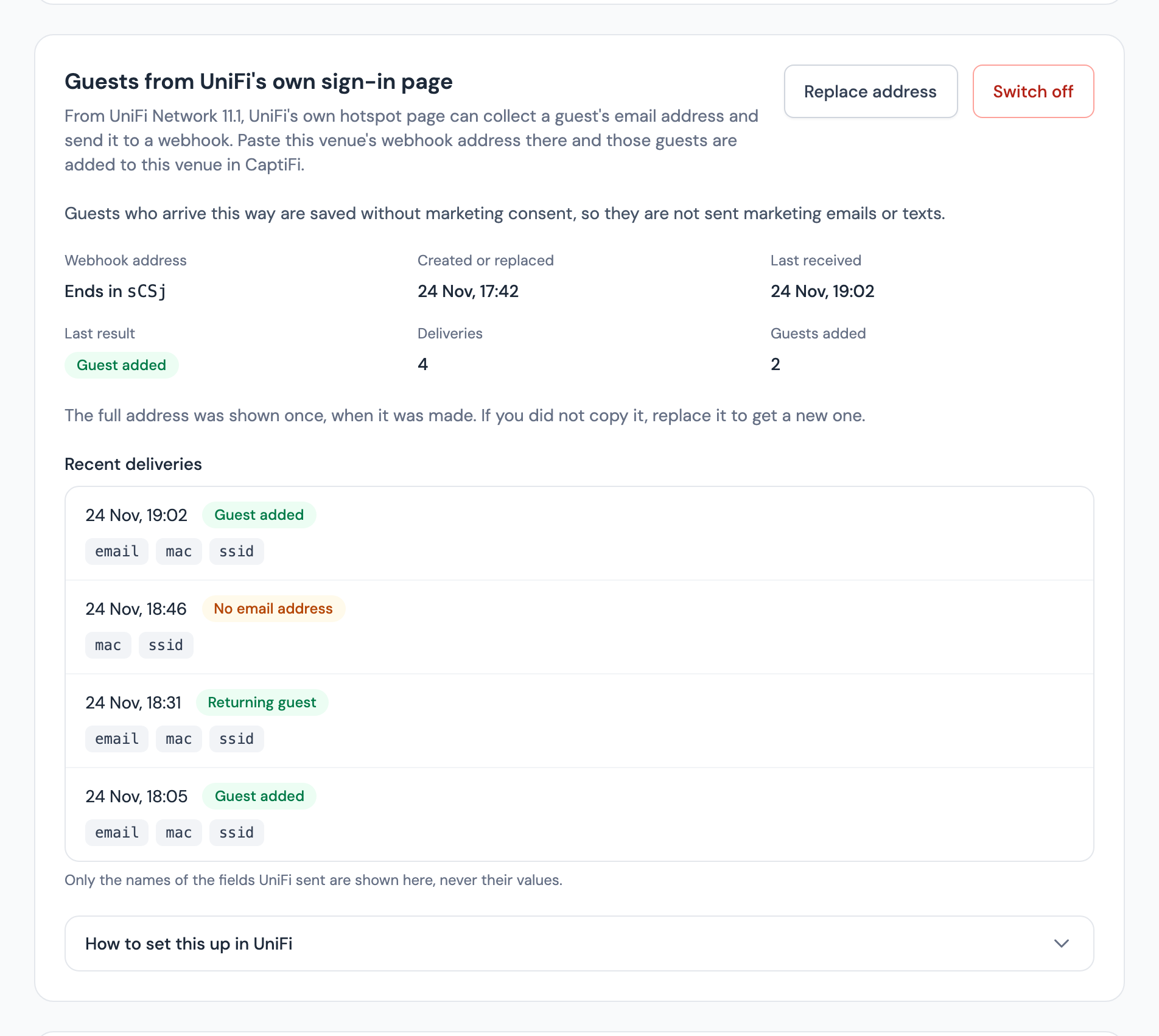
Recent deliveries lists the ten most recent, each with its time, its result and the names of the fields UniFi sent. The field names are there so you can see what your console is sending. Their values are not shown. Deliveries drop off the list after 14 days.
What each result means
| Result | Meaning |
|---|---|
| Guest added | The delivery carried an email address and the guest was saved to this venue |
| Returning guest | The guest had already been saved in the last 24 hours, so the delivery was added to that visit and no second guest was created |
| No email address | The delivery carried no email address, so there was nobody to add |
| Email address not valid | The delivery carried something in the email field that is not an email address |
| Access ended, nothing to add | UniFi reported that a guest's access had ended. CaptiFi receives these and adds nothing |
| Sign-in paused | New guest sign-ins are paused on your account, for example after a trial has ended without a card, so the guest was not added |
| Guest limit reached | Your monthly new-guest allowance is used up, so the guest was not added. See Guest allowances |
| Could not be saved | CaptiFi received the delivery and could not save it. If you see this more than once, email support@captifi.io with the time shown |
Replace the address
Replace the address if you did not copy it, or if someone who should not have it has seen it.
- On the venue's Connection page, click Replace address in the section
- Read the confirmation, Replace the webhook address?, and click Replace address
- Copy the new address from the Copy the webhook address now window
- Paste it into UniFi's hotspot settings in place of the old one, and save
The old address stops working the moment the new one is made. Guests who sign in between then and the moment you save the new address in UniFi are not added to CaptiFi, so do both in one sitting.
Switch it off
Click Switch off in the section, then Switch off again on the confirmation, Switch off the webhook address?. The address stops working at once and guests from UniFi's own sign-in page are no longer added to the venue. Guests already added stay. You can create a new address later with Create webhook address.
Remove the address from UniFi's hotspot settings as well, so the console stops sending to an address that no longer answers.
What happens to these guests in CaptiFi
Each guest is saved to the venue with the email address UniFi sent, and appears in Guest Visits and in the venue's visit history like any other guest.
They are saved without marketing consent for email and for SMS, whatever the delivery contains. CaptiFi does not send them marketing emails or texts.
They count towards your monthly new-guest allowance in the same way as guests from the CaptiFi sign-in page. Once the allowance is reached, deliveries show Guest limit reached and guests are not added until it resets on your billing day. CaptiFi does not control who gets online in this arrangement, so reaching the allowance does not stop guests connecting through UniFi's page. Guest allowances explains what counts as a new guest.
Troubleshooting
| Problem | What to do |
|---|---|
| The section is not on the Connection page | The feature is switched on per account on request while UniFi Network 11.1 is a release candidate. Email support@captifi.io. The section also appears only on UniFi venues |
| The section says "The account owner can set this up." | You are signed in as a team member. Ask the account owner to create the address |
| "Only the account owner can change this." | The same reason. Replacing the address and switching it off belong to the account owner |
| You signed in on the guest WiFi and nothing arrived | Check the console is on UniFi Network 11.1 or later, that the email and webhook option is switched on and saved in the hotspot settings, and that the whole address was pasted. An address that has been replaced or switched off no longer works: replace it and paste the new one |
| You no longer have the full address | It is shown once. Click Replace address and paste the new one into UniFi |
| Last result reads No email address | UniFi sent a delivery without an email address. Check the option to collect guest email addresses is on in the hotspot settings |
| Last result reads Guest limit reached | Your new-guest allowance for the month is used up. It resets on your billing day, and a higher plan has a larger allowance as soon as you change to it. See Plans and pricing |
| A guest is in the list and did not receive your campaign | Guests from UniFi's own page have no marketing consent, so campaigns skip them. Consent is recorded on the CaptiFi sign-in page |
| Guests see the CaptiFi sign-in page again | Re-apply settings or Change network was used on the Connection page, and both put the CaptiFi page on the guest network. Set the network back to UniFi's own landing page in UniFi if that is the page you want |
Moving to the CaptiFi sign-in page later
When you want consent, your branding on the page, campaigns, review requests or rewards, move the guest network over to the CaptiFi sign-in page. The venue is already connected, so nothing needs to be set up again.
- Design the page first in the splash page builder
- On the venue's Connection page, click Change network in the Guest WiFi network section, pick your guest network and click Apply. This is Step 14 of the UniFi guide. To set it by hand in UniFi, follow Step 15
- Test with a phone: the CaptiFi page should now appear
- Back on the Connection page, click Switch off in Guests from UniFi's own sign-in page, and remove the address from UniFi
Guests already added from UniFi's page stay in your guest list as they are, without marketing consent. Consent is recorded for guests who sign in on the CaptiFi page from then on.
Need help?
Email support@captifi.io and tell us the console model, the UniFi Network version and the venue's name.
Related guides: UniFi setup guide, Splash page builder, Plans and pricing.