

Appearance
WiFi Areas
A venue can have parts that need different WiFi, such as the campsite, holiday home and event centre of a holiday park. A WiFi area is one of those parts. It matches a WiFi network, a set of access points, or both, and its guests see the area's own splash design and get its own session length, speed limit and data allowance. Everyone else is on your main network, the first area on the page, with the venue's own design and settings. Each area has its own line in the report at the foot of the page, and areas work on venues connected to a UniFi controller.
Switching WiFi Areas On
WiFi Areas is an optional page. It stays out of the sidebar until the account owner switches it on:
- Log in to my.captifi.io and go to Integrations, pinned at the bottom of the sidebar
- Under Dashboard features, find the WiFi Areas card, straight after Paid WiFi
- Switch on Show in sidebar
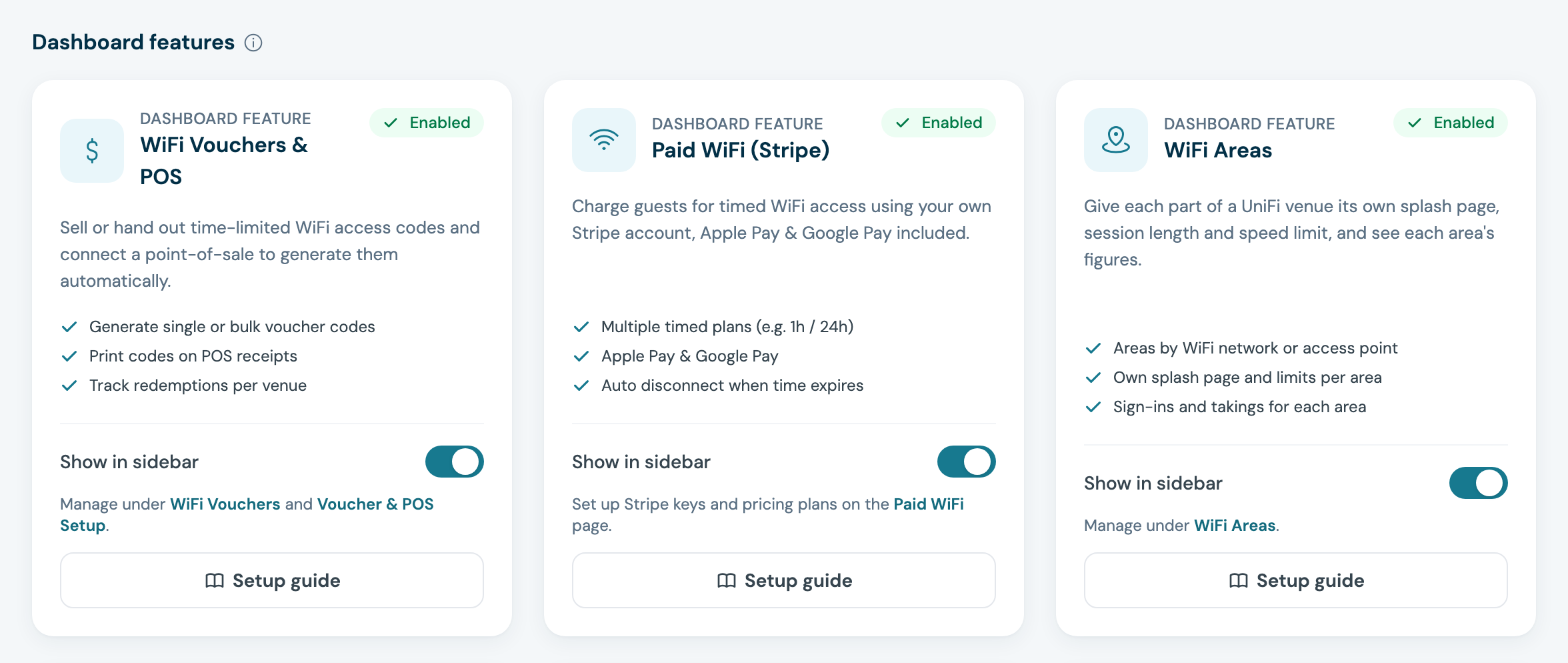
The Integrations page confirms with "WiFi Areas added to your sidebar." and WiFi Areas appears under WiFi & venues. To hide the page again, switch Show in sidebar off on the same card.
- Only the account owner can use the switch. A team member sees it locked, with "Only the account owner can switch WiFi Areas on or off."
- The card is on every plan that has the Integrations page
- The Lite plan has no Integrations page, so on Lite the account owner opens the WiFi Areas page from the design library in the splash page builder and clicks Switch on WiFi Areas there
- An account that already had an area saved when the switch arrived on 21 November 2026 was switched on automatically
While WiFi Areas Is Switched Off
The switch only shows or hides the page. Every area you have saved is kept and still applies to your guests, with its own design, session length and speed limit, whether the switch is on or off. The area filter on Guest Visits and the Area choice on Paid WiFi plans stay as well.
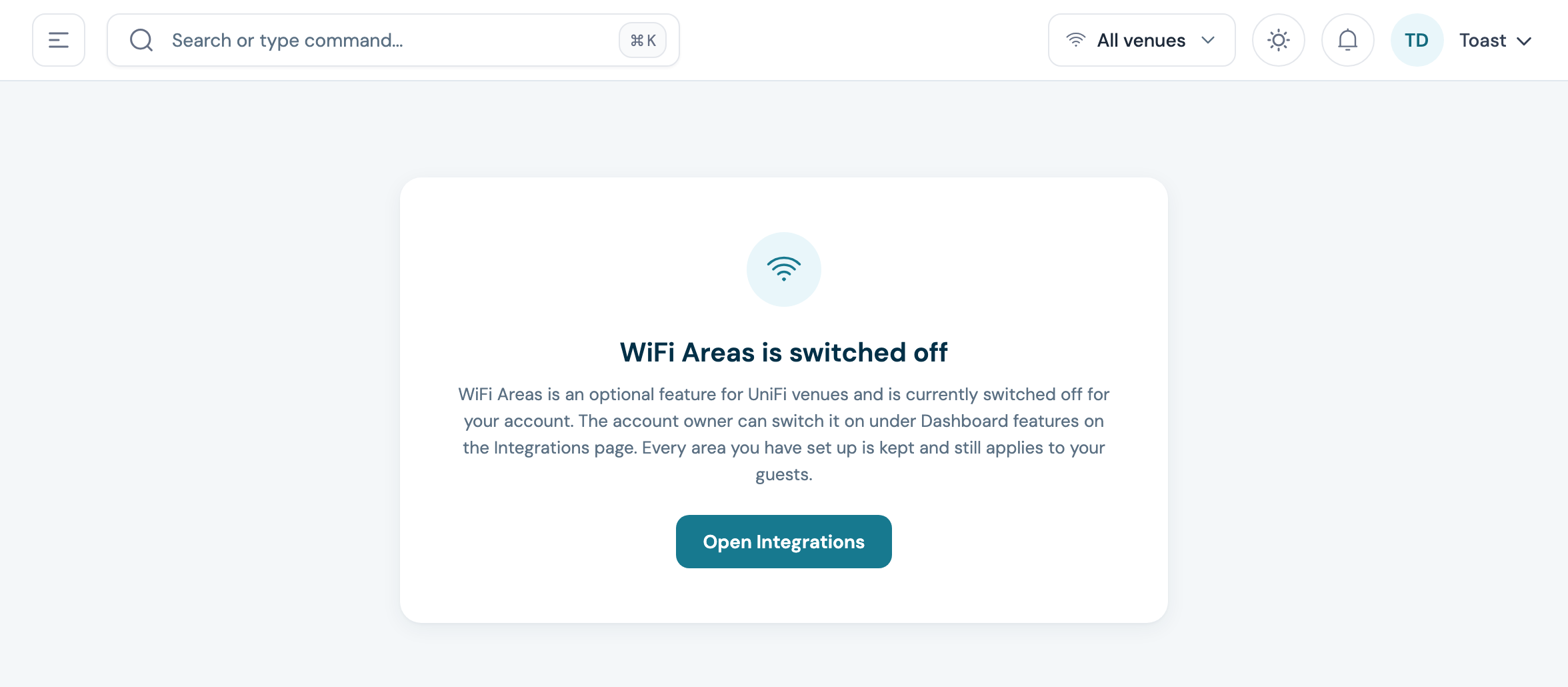
If you open the WiFi Areas page from a saved link while it is off, a card titled WiFi Areas is switched off takes you to the switch with Open Integrations. In the design library, a venue that has saved areas shows a line saying the account owner can switch WiFi Areas on under Dashboard features on the Integrations page.
Where to Find It
- Log in to my.captifi.io
- Pick the venue in the venue switcher at the top
- Go to WiFi & venues → WiFi Areas
Once WiFi Areas is switched on, the design library in the splash page builder links here too.
Your Main Network
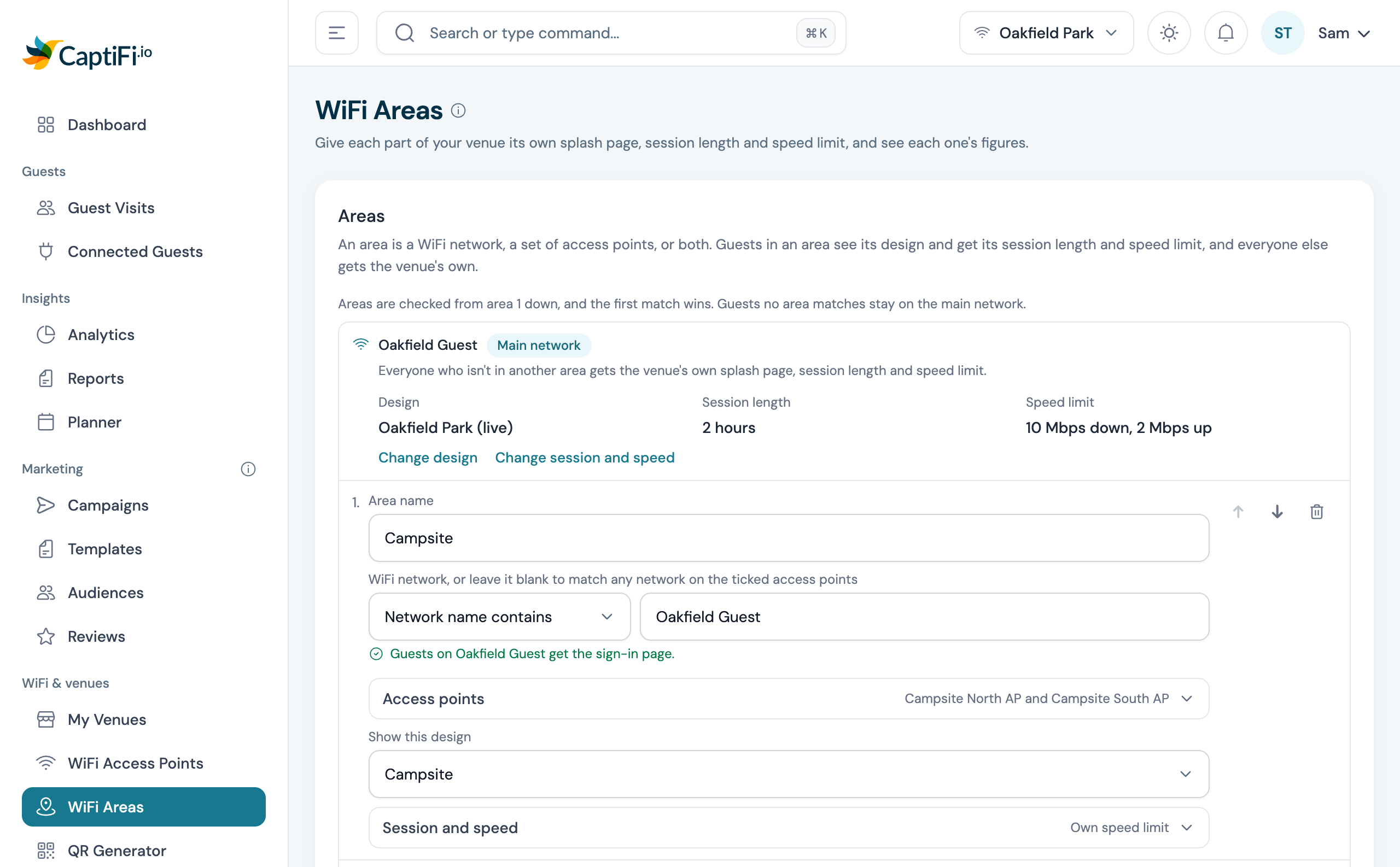
The first row on the page is your venue's main network. It takes its name from WiFi network name in the venue's settings and carries a Main network badge. It reads Main network alone when the venue has no network name there, or when your areas take every guest on that network (see below). Every guest who isn't in one of your areas is on it and gets the venue's own splash page, session length and speed limit. The row shows all three as the venue's settings have them, so a change there shows here at once.
- Change design opens the venue's design library, where you pick the live design
- Change session and speed opens Edit venue for the venue on My Venues, where you set its session length and bandwidth limits
The main network needs no area of its own. It can't be moved or removed, and it doesn't count towards the 10 areas a venue can have. An area takes every guest on your main network when its network matches the main network's name, with Network name is or Network name contains (contains "oakfield" takes "Oakfield Guest"), and it has no access points ticked or every one of them. The main network row then only counts guests on your other networks, and the first area that does this says so under its network, for example "This area takes every guest on Oakfield Guest, so the main network row only counts guests on your other networks." An area with no network and every access point ticked takes every guest at every access point, on every network, so nobody is left on the main network at all. To give one part of the venue its own settings, tick only that part's access points.
Adding an Area
- Click Add area and give the area a name, for example "Campsite"
- Tell CaptiFi which guests are in the area, with a network, access points or both (see below)
- Under Show this design, pick the design guests in the area see, or leave it on Keep the live design
- Open Session and speed if the area needs its own session length or speed limit
- Click Save
To match by network, choose Network name is or Network name contains and type the network name. CaptiFi suggests the names of the networks your guests have joined, and matching ignores capitals, so "Network name contains guest" also matches "Oakfield GUEST". Once the area is saved, the line under its network says whether guests on that network get the sign-in page (see Setting Up UniFi for Areas).
To match by access point, open Access points and tick the access points in that part of the venue. These are the same ones as the AP group in UniFi that broadcasts the WiFi there. The list comes from the WiFi Access Points page for the venue, with each access point's name, model and MAC address.
With a network and access points both set, the area takes guests on that network at those access points only. Leave the network blank and the area takes every network on its ticked access points. Leave every access point unticked and it takes its network on any access point.
Areas are checked from area 1 down, and the first match wins, so a guest who would match two areas gets the higher one. Guests no area matches stay on the main network. Use the up and down arrows to set the order. A venue can have up to 10 areas below its main network.
An area with only a name and its network or access points keeps the venue's design and settings, and still gets its own line in the report.
If an access point leaves the venue while an area still has it ticked, the area keeps it, marked No longer listed at this venue, until you untick it.
Session Length and Speed
Open Session and speed on an area:
- For the session length, leave Use venue setting ticked, or set how long guests in the area stay online before they see the splash page again, or choose Unlimited
- Switch Speed limit on to set the area's download speed, upload speed and data allowance per guest. These replace the venue's limits in the area, and a field left blank means no limit there. With it switched off, the venue's speed limit applies
Returning guests recognised by Welcome Back get the session length and speed of the area they connect in.
Speed limits and data allowances apply on UniFi consoles CaptiFi connects to by API key, the Remote Tunnel or directly. On UniFi Cloud connections an area's session length applies and its speed limit does not, and the main network row adds "(not applied on this connection)" after the venue's speed limit. A speed limit set on the controller itself, such as a user group on the WiFi network, still applies when an area says no limit.
At a venue with Paid WiFi on, guests sign in on the paid page, so each plan's own time and speed apply in place of the area's session and speed settings. The area's design still applies there.
Setting Up UniFi for Areas
An area reads the network and the access point UniFi reports for each guest, and only guests on a network with the sign-in page ever reach it. Saving an area changes nothing in UniFi. Under each saved area that names a network, the page checks your UniFi controller and says whether guests on that network get the sign-in page.
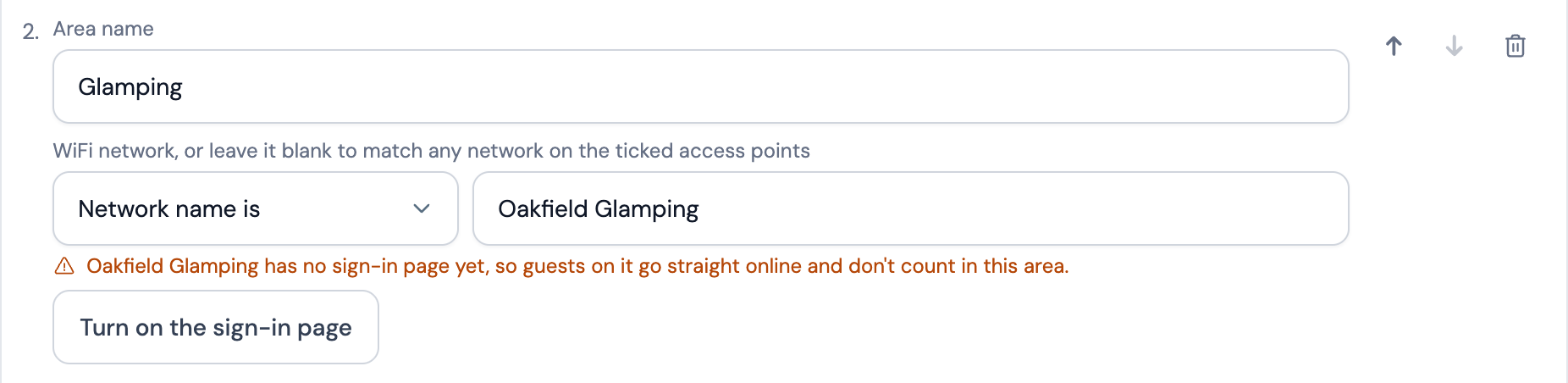
- When the network is on your controller without the sign-in page, its guests go straight online and never count in the area. Click Turn on the sign-in page and confirm, and CaptiFi turns the hotspot portal on for that network
- When the network isn't on your controller yet, click Create the network and confirm. CaptiFi adds it as an open guest network (no WiFi password) with the sign-in page on. It broadcasts from the access points the area ticks, through a new AP group in UniFi named after the area, such as "Glamping (CaptiFi)", or from every access point when the area ticks none
Your main network keeps its sign-in page either way, and nothing else on the controller changes. CaptiFi's portal settings in UniFi cover the whole site, so the new network needs nothing more.
- The line shows on a saved area. After you change an area's network or access points, save it to see where its network stands
- An area on Network name contains that matches more than one network can't turn the sign-in page on from here. Give it the network's exact name with Network name is
- WiFi network names can be at most 32 characters, fewer with accented letters or emoji, so an area with a longer network name has to be shortened before CaptiFi can create it
- On consoles with zone-based firewalling, the Hotspot zone decides which networks get the sign-in page. Turn on the sign-in page changes nothing there: CaptiFi tells you which network to move into the Hotspot zone in UniFi under Settings > Policy Engine > Zones. Create the network adds it on the same network (VLAN) as your main network when that one is in the Hotspot zone, and otherwise asks you to create it in UniFi
- On UniFi Cloud connections, and on controllers managed by CaptiFi or a partner, the page can't make these changes, so set the network up in UniFi as in Step 14 of the UniFi guide
- A team member needs permission to manage devices to turn the sign-in page on or create a network
- The WiFi network screen (Change network on the venue's Connection page) is for your main network. It puts the sign-in page on the network you pick and takes it off every other network, apart from the networks your areas use: one an area names with Network name is, or an open one (no WiFi password) an area's Network name contains takes in
The access points you tick in an area decide which guests count in it, and AP groups in UniFi decide where each network is broadcast. One network across the whole site works well with areas by access point. For a separate network per area, let CaptiFi create it on the area's access points, or use AP groups in UniFi to broadcast it only where it's needed.
Paid WiFi in an Area
With Paid WiFi on, an area can have plans of its own. On the Paid WiFi page, set a plan's Area to the area it is for. Guests in an area with active plans of its own see only those, on the area's design, and everyone else, your main network included, sees the plans for the whole venue. An area can have its own free plan too, for example free WiFi with no speed limit in the holiday home while the campsite sells passes. See Plans for each WiFi area.
The Report
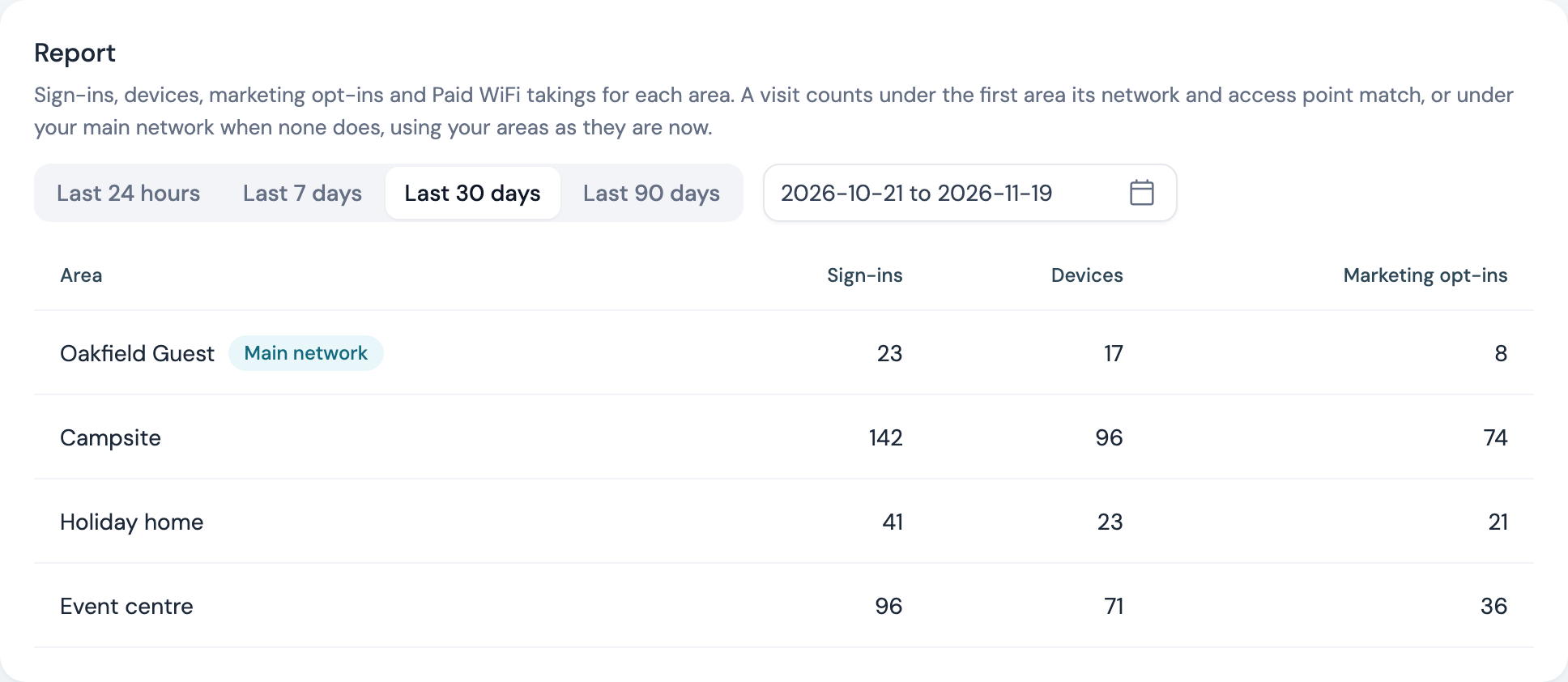
The Report at the foot of the page shows each area's figures for the period you pick: Last 24 hours, Last 7 days, Last 30 days, Last 90 days, or your own dates.
- Sign-ins counts the visits in the area
- Devices counts the different devices that signed in
- Marketing opt-ins counts the visits where the guest agreed to marketing
- Passes sold and Takings show the Paid WiFi passes guests in the area bought. These two columns appear once the venue has Paid WiFi set up
Your main network comes first, under its name and the Main network badge, and holds the visits that match none of your areas. When an area takes every guest on your main network, or several areas do between them, the row reads Main network instead of the network's name, because it then only counts guests on your other networks. A visit counts under the first area its network and access point match, or under your main network when none does, using your areas as they are now, so if you change an area's network or access points its past visits move with it. The report is there before you add any areas, with every visit under the main network. Periods follow the venue's time zone.
Guest Visits by Area
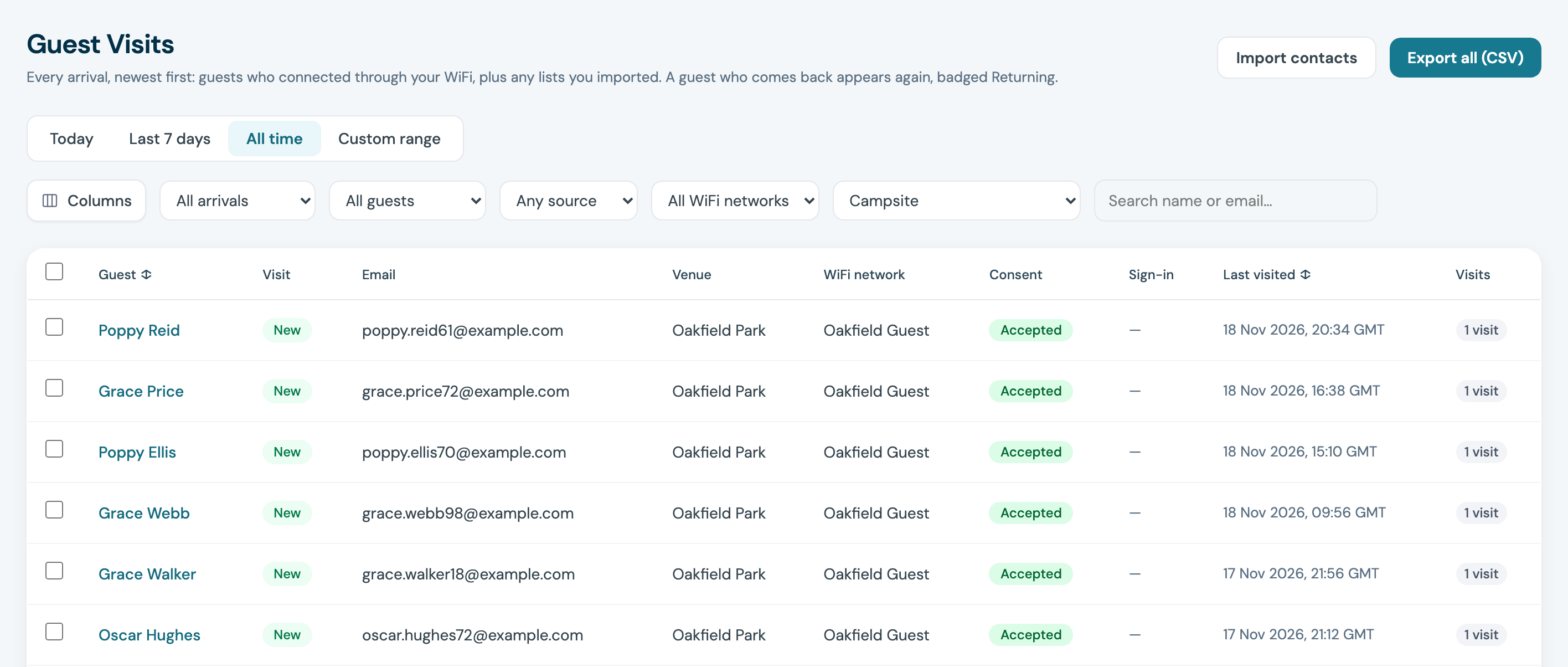
On Guest Visits, the area filter beside the WiFi network filter narrows the list to one area's visits. It starts on All areas, and straight after that comes your main network, for example Oakfield Guest (main network), which lists the visits no area matches and any imported contacts. It reads Main network when the venue's settings name no network, or when your areas take every guest on it, as in the report. Export all (CSV) follows the area you pick and lists the guests whose first visit was in that area.
Example: a Campsite, a Holiday Home and an Event Centre
A holiday park runs one guest network, "Oakfield Guest", from five access points. That is the venue's WiFi network name, so Oakfield Guest is the main network, with the venue's own page, 2 hour sessions and a 10 Mbps download limit. The park sets up three areas:
- Campsite takes "Network name contains Oakfield Guest" on Campsite North AP and Campsite South AP, shows the Campsite design and limits downloads to 5 Mbps
- Holiday home has Holiday Home AP ticked and keeps the live design. Speed limit is switched on with the fields blank, so holiday home guests get no limit
- Event centre has Event Centre AP ticked, shows the Event centre design and gives 4 hour sessions
A guest who connects at the reception access point matches none of them, so they stay on the main network with the venue's own settings, and the report counts their visit under Oakfield Guest.
Good to Know
- WiFi areas work on UniFi venues. On a venue with another connection, the page shows its areas read-only
- The account owner switches the WiFi Areas page on or off for the whole account, so it covers every venue. See Switching WiFi Areas On
- Every area is part of the one venue on your plan
- Welcome Back is switched on or off for the whole venue