
Appearance
WiFi Vouchers & POS Integration
Require a voucher code before guests can use your WiFi. Generate batches of codes from the dashboard, or connect your point-of-sale system so codes print automatically on receipts.
Enabling Vouchers
Vouchers are an opt-in feature on every plan from Essentials up. They are not on Lite, and they are not available on Aruba Instant On, FortiGate or MikroTik networks. To switch them on:
- Log in to my.captifi.io
- Go to Integrations
- Under Dashboard features, switch on WiFi Vouchers & POS
Two new items appear in the sidebar under My Venues: WiFi Vouchers and Voucher & POS Setup.
Access Modes
Each venue is in one access mode at a time, set on the Voucher & POS Setup page:
| Mode | How guests connect |
|---|---|
| Free (default) | Guests connect through your splash page without a code |
| Voucher | Guests must enter a valid voucher code on the splash page to get online |
Before switching to voucher mode
Once voucher mode is on, only guests with valid codes can connect. Make sure you have codes generated and a way to hand them out (receipts, staff, table cards) first.
To switch: open My Venues → Voucher & POS Setup, choose the access mode, and click Save settings. Switch back to free access the same way at any time.
Generating Vouchers
- Go to My Venues → WiFi Vouchers
- Click Generate vouchers
- Fill in:
- Venue: which venue the codes are for
- Quantity: 1 to 100 codes per batch
- Access duration: how long each code keeps a guest online
- Click Generate
Codes are unique 8-character combinations of letters and numbers.
The new batch is shown with a copy-all option, and every code appears in the voucher table. Use the per-code Revoke action to invalidate a code that shouldn't be used any more.
POS Integration
Connect your point-of-sale system (till) so it can generate voucher codes automatically, for example printing a WiFi code on every receipt. The till authenticates with a key that belongs to the venue. The key is shown once, when it is generated, and CaptiFi keeps only a hashed copy, so it cannot be looked up again later.
Connecting a till
- Go to My Venues → Voucher & POS Setup and pick the venue.
- In the POS integration section, note the API endpoint. Your till calls this address to create codes; the copy button puts it on your clipboard.
- Under Till API key, click Generate key.
- A window opens headed Your new till API key. Copy it with the copy button or select the text. The only way out of the window is I have copied it, so a stray tap cannot lose the only copy.
- Paste the key into your till, or hand it to your POS administrator or till provider together with the endpoint.
- Switch the venue to voucher mode (above) when you are ready to go live.
Afterwards the Till API key card shows a hint: the captifi_pos_ prefix, stars and the last four characters, such as captifi_pos_****************************cdef. Beside it are Created and Last used. Last used moves each time the till calls in, so you can see whether the integration is working without touching the till. A till whose key ends with the same four characters as the hint is holding the live key.
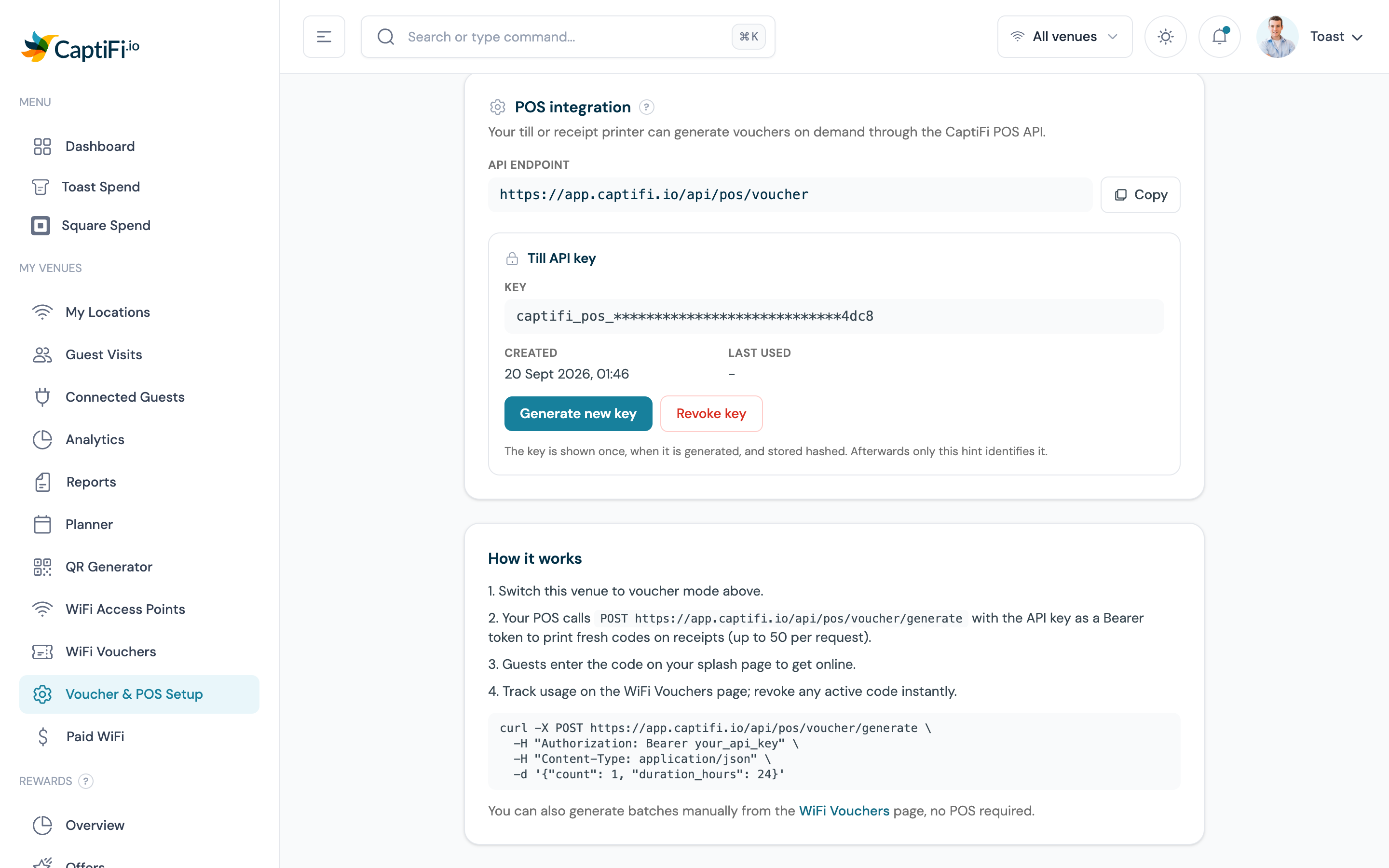
Generate new key issues a replacement and shows it once, the same way. The current key stops working the moment you confirm, so update the till straight after. Revoke key disconnects the till, which is refused until you generate a new key. Both actions ask you to confirm first.
Generating or revoking the key, and changing the access mode, needs the Manage integrations team permission. Other team members see the page without the buttons.
Keep your API key secret
The key allows anyone holding it to create WiFi codes for your venue. If you think it has been exposed, generate a new key. The old one stops working at once.
Testing the POS Connection
Ask your POS provider to send a test request, or call the endpoint shown on the setup page with a tool like curl or Postman, using the key you copied. A successful call returns a voucher code. Check that it appears on the WiFi Vouchers page and that Last used on the setup page has moved, then try the code on your guest WiFi. The request and response shapes are on Rewards till API and terminal keys.
How Guests Use Vouchers
- Guest connects to your WiFi and your splash page appears
- The splash page asks for a voucher code
- Guest enters the code from their receipt or card
- They're online for the code's duration; when it expires they need a new code
Related Features
- Paid WiFi: charge for access by card instead of codes
- Splash Page Builder: the page where guests enter codes
- Multi-Venue Management: vouchers are managed per venue
Troubleshooting
| Issue | Possible Cause | Solution |
|---|---|---|
| Guests can't connect at all | Voucher mode on with no codes distributed | Generate and distribute codes, or switch back to free access |
| Voucher code not working | Code already used, expired, or revoked | Check its status on the WiFi Vouchers page; generate a new one |
| POS calls rejected (401) | Wrong, missing or revoked key | Check that the till's key ends with the same four characters as the hint on the Voucher & POS Setup page. If it does not, or the key was revoked, generate a new key and paste it into the till |
| POS calls rejected (422) | Venue not in voucher mode | Switch the venue's access mode to Voucher on the Voucher & POS Setup page |
| Splash page not asking for a code | Venue still in free mode | Switch the access mode to Voucher and save |
| Vouchers sidebar items missing | Feature not enabled | Toggle WiFi Vouchers & POS on the Integrations page |