
Appearance
Planner & WiFi Automations
The Planner is a marketing calendar that can run your WiFi for you. Plan an event once, attach a WiFi automation to it, and CaptiFi applies it at the start time and puts everything back at the end time, in your venue's own timezone. No late-night logins to switch the quiz night splash off, no forgetting to rename the network back after a festival.
You can schedule four kinds of automation, and you can switch on any combination of them for the same event:
| Automation | What it does | Works on |
|---|---|---|
| Change WiFi name | Renames your guest network for the window, then restores the original name | Venues with a CaptiFi device or a linked UniFi controller |
| Swap splash page | Shows a different design from your design library, then returns to your default | Every venue |
| Message strip | Adds a short dismissible banner on top of your current splash page | Every venue |
| Tag guests who connect | Adds a custom tag to every guest who connects during the window | Every venue |
This guide walks through all four, then shows what to do with the guests a tag collects.
Where to Find It
- Log in to my.captifi.io
- Go to My Venues → Planner in the sidebar
- You land on the Calendar tab. The second tab, Scheduled automations, lists everything queued or already run
The Planner is on every plan from Essentials up. It is not on Lite.
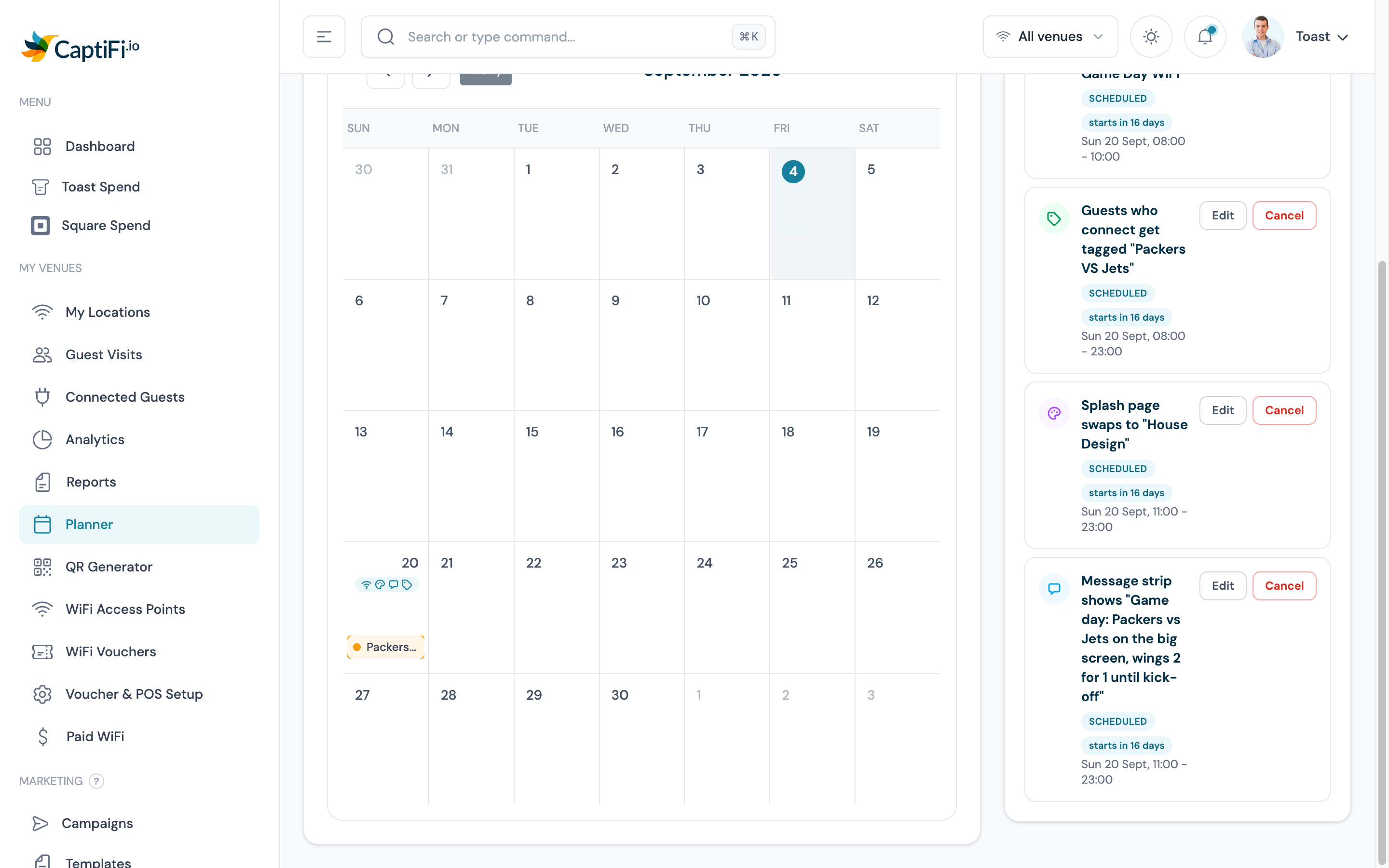
The calendar shows your marketing events, and the card on the right lists upcoming automations with a live countdown to each one. Your email and SMS sends have their own Campaign Calendar under Email Marketing, which also shows the events you plan here.
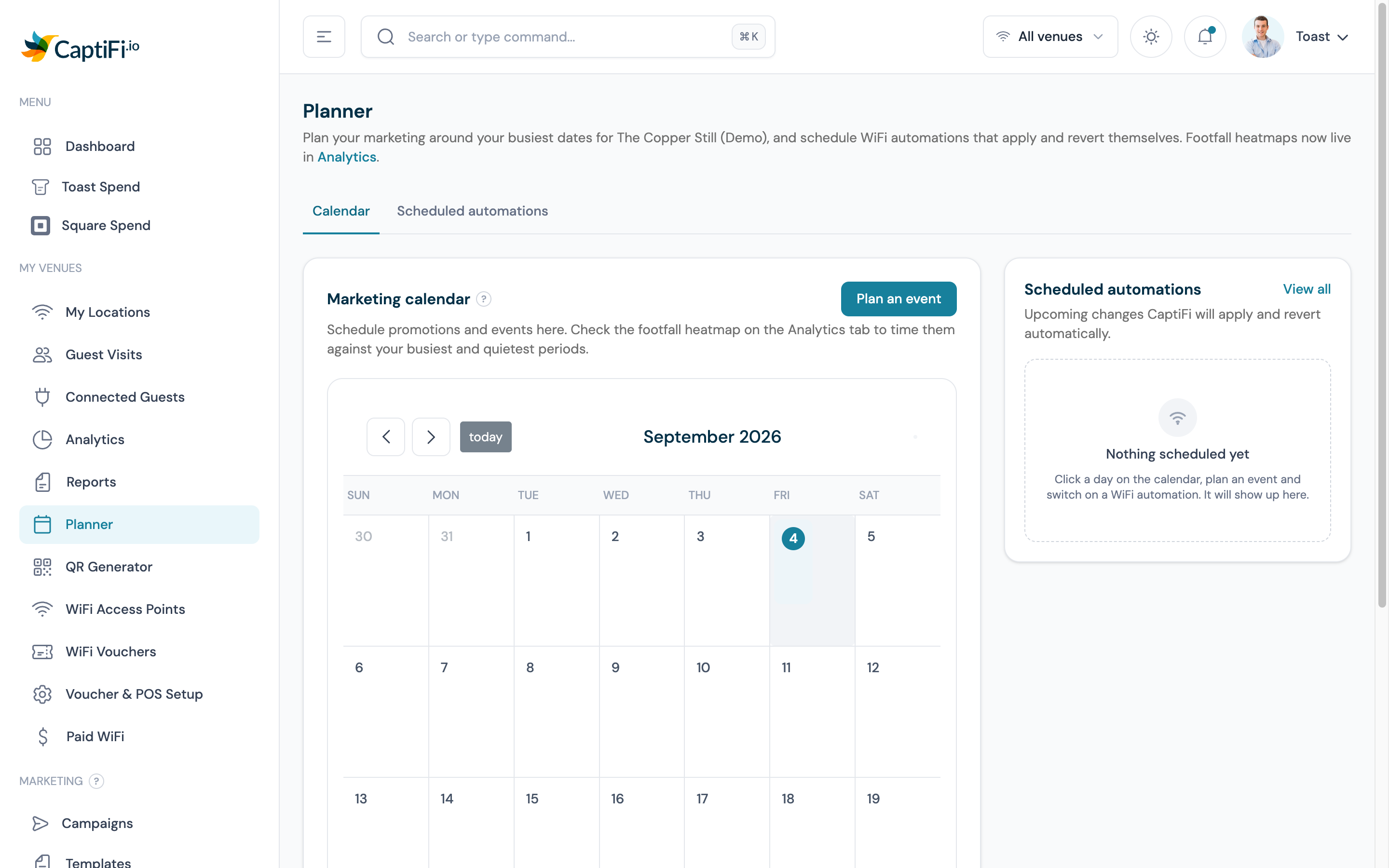
Step 1: Plan the Event
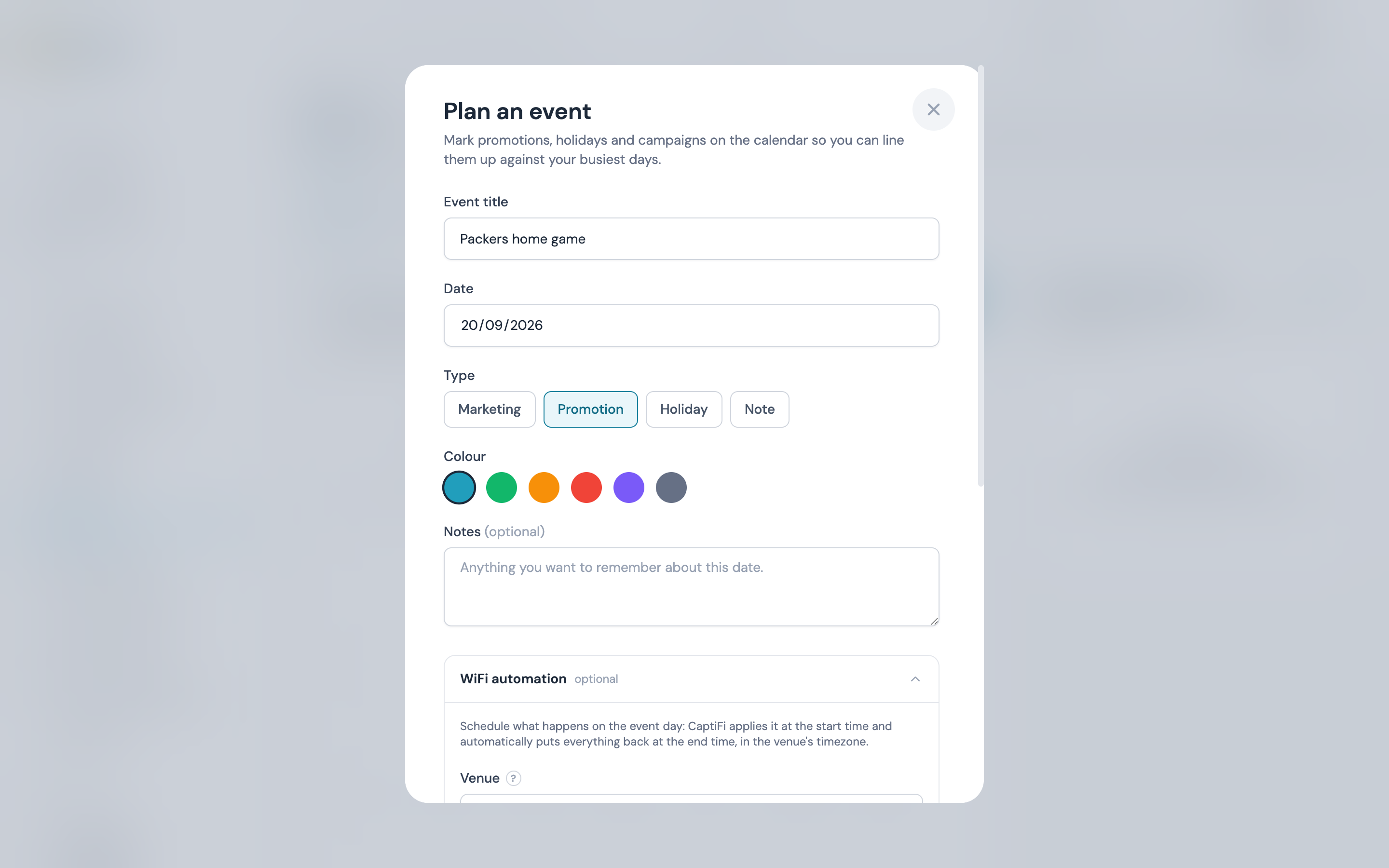
Click any day on the calendar, or the Plan an event button, and fill in the event itself:
- Event title, for example "Packers home game"
- Date, the day the automations run
- Type, one of Marketing, Promotion, Holiday or Note. This only affects how the event is labelled on your calendar
- Colour, the dot shown on the calendar
- Notes (optional), anything you want to remember about the date
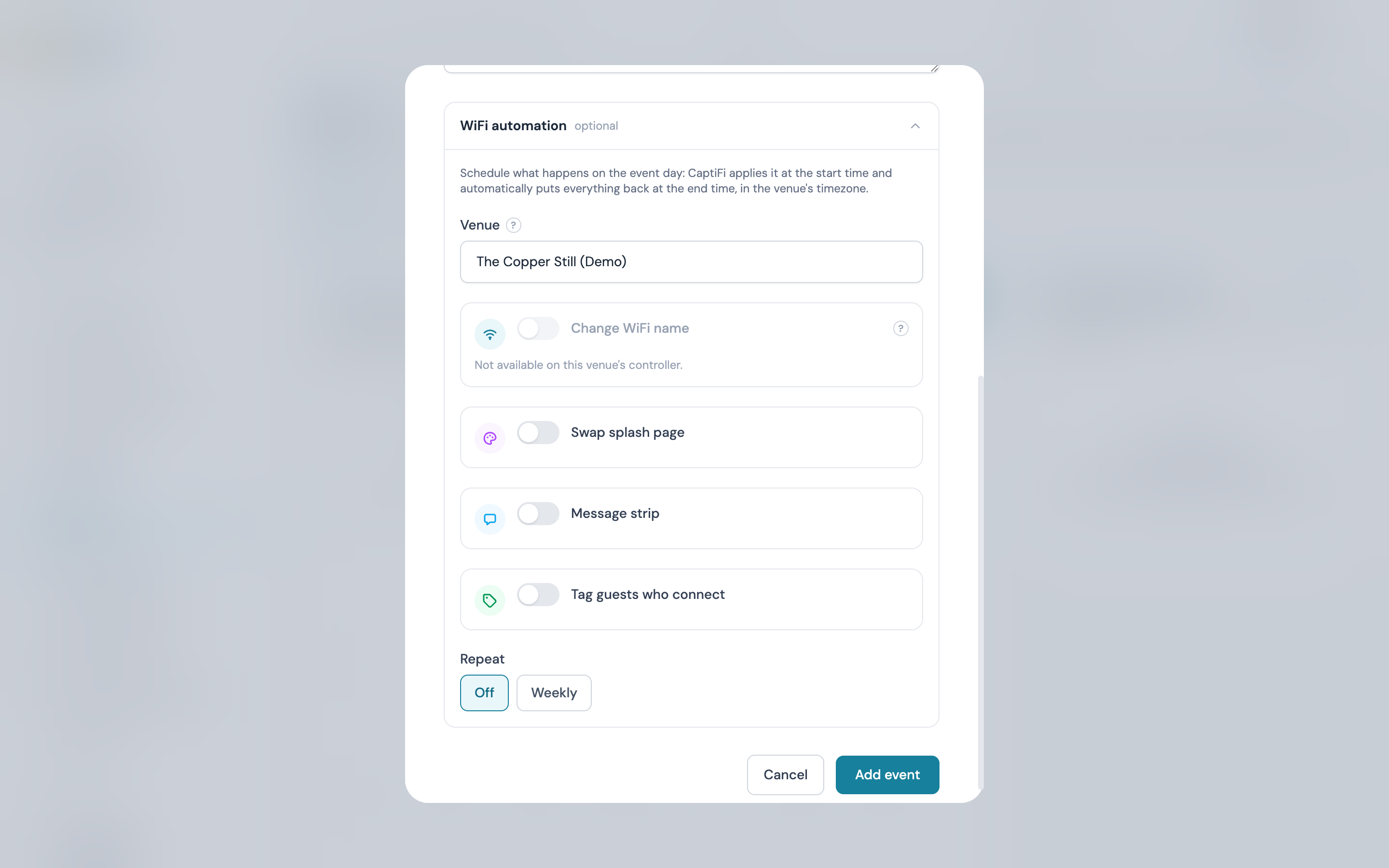
Step 2: Open the WiFi Automation Section and Pick the Venue
Scroll down inside the same window to WiFi automation and choose the Venue the automations apply to.
Automations always target a single venue. If the same event covers several venues, save this event, then schedule it again for each one.
Once a venue is chosen you see all four automations, each with its own switch. Anything your hardware cannot do is greyed out with a short explanation, like Change WiFi name below on a venue whose controller cannot rename networks remotely.
Start and end times are venue-local
Every time you enter here is your venue's own local clock, and the end time is required: every automation reverts itself. You never schedule the "undo" yourself.
Step 3: Change WiFi Name
Switch on Change WiFi name and enter:
- Temporary WiFi name, up to 32 characters
- Starts at and Ends at (reverts), the window on the event day
At the start time your guest network is renamed. At the end time your original name comes back automatically.
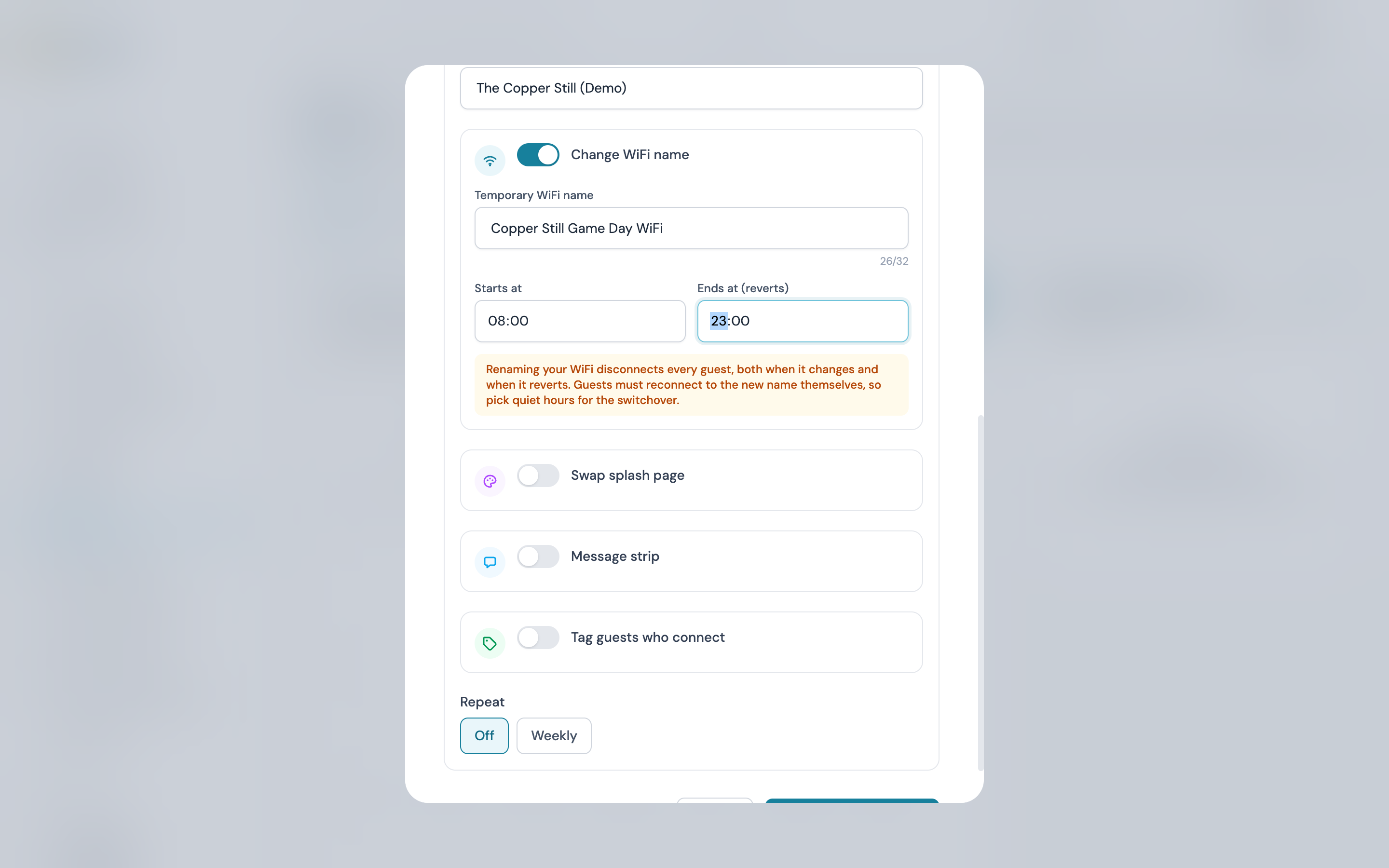
Renaming your WiFi disconnects everyone
When the network name changes, every connected device is dropped, and phones do not automatically join a network with a new name: guests must pick the new network themselves and sign in again. On UniFi, applying the change also briefly re-provisions your access points. Schedule name changes for quiet hours (before opening, after closing, or a lull between services), never mid-service.
Step 4: Swap Splash Page
Switch on Swap splash page and pick any design from your venue's design library. Thumbnails show the design's colours, Live now marks the one guests currently see, and Preview opens the real splash page in a new tab so you can check it before the event.
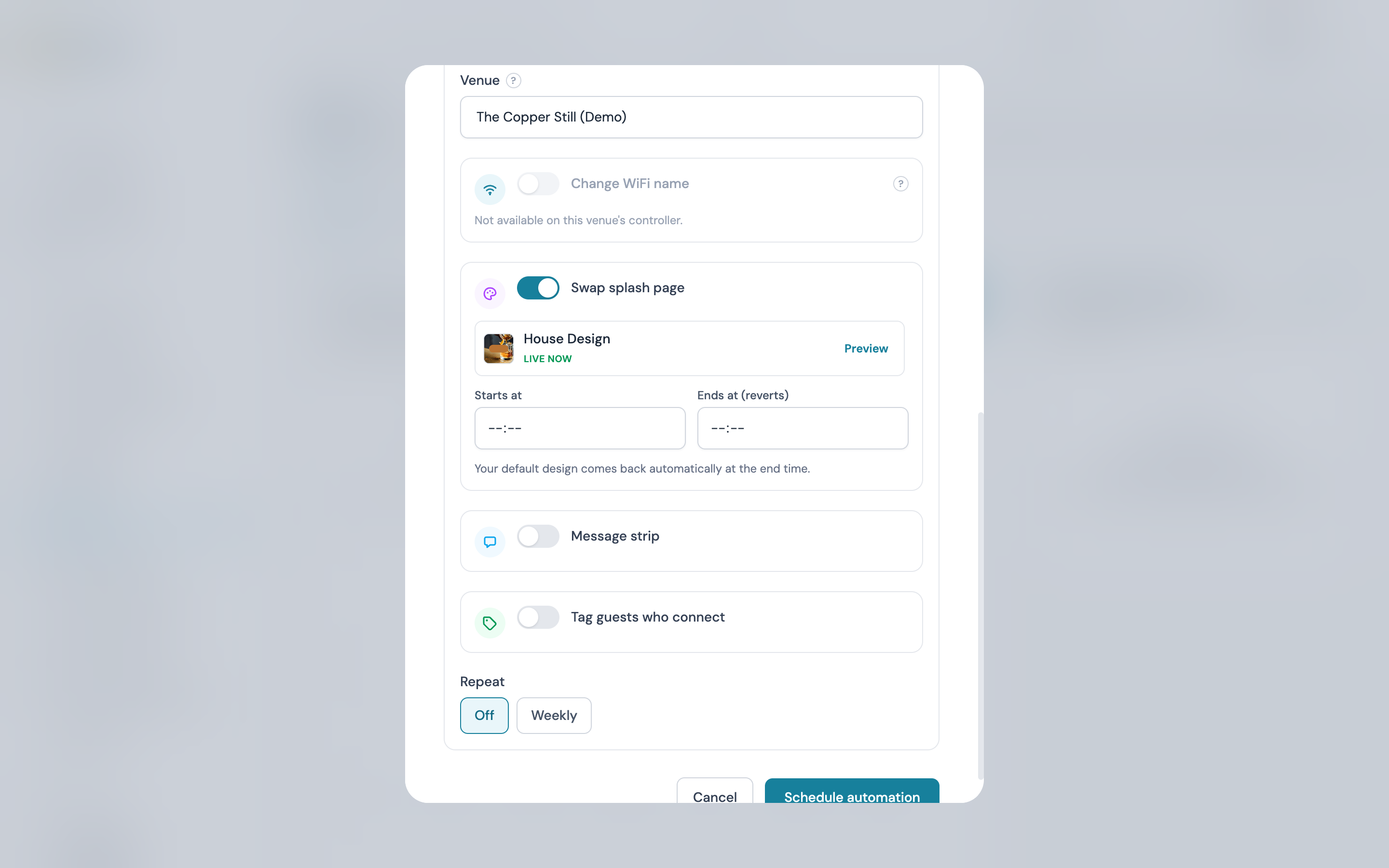
Pick the design, then set the window. At the end time your venue's default design is restored.
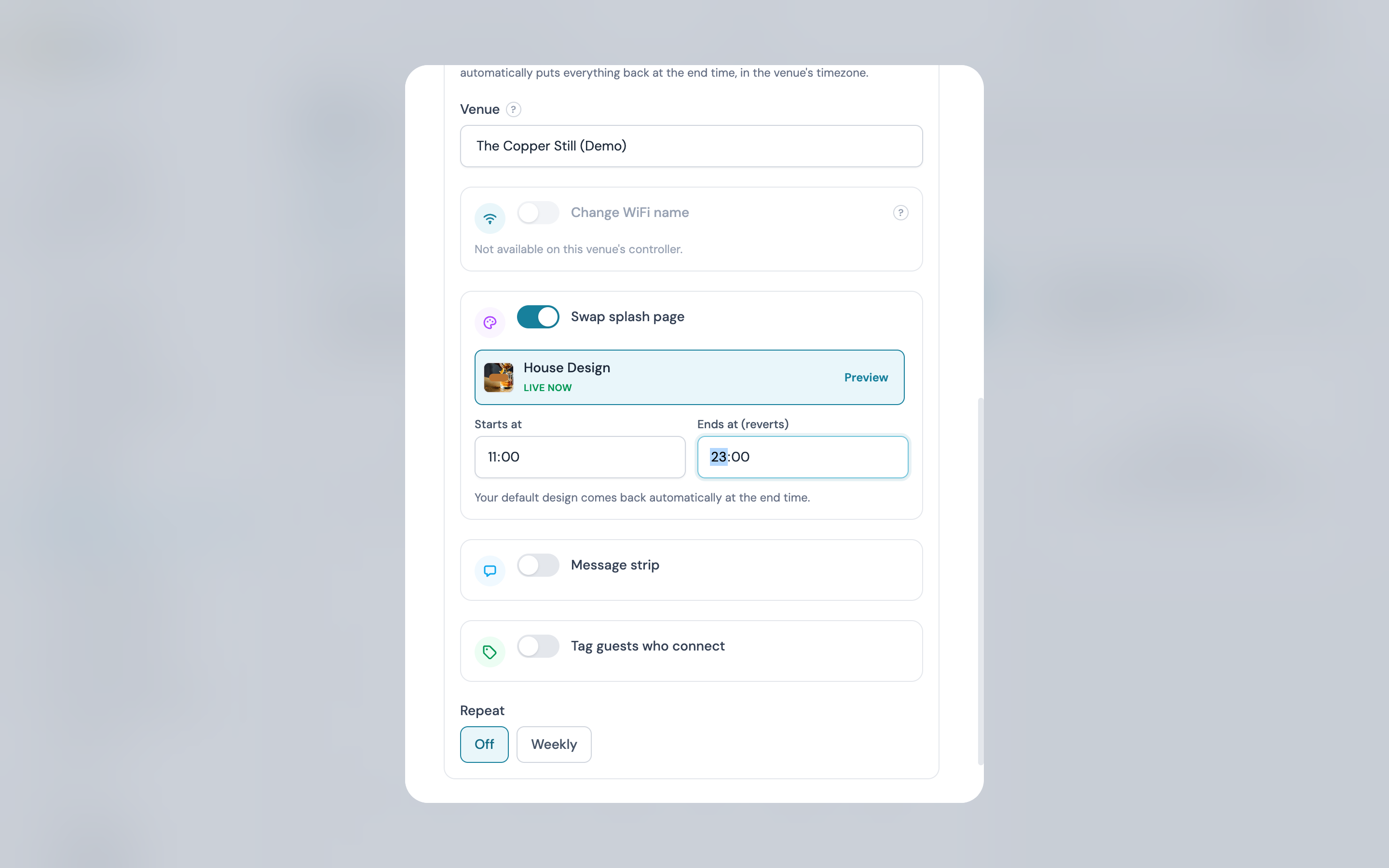
Tip: build the event design ahead of time by duplicating your default, or start from a seasonal template. A design used by a scheduled automation cannot be deleted until that automation is cancelled or finished.
Step 5: Message Strip
The lightweight option: a short banner on top of whatever splash design is already live, so there is no design work at all.
- Message, up to 200 characters
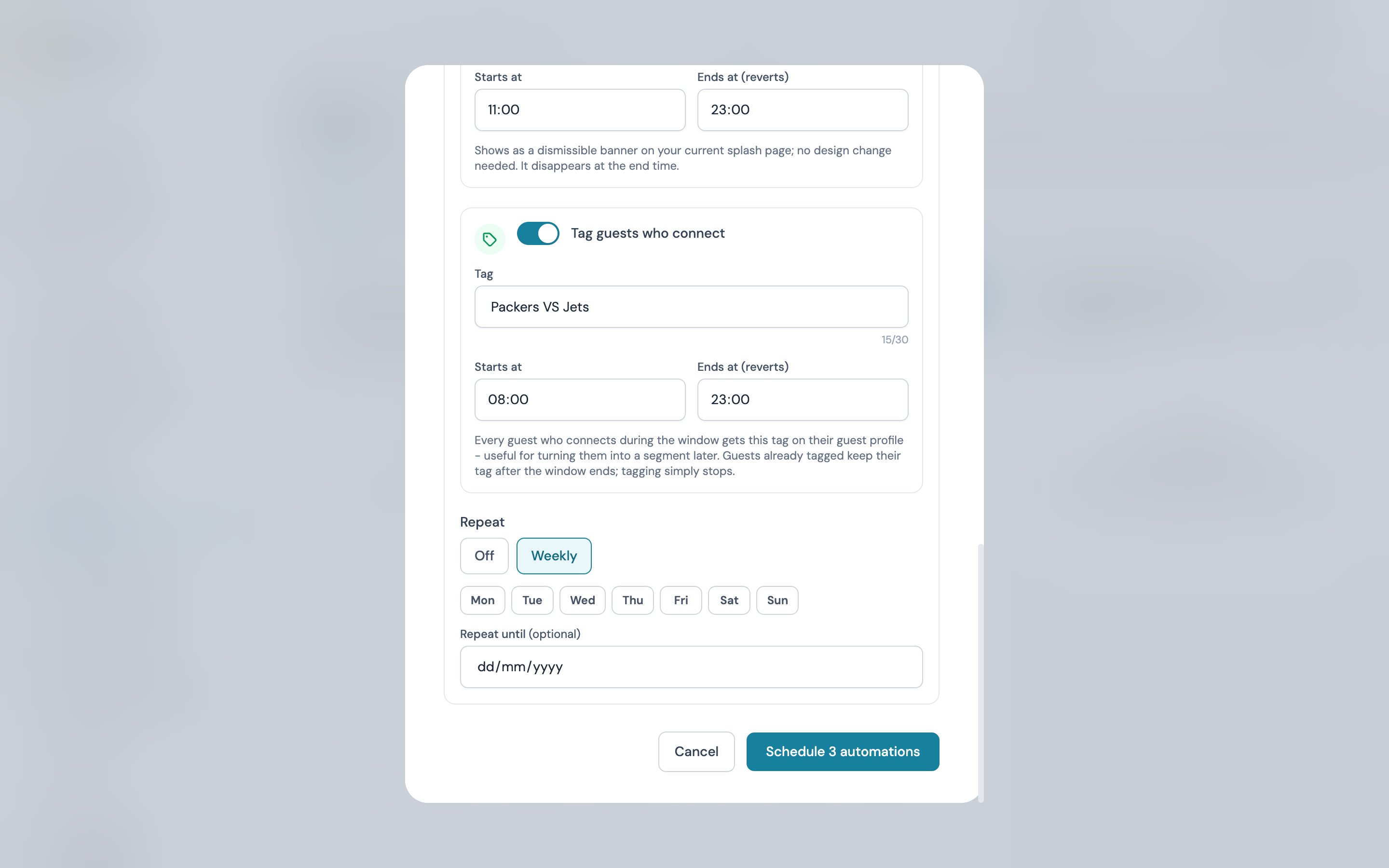
- Style, Banner (your brand colours), Success (green), Warning (amber) or Urgent (red)
- Starts at and Ends at (reverts)
Guests can dismiss the banner, and it disappears for everyone automatically at the end time.
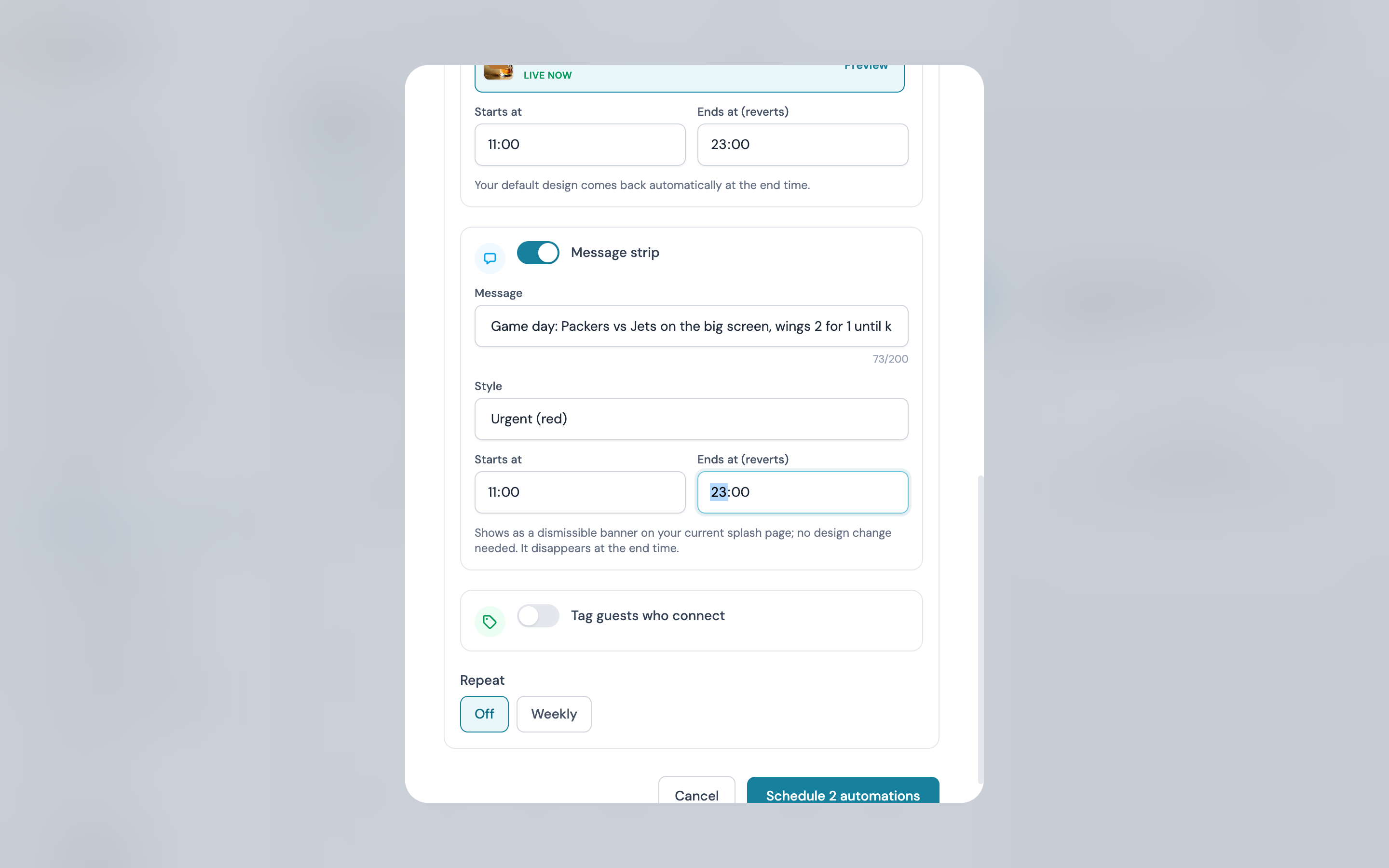
A strip is for short text with an end time. If you want a designed image that stays up until you change it, use a promotion on the splash page instead.
Step 6: Tag Guests Who Connect
This is the one that builds you a marketing list out of a single day.
- Tag, up to 30 characters, for example "Packers VS Jets"
- Starts at and Ends at (reverts)
Every guest who connects to your WiFi inside that window gets the tag added to their guest profile, whether it is their first ever visit or their fiftieth. It works on every venue and every sign-in route, because CaptiFi logs the guests itself.
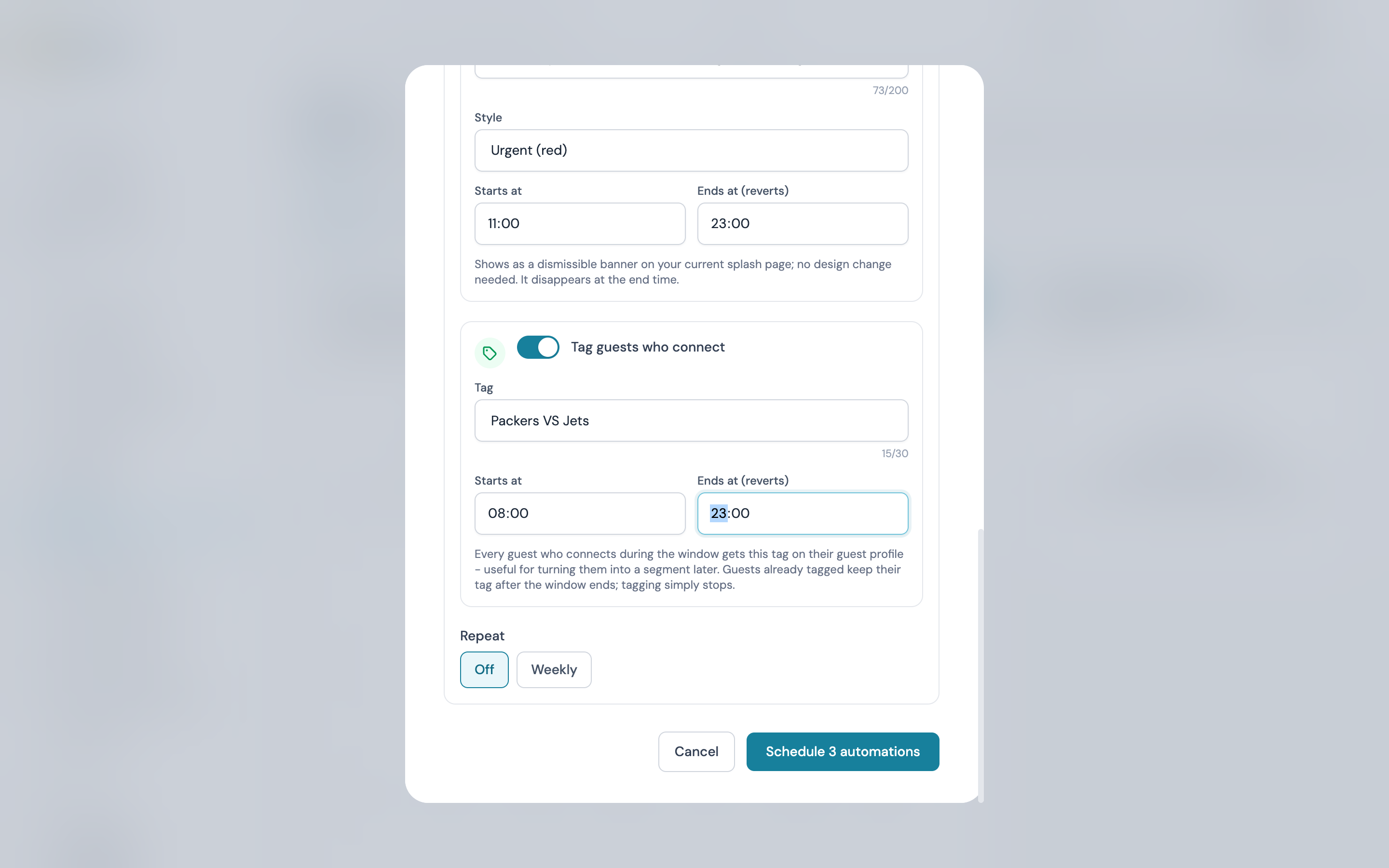
Tags are never taken away
When the window ends, tagging simply stops. Every guest who was tagged keeps the tag, which is the whole point: the list is still there next time the fixture comes round.
Step 7: Repeat Weekly (Optional)
Leave Repeat on Off for a one-off day. Switch it to Weekly to run the same automations every week:
- Pick the days of the week
- Optionally set Repeat until, an end date. Leave it empty to repeat indefinitely
"Quiz night splash, every Friday 17:00 to 23:00" then runs itself until you stop it. Each week appears in the Scheduled automations list as its own entry, so you can cancel a single week without touching the series, and times stay fixed to your venue's local clock across daylight saving changes.
Step 8: Save, and Check What Was Scheduled
Click the save button, which counts what you switched on, for example Schedule 4 automations. Nothing changes on your network until each start time arrives.
The event day now carries a small badge for each automation kind, plus your event chip, and the card beside the calendar lists everything with a live countdown.
Managing Scheduled Automations
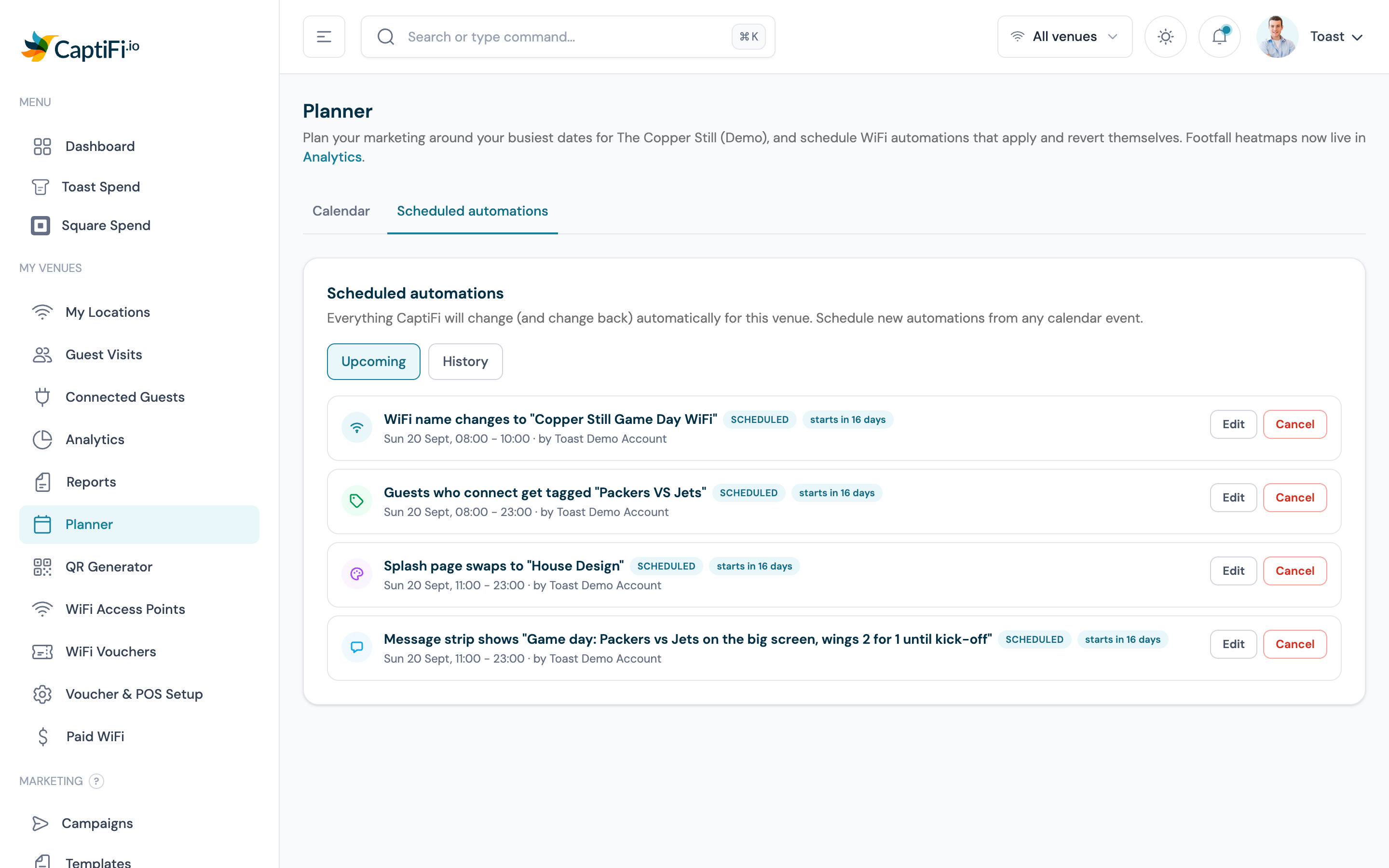
Open the Scheduled automations tab (or View all on the card) for the full per-venue list. Upcoming shows everything queued, with what it will do, its window, who scheduled it and a countdown.
Editing One
Click Edit on any automation that has not started yet to fix a typo or move the times, without rebuilding the event. The window and that automation's own field (the WiFi name, the design, the message and style, or the tag) are all editable.
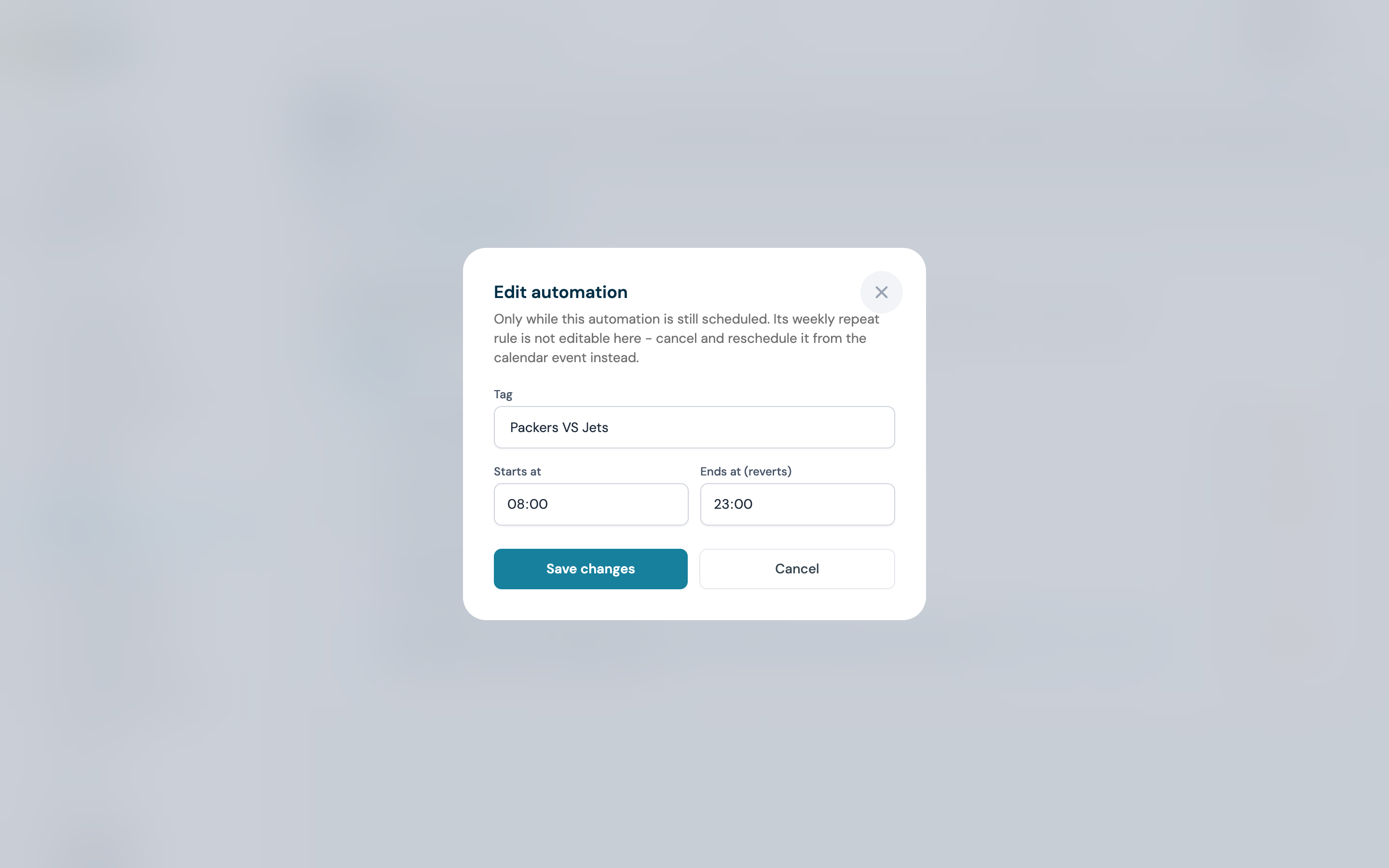
Once an automation is running or finished it can no longer be edited, so the Edit button disappears and you use Stop now or Cancel instead. The weekly repeat rule itself is not editable here: cancel the series and schedule it again from the calendar event.
Cancelling or Stopping One
Click Cancel and the button arms itself, so a stray click never cancels anything. Click Confirm cancel to go through with it.
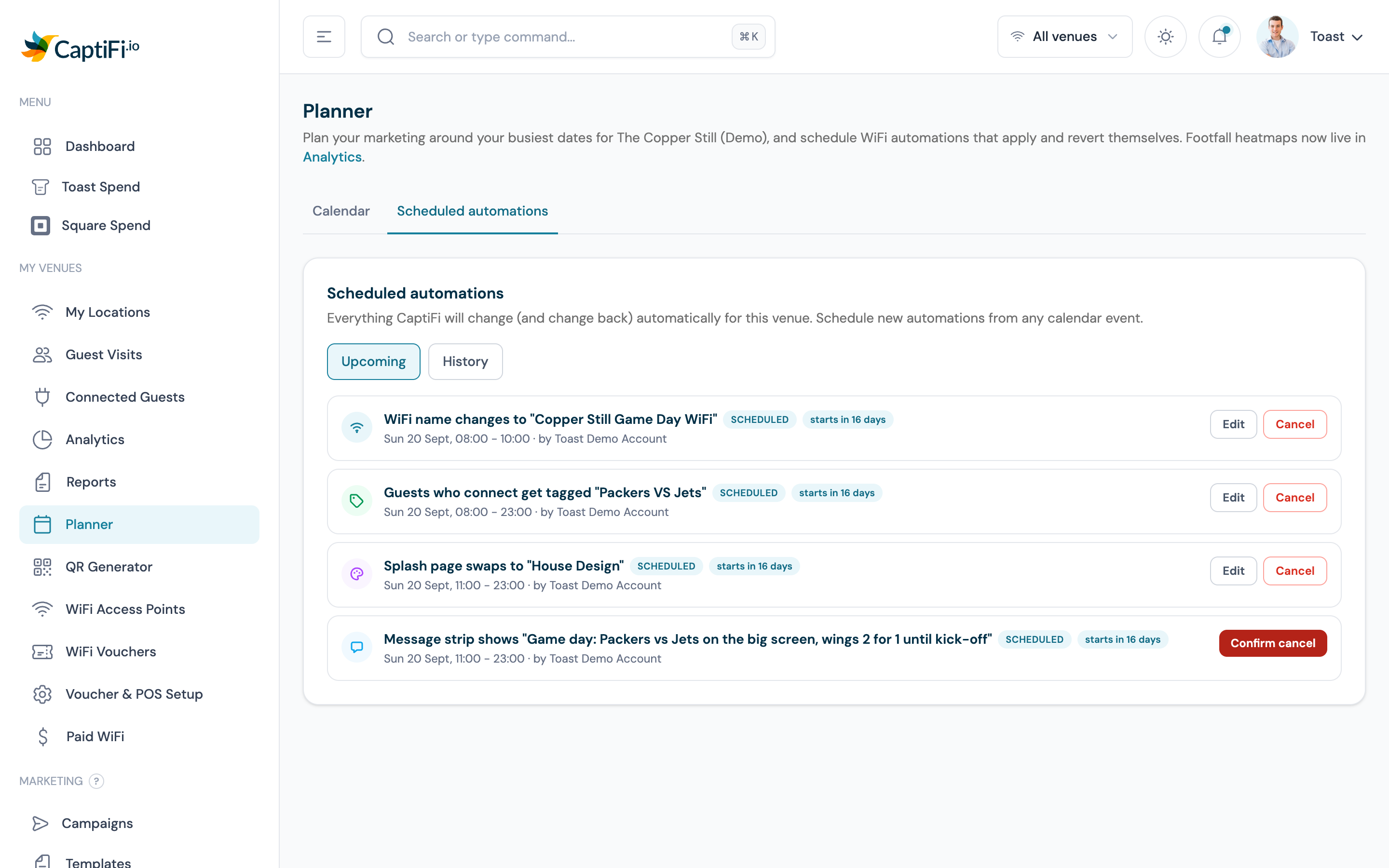
- Cancelling one that has not started simply removes it
- Stopping one that is running now reverts it immediately: your default splash design or original WiFi name comes straight back, and guests already tagged keep their tag
History and Statuses
The History tab shows what has already run, with its final status and any error details.
| Status | Meaning |
|---|---|
| Scheduled | Waiting for its start time |
| Active now | Applied and running; reverts at the end time |
| Done | Applied and reverted, all finished |
| Failed to apply / Failed to revert | Something went wrong; the error is shown and we email you straight away |
| Cancelled | Stopped by you, or its venue or event was removed |
| Skipped | Not applied because the account's subscription was not active at the time |
Automatic Revert
Every automation has a mandatory end time, and CaptiFi always puts things back:
| Automation | At the end time |
|---|---|
| Change WiFi name | Your original WiFi name is restored |
| Swap splash page | Your venue's default design goes live again |
| Message strip | The banner is removed |
| Tag guests who connect | Tagging stops; guests already tagged keep their tag |
Splash swaps always revert to the design marked as your venue's default (not simply "whatever was live before"), so make sure the right design is set as default.
Using the Guests a Tag Collected
A tag is only worth adding if you can act on it later. Here is the whole path.
1. The Tag Lands on the Guest Profile
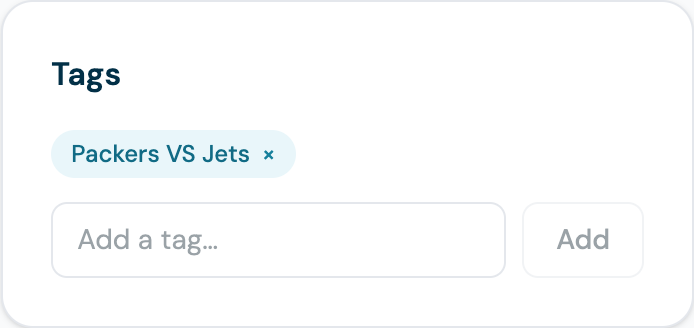
Open My Venues → Guest Visits and click any guest who connected during the window. Their tag is on the profile, alongside your own private owner notes. You can add or remove tags by hand here too, which is handy for regulars and problem guests.
2. Turn the Tag Into an Audience
Go to Marketing → Audiences → Segments and click New segment:
- Give the segment a name, for example "Packers VS Jets crowd"
- Choose the venue (or venues) it covers
- Add a condition: field Guest tag, operator contains, value the exact tag you used
- Save
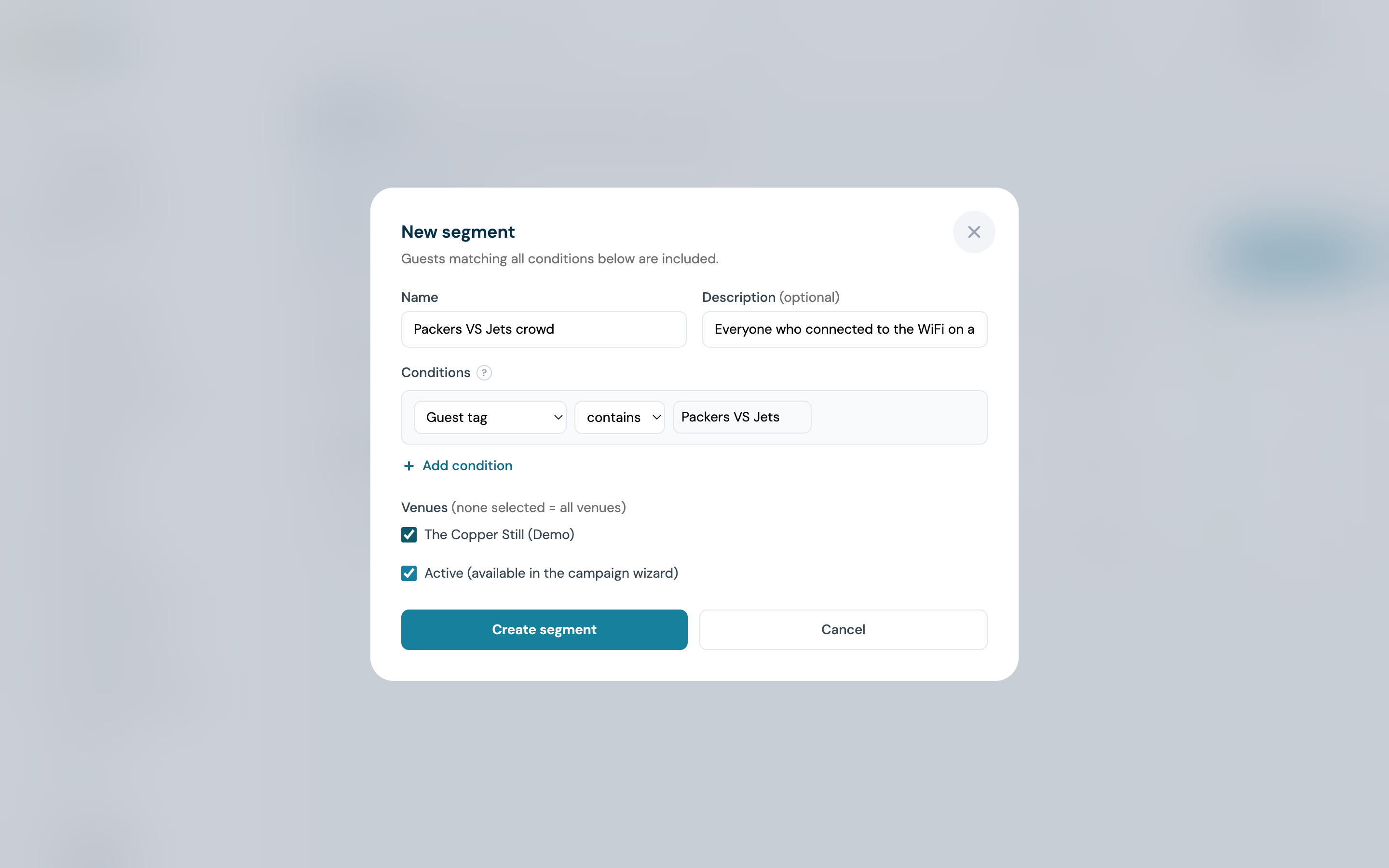
Guest tag matches the whole tag exactly, so a tag of "VIP" never picks up a guest tagged "MVP".
3. Target Them in a Campaign
The saved segment now shows its conditions and a live guest count, and it is selectable as the audience in the campaign wizard for both email and SMS.
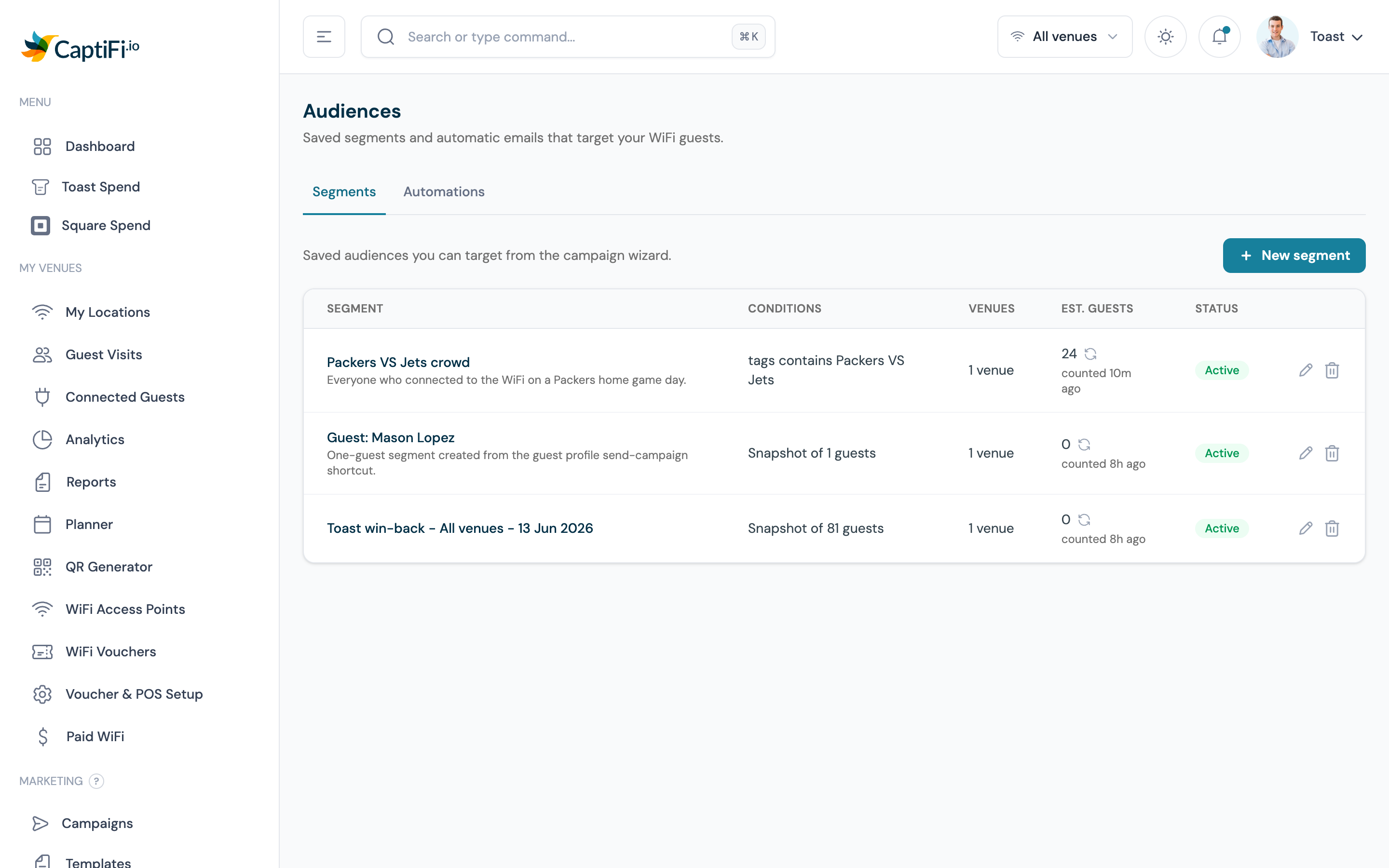
So the full loop for a venue next to a stadium is: schedule the tag on match day once, let the WiFi collect the crowd, then email that exact crowd before the next home game.
Which Automations Work on Your Hardware
Splash swaps, message strips and tagging work on every platform, because CaptiFi serves your splash page and logs your guests itself. WiFi name changes need remote-rename support from your WiFi controller:
| Your WiFi hardware | Splash swap | Message strip | Tag guests | WiFi name change |
|---|---|---|---|---|
| CaptiFi plug-and-play device | Yes | Yes | Yes | Yes |
| UniFi (all connection types) | Yes | Yes | Yes | Yes |
| TP-Link Omada | Yes | Yes | Yes | Not yet |
| Cisco Meraki | Yes | Yes | Yes | Not yet |
| Ruckus | Yes | Yes | Yes | Not yet |
| Aruba Instant On | Yes | Yes | Yes | Not supported |
| Fortinet FortiAP | Yes | Yes | Yes | Not supported |
Where WiFi name changes are not available the toggle is disabled, with a short explanation for your setup behind the question mark. We are extending support to more platforms over time; check What's New for updates.
Email Confirmations
- Morning-of confirmation: on days with scheduled automations, the account owner gets an email at 8am venue time listing what will run ("Tonight at 17:00 we will switch The Ship Inn to the Quiz Night splash")
- Failure alerts: if an automation fails to apply, or fails to revert at the end of its window, you get an immediate alert so nothing stays wrong silently
Both respect your alert preferences.
Overlaps and Conflicts
- Two WiFi name changes can never overlap on the same venue; the Planner blocks the save, because there would be no way to know which name to restore
- Overlapping splash swaps, message strips or tag guests windows on the same venue trigger a warning first; you can confirm and save anyway if the overlap is intentional (for example, tagging both "Game Day" and "VIP Booth" over the same afternoon)
Team Permissions
Creating, editing or cancelling automations requires the Manage splash pages permission (see Team Members). Automations belong to the venue, not to the person who created them: everyone with access to the venue sees them on the calendar and in the Scheduled automations list, with the creator's name on each row.
Troubleshooting
| Issue | Solution |
|---|---|
| The WiFi name toggle is greyed out | Your WiFi hardware does not support remote renaming yet; see the support table. Splash swaps, message strips and tagging still work |
| Guests still see the old splash mid-window | Splash changes apply to new connections; a guest already online keeps their session. Reconnect the test device to see the new design |
| No guests got tagged | Check the window covered your opening hours in the venue's local time, and that the automation shows Done rather than Skipped or Failed in History |
| My tag segment counts zero guests | The value must match the tag exactly, including capitals and spaces. Open a guest profile from that day to copy the tag as it was saved |
| An automation shows Failed | Open it in the history list to see the error. Common cause: your controller was unreachable at fire time. We retry automatically before marking it failed, and you receive an alert email |
| An automation shows Skipped | The account's subscription was not active when the start time arrived. Fix billing under Account → Billing, then schedule it again |
| I cannot save two automations at the same time | Same-type windows on one venue overlap; adjust the times, or confirm the warning for splash swaps, message strips or tagging. Overlapping WiFi name changes are always blocked |
| I cannot delete a splash design | It is referenced by a scheduled automation; cancel the automation first |
| The Edit button is missing on a row | Editing only applies before an automation starts. Use Stop now to revert a running one, or Remove to clear a finished one from History |
Related Pages
- Splash Page Builder: the design library, seasonal templates and promotions
- Guest Analytics: guest profiles, where tags added by the Planner (and by hand) show up
- Email & SMS Campaigns: build an audience from a tag and send to it
- Multi-Venue Management: managing several venues, WiFi names and site settings
- Team Members: permissions for who can schedule automations