

Appearance
Guest surveys
A guest survey adds questions to the review request your guests already get. After a guest picks a star in the review request email, CaptiFi can ask "How likely are you to recommend us to a friend?" (your Net Promoter Score question, answered 0 to 10) and up to five questions of your own, all on one page. Then the guest carries on exactly as before: a rating at or above your minimum goes on to your public review site, a lower one to the private feedback form.
Every answer lands on the Surveys tab of Reviews, per venue or for all your venues, and the two workflow steps let you act on them: alert the team when a guest scores you 6 or below, or send the survey while a guest is still at the venue.
Where to find it
On my.captifi.io, click Reviews in the sidebar's Marketing group and open the Surveys tab. It sits between Guest feedback and Inbox, on every plan that includes review requests (Essentials and above; not on Lite).
What guests see
- The review request email arrives. Under the stars it says how many questions follow, for example "After you pick a star, there are four more short questions."
- The guest picks a star. The rating is saved there and then, and you get the rating email.
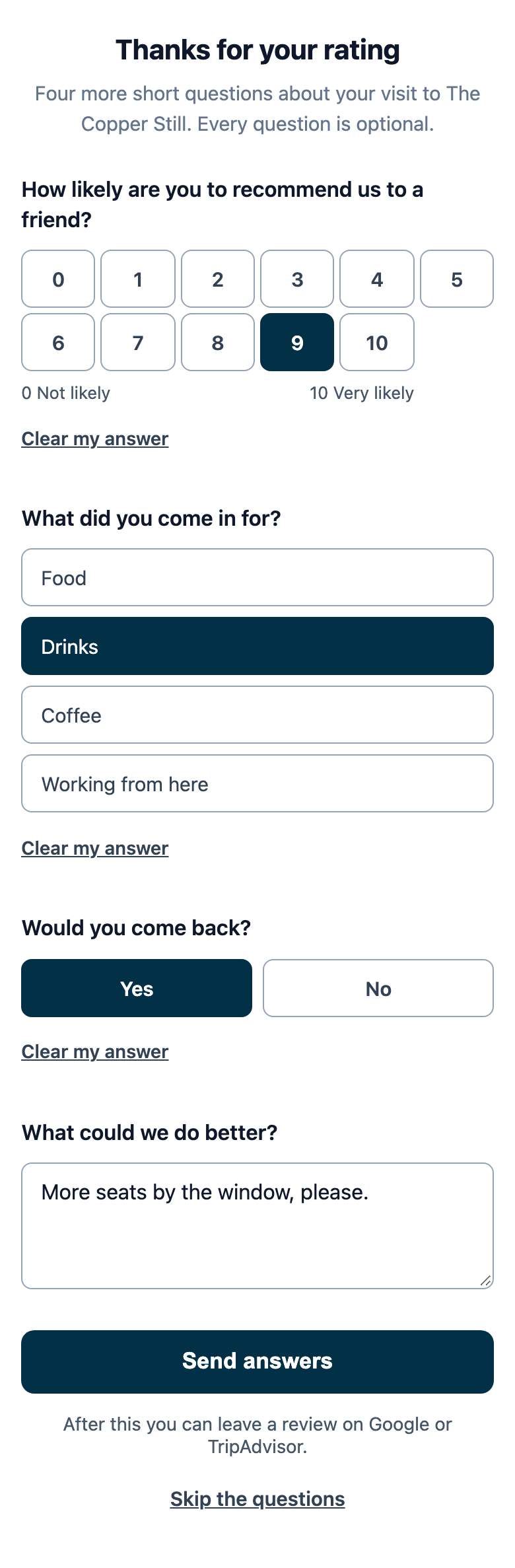
- The next page asks your questions. Every question is optional: Clear my answer takes back a choice, and Skip the questions at the bottom goes straight on.
- Send answers saves what they answered and takes them to the step their rating chose: your review site (or the page offering every platform you set up) for a rating at or above your Minimum stars for a public review, the private feedback form for a lower one. The page says which comes next.
A guest can answer once, within 30 days of the email. A guest who picks a star near the end of those 30 days still has two hours to send their answers.
While a venue asks nothing beyond the stars, there is no survey page and no line about questions in the email.
Setting up your questions
- Open Reviews, then the Surveys tab.
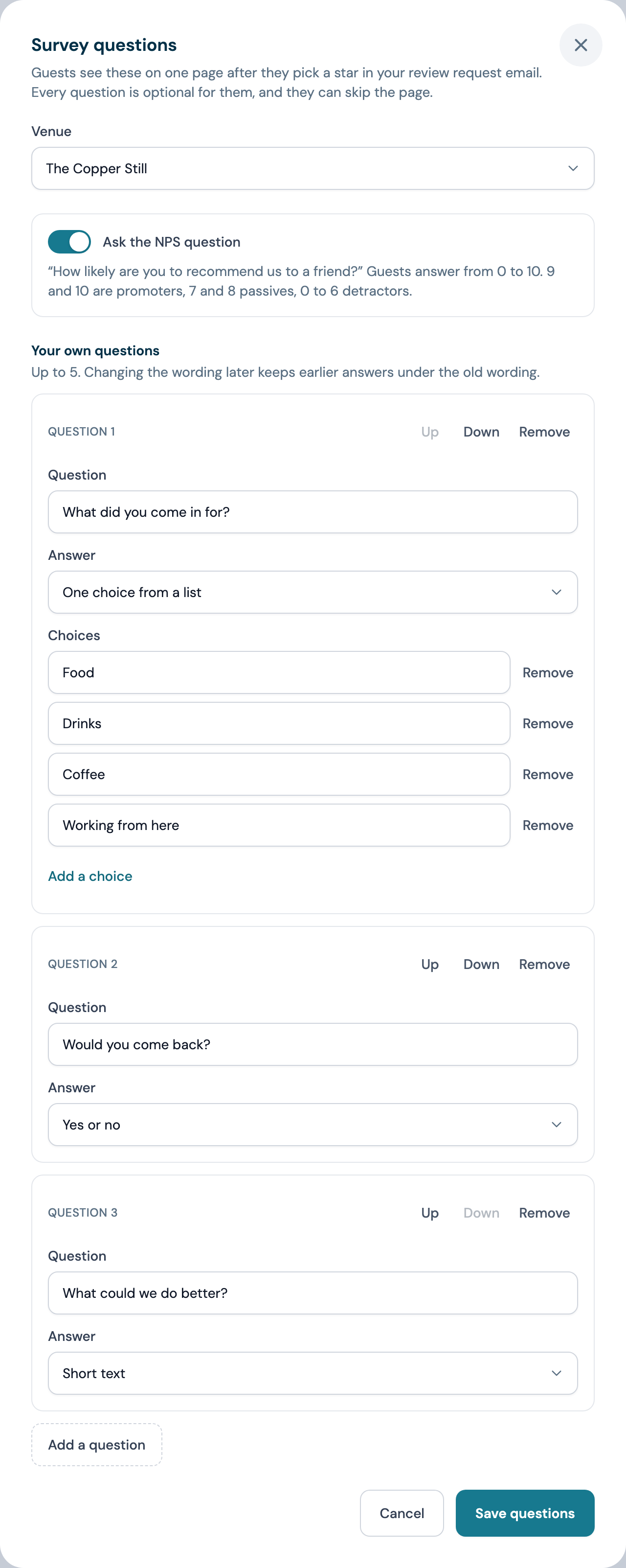
- Click Edit questions at the top right.
- If you have more than one venue, pick it under Venue. Each venue has its own questions. The venue picked at the top of the dashboard opens first.
- Switch on Ask the NPS question to ask "How likely are you to recommend us to a friend?".
- Click Add a question for each question of your own, up to five. Write the question and pick the kind of Answer:
- Short text: a box for a sentence or two, up to 1,000 characters
- One choice from a list: two to six choices you write, the guest picks one
- Yes or no
- Use Up and Down to change the order, and Remove to drop a question.
- Click Save questions.
Questions only reach guests while Review requests on is switched on for the venue; the editor says so when it is off. Two questions at one venue cannot have the same wording.
Changing a question's wording later keeps the earlier answers under the wording they were given to, and a question you remove keeps its answers too, marked No longer asked on the tab.
Results
The tab reads the venue picked at the top of the dashboard, or every venue together. The period menu at the top right picks the last 30 days, 90 days (the default), 12 months or all time, counted from the day each guest rated.
The figures
| Figure | What it counts |
|---|---|
| Responses | Guests who rated their visit in the period. The star rating is the survey's first question, so a guest who skipped your questions still counts |
| Average rating | Their average star rating, out of 5 |
| NPS | Your Net Promoter Score over the guests who answered the NPS question |
| Answered the questions | Guests who sent any answer on the survey page, and their share of the responses |
Net Promoter Score
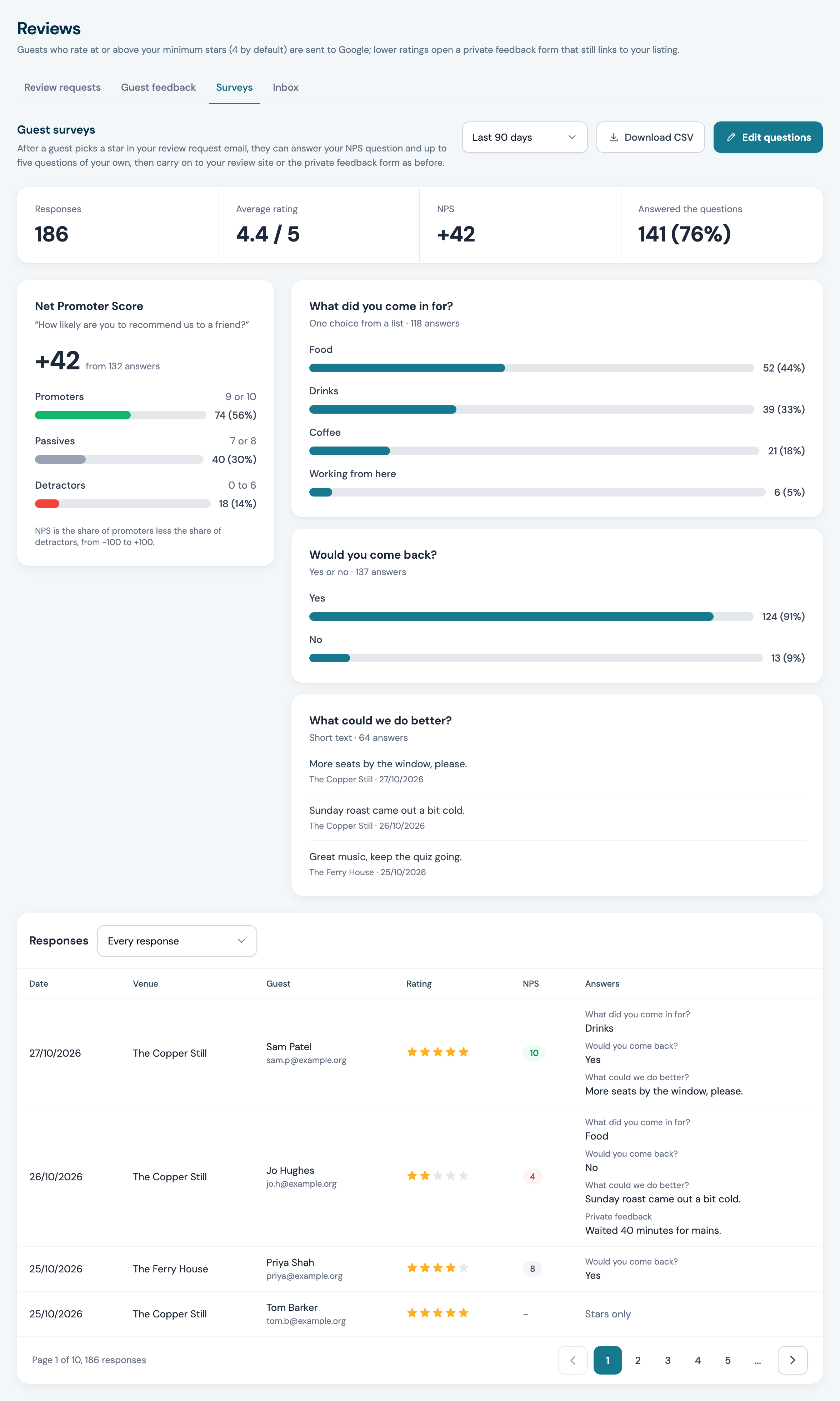
The Net Promoter Score card splits the answers into three groups:
- Promoters answered 9 or 10
- Passives answered 7 or 8
- Detractors answered 0 to 6
Your score is the promoters' share less the detractors' share, a whole number from -100 to +100. With 5 promoters, 3 passives and 2 detractors out of 10 answers, the score is 50% less 20%, so +30. A guest who left the NPS question blank is not counted in it.
Answers to your questions
Each question has a card. A choice or yes or no question shows a bar for every answer with its count and share, including choices nobody picked. A short text question shows its five latest answers with the venue and date.
Across several venues, a question worded the same way at each one is read as one question, so ten venues asking "Would you come back?" give you one card.
Responses
The Responses table lists every guest who rated in the period, newest first: date, venue, guest, stars, their NPS answer (green for a promoter, grey for a passive, red for a detractor) and every answer under its question, with the private feedback when they wrote any. The menu above it shows only promoters, passives or detractors.
Download CSV
Download CSV saves every response in the period for the venue or venues on screen: when they rated, the venue, the guest's name and email, the stars, the NPS answer and its group, the private feedback, then a column for each question.
Workflows
Two steps in the workflow builder use guest surveys. Both are in the palette on any plan that includes Workflows and review requests.
Survey answered
Survey answered is a trigger. It starts the workflow when a guest sends their answers on the survey page. Narrow it with any of these, all optional; a guest must meet every one you fill in:
| Setting | What it does |
|---|---|
| Rating of at most | The highest star rating that counts, 1 to 5 |
| NPS answer of at most | The highest NPS answer that counts. 6 catches the detractors |
| NPS answer of at least | The lowest NPS answer that counts. 9 catches the promoters |
With an NPS setting filled in, a guest who left the NPS question blank does not start the workflow. A guest who skips the whole page does not either; use Review rating submitted to react to every rating.
To have the team told about every unhappy guest, start a workflow from Survey answered with NPS answer of at most set to 6, add Notify the venue team, and publish. Each answered survey is its own moment, so the same guest can start it again when they answer a later request.
Send survey
Send survey is an action. It sends the guest your review request email, with its survey, at that point in the workflow instead of after Ask after. Put it after Guest is still here to ask while the guest is still at the venue, or after any other trigger.
It sends only what the review request would, to the guests the review request would reach. The step takes Skipped, with the reason on the run, when review requests are off at the venue, the venue has no review link, the guest has not agreed to marketing or has unsubscribed, the address is on your Suppressions list, or the guest was asked at that venue in the last 90 days. Otherwise it takes Sent and the email is queued to go out at once, after the same final checks every review request gets. It keeps to the workflow's send window.
The 90 days count every way a guest is asked, so a guest who gets the survey from a workflow is not asked again after their visit, and the other way round.
Who is asked
Guest surveys never widen who gets a review request. The same rules apply: an email address and marketing consent, no unsubscribe at any of your venues, nothing on the suppression lists, at most one ask every 90 days at each venue. See Who is asked.
Who can use it
| Who | |
|---|---|
| See the Surveys tab | Anyone on the account, on a plan that includes review requests |
| See who answered | The account owner and team members with View guest data. Anyone else sees the answers without the guest's name and email |
| Edit questions | The account owner and team members with Manage integrations, the permission that changes review request settings |
| Download CSV | The account owner and team members with Export data. The guest's name and email are only in the file for someone who also has View guest data |
Your guests' data
Survey answers are kept with the review request they belong to, for as long as it is kept. When you delete a guest with the GDPR actions, their answers go with them. When you anonymise a guest, their short text answers are deleted, because they are in the guest's own words, and their choices, yes or no answers and NPS answer stay, as their star rating does, so your figures do not change.
FAQ
Do guests have to answer? No. Every question is optional and Skip the questions goes straight on to the next step.
Does the survey change where a happy guest is sent? No. The star rating decides. The survey page comes first and then the guest goes on to your review site or the private feedback form.
Can each venue ask different questions? Yes. Each venue has its own questions. On the tab, a question worded the same way at several venues reads as one.
Can I ask the survey without the review email? Not yet. The survey travels with the review request, and Send survey sends that same email from a workflow.
What happens if I change a question? Earlier answers stay under the wording they were given to. The card for the old wording shows No longer asked.
Related features
- Reviews: review requests, guest feedback and the Review Inbox
- Workflow builder: every trigger and step
- Presence campaigns: Guest is still here, for a survey sent during the visit
- Team: the permissions above