
Appearance
Games: spin the wheel, scratch cards and prize draws
A game gives your WiFi guests the chance to win one of your Rewards offers. There are three kinds:
- Spin the wheel and scratch card games are instant wins: the guest plays and sees straight away whether they won
- A prize draw collects entries over a set period, and the winners are picked at random on a draw date you choose
Guests play on the screen they see after connecting to your WiFi, or from a public link you share on social media, a table QR code or in an email. A prize is sent to the guest by email or text as a reward, the same way Rewards sends every reward, and staff redeem it at the till. The prize code never appears on the game screen, so a screenshot cannot be passed round to empty your prize stock.
Before a game can launch, CaptiFi checks it against the prize promotion rules for each venue's country, nation or state, and writes the terms and conditions from the game's own details.
Plans
Games are included on the Growth, Pro and Multi-Location plans, the same plans as Rewards. See Plans & Pricing. Games appears under Rewards in your sidebar once games are switched on for your account.
Before you start
Every prize is a Rewards offer, so Rewards comes first:
- Rewards is switched on under Integrations → Dashboard features and your programme is live on Rewards → Setup. See Switching Rewards on. A game cannot launch while the programme is off, because prizes are paid as rewards
- The offers you want to give away exist under Rewards → Offers and are active. See Creating offers
- Each offer behind a prize can be used at every venue on the game and for the whole of the game's dates, and its Max issued limit leaves room for the quantity the game gives away
- No offer behind a prize has a shared code such as
SUMMER20. Anyone who knew the code could use up the prizes - Every prize on one game is priced in the same currency, the currency of the venues on the game
- Any offer that is a drink with alcohol in it has This reward is alcohol ticked on the offer form. The legal check uses it to decide where the prize is allowed and when players must be 18 or over
Games then appear as Games in the Rewards group of the sidebar on my.captifi.io. If the page says Games are not on your plan, the plan does not include them; if it says Games are not available right now, games are switched off for your account, and any games you made are kept until they come back.
The games list
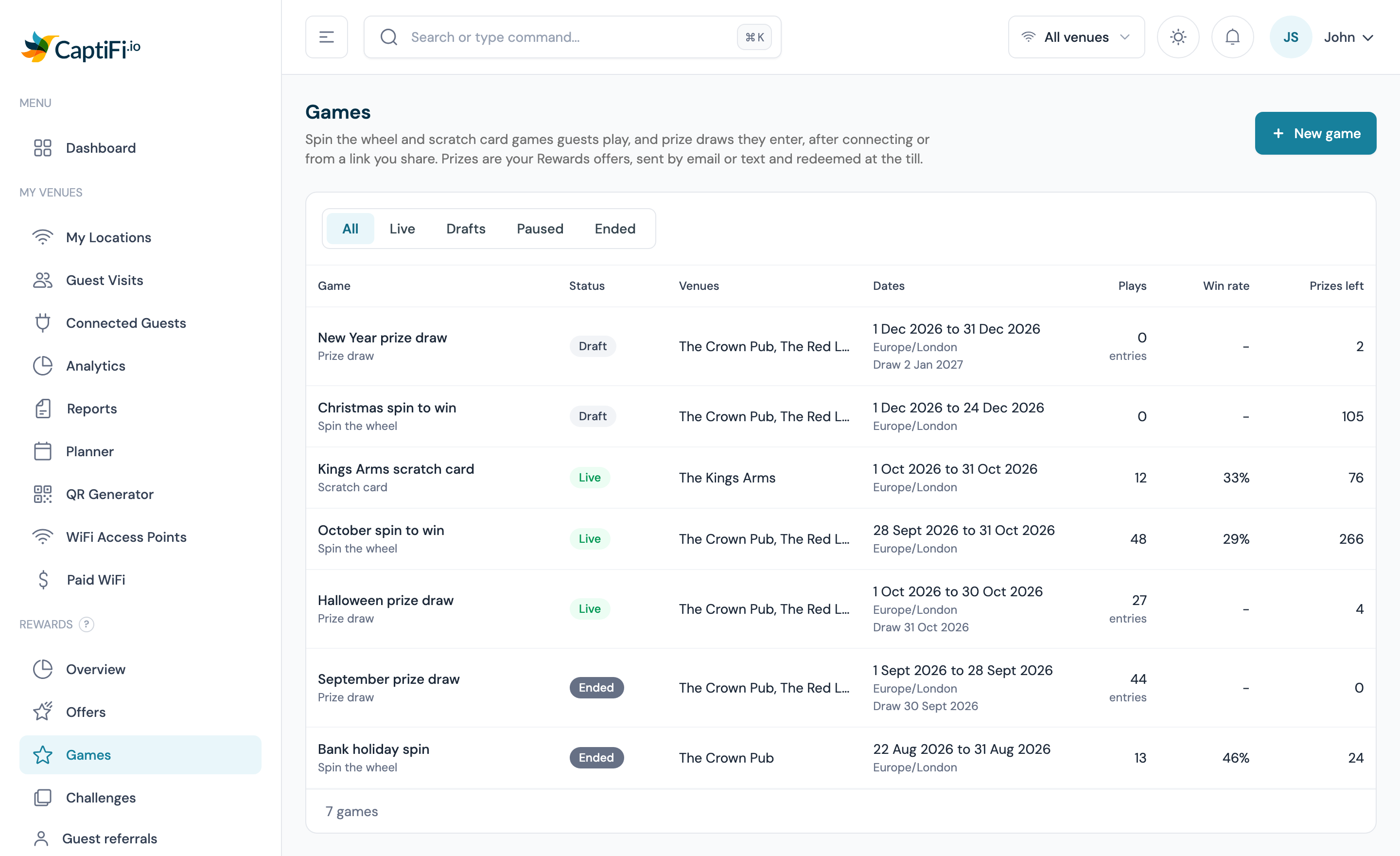
Open Rewards → Games. The list shows every game with its Status (Draft, Live, Paused or Ended), its Venues, its Dates on the game's clock, and its Plays, Win rate and Prizes left. The tabs along the top filter by status, and the venue chosen in the dashboard header filters the list to games at that venue.
The Games list, filtered by status with the tabs along the top.
Creating a game
Click New game. The set-up has five steps: Look, Prizes, Rules, Legal and Review and launch. Each step is saved to a draft when you click Save draft and continue (on the first step) or Save and continue, so you can leave and come back. Open a draft from the list and click Continue setting up to carry on.
Anyone with the Manage rewards and offers permission can draft a game. Only the account owner can add or change prizes and launch the game, because prizes are stock the business pays for.
Step 1: Look
- Under Game, choose Spin the wheel or Scratch card (or Prize draw, see Prize draws)
- Type a Name. It is for your team, and it also heads the game's terms page, so pick one guests can read
- Write the Headline guests see (up to 80 characters) and the words on the Button (up to 40). A new wheel starts with "Spin to win" and "Spin", a scratch card with "Scratch to win" and "Reveal"
- Set the Accent, Background and Text colours, each as six hex digits such as
#1f6feb - Click Save draft and continue
The Look step of a wheel, with both previews.
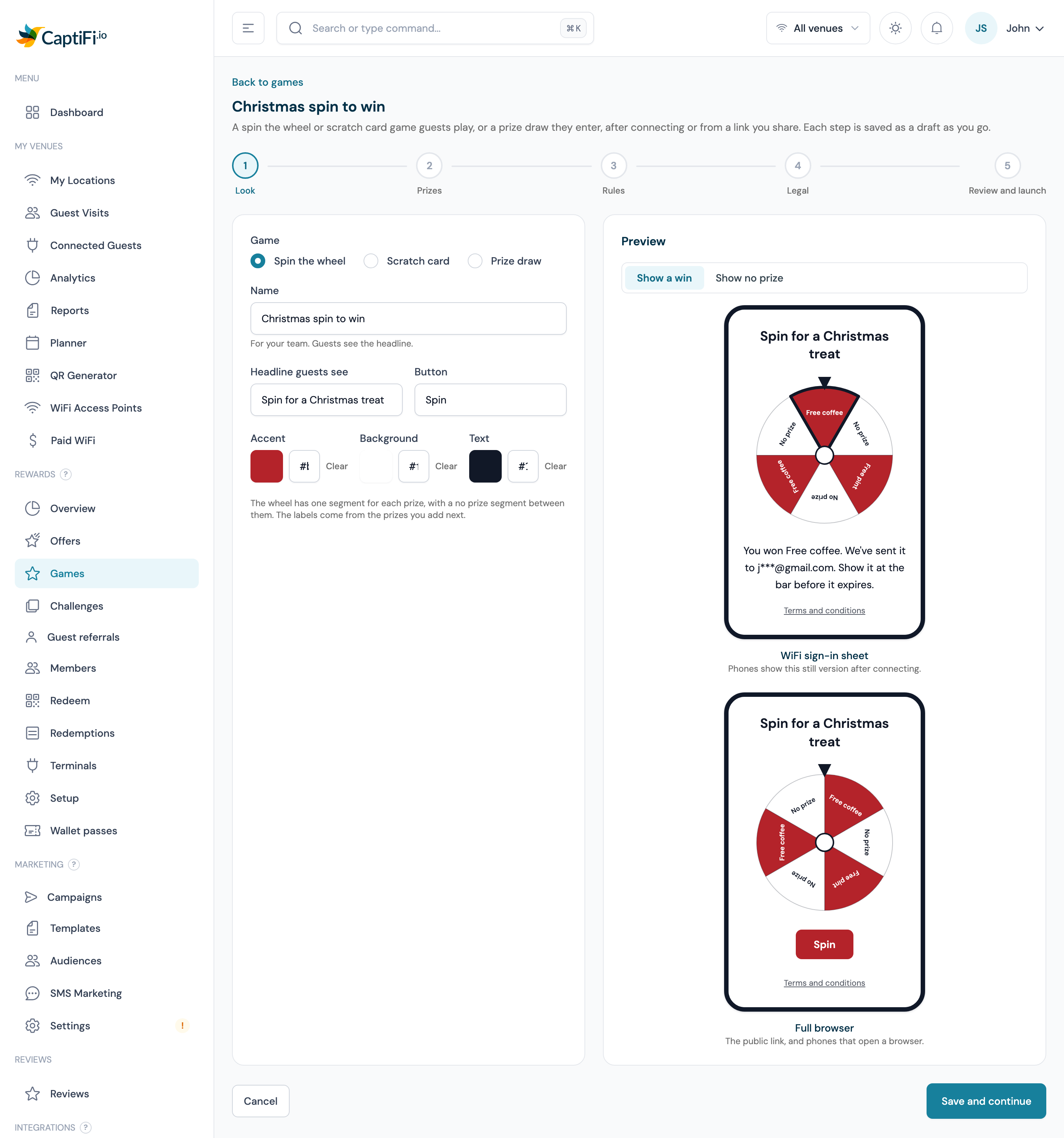
The Preview shows the game twice. WiFi sign-in sheet is the still version phones show in the small window that opens when they join the WiFi: the wheel is drawn stopped on the result and the scratch card opens on a tap, with no animation. Full browser is the public link, and phones that open a full browser: there the wheel spins to the result. Use Show a win and Show no prize to see both outcomes.
The wheel has one segment for each prize, with a no prize segment between them. The segment labels come from the prizes you add on the next step.
Step 2: Prizes
Each prize is one of your offers with a quantity and a share of plays. The account owner adds the prizes; a team member sees them read-only, can set the no prize share, and can set up every other step.
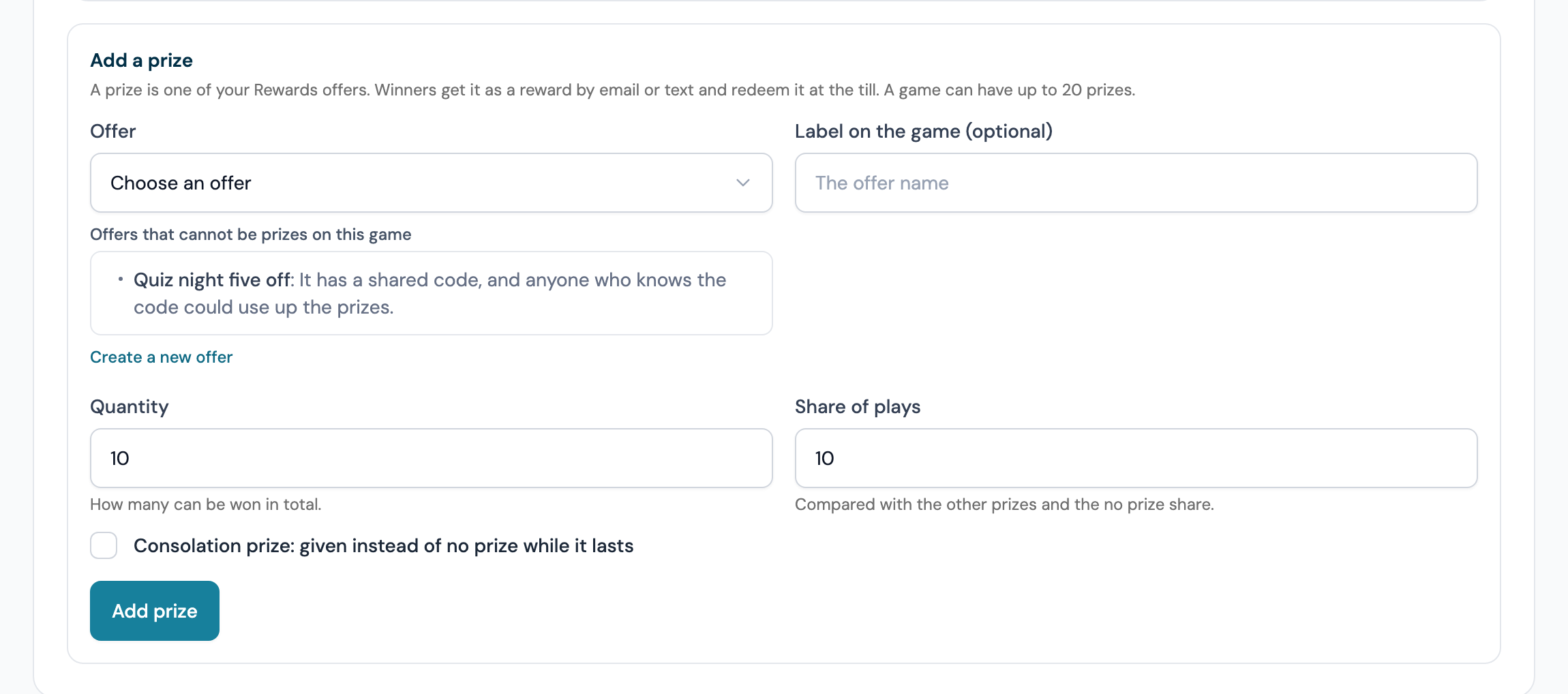
- Under Add a prize, choose the Offer guests win. Offers that cannot be a prize on this game are greyed out and listed under Offers that cannot be prizes on this game with the reason, for example a shared code or a venue the offer does not cover. Create a new offer opens the offer form without leaving the game
- Optionally type a Label on the game (up to 60 characters). It is the text on the wheel segment. Leave it blank to use the offer's name
- Set the Quantity: how many can be won in total
- Set the Share of plays: how often this prize comes up compared with the other prizes and the no prize share
- Click Add prize. Repeat for each prize
- In the No prize row, set the share of plays that win nothing. A new game starts at 70
- Click Save and continue
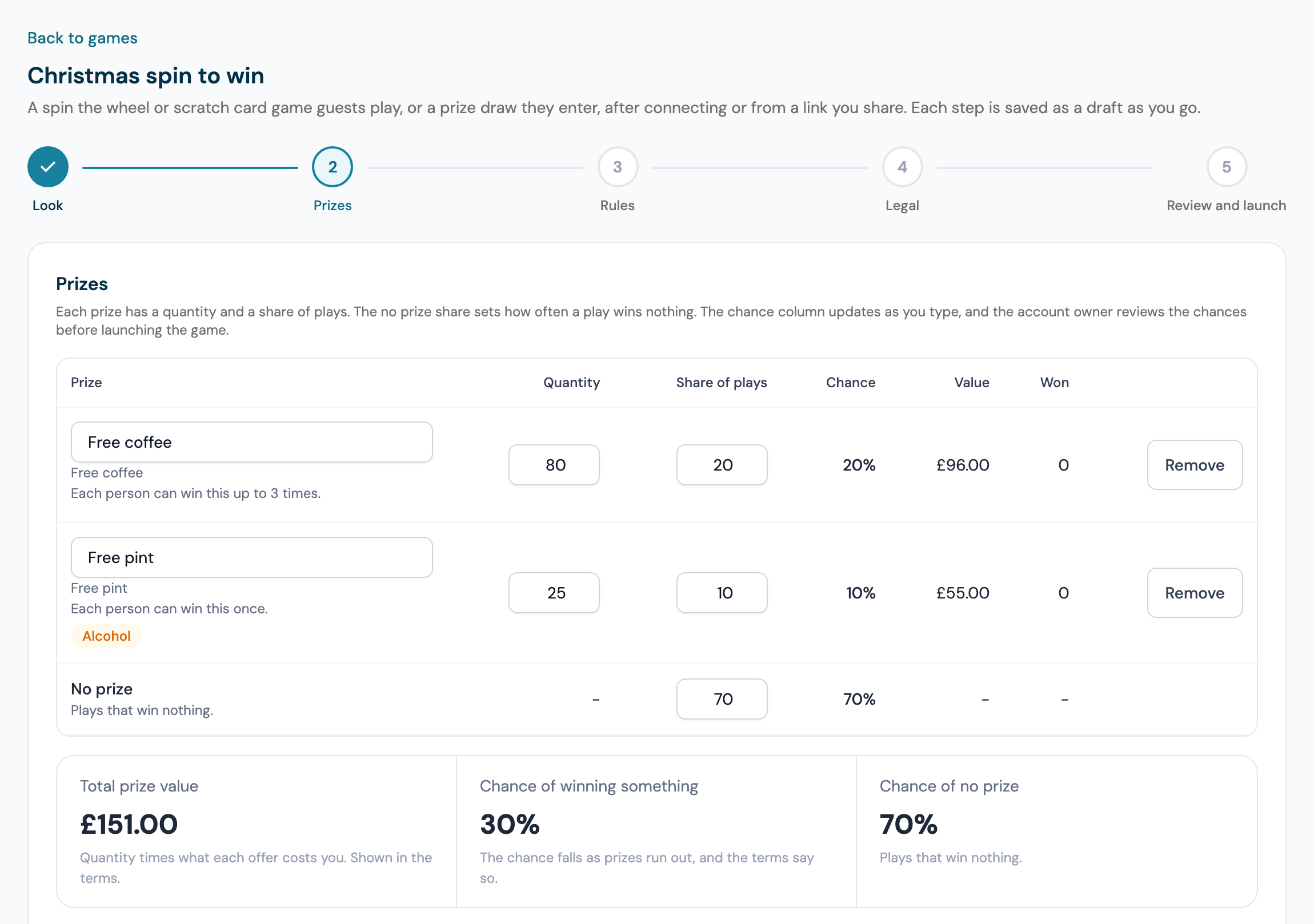
The Prizes step with two prizes and the no prize share.
The Add a prize panel. An offer with a shared code is listed under Offers that cannot be prizes on this game.
The Chance column updates as you type. A prize's chance is its share divided by the no prize share plus the shares of every prize that still has stock. With a no prize share of 70 and two prizes at 20 and 10, the chances are 20%, 10% and 70% for nothing. Once the second prize has all been won its share drops out, so the first prize becomes 22.22% and nothing 77.78%. The chance of winning therefore falls as prizes run out, and the terms say so.
Under the table:
| Figure | What it shows |
|---|---|
| Total prize value | The quantity of each prize times what the offer costs you (the offer's What it costs you per reward), added up. It is printed in the terms and checked against the registration limits on the Legal step |
| Chance of winning something | The chance a play wins any prize |
| Chance of no prize | The chance a play wins nothing |
Other things to know about prizes:
- Tick Consolation prize: given instead of no prize while it lasts when adding a prize to make it the consolation prize. It has no share of its own: a play that lands on no prize wins it instead while it has stock. A game can have one
- Each prize row shows the offer's own per member limit, for example "Each person can win this once." A rewards member who already holds the offer as many times as it allows cannot win it again: that prize is left out of their play
- A row marked Alcohol uses an offer with This reward is alcohol ticked; All won means its stock has gone
- To change a prize, edit its label, quantity or share in the row and click Save, or Undo. The quantity cannot go below the number already won
- Remove takes a prize off the game; the offer itself is kept under Rewards → Offers. A prize someone has won cannot be removed. Set its quantity to the number won instead
- A game can have up to 20 prizes, every one in the same currency
Step 3: Rules
- Under Venues, tick the venues where guests see the game after connecting. The public link counts plays and stock across all of them
- Under When it runs, set the day and time it Starts and Ends. A new game starts at 09:00 and ends at 23:59
- Under How often a guest can play, choose Once per guest, Once a day or Once a visit
- Under Where guests play, tick After connecting to the WiFi, Public link, or both
- Click Save and continue
The Rules step for a game at two of three venues.
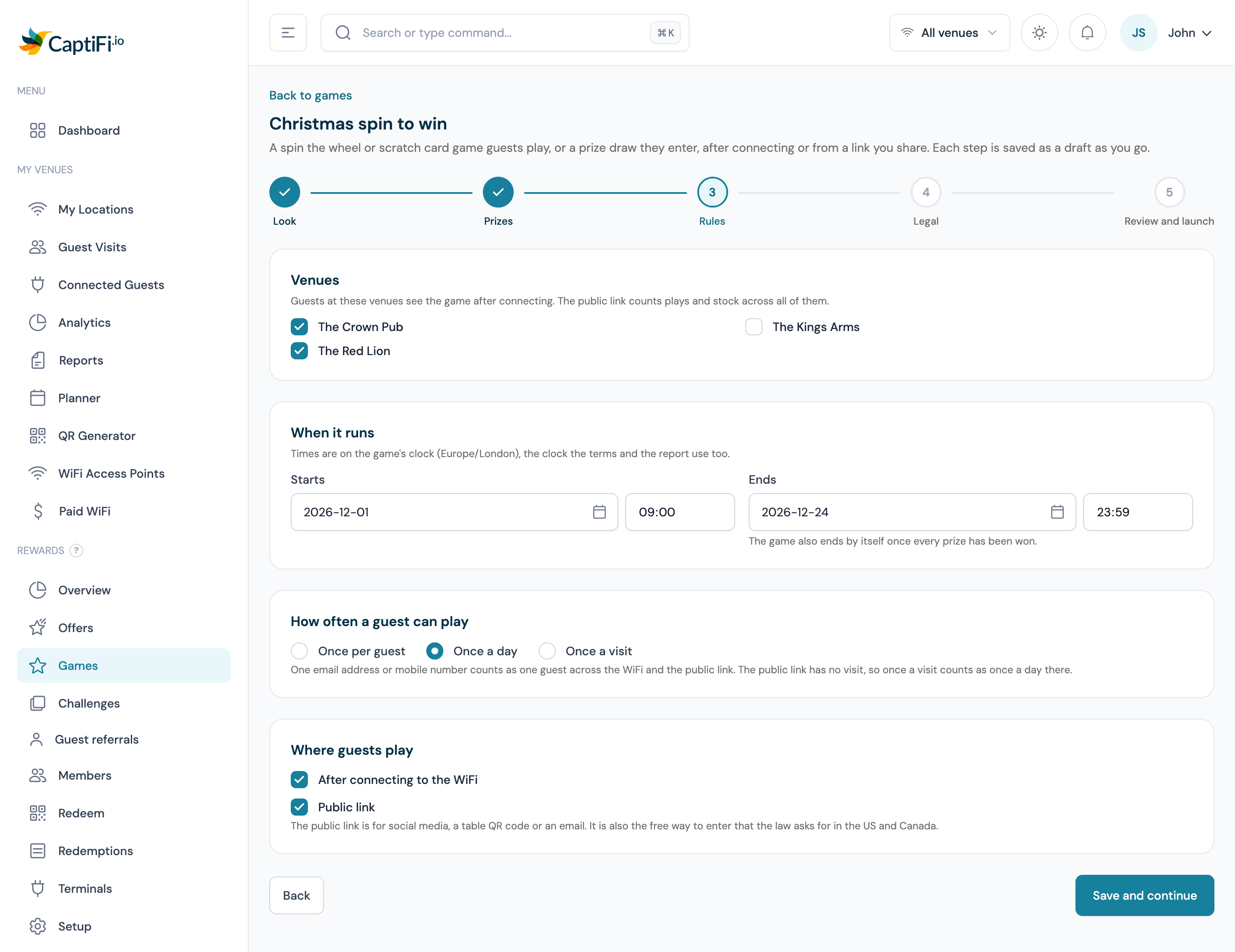
Times are on the game's clock: the time zone of the venue on the game that was added to CaptiFi first, named on the step. When the venues are in more than one time zone, the step shows what the start and end are in each of the others. The terms and the report use the same clock. The game also ends by itself once nothing is left that anyone could win.
One email address or mobile number counts as one guest across the WiFi and the public link, and on the WiFi one device counts as one guest. Once a visit means once per WiFi sign-in. The public link has no visit, so Once a visit works as Once a day there.
The public link is for social media, a table QR code or an email. It is also the free way to enter that the law asks for in the US and Canada, so a game at a venue there must have it switched on.
Step 4: Legal
The rules for prize games differ by country, nation and state, so this step records where each venue is and checks the game against that region's rules.
- Under Where each venue is, check the region for each venue on the game. Where CaptiFi can read it from the venue's address it is suggested ("Suggested from the venue address. Confirm it to use it."); click Confirm region. Otherwise choose it from the list and click Save region. The rules for the region are listed under it
- Under Promoter, check the Promoter name (filled in from your business name) and type the Promoter address. The promoter is the business running the game, and the terms name it and give its address
- Switch on Players must confirm they are 18 or over if you want the 18+ check. An alcohol prize switches it on wherever the rules require it, whatever is set here
- Add any Extra terms (optional) your terms need, up to 5,000 characters
- Read the Check and the Terms preview, then click Save and continue
The Legal step for a game with an alcohol prize at two venues in England.
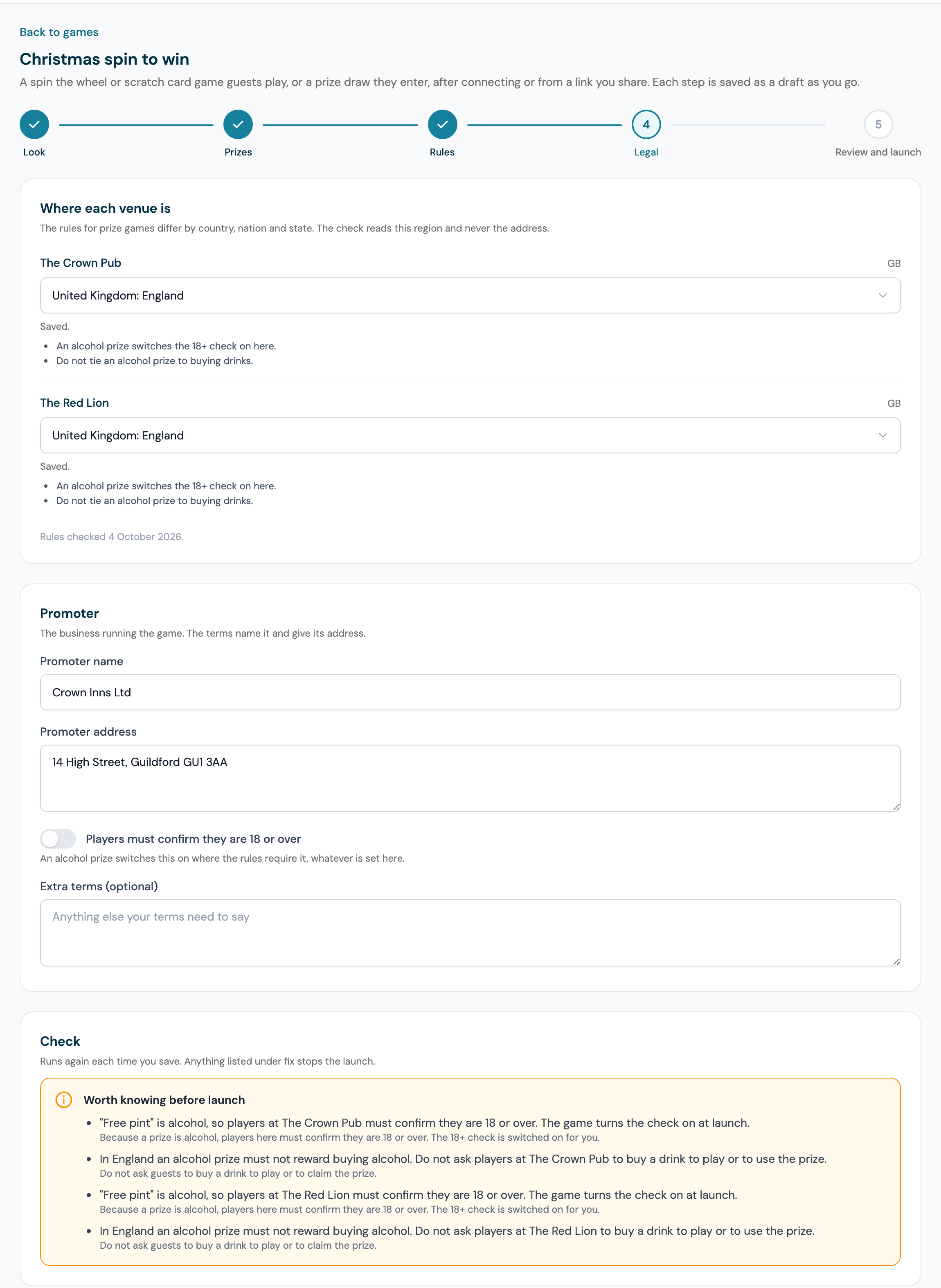
The check reads the region you save here and never the free-text address. The line under the regions, such as "Rules checked 4 October 2026", says when CaptiFi last reviewed the rules table.
What each region allows
| Region | Rules the check applies |
|---|---|
| England and Wales | Alcohol prizes allowed with the 18+ check. A warning reminds you not to ask guests to buy a drink to play or to use the prize |
| Scotland | No alcohol prizes |
| United States (every state and Washington DC) | The public link must be on. The terms add "No purchase necessary. Void where prohibited." No alcohol prizes in Pennsylvania, Utah or Massachusetts. Total prize value at or under $5,000 in New York and Florida, and $500 in Rhode Island, above which a promotion must be registered with the state |
| Canada (every province and territory except Quebec) | The public link must be on. Winners answer a short timed maths question before the prize is sent. The terms state the number and approximate value of the prizes |
| Australia | Total prize value at or under A$10,000 in New South Wales, A$5,000 in South Australia and the Northern Territory, and A$3,000 in the Australian Capital Territory. Scratch cards are not available in South Australia; use the wheel there |
| New Zealand | No alcohol prizes |
| Ireland | Total prize value at or under €5,000 |
| Northern Ireland, Quebec, and Austria, Belgium, Czechia, Denmark, Finland, France, Germany, Greece, Italy, Luxembourg, the Netherlands, Norway, Poland, Portugal, Spain, Sweden and Switzerland | Listed as (not available yet). Games cannot launch at a venue here until the rules have been checked |
Wherever an alcohol prize is allowed, a game with one asks every player to confirm they are 18 or over. A limit is compared with the total prize value in the limit's own currency; prizes priced in another currency cannot be checked against it, so the game is blocked.
The check
The Check runs again each time you save. What it finds is listed in two boxes:
- Fix this before the game can launch (or Fix these N things...) lists the blocks. Each line names the venue or prize and says what to do
- Worth knowing before launch lists warnings, such as the 18+ check being switched on for an alcohol prize or the Canadian question. They do not stop the launch
When nothing stops the launch the check says Nothing stops this game launching. The common blocks:
| Block | How to fix it |
|---|---|
| A venue has no region, or its region is not available yet | Save the region on this step, or take the venue off the game on the Rules step |
| An alcohol prize where alcohol cannot be a prize | Swap the prize for something else, or take that venue off the game |
| The total prize value is over the region's limit | Lower the quantities or the prize value |
| A US or Canadian venue without the public link | Tick Public link on the Rules step |
| An offer cannot be used at a venue on the game | Add the venue to the offer under Rewards → Offers, or take the venue off the game |
| An offer starts after the game starts or ends before it ends | Move the offer's dates or the game's |
| An offer can be issued fewer times than the game gives it away | Raise the offer's Max issued, or lower the prize quantity. Units another live or paused game holds on the same offer count as used |
| An offer has a shared code | Take the code off the offer, or use another offer |
| An offer behind a prize is not active | Activate it under Rewards → Offers, or remove the prize |
| Prizes in more than one currency, or in a different currency from a venue | Use offers priced in the venue currency |
| The rewards programme is not live | Switch it on under Rewards → Setup |
| No prizes, no venues, no dates, an end that has passed, or no promoter name and address | Fill in the step the line names |
Changing a venue's region later
The region is saved on the venue, so every game at that venue uses it. If a live or paused game at the venue could not run in the new region, the change is refused with The region was not saved and a list of the games it would break, each with the reason. End or change those games first.
Step 5: Review and launch
- Read the summary of the Look, Prizes, Rules and Legal steps. Each has a Change link back to its step
- Check that the Check at the bottom is clear
- The account owner clicks Launch game. It stays greyed out while anything blocks the launch
- In Launch this game?, click Launch game
Launching the game from the Review and launch step.
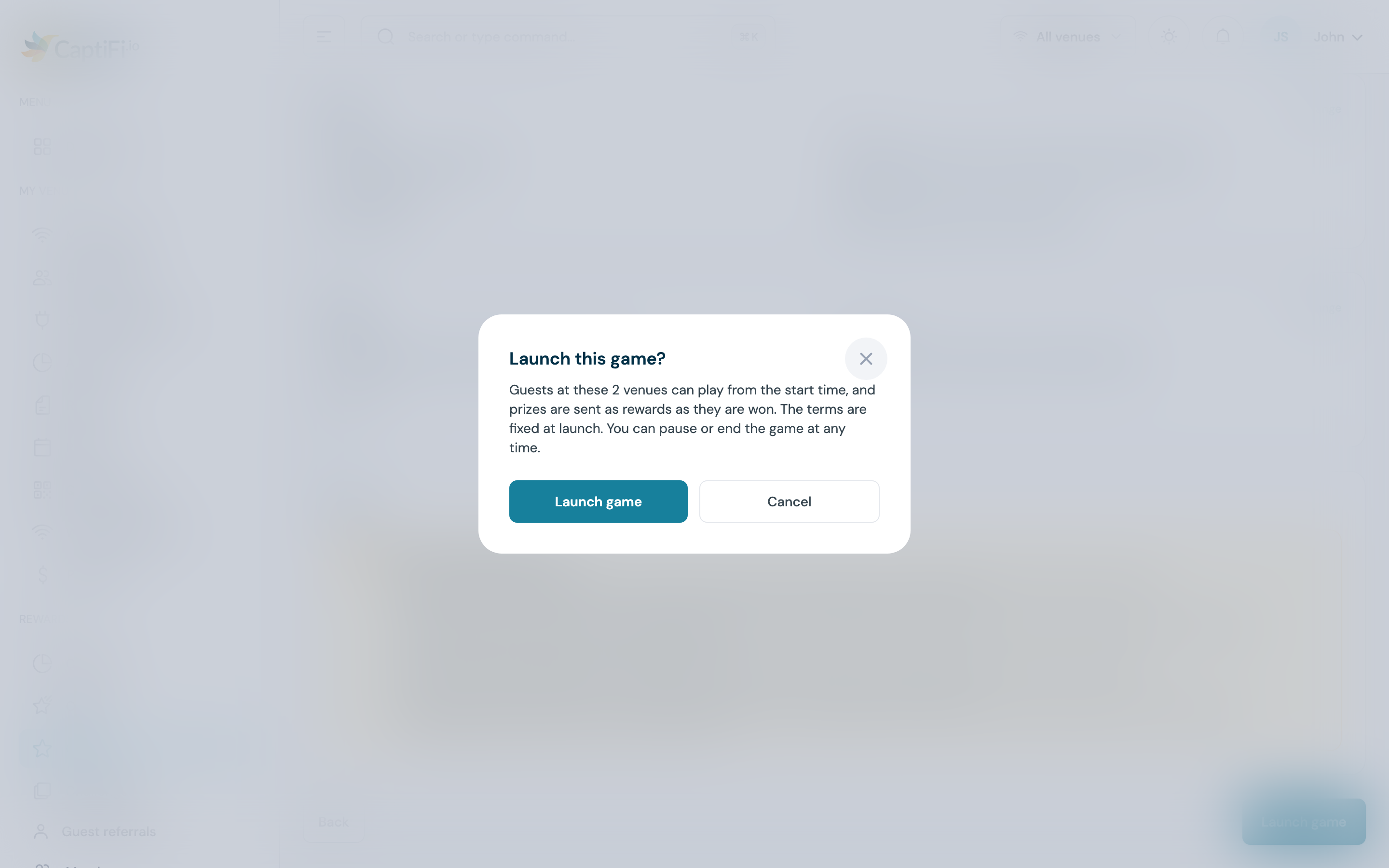
From the start time, guests at the game's venues can play, and prizes are sent as rewards as they are won. The terms are fixed at launch as version 1, and the public link is made. A team member who is not the account owner sees "Only the account owner can launch a game. The draft is saved, so they can open it and launch it."
What guests see
After connecting
When a game is live at the venue and inside its dates, the screen a guest sees once they are online carries the game's card in place of an After connecting promotion. The card shows the headline, the button, No thanks, take me online and a Terms and conditions link, plus an I am 18 or over tick box when the game needs the 18+ check. The screen waits for the guest to tap, as it does for a promotion. While the game card shows, the events card does not.
The game card on a phone's connected screen.
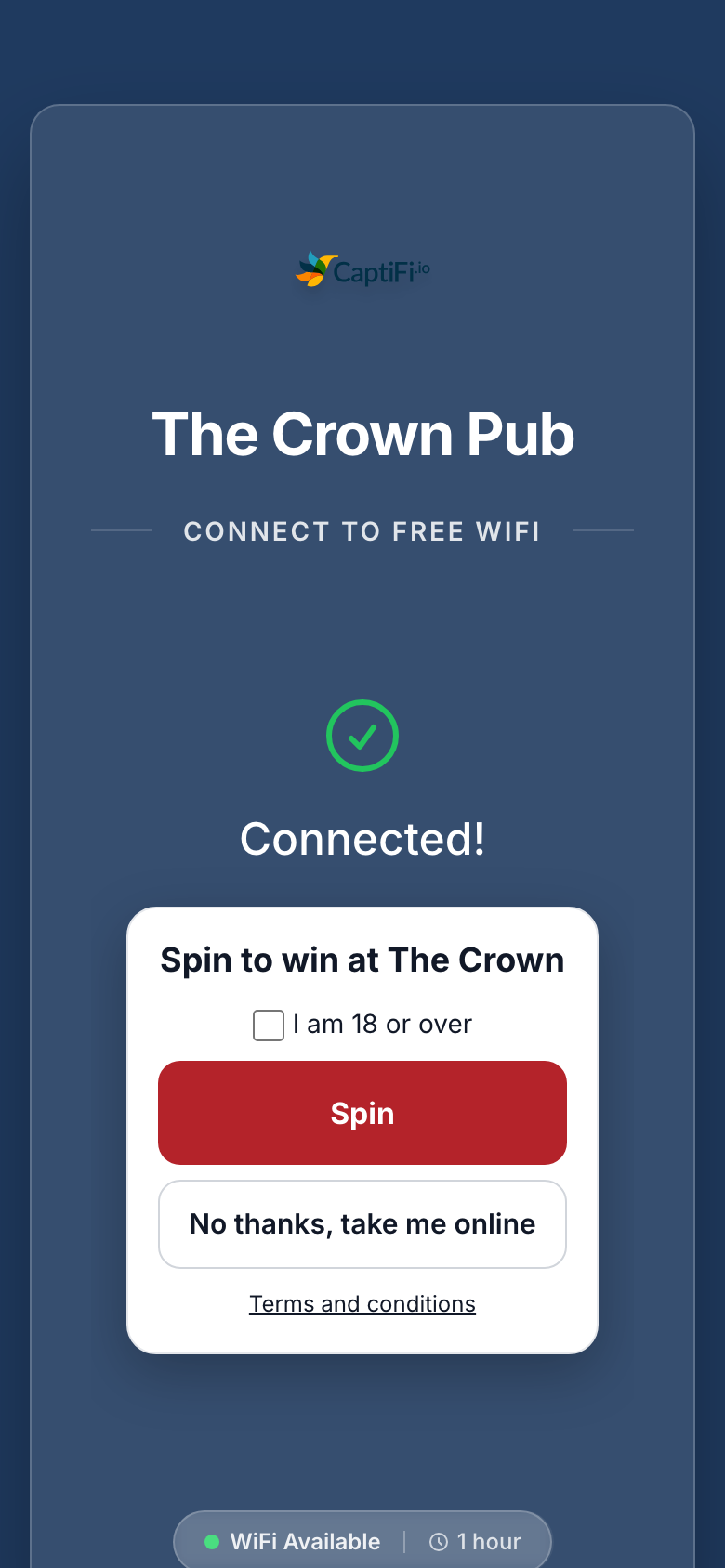
The card shows only when CaptiFi can send this guest a prize: they signed in with an email address that is not a throwaway one, or with a mobile number at a programme that sends rewards by text, or they are a member with an email on file. It does not show to a guest who has already played in the current period, or at venues on Cisco Meraki, where the controller needs the guest sent straight on. When more than one live game runs at a venue, the one launched most recently shows. A play link from the WiFi lasts 30 minutes. After that the guest sees "Game links from the WiFi last 30 minutes. Connect to the WiFi again to play."
On the public link
The public link has the form app.captifi.io/g/ followed by the game's own code, and is shown on the game's page under Public link with a Copy link button once the game has launched. It needs no WiFi connection and no visit.
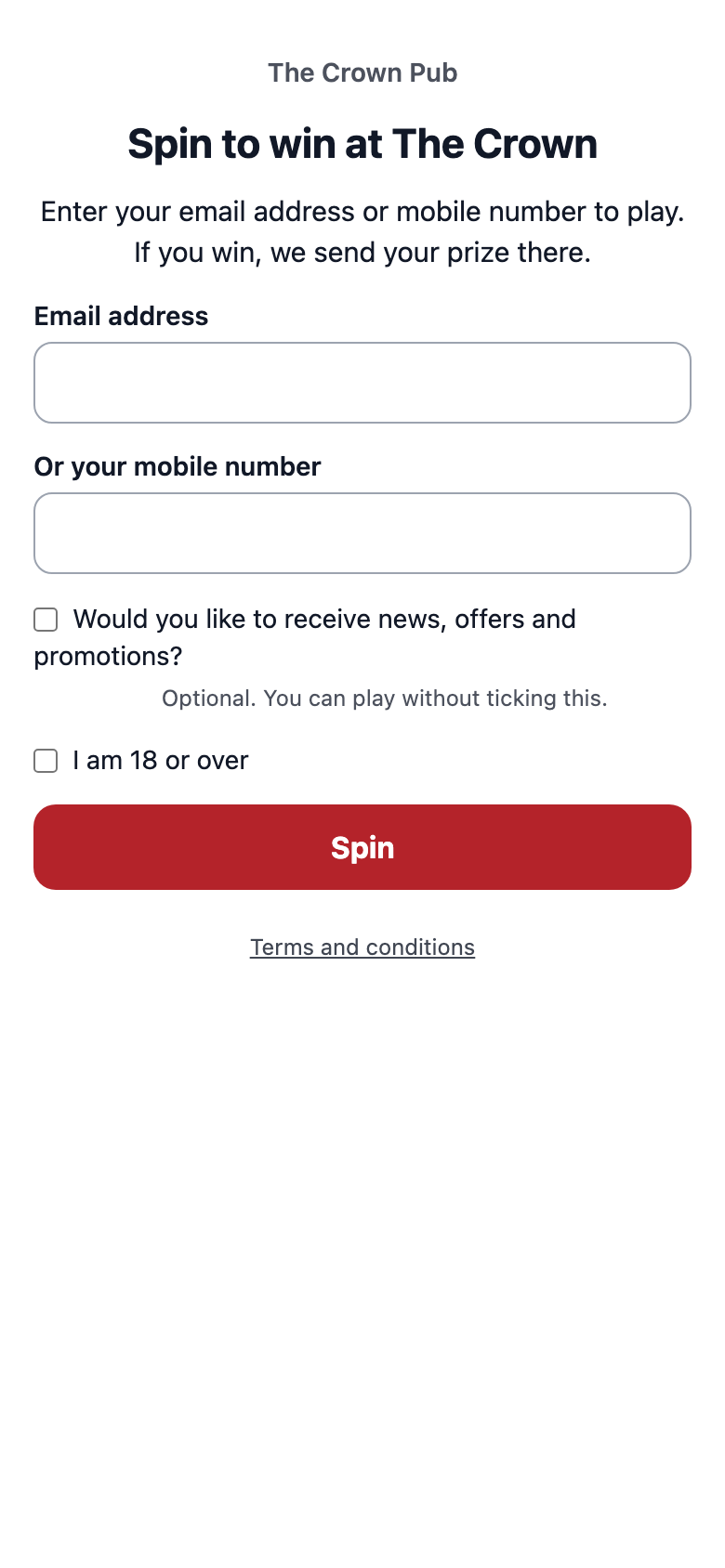
- The guest types their Email address, or Or your mobile number when your programme sends rewards by text
- If the venue asks for marketing consent on its splash page, the same question appears as an unticked box, with "Optional. You can play without ticking this." under it
- If the game needs it, they tick I am 18 or over
- They tap the button
The public game page on a phone.
Before the start the page says "This game has not started yet. It opens on [date]." While the game is paused it says "This game is not running at the moment.", and after the end "This game has ended. Thanks to everyone who played." Too many tries in a short time show "Too many tries, please wait a few minutes and try again."
The email tag {{game_link}}, or {game_link} in a text, puts a link to the public page in a campaign or automation with the guest already filled in, so the page says "Playing as [masked address]" and they only tap the button. Each link is valid for 30 days and points to the most recently launched live game with the public link at the guest's venue; it is empty when there is none.
The result
The server decides the result the moment the guest plays, and the page shows it:
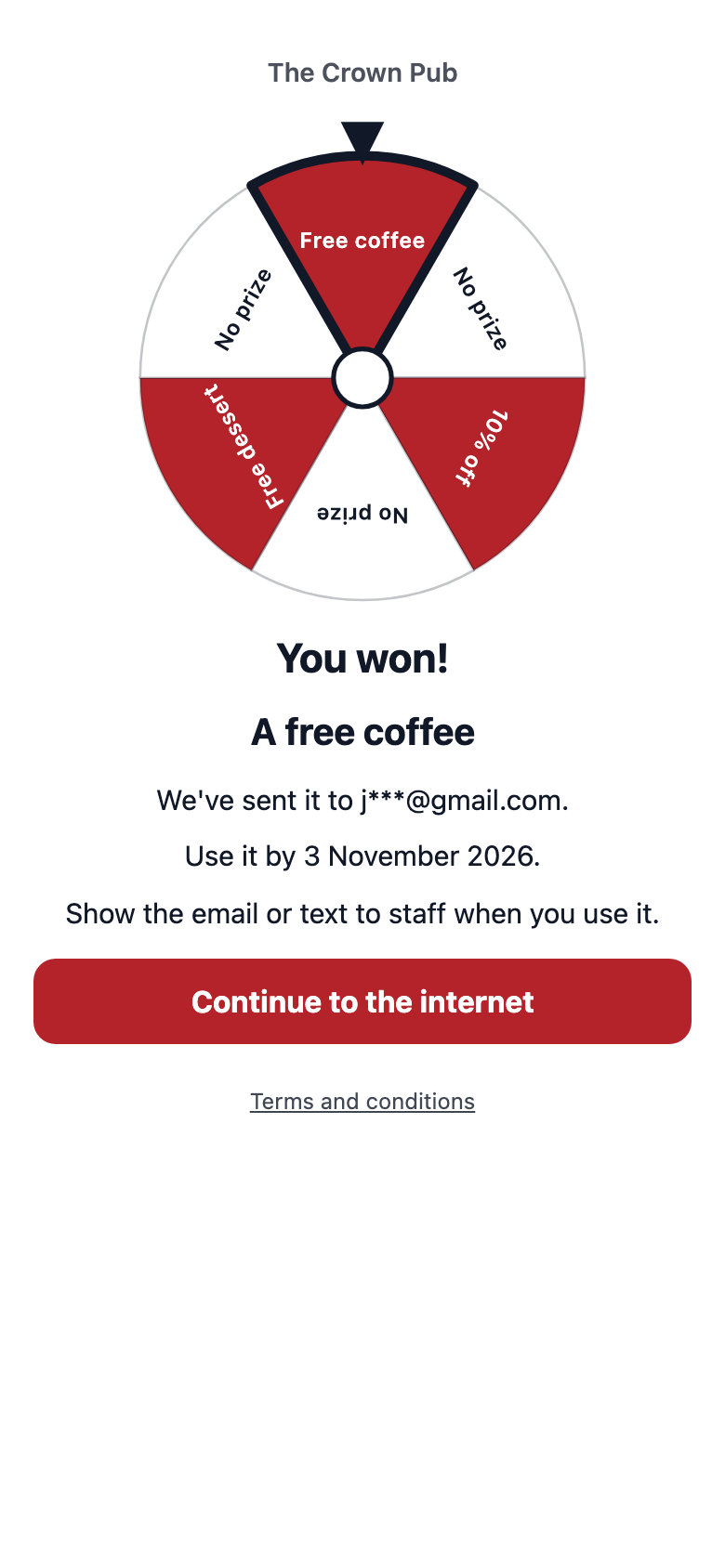
- A win shows You won! and the prize's headline, then "We've sent it to [masked address].", "Use it by [date]." and "Show the email or text to staff when you use it."
- No prize shows Not this time with "You can play again tomorrow.", "You can play again on your next visit." or "Thanks for playing.", depending on the play limit
- A second try in the same period shows the first result again under a line such as "You have already played today.", so a double tap or a reload never plays twice
On the wheel the result is the segment under the pointer. The scratch card shows Tap to reveal until the guest taps it. On the WiFi the page ends with Continue to the internet.
A winning result on a phone.
The prize message
A prize is an ordinary reward. The guest gets the reward email (or a text for a phone-only guest when Deliver rewards by text to phone-only members is on) with the code and a link to the reward page and its QR code, and staff redeem it on Rewards → Redeem like any other reward. See Redeeming at the Till. The game pages never show the code, the reward link or a wallet link.
A throwaway email address is refused with "Use an email address you can receive your prize at." A mobile number where the programme does not send texts is refused with "Prizes are sent by email at this venue. Enter an email address."
Prize messages are transactional, like every reward message. A guest who declined marketing can still play and win.
The 18+ check
When the game needs the 18+ check, the guest must tick I am 18 or over before they can play, on the After connecting card and on the public link. Without the tick they see "Confirm you are 18 or over to play." The check is on when you switch it on on the Legal step, and always when a prize is an offer marked as alcohol.
The question in Canada
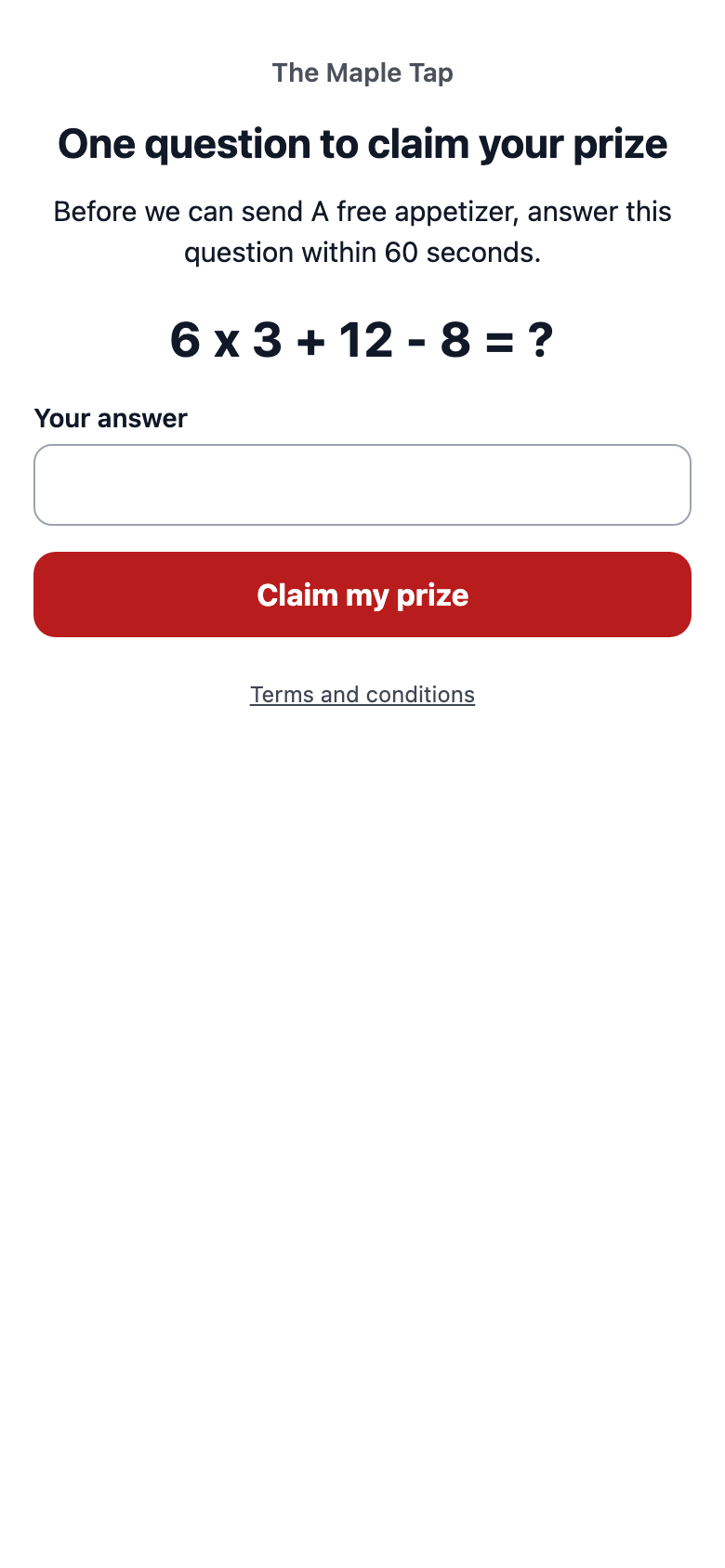
At a Canadian venue, a winner answers a short maths question before the prize is sent. The page is headed One question to claim your prize and says "Before we can send [prize], answer this question within 60 seconds.", with the sum, a Your answer box and Claim my prize. A right answer in time sends the prize. A wrong or late answer shows Prize not claimed and puts the prize back into stock. A game played on the public link asks the question when any venue on the game is in Canada.
The question a winner at a Canadian venue answers.
The marketing tick and its confirmation email
The marketing box appears on the public link only, and only where the venue asks for marketing consent on its splash page, using the same wording. It is unticked and separate from the play button. CaptiFi reads it after the play is made, so it never affects the result, and it records consent to emails only, never texts.
What a tick does depends on how the guest reached the page:
- A guest who arrived through
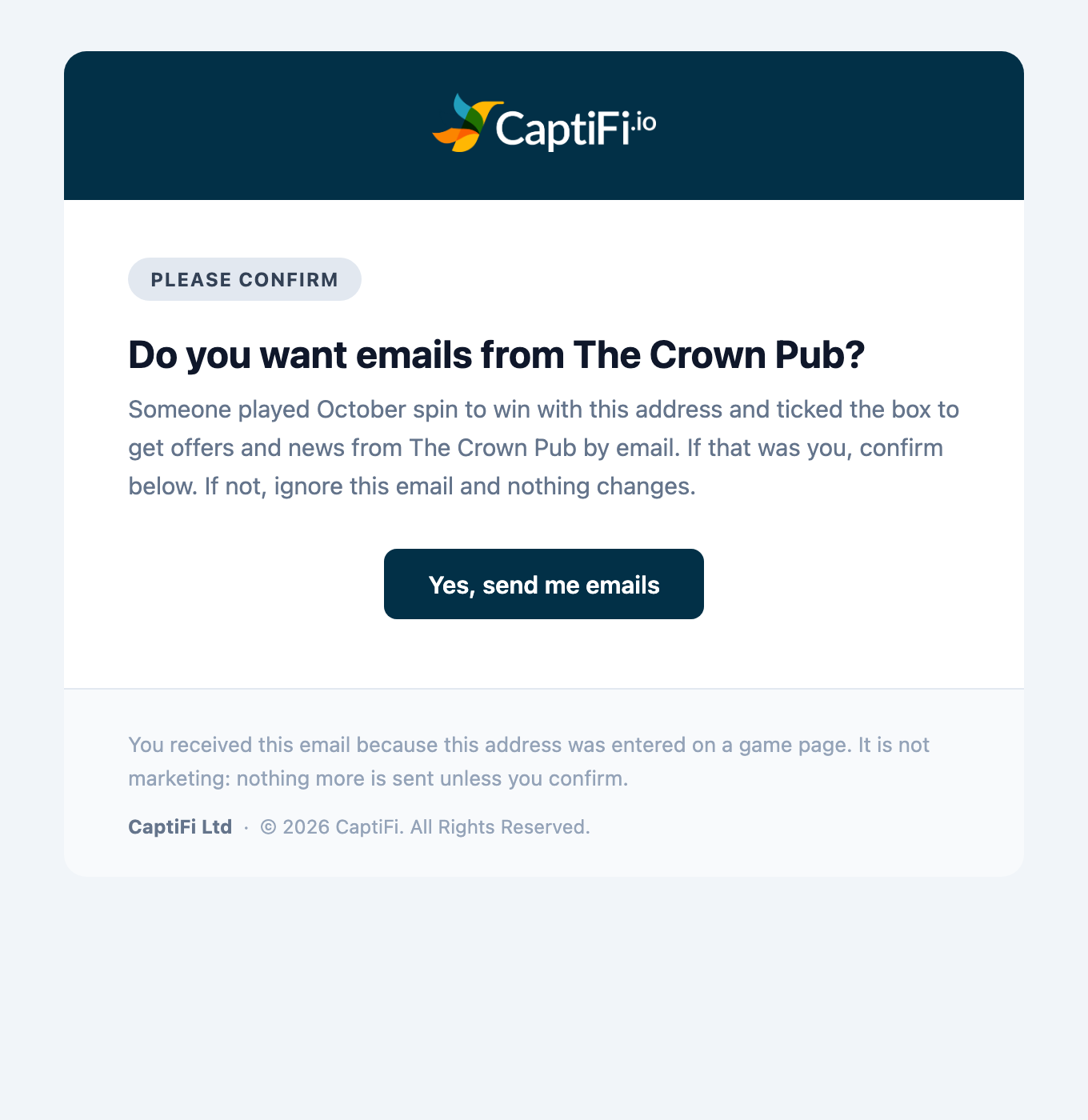
{{game_link}}has already proved the address, so their email consent at the venue is recorded straight away - A typed address could belong to anyone. When the venue already has that guest on file with that email, not subscribed and never unsubscribed, CaptiFi sends one email from the venue, "Confirm your email for [venue]", with a Yes, send me emails button. The link lasts seven days. Their consent is recorded only when they confirm
- An address the venue has never seen is not added to your guest list by the tick. The tick is kept with the play
- An address that has unsubscribed or been suppressed at the venue is never changed
The confirmation email sent after a tick on the public page.
The game page
Click a game in the list. The page has the game's status and controls at the top, then Details, Prizes and the Report.
A live game's page, from the controls at the top to the report tiles.
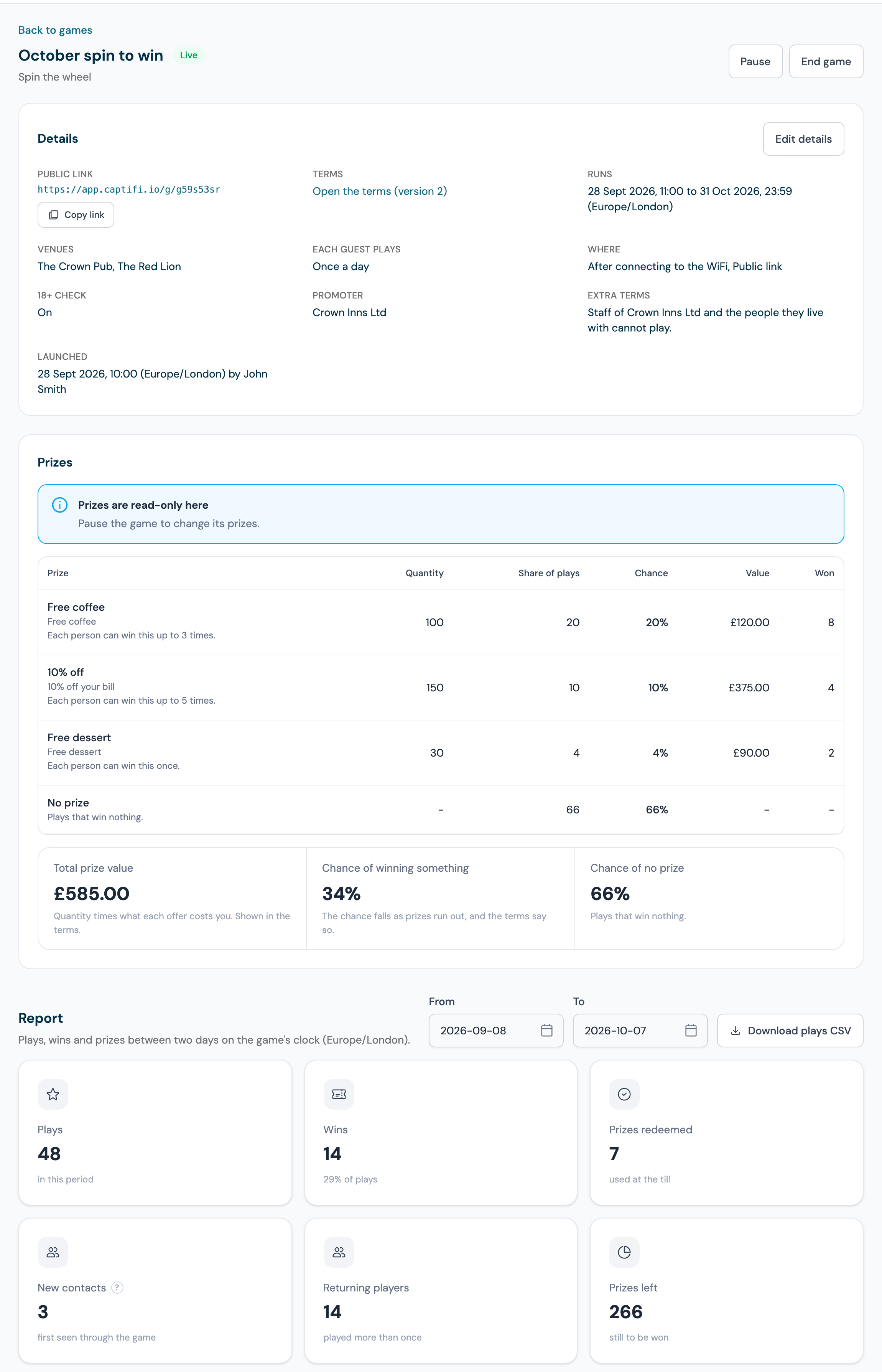
Details shows the Public link with Copy link, the Terms link with its version, when it Runs, the Venues, how often Each guest plays, Where guests play, whether the 18+ check is on, the Promoter, any Extra terms, and who Launched it and when.
The report
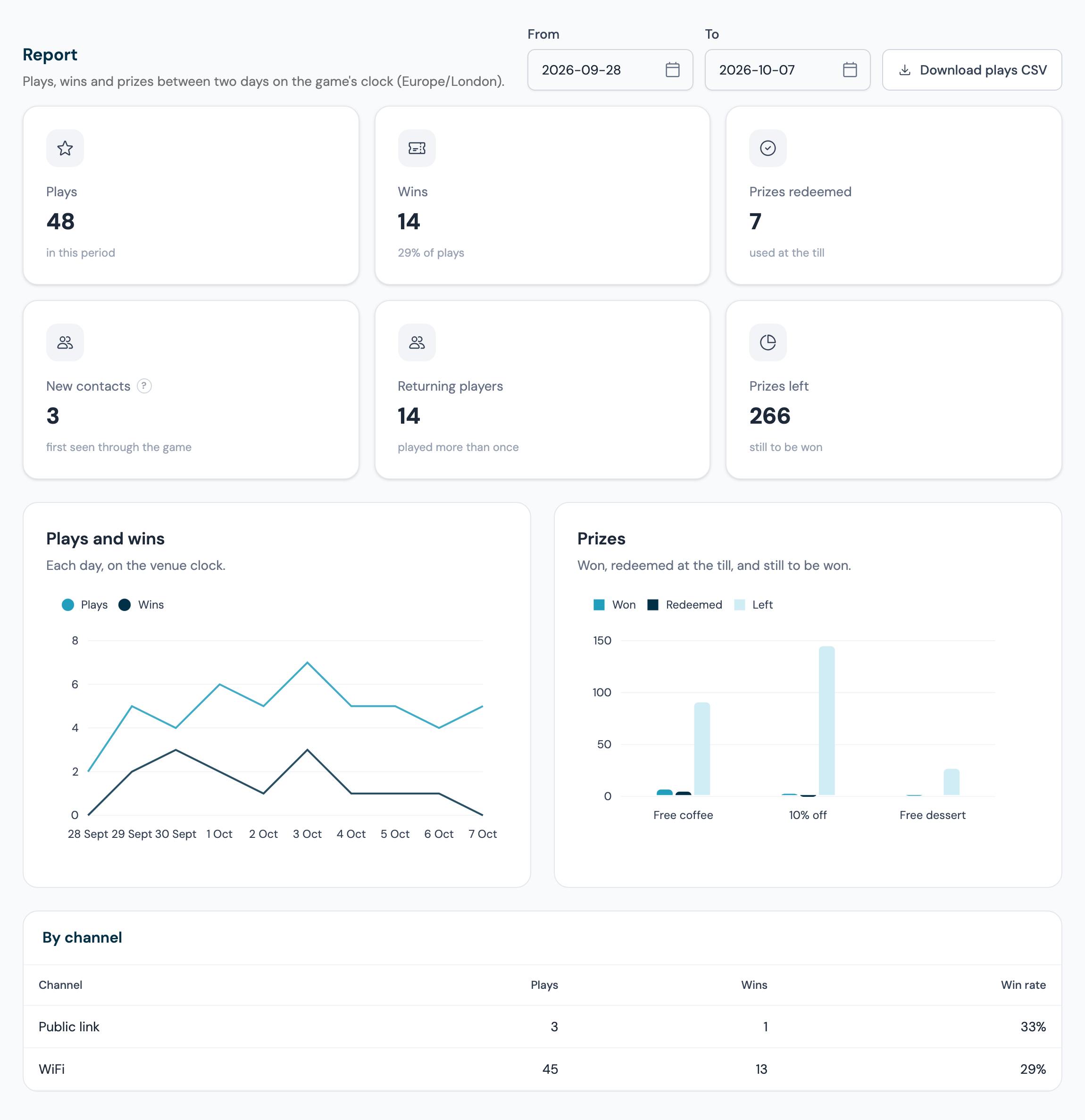
- Under Report, set From and To (days on the game's clock). It opens on the last 30 days, and one report covers up to a year
- Read the tiles: Plays, Wins with the win rate, Prizes redeemed (used at the till), New contacts (players whose email address or mobile number the venue did not have before they played), Returning players (played more than once) and Prizes left
- The Plays and wins chart shows each day; the Prizes chart shows each prize Won, Redeemed and Left
- By channel splits Plays, Wins and Win rate between WiFi and Public link
- Click Download plays CSV for every play in the range
The report for the game's first ten days.
The CSV has one row per play: the local and UTC time, the venue, the channel, the player (masked, as on the result page), the outcome, the prize, the reward's status, and the terms and rules version it was played under. Downloading it needs the Export data permission, and the player column is empty for a team member without View guest data.
Editing a launched game
On a live or paused game, click Edit details. Edit this game lets you change:
- the Name, the Headline guests see, the Button and the three colours
- Ends, which can only move later. To stop sooner, end the game
- Extra terms (optional)
Editing a live game.
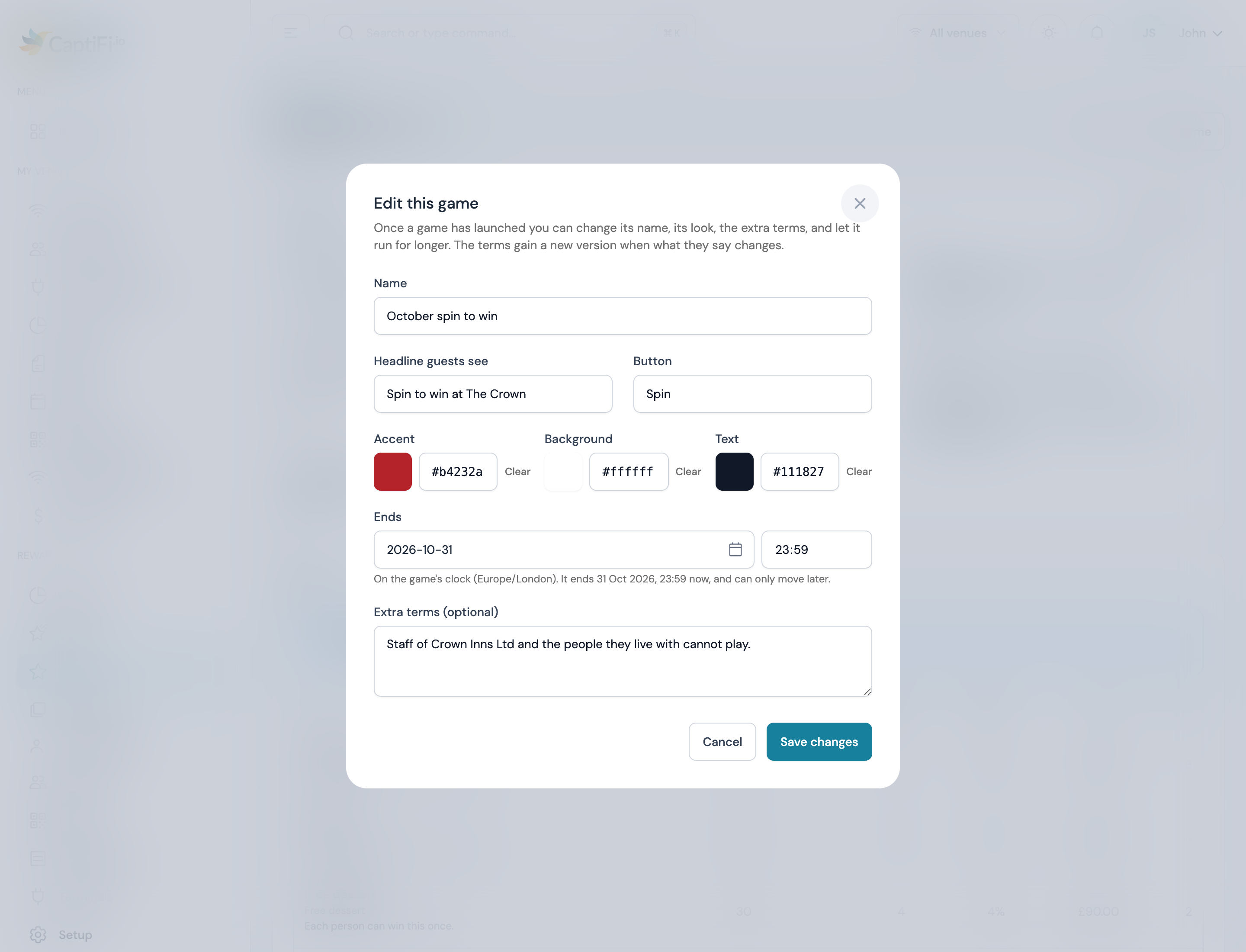
Click Save changes. When a change alters what the terms say, the terms gain a new version; earlier versions stay on the terms page. A later end that an offer's own end or stock cannot cover is refused with the reason, and so is any edit to an ended game.
The venues, the start, the play limit, where guests play, the promoter and the 18+ check are fixed once a game has launched. Prizes can change only while the game is paused: the account owner pauses it, edits the quantities and shares or adds a prize under Prizes, then resumes it.
While a game is live or paused, the offers behind its prizes are protected. A change to an offer's value, venues, dates or limits is refused with "This offer is a prize on a live or paused game. End the game, or use another offer, to change its value, venues, dates or limits." Changes that only give the game more room are allowed: a later end, more venues, a higher Max issued, a longer validity. When the offer has a Max issued limit, the units a game still has to give away are kept back from the offer's other uses, so a joining offer or Issue to a guest cannot use them up.
Pausing, resuming and ending
| Control | Who | What happens |
|---|---|---|
| Pause | Manage rewards and offers | The card leaves the After connecting screen and the public link says the game is not running. Prizes already won stay valid |
| Resume | Account owner | The check runs again, as at launch. If nothing is left to win it is refused; add stock under Prizes (Go to the prizes) or end the game. A team member sees "Only the account owner can resume a game." |
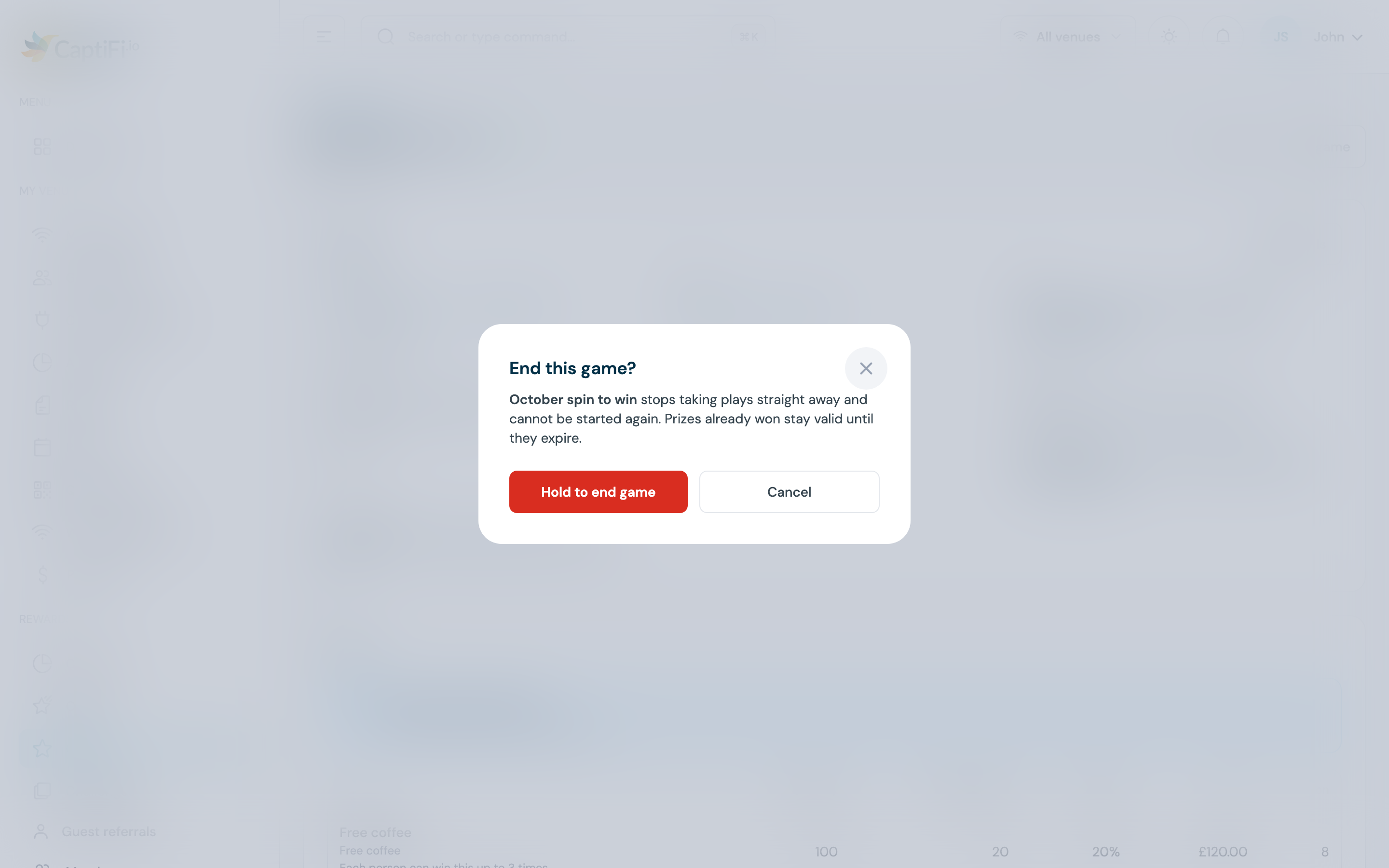
| End game | Manage rewards and offers | In End this game?, press and hold Hold to end game. The game stops taking plays straight away and cannot be started again. Prizes already won stay valid until they expire |
| Delete draft | Manage rewards and offers | In Delete this draft?, press and hold Hold to delete draft. The draft and its prizes are deleted and the offers are kept. Only a draft can be deleted |
A game also ends by itself. The line under its name says why: Every prize has been won, Reached its end date (checked every five minutes) or Ended by your team. A paused game that passes its end date stays paused until you end it.
The confirmation shown for End game.
The terms page
Every game has its own terms at the public link followed by /terms, linked from the card, the public page and the game's Details. The page is headed "Terms and conditions: [game name]", shows the version, and lists Earlier versions with their dates.
A game's terms page on a phone, at version 2.
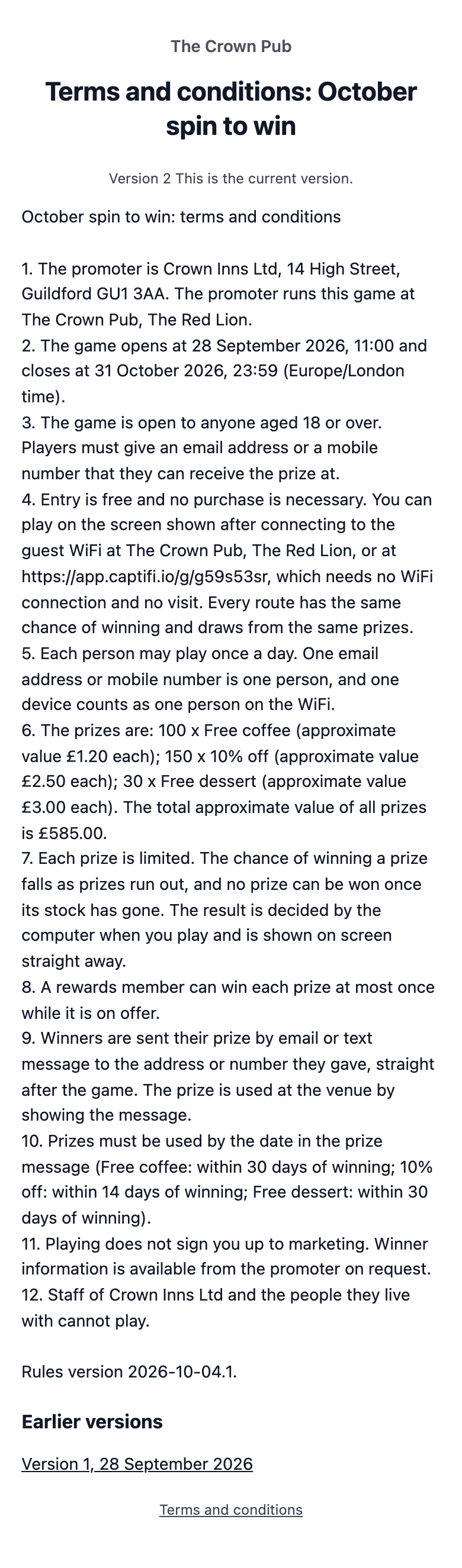
The terms are written from the game's own details and cover:
- the promoter's name and address and the venues
- when the game opens and closes, on the game's clock
- who may play (anyone, or anyone 18 or over) and that they need an email address or mobile number to receive the prize
- that entry is free with no purchase necessary, every way to play, and that every route has the same chance
- the play limit, and that one email address or mobile number, or one device on the WiFi, is one person
- each prize with its quantity and approximate value, and the total
- that prizes are limited and the chance falls as they run out
- how many times a rewards member can win each prize
- how winners are told, and the date or number of days by which each prize must be used
- that playing does not sign anyone up to marketing, and that winner information is available from the promoter on request
- the US and Canadian clauses where a venue is there, and your extra terms
The terms are fixed when the game launches. An edit that changes what they say adds a new version, and every play records the version it was played under.
Prize draws
A prize draw takes entries over a period and picks the winners at random after entries close, so nobody wins at the moment they enter. Choose Prize draw under Game on the Look step; a new draw starts with the headline "Enter our prize draw" and the button "Enter".
Setting up a draw
- On the Look step, set the Draw day and time on the game's clock. It must be after the game ends, at least 24 hours after launch, and no more than 30 days after the end. It is also shown beside the end on the Rules step
- On the Prizes step, add the prizes. For a draw the quantity is called Winners: how many winners get this prize. Every prize goes to a winner, so a draw has no shares of plays and no consolation prize
- On the Rules step, the end is when entries close. Each guest enters once for the whole draw
- Complete the Legal step and launch as for any game. Launch this game? gives the draw date
The Look step of a prize draw.
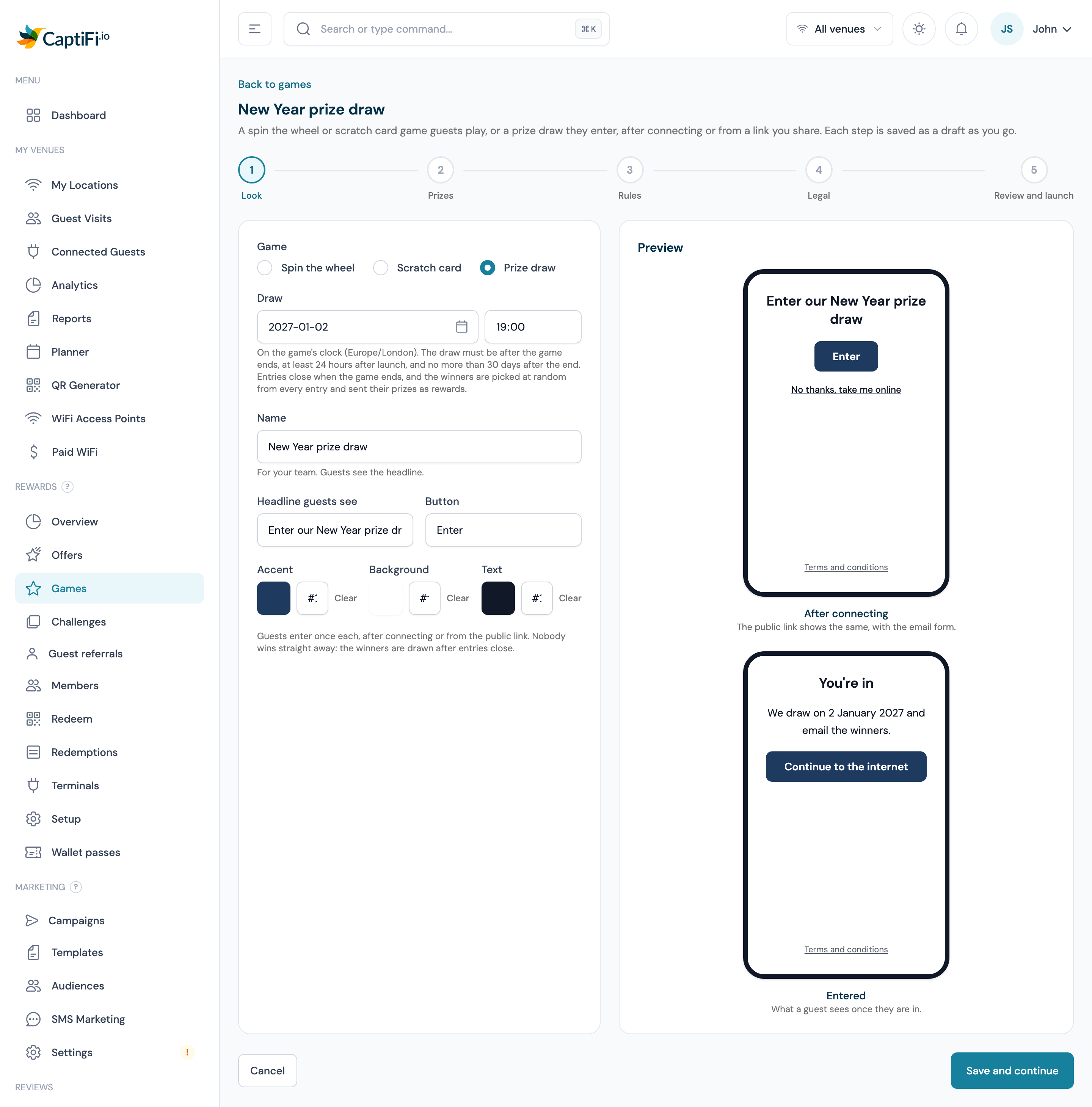
The prizes are drawn in the order they are listed on the Prizes step, which is the order you add them, so add the top prize first. A draw can give at most 2,000 prizes in all, across up to 20 prize rows. The offers behind the prizes must run until at least a day after the draw date, or 29 days after it when a venue is in Canada, so that every winner can be paid.
Entering a draw
The After connecting card and the public page show your headline and button, "Enter our prize draw" and Enter unless you changed them. On the public page the guest reads "Enter your email address to enter the draw. If you win, we send your prize there." Entering works like playing: an email address or mobile number, the optional marketing box and the 18+ check where needed.
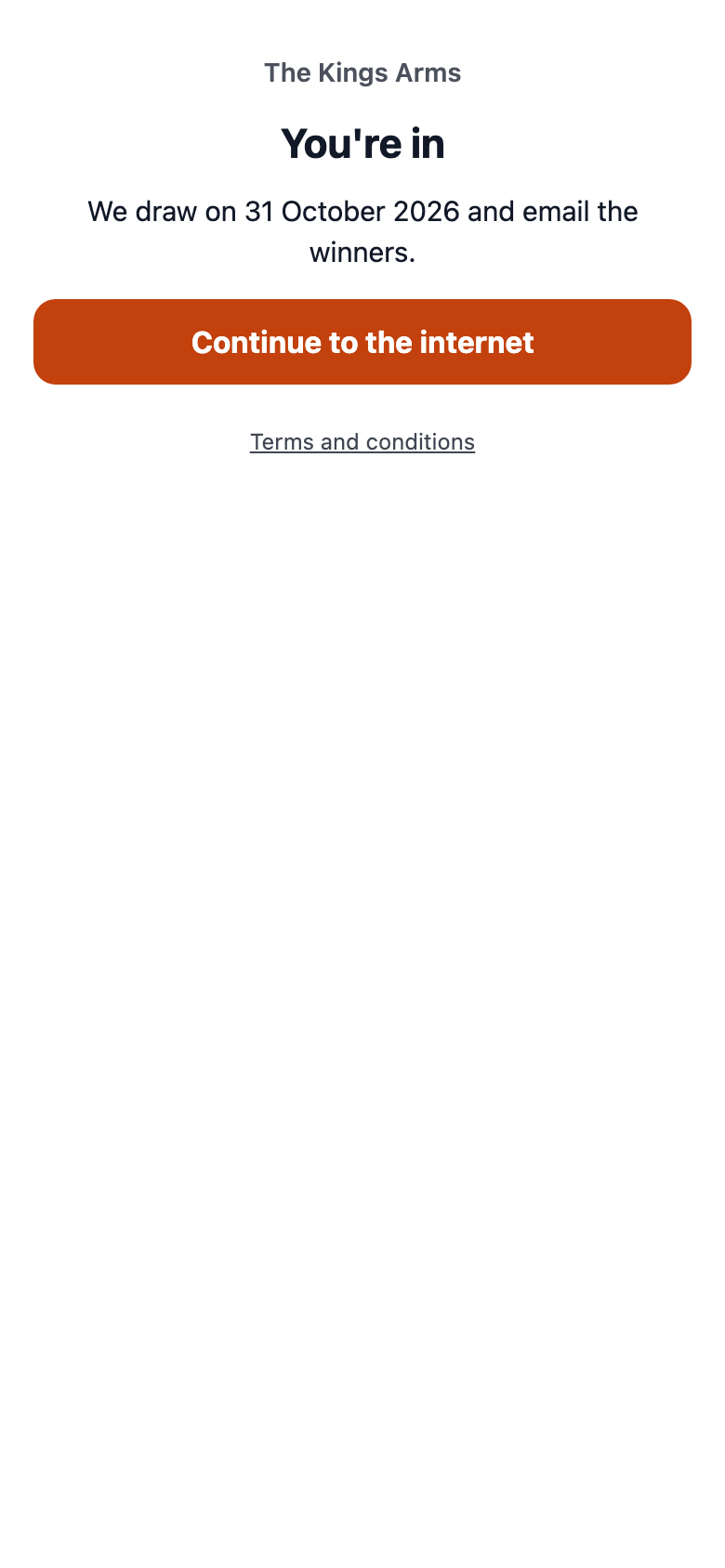
- A new entry shows You're in and "We draw on [date] and email the winners."
- A second entry shows You're already in this draw
- After the end, the page says "Entries have closed. We draw the winners on [date]."
- After the draw it says "This draw has finished. Thanks to everyone who entered." with See the winners
The page a guest sees after entering a draw.
How winners are picked and told
At the draw time CaptiFi picks the winners at random by computer from every entry received by the close, each entry with the same chance. Each entry can win one prize. If there are fewer entries than prizes, every entry wins. A rewards member who already holds a prize's offer as many times as it allows is passed over for that prize and another entry is drawn. The number of entries, the time of the draw and a fingerprint of the entry list are recorded, so the result can be checked later.
Winners are sent their prize as a reward by email or text, like an instant win. The prize email carries "Happy to be named as a winner on the public winners page?" with a Tell us here link, valid for seven days.
A winner at a Canadian venue gets an email or text first, "You won the [venue] prize draw", with a Claim my prize link. On the claim page they press Start and answer a maths question within 60 seconds. They have 14 days from the draw date to claim. A prize not claimed in time, or answered wrongly, is drawn again once from the entries not yet drawn, and the new winner has until 28 days after the draw date.
The winners page
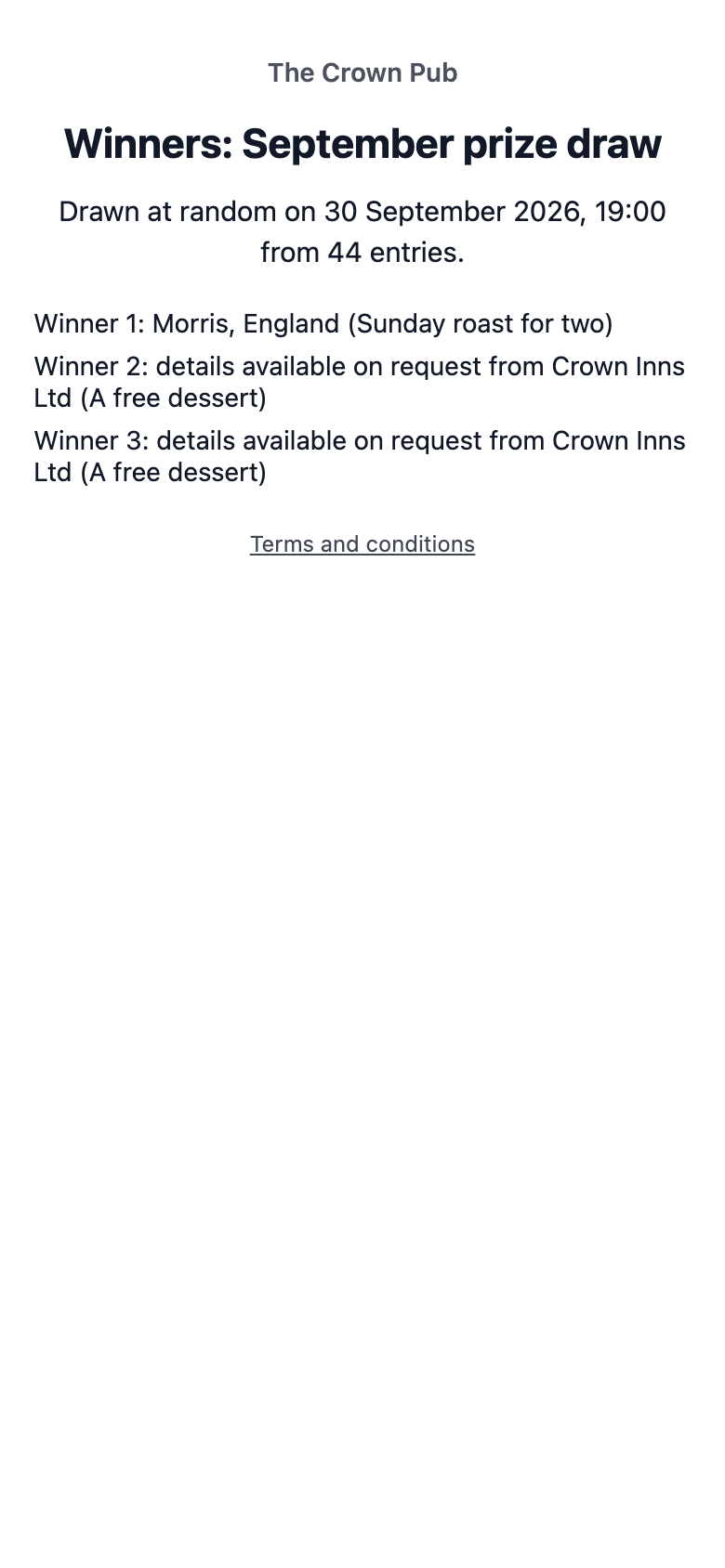
The public winners page is the public link followed by /winners. It is headed "Winners: [game name]", says when the draw was made and from how many entries, and lists each paid winner in the order drawn. A winner who agreed to be named appears as "Winner 1: [surname], [region]", with the region of the venue; anyone else as "Winner 2: details available on request from [promoter]". Nothing else about a winner is shown.
The public winners page of a drawn prize draw.
The draw's page
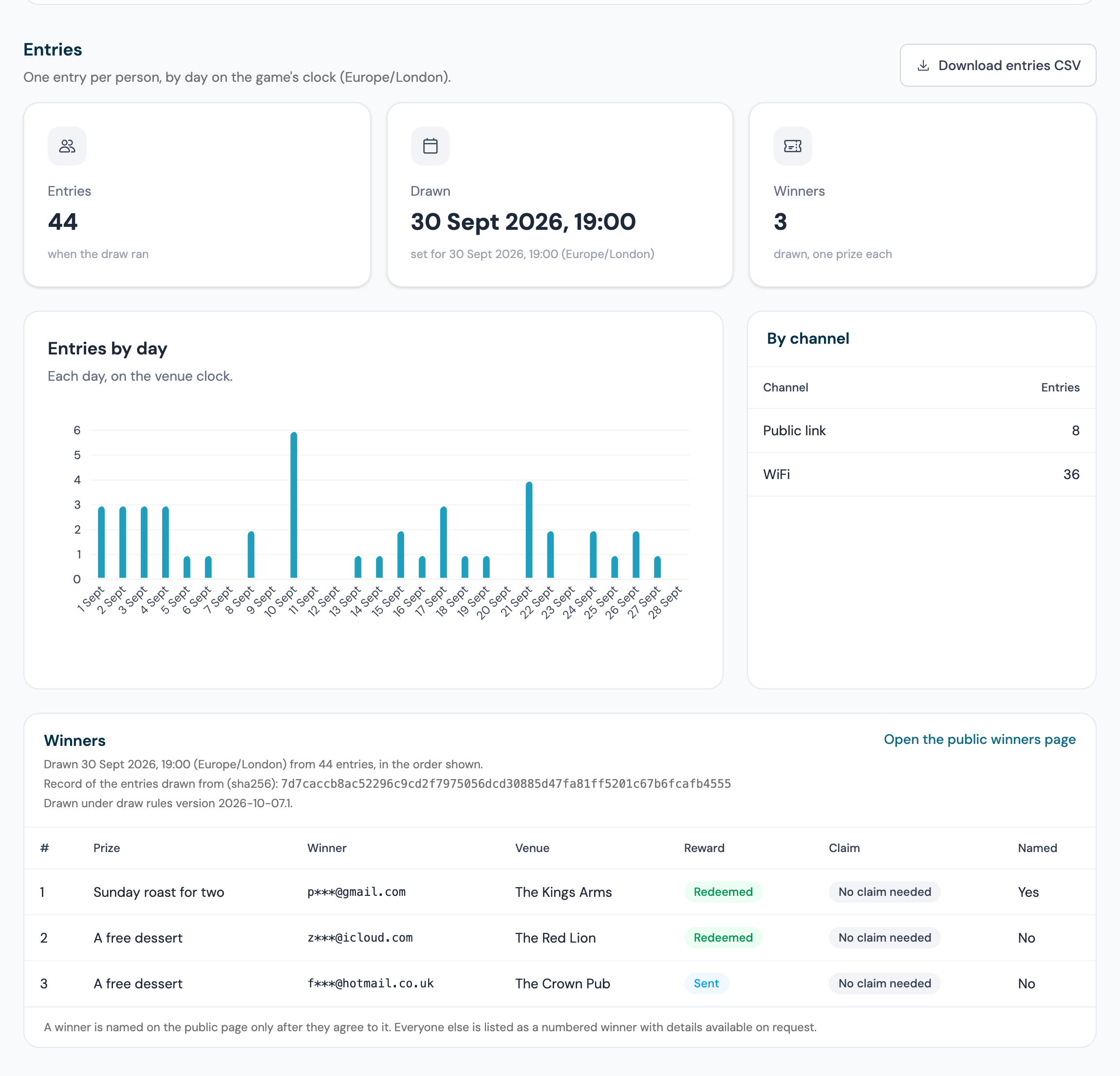
In the dashboard a draw shows Entries where other games show the report:
- The tiles show Entries, the Draw time (Drawn once it has run) and the number of Winners
- Entries by day and By channel split the entries by day and between WiFi and Public link
- Download entries CSV downloads every entry. It needs the Export data permission
- Once the draw has run, Winners lists each winner in the order drawn with the Prize, the masked Winner, the Venue, the Reward status (Sent, Redeemed, Expired, Cancelled, Not sent yet or Forfeited), the Claim status for Canadian winners and whether they agreed to be Named. Open the public winners page opens it
A drawn prize draw's entries and winners.
In the games list a draw shows its entries in the plays column and its draw day under its dates.
Ending a draw early
End game on a draw closes entries and nothing else. The confirmation says "Entries close now. The draw still happens on [date].", and the draw runs then from every entry received, as the terms promise. A launched draw cannot be cancelled; only a draft can be deleted.
If you switch Rewards off, or your plan no longer includes Games, a draw waits. Nothing is drawn or paid while it waits, and it is drawn and its winners paid once Rewards is on again and your plan includes Games.
Limits
| Limit | Value |
|---|---|
| Prizes per game | 20, all in one currency, with at most one consolation prize |
| Prizes on a prize draw | 2,000 in all |
| Plays per person | One per period: once, once a day, or once a visit (once a day on the public link) |
| Entries per person in a draw | One |
| Who counts as one person | One email address or mobile number, across the WiFi and the public link; on the WiFi, one device |
| Draw date | After the end, at least 24 hours after launch, at most 30 days after the end |
| Play link from the WiFi | 30 minutes |
{{game_link}} link | 30 days |
| Marketing confirmation and winner naming links | Seven days |
| Canadian maths question | 60 seconds; draw winners claim within 14 days of the draw |
| Name, headline, button, prize label | 120, 80, 40 and 60 characters |
| Promoter name, promoter address, extra terms | 160, 500 and 5,000 characters |
| Report and plays CSV range | Up to a year at a time |
Who can do what
Games use the permissions on your Team page. Every team member of an account with games can see the games list, the game pages and the reports.
| What | Who can do it |
|---|---|
| Create and edit a draft, set the no prize share, save a venue's region, pause, end, delete a draft, edit a launched game's details | Manage rewards and offers |
| Add, change and remove prizes; launch; resume | Account owner only |
| Download plays CSV, Download entries CSV | Export data (the player column needs View guest data as well) |
A team member limited to some venues sees a game only when every venue on it is one of theirs, and their report and CSV count only plays at their venues.
Games in workflows, segments and webhooks
- Two Workflows triggers: Game played, with an optional Game and Result (any play, wins only, or plays that do not win), and Game won, with an optional Game and Prize
- A segment condition, Played a game is Yes or No, for guests who have played any of your games on either channel
- Two webhook events:
game.played("A guest plays one of your games") andgame.won("A guest wins a prize in one of your games") - The
{{game_link}}email tag and the{game_link}text tag, described under On the public link
Guest data and erasure
When you erase a guest with Delete (GDPR) or Anonymise (GDPR), their email address, phone number, device and masked name are removed from their plays and entries, and the plays themselves stay so your game's totals do not change. A prize won on the public link by someone who is not a member is cancelled if it has not been used, and the address is removed from it. A draw winner who is erased before being paid is replaced by another entry. See GDPR & Compliance.
Troubleshooting
| Issue | Possible cause | Solution |
|---|---|---|
| No Games item under Rewards | Rewards is off, the plan is below Growth, or games are switched off for your account | Switch Rewards on under Integrations → Dashboard features. The Games page itself says which applies |
| Launch game is greyed out | The check lists a block, or you are not the account owner | Fix each line under Fix this before the game can launch. Only the account owner can launch |
| An offer is greyed out in the prize list | It has a shared code, does not cover every venue on the game, starts after the game or ends before it, or is in another currency | Read the reason under Offers that cannot be prizes on this game and change the offer, or choose another |
| Guests do not see the game after connecting | The game is paused, outside its dates or WiFi play is off; the guest already played this period; the guest signed in with a throwaway email, or with a phone where the programme does not send texts; or the venue is on Cisco Meraki | Check the game's status, dates and Where. Share the public link for venues on Meraki |
| A guest says they won but has no code | The prize goes to the address they played with, never to the screen | Ask them to check spam, or look them up on Rewards → Redeem by email or phone |
| A Canadian guest lost their prize | The question was answered wrongly or after 60 seconds | Nothing to fix. The prize went back into stock |
| An offer cannot be edited | It is a prize on a live or paused game | End the game, or give the offer more room only (a later end, more venues, a higher limit) |
| Resume is refused | The check found a new block, or nothing is left that anyone could win | Fix the block, or add stock under Prizes |
| A venue's region will not save | A live or paused game there could not run in the new region | End or change the games the message lists |
| A team member cannot see a game | They are limited to some venues and the game also runs at another | Give them the other venue on the Team page, or let the owner manage it |
Related features
- Rewards & Offers: the programme and the offers every prize comes from
- Redeeming at the Till: how staff redeem a prize
- Challenges, stamp cards and badges: rewards for visiting, with no chance involved
- Guest referrals: rewards when a member's friend joins
- Splash Page Builder: the After connecting screen and the marketing question
- Team Members: the permissions above