

Appearance
Event messaging and automations
Once Events and tickets is switched on, your ticket buyers plug into the messaging tools you already use for WiFi guests. Four automation triggers start from a ticket or a booking, eight merge tags put the event and the tickets into any email or text, two segment conditions pick buyers and attendees out for a campaign, and four webhook events push ticket activity to your own systems. This guide covers all of them; the events themselves are in Events and tickets, the fees in Ticket payments and the night in Door check-in.
Events and email marketing are both included on the Growth plan and above.
Before you start
- Events and tickets must be switched on. Only the account holder can do it: Integrations, then the Events & Tickets card. See Switching it on. A team member sees the switch locked.
- Your sending domain must be verified, as for any campaign or automation. See Verify your sending domain.
- For texts, SMS Marketing with credits on the account.
Until Events is on, the event triggers are shown but cannot be chosen; see When a trigger is not available yet.
The four triggers
The trigger list in an email automation gains four entries.
| Trigger | When it sends | Who receives it |
|---|---|---|
| When a guest buys a ticket | A ticket order is completed, paid or free, once per order. A buyer who orders twice is emailed twice. | Buyers who ticked the marketing box at checkout, or whose guest record at the venue already carried marketing consent for the same email address |
| Before an event | A set number of hours before doors open, or before the start when the event has no doors time. The number comes from the venue's Events settings, 24 by default. Once per buyer per event, to buyers who ordered before that moment. | Every buyer, whatever they chose about marketing. This email is part of the ticket |
| After an event | Once the event has ended, plus any wait you set. The end is the event's Ends time, or three hours after Starts when none is set. Once per buyer per event. | Buyers who agreed to marketing |
| When a booking turns up | A ticket order is admitted at the door, or a table booking is matched to a guest who has just connected to your WiFi. Once per booking, however many tickets it holds. | Guests who agreed to marketing |
Every email goes to the address the ticket was bought with. A buyer who gave only a mobile number gets no email from these triggers; a text automation can reach them instead.
The Before an event reminder and the After an event email are not counted against your monthly email allowance. The other two count like any automation email, and so does every follow-up step you add under any of the four; see Consent and your allowance.
Before an event
The reminder's hours are set on the venue's Events settings, so every reminder automation for the venue keeps to one number:
- Go to Settings then Events settings and pick the venue.
- Set Reminder email (hours before doors). 0 to 336 hours; 24 when you have never saved the page. 0 turns reminders off for the venue.
- Click Save events page.
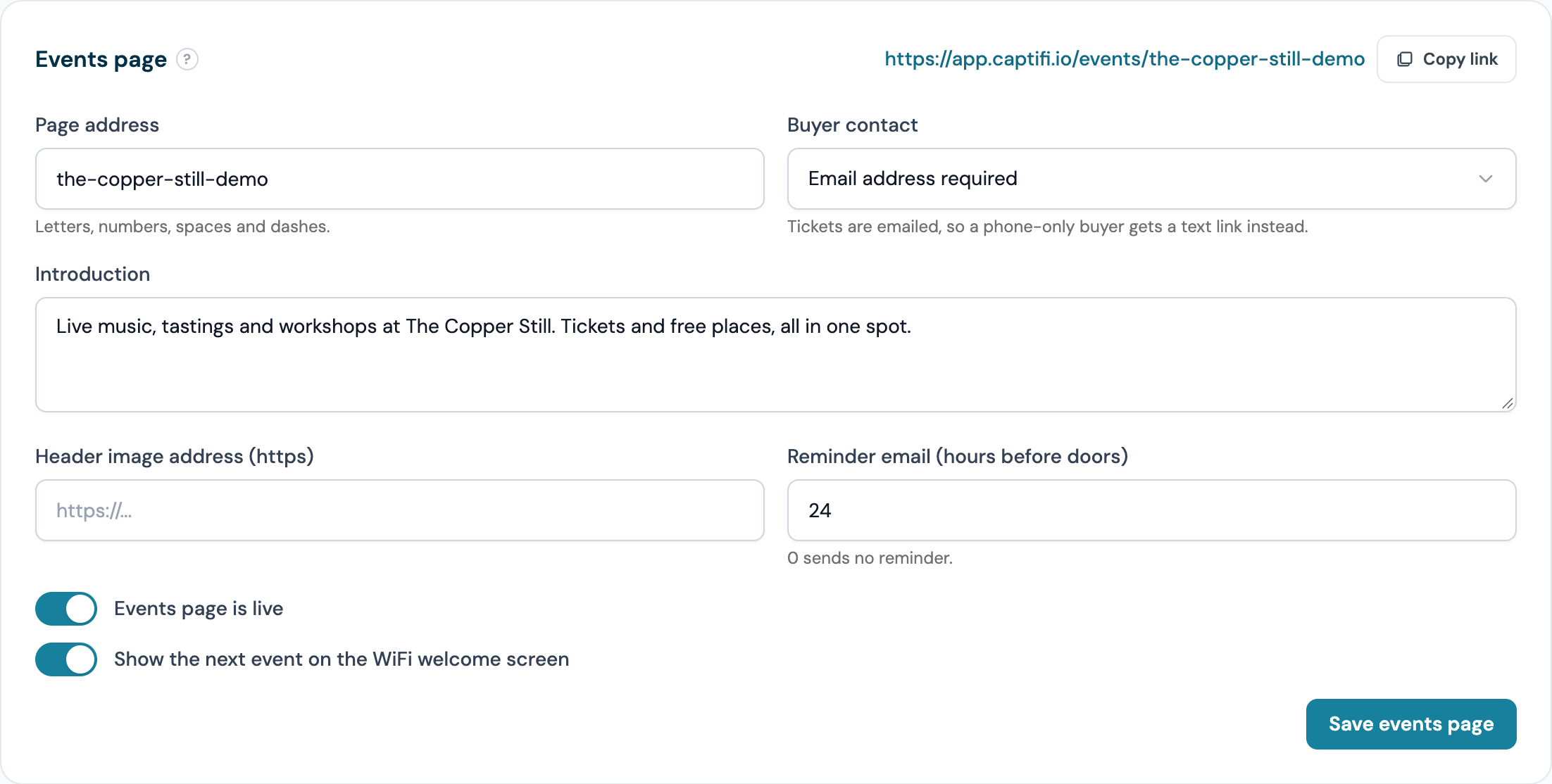
CaptiFi checks every five minutes. Once the moment arrives, every buyer with a paid or free order for an event that is on sale or sold out is enrolled, and a large event is worked through in batches a few minutes apart. A buyer who orders after the reminder moment is not reminded, because their confirmation email has just arrived. A buyer with two orders for one event is reminded once. Nothing is sent for a draft or cancelled event, or once doors have opened. If you create the automation inside the window, the buyers who already qualify are reminded on the next check, within five minutes.
After an event
After an event takes one setting, Wait after the event ends, in hours, days or weeks. Enter 0 to send the moment the event ends. The automation only looks back seven days, so an automation you create today does not write to the buyers of last month's event.
When a booking turns up
This trigger is shared with Reservation check-in: it is offered when either Events and tickets or Reservations is on. It fires from the door, on the first ticket of an order to be admitted, and from a WiFi match at the venue within an hour of the guest connecting (Reservations on). A reservation marked attended by hand, through the dashboard or an import, sends the webhook but starts no automation.
A table booking made through CaptiFi has triggers of its own: When a table is booked, Before a table booking, When a booked party arrives and When a booked party does not turn up, which fire for a WiFi arrival and for a mark made by staff alike. See Table booking triggers.
Send an email when someone buys a ticket
- Go to Marketing → Audiences and open the Automations tab.
- Click New automation.
- Give it a name, for example "Thanks for booking".
- Choose When a guest buys a ticket as the trigger. There is no timing to set.
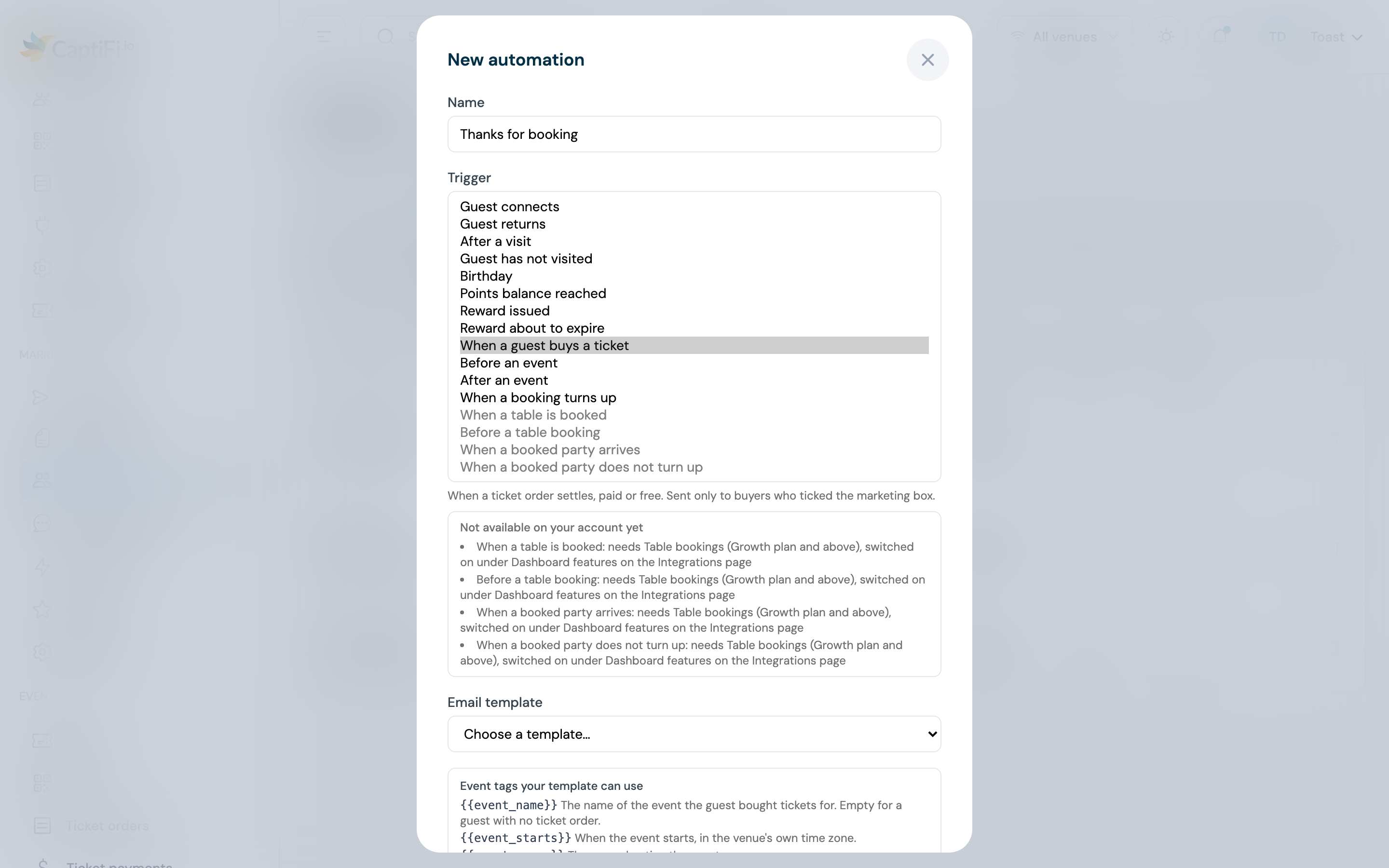
- Pick the Email template. Any template in your library works; to name the event and link to the tickets, add the event merge tags to it in the Email Template Builder first. Once an event trigger is chosen, the eight tags are listed under the template picker with a sample each, ready to copy.
- Add follow-ups, tags, a re-enrol rule or a send window if you want them, as for any automation. See Email Automations.
- Tick the Venues the automation covers.
- Leave Active on and click Create automation.
When a trigger is not available yet
The four triggers are listed whether or not you can use them, so you can see what Events adds before switching it on. A trigger you cannot pick is greyed in the picker and listed under it with the reason, in the form "Before an event: needs Events and tickets (Growth plan and above), switched on under Dashboard features on the Integrations page"; the booking trigger reads "needs Reservations or Events and tickets (Growth plan and above), switched on under Dashboard features on the Integrations page".
| Trigger | Why it is greyed out | What to do |
|---|---|---|
| When a guest buys a ticket, Before an event, After an event | Events and tickets is not switched on for your account, or your plan does not include it | The account holder switches it on under Integrations, on the Events & Tickets card. Events needs the Growth plan or above |
| When a booking turns up | Neither Events and tickets nor Reservations is switched on | Switch on either feature under Integrations |
An automation saved with a greyed trigger is refused with "Event automations need Events and tickets switched on for your account." or "Booking automations need the Reservations feature or Events and tickets switched on for your account." An event automation that already exists keeps running if Events is later switched off; you can pause or delete it, and its trigger cannot be picked again until Events is back on.
Consent and your allowance
| Trigger | Marketing consent | Unsubscribed or on the suppression list | Counts against the email allowance |
|---|---|---|---|
| When a guest buys a ticket | Needed | Skipped | Yes |
| Before an event | Not needed: every buyer | Still sent. Only an address that has bounced or complained is skipped | No |
| After an event | Needed | Skipped | No |
| When a booking turns up | Needed | Skipped | Yes |
The two rules for the reminder apply to the automation's own email only. A follow-up step you add under it, an email or a text, is a marketing message like any other step: it needs consent and counts against the allowance.
Marketing consent is the checkbox at checkout, unticked to begin with, or consent the same email address already gave at the venue on the WiFi. A buyer who did not tick the box on a second order keeps the consent from an earlier one. A guest whose ticket order has been erased under a data request is never emailed.
A buyer without consent is not enrolled at all, so the Results view does not list them; a low Enrolled figure at an event with few marketing opt-ins is what to expect. A buyer who unsubscribed between enrolment and sending is listed under Skipped as Guest unsubscribed, and a reminder held back for a bounced address as Address could not be delivered to.
The event merge tags
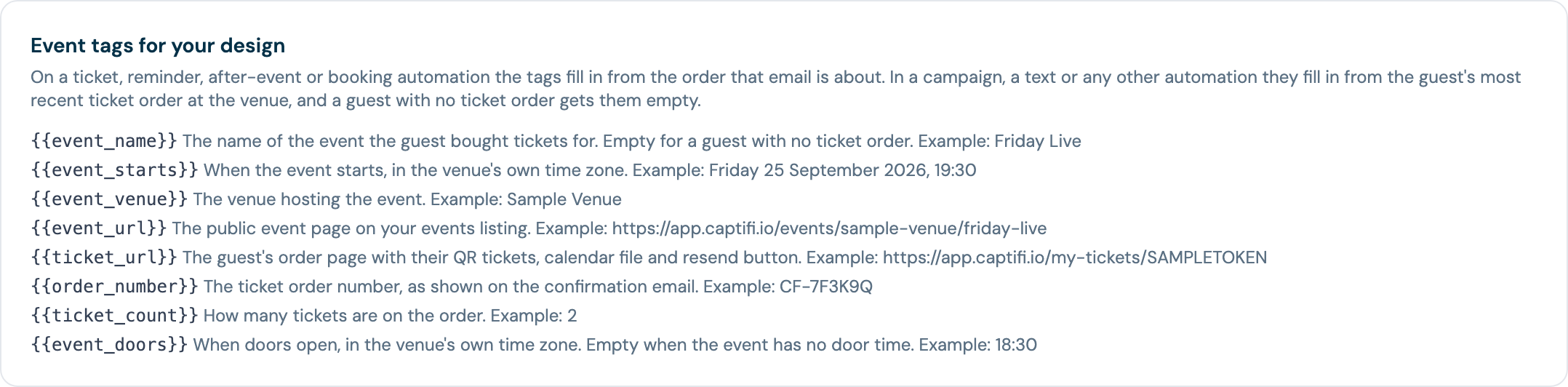
Eight tags read the event and the order. In an email they take double braces; in a text, single braces ({event_name} and so on). They work in the subject line as well as the body. They are listed with a sample each under Event tags for your design on the campaign wizard's Template step, and under the template picker in the automation form once an event trigger is chosen; copy them into your design in the Email Template Builder. Once Events and tickets is on, the builder's Personalise menu lists them too, under an Events section, each row showing the tag's short name, its token and an example value, with a click copying the token (see Step 5: Personalise).
| Tag | What it renders | Example |
|---|---|---|
{{event_name}} | The name of the event the guest bought tickets for | Friday Live |
{{event_starts}} | When the event starts, in the venue's own time zone | Friday 25 September 2026, 19:30 |
{{event_doors}} | When doors open, in the venue's own time zone. Empty when the event has no doors time | 18:30 |
{{event_venue}} | The venue hosting the event | Sample Venue |
{{event_url}} | The event's public page on your events listing | https://app.captifi.io/events/sample-venue/friday-live |
{{ticket_url}} | The buyer's own order page: their QR tickets, the calendar file and the resend button. Empty once the order has been erased | https://app.captifi.io/my-tickets/SAMPLETOKEN |
{{order_number}} | The ticket order number, as shown on the confirmation email | CF-7F3K9Q |
{{ticket_count}} | How many tickets are on the order | 2 |
Which order the tags read depends on where the message comes from:
- An email started by one of the four event triggers, and every follow-up step under it, reads the order or booking that started it. A When a booking turns up email for a table booking with no ticket order renders every tag empty.
- A campaign, a text, or a WiFi automation such as Guest connects reads the recipient's most recent paid or free order at the venue, matched by the email address the order was placed with (or the mobile number, for a buyer who gave no email). A recipient with no order renders every tag empty, so use these tags in messages to ticket buyers only, for example a campaign to a Bought tickets segment.
- A test send or a preview shows the sample values in the table.
The review link rule
{{review_link}} works in an event email as in any automation email: each buyer gets their own link to the rating page, valid for 30 days. See Review links in your own emails. An automation email carrying the tag is skipped for a buyer who was asked for a review at the venue in the last 90 days, and for every buyer when the venue has no review link set up under Reviews, and the skip is listed in Results. So keep the tag out of the Before an event reminder, which every buyer should receive, and put it in the After an event email or a follow-up under it, where a skipped buyer only misses the ask. To ask only the people who came, start the review email from When a booking turns up, which fires from the door.
Ticket buyers in segments
The segment builder gains two conditions. They sit beside How they joined is Bought a ticket, which already picks out anyone who has ever bought a ticket; see Last visit and how they joined. The builder is under Marketing → Audiences, on the Segments tab: click New segment, then Add condition for each row. A condition matches orders and bookings at those venues only.
| Condition | Operators | Value | Matches |
|---|---|---|---|
| Bought tickets | for any event | None | Guests with a paid or free ticket order for any of your events |
| for the event | One of your events, listed newest first as its name and date, for example "Friday Live, 25 Sep 2026" | Guests with an order for that event | |
| was within the last N days | A whole number of days, 1 or more | Guests whose order was placed in the last N days | |
| Attended a booking | is | Yes or No | Yes: the guest turned up to at least one booking, a table booking matched from WiFi or marked by hand, or a ticket order admitted at the door. No: no attended booking at all, so a guest who never booked matches too |
| was within the last N days | A whole number of days, 1 or more | Guests who attended a booking in the last N days |
A guest is matched to an order by the email address the order was placed with, or by the mobile number when the order carried no email. Cancelled, expired and fully refunded orders do not count as a purchase; an order refunded in part does. Orders erased under a data request match nobody.
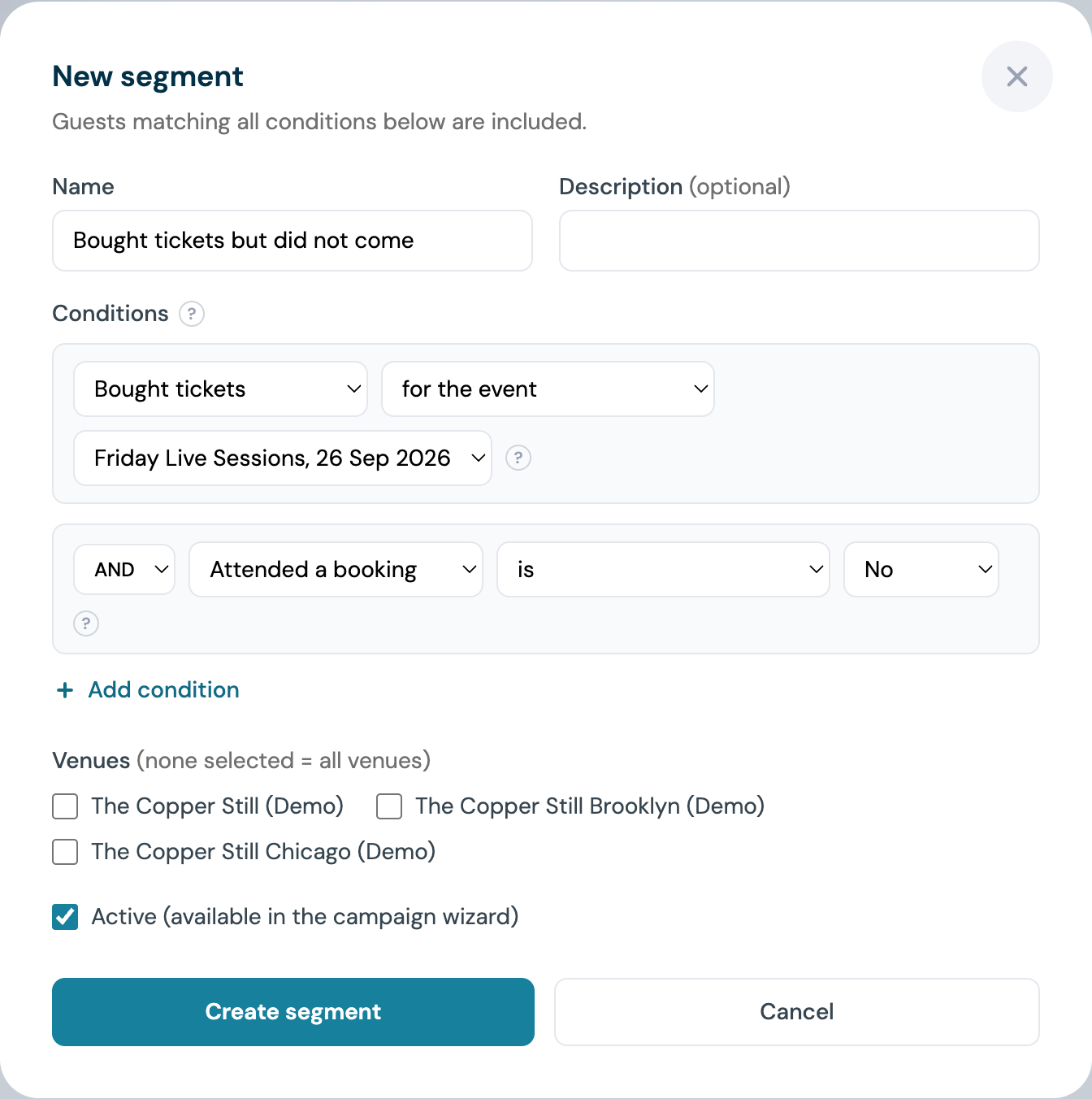
Two segments worth saving:
- Bought tickets for the event "Friday Live, 25 Sep 2026" AND Attended a booking is No, built after the event: buyers who did not come, for a "sorry we missed you" campaign. Check the count before you send: Attended a booking counts door admits, so at an event where nobody was scanned, every buyer is in it.
- Bought tickets for any event AND How they joined is not Connected to WiFi: ticket buyers who have never been on your WiFi, for an invitation to join it on the night.
Counts refresh as for every other segment; see Audiences and segment sizes.
Ticket webhooks
Endpoints on your Webhooks page can subscribe to four more events. Tick them under Events to send. Each has a sample behind Send test .
| Event | Fires when |
|---|---|
ticket.order.paid | A ticket order is paid, or a free RSVP is confirmed. Once per order |
ticket.checked_in | A ticket is admitted at the door. One per ticket; a ticket admitted again after an undo fires again |
ticket.order.refunded | A ticket payment is refunded, for example because the tickets sold out while the payment was processing or the event was cancelled before it completed |
reservation.attended | A booking or ticket order is marked attended, once per booking: at the door, by a WiFi match, by hand in the dashboard, or arriving as attended in an import |
Payloads carry ids, order and ticket numbers, the event's times in the venue's time zone, amounts in minor units (pence or cents) with their currency, the buyer's name and contact details and whether they ticked the marketing box. They never carry a ticket or order link, so a webhook cannot become a way into a buyer's order page or past the door. Events go to the endpoints of the account that bills the venue, on the Growth plan and above. The full payloads are on the Webhooks page.
Text messages
SMS Marketing on my.captifi.io gets the same ticket purchase trigger, and its booking trigger widens to ticket holders:
- When a guest buys a ticket appears on the Automations tab once Events and tickets is on. Until then it carries a needs setup badge that says the feature is not switched on for your account. It texts the buyer's mobile number once per order, so a second order texts again unless the automation is set to send once per guest.
- Reservation attended is offered when Events and tickets or Reservations is on, and needs at least one reservation on record; with none it reads needs setup. It now fires from the door as well as from a WiFi match.
- There is no text twin for Before an event or After an event. To text around an event, add a Text message follow-up to the email automation; see Text message follow-ups. A follow-up text is a marketing message and needs text consent.
A text goes only to a buyer who gave a mobile number at checkout and has agreed to texts under your venue's SMS permission rules, and the number on the order must be the one on the guest's record. The eight event tags work in single braces, {event_name}, {event_starts}, {event_doors}, {event_venue}, {event_url}, {ticket_url}, {order_number} and {ticket_count}, and read the buyer's most recent order at the venue. The composer's counter prices each tag at its longest, so the segments and credits shown are the most a text can cost.
Troubleshooting
| Issue | Likely cause | What to do |
|---|---|---|
| The event triggers are greyed out | Events and tickets is not switched on, or the plan does not include it | The account holder switches it on under Integrations; Growth plan and above |
| No reminder went out | Reminder email, hours before doors is 0 for the venue; the event is a draft or cancelled; the automation does not cover the venue; or doors had already opened when the automation was created | Set the hours on Events settings and publish the event. Buyers who order inside the window get their confirmation email in place of the reminder |
| The After an event email never sent | The wait has not passed; the event ended more than seven days before the automation existed; or the buyer did not agree to marketing | Check Results: a buyer with no consent is not enrolled, so they do not appear there |
| When a booking turns up did not fire | The booking was marked attended by hand or by an import, which sends the webhook only; or the WiFi match came more than an hour after the guest connected | Admit tickets at the door, and keep Reservations on for venues whose bookings should match from WiFi |
| The event tags came out blank | The recipient has no ticket order at the venue, the message went to a table booking with no order, or the order was erased | Send tag-carrying messages to a Bought tickets segment or from an event trigger; an erased order renders {{ticket_url}} empty for good |
| A Bought tickets segment shows 0 | No order is complete yet, the segment's venues do not include the event's, or the buyers gave a different email address on their WiFi sign-in | Check the venues on the segment; a guest is matched by the address on the order |
| Ticket webhooks do not arrive | The event is not ticked on the endpoint, the endpoint is switched off, or the venue is billed to another account | Tick the events on the endpoint and check the delivery log |
| A buyer got no text | The number on the order differs from their guest record, they have not agreed to texts, or you are out of credits | See Who receives your messages |
Related features
- Events and tickets: creating events, ticket types and the events page
- Ticket payments: Stripe, the booking fee and the selling currency
- Door check-in: the admit that starts When a booking turns up
- Email Automations: follow-ups, tags, re-enrolment, send windows and Results
- Email Campaigns: the campaign wizard and the segment builder
- Webhooks: signatures, retries and the full payloads
- SMS: credits, consent and the Automations tab
- Reservation check-in: table bookings and WiFi attendance matching