

Appearance
Email Automations
An automation is an email that sends itself when something happens to a guest: they connect to your WiFi for the first time, they come back, a set time passes after a visit, they stop coming in, or it is their birthday. With Rewards on, it can also send when a member's points balance reaches a number, when a guest is given a reward, or when a reward they hold is about to run out. With Events and tickets on, it can start from a ticket order: when a guest buys, before the event, after it ends, and when a ticket holder or booking turns up. With Table bookings on, it can start from a table booking: when a table is booked, before the booking, when the party arrives and when it does not turn up. Set it up once and CaptiFi sends it to every guest who qualifies from then on. An automation can also carry up to five follow-ups, emails or text messages, each a set number of days after the one before, and can stop the moment the guest comes back.
Automations live under Marketing → Audiences, on the Automations tab, alongside the saved segments you use to target campaigns.
Plan requirement: Email marketing is included on the Essentials plan and above. It is not on Lite. See Plans & Pricing.
For a journey that branches, waits for the guest to do something, or mixes emails with tags and points, build a workflow under Marketing → Workflows; the comparison is on that page.
Where to Find It
- Log in to my.captifi.io
- Go to Marketing → Audiences
- Open the Automations tab
The Automations tab, with Start from a preset and New automation above the table. Once you have created one, each row shows the automation, its trigger, when it sends, the reward offer attached to it (a dash when there is none; see Rewards in your messaging), the template, the venues it covers and its status, with Results, Edit and Delete at the end of the row.
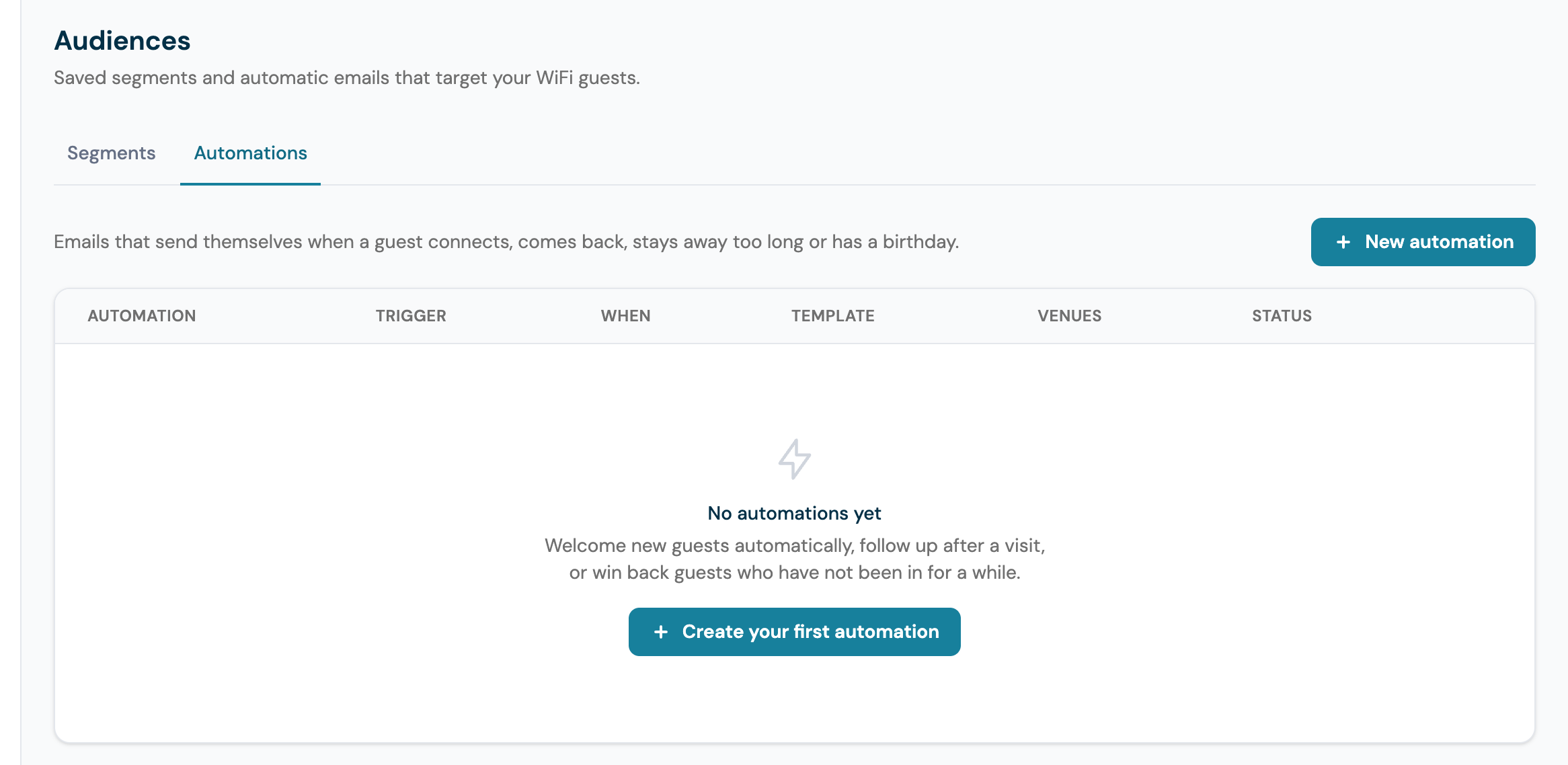
Beside New automation sits Start from a preset, which creates one of four ready-made automations with its emails already written; see Start from a preset.
The triggers
| Trigger | When it sends | Timing |
|---|---|---|
| Guest connects | The first time a guest connects to your WiFi | Shortly after they connect |
| Guest returns | When a guest comes back: their second visit or any later one | Shortly after they connect |
| After a visit | A set time after a guest connects | A delay chosen from a list that runs from 1 hour to 1 year (see below). Applies to is First visit only (the default) or Every visit |
| Guest has not visited | When a guest has not connected for a set number of days | 1 to 365 days without a visit, 60 by default. Sent from 10:00 venue time on the day after the mark is passed |
| Birthday | On the guest's birthday | Needs a birthday, collected by the Date of Birth field on your splash page or the birthday step. A birthday given without a year works too |
With Rewards switched on, three more triggers appear at the end of the list. They are covered in full under Automations that start from rewards.
| Trigger | When it sends | Timing |
|---|---|---|
| Points balance reaches a total | Once per member, when their balance climbs from below a number you set to that number or past it | Points balance to reach, a whole number from 1 to 1,000,000 |
| Reward issued | When a guest is given a reward on WiFi sign-in or by staff. Rewards sent by campaigns and automations do not count | None |
| Reward about to expire | At 09:00 venue time, to each member holding an unused reward that runs out within a set number of days, once per reward | Days before the reward expires, 1 to 365, 3 by default |
With Events and tickets switched on, four event triggers follow them. They are covered in full in Event messaging and automations, which also explains why a greyed-out trigger cannot be picked.
| Trigger | When it sends | Timing |
|---|---|---|
| When a guest buys a ticket | A ticket order is completed, paid or free, once per order. Buyers who agreed to marketing | None |
| Before an event | A set number of hours before doors, to every buyer, whatever they chose about marketing. Not counted against your allowance | Reminder email, hours before doors on the venue's Events settings, 24 by default; 0 turns it off |
| After an event | Once the event has ended, to buyers who agreed to marketing. Not counted against your allowance | Wait after the event ends, in hours, days or weeks; 0 sends when the event ends |
| When a booking turns up | A ticket order is admitted at the door, or a table booking is matched to a guest who has just connected to your WiFi. Guests who agreed to marketing | None |
Table booking triggers
With Table bookings switched on, four more triggers follow the events ones. All four go only to bookers who ticked the marketing box on the booking page, or whose guest record at the venue already carried marketing consent for the same email address, and none carries a delay. The booker's own confirmation, reminder and cancellation notice are the booking's messages and are sent whatever the guest chose; these four are the venue's marketing messages beside them.
| Trigger | When it sends | Timing |
|---|---|---|
| When a table is booked | A table booking is confirmed, online or by staff. Once per booking | None |
| Before a table booking | At the Reminder, hours before set on the venue's Bookings settings, the moment the booker's own reminder goes. A booking made inside that window is not enrolled | None: the hours come from Bookings settings |
| When a booked party arrives | A table booking is marked arrived, from the venue WiFi or by staff. Once per booking | None |
| When a booked party does not turn up | A table booking is marked a no-show, by staff or once the venue WiFi saw nobody. Once per booking | None |
Until Table bookings is on, the four are greyed out in the picker with the reason under them. Seven booking merge tags put the booking into the email: {{booking_reference}}, {{booking_date}} and {{booking_time}} (on the venue's own clock), {{booking_party_size}}, {{booking_venue}}, {{booking_area}} (empty when the booking names no area) and {{booking_manage_url}}, the guest's page for their booking. Once a table booking trigger is chosen, the seven are listed under the template picker with a sample each, and the Email Template Builder lists them in its Personalise menu under Bookings. On a table booking automation they fill in from the booking the email is about; in a campaign or any other automation they fill in from the guest's most recent confirmed table booking at the venue, and a guest with no table booking gets them empty. The manage link is empty once the booking has been erased.
After a visit
First visit only times the email from the guest's first connection and sends it once. Every visit sends it after each visit, so a regular gets it every time they come in. Use Every visit for a thank-you or a feedback request after each visit, and First visit only for anything a guest should see once, such as an introduction to your loyalty scheme.
The delay is chosen from a list: 1, 2, 4 or 12 hours; 1, 2 or 3 days; 1, 2 or 4 weeks; then 6, 8 or 12 weeks, 180 days or 1 year. A cafe can email two hours after a first visit, a hotel six weeks after a stay.
Guest has not visited
Enter the number of Days without a visit, from 1 to 365 (60 by default). CaptiFi checks once a day and, from 10:00 in the venue's own time zone, emails every guest whose most recent visit at the chosen venues passed that number of days on the previous day. The count is per guest across all of their visits, so a regular who was in last week is left alone even if one of their earlier visits was months ago, and a guest who visits again is no longer counted as away.
Consent follows the guest's latest sign-in: a guest whose most recent sign-in declined marketing is not emailed, even if an earlier sign-in accepted it.
The trigger counts WiFi visits only, so it reaches guests as they pass the mark from the day you switch it on. Guests who had already stopped visiting before then can be reached with a campaign to a segment where Last visit was more than N days ago; see Last visit and how they joined. Imported contacts have no WiFi visit, so this trigger never fires for them; use a recurring campaign instead.
Create an Automation
- Go to Marketing → Audiences and open the Automations tab
- Click New automation
- Give it a name your team will recognise, for example "Six weeks after a stay"
- Choose the trigger from the list above
- Set the timing. For After a visit, pick the delay and choose Applies to. For Guest has not visited, enter Days without a visit. For Points balance reached, enter Points balance to reach, and for Reward about to expire, enter Days before the reward expires. For After an event, enter Wait after the event ends (0 sends the moment the event ends). Guest connects, Guest returns, Birthday, Reward issued, When a guest buys a ticket, Before an event and When a booking turns up have no timing to set; the reminder takes its hours from the venue's Events settings
- Pick the Email template. Every design in your template library is listed, starters included. If the email you want does not exist yet, write it under Marketing → Templates first, then choose it here
- Optionally add follow-ups and a stop rule, guest tags, a re-enrol rule and a send window. With Rewards on, Attach a reward offer gives every recipient a reward of their own, placed in the email by the reward merge tags; see Rewards in your messaging. Each is covered below, and all of them can be added later with Edit
- Tick at least one venue. The automation only emails guests who connected at the venues you tick, and it cannot be saved until one is ticked
- Leave Active ticked to start sending as soon as you save, or untick it to save the automation paused
- Click Create automation
The top of the form for an After a visit automation set to send 2 days after every visit, using the Review Request template.
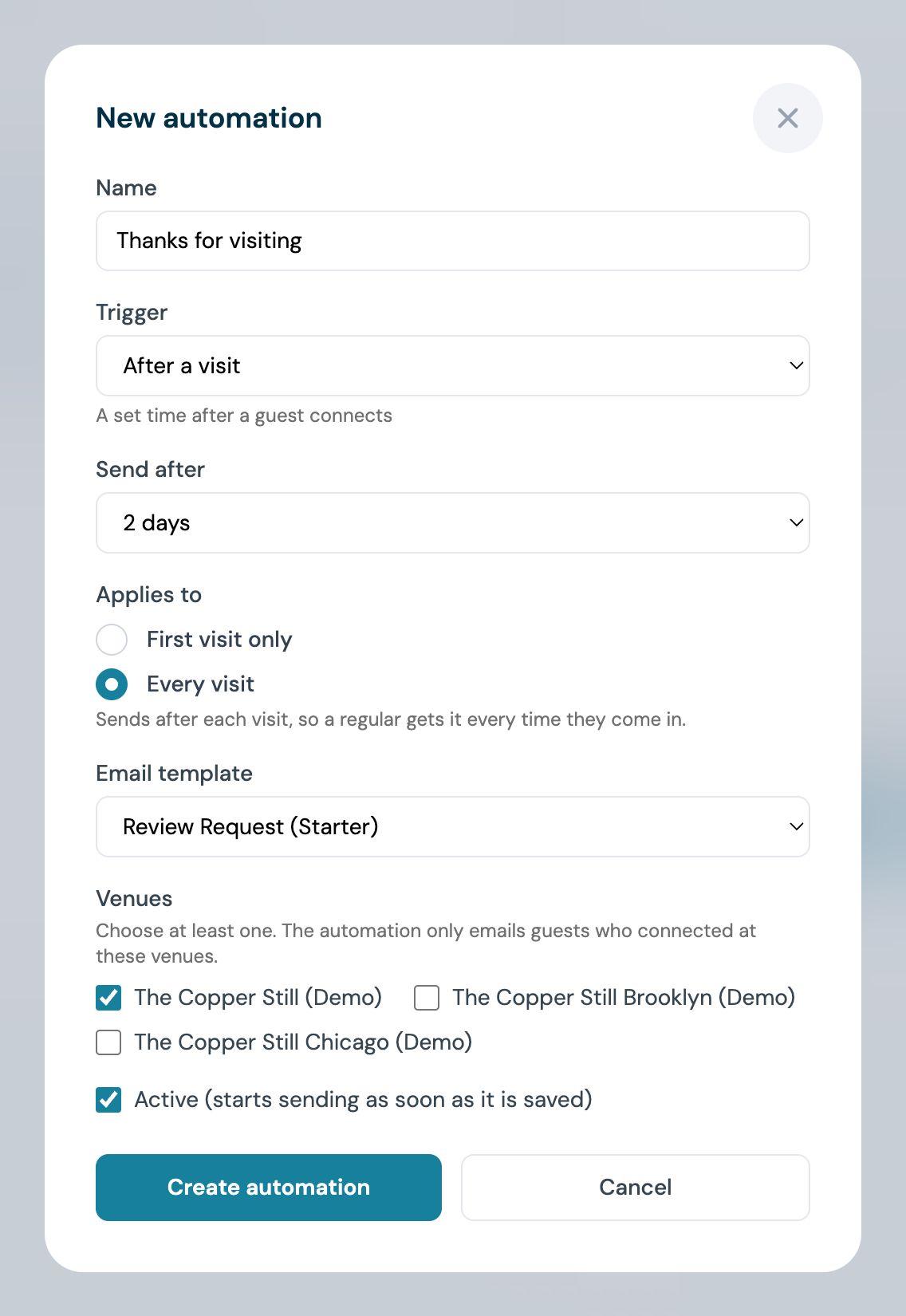
The top of the form for a Guest has not visited automation with Days without a visit set to 60, using the We Miss You template.
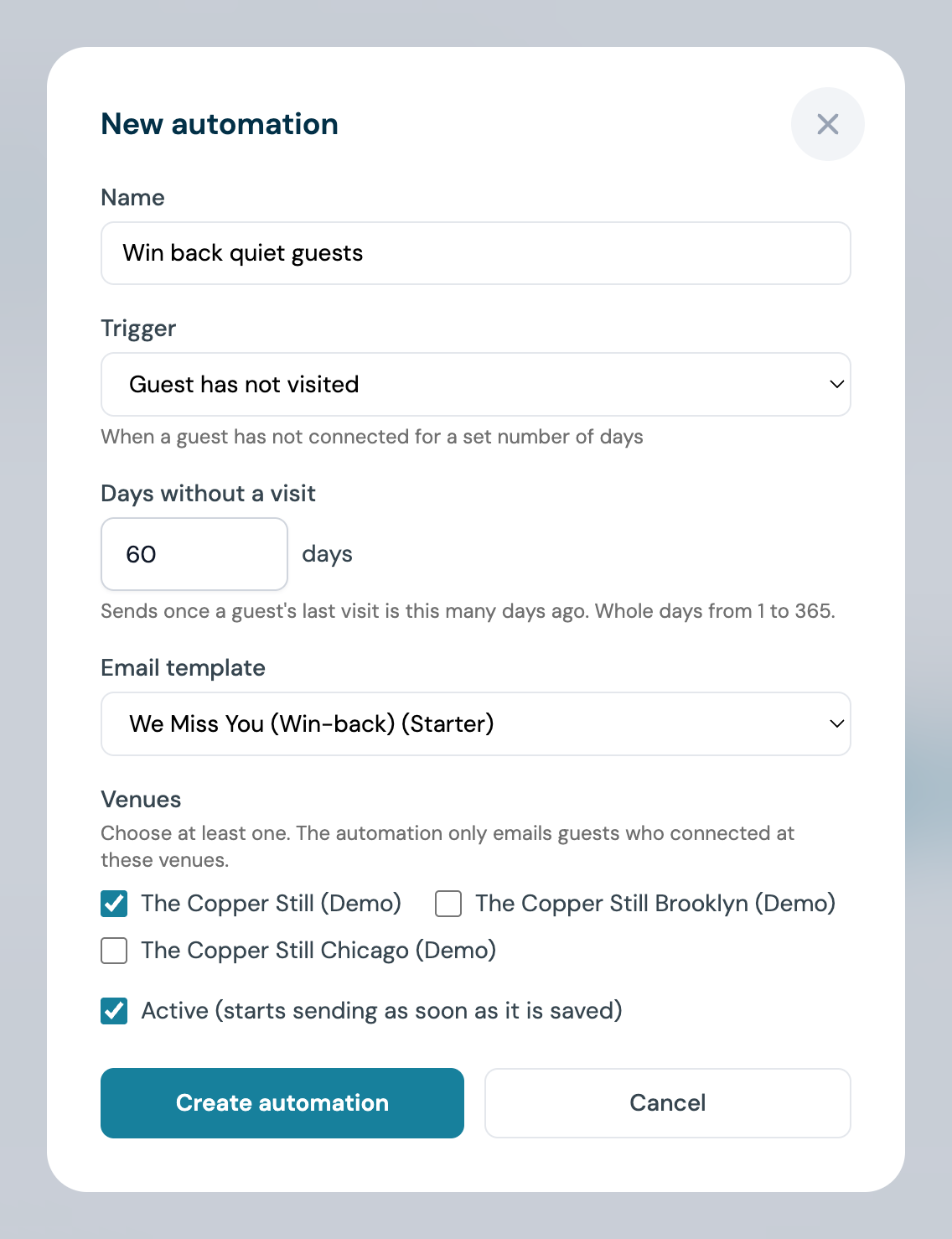
The automation joins the list with its trigger, its timing ("2 days after every visit", "No visit for 60 days", plus "+1 follow-up" when it has one), the template, the venues it covers and its status. Click the Active badge to pause it without deleting it, and click it again to start it. Use Results to see how it is doing, Edit to change any field and Delete to remove it.
Follow-ups
The first email goes out when the trigger fires. Follow-ups are further messages, each sent a set number of days after the one before it: an email, or a text message if you have SMS Marketing. So one automation can run a whole sequence: a welcome, a reminder a week later for anyone who did not open it, and an offer a fortnight after that for anyone who has still not been back. An automation can have up to five follow-ups.
- Open the automation with Edit on its row, or start a new one, and scroll to Follow-ups
- Click Add follow-up. A numbered row appears
- In Send, enter how many days after the previous message this one goes out, from 1 to 365 (3 by default). The count always runs from the message before it in the sequence, so two follow-ups both set to 7 days land a week apart, the second a fortnight after the first email
- In Send as, choose Email or Text message. Text message appears when your plan includes SMS Marketing; see Text message follow-ups
- Choose the Only if rule: Always, They did not open the previous email, They did not click the previous email, or They have not visited again. The follow-up after a text message can only be Always or They have not visited again, because a text is never opened or clicked
- For an email, pick the Email template. Any template in your library can be used; it does not have to match the first email. For a text, type the message in the box: the counter under it shows the length, the number of message segments and the credits it costs per guest, and the chips insert {first_name}, {last_name}, {venue_name}, {site_name}, {wifi_code} and {review_link}, plus {reward_link}, {rewards_link} and {wallet_link} when Rewards is on, the event tags such as {event_name} when Events and tickets is on, and the booking tags such as {booking_date} when Table bookings is on. Keep the text within three segments
- With Rewards on, Reward offer for this follow-up reads Same as the automation. Leave it, or pick a different offer for this step; a follow-up whose email or text shows a reward tag mints its own reward. See Rewards in your messaging
- Optionally enter Add tags and Remove tags for this follow-up; see Tags
- Repeat for up to five follow-ups. The arrows on a row move it up or down the sequence, and the cross removes it
- Click Save changes, or Create automation for a new one
The row in the list then shows "+1 follow-up" (or "+2 follow-ups" and so on) after its timing; hover over it to read each step.
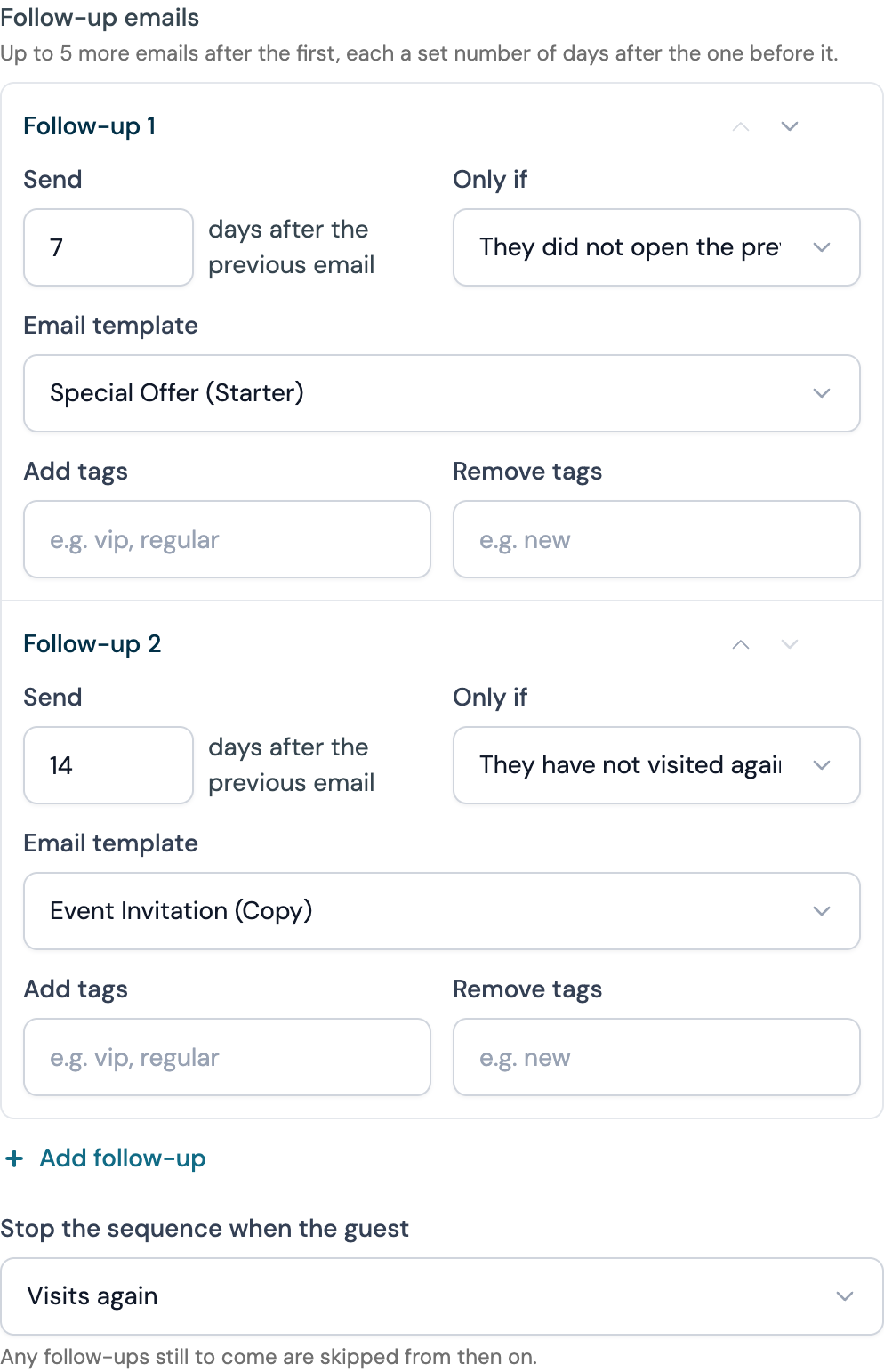
The Follow-ups section of the form with two email follow-ups: the first 7 days later, only if the guest did not open the previous email, and the second 14 days after that, only if they have not visited again.
How the Only if rule works
Each follow-up checks its rule at the moment it is due. They did not open the previous email and They did not click the previous email look at the email immediately before it in the sequence. They have not visited again checks whether the guest has connected to your WiFi at the automation's venues since the first email was sent. A connection counts as a visit again only when it is more than 12 hours after the first email, so a reconnection during the same visit is not one. The same test decides the Visits again stop rule and the Returned within 30 days figure in Results. When the rule is not met, that follow-up is skipped and the sequence carries on: later follow-ups keep their timing and check their own rules when their turn comes.
Text message follow-ups
A follow-up row with Send as set to Text message: the message box with its length and segment counter, the merge tag chips, and the credit cost per guest under it.
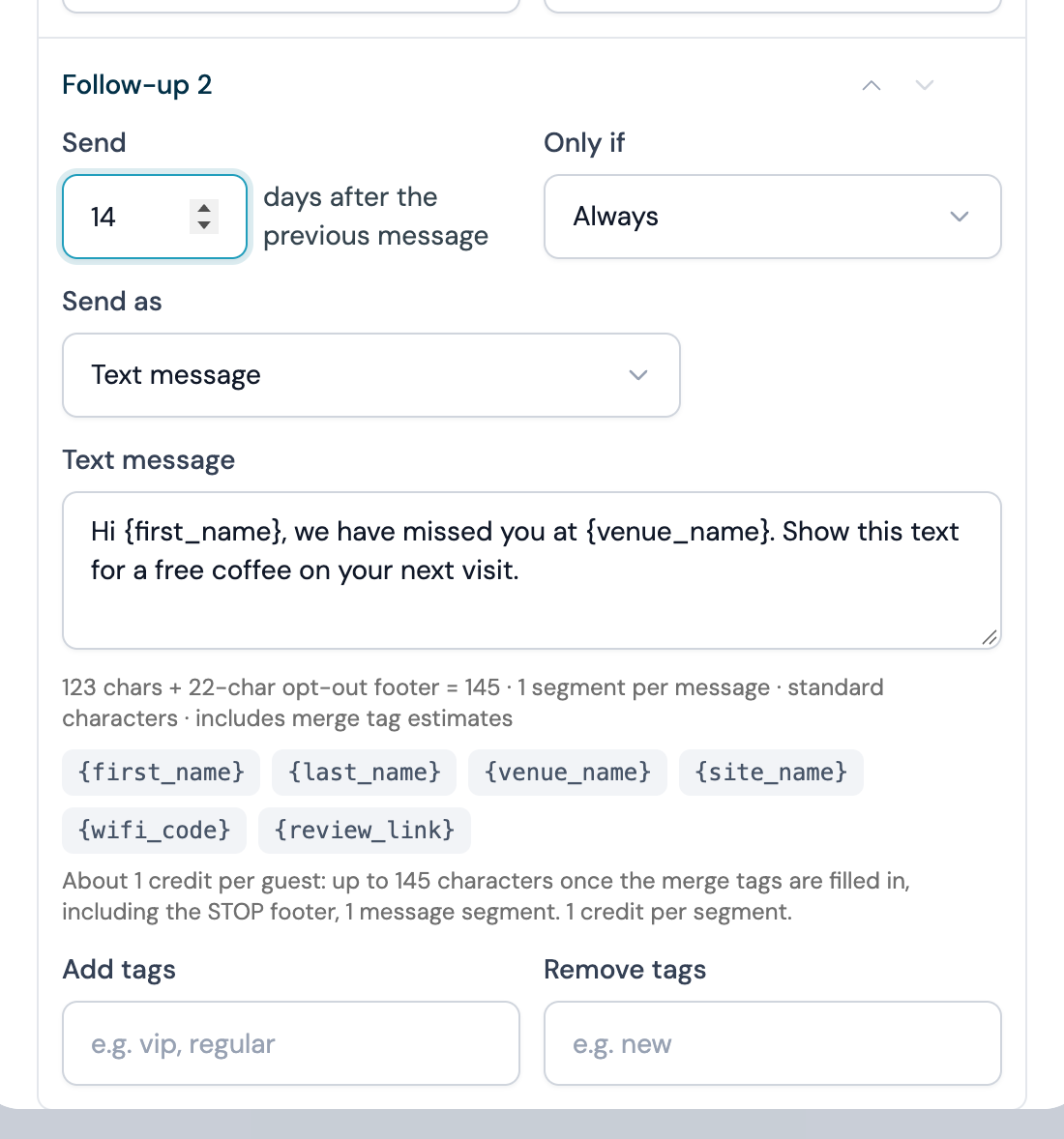
A text follow-up needs SMS Marketing and uses your monthly texts, not your email allowance. Each message segment is one text (the cost line under the box counts them as credits), with the STOP footer CaptiFi adds counted in, so the cost line is what each guest costs. See Texts and what they cost. It goes only to guests who gave a mobile number and agreed to texts, and never to a number that has replied STOP. Texts are held during quiet hours (by default 21:00 to 09:00 in the venue's local time) and sent when they end. If the month's texts have run out, or paid texts have reached your monthly limit, the text waits up to 7 days and is then skipped; Results lists it under No SMS credits left. A text follow-up never ends the sequence: a guest the text cannot go to still receives the email steps after it.
Stop the Sequence
Under the follow-ups, Stop the sequence when the guest ends the whole sequence early:
- Never (the default): every follow-up is considered in turn
- Visits again: the guest visits again, by the same test as the Only if rule above
- Opens any email: the guest opens the first email or any follow-up
- Clicks any email: the guest clicks a link in any email of the sequence
Once the stop rule is met nothing further is sent from that sequence: every remaining follow-up is skipped, and the Results view lists them under Skipped with the reason. The rule only affects follow-ups; the first email goes out when the trigger fires.
An Only if rule skips one email and the sequence moves on. The stop rule ends the sequence for good. Use the stop rule on a win-back, so a guest who has already come back is left alone, and an Only if rule on a reminder that should only reach the people who ignored the last email.
Tags
An automation can add or remove guest tags as it runs, so a journey builds an audience as it goes.
- Guest tags on the automation itself are applied when the first email is sent: Tags to add when the first email is sent and Tags to remove
- Each follow-up has its own Add tags and Remove tags, applied when that follow-up is sent
Separate tags with commas, up to 10 in a field, each up to 40 characters. Tags land on the guest's profile under Guests → Guest Visits, alongside tags added by hand or by the Planner. A segment with the condition Guest tag contains that tag then picks those guests out for a campaign. A welcome automation can tag every guest "welcomed" and take "new" off them, for example, and a follow-up sent only to guests who did not open the first email can tag them "quiet", ready for a different approach later.
Results
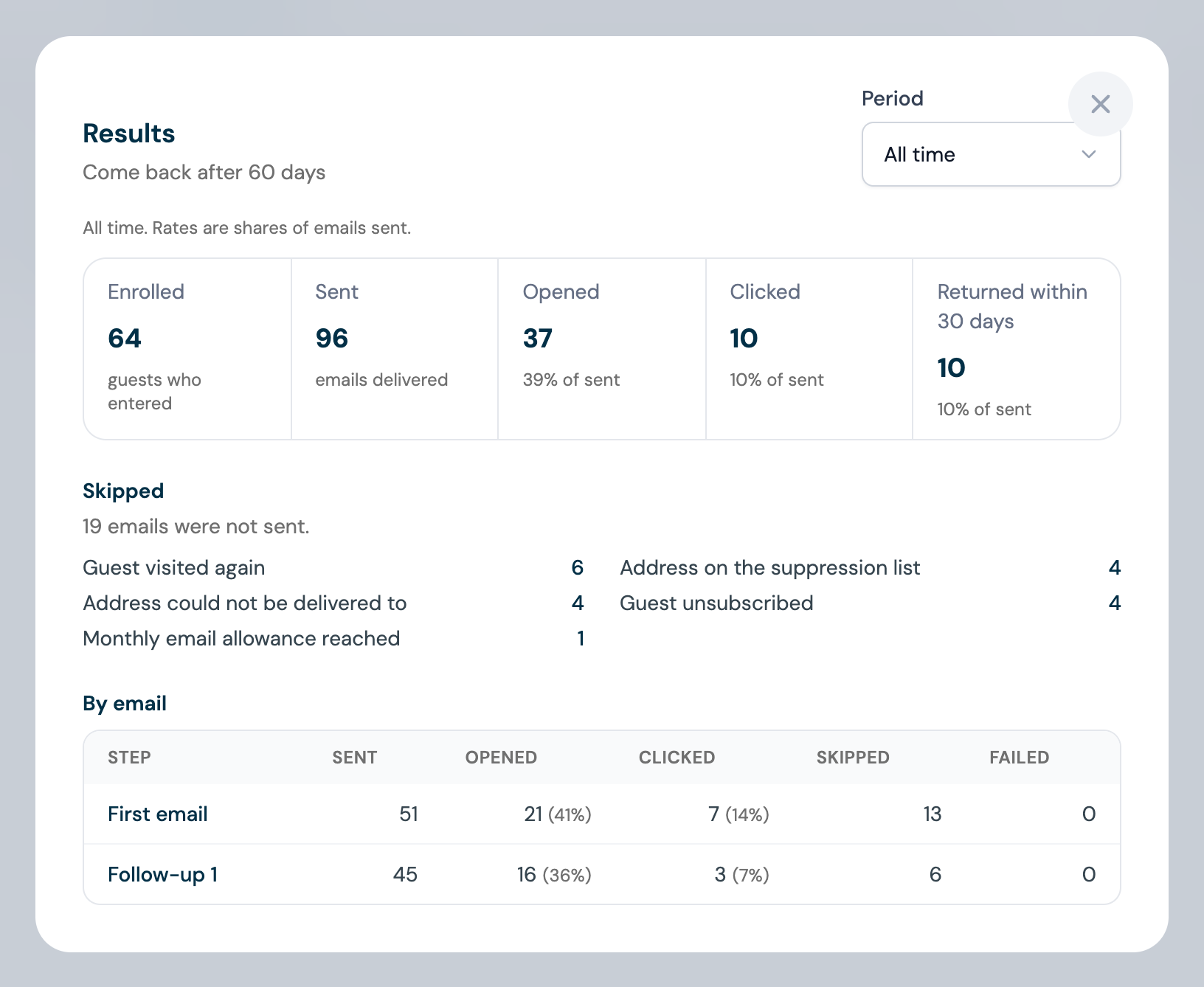
Click Results on an automation's row to see how it is doing. Pick a Period at the top right: Last 30 days, Last 90 days, Last 365 days or All time (the default). The figures cover that period.
| Figure | What it counts |
|---|---|
| Enrolled | Guests who entered the automation, because its trigger fired for them |
| Sent | Emails and texts delivered, first emails and follow-ups together |
| Opened | Emails opened, with the share of emails sent |
| Clicked | Emails where a link was clicked, with the share of emails sent |
| Returned within 30 days | Guests who visited again within 30 days of their first email, with the share of emails sent |
Under the figures, a line reports any emails waiting for the monthly allowance to renew (they go out when it renews on your billing day) and any that failed to send.
Skipped lists every email that was not sent and why, largest count first:
- Address on the suppression list
- Address could not be delivered to
- Guest unsubscribed
- Monthly email allowance reached
- Follow-up condition not met: the follow-up's Only if rule was not met
- Guest visited again, Guest opened an email or Guest clicked an email: the stop rule ended the sequence
- Automation was switched off
- Guest has no mobile number, Guest has not agreed to text messages, Number opted out of texts, No SMS credits left, Held for quiet hours too long or Text too long once filled in: a text follow-up could not be sent. A text is held during quiet hours; one whose send window never leaves quiet hours, or that has waited 30 days, is skipped. A text that fits three segments as written can grow past them once a long name or a review link is filled in for a particular guest
By step breaks the figures down per step: First email, then Follow-up 1, Follow-up 2 and so on, each with Sent, Opened, Clicked (with their share of that step's sent), Skipped and Failed. A text follow-up is marked (text message) and shows n/a for Opened and Clicked. A follow-up with a strict Only if rule and a high Skipped count is doing its job: most guests acted on the email before it. When nothing has happened in the period the view says so, and tells you whether the automation is active or paused.
The Results view for a Come back automation over all time, with the five figures, the Skipped breakdown and the By step table.
Re-enrol Guests and Send Window
Two more options on every automation, in the form below the tags.
Re-enrol guests
Once only (the default) means each guest goes through the automation a single time: if its trigger fires again for the same guest, nothing is sent. Choose Again after a number of days and enter a number from 1 to 365 (30 by default), and a guest can enter the automation again once that many days have passed since they last entered it. The line under the option reads the rule back, for example "A guest can be enrolled again after 30 days".
Re-enrolment applies to three triggers: Guest returns, After a visit set to Every visit, and Guest has not visited. It is not offered for Guest connects, Birthday or After a visit set to First visit only, since a first connection happens once and a birthday comes round each year on its own.
- On Guest returns, and on After a visit set to Every visit, it sets the shortest gap between two runs for the same guest, since each return is a new connection. With re-enrolment after 30 days, a guest who visits every week gets the email at most once a month
- On Guest has not visited the longer of the two waits applies, the days without a visit or the re-enrol days. Set to 60 days without a visit and re-enrolment after 30 days, it behaves as if re-enrolment were 60 days; set to re-enrolment after 180 days, a guest who lapses again is emailed again no sooner than 180 days after their last run
A new run never starts while the guest's previous run of the same automation still has an email waiting to send.
Send window
An automation with no window sends whenever an email falls due, day or night. Set From and Until to keep sends inside opening hours, in the venue's own time zone: an email due outside the window waits and goes out when the window next opens. An Until time earlier than From is an overnight window, for example 18:00 to 02:00 for a late bar. Set both times or leave both blank; the line under the fields reads the rule back, for example "Sends between 09:00 and 20:00, venue time".
Start from a Preset
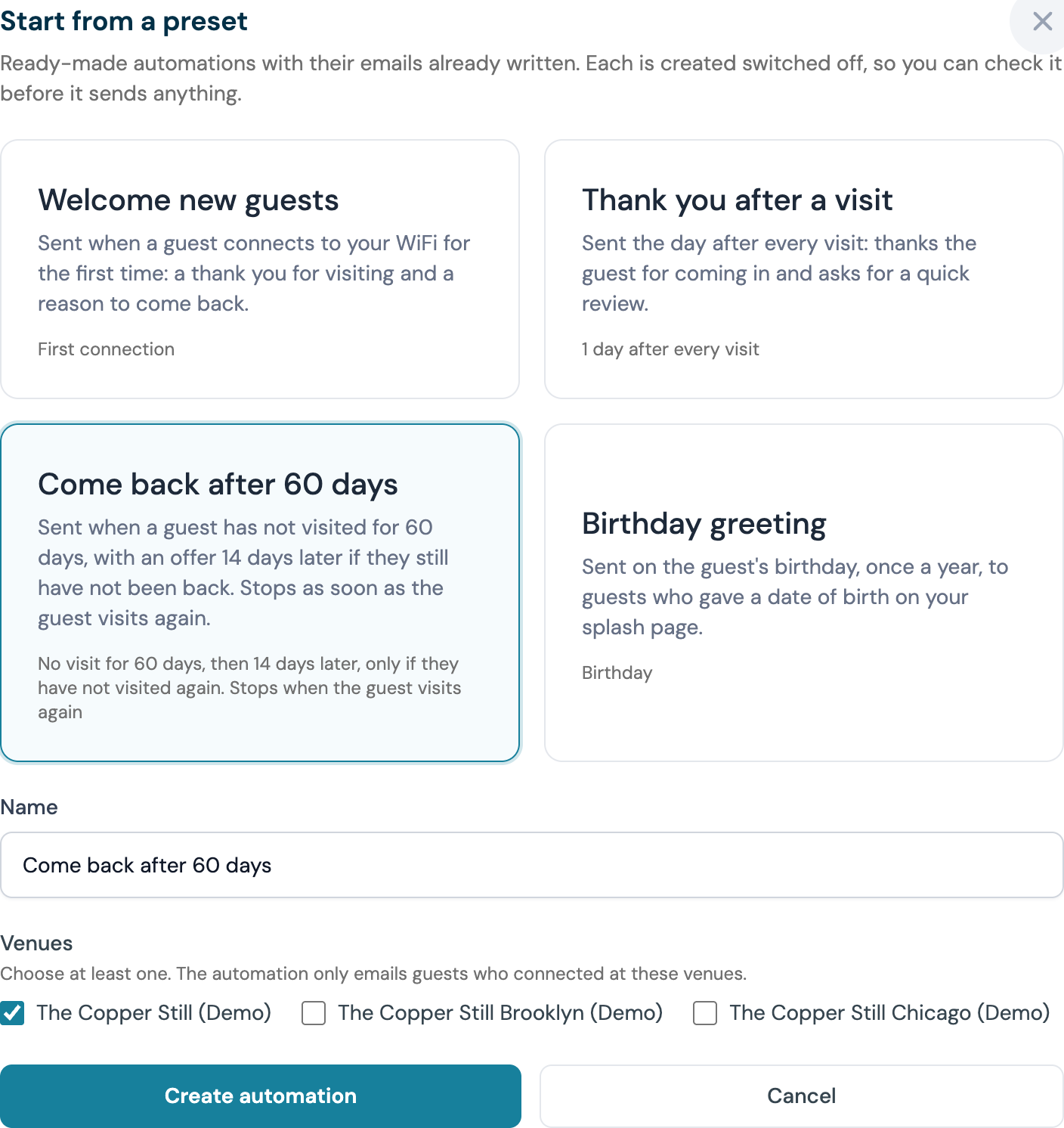
Beside New automation, Start from a preset creates a ready-made automation with its emails already written, so a new venue can have a welcome, a thank-you, a win-back and a birthday greeting set up in a few minutes.
- On the Automations tab click Start from a preset
- Click one of the four cards. The line under each describes what it will do, in the same words the automations list uses
- The Name is filled in from the preset; change it if you like
- Tick the venues it covers. With one venue on the account it is ticked for you
- Click Create automation
| Preset | What it does |
|---|---|
| Welcome new guests | Thanks a guest for connecting and tells them what is on, the first time they join your WiFi (Guest connects) |
| Thank you after a visit | A thank-you the day after every visit (After a visit, 1 day, Every visit), using the Review Request (Starter) template. It skips any guest asked for a review in the last 90 days, by this preset or by the review requests themselves |
| Come back after 60 days | Wins back a guest who has not visited for 60 days (Guest has not visited, 60 days). It stops if the guest visits again, and has one follow-up 14 days later, only if they have still not visited. A guest who comes back and later lapses again can be emailed again after 180 days |
| Birthday greeting | A birthday greeting with an offer, on the guest's birthday (Birthday), using the Happy Birthday (Starter) template |
The automation is created switched off and opens straight away in the edit form, with a notice saying so. Check its emails and venues, tick Active and click Save changes when you are ready for it to send.
Preset emails use CaptiFi's starter templates. To use your own design instead, pick a different Email template on the first email or on any follow-up, exactly as for an automation you built yourself.
Review and website links in your emails
Two merge tags work in any campaign or automation email. {{review_link}} gives each guest their own link to CaptiFi's rating page, the same one the review requests send: a rating at or above your minimum stars goes to Google or Tripadvisor, a lower one opens the private feedback form. Each link is valid for 30 days; a guest emailed again later gets a fresh one, and so does a guest who has already rated you. A campaign carries a link for every recipient. An automation email carrying the tag, the Thank you after a visit preset included, is skipped for a guest asked for a review at the venue in the last 90 days, and for every guest when the venue has no review link set up under Reviews; the skip is listed under Skipped in Results and the sequence carries on. A test send never creates a review request for a real guest. {{website_url}} points to your website, the address guests are sent to after connecting. The buttons in the starter templates use these tags, so they link to the right place for each venue without editing.
The Start from a preset window with its four cards, the Name field and the venue list.
Who Gets Emailed
- Only guests who opted in to marketing are emailed, with one exception: the Before an event reminder goes to every ticket buyer, because it is part of the ticket. Addresses that have unsubscribed, bounced or complained are never emailed, whatever the trigger, and that applies to every email in a sequence; the reminder alone still reaches an unsubscribed buyer and stops only at an address that bounced or complained. See Consent and your allowance.
- Each automation emails a guest once by default. If its trigger fires again for the same guest, they are not emailed a second time. Two settings change that: After a visit set to Every visit sends after each visit by design, and Re-enrol guests lets a guest back in after a chosen number of days, on that trigger, on Guest returns and on Guest has not visited.
- A follow-up is sent only when its Only if rule is met and the stop rule has not ended the sequence.
- Imported contacts never receive automations, because they have no WiFi visit for a trigger to start from. See Automations and imported contacts. Ticket buyers are the same until they connect, except for the four event triggers, which start from their order.
- The three Rewards triggers email the member's most recent sign-in at the automation's venues that gave an email address and accepted marketing. A member with no such sign-in is not emailed.
Automations and Your Email Allowance
Every automation email counts towards your plan's monthly email allowance, follow-ups included, exactly like a campaign email, and the Plan usage card on Settings → Billing counts each one. The two exceptions are the Before an event reminder and the After an event email, which are about a ticket the guest holds and are not counted; a follow-up step under either is counted like any other. If an automation email would take you past the allowance it waits, and is sent once the allowance renews on your billing day; the Results view shows how many emails are waiting. If automations are regularly waiting, a bigger plan adds allowance immediately; see Plans & Pricing. Text follow-ups are not counted here: each message segment is one text from your monthly texts; see Texts and what they cost.
Recreate Your Stampede Workflows
Moving from Stampede? Its Workflows are a visual journey builder, and so is CaptiFi's Workflows: a trigger, then the steps you draw, with branches, waits and messages. For the everyday journeys an automation with a trigger, a template and follow-ups is quicker to set up. The table maps each Stampede template to both.
| Stampede template | In CaptiFi |
|---|---|
| Wi-Fi welcome | An automation with the Guest connects trigger, or the Welcome new guests preset |
| Post-visit thank-you | An automation with the After a visit trigger, with Applies to set to Every visit, or the Thank you after a visit preset |
| Birthday offer | An automation with the Birthday trigger, or the Birthday greeting preset |
| "Last booked 60 days ago" win-back | For guests who connect to your WiFi from now on: an automation with the Guest has not visited trigger set to 60 days, or the Come back after 60 days preset. For a list you imported from Stampede: a monthly recurring campaign to a segment where How they joined is Imported contact |
| Wait, then branch on opened or clicked | An automation follow-up with an Only if rule of They did not open the previous email or They did not click the previous email; or, in a workflow, Wait followed by If they opened or clicked |
| Win-back that exits when the guest rebooks | Stop the sequence when the guest set to Visits again; see Stop the sequence. The Come back after 60 days preset is this journey ready-made, and the Win back a cancelled booking workflow recipe ends the run when the guest books again |
| Win-back cancellation | The Win back a cancelled booking workflow recipe: two days after a booking is cancelled, a 24-hour WiFi voucher by email, ended if they rebook. See Workflows |
| Loyalty points | Rewards: points for visits and till spend, tiers and offers, with the Points balance reaches a total, Reward issued and Reward about to expire triggers and an offer attached to the email; see Rewards in your messaging |
| Inbox handoff | No equivalent |
The two halves of the win-back row cover different people. The automation only counts WiFi visits, so it starts with guests who connect after you switch it on. The recurring campaign reaches the imported list straight away; with Email each guest only once ticked, each contact is emailed once however many months it runs, and unticking it sends the reminder again on every run. Once an imported contact connects to your WiFi they have a real visit, and a segment built on Last visit (for example, was more than 60 days ago) picks them up like any other guest from then on.
Best Practices
- Start with a Guest connects welcome email, sent while the visit is still fresh. The four presets cover the basics in a few minutes
- Time After a visit for the moment you want: a thank-you the day after the visit (the Thank you after a visit preset, which skips guests asked for a review in the last 90 days), or a rebooking prompt for a hotel some weeks later
- Set Guest has not visited to a window that matches how often a regular comes in, for example 30 days for a cafe and 60 or 90 for a restaurant or hotel
- Give each follow-up a job: a reminder to guests who did not open the first email, or a second offer to guests who have still not been back. Set the stop rule to Visits again on any win-back so a guest who returns is not chased
- Check Results monthly and pause anything that is not earning opens and clicks
Troubleshooting
| Issue | Solution |
|---|---|
| Automation not sending | Check it shows Active and that at least one venue is ticked. Emails come from your verified sending address, or a CaptiFi venue address until you verify one; see Who your guest emails come from |
| A guest was not emailed | They must have opted in to marketing and must not be on your Suppressions list. Each automation also emails a guest once unless Re-enrol guests says otherwise, so a guest who already received it is skipped, and imported contacts never trigger automations |
| A follow-up was not sent | Open Results and read Skipped. Either its Only if rule was not met (the guest opened or clicked the previous email, or visited again) or the stop rule ended the sequence. Both are the sequence working as set |
| An automation seems to have stopped part-way through the month | Your monthly email allowance may be used up. Waiting emails are sent when it renews on your billing day; upgrading adds allowance immediately |
| Emails arrive at odd hours | Set a send window. Emails due outside it wait for it to open, in the venue's own time zone |
| A preset shows Paused | Presets are created switched off. Edit it, tick Active and save |
| Guest has not visited never fires | It emails a guest from 10:00 venue time on the day after their last WiFi visit becomes the set number of days old, and only if their latest sign-in accepted marketing. Guests who were already past that point when you switched it on are reached with a campaign to a segment where Last visit was more than N days ago |
| Wrong content going out | Edit the automation and check which template it uses, on the first email and on each follow-up |
| Nothing in the Automations tab | Email marketing needs the Essentials plan or above; see Plans & Pricing |
| The Rewards triggers or the offer picker are missing | Rewards must be on the plan (Growth and above) and switched on by the account owner under Integrations → Dashboard features |
| The event triggers are greyed out | Events and tickets must be on the plan (Growth and above) and switched on by the account holder under Integrations; When a booking turns up also opens with Reservations. See When a trigger is not available yet |
Related Features
- Workflows: the canvas for journeys that branch, wait for the guest, or mix emails with tags and points
- Email Campaigns: one-off and repeating sends, and the segment builder
- Import Existing Contacts: how imported contacts fit with automations
- Planner & WiFi Automations: tag guests who connect during an event, and build an audience from a tag
- Reviews: the built-in review requests by email and text, with the Ask after delay, the star rule and the 90-day rule
- Rewards in your messaging: the reward triggers, offers on automations and follow-ups, and the reward merge tags
- Event messaging and automations: the four event triggers, the event merge tags, ticket buyer segments and ticket webhooks
- Guest Analytics: see whether automations bring guests back