

Appearance
How to set up the Airship integration with CaptiFi
Follow every step below and each new opted-in WiFi guest will be tagged into your Airship audience, ready to target in a push, in-app or email campaign.
Time needed: about 10 minutes.
What this integration does
When a guest connects to your WiFi and accepts marketing, CaptiFi tags that person in Airship as a Named User, inside a tag group called captifi, with two tags:
site:<venue ID>, so you can target the venue they connected atsource:captifi, so WiFi-sourced people stay separable from the rest of your audience
The Named User ID is derived from the guest's email address as captifi- followed by a hash, for example captifi-3f2a91c7b45e08d6f1a2c3b4. That keeps the same person stable across visits and means their email address never travels in a URL.
This targets people who already exist in Airship
CaptiFi tags a Named User. It does not create a push channel or register a device. If a WiFi guest has never installed your app or subscribed to your Airship channels, tagging them gives you nothing to send to yet, and the tags simply wait until they do. To reach WiFi guests directly by email or SMS instead, use the Klaviyo, Mailchimp or Twilio SMS integrations, or CaptiFi's own Campaigns.
For this to line up, your app must associate its channels with the same Named User ID scheme. The practical way to do that is to call Airship's Named User association with captifi- plus the SHA-1 of the user's lowercased email, truncated to 24 characters, at the point your app knows who the user is.
Before you start
- An Airship project, and whether it lives in the US or EU data centre
- Airship credentials with permission to modify tags
- A CaptiFi plan that includes integrations (Growth or above)
- Your venue live in CaptiFi with a splash page that collects an email address
Part 1: Get your Airship credentials
Step 1: Open your Airship project settings
Log in to Airship and open Settings, then APIs & Integrations, then Tokens or App Credentials depending on your account.
Step 2: Copy the App Key
The App Key identifies the project. Copy it. It is not a secret, and CaptiFi displays it back to you.
Step 3: Copy the Master Secret
The Master Secret authorises writes, including tag changes. Copy it and keep it safe. CaptiFi stores it write-only: after saving you see only a Secret saved confirmation and a Replace link.
Step 4: Note your data centre
Airship runs separate US and EU clouds and credentials are not interchangeable between them. If your project URL is go.airship.eu you are on EU. If it is go.urbanairship.com you are on US.
Getting this wrong is the single most common cause of a failed connection test.
Part 2: Connect Airship in CaptiFi
Step 5: Open the Integrations page
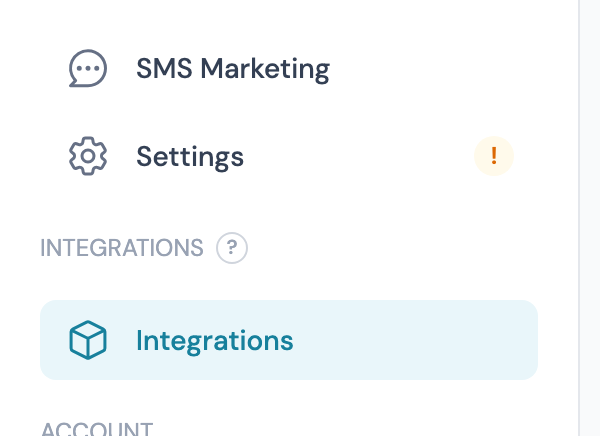
Log in to my.captifi.io and click Integrations at the bottom of the left sidebar.
Step 6: Find the Airship card
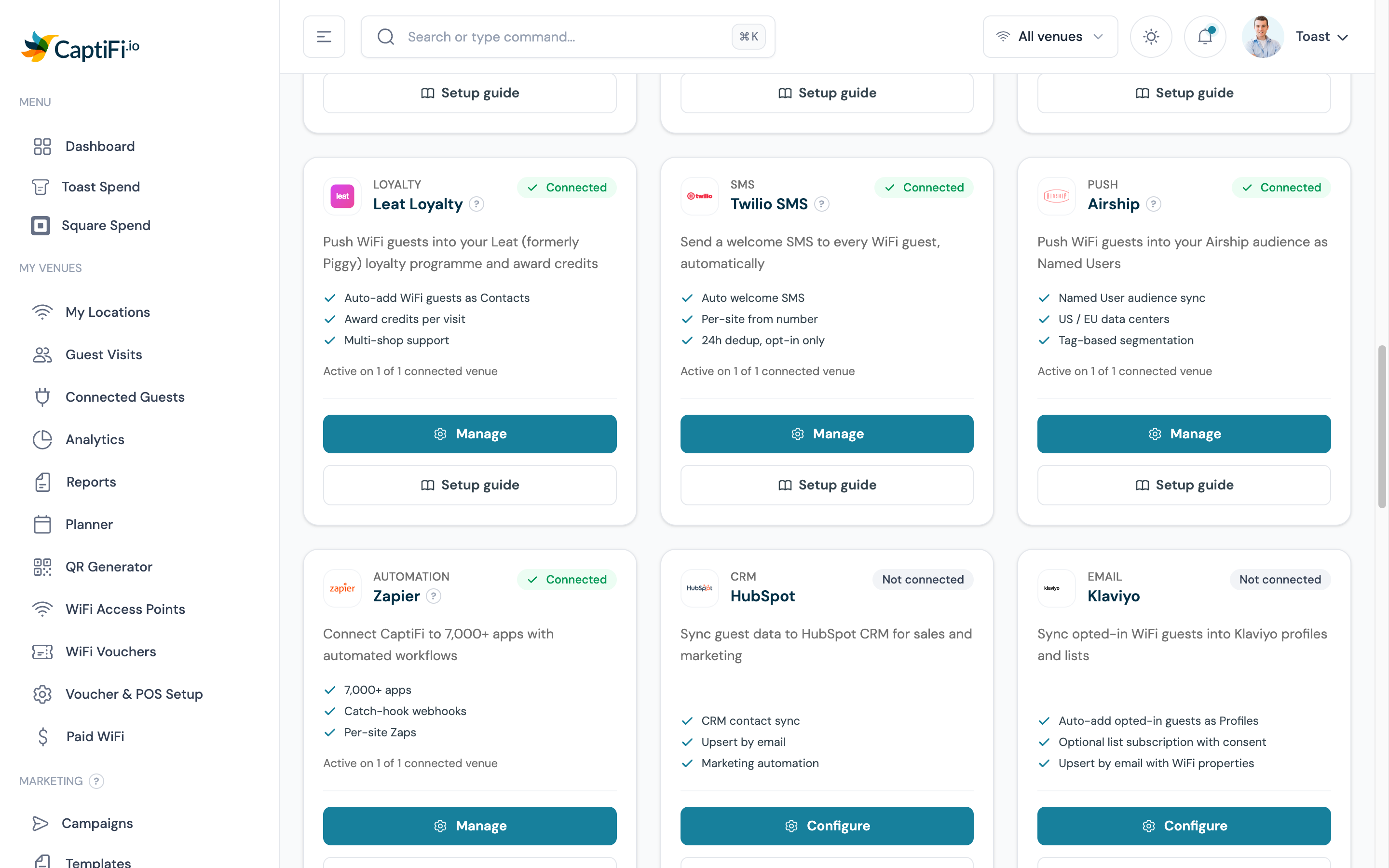
Scroll to the provider cards. A provider you have never connected shows Not connected and a Configure button. Once connected it shows Connected, how many venues it is active on, and a Manage button.
Step 7: Enter your credentials and data centre
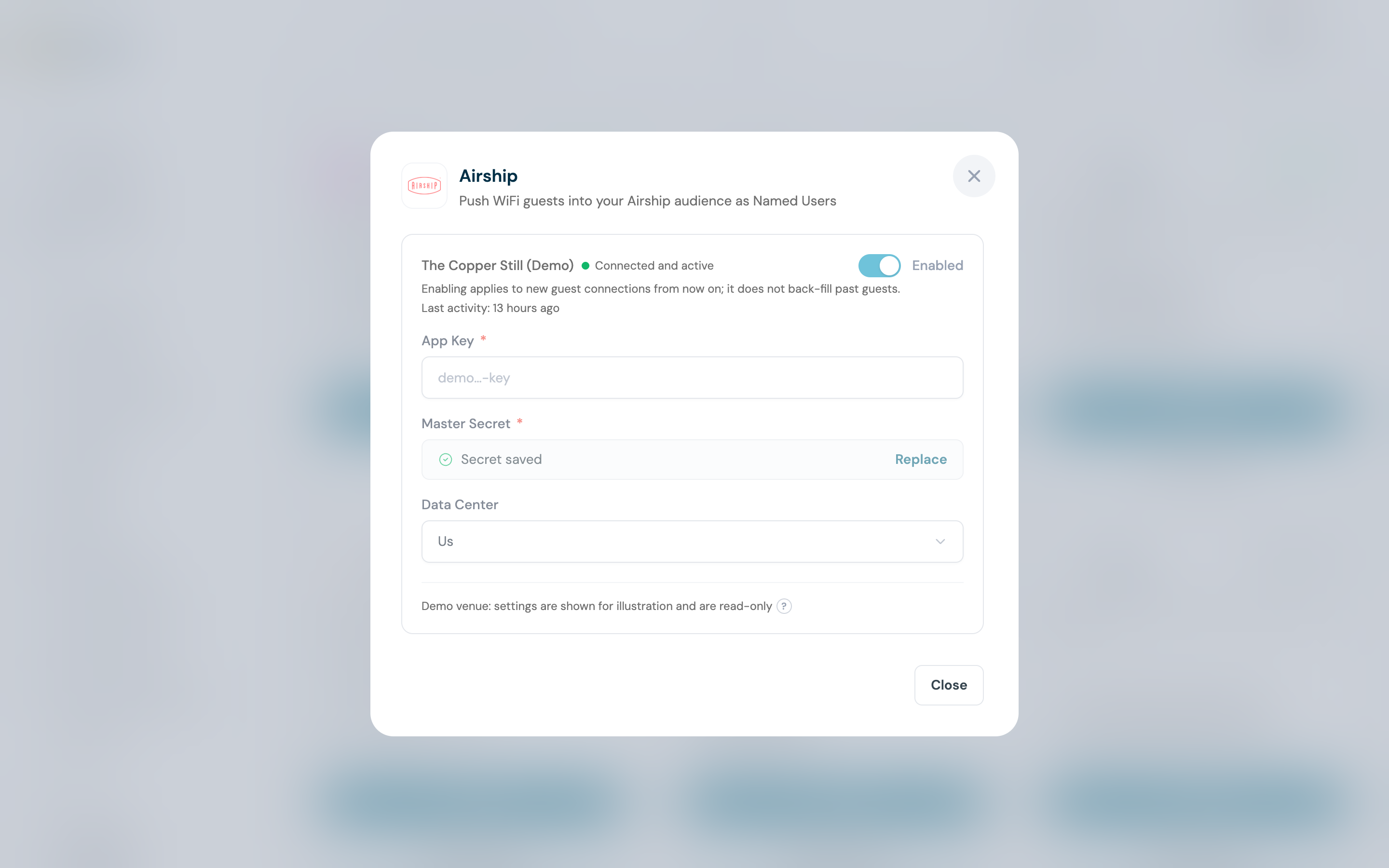
Click Configure (or Manage) to open the settings panel for the venue.
- App Key is required.
- Master Secret is required the first time. On later saves you can leave the saved secret in place.
- Data Center is US or EU (listed as Us and Eu), and defaults to US.
Step 8: Save, then test the connection
Test connection fetches your app from Airship, so it validates the key, the secret and the data centre together. On success it names the app it reached.
Step 9: Switch the venue on
The venue reads Connected but paused until you flip the toggle to Enabled.
Enabling is not retrospective
Enabling applies to new guest connections from that moment on. Guests already in your CaptiFi guest list are not back-filled into Airship.
Part 3: Test it end to end
Step 10: Sign in as a guest
Forget the WiFi on a phone, reconnect, and complete the splash page with an email address that has never been used at this venue. Accept marketing when the splash page asks.
CaptiFi sends a guest to Airship when that guest is first recorded at your venue, so a returning email will not produce a new sync.
Step 11: Find the Named User in Airship
In Airship, open Audience, then search the Named User ID. It is captifi- plus the first 24 characters of the SHA-1 of the guest's lowercased email address.
Under tag group captifi you will see site:<your venue ID> and source:captifi.
Step 12: Build a segment from the tags
Create an Airship audience segment on tag group captifi containing source:captifi for every WiFi guest, or site:123 for a single venue. Use that segment as the audience of any Airship campaign or journey.
What gets synced
| Data | Notes |
|---|---|
| Named User ID | captifi- plus a 24 character hash of the lowercased email |
site:<venue ID> tag | In tag group captifi, one per venue the guest connected at |
source:captifi tag | In tag group captifi, on every guest CaptiFi sends |
No name, email address or phone number is sent to Airship. Only the derived Named User ID and the two tags.
Important notes
- Only opted-in guests are synced (this respects GDPR consent).
- Guests without an email address are skipped, because the Named User ID is derived from the email.
- Tags are only ever added, never removed, so a guest who visits two of your venues accumulates a
site:tag for each. - Sync happens within minutes of the WiFi sign-in, and retries three times over roughly 20 minutes if Airship is unreachable.
- Each venue holds its own App Key, Master Secret and data centre, so venues can point at different Airship projects.
- Disconnecting a venue clears the stored credentials from CaptiFi and resets the data centre to US. Tags already applied in Airship stay where they are.
Troubleshooting
Test connection returns HTTP 401 - the App Key and Master Secret do not match, or they belong to the other data centre. Re-check Step 4, then use Replace to save the secret again.
Test connection returns HTTP 404 - the credentials are valid but the App Key is not a project on that cloud. This is almost always a US project configured as EU, or the reverse.
Connection tests fine but no tags appear - confirm the venue toggle is Enabled (Step 9), that the guest accepted marketing, and that you searched the derived Named User ID rather than the guest's email address.
Tags exist but campaigns reach nobody - the Named User has no channel attached. See the warning at the top: your app has to associate a device or email channel with the same Named User ID before Airship has anywhere to deliver.