
Appearance
How to set up the HubSpot integration with CaptiFi
Follow the steps below and every WiFi guest who accepts marketing at your venue will be created as a Contact in your HubSpot account, ready for your lists, workflows and sales team.
Time needed: about 8 minutes.
What this integration does
When a guest signs in to your WiFi with an email address and accepts marketing, CaptiFi creates a HubSpot Contact with their email, first and last name, and the lead status New. HubSpot identifies Contacts by email address, so when someone already in your HubSpot account signs in again, CaptiFi updates that Contact instead of creating a duplicate. Ticket buyers who accept marketing at checkout on your events page are sent the same way, and guests who decline marketing are never sent.
Before you start
- A HubSpot account where you can create private apps (Super Admin access in HubSpot)
- A CaptiFi plan that includes integrations (Growth or above)
- Your venue live in CaptiFi with a splash page that collects an email address
Part 1: Create your HubSpot private app token
Step 1: Open Private Apps in HubSpot
In HubSpot, open Settings, then Integrations, then Private Apps, and create a private app.
Step 2: Name the app and give it the contacts scopes
Give the app a name such as "CaptiFi WiFi" and add both of these scopes:
crm.objects.contacts.readcrm.objects.contacts.write
Then create the app.
Step 3: Copy the access token
Copy the app's Access token. It starts with pat-. Do not copy the client secret, which CaptiFi cannot use.
Part 2: Connect HubSpot in CaptiFi
Step 4: Open the Integrations page
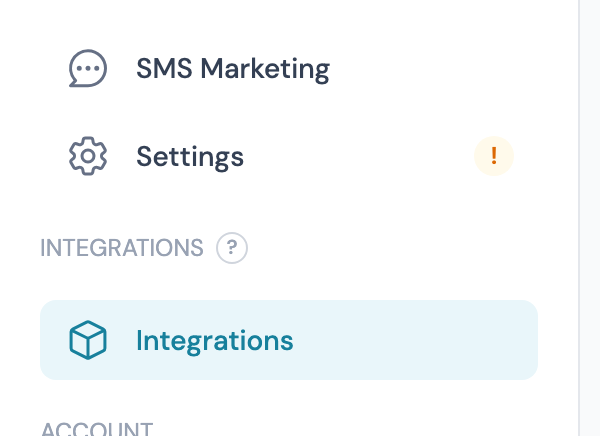
Log in to my.captifi.io and click Integrations in the left sidebar.
Step 5: Find the HubSpot card and click Configure
The HubSpot card sits with the other connectors. Click Configure and pick the venue you want to connect.
Step 6: Paste the token and click Save
Paste the token into Private App Token and click Save. The token is write-only: once saved, CaptiFi only shows a masked confirmation.
Step 7: Click Test connection
CaptiFi asks HubSpot to read one Contact with the token. Connected to HubSpot means the token and its scopes are right.
Step 8: Switch the venue on
The venue reads Connected but paused until you flip the toggle to Enabled.
Enabling is not retrospective
Only guests who sign in after you enable the integration are sent.
Part 3: Test it end to end
Step 9: Sign in as a guest
Forget the WiFi on a phone, reconnect, and complete the splash page with a real email address. Accept marketing when the splash page asks.
Step 10: Check the Contact in HubSpot
In HubSpot, open Contacts and search for that email. Within a few minutes it appears with the lead status New.
What gets synced
| Data | Notes |
|---|---|
| Email address | Required: guests without an email are not sent |
| First and last name | When your splash form collects them |
| Lead status | Set to New |
Phone numbers, visit history and custom question answers are not sent to HubSpot.
Important notes
- Only guests who accept marketing are sent (this respects GDPR consent)
- Contacts are matched on email, so repeat visits update the same Contact
- Each venue holds its own token and its own switch, so venues can send to different HubSpot accounts or share one
- If HubSpot is briefly unavailable, CaptiFi retries the sync automatically
Troubleshooting
"The stored value does not look like a Private App access token": the saved value does not start with pat-, usually because the client secret was pasted. Copy the access token (Step 3) and save it again.
Test connection returns HTTP 401: HubSpot rejected the token. It may have been rotated or the app deleted, or the contacts scopes are missing. Check the scopes (Step 2), copy the current token and save it again.
Guests not appearing: check the venue toggle is Enabled (Step 8), that the guest gave an email address, and that they accepted marketing.
Contacts arrive without names: add first and last name fields to your form in the Splash Page Builder.