
Appearance
Email Marketing & Campaigns
Build, send, and track email campaigns to the guest database your WiFi collects. The Email Marketing suite includes a campaign wizard, a template library, audience segments and automations, and full sending analytics.
Plan requirement: Email marketing is included on the Essentials plan and above (1,000 emails/month on Essentials, 2,000 on Growth, 5,000 on Pro, 10,000 on Enterprise). It is not on Lite. See Plans & Pricing.
Where Everything Lives
In the sidebar under Email Marketing:
| Page | What it's for |
|---|---|
| Campaigns | Create, schedule, and track campaigns, as a list or on a calendar |
| Templates | Your reusable email template library |
| Audiences | Saved segments and automatic emails |
| Settings | Sender identity, domain verification, and suppression list |
First: Verify Your Sending Domain
Before you can send campaigns, your sending domain must be verified: this proves to inbox providers that CaptiFi may send on your behalf, and it's the single biggest factor in staying out of spam.
- Go to Email Marketing → Settings → the Sender & domain tab
- Under Sender identity, set your From name (e.g. "Bella Vista Café") and From address (e.g.
hello@bellavista.co.uk), then click Save sender identity - Saving your sender identity generates a table of DNS records (type, host, value) with copy buttons under Domain verification. The last one, a TXT record at
_captifi.followed by your domain, is unique to your account and shows the domain is yours - Add those records at your domain provider (the place you bought your domain). Open How to add these records below the table for step-by-step guides covering Cloudflare, GoDaddy, Namecheap, 123-reg, Squarespace Domains, and IONOS
- Once the records propagate (usually minutes, up to 48 hours), click Verify now: each record shows a Pass badge and the domain shows Verified
Not the person who manages your domain?
Use Email these instructions under the records table: enter the email address of your IT person (or whoever looks after your domain) and we send them the exact records with setup tips. They don't need a CaptiFi login. Once they've added the records, you click Verify now.
Your from address must be on the domain you verify, and a domain can be verified on one CaptiFi account (with its team). If Verify now says the domain is already verified on another CaptiFi account, email support@captifi.io and we will move it to yours. CaptiFi's own domains can't be used as a sender.
If your domain was verified before the _captifi record was added, your campaigns keep sending as they do now. Add that record and click Verify now to have reward emails sent from your address too.
WARNING
Campaigns can only be sent once the domain is verified. Until then, the sidebar shows a warning badge on Settings. If you get stuck adding DNS records, support can walk you through it.
Who your guest emails come from
Ticket emails, table booking emails, review requests, automation and workflow emails and reward emails are sent for you, so they work with no email set-up. Guests see them from your venue's name. Once your sending address is verified here, they come from that address. Until then they come from an address on CaptiFi's venue mail domain, named for your venue, for example the-kings-arms@venues.captifi.io.
Replies go to an address you control: the reply address set for that email (such as Send private feedback to for review requests), else your sending address, else the email you sign in with once you have confirmed it. A guest's reply never lands at an address another business holds.
Campaigns are the exception: they always need your own verified domain, so they only ever come from your address.
Creating a Campaign
- Go to Email Marketing → Campaigns and click to create a new campaign
- The wizard walks you through:
- Name: an internal name for the campaign
- Audience: choose who receives it: all subscribed guests or a saved segment, optionally filtered to one venue
- Template: pick a design from your library and set the subject line and content, with personalisation like the guest's first name and your venue name, plus the
{{review_link}}and{{website_url}}tags for a review request or a link to your website. With Rewards on, this step also has an Attach a reward block: pick an offer and each recipient gets a reward of their own, placed in the email by the{{reward_link}},{{reward_code}}and{{reward_expires}}tags. See Rewards in your messaging. With Events and tickets on, eight event tags such as{{event_name}}and{{ticket_url}}fill in from each recipient's most recent ticket order and render empty for everyone else; see The event merge tags - Schedule: send now, pick a date and time, or set the campaign to repeat (see Repeat a campaign below)
- Review & send: check everything, then confirm
- Your campaign appears in the list with its live status
Campaigns only go to guests who agreed to marketing. Guests who unsubscribed, guests you suppressed and addresses that bounced or reported your email as spam are left out of every audience. Every email automatically includes an unsubscribe link, and guests can also opt out with the Unsubscribe button their mail app shows at the top of the message. Either way the opt-out is immediate and applies to every venue on your account, and the address moves to your Suppressions list.
Contacts you brought in yourself count too: see Import Existing Contacts for uploading a list you already have. Imported contacts appear in campaign audiences and count towards your monthly email allowance exactly like WiFi guests.
Every run of a repeating campaign and every automation email counts towards that same monthly allowance. The email usage meter on the Email Marketing settings page and on Account Settings moves with each email sent, and its "resets on" date is your billing day. A send that would take you past the allowance waits until the allowance renews.
Repeat a campaign
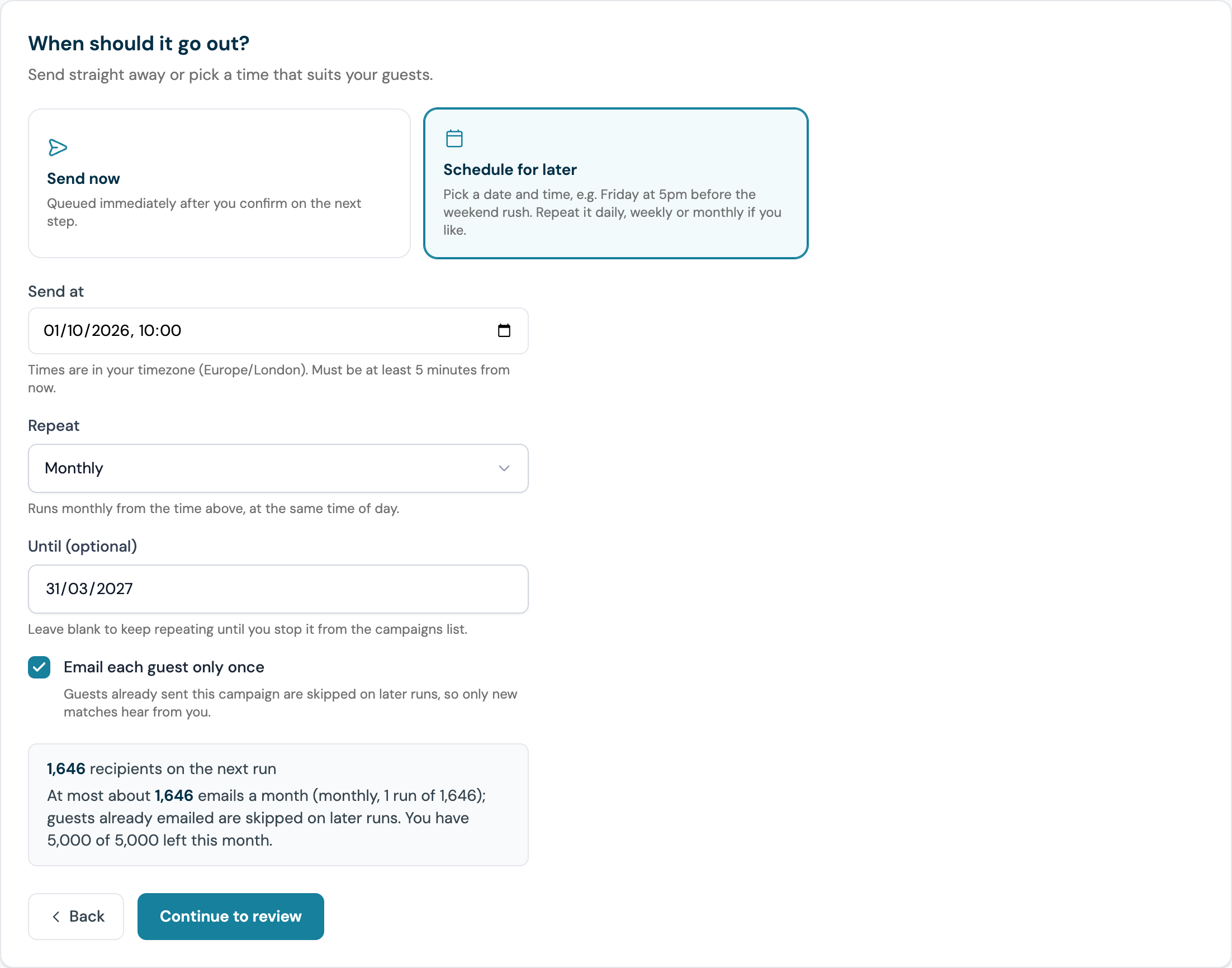
On the Schedule step, pick a date and time, then set Repeat to Daily, Weekly or Monthly (it is Never by default). The campaign then runs on that rhythm from the first send, at the same time of day on every run.
- Until (optional): the last day the campaign can run. Leave it blank and it repeats until you stop it from the campaigns list. Once the date has passed the campaign shows as finished
- Email each guest only once: ticked by default when a campaign repeats. Guests who have already been sent this campaign are skipped on later runs, so each run only reaches guests who newly match the audience. Untick it to email the whole audience on every run
Under those fields the step shows how many recipients the next run will reach and, for a repeating campaign, roughly how many emails a month that adds up to (daily x30, weekly x4, monthly x1) against the allowance you have left this month. A warning appears when the projection is more than you have left; pick a smaller audience or a slower repeat, or email each guest only once.
The Schedule step with Repeat set to Monthly, an Until date and Email each guest only once ticked. The projection under the fields shows the recipients on the next run and the emails a month against the allowance left.
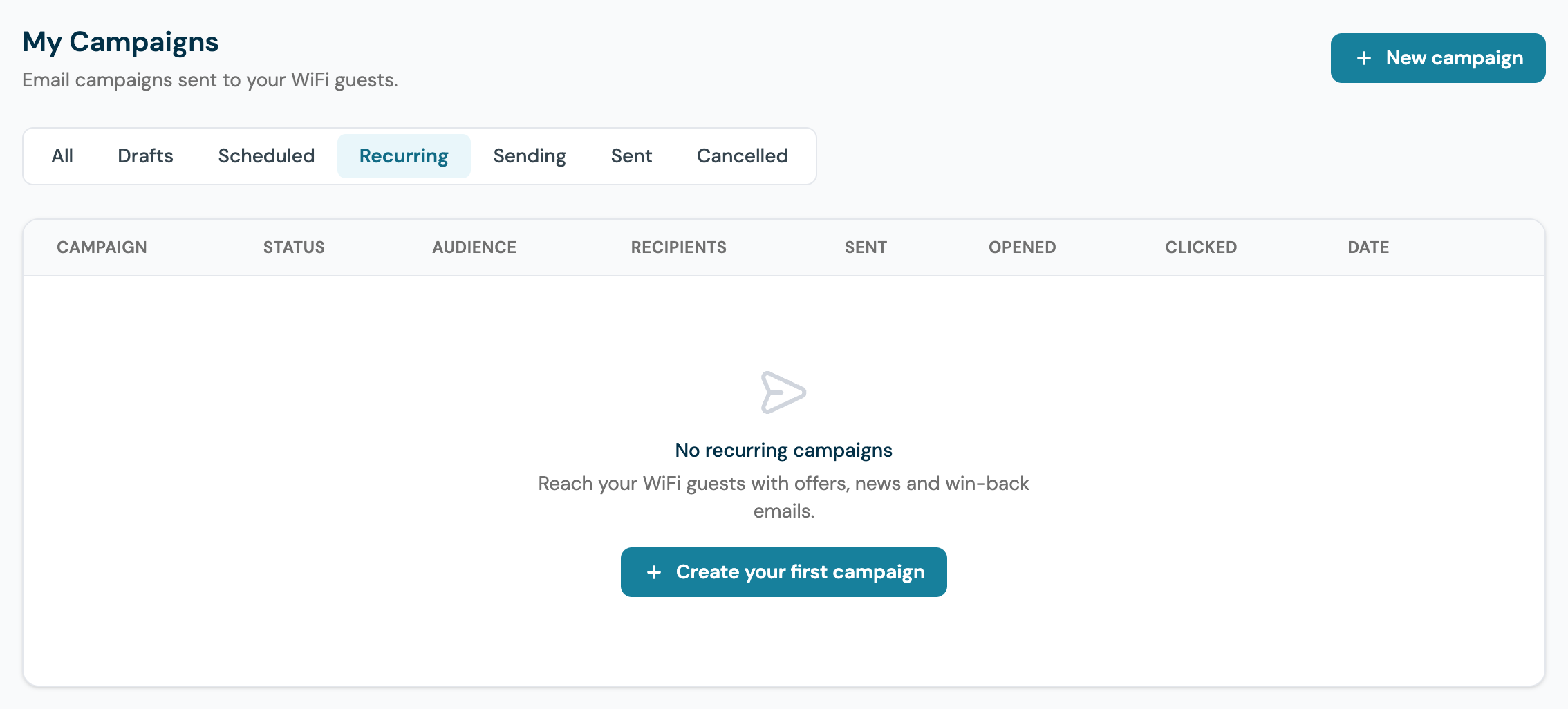
A repeating campaign sits on the Recurring tab of the Campaigns page, showing its next run and the number of runs so far. To end it, click Stop repeating this campaign on the row or on the campaign's own page: runs already sent keep their stats and no further run is scheduled. The schedule of a repeating campaign cannot be changed in place, so to move it, stop it and set up a copy with the new rule.
Each run is checked against your monthly email allowance on its own. A run that would take you past the allowance sends nothing, and the next run is scheduled as normal, so a monthly campaign blocked this month tries again next month. If the allowance runs out part-way through a run, because other emails went out at the same time, the emails still to go are skipped rather than sent over your limit. The campaign then shows a Not sent (allowance) figure beside its sent, opened and clicked counts, and a notice titled Campaign stopped at your email allowance in your dashboard feed tells you how many went out and when the allowance renews.
The Recurring tab on the Campaigns page. A repeating campaign appears here with its next run and the number of runs so far; before you set one up the tab is empty.
A recurring campaign is also how you message an imported list on a schedule, because imported contacts have no WiFi visit and never trigger automations: see Automations and imported contacts.
Audiences and Segment Sizes
Email Marketing → Audiences → Segments holds the saved audiences you can target from the campaign wizard. Each row shows the segment's conditions, the venues it covers, and an estimated guest count.
A segment has one or more condition rows. The second row and every row after it starts with a joiner, AND or OR. Leave every joiner on AND and a guest must match all of the conditions to be in the segment; switch them to OR and matching any one of the conditions is enough.
A saved segment can also start a workflow the morning after a guest first matches it.
What the guest count means
The Est. guests figure counts guests, not visits. Somebody who connects every week is one guest, not fifty. A guest is recognised by their email address, or by their phone number when your splash page collects a number instead of an email.
Because it counts guests rather than contactable addresses, this figure includes people you cannot email yet. If your splash page collects phone numbers only, a segment can show 40 guests while an email campaign to it reaches nobody: those guests are reachable by SMS instead. The campaign wizard always shows the true email recipient count when you pick a segment, so trust that number when you are about to send.
When the count refreshes
- Whenever you create or edit the segment
- Automatically every night
- Whenever you click the refresh arrow next to the number
Each row shows how old its figure is, for example "counted 3h ago", so you can tell a quiet week from a number that has not been recalculated. Clicking the refresh arrow recounts that segment immediately and updates the age.
A refreshed count that does not change simply means no new guests match the segment. Nothing is wrong.
Last visit and how they joined
Two conditions in the segment builder pick guests out by their history with you.
Last visit has two operators, was more than N days ago and was within the last N days, where N is a whole number of days, at least 1. It is measured per guest across all of their visits at the segment's venues: a guest who came in 70 days ago and again 10 days ago last visited 10 days ago, so they match "was within the last 14 days" and do not match "was more than 60 days ago". Imported contacts and ticket buyers who have not yet connected have no WiFi visit, so they never match either operator.
How they joined is one of Connected to WiFi, Imported contact or Bought a ticket, with is and is not as its operators. Connected to WiFi matches any guest with a WiFi visit, Imported contact any guest who has an uploaded row, and Bought a ticket any guest who bought a ticket, or claimed a free one, for one of your events. A guest who was uploaded, or bought a ticket, and later connected to your WiFi matches Connected to WiFi as well. Use it to send a campaign to one group and not the other. Ticket buyers are not counted as visits in your analytics or against your monthly guest allowance until they connect to your WiFi; until one of your events has sold tickets, Bought a ticket matches nobody.
The existing Visit date is within the last N days condition also takes a whole number of days of at least 1.
With Events and tickets on, two more conditions pick ticket buyers out: Bought tickets, for any event, for one event or within the last N days, and Attended a booking, which counts a ticket admitted at the door and a table booking matched from WiFi. See Ticket buyers in segments.
With Table bookings on, two more pick out bookers: Booked a table, with at any venue, at the venue (one of the segment's venues) or was within the last N days, matches guests with a confirmed table booking at the selected venues; cancelled bookings and deposit holds that were never paid do not count. Table booking no-shows is a count under the number operators, so a count of 0 picks guests who have never missed a booking and a count of 2 or more picks repeat no-shows. A guest is matched to a booking by the email address or the mobile number they booked with. Both conditions are listed greyed out until Table bookings is switched on.
A segment with two conditions: Last visit was more than 60 days ago, and How they joined is Imported contact.
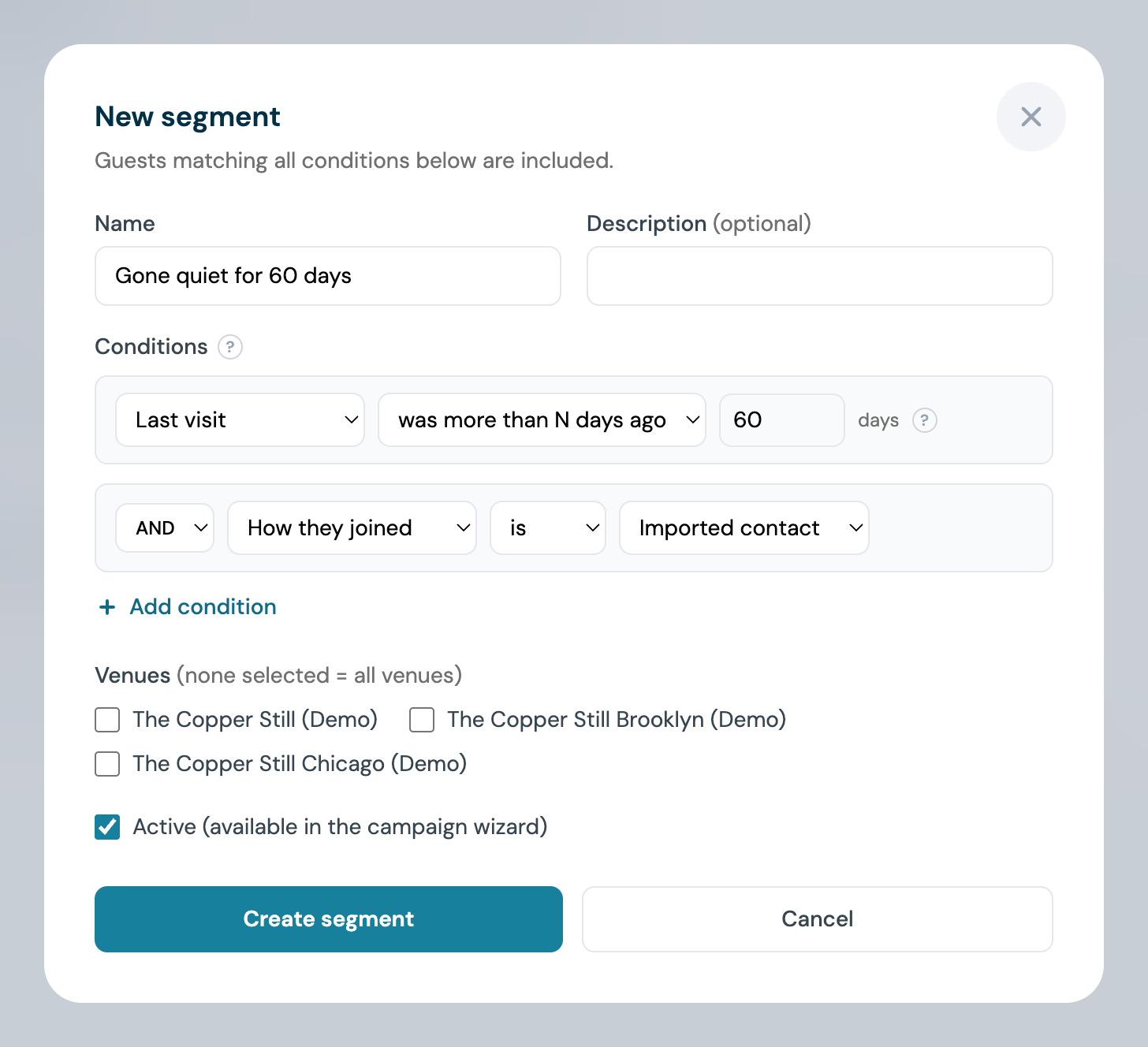
A monthly recurring campaign to a segment where Last visit was more than 60 days ago is a rebooking prompt for guests who have already gone quiet. The Guest has not visited automation does the same job one guest at a time, as each one reaches that point.
Rewards conditions
With Rewards switched on, four more conditions pick guests out by their membership.
| Condition | Operators | Value |
|---|---|---|
| Points balance | equals, does not equal, is more than, is less than, is at least, is at most | A whole number of points |
| Rewards tier | is, is not | One of your programme's tiers, by name |
| Rewards member | is | Yes or No |
| Has an unused reward | is | Yes or No. Yes means a reward that has not been redeemed and has not expired |
A guest who has not joined the programme never matches Points balance, Rewards tier or Has an unused reward, whichever way the condition is written, and matches Rewards member is No. How they pair with an offer attached to the campaign is under Rewards in your messaging.
Managing Campaigns
The Campaigns page has tabs for All / Drafts / Scheduled / Recurring / Sending / Sent / Cancelled. Each row shows the campaign's status and its stats (sent, opens, clicks); a repeating campaign shows its next run and runs so far. The icons at the end of a row depend on the campaign's status; hover over one to see its name.
- Drafts: Continue editing (opens the wizard where you left off), Duplicate as a new draft and Delete draft (with confirmation)
- Scheduled: View campaign, Duplicate as a new draft and Cancel scheduled send, which stops it before it sends
- Recurring: View campaign, Duplicate as a new draft and Stop repeating this campaign; runs already sent keep their stats
- Sent, Sending and Cancelled: View campaign and Duplicate as a new draft
View campaign opens the campaign's own page, with its full analytics and a preview of the email as recipients see it. Duplicate as a new draft copies any campaign as a starting point for a new one.
The Campaign Calendar
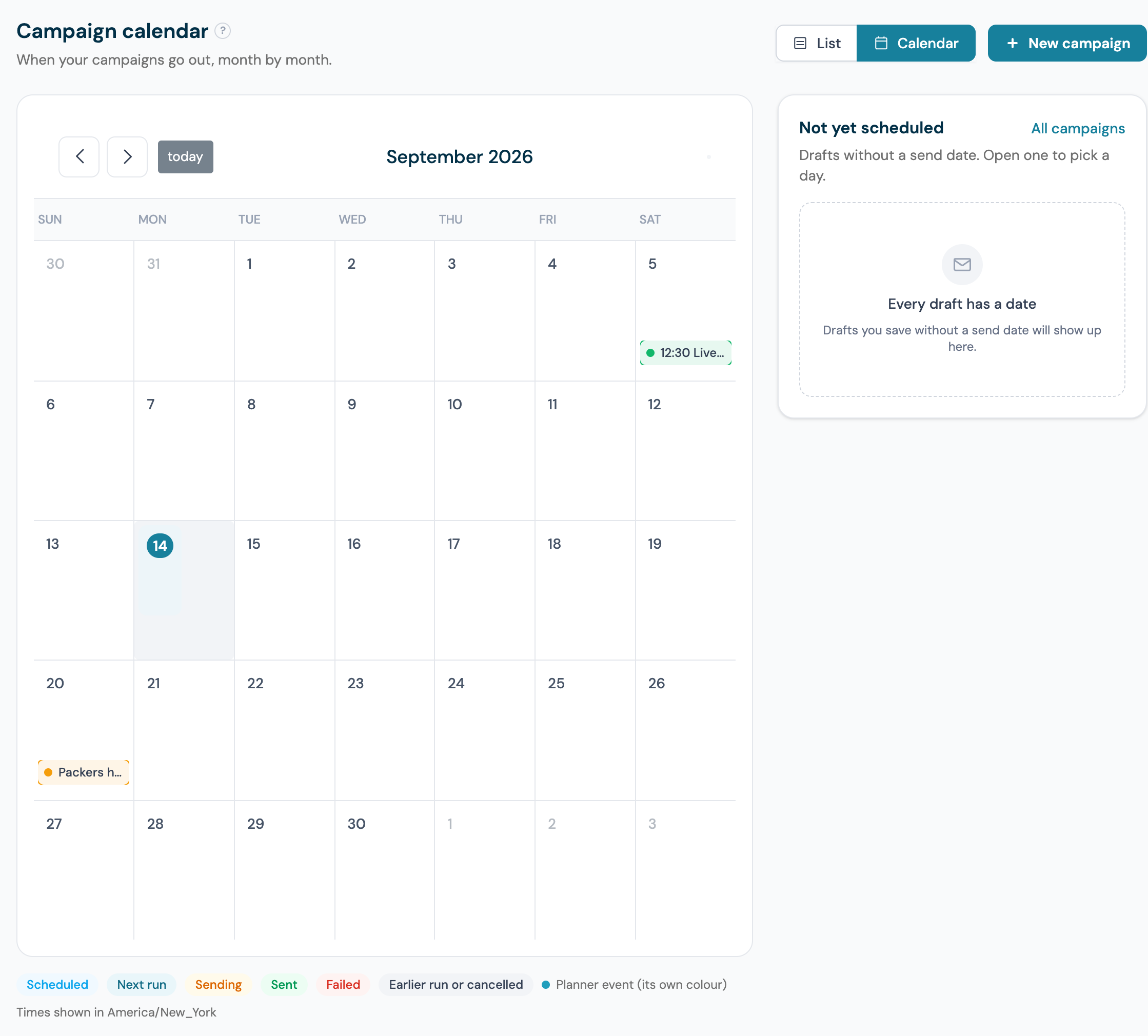
The Campaigns page has two views. List is the table described above. Calendar lays the same campaigns out on a month grid, so you can see what goes out when and move a send without opening the wizard. Switch between them with the List and Calendar buttons at the top of the page.
A month on the calendar: a sent campaign on the 5th, a Planner event on the 20th, the legend and timezone note under the grid and the Not yet scheduled tray beside it.
What appears on it
Each send is a chip on its day, labelled with its time and the campaign name:
- Every one-off email campaign with a date, whether scheduled, sending, sent, failed or cancelled, on the day it goes or went out
- Repeating campaigns as one chip per run: the runs already sent, the next run, and the runs after it up to the campaign's Until date
- Your SMS Marketing campaigns, prefixed SMS, when SMS Marketing is switched on for your account
- Events from your Planner, in the colour you gave them, so a quiz night or a bank holiday sits next to the emails around it
Email and SMS chips are coloured by status: blue for a scheduled send or an upcoming run, green for sent, amber while a campaign is sending, red when a send failed, and grey for a cancelled send or a past run of a repeating campaign. The legend under the grid lists them. Click a chip to open the campaign; a Planner event opens the Planner.
Filtering by venue
Use the venue selector to show one venue's campaigns. A campaign that goes to every venue on your account appears whichever venue you pick.
Moving a scheduled send
Drag a scheduled one-off campaign to another day and it is rescheduled there at the same time of day. Days that have passed will not accept a drop, and a send that cannot be moved snaps back with a message saying why. Repeating campaigns cannot be dragged: to move one, stop it and set up a copy with the new rule, as described under Repeat a campaign. SMS campaigns cannot be moved from the calendar either; clicking one opens SMS Marketing.
Not yet scheduled
Drafts with no date sit in the Not yet scheduled tray beside the grid, the most recently edited at the top. Click one to pick the wizard up where you left off; an SMS draft opens SMS Marketing.
Times on the calendar
Times are shown in each venue's local time. A venue with no timezone set shows London time; set it under My Locations → Edit site. The note under the grid says which timezone you are looking at.
Templates
Email Marketing → Templates holds your reusable designs. Create or edit a template in the drag and drop Email Template Builder, then pick it in the campaign wizard. The builder's Personalise menu groups the merge tags by section, with the token and an example value on each row; see Step 5: Personalise. Duplicate templates to build seasonal variations quickly.
Starter templates
The library ships with 29 designed starters, all editable in the visual builder:
- General (any venue): Welcome New Guests, We Miss You (win-back), Special Offer, Event Invitation, Review Request, Announcement, Monthly Newsletter, Seasonal Celebration, Happy Birthday
- Cafe: New Coffee Blend, Breakfast Special, Loyalty Rewards, Pastry of the Week, Work Space Promo, Student Discount
- Restaurant: New Menu Launch, Weekend Brunch, Chef's Special, Wine Tasting Event, Date Night Special, Group Reservations, Seasonal Menu
- Bar: New Cocktail Menu, Happy Hour Special, Live Music Tonight, Sports Game Viewing, Trivia Night, Ladies Night, Weekend Party Event
Click Preview on any template card (or the thumbnail itself) to open the full design in a scrollable window. When one fits, click Use template to copy it into your own library, then tweak the copy and colours to match your venue. Every starter is written to send with minimal edits: each one has its own colour palette and font pairing, opens with a full-width photo to swap for your own shot, and uses layouts such as photo tiles with prices, menu and offer price lists, event ticket cards, numbered steps and a facts strip for when, where and how much. The example copy (menus, prices, dates) is there to overwrite, personalisation like the guest's first name and your venue name is already in place, the footer carries your venue name, address and phone number automatically, and the unsubscribe link is built in.
Send yourself a test
In the template editor, click Send test in the top bar. CaptiFi saves your design and emails it to your own login address with sample values filled in (your venue name, your first name), so you can check it in a real inbox before a campaign goes out. Test emails are limited to a few per minute. A test of an email containing the {{review_link}} tag never creates a review request for a real guest.
Mobile and dark mode
Emails built in the editor are sent with mobile-friendly markup: two-column layouts stack on small screens, and the email declares a light colour scheme so mail apps do not force-invert your design. The editor's phone icon previews the mobile layout before you send.
Suppressions
The Suppressions tab under Email Marketing → Settings lists the guests your venues do not email. Guests who unsubscribe land here automatically, and you can add an address yourself under Suppress an email.
Suppressing a guest withdraws their marketing consent at each of your venues where they have signed in. They get no campaigns or automation emails from those venues, and CaptiFi stops sending them to your connected tools such as Klaviyo or Mailchimp. A suppression stays in place if the guest ticks the marketing box again on your splash page, and ends only when you remove it. In the customer API and in webhooks, the guest's marketing_consent is false.
To remove a suppression, click the bin icon on its row and hold Hold to remove. Removing it puts back only what your suppression changed: the guest gets back the marketing consent they had before you suppressed them, and a guest who never agreed to marketing stays without it. A guest who unsubscribed themselves stays unsubscribed, and gets your emails again only if they opt in again on your splash page. An address that bounced or reported your email as spam cannot be emailed again. In both cases the dialog tells you why and the address stays on the list. Addresses suppressed before 4 October 2026 work the same way as a guest's own unsubscribe: they cannot be removed from the list, and the guest gets your emails again if they opt in again on your splash page.
Hard-bounced addresses are marked with a Bounced badge on your Guest Visits page, CaptiFi stops emailing them, and they are rejected if anyone tries to sign in with them again, so a dead address only ever costs you one send.
Reading Your Results
| Metric | Good benchmark |
|---|---|
| Open rate | 25-40% |
| Click rate | 5-15% |
| Bounce rate | Under 2% |
| Unsubscribe rate | Under 1% |
Open tracking relies on image loading, so real opens may be higher than reported; Apple Mail privacy features can also inflate opens. Watch trends rather than absolutes.
Best Practices
- One clear call to action per email: a visit, a booking, a review
- Keep it short: 50-100 words; people scan, they don't read
- Personalise: use the guest's first name and your venue name
- Send at good times: 10am-2pm weekdays performs best; avoid Mondays and Fridays
- Don't over-email: 1-2 emails per month is ideal; weekly or more drives unsubscribes
- Segment: a win-back offer for lapsed guests beats a blast to everyone
- Use a custom domain: verified domains dramatically improve deliverability
Troubleshooting
| Issue | Cause | Solution |
|---|---|---|
| Can't send a campaign | Sending domain not verified | Complete Domain verification under Email Marketing → Settings |
| Emails going to spam | New or unverified domain | Verify your domain; warm up with small sends; avoid spammy subject lines |
| Low open rates | Subject lines or timing | Test different subject lines; schedule for 10am-2pm weekdays |
| High bounce rate | Old or invalid addresses | Bounced addresses are suppressed automatically; focus on fresh WiFi signups |
| Guest says they got no email | Not opted in, or suppressed | Check their profile in Guest Visits and the Suppressions list |
| Campaign stuck on Sending | Queue delay | Wait 15 minutes; contact support if it persists |
Related Features
- Email Automations: emails that send themselves when a guest connects, returns, stops visiting or has a birthday
- Rewards in your messaging: attach an offer to a campaign, the reward merge tags and the Rewards segment conditions
- Event messaging and automations: the event merge tags and the ticket buyer segment conditions
- Import Existing Contacts: upload a list and reach it with a repeating campaign
- Guest Analytics: the audience data behind your campaigns
- Email Marketing Best Practices: deeper guidance