
Appearance
Reviews
CaptiFi asks your WiFi guests to rate their visit once they have left, sends the happy ones on to Google, Tripadvisor or Yelp, and brings every rating and any private comment to you by email. Your public Google and Tripadvisor reviews land in the same place, each with a reply drafted for you.
Where to find it
On my.captifi.io, click Reviews in the sidebar. The page has three tabs:
- Review requests: every setting for the requests CaptiFi sends
- Guest feedback: the ratings and private feedback your guests give
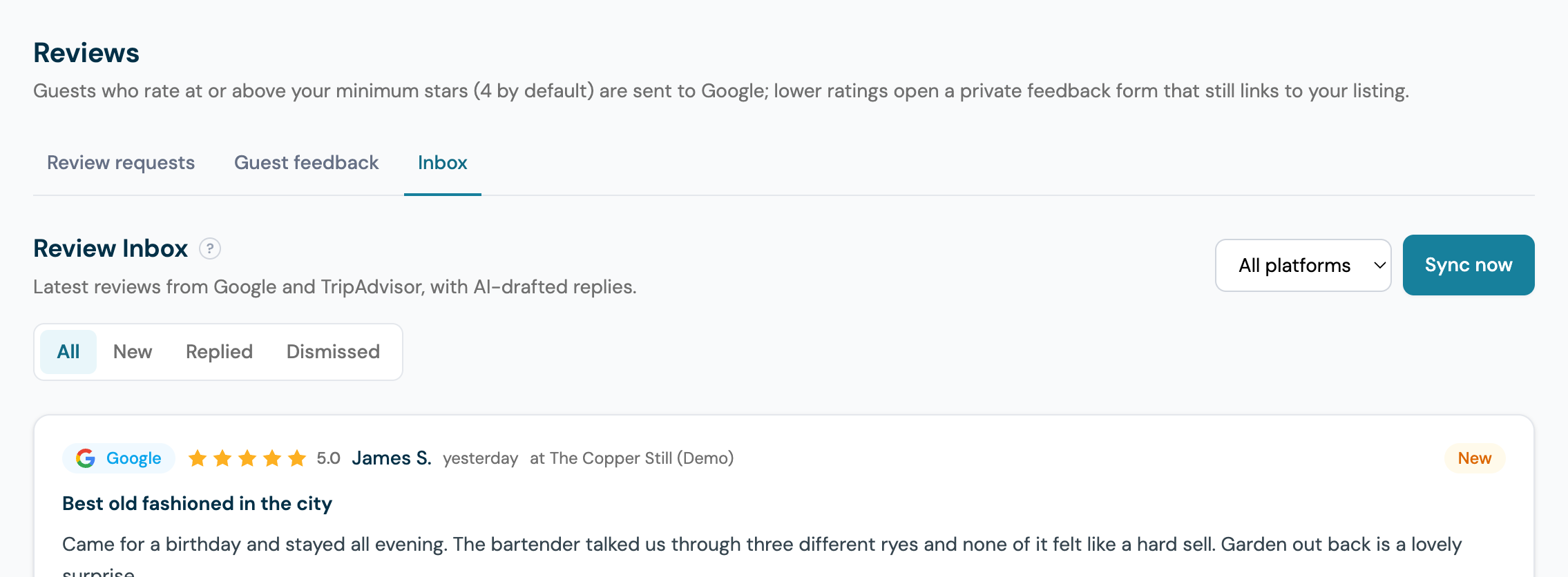
- Inbox: your public Google and Tripadvisor reviews, each with a reply draft
The Reviews entry is in the sidebar for any account whose plan includes Google Reviews (Essentials and above; not on Lite), before anything is set up. The Review requests settings also open from Manage on the Google Reviews card on the Integrations page.
How a review request works
- A guest connects to your WiFi and gives an email address (or a mobile number) and marketing consent on your splash page
- After the delay in Ask after (24 hours by default), CaptiFi asks them to rate their visit: by email when the venue is Enabled, by text when Also ask by text message is on, or both. Each channel is its own switch, and both carry the same link
- The link opens CaptiFi's rating page, where the guest picks 1 to 5 stars
- A rating at or above your Minimum stars for a public review (4 by default) sends the guest to your Google listing, to Tripadvisor, or to a page offering both, depending on your destination setting
- A lower rating opens a private feedback form. The form still shows your public review links, so no guest is ever prevented from reviewing you publicly
- Each rating, and any private feedback, arrives by email at the address in Send private feedback to
- The guest is not asked again at that venue for 90 days
Who is asked
Only guests who gave an email address (or a mobile number, for texts) and marketing consent are asked. A guest is asked at most once every 90 days per venue, whichever channel asked first. CaptiFi matches the guest by their sign-in, email address or mobile number, across email and text, so a regular who connects every day receives one request a quarter. Addresses on your Suppressions list are never asked.
If you use Reservation Check-in, you can also switch on Only ask guests with an attended reservation. Requests are then held back unless the guest matched an attended reservation, so a no-show is never asked to review a visit that did not happen. While Reservation Check-in is off this setting is ignored.
Every guest sees the public links
CaptiFi never hides the public review option from anyone. Every guest gets the same request and the same public links; the private form is an extra step for unhappy guests, with those links still on it. Google's rules prohibit selectively asking for reviews, and CaptiFi asks every guest the same way. Review rules differ between platforms, so check the current Google and Tripadvisor policies for your own situation.
Setting up review requests
You need a Google Business Profile for the venue (or a Tripadvisor listing), a splash page that collects email addresses and, for texts, a phone number field plus SMS Marketing. Review requests come from your venue's name, from your own address once it is verified under Email Marketing → Settings and from a CaptiFi venue address until then; see Who your guest emails come from.
- Log in to my.captifi.io, click Reviews, then open the Review requests tab.
- Pick the venue. Each venue links to its own Google listing and keeps its own settings
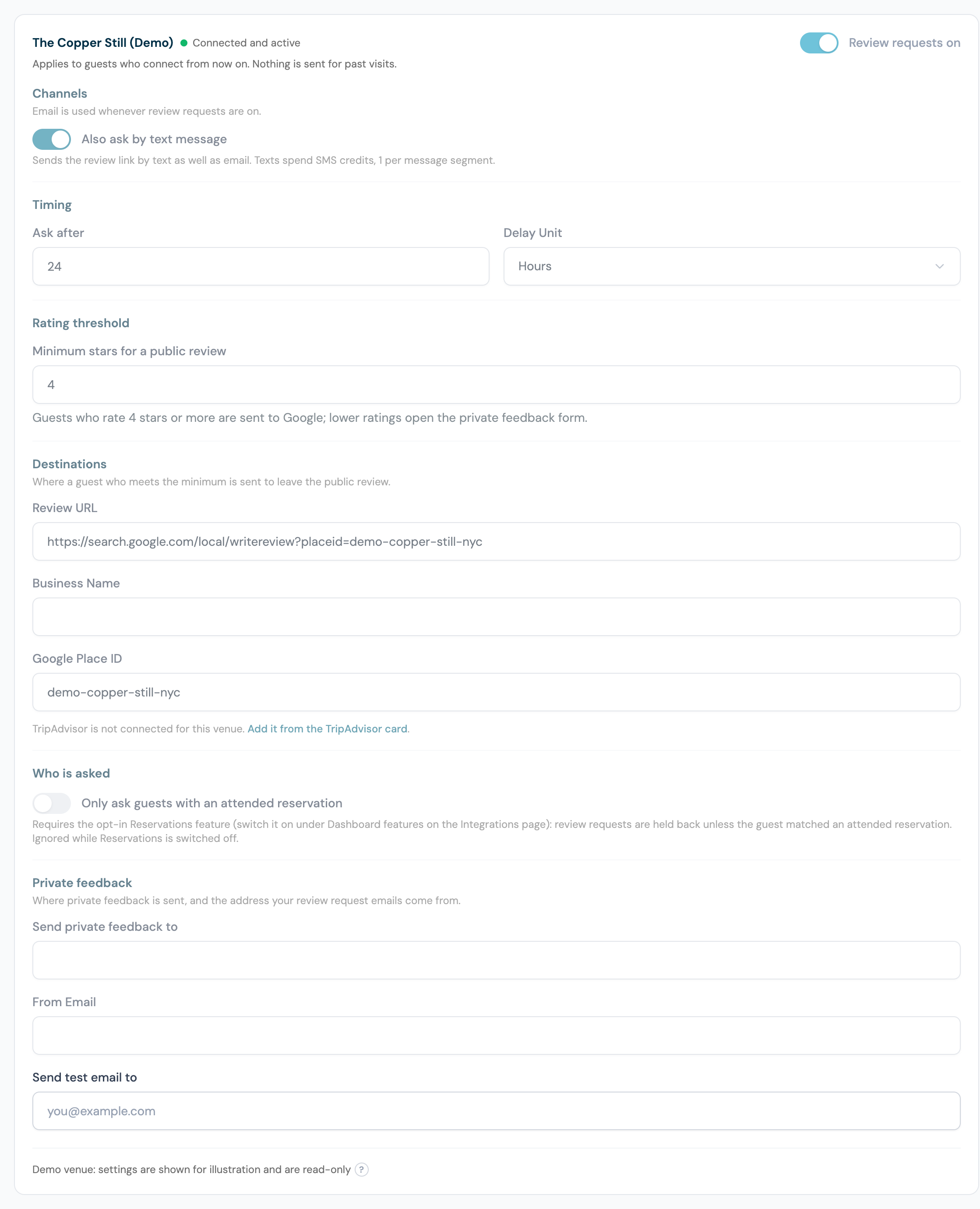
- Enter your Google Business details: Business Name, Google Place ID and Review URL. The setup guide shows where to find them
- Set Ask after: how long after the visit the request goes out. The default is 24 hours. Enter a number and choose minutes, hours or days
- Set Minimum stars for a public review. The default is 4. The Star rule sentence under the field spells out what your number means: ratings of 4 and 5 go to your public listing, 1 to 3 open the private form
- To ask by text as well, tick Also ask by text message. See Asking by text message
- Optionally tick Only ask guests with an attended reservation
- Enter the address for Send private feedback to. Every rating and any private feedback arrives there
- Check the sender address the emails come from. It is your verified sending address, or a CaptiFi venue address such as
the-anchor@venues.captifi.iountil you verify one - Click Send test email to receive the request yourself and try both the public and the private path
- Switch the venue to Enabled and click Save. Enabled is the email channel; texts have their own switch in step 6
Below these, the tab shows your Tripadvisor Listing URL and Happy guests review on read-only, with a link to the Tripadvisor Reviews card where they are edited; see Tripadvisor.
Asking by text message
Tick Also ask by text message on the Review requests tab and the request goes out as a text carrying the same link as the email. The text channel is its own switch: it does not depend on Enabled, so a venue can ask by text only, by email only, or both. Texts go only to guests who gave a mobile number and permission to be texted, they need SMS Marketing and a review link for the venue, and they spend SMS credits at 1 credit per message segment. The 90-day rule covers both channels together, matching the guest by sign-in, email or mobile number: a guest asked by text is not emailed for 90 days, and the other way round.
Switching texts off is always allowed, even after the SMS add-on has lapsed. Team members need the Manage marketing emails and texts permission to change the text channel. If a venue's last review link is removed, or Google Reviews is disconnected, the text channel is switched off for that venue and the dashboard shows a notice saying so. Blanking the Google link while a Tripadvisor link remains leaves texts on.
A Review request automation set up earlier on the SMS Marketing Automations tab keeps running as before.
Tripadvisor
You can send happy guests to Tripadvisor as well as, or instead of, Google. The Tripadvisor Listing URL and Happy guests review on show read-only on the Review requests tab, with a link to the card where they are edited.
- Go to Integrations and open the Tripadvisor Reviews card with Manage (or follow the link on the Review requests tab)
- In Tripadvisor Listing URL, paste the address of your venue page on tripadvisor.com. It contains a "-d" segment such as
...-d1234567-..., and you can copy it straight from your browser's address bar - Choose where happy guests are sent under Happy guests review on:
- Google only (the default)
- Tripadvisor only
- Yelp only (once you have added a Yelp link, see Yelp)
- Let the guest choose: guests whose rating meets your minimum see a page with a button for every platform you have set up
- Click Save, then use Send test email to try the flow on yourself
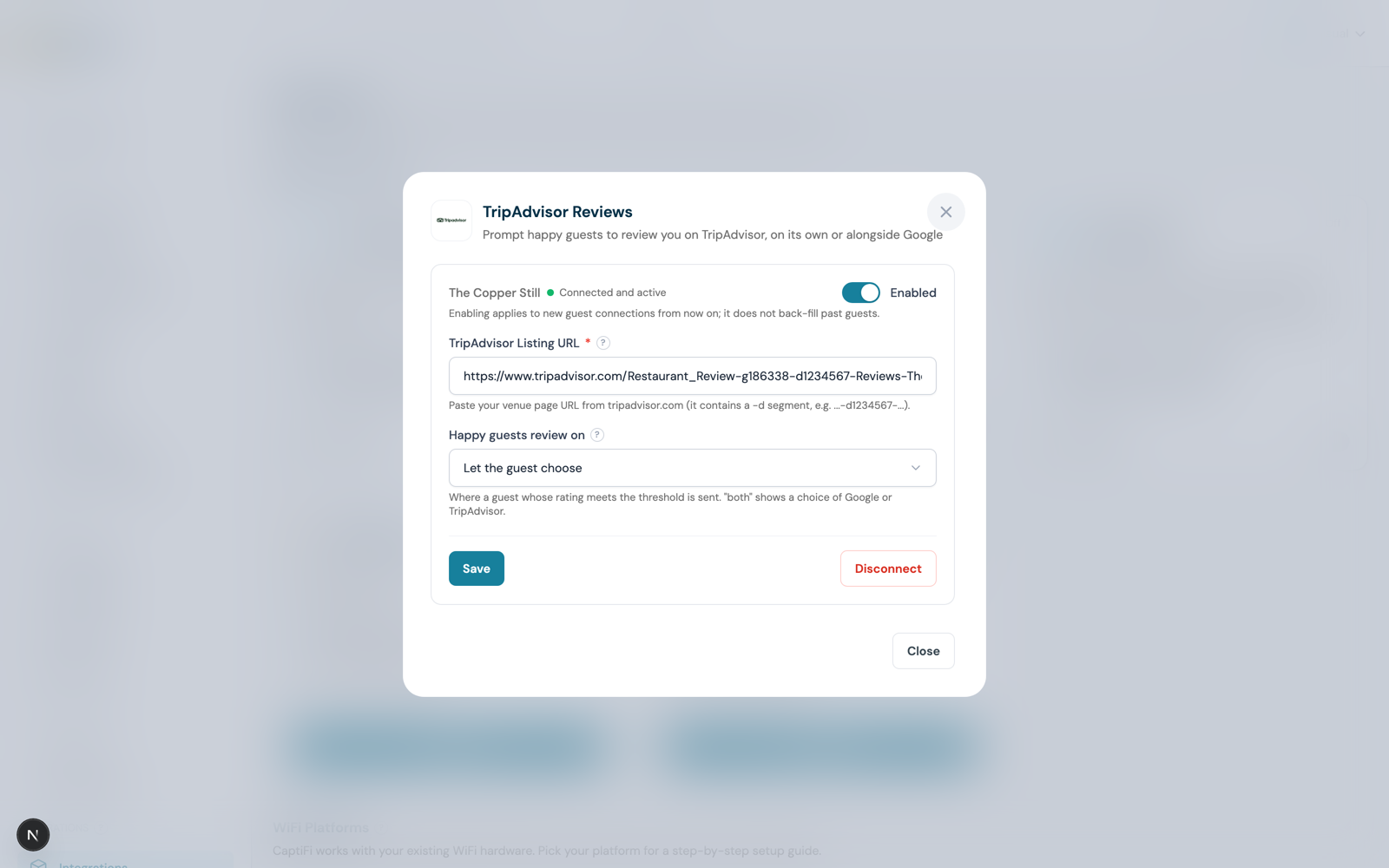
No Tripadvisor account connection or API key is needed. The guest is taken to your public Tripadvisor listing to write their review.
With Let the guest choose switched on, this is what a guest who met your minimum sees on their phone:
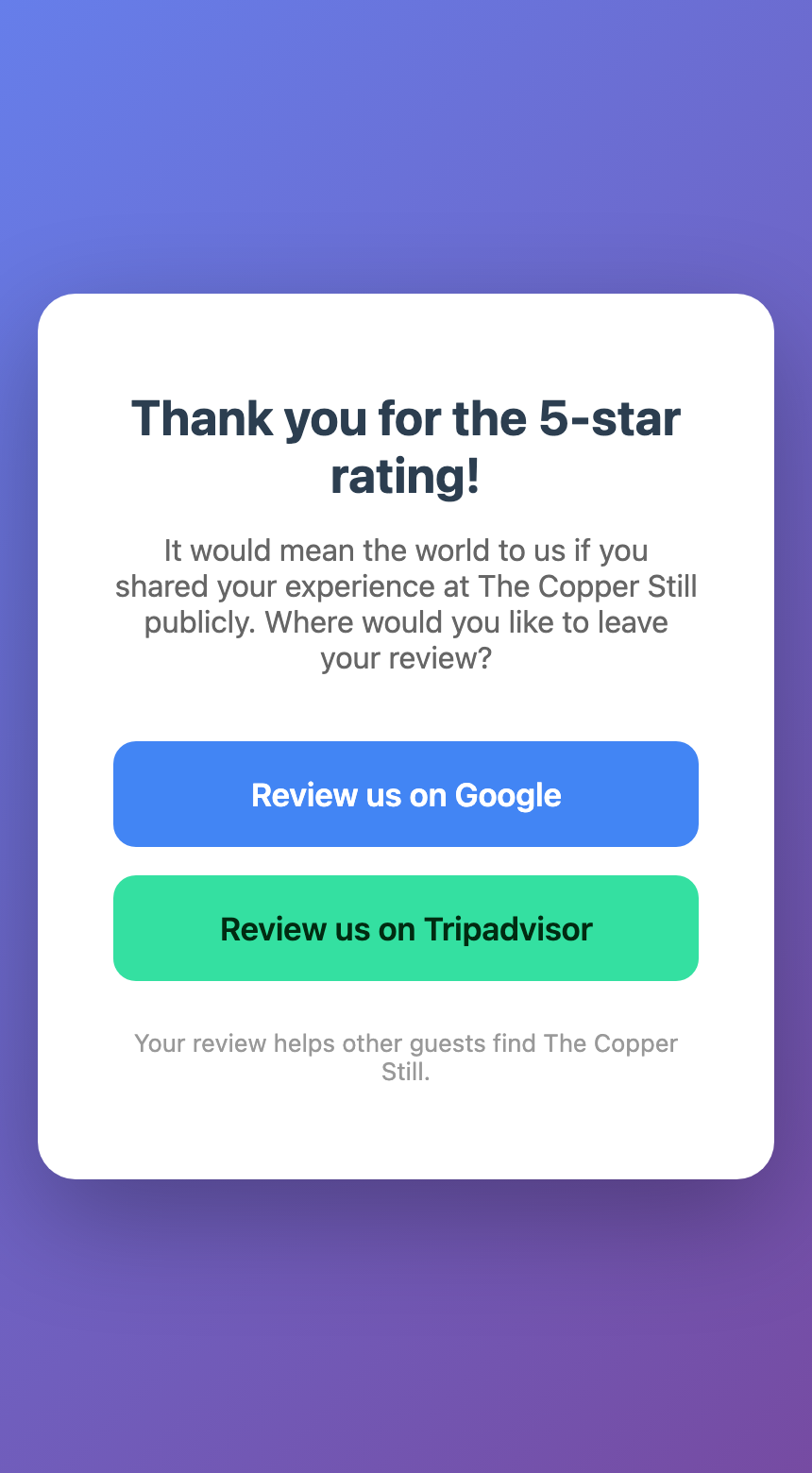
If you have also added a Yelp link, a Yelp button appears on the same page.
Yelp
Yelp is a third destination for review prompts, alongside Google and Tripadvisor, on every plan with review requests (Essentials and above). Like Tripadvisor, the link is edited on its own card on the Integrations page and shows read-only on the Review requests tab.
- Go to Integrations and open the Yelp Reviews card with Manage
- In Yelp business link, paste the address of your business page on yelp.com (or your country's Yelp site). You can copy it straight from your browser's address bar
- Choose where happy guests are sent under Happy guests review on: Yelp only, or Let the guest choose to show a button for every platform you have set up
- Click Save, then use Send test email to try the flow on yourself
No Yelp account connection or API key is needed. The guest is taken to your public Yelp business page to write their review, and lower ratings still open the private feedback form.
Yelp reviews are not pulled into the Review Inbox: Yelp does not offer a licensed API for review text, so the inbox covers Google and Tripadvisor only.
Review links in your own emails
Two email tools carry the same rating link, with the same star rule and the same private form behind it:
- The merge tag
{{review_link}}works in any campaign or automation email. Put it behind a button or in a line of text and each guest receives their own link to the rating page. The link is valid for 30 days; a guest emailed again later gets a fresh one, and so does a guest who has already rated you. A campaign does not skip anyone: it carries a link for every recipient. An automation email carrying the tag is skipped for a guest asked for a review at the venue in the last 90 days, and for every guest when the venue has no review link; the skip is listed in the automation's Results - The automation preset Thank you after a visit uses the starter Review Request template, sends the day after every visit, and skips any guest asked for a review in the last 90 days. See Start from a preset
A test send of a campaign containing the review link never creates a review request for a real guest.
A second tag, {{website_url}}, points to your website, the address guests are sent to after connecting. The buttons in the starter templates use these two tags, so they link to the right place for each venue without editing.
What you receive
Every rating comes to the Send private feedback to address by email, with the guest's written feedback when they left any. On the dashboard, the Guest feedback tab lists everything your guests have submitted:
- KPI cards: Average rating, Total reviews, and the share Sent to Google
- The feedback table: every rating collected, with guest, stars, written feedback for private submissions, status (Sent to Google / Private feedback / Rated), venue and date
- Rating filter: focus on 1-star issues or read through the 5-star run
Each guest's profile also shows their latest rating, any feedback they wrote, and how many requests were sent, opened and rated.
Acting on private feedback
| Rating | Suggested action |
|---|---|
| 1-2 stars | Investigate promptly, and consider contacting the guest directly to resolve it |
| 3 stars | Look for recurring themes: the easy wins that push future visits to 4 or more |
Review Inbox
The Review Inbox brings your latest Google and Tripadvisor reviews into the dashboard, with AI-drafted replies you can copy and post in one click. Available on every plan with review requests (Essentials and above).
Find it on the Inbox tab of Reviews on my.captifi.io.
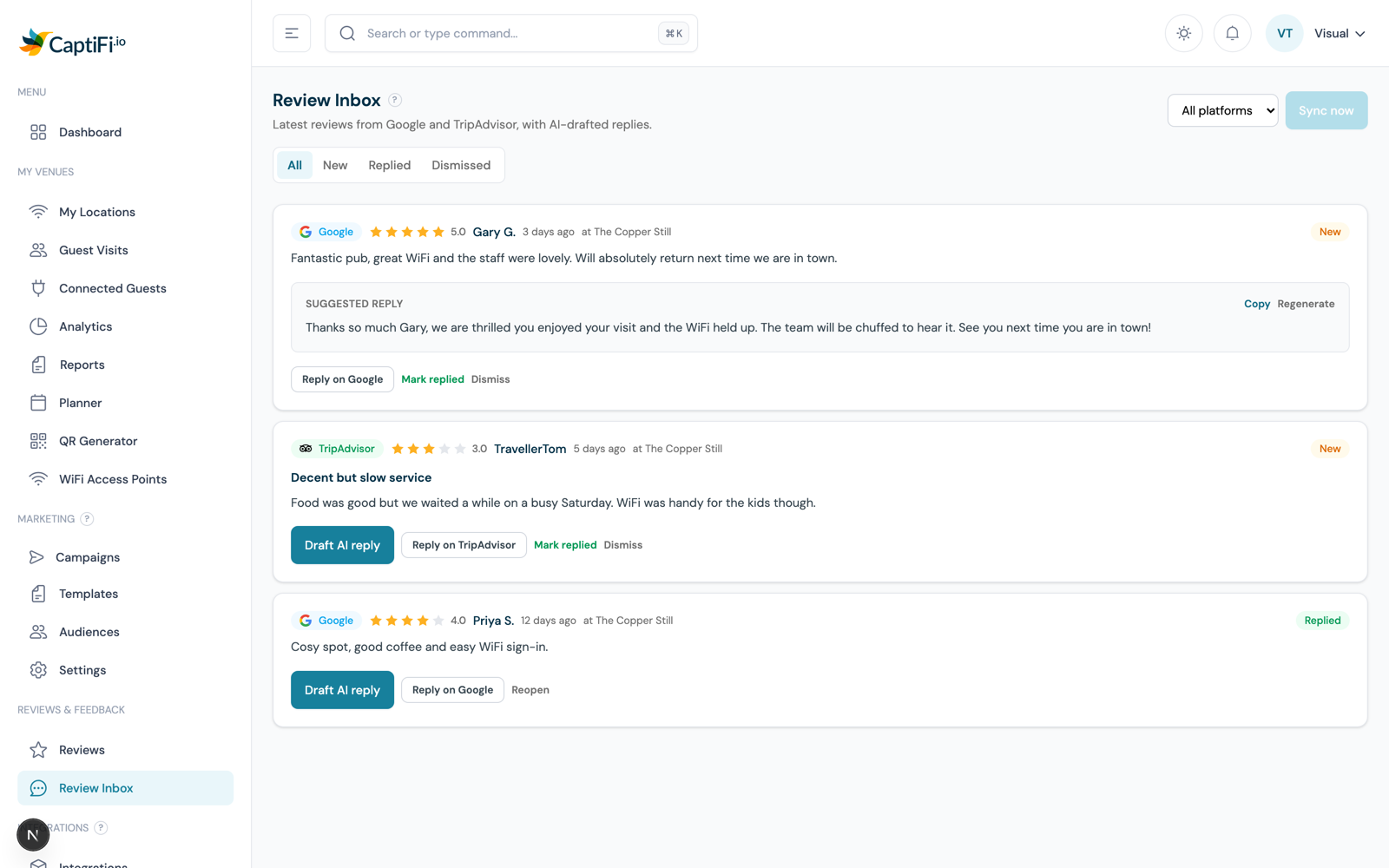
What it does:
- Syncs your most recent reviews from Google (using your Google Place ID) and Tripadvisor (using your listing URL). Reviews refresh automatically every day, and you can pull the latest at any time with Sync now
- Drafts a reply with AI: click Draft AI reply on any review and CaptiFi writes a short owner response that refers to what the guest said. Regenerate it if you want a different angle, then Copy it
- Deep links to reply: the Reply on Google / Reply on Tripadvisor button takes you to the platform's reply screen, where you paste the draft and post it. CaptiFi never posts anything on your behalf
- Tracks your progress: mark reviews Replied or Dismiss them, and filter by New, Replied or Dismissed
Why copy and paste?
Neither Google nor Tripadvisor allows third-party tools to post owner replies through the APIs CaptiFi uses, so the inbox gets you to one click away: draft ready, reply page open. Posting from your own account also keeps your replies verifiably yours.
Timing
The default of 24 hours suits most venues: the guest has left, and the visit is still fresh. For short visits such as a cafe or a salon you can ask sooner, a few hours after the visit. For a hotel or B&B, set Ask after in days so the request arrives after checkout, or switch on Only ask guests with an attended reservation so it follows a real stay.
Troubleshooting
| Issue | Cause | Solution |
|---|---|---|
| No review requests going out | Venue not enabled, or no email addresses collected | Check the venue shows Enabled on the Review requests tab, and that your splash page asks for an email address |
| A guest was not asked | No marketing consent, no email or mobile number, or asked in the last 90 days | Expected: only consenting guests with contact details are asked, at most once every 90 days per venue |
| No texts going out | Also ask by text message is off, SMS Marketing is not on your plan, no credits, no review link for the venue, or no mobile numbers collected | Tick the setting, check your balance under SMS Marketing, add a Google, Tripadvisor or Yelp link, and add a phone number field to your splash page |
| Texts switched themselves off | The venue's last review link was removed, or Google Reviews was disconnected | Add a Google, Tripadvisor or Yelp link back, then tick Also ask by text message again |
| Cannot change Also ask by text message | Team member without the Manage marketing emails and texts permission | Ask an owner or admin to change it, or to grant the permission |
| Reviews not in the sidebar | Your plan does not include Google Reviews | See Plans & Pricing. On any plan that includes it, the entry is there before setup |
| Emails landing in spam | Sending domain not verified | Verify your domain under Email Marketing → Settings so requests come from your own address |
| Every guest ends up on the private form | Minimum stars for a public review set too high, or genuine problems | Check the setting, then read the feedback for the causes |
| The Google link opens the wrong business | The Place ID belongs to another listing | Look it up again with the setup guide and re-save |
FAQ
Does CaptiFi post reviews on Google for guests? No. Guests who meet your minimum are sent to your Google, Tripadvisor or Yelp page, and they write and submit the review themselves.
Can I use this at multiple venues? Yes. Each venue connects to its own Google Business Profile, Tripadvisor listing and Yelp page, with its own settings.
Can guests be asked by text message? Yes. Tick Also ask by text message on the Review requests tab. Texts need SMS Marketing and a review link, spend 1 credit per message segment, and carry the same link as the email. The text channel is independent of the email channel and can always be switched off.
Can I write my own review request email? Yes. Put the {{review_link}} merge tag in any campaign or automation email, or start from the Thank you after a visit preset, which uses the Review Request starter template.
Is routing lower ratings to a private form allowed? Every guest gets the same request and the same public links, and the private form shows those links too, so nobody is prevented from posting publicly. What Google's rules prohibit is asking only the guests you expect to be happy, which CaptiFi does not do.
Related features
- Google Reviews setup guide: finding your Place ID and review link
- Google Reviews via WiFi: timing and wording advice
- Email Automations: the Thank you after a visit preset and the merge tags
- SMS: credits, consent and the SMS Marketing automations
- Email Campaigns: one-off review pushes to past guests