

Appearance
Partner Earnings
The Earnings page gives partners a live view of the money side of their CaptiFi business. What it shows follows your partner programme: reseller and white-label partners see their wholesale statement (what CaptiFi bills you, what you charge your clients, and the margin you keep) and their rate card, and referral partners see their referral commission. See Partner Programme Options for how the models compare.
Where to Find It
- Log in to my.captifi.io
- Go to Partner → Earnings in the sidebar (partner accounts only; the view you see follows your programme). If you are inside a client, click All clients at the top of the sidebar first.
Two Views, One Page
The page has two views and you do not choose between them: the right one follows your partner programme automatically. Reseller and white-label partners get the wholesale view. Referral partners get the referral view.
Your Currency
Your partner account has one currency, set when you join, and the Earnings page and your monthly statements show everything in it. Harbour Networks in the examples below is a GBP partner, so its figures are in pounds; a US partner sees the same page in dollars. If your referred clients pay CaptiFi in other currencies, those commissions are not converted: they appear on the page in their own clearly labelled sections (for example "Earnings in USD"), with the same tiles, chart and per-client breakdown, and they are paid out separately per currency.
The Wholesale View (Resellers and White Label)
The wholesale view has two tabs. Statement is the page you land on: this month's bill, your margin and the breakdown by client. Rate card lists your wholesale price for each plan: see Your Rate Card.
The Tiles
- Monthly wholesale bill: the total CaptiFi bills you across all clients this month. If your partner agreement includes a minimum monthly fee, the total never drops below the minimum that applies this month, and the line under the total says when the minimum has lifted your bill above your clients' wholesale total. If your minimum starts on a later date, or starts this month, the tile names the date: see A minimum with a start date.
- Monthly margin: the retail you charge minus the wholesale you pay, across every client with a retail price set, with a profit or loss badge.
- Clients: how many client businesses are on your bill, with the total venue count underneath.
A minimum with a start date
Your partner agreement can set the date your minimum monthly fee starts, giving you an introductory ramp before it. The minimum then follows that date:
- Before the start date no minimum applies, and your bill is your clients' wholesale total. The Monthly wholesale bill tile shows a pill such as Ramp until 1 January 2027, and the line under the total names the minimum monthly fee that applies from then.
- In the month the minimum starts, it is prorated by days. A minimum that starts on 16 November covers 15 of November's 30 days, so November's minimum is half the agreed fee. The line under the total says the fee is prorated this month.
- From the following month the full minimum applies.
Your monthly statement follows the same dates.
Margin Trend
The chart shows a 12-month history of your wholesale bill (columns) and the margin you kept (line), built from your monthly statements; the faded column is the current month, still in progress. A rising bill with a flat margin line is the chart telling you to revisit your retail prices.
Per-Client Breakdown
One row per client:
- Plan: the CaptiFi plan you have put the client on.
- Venues: how many locations the client has. Wholesale includes the extra-venue rate for each venue beyond the client's first.
- Wholesale: what CaptiFi bills you for this client. A client on a price agreed with your account manager is marked custom price, and a client with more than one venue shows how much of the figure is extra venues.
- Retail: the monthly price you have recorded as charging the client, set on the Clients page.
- Margin: retail minus wholesale. A negative margin shows in red.
Clients with no plan set are flagged so you can price them: set their plan from the Clients page.
Your Rate Card
Open the Rate card tab at the top of the page, or click View rate card at the foot of the statement. The address is my.captifi.io/earnings?tab=rate-card, so you can bookmark it. Owners and staff on a reseller or white-label partner account can open it. Your clients cannot, and referral partners have commission terms in place of a rate card.
Every figure is in your account currency.
Plans you can sell has one row per plan, with two prices on each:
- Your wholesale price: what CaptiFi bills you per client, per month, with the client's first venue included. Capture only is billed at the Essentials price.
- Retail price: what a venue pays CaptiFi for the same plan when it buys direct. It is there for reference when you set your own prices. Capture only is sold through partners only, so it has no retail price.
The last row, Each extra venue, is the monthly price added for every venue a client has after its first, on any plan.
Minimum monthly fee shows the fee on your partner agreement and the date it starts, or tells you that your agreement has none. Before the start date you pay for your clients only. In the month the fee starts, the card gives the amount that counts for that month. See A minimum with a start date.
Clients on an agreed price lists any client you and your account manager have agreed a price for, with the agreed price beside the usual price for the client's plan. The agreed price replaces the plan price for that client, and extra venues are added on top. With no agreed prices, the card says every client is billed at the price for its plan.
The prices on the Rate card are the ones your statement is billed from.
How Billing Works
You pay CaptiFi the wholesale total through your partner subscription, and you invoice your clients directly at your own retail prices. Your clients never see CaptiFi billing. To adjust your subscription, minimum fee, its start date or negotiated rates, contact your account manager.
The Referral View (Referral Partners)
Under the page title, Earnings states your commission terms: the percentage you earn of every payment a client you referred makes to CaptiFi (20% unless your agreement says otherwise), for as long as they stay a customer, paid monthly once it becomes payable. If your login starts on the partner Home page, your referral link is on Home and on Referrals rather than here.
The Tiles
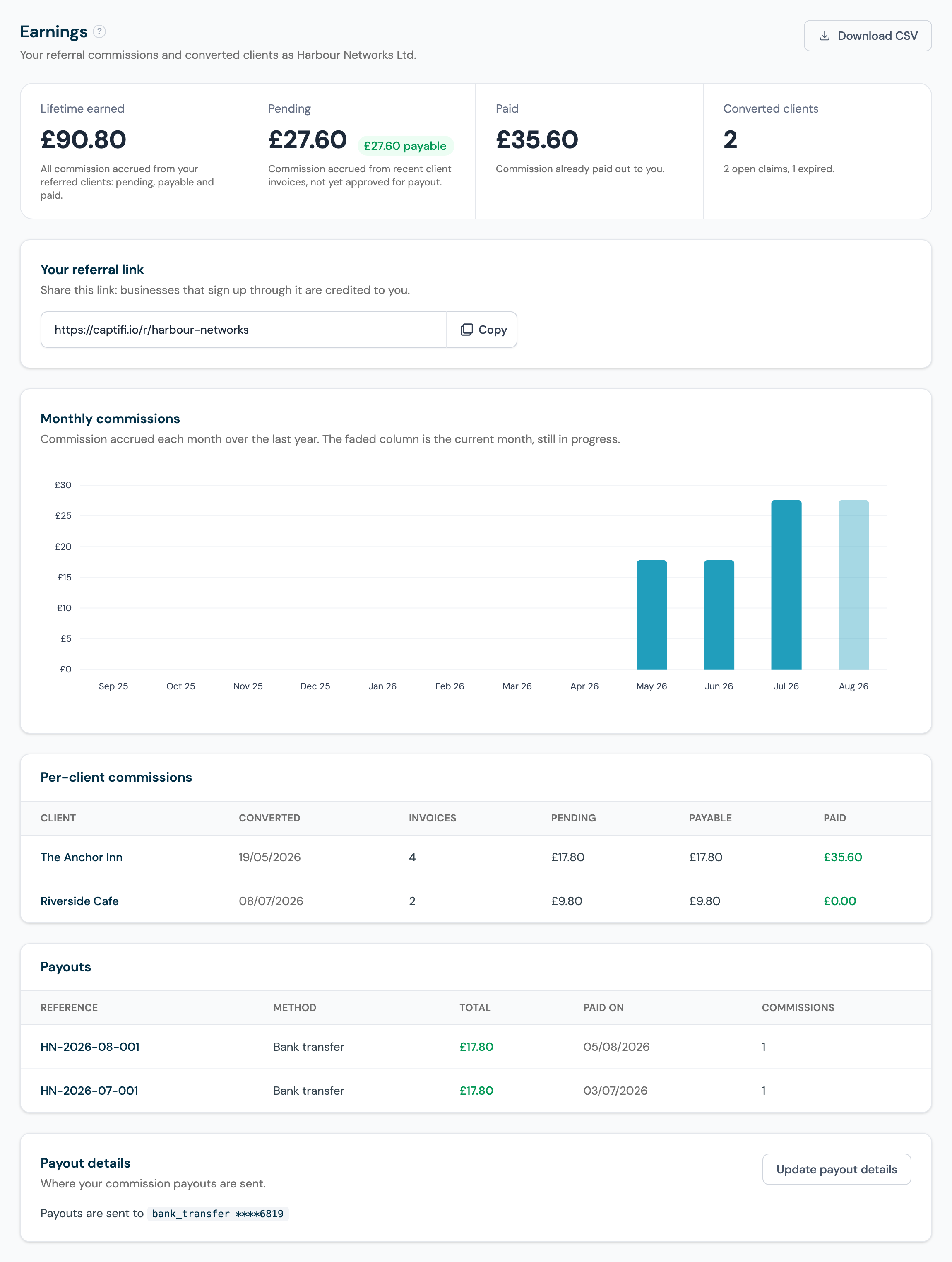
- Lifetime earned: all commission ever accrued from your referred clients, whatever its current stage. Harbour Networks above has earned £90.80 all-time.
- Pending: commission accrued from your clients' recent payments, not yet approved for payout, with a badge showing how much has already been approved (payable). The pending, payable and paid stages are explained in Partner Payouts.
- Paid: commission already paid out to you.
- Converted clients: how many referrals have become paying customers, with your open and expired claims noted underneath. Register and track referrals on the Referrals page.
Monthly Commissions Chart
Commission accrued each month over the last year, so you can watch your recurring income build; the faded column is the current month, still in progress. Because commission is 20% of what your clients pay, the chart steps up every time a referral converts: in the example, Harbour Networks' May and June columns are £17.80 (The Anchor Inn alone at £89 Growth) and July steps up to £27.60 when Riverside Cafe (£49 Essentials, earning £9.80) starts paying too.
Per-Client Commissions
One row per converted client:
- Venues: how many venues the client has. Each venue after the first is billed on the client's invoice, so a client with more venues pays, and earns you, more.
- Converted: the date the referral became a customer.
- Invoices: how many of their payments have earned you commission so far.
- Pending, Payable and Paid: that client's commission at each stage of the payout lifecycle. Reading The Anchor Inn's row above: four £89 invoices have earned £17.80 each, of which £35.60 has been paid out, £17.80 is approved and waiting for the next payout, and £17.80 is newly accrued.
Monthly Statements
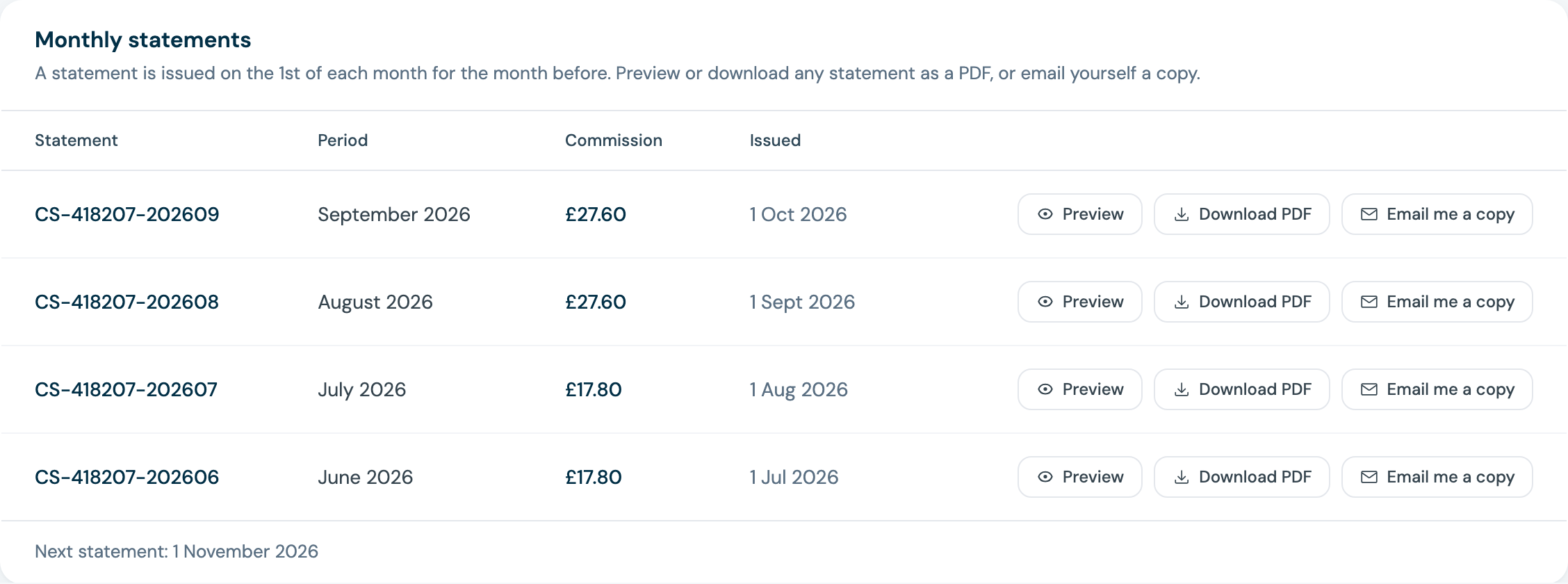
On the 1st of each month CaptiFi issues you a commission statement for the month just ended, numbered with your partner number and the month, like CS-418207-202609, and adds it to Monthly statements on this page. A statement never changes once it has been issued.
On any row, Preview opens the statement on the page so you can read it without saving anything, and Download PDF saves a copy to keep or hand to your accountant. Email me a copy sends the PDF to the email address you sign in with, and the row then shows the address it went to. You can email up to five copies an hour.
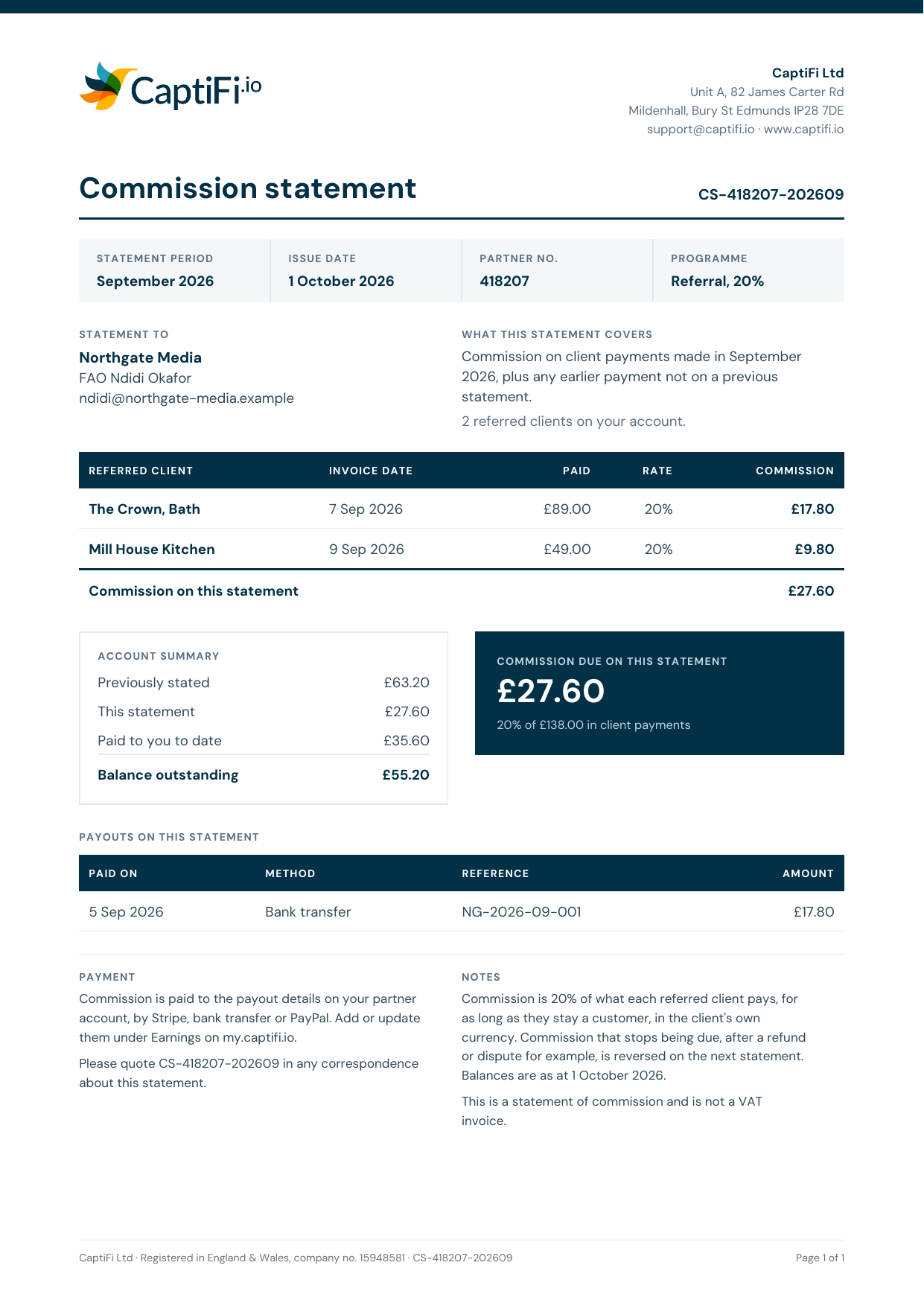
Each statement shows:
- the client payments your commission came from, with the invoice date, the payment, your rate and the commission on each, and how many venues the client has when it has more than one
- any commission from an earlier statement that is no longer due, after a refund or dispute for example, shown as reversed
- the payouts made to you during the month, with their references
- an account summary carried from one statement to the next: what earlier statements showed, this statement, what has been paid to you and the balance still owed, beside the commission due on this statement
Commission goes on the statement for the month it reaches your account, so a payment that clears late (a card retried on the 3rd of the next month, say) appears on the following statement. Your first statement is issued on the 1st of the month after you earn your first commission, and once you have commission the card shows the date it is due. If you earn in more than one currency, each currency has its own section and amounts are never converted.
Payouts and Payout Details
The bottom of the page lists every payout CaptiFi has recorded, with the reference, method, total, date paid and how many commission entries it settled, followed by the payout details section, where the account owner connects a Stripe account or saves bank transfer or PayPal details. Both are covered step by step in the Partner Payouts guide.
The Monthly Statement Email
On the 1st of each month CaptiFi emails your partner statement for the month just ended to your support address (or your account email if no support address is set):
- Resellers and white label get the wholesale statement: every client's plan, venues, wholesale, retail and margin, plus your monthly total. It is the same breakdown as this page, so you can invoice your clients without logging in.
- Referral partners get the commission statement: each converted client's commission for the month and any payouts recorded during it, with their references, and the month's statement attached as a PDF. If your payout details are missing, the email includes a reminder to add them.
CSV Exports
Download CSV (top right) exports your full statement:
- The referral export lists each converted client with their conversion date, invoice count, and pending, payable and paid commission, plus a totals row: a clean file for your own bookkeeping.
- The wholesale export lists each client's plan, venues, wholesale, extra venue charges, subtotal, retail and margin, with totals, and notes when your minimum monthly fee applied. Attach a client's row to your own invoice to that client, or hand the whole file to your accountant.