

Appearance
Rewards wallet passes
Members of your Rewards programme can keep their rewards card and each reward they hold in Apple Wallet or Google Wallet. A member's card carries their balance and member number; each reward is a coupon pass with the offer and its code. Both carry the same QR code as the page they came from, so staff scan a pass on Rewards → Redeem exactly as they scan the page, and both are kept up to date as points move and rewards are used. The wallet accounts and certificates behind the passes are CaptiFi's, so there is nothing for you to set up. The Wallet passes page shows whether each wallet is live for your account and how many passes are out there. The same wallets carry event tickets for accounts with Events and tickets; see Ticket passes.
Plan requirement: Rewards is included on the Growth plan and above, and the account owner switches it on under Integrations → Dashboard features. Wallet passes come with it. See Switching Rewards on.
What a wallet pass is
There are two kinds of pass, and each exists for Apple Wallet and for Google Wallet.
The member card
One card per member. It shows your programme's name, the member's points or stamps balance as the large figure, their member number, and their tier when they hold one. The QR code is the link to their rewards account page, with the member number printed under it. The back of the pass in Apple Wallet, and the details view in Google Wallet, link to that page and to your programme terms when you have set a Terms URL, and carry the line "Keep this pass to yourself: anyone holding it can use your rewards."
The reward pass
One coupon pass per reward. It shows the offer's headline, the eight-character code and Valid until with the expiry in the venue's own time zone. The QR code is the link to the reward page, with the code printed under it. The back carries the offer's value, its description, the minimum spend when there is one, the reward's terms and the line "Staff: scan the code or type it into the Redeem screen." Both wallets read the expiry date from the pass and show the pass as expired once it is past.
Colours and names
The pass names your business as its issuer and uses the programme name from Settings → Rewards setup as its title. The card colours come from the programme's Card background colour and Card text colour. With no background colour set, the wallet's default look is used. Apple Wallet uses the text colour when one is set, and black or white against the background otherwise; Google Wallet chooses its own text colour. The logo on the pass is the CaptiFi mark.
What members see
The Add to Apple Wallet and Add to Google Wallet buttons sit on two guest-facing pages: the reward page a member opens from their email or text, under the code and the "Staff: scan the code" hint, and the rewards account page, under the QR code. Each button appears only while a tap would work:
- The wallet is live for your account (see The Wallet passes page). While a wallet is off its button is absent and nothing else on the page changes
- On a reward page, the reward is still unused. A reward that has been used, cancelled or has expired shows no buttons
- On the rewards account page, the member is still in the programme. A member who has left or been erased sees no buttons
Tapping Add to Apple Wallet on an iPhone downloads the pass and Wallet offers to add it. Tapping Add to Google Wallet opens Google's save screen, where the member confirms with their Google account. Once a pass is in the wallet the member no longer needs the email or text to hand: they open the wallet at the till, staff scan the QR code (or type the code or member number printed under it), and the redeem screen answers as it does for the page. A pass added to Apple Wallet and the same pass added to Google Wallet are two passes in the counts.
When passes update
A pass follows the rewards record behind it. Nothing is needed from the member or from staff.
| What happens in Rewards | On the member card | On the reward pass |
|---|---|---|
| Points are earned, spent, adjusted or expire | The balance changes, and the tier line with it | |
| A reward is used at the till, by PIN or with Use now | The pass is marked used. In Apple Wallet it is greyed out as no longer valid; in Google Wallet it shows as used and a note on the pass reads "Reward used", with the venue and the time | |
| A manager voids the redemption | The points awarded with it are taken back | The reward stays used (see Voiding and restoring). The Google pass gains a note, "Redemption cancelled", with the venue and the time |
| The owner restores a voided redemption | The reward re-opens on its page at once. The Google pass catches up in the nightly check; the Apple pass updates the next time something happens to that reward | |
| Staff cancel the reward with Revoke reward | The pass is marked void | |
| The reward expires | Both wallets show it as expired from the date on the pass; nothing is pushed | |
| The member leaves the programme | The card is marked void | Rewards already in their hands are unchanged |
| The member is erased with Delete (GDPR) or Anonymise (GDPR) | The card is marked void | Every reward pass is marked void, and the links behind the barcodes stop working |
What an update means depends on the wallet:
- An Apple Wallet pass is a file the iPhone holds. When something changes, CaptiFi tells every iPhone that has added the pass, through Apple's push service, and the phone fetches the new version. The phone registers itself for these updates when the pass is added; the Apple registrations count on the Wallet passes page is the number of iPhones registered right now. An iPhone that is offline picks the change up when it is next online
- A Google Wallet pass lives in the member's Google account. CaptiFi updates the pass there, and the Google Wallet app shows the new version the next time it refreshes. There is no device to register
An update that does not reach the wallet is counted under Last push failures on the Wallet passes page and pushed again: Google passes by the nightly check, Apple passes the next time the pass changes. The page a pass links to is always current, and the redeem screen reads the record behind the link, so a pass whose update is still pending still gives staff the right answer.
Ticket passes
Event tickets use the same wallets. When your account has Events and tickets switched on and a wallet is live, Add to Apple Wallet and Add to Google Wallet sit under each ticket on the ticket page, the order page and the confirmation email, and the pass shows the event name, the date and doors time in the venue's own time zone, the venue and its address, the ticket type, the holder's name when known, the order number and the same QR code the door scans. It is marked used when the ticket is admitted at the door and comes back if the admit is undone, follows the event when its name, date or venue changes, and is marked void, so it stops admitting, when the ticket is refunded or cancelled, the event is cancelled or the buyer is erased. Ticket passes need Events, not Rewards: an account with no Rewards programme gets them in the wallet's default look, and an account with a programme gets them in its card colours. What the pass shows and where a venue sees a buyer's passes is in Tickets in Apple Wallet and Google Wallet.
On the Wallet passes page each wallet's card counts them on a Ticket passes row.
The Wallet passes page
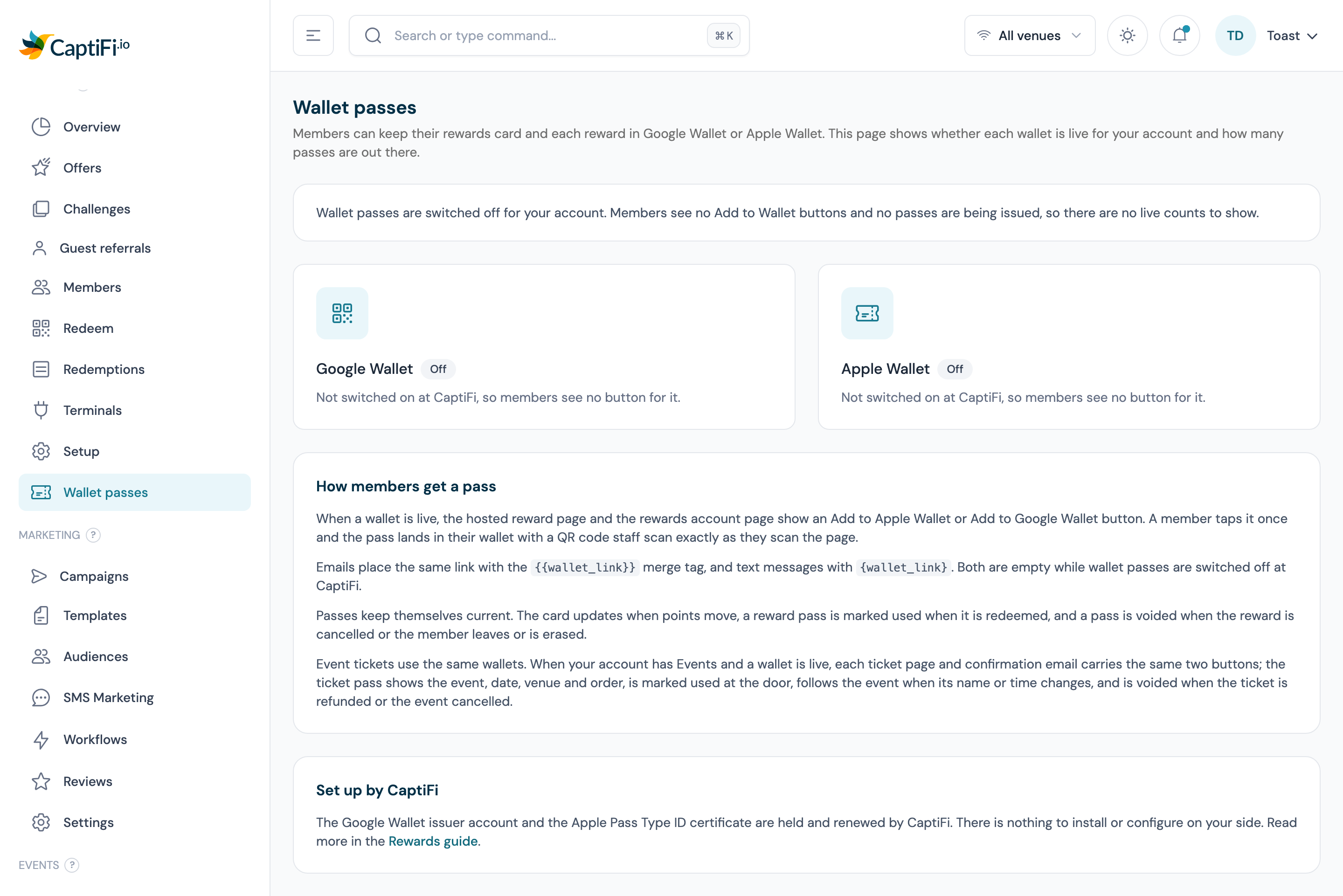
On my.captifi.io, Rewards → Wallet passes shows where your account stands with each wallet. Nothing on the page is set by you, and it is open to every team member who can see the Rewards pages.
- Go to Rewards → Wallet passes
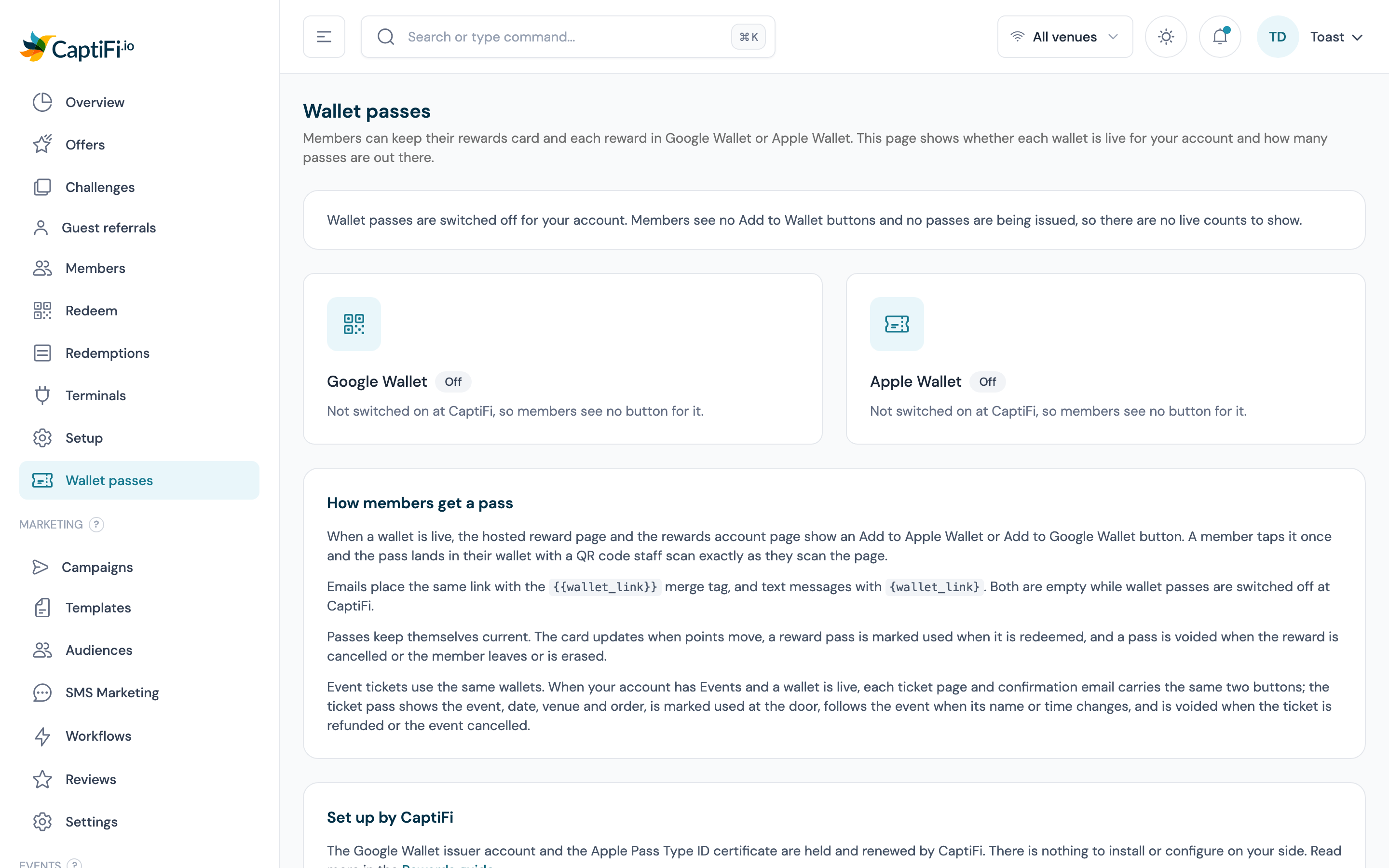
- Read the counts row at the top: Member cards, Reward passes, Apple registrations and Last push failures, each summed across both wallets. When both wallets are off, the row is replaced by a line saying wallet passes are switched off for your account
- Read the Google Wallet card: its state badge, a one-line reason, then Loyalty class, Offer classes (one per offer), Member cards, Reward passes, Ticket passes, Voided and Last synced. A failed sync shows as a Last Google Wallet error alert under the list
- Read the Apple Wallet card: its state badge and reason, then Pass type (the shared CaptiFi pass type, or a pass type of your own), Certificate expires, Member cards, Reward passes, Ticket passes, Voided, iPhones registered and Last synced. A certificate warning or a Last Apple Wallet error alert appears under the list when there is one
- Below the cards, How members get a pass and Set up by CaptiFi give the short version of this page
The four states
| State | Meaning |
|---|---|
| Off | CaptiFi has not switched this wallet on, or passes are switched off for your account. Members see no button for it, and the card shows no counts |
| Not configured | The dashboard could not tell whether this wallet is on, because the version of the portal it is reading does not report it |
| Live | The wallet is on. Before any member has asked for a pass the reason reads "Switched on. The account's passes are created the first time a member asks for one"; afterwards, "Passes are being issued and kept up to date". While Google is still reviewing CaptiFi's issuer account, the Google reason adds "Demo mode: passes show only for Google accounts on the issuer test list until Google approves publishing", and during that time only accounts on CaptiFi's test list can save a Google pass |
| Needs attention | The wallet is on and something failed: the Apple certificate has expired, the last sync failed (the reason quotes the error), or passes failed their last update. Google passes retry in the nightly check; Apple passes retry the next time the pass changes. Contact support if the state is still showing the next day |
The counts
| Count | What it counts |
|---|---|
| Member cards | Rewards cards in Google Wallet or Apple Wallet. One card per member per wallet; a member who left or was erased is not counted |
| Reward passes | Reward coupons not yet cancelled. A used reward stays in the wallet as no longer valid and is still counted |
| Apple registrations (iPhones registered on the Apple card) | iPhones that have registered an Apple pass for updates. Google Wallet has no equivalent, because Google keeps the pass current itself |
| Last push failures | Passes whose most recent update did not reach the wallet. A red Will retry badge shows when the number is above zero. Google passes retry nightly; Apple passes retry the next time the pass changes. The member's balance on their rewards page is unaffected |
| Ticket passes (on each card) | Event tickets added to that wallet, for accounts with Events and tickets on. See Ticket passes |
| Voided (on each card) | Passes marked void: cancelled rewards, the cards and rewards of members who left or were erased, and the passes of refunded or cancelled tickets |
A Google reward pass is prepared the moment the reward is issued, before the member taps the button, so the Google Reward passes figure can run ahead of the number of members who have added one. An Apple pass exists only once a member has added it.
The certificate warning
Apple Wallet passes are signed with a certificate Apple issues to CaptiFi, and CaptiFi renews it. Certificate expires on the Apple card shows the date. From 30 days out the card shows a Certificate expiring warning: "The Apple Wallet certificate expires in N days. CaptiFi renews it; passes keep working until then." Once expired, the state turns to Needs attention with "The Apple Wallet certificate has expired. New passes cannot be signed and passes already on phones stop updating until CaptiFi installs the renewed certificate." CaptiFi's operations team is told at 60, 30 and 7 days and on the day. There is nothing for you to do.
Set up by CaptiFi
The Google Wallet issuer account, the Apple Pass Type ID and its certificate are held and renewed by CaptiFi. You need no Apple or Google developer account, no keys and no settings. If the page shows a wallet as Off and you want passes for your members, contact support.
Troubleshooting
| Issue | Possible cause | Solution |
|---|---|---|
| No Add to Apple Wallet or Add to Google Wallet button on a reward page or rewards account page | That wallet is Off or Not configured on the Wallet passes page; or the reward has been used, cancelled or has expired; or the member has left or been erased | Check the state on Rewards → Wallet passes. A wallet that is off is switched on by CaptiFi, so contact support if you expected it on. A used, cancelled or expired reward never shows the buttons |
| Add to Google Wallet opens Google but the pass cannot be saved | Google is still reviewing CaptiFi's issuer account (the Google card's reason names demo mode), so only Google accounts on CaptiFi's test list can save a pass | Members keep using the reward page and its QR code, which staff scan in the same way. The reason line drops the demo note once Google approves |
| Add to Apple Wallet downloads a file that will not open | The device has no Apple Wallet | Apple passes open on an iPhone. On other devices the member uses Google Wallet or the page itself |
| A pass shows an old balance, or still reads valid after the reward was used | The iPhone was offline when the update was pushed, the Google Wallet app has not refreshed yet, or the update failed and is waiting for a retry (nightly for Google, the next change to the pass for Apple) | On an iPhone, open the pass's details and pull down to refresh; Google Wallet refreshes on its own. Check Last push failures on the Wallet passes page. Staff should scan the pass anyway: the redeem screen reads the record, so a used reward is refused whatever the pass says |
| A restored redemption has not reached the pass | A restore sends no update of its own | The reward page re-opens at once and staff can redeem from it. The Google pass catches up in the nightly check; the Apple pass updates on the next change to that reward |
| A member asks you to remove their pass | Passes are deleted from the wallet app by the member | Ask them to delete it in Apple Wallet or Google Wallet. To make it stop working as well: Revoke reward voids one reward pass, Remove from the programme voids their card, and Anonymise (GDPR) voids everything they hold and breaks the links behind the barcodes |
| Certificate expiring on the Apple card | The Apple certificate is inside 30 days of its expiry | Nothing. CaptiFi renews it and passes keep working until then |
| Needs attention with an error under Google Wallet or Apple Wallet | The last sync to that wallet failed | Google passes retry in the nightly check; Apple passes retry the next time the pass changes. If the state is still showing the next day, contact support with the error text |
| No Add to Apple Wallet or Add to Google Wallet button under a ticket | That wallet is Off for your account, Events and tickets is switched off, or the ticket has been refunded or cancelled or its event cancelled | Check the state on Rewards → Wallet passes and the order under Events → Ticket orders. A ticket that no longer admits never shows the buttons |
| The two wallets show different counts | A Google reward pass is prepared when the reward is issued; an Apple pass exists only once a member adds it. Members also choose one wallet or the other | Expected. Neither count changes what a member can redeem |
Related features
- Rewards & Offers: the programme, offers, members and points
- Redeeming at the Till: the one-page staff guide; a wallet pass scans the same way
- Rewards in your messaging: rewards in campaigns, automations and texts
- GDPR & Compliance: what erasure does to a member's passes