
Appearance
Challenges, stamp cards and badges
Three parts of Rewards reward members for visiting, with no chance involved:
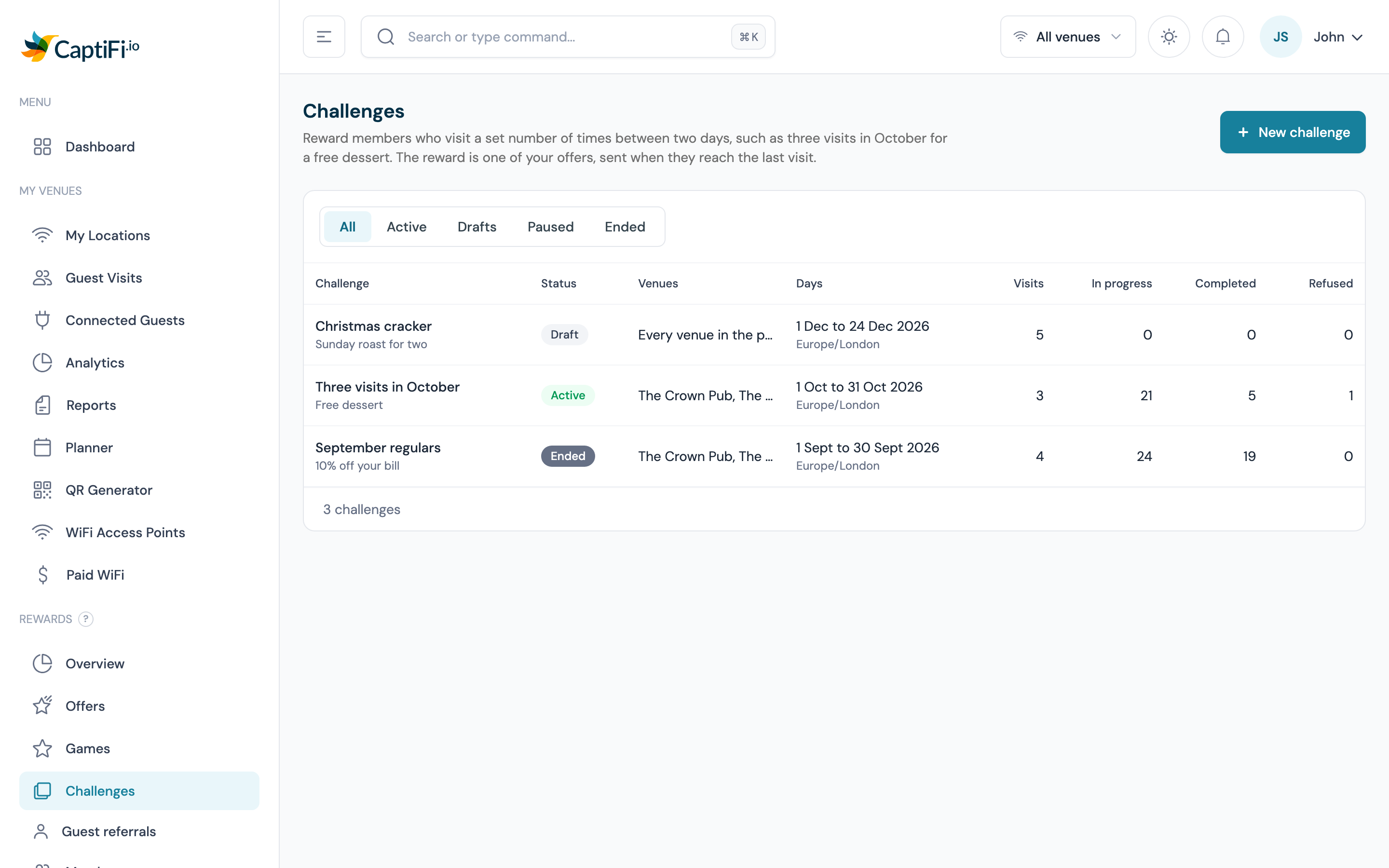
- A visit challenge sends a member one of your offers when they visit a set number of times between two days, such as three visits in October for a free dessert
- The stamp card shows a stamps programme's balance as a card with spaces to fill, on the member's rewards page, the splash welcome back and their wallet pass
- Badges mark milestones such as a fifth visit or a birthday visit on the member's rewards page
They build on the visits Rewards already records, so there is nothing new to set up at the till.
Plans
Challenges, the stamp card and badges are part of Rewards, on the Growth, Pro and Multi-Location plans. Rewards must be switched on and your programme set up first; see Switching Rewards on. Each of the three appears once it is switched on for your account.
Visit challenges
How a challenge works
- You create a challenge with a number of visits, two days, the venues where visits count and an offer as the reward, and start it
- Each time a member signs in to the WiFi at one of those venues between the two days, it counts as a visit, at most once per venue per day
- When a member reaches the number of visits, the challenge sends them the offer as a reward by email, or by text for a phone-only member when Deliver rewards by text to phone-only members is on
- Staff redeem it at the till like any other reward; see Redeeming at the Till
Each member completes a challenge once. Members follow their progress on their rewards page.
Setting up a challenge
Go to Rewards → Challenges and click New challenge
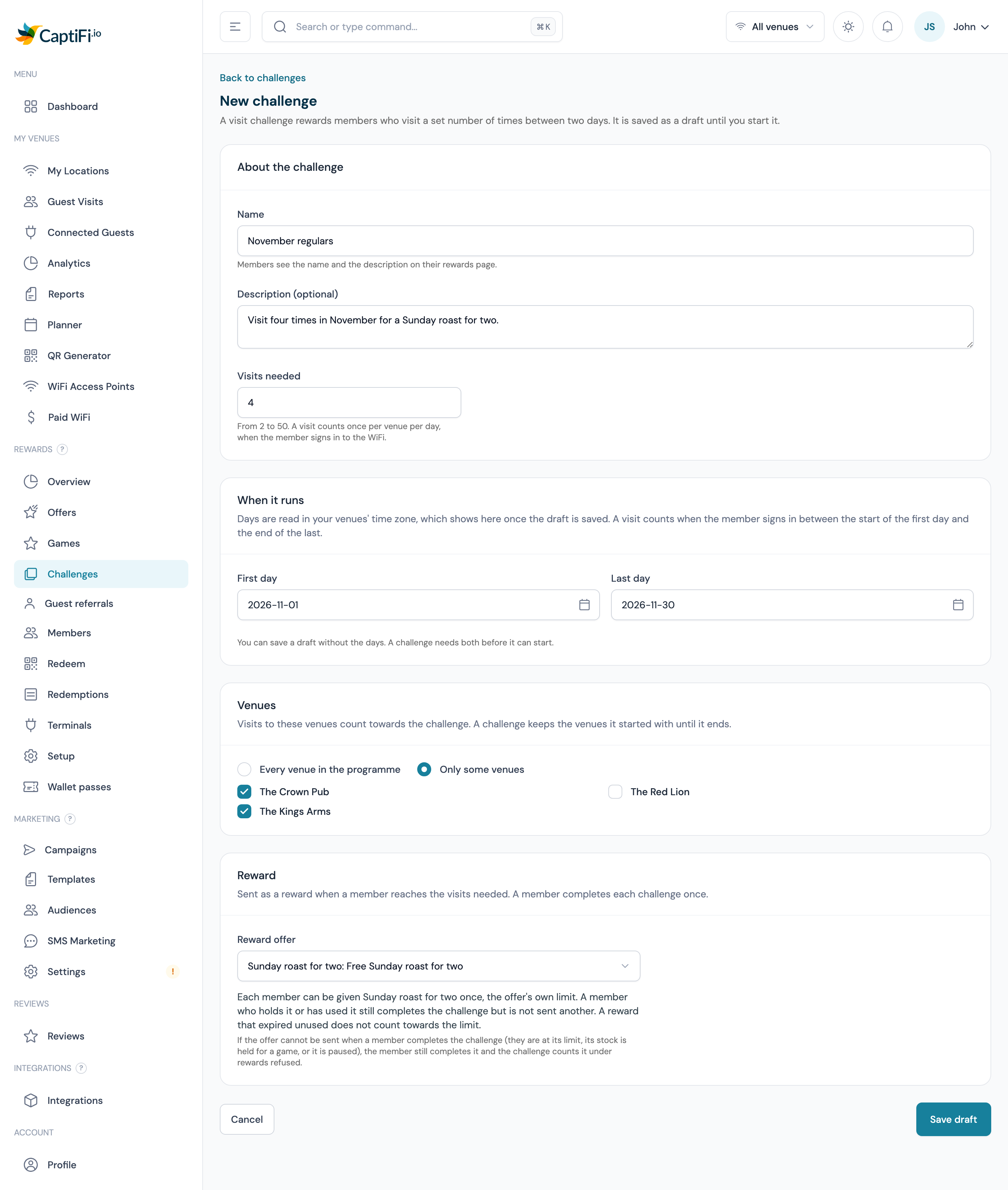
Under About the challenge, type the Name (up to 120 characters), an optional Description (up to 500) and the Visits needed, from 2 to 50. Members see the name and the description on their rewards page
Under When it runs, choose the First day and the Last day. You can save a draft without them, and add them before you start
Under Venues, choose Every venue in the programme or Only some venues and tick them. Visits at these venues count
Under Reward, choose the Reward offer. Offers that cannot be the reward for these venues and days read "(not available)" and are listed under Offers you cannot choose here with the reason. Choose later leaves it empty for now
Click Save draft
Open the challenge from the list and click Start challenge, then Start challenge again in Start this challenge?
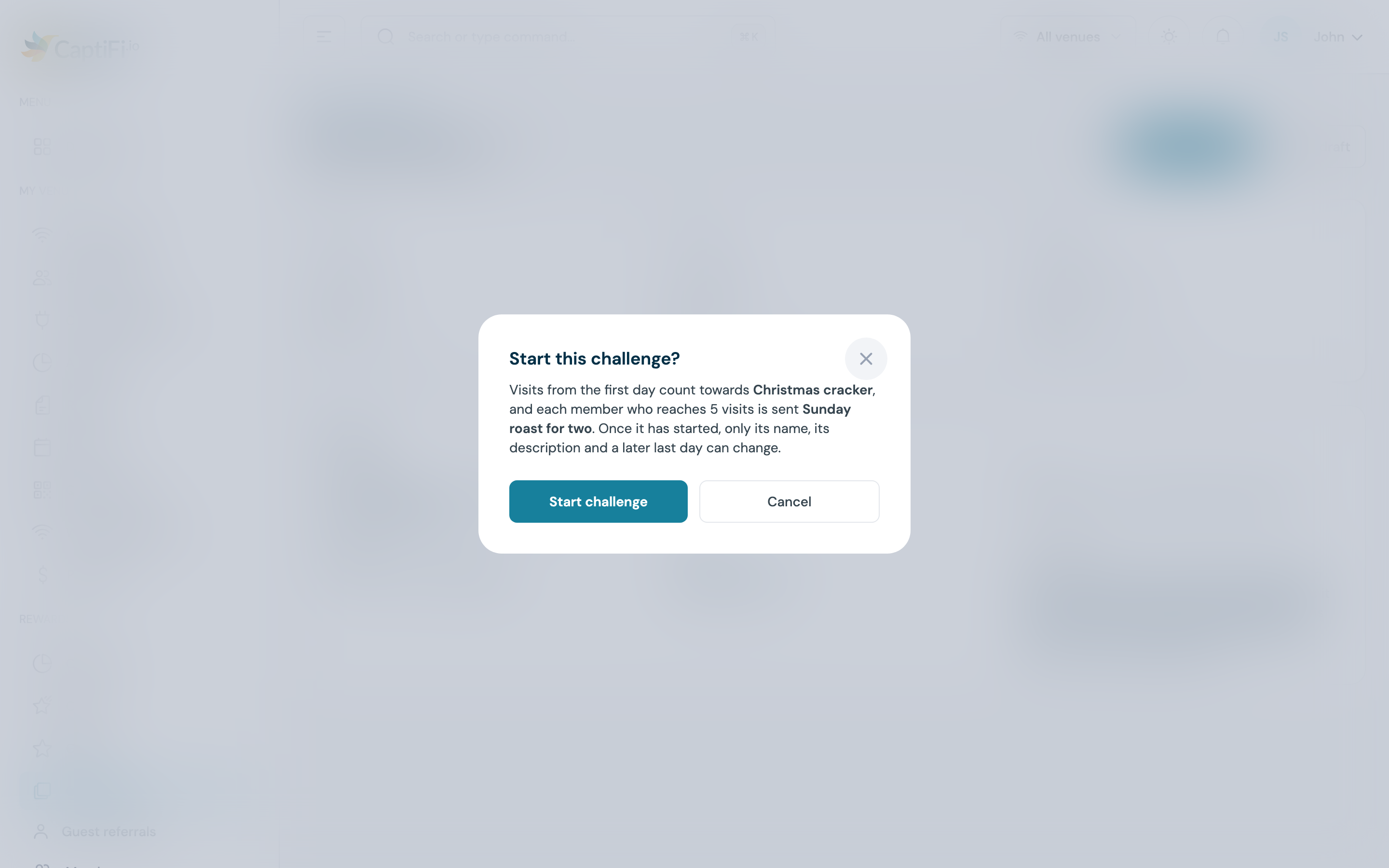
A challenge is saved as a draft until you start it, and a draft counts nothing. Start it before its first day: sign-ins made while it was still a draft are not added later, even when they fall inside its days.
Days are on the challenge's clock: the time zone of the challenge's venue that was added to CaptiFi first, named on the form once the draft is saved. A visit counts from the start of the first day to the end of the last, 23:59:59, and the last day can be the same as the first.
Choosing the reward offer
The offer is checked when you choose it and again when you start the challenge. It must:
- be active
- be valid at every venue on the challenge (an offer valid at every venue in the programme always is)
- be live from the start of the challenge
- run for at least seven days after the challenge closes, or have no end date. A challenge closes at 23:59:59 on its last day, so a challenge ending on 31 October needs an offer that runs until at least 7 November at 23:59:59. Members who finish on the last day then get a reward they can still use
The offer's own limits still apply each time it is sent, and the line under the picker spells out its Per member limit, for example "Each member can be given Free dessert once, the offer's own limit." A member who already holds the offer or has used it as many times as the offer allows still completes the challenge, but is not sent another. A reward that expired unused does not count towards the limit. The same happens when the offer cannot be sent for another reason: its Cooldown (days) has not passed, its Max issued is reached, its stock is held for a game, it is paused or outside its dates, or the programme is off. These completions are counted under Rewards refused on the challenge's page.
Starting a challenge
If something stops the start, The challenge did not start lists each problem with what to do:
| Problem | How to fix it |
|---|---|
| No first or last day, or the last day has passed | Set the days on the form. Only a last day in the past stops the start; a first day in the past does not |
| No venue to run at | Choose the venues, or add venues to your programme under Rewards → Setup |
| The offer is not active | Activate it under Rewards → Offers, or choose another |
| The offer is not valid at every venue of the challenge | Add the venues to the offer, or take them off the challenge |
| The offer starts after the challenge, or ends less than seven days after it closes | Move the offer's dates under Rewards → Offers, or change the challenge's days |
Once a challenge has started, its venues are fixed. A challenge on Every venue in the programme keeps the venues that were in the programme when it started, so a venue added to the programme later does not count towards it. The number of visits, the first day and the offer are fixed too, so every member is held to the same rules.
Edit details on a running or paused challenge changes only the name, the description and the last day, which can only move later. A later last day must still leave the offer seven days to run after the new close; if it does not, extend the offer first. An ended challenge cannot be changed.
Pausing, resuming and ending
| Control | What happens |
|---|---|
| Pause | No sign-in counts while the challenge is paused, and it leaves members' rewards pages. Progress made before the pause is kept |
| Resume | Visits count again from that moment. Sign-ins during the pause are never added |
| End challenge | After End this challenge?, hold the button. Visits stop counting straight away and the challenge cannot be started again. Rewards already sent stay valid until they expire. Ending a paused challenge stops counting from when the pause began |
| Delete draft | Hold the button to delete a draft. The offer is kept under Rewards → Offers. Only a draft can be deleted |
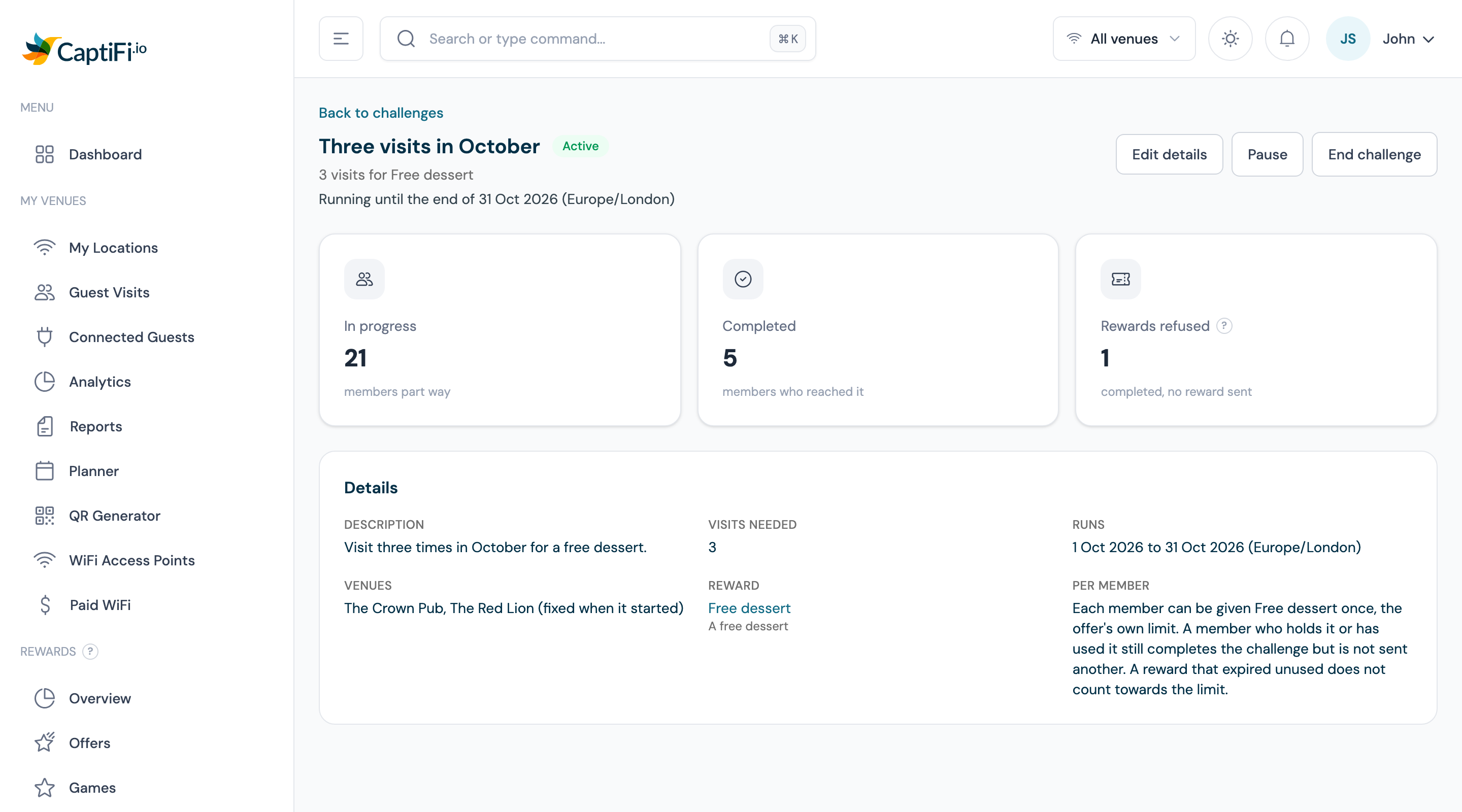
A challenge also ends by itself when its last day is over. The line under its name says where it stands, for example "Running until the end of [last day] ([time zone])", "Paused, so no visits count." or "Ended [time] ([time zone])".
An active challenge's page.
How visits count
A visit is a WiFi sign-in by a member at a venue on the challenge, and it counts at the time the guest signed in.
- One visit per venue per day, on the venue's own date. Two sign-ins at one venue on the same day are one visit; a sign-in at a second venue that day is another
- Only sign-ins between the start of the first day and the end of the last day count, and none while the challenge is paused or after it ended
- A sign-in at a venue that is not on the challenge does not count
- The guest must be a member. On the sign-in where a guest joins your programme, they become a member first, so that visit counts
- Sign-ins while the challenge was a draft, or while challenges were switched off for your account, are not added later
A member reaches the challenge on the sign-in that brings them to the number of visits, and the offer goes out then.
The challenge page
Click a challenge in the list to see:
| Figure | What it counts |
|---|---|
| In progress | Members part way: at least one visit counted, not yet completed |
| Completed | Members who reached the number of visits |
| Rewards refused | Members who completed it when the offer could not be sent to them |
Details shows the description, Visits needed, when it Runs, the Venues, the Reward and the Per member limit of the offer, with a note when the offer is no longer active. The list on Rewards → Challenges shows the same counts in its In progress, Completed and Refused columns.
What members see
A member's rewards page lists up to ten running challenges under Challenges: the name and description, "Reward: [offer]", a progress bar with, for example, "2 of 3 visits" or Complete, and the last day, such as "Ends 31 Oct". Paused and ended challenges are not listed.
A member's rewards page with the stamp card, a challenge and badges.

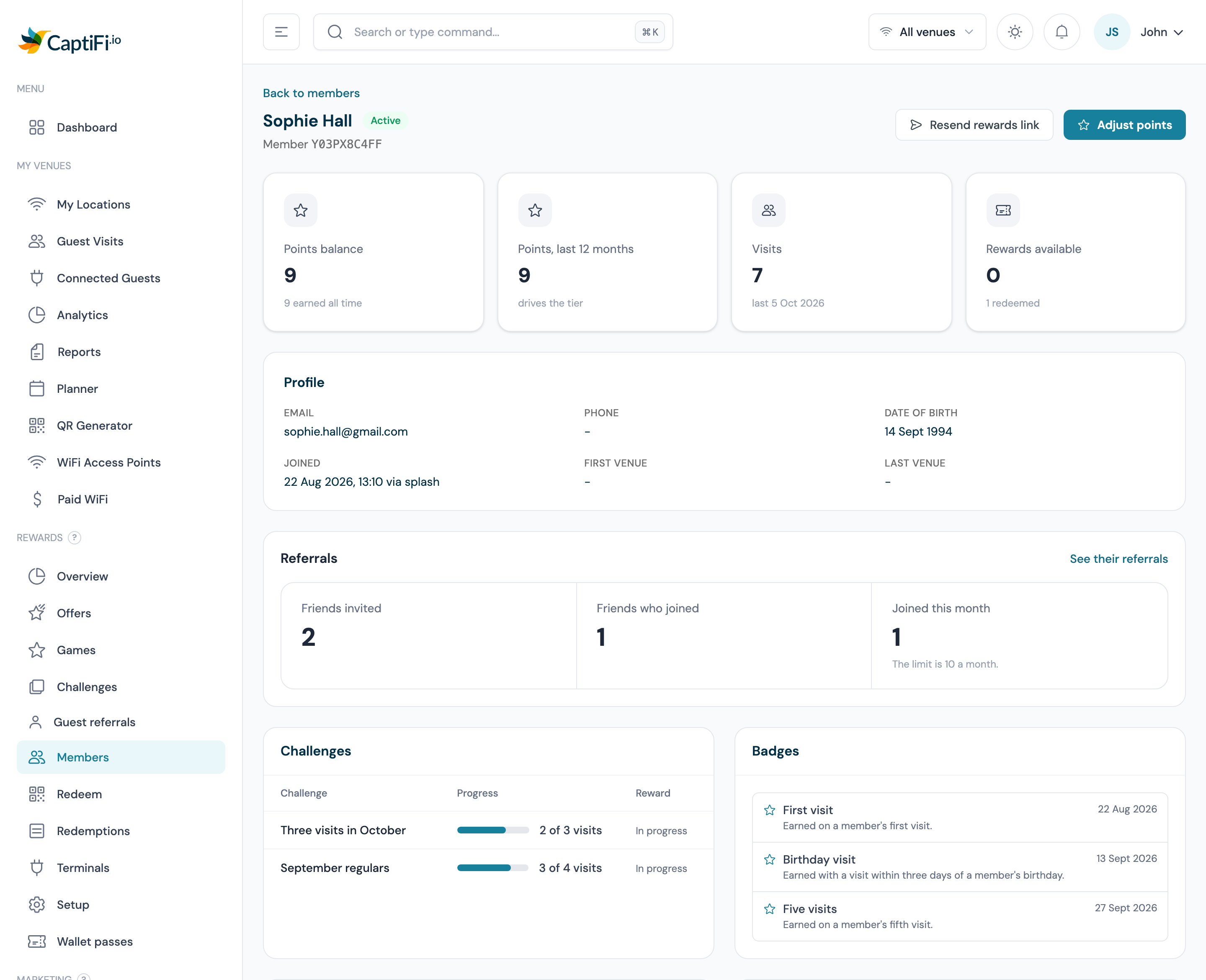
In the dashboard, a member's page under Rewards → Members has a Challenges card with each challenge, their Progress and the Reward, including "Completed [date]", or Reward not sent when the offer could not be sent.
The stamp card
The stamp card draws a stamps programme's balance as a card with a set number of spaces. Each WiFi visit fills a space, because a stamps programme gives one stamp per visit.
Setting the card size
- Go to Rewards → Setup. Under Programme, Mode must be Stamps
- Type the Stamps per card (optional), from 3 to 20. The preview under it shows what a member with two stamps sees, for example "A member with 2 stamps sees 2 of 10 stamps." Leave it blank and no card is drawn
- Click Save programme
Stamps per card on the Programme form.
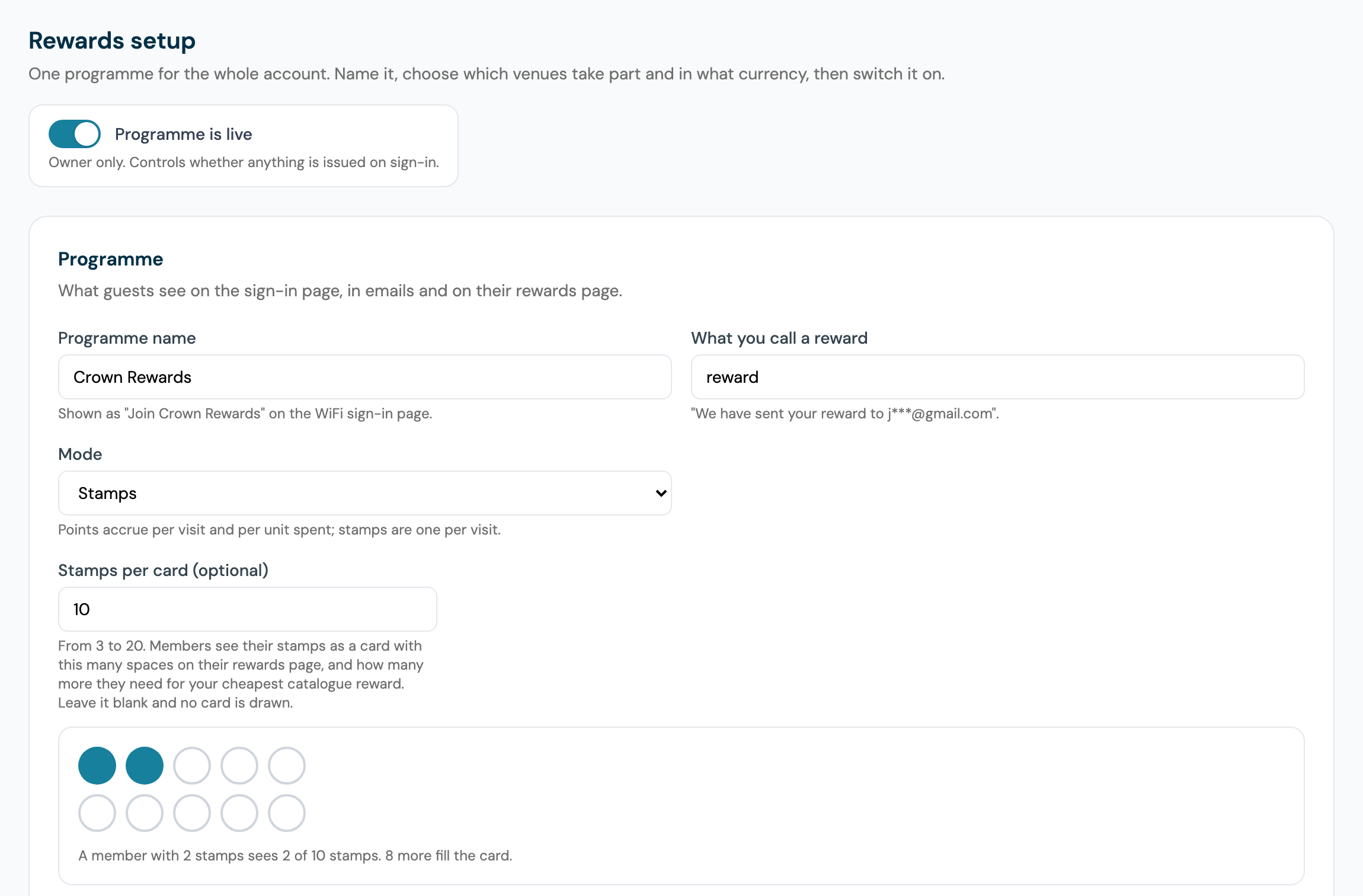
The card is a picture of the balance and does nothing on its own: a full card issues nothing and does not reset. Members spend their stamps on your catalogue offers as usual (see Claiming an offer with points), and the card shows the balance that is left. A balance beyond a full card starts the next card, so 11 stamps on a card of 10 shows 1 of 10, and 10 shows a full card.
Where members see it
- On their rewards page the card is a grid of spaces with "6 of 10 stamps" under it, then how many more they need for your cheapest catalogue offer, named by its headline (or its name when it has no headline), such as "4 more for a free coffee", or "Your card is full. Claim a free coffee below." once they have enough
- On your splash page, a returning member recognised by the welcome back sees "6 of 10 stamps" in place of their balance
- On their member card in Apple Wallet or Google Wallet, a Stamp card line reads, for example, "6 of 10 stamps"; see Rewards wallet passes
Badges
Badges are a fixed set. A member earns each one once, and it shows on their rewards page under Your badges.
| Badge | How it is earned |
|---|---|
| First visit | A member's first visit |
| Five visits | A member's fifth visit |
| Ten visits | A member's tenth visit |
| Twenty-five visits | A member's twenty-fifth visit |
| Birthday visit | A visit within three days either side of the member's birthday. Needs a date of birth on file |
| First ticket | A member's first event ticket, paid or free, bought with the email address they joined with. See Events and tickets |
Visits are counted the Rewards way, at most once per venue per day. A member who already had more visits than a badge needs when badges were switched on earns every badge they have passed at their next visit. Earlier birthdays and tickets are not counted.
In the dashboard, a member's page under Rewards → Members has a Badges card listing each badge they hold with its description and the date earned, or "No badges earned yet."
A member's page with the Challenges and Badges cards.
Challenges and badges in workflows and webhooks
- Two Workflows triggers: Challenge completed, with an optional Challenge, and Badge earned, with an optional Badge. Challenge completed runs only when the reward was sent
- Two webhook events:
challenge.completed("A member completes one of your visit challenges") andbadge.earned("A member earns a badge")
Who can do what
| What | Who can do it |
|---|---|
| See challenges and their figures | Every team member who can open Rewards |
| Create, edit, start, pause, resume, end and delete challenges | Manage rewards and offers |
| Set Stamps per card on Setup | Manage rewards and offers |
| See a member's badges and challenges | View guest data, as for the rest of a member's page |
A team member limited to some venues can only tick their own venues on a challenge.
Troubleshooting
| Issue | Possible cause | Solution |
|---|---|---|
| No Challenges item under Rewards | Challenges are not switched on for your account, or Rewards is off | Switch Rewards on under Integrations → Dashboard features. The Challenges page says when challenges are not available |
| The offer reads "(not available)" | It is not active, not valid at every venue on the challenge, starts after the challenge starts, or ends less than seven days after the challenge closes | Read the reason under Offers you cannot choose here and change the offer's dates or venues under Rewards → Offers |
| A member's visits were not counted | The challenge was still a draft or paused, the sign-in was at another venue or outside the days, they were not a member yet, or it was their second sign-in at that venue that day | Check the challenge's status, days and venues. Sign-ins are never added after the event |
| A member completed but got no reward | The offer's own limits stopped it: per member, cooldown, Max issued, stock held for a game, or it was paused | The completion is counted under Rewards refused. Raise the limit or resume the offer for later completions |
| A venue added to the programme does not count | The challenge started before the venue was added, and its venues were fixed then | Start a new challenge to include it |
| The last day cannot be moved later | The offer would end less than seven days after the new close | Extend the offer under Rewards → Offers first |
| No Stamps per card field on Setup | The programme is in Points mode, or the stamp card is not switched on for your account | Switch Mode to Stamps |
| A member's card shows fewer stamps than their balance | Their balance is beyond a full card, so the next card has started | Nothing to fix. The full balance is on their rewards page |
| A member has no badges | Badges are earned at the next visit after they are switched on | Wait for the member's next visit |
Related features
- Rewards & Offers: the programme, the Stamps mode and the offers a challenge pays
- Games: spin the wheel, scratch cards and prize draws
- Guest referrals: rewards when a member's friend joins
- Rewards wallet passes: where the stamp card shows in Apple Wallet and Google Wallet
- Rewards in your messaging: segments and automations built on Rewards