
Appearance
Workflows
Workflows is CaptiFi's workflow builder for WiFi marketing automation in hospitality: pubs, restaurants, hotels and cafes. A workflow is a set of steps that CaptiFi runs for one guest at a time, started by something that happens on your guest WiFi: a first sign-in, a return visit, a quiet spell, a birthday, a tag or a saved segment. You draw the steps on a canvas: wait an hour, send an email, check whether the guest has a tag, send a different email on each branch. Each guest who qualifies gets a run of their own, and you can read every run step by step.
Quick start: your first workflow in five minutes
The quickest first workflow is the welcome email: a guest signs in to your WiFi for the first time and gets an email from you. Nothing is sent until you publish, so you can look around as you go.
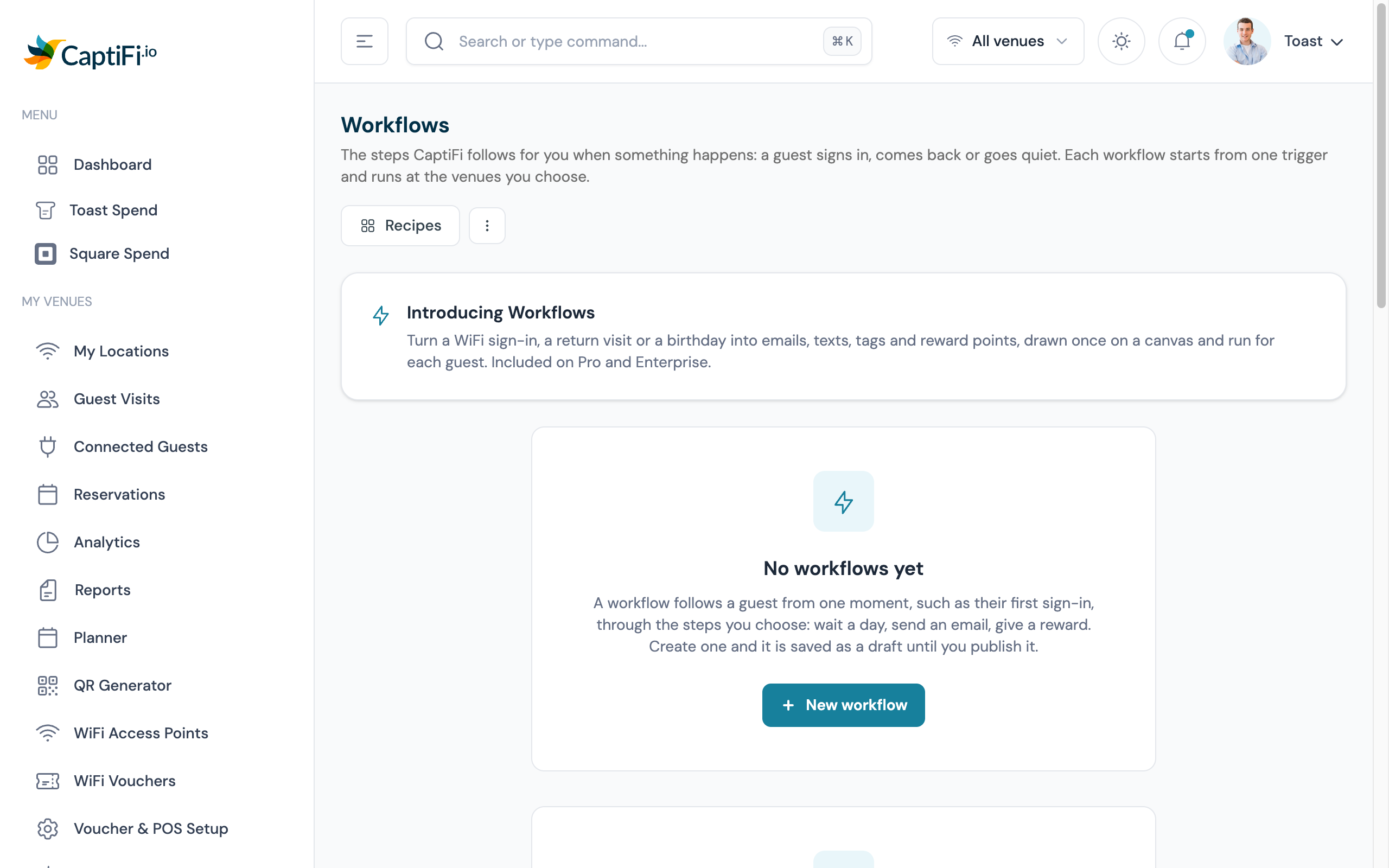
Open Workflows. Log in to my.captifi.io, go to Marketing → Workflows and click New workflow.
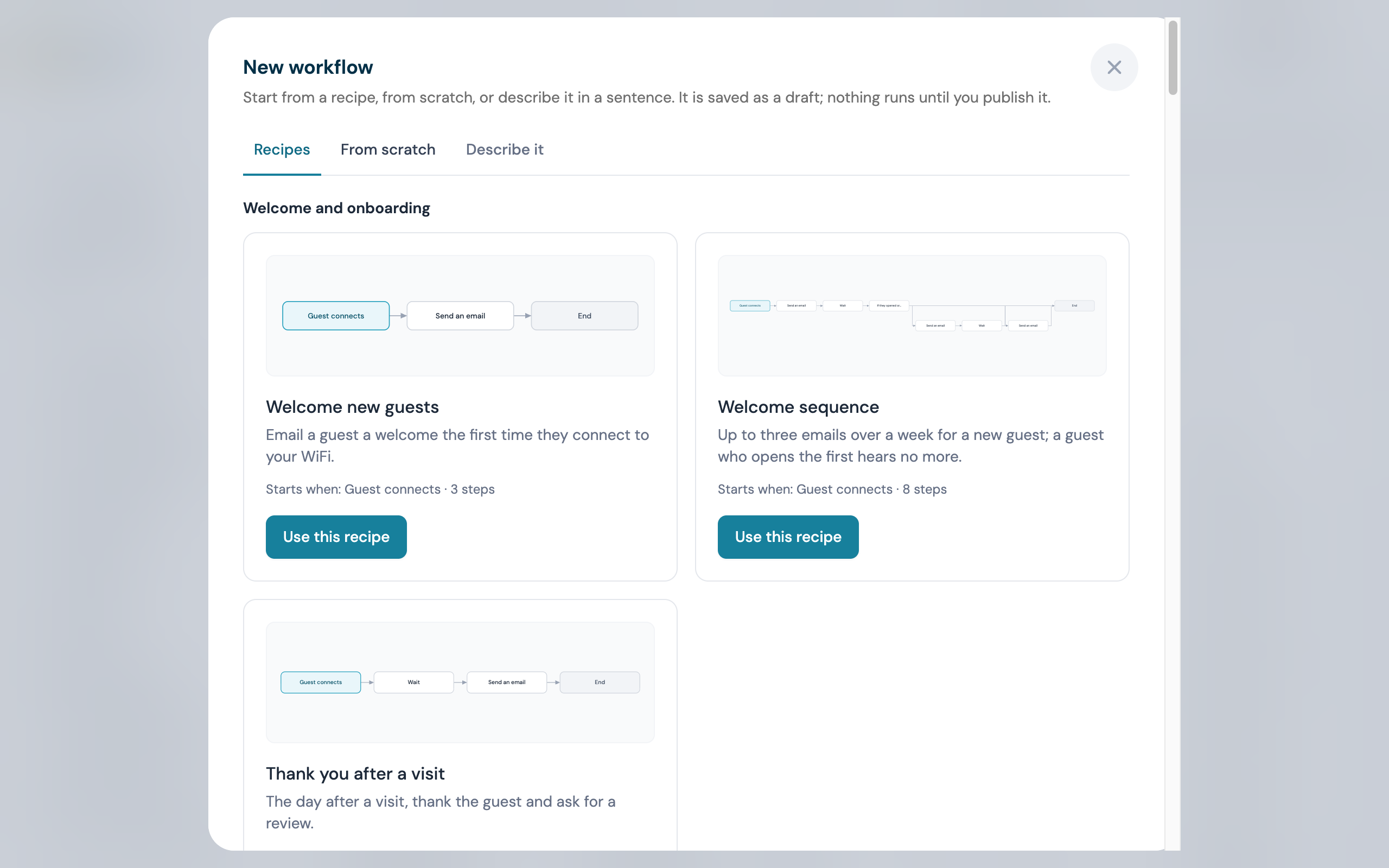
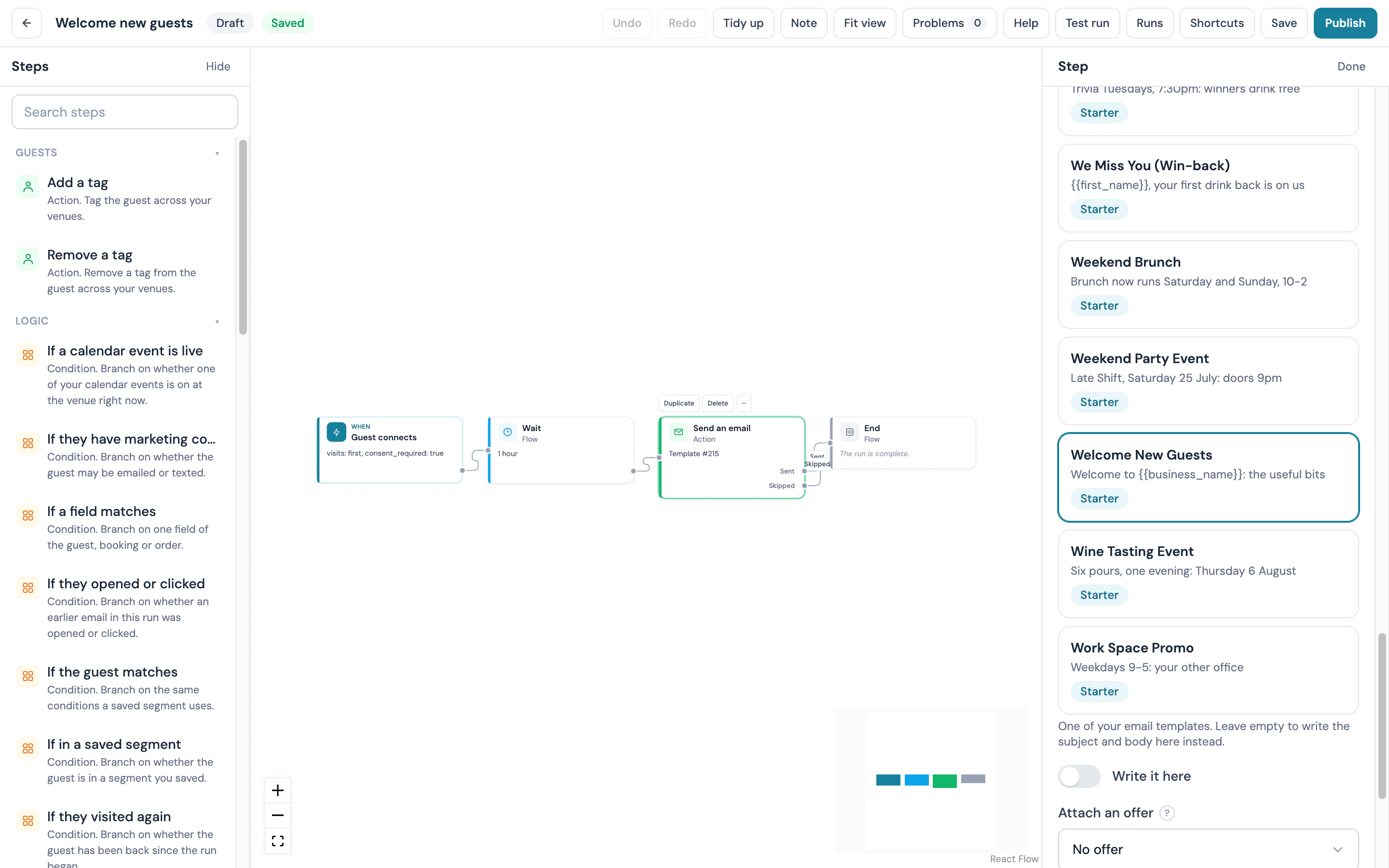
Pick a recipe. The New workflow window opens on the Recipes tab. Under Welcome and onboarding, click Use this recipe on Welcome new guests.
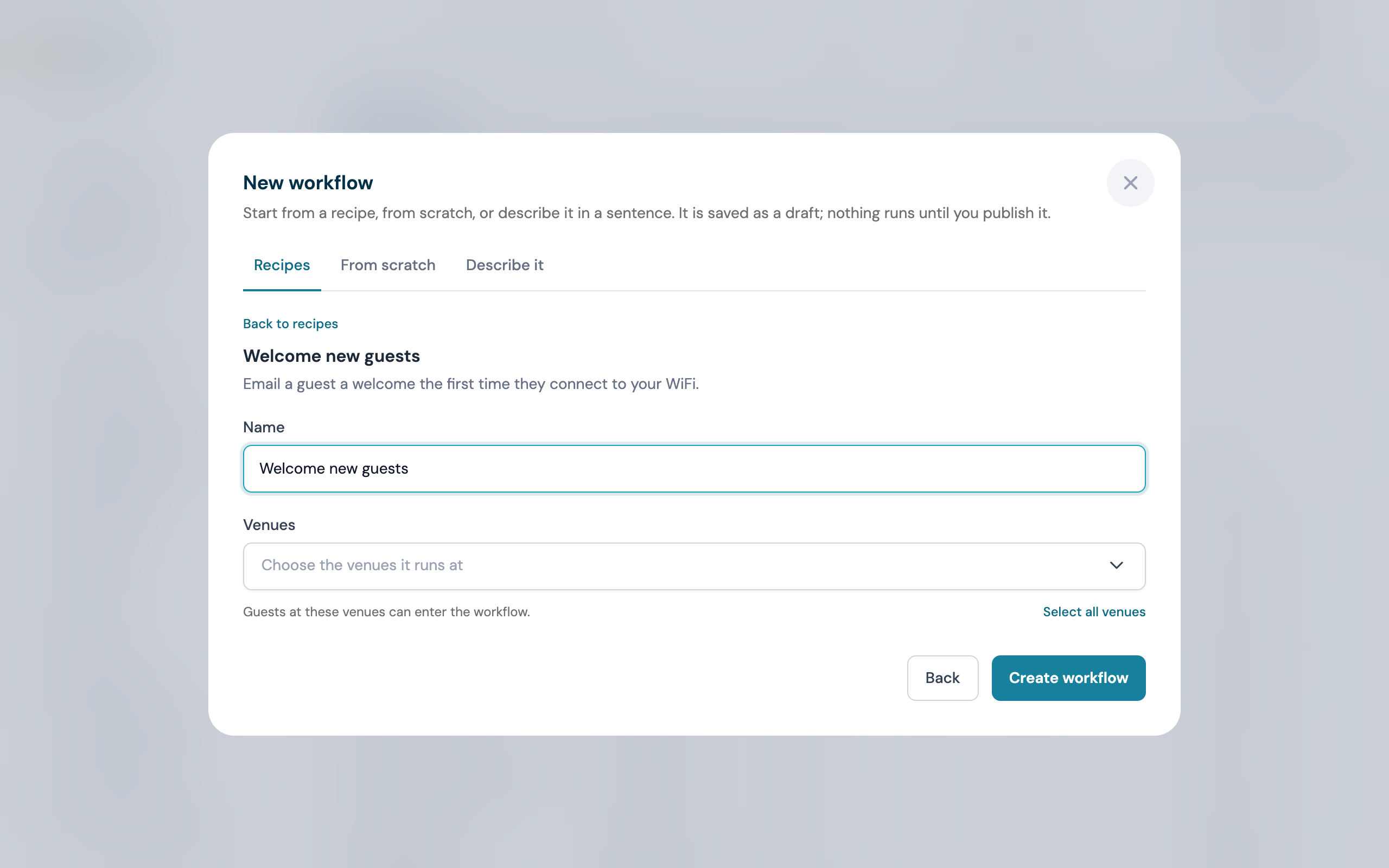
Fill the two fields. Give the workflow a name and choose the venue it runs at, then click Create workflow. The canvas opens with the steps already drawn and a welcome template picked for the email. The draft saves itself as you work.
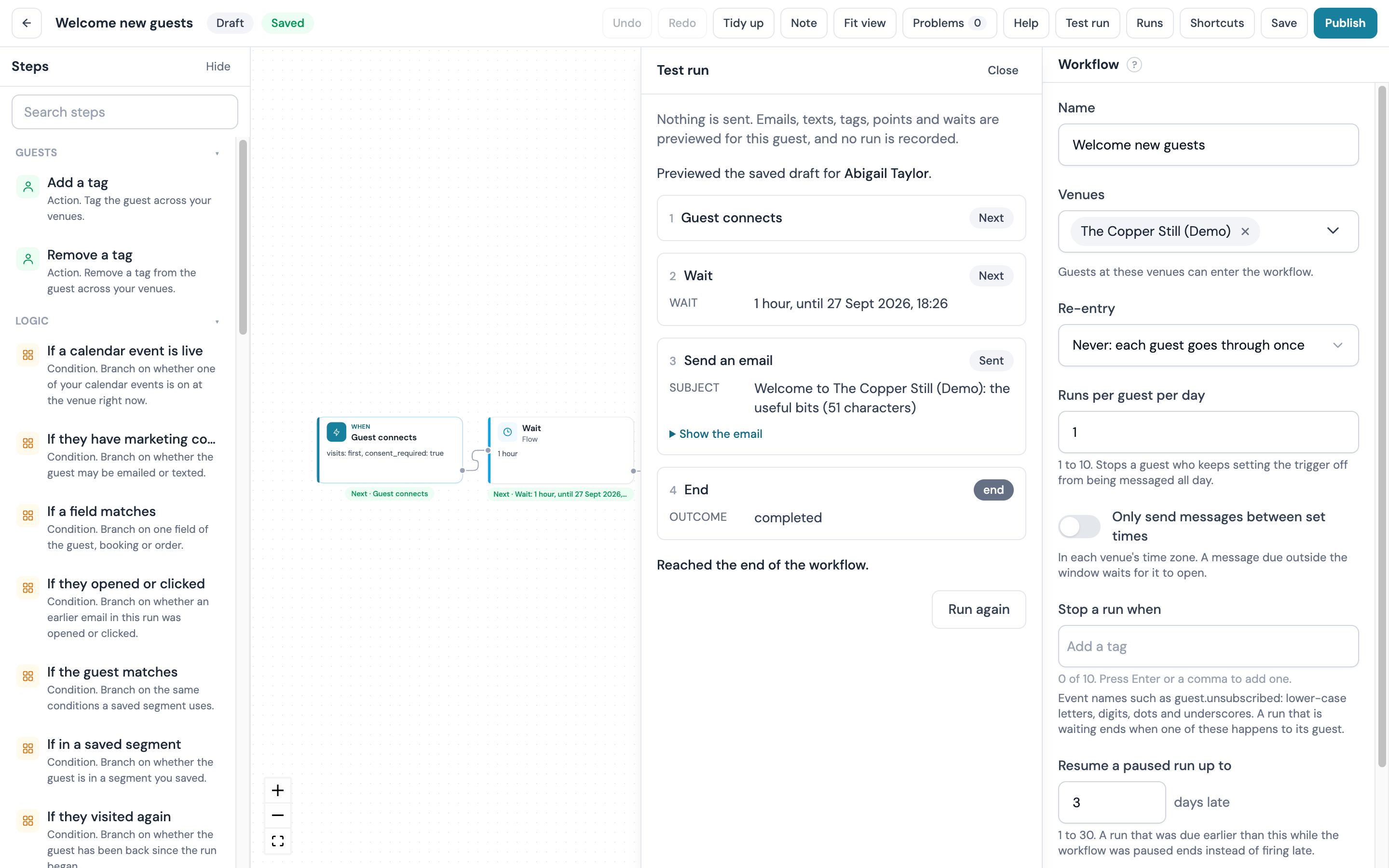
Run a test run. Click Test run in the top bar, find one of your guests by name and click Run the test. The panel lists each step and the subject line that guest would receive. Nothing is sent and no run is recorded.
Publish. Click Publish in the top bar. The pill beside the name changes from Draft to Active, and from then on each guest who signs in for the first time gets the email.
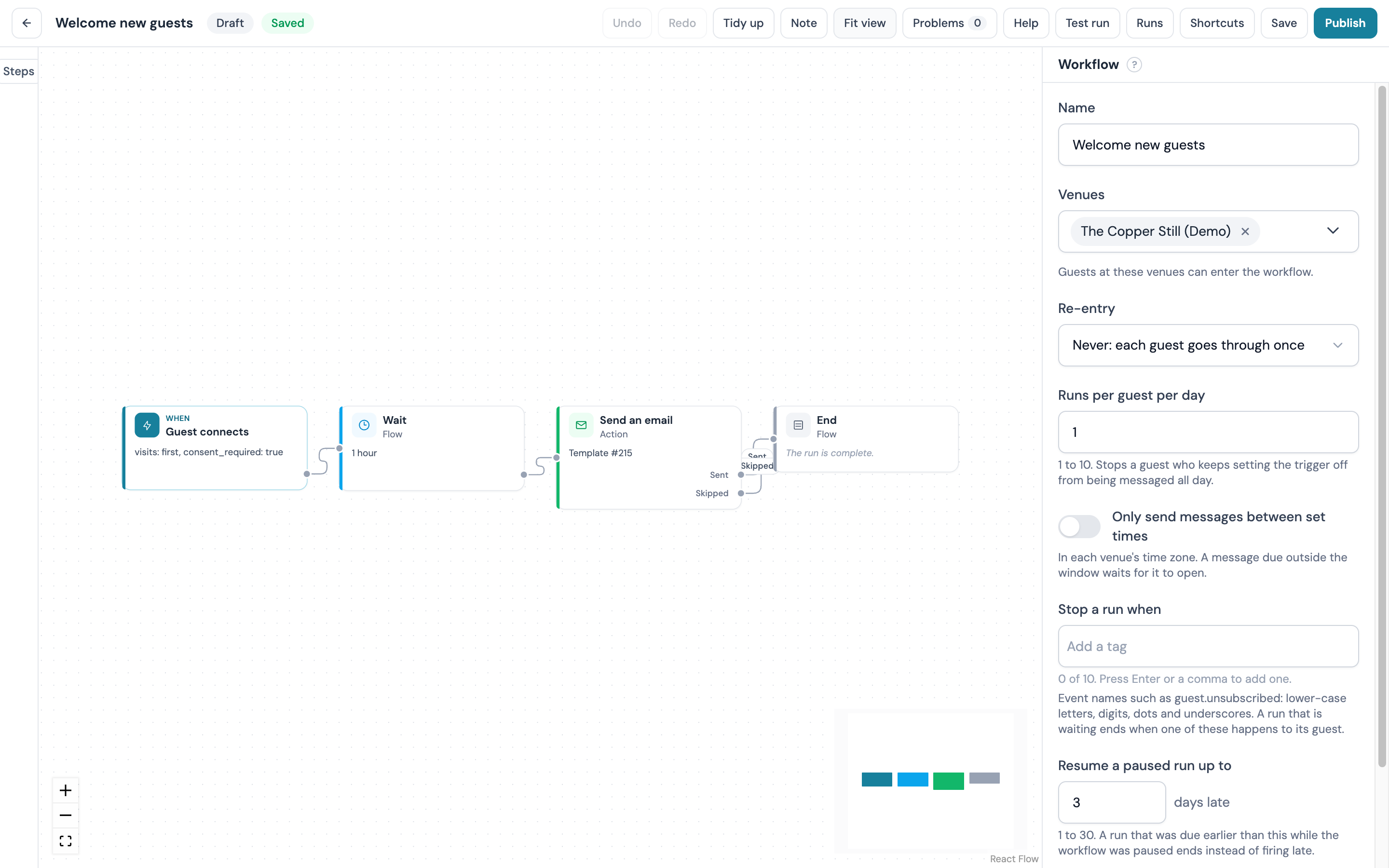
To change the email, click the Send an email step and pick another template in the inspector on the right. The rest of this page covers each trigger, step and setting in turn.
What you can build
A few journeys, each stated as what the guest gets:
- Welcome a first-timer an hour after they sign in, while the visit is still fresh in their mind
- Email a guest who has not been back in 30 days, and if they still have not returned two weeks later, text them an offer; if they do walk in, the run ends and nothing more is sent
- Wish a guest happy birthday three days before the day
- Send every new guest the welcome email, and give guests tagged
vipa second email with a table-booking offer two hours later - From a guest's fifth visit, tag them a regular and award them points on their rewards balance
- Split new guests at random between two welcome emails
- Put your bank holiday splash design up two days before a bank holiday and take it down when the holiday ends
Most of these are written out step by step under Recipes.
A member of staff can also start a workflow for one guest, so a manager can send a "sorry about tonight" or "thanks for bringing the party" journey by hand.
 Workflows sits under Marketing → Workflows on my.captifi.io. A workflow is a separate object from an Email Automation; your existing automations carry on as they are, and the two can run side by side.
Plan requirement: Workflows is included on the Pro plan and above. See Plans & Pricing.
Will this spam my guests?
Workflows follows the same consent, allowance and quiet-hour rules as campaigns and automations, and nothing in a workflow can bypass them. A guest who unsubscribed is skipped, a text waits for the venue's quiet hours to end, and a guest can have one run at a time in a workflow. The rules are set out under Consent, allowance, credits and quiet hours.
Five things to build today
Each takes a few minutes with an email template already in your library:
- Welcome email one hour after a first visit
- Give VIPs a second offer after the welcome email
- Regulars from the fifth visit: a tag, points and a thank-you
- Two welcome emails, split at random
- Win back a guest who has been away 30 days
Workflows or Email Automations?
Both send messages when something happens to a guest, and both count against the same monthly email allowance. The difference is shape.
| Email Automations | Workflows | |
|---|---|---|
| Shape | One trigger, one template, up to five follow-ups in a straight line, each with an Only if rule | One trigger, then any arrangement of steps: branches, random splits, waits, several messages, tags and points |
| Branching | A follow-up is sent or skipped; the sequence carries on | A condition sends the guest down one path or another, and each path can differ from the first step to the last |
| Waiting | Days between follow-ups | Minutes to a year, until a time of day, or until the guest does something |
| Beyond email and text | Tags per step, a reward offer on an email | Add or remove tags, award points |
| Best for | A single email, or a straight sequence of follow-ups | A journey that forks, waits for the guest, or mixes channels |
| Where | Marketing → Audiences → Automations | Marketing → Workflows |
Keep an automation for a single email or a simple sequence. Reach for a workflow when the journey forks, when a step should wait for the guest to do something, or when you want to see each guest's path.
Moving from Stampede?
Stampede's Workflows are a visual journey builder, and so is this page. The Stampede mapping table lists each Stampede template beside the CaptiFi automation or workflow that rebuilds it.
Where to find it
- Log in to my.captifi.io
- Go to Marketing → Workflows
Before you have created one, the page shows a No workflows yet card with a New workflow button.
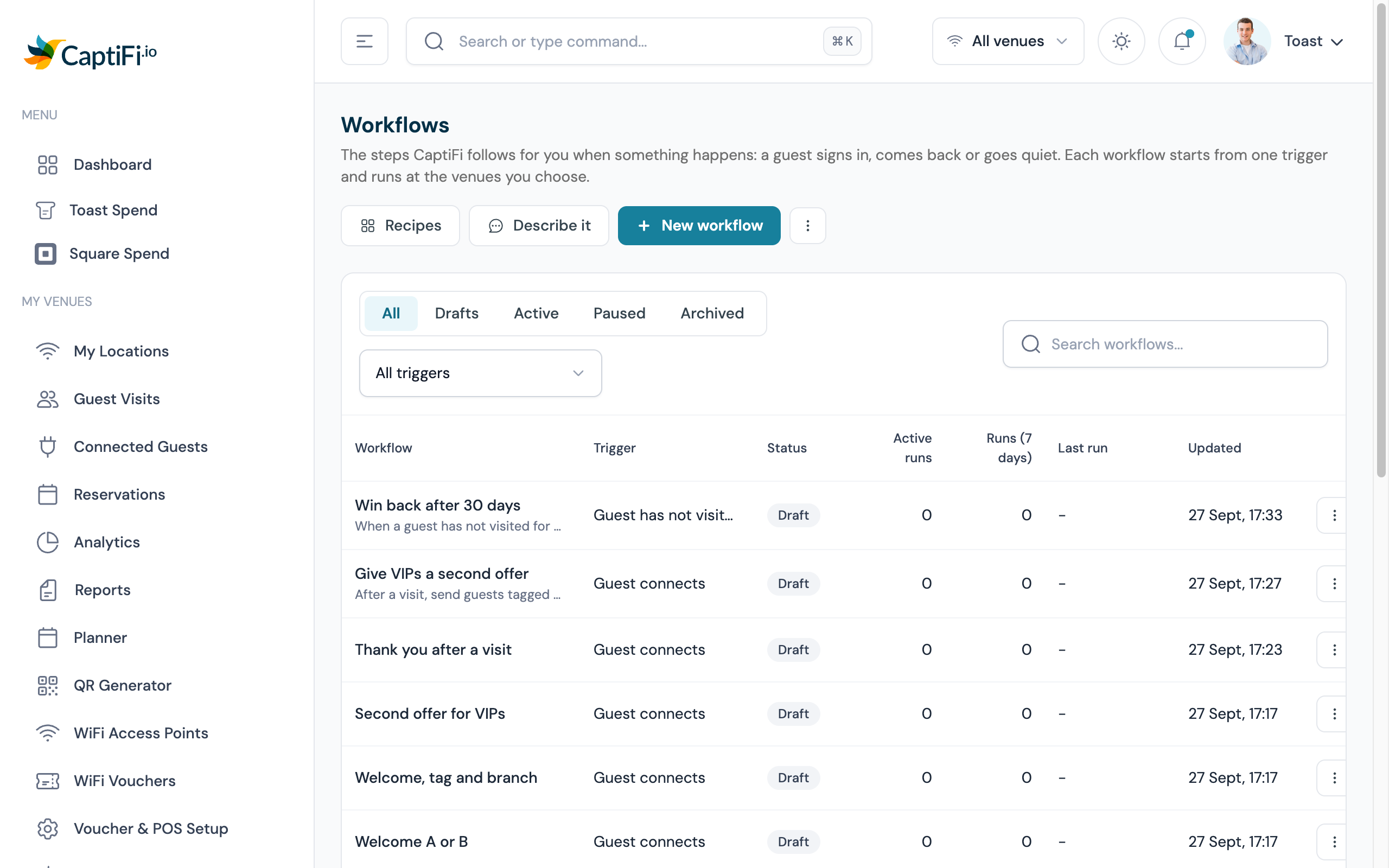
Once you have workflows, the page is a table with tabs for All, Drafts, Active, Paused and Archived, a trigger filter and a name search. The columns are Workflow (the name, with its description under it), Trigger, Status, Active runs, Runs (7 days), Last run and Updated. A row whose draft differs from its published version is marked Unpublished changes under the name. The name opens the canvas. The row menu holds Edit (View on an archived workflow), Duplicate and, on an archived workflow only, Delete. A member without the Manage workflows permission sees the table with no row menu and no New workflow button.
Who can use Workflows?
Three things must hold before the Workflows entry appears in the sidebar and the page opens:
- Your plan is Pro or Enterprise. On Essentials and Growth the page shows a card reading Workflows is not on your plan with a View plans link. A team member follows the owner's plan
- Workflows is switched on for every Pro and Enterprise account. If your plan qualifies and the entry is missing, see Troubleshooting
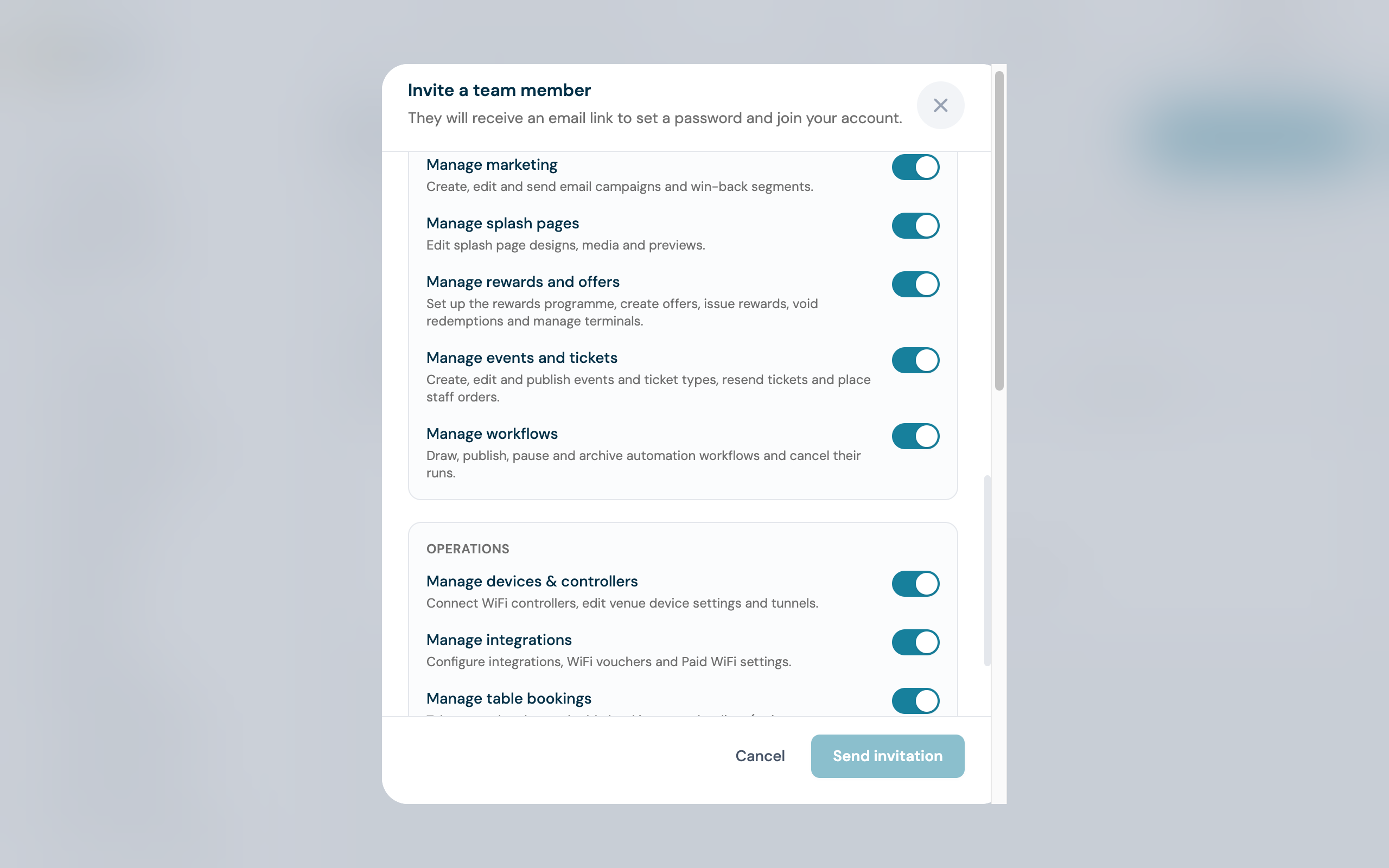
- To create or change anything you need the Manage workflows permission on the Team page. It is part of the Manager and Marketing roles. A member without it can open the list and read a workflow on a read-only canvas, and nothing else
Creating a workflow
From scratch
- Click New workflow. The window has tabs for Recipes, From scratch and Describe it. It opens on Recipes until you have a workflow; click From scratch
- Enter a Name your team will recognise, for example
Welcome new guests - Under What starts it, choose the trigger. Each trigger is listed with a line on when it fires; a trigger your account cannot use yet stays in the list greyed out with the reason
- Under Venues, choose the venues it runs at. Guests at these venues can enter the workflow, and at least one is needed
- Click Create workflow
The workflow is saved as a draft; nothing runs until you publish it. The canvas opens on the new draft with the trigger already placed.
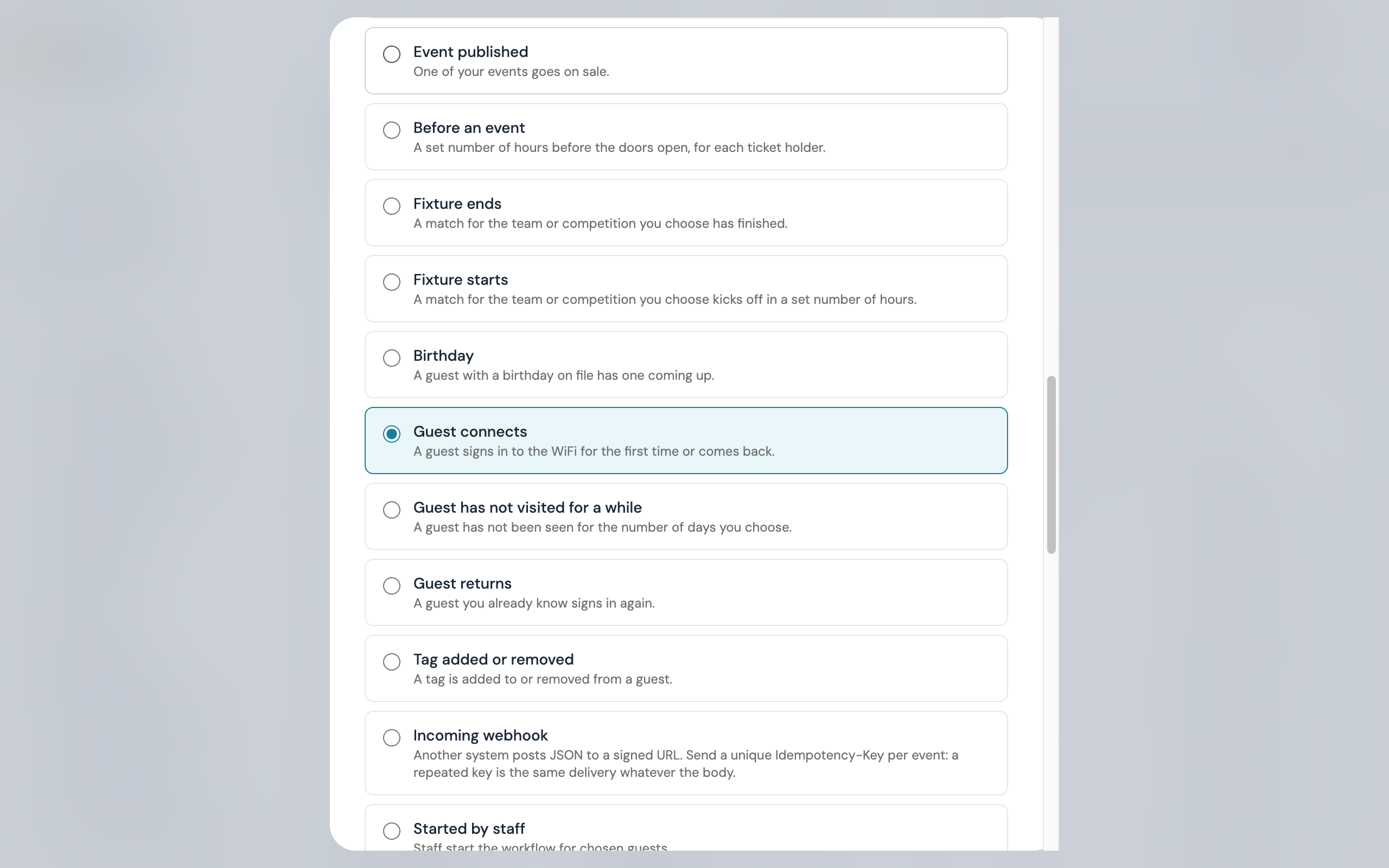 The trigger is chosen here and cannot be swapped on the canvas, because it decides what the rest of the workflow knows about: a guest, a booking, an order. To start from a different trigger, create a new workflow or duplicate this one and change it there.
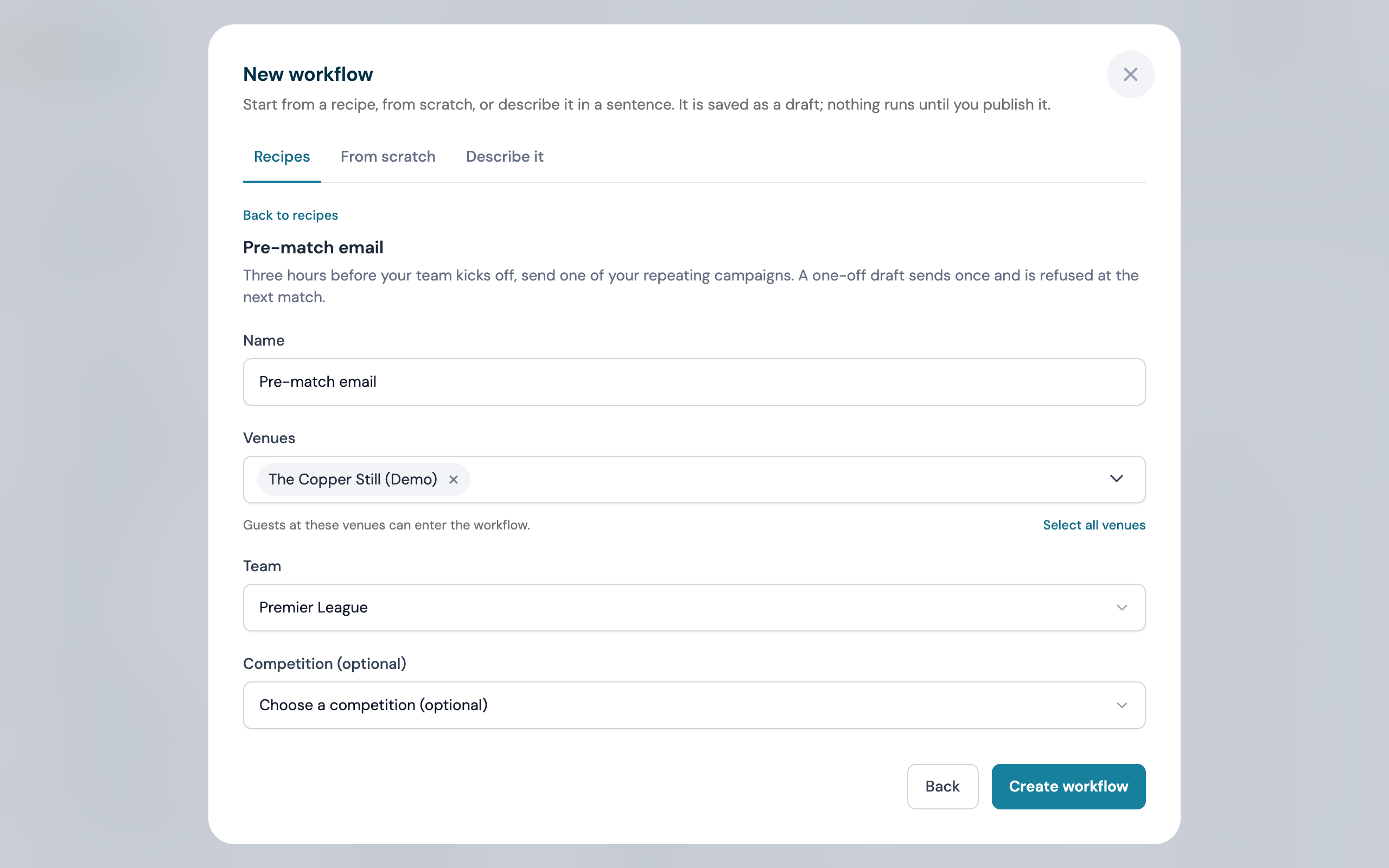
Start from a recipe
The Recipes tab of the New workflow window is a gallery of ready-made workflows, called recipes, in nine groups. Each card shows a miniature of the steps, a one-line promise, the trigger, the step count and a You will fill line naming anything left for you. Click Use this recipe, choose the venues and, if you want one, a name of your own (the recipe's title is filled in), and CaptiFi creates it as a draft with the steps already drawn and connected. Every recipe is a draft you can change before publishing. A recipe your account cannot use yet stays in the gallery with a sentence saying why, for example that Rewards is not switched on. The Recipes button beside New workflow opens the same gallery, and an account with no workflows yet sees the first six recipes on the page itself under Start from a recipe. The first seven groups are below; the last two, Venue operations and Fixtures, weather and holidays, have sections of their own.
Welcome and onboarding
| Recipe | What it does |
|---|---|
| Welcome new guests | Email a guest a welcome the first time they connect to your WiFi |
| Welcome sequence | Up to three emails over a week for a new guest; a guest who opens the first hears no more |
| Thank you after a visit | The day after a visit, thank the guest and ask for a review |
Bring them back
| Recipe | What it does |
|---|---|
| Come back after 60 days | When a guest has not visited for 60 days, email them, then send an offer a week later if they still have not been back |
| Two lists, two delays | After a visit, email one segment after an hour and another after two hours; anyone else gets nothing |
| VIP guests get one email, everyone else another | After a visit, send guests tagged VIP one email and everyone else a different one |
| Review request with a reminder | Four hours after a visit, ask for a review; three days later, remind the guest if they did not open the first email |
Birthdays and loyalty
| Recipe | What it does | Needs |
|---|---|---|
| Birthday greeting | Email a guest on their birthday, once a year, when they gave a date of birth on your splash page | |
| Birthday offer | Three days before a birthday, give the guest one of your offers and email them the code | Rewards |
| Yearly loyalty points | Once a year, thank each subscribed rewards member who has visited in the last twelve months with 100 points and an email. It runs on a daily schedule and checks the date the guest record was created (within the last 365 days), with re-entry after 300 days; the account owner publishes it because it awards points | Rewards |
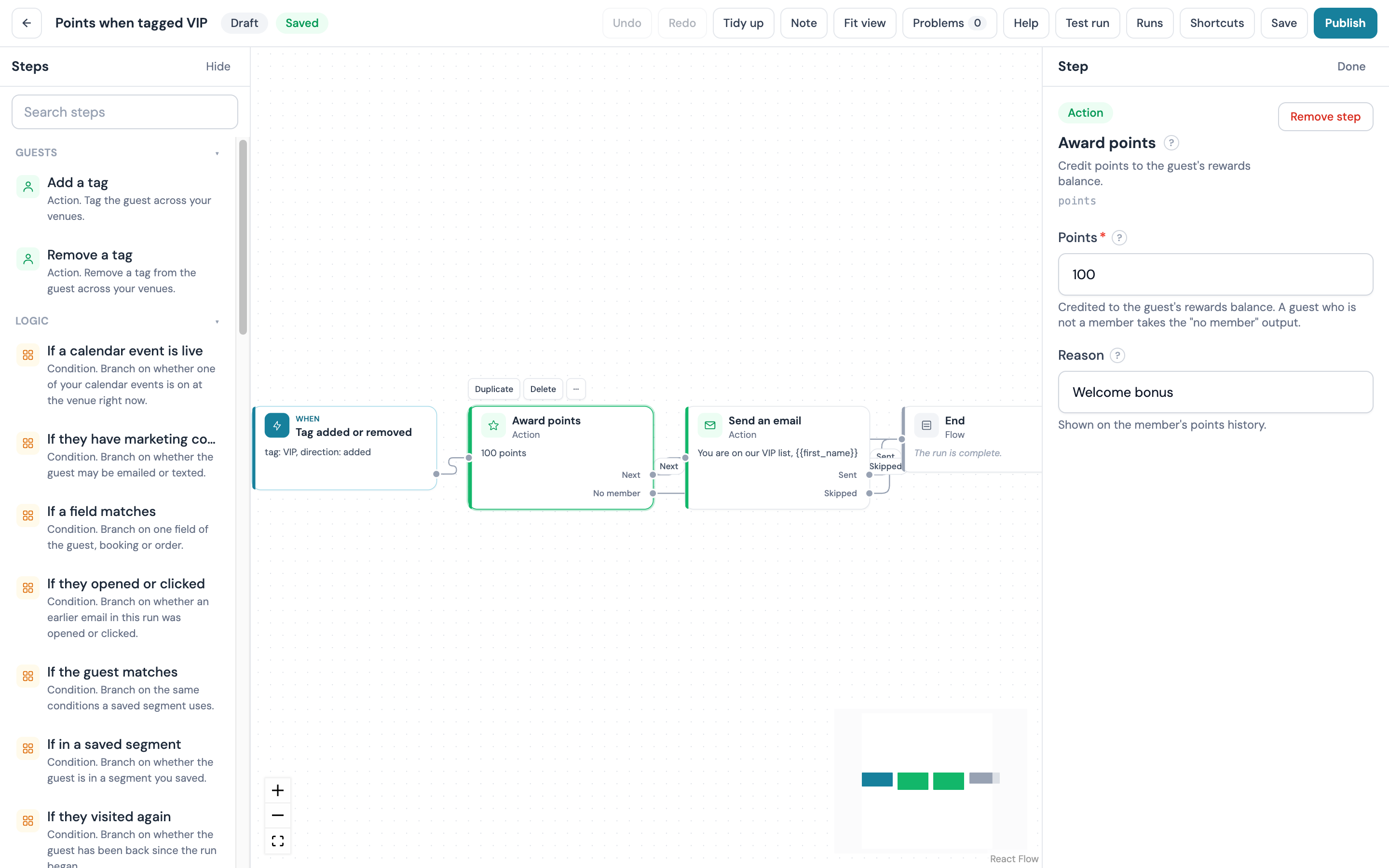
| Points when tagged VIP | When staff tag a guest VIP, add 50 points and let them know | Rewards |
Bookings
| Recipe | What it does | Needs |
|---|---|---|
| Booking reminder | Email the guest a reminder when their table booking is coming up | Bookings |
| Win back a cancelled booking | Two days after a guest cancels a booking, give them a 24 hour WiFi voucher and invite them back; stops if they book again | Bookings |
| After a no-show | The day after a missed booking, send the guest a 24 hour WiFi voucher and an invitation back | Bookings |
Events
| Recipe | What it does | Needs |
|---|---|---|
| Thank ticket holders after the event | Eighteen hours after an event ends, thank everyone who bought a ticket | Events |
| Event reminder | Twenty-four hours before an event, remind ticket holders it is coming up | Events |
Reviews
| Recipe | What it does | Needs |
|---|---|---|
| Recover a bad review | When a guest rates a visit three stars or fewer, tell your team at once and send the guest an apology an hour later | Reviews |
Campaigns and schedule
| Recipe | What it does |
|---|---|
| Weekly offer to a segment | Every Monday at 10:00, email an offer to one of your saved segments |
| Follow up a campaign click | A day after a guest clicks a link in one of your campaigns, send them a follow-up email |
Some recipes ask you for something on the form before the draft is made: Weekly offer to a segment asks which segment, Follow up a campaign click asks which campaign, and Bank holiday weekend asks for your region. Anything else a recipe leaves for you to fill, such as the offer in Birthday offer, a template of your own, a WiFi name or a splash design, is shown as a warning on that step in the problems panel until you fill it; the draft saves as it is, and Publish waits for the field.
Venue operations recipes
The Venue operations group runs the venue itself. Each recipe renames the guest WiFi, swaps the splash design or shows a message strip across the splash page for a window, and every window ends on its own. Eight of the nine start from an event on your Planner calendar; Match day guests starts when a guest connects. All nine are open to every account with Workflows, and Match day guests also uses email marketing, which Pro and Enterprise include.
| Recipe | What it does | You fill in |
|---|---|---|
| Match day WiFi name | When a calendar event with "match" in its name starts, rename the guest WiFi until the event ends, then put it back | The WiFi name |
| Match day guests | When a guest connects during a calendar event with "match" in its name, tag them match day and email them about the match day offer. A guest already tagged from an earlier match gets no second email; every connect is checked, up to two runs a day | Nothing; the email's subject and body are written in the step for you to edit |
| Quiz night splash page | When a calendar event with "quiz" in its name starts, show your quiz night splash design until the event ends, then restore the usual one | The splash design |
| After the quiz | When a calendar event with "quiz" in its name ends, show a thank you across the splash page for the next 24 hours | Nothing |
| Happy hour splash page | When a calendar event with "happy hour" in its name starts, show your happy hour splash design until the event ends, then restore the usual one | The splash design |
| Private hire | When a calendar event with "private" in its name starts, rename the guest WiFi and show a welcome across the splash page until the event ends | The WiFi name |
| Festival weekend | When a calendar event with "festival" in its name starts, show your festival splash design and a message across it until the event ends | The splash design |
| New menu launch | When a calendar event with "new menu" in its name starts, show a message across the splash page for seven days | Nothing |
| Live music night | When a calendar event with "live music" in its name starts, show a message across the splash page until the event ends | Nothing |
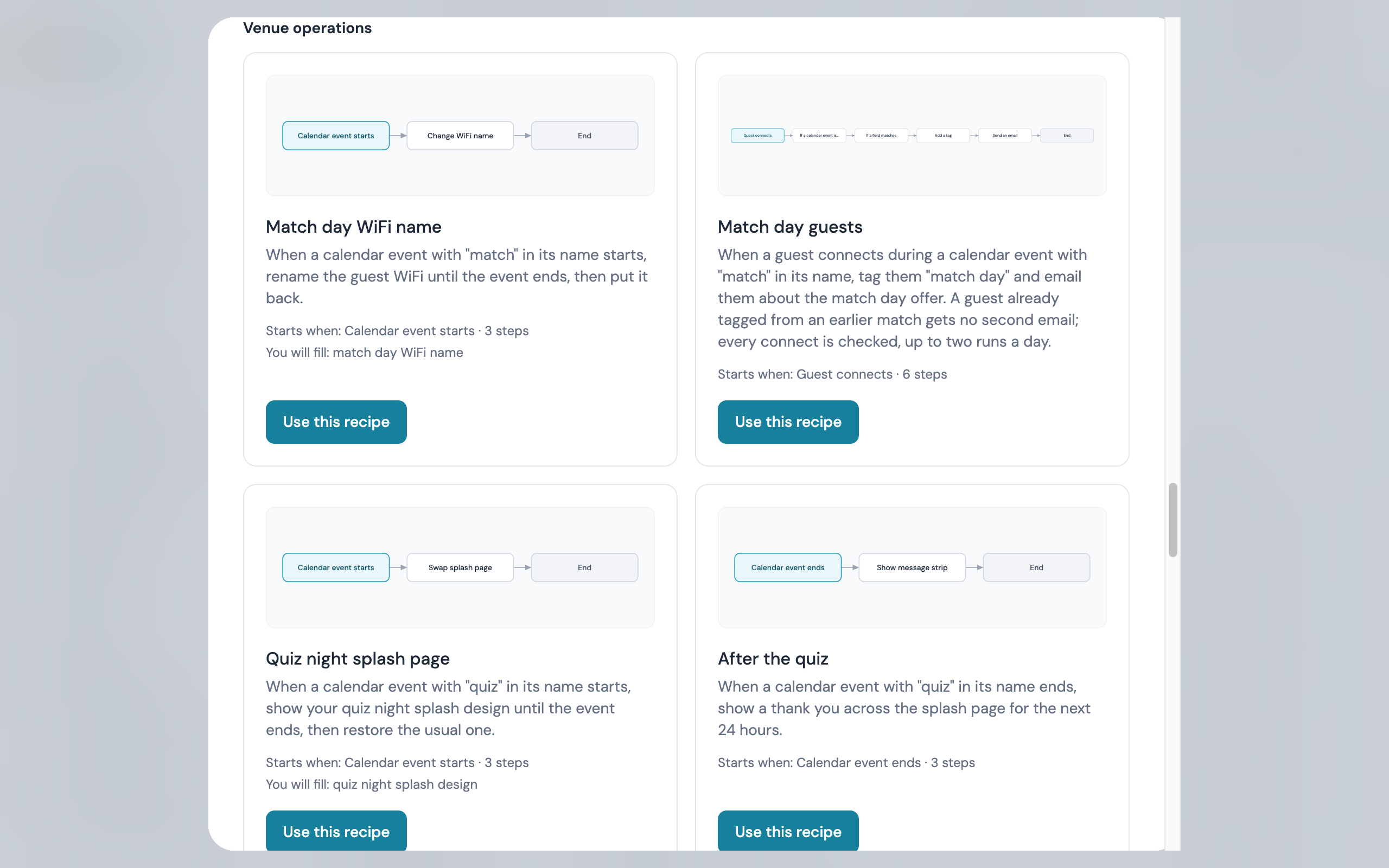 The WiFi name and the splash design are yours, so the recipe leaves them empty and the problems panel asks for them: select the step and type the New WiFi name (up to 32 characters, and an accented or emoji character counts as more than one), or pick the Splash design from your library at that venue. Each message strip's wording is written for you; select the step to change its Message (up to 200 characters) or its Style. In Private hire and Festival weekend the strip still shows when the WiFi name or design step is skipped, because that step's Skipped output leads on to it.
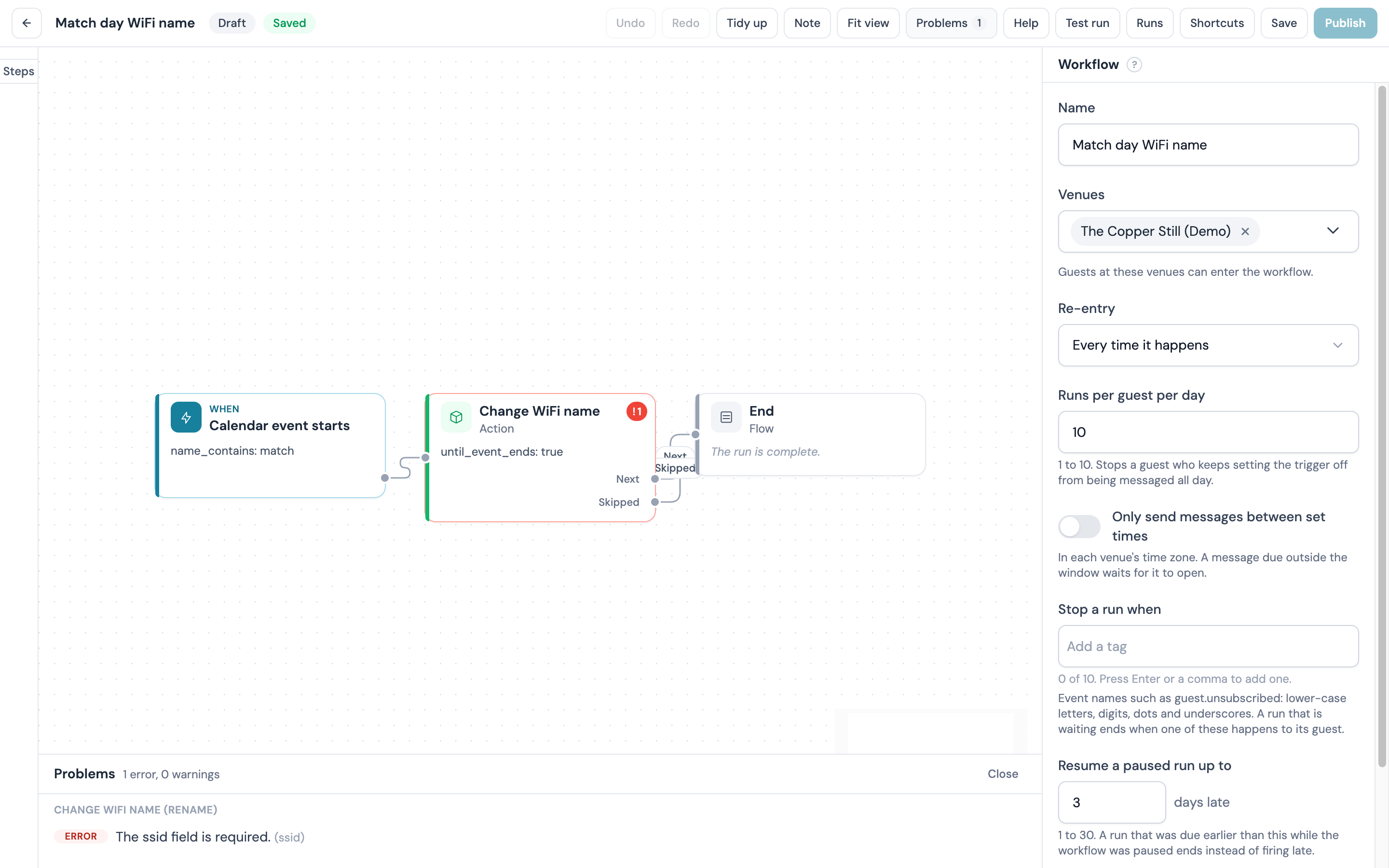 Each calendar recipe starts from Calendar event starts or Calendar event ends with Event name contains set to the word in its line (
match, quiz, happy hour, private, festival, new menu or live music). Change the word on the canvas, clear it to run for every event, or set Event type to narrow it to your Marketing, Promotion, Holiday or Note events. The events are the ones you and your team plan on the Planner calendar under My Venues → Planner. An event with a start and end time starts and ends at those times; one planned with a date alone runs from midnight to midnight on the venue's clock, and one with a start time and no end runs to the end of its date. An event planned for no particular venue runs the workflow once at each of the workflow's venues. A start or end that passed before the workflow was published never fires, so publishing halfway through a quiz does not swap the design for a start that has gone. Match day guests uses the condition If a calendar event is live instead, which asks whether a matching event is on at the run's venue right now; you can add it to any workflow, for example to hold a welcome email back during a private hire.
Every window ends on its own. The three steps book their window through the Planner, so the same rules as a scheduled automation apply: the window runs For how many hours (1 to 168) or Until the event ends, which under a calendar trigger is the event's end, and when it ends the original WiFi name is put back, your venue's default design goes live again or the strip is taken down; see Automatic revert. A WiFi name window that overlaps one already booked at the venue is not booked, and the run takes the step's Skipped output. Overlapping splash or strip windows go ahead: the later one shows while both are live, and when the earlier one ends the later stays until its own end. Change WiFi name needs hardware that can rename the network; see Which automations work on your hardware. Publishing a workflow with any of the three steps needs the Manage splash pages permission.
Fixtures, weather and holiday recipes
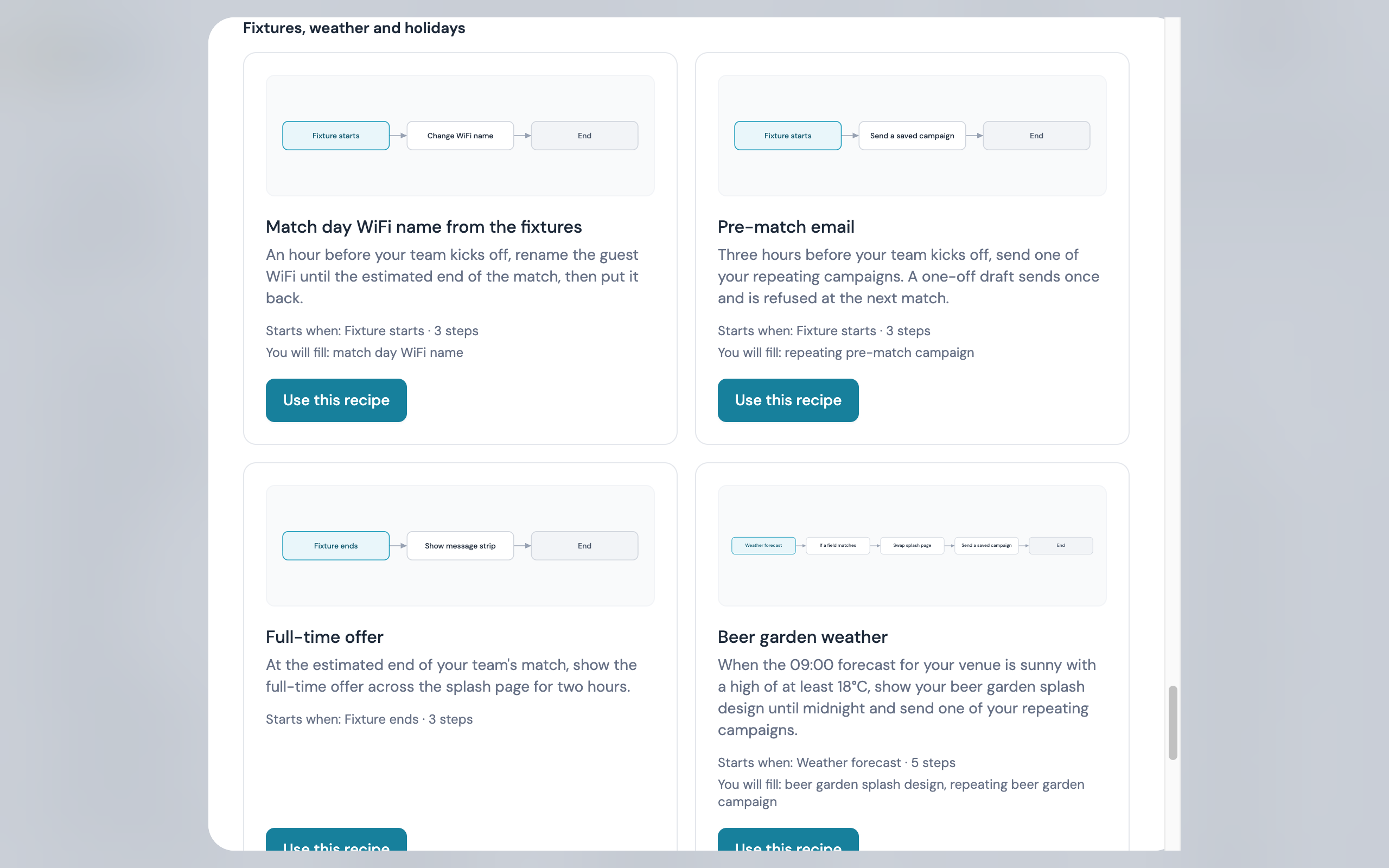
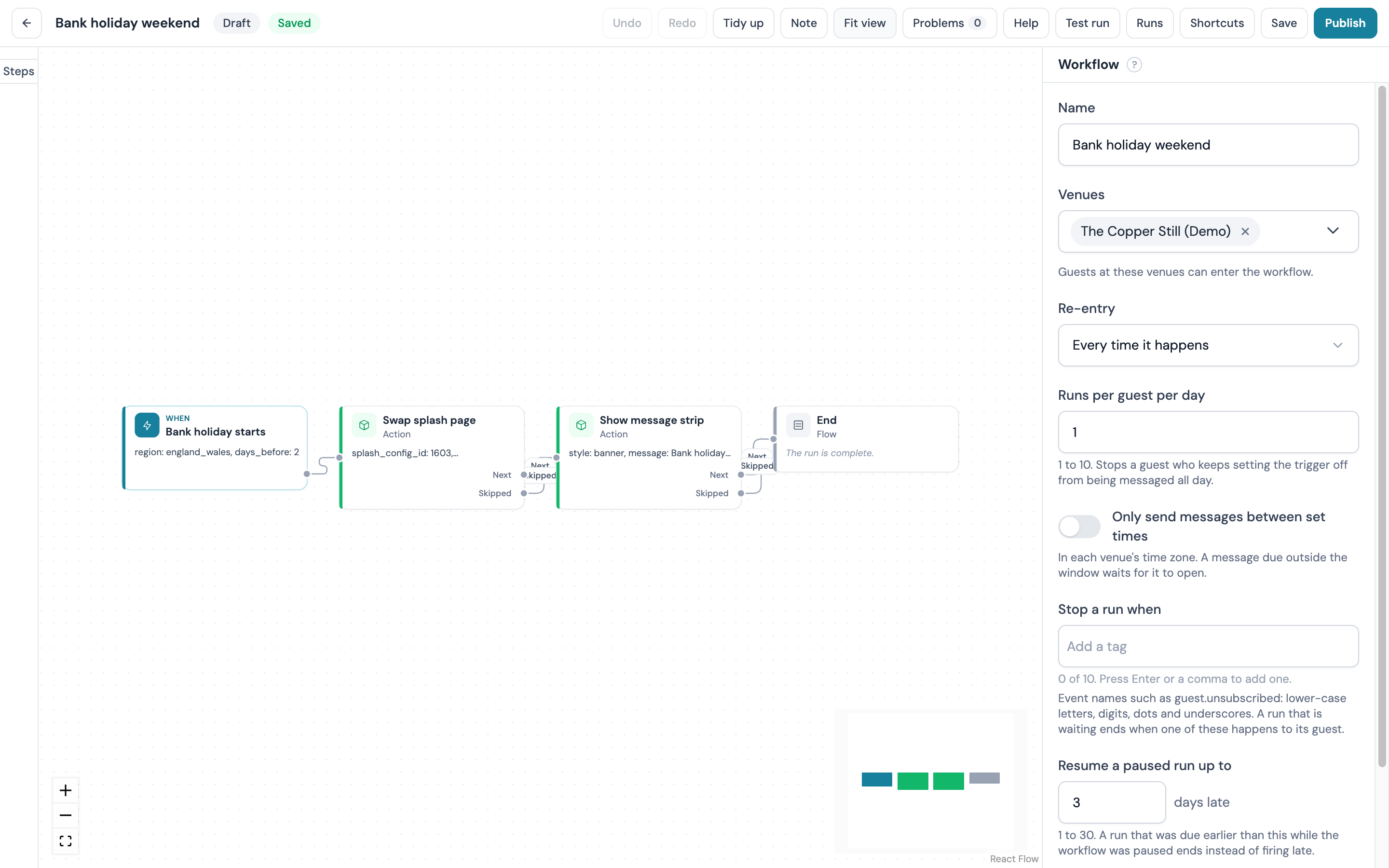
The Fixtures, weather and holidays group starts a workflow from something outside the venue. Bank holiday weekend is available now: from 10:00 two days before a bank holiday in your region, it shows your holiday splash design and a message across it until the end of the bank holiday itself. CaptiFi fetches the holiday dates, so on your side you pick the recipe and your region.
| Recipe | What it does | You pick | You fill in |
|---|---|---|---|
| Bank holiday weekend | From 10:00 two days before a bank holiday in your region, show your holiday splash design and a message across it until the end of the bank holiday itself | Region | The splash design |
The recipe asks for your Region on its form: England and Wales, Scotland or Northern Ireland. Region and Days before the bank holiday (0 to 7) are the trigger's own settings, so they can be changed on the canvas afterwards. The splash design is yours and is left empty for the problems panel to ask for, as in the venue operations recipes; the strip's wording is written for you and can be changed on its step. A bank holiday fires from 10:00 on the venue's clock the chosen number of days before it, and under Bank holiday starts, Until the event ends on a splash or strip step means midnight at the end of the holiday itself, so the design put up on the Saturday stays until the Monday holiday is over. The recipe allows one run a day at a venue.
Recipes that start from your team's fixtures and from the day's weather forecast arrive shortly.
Import and export a workflow
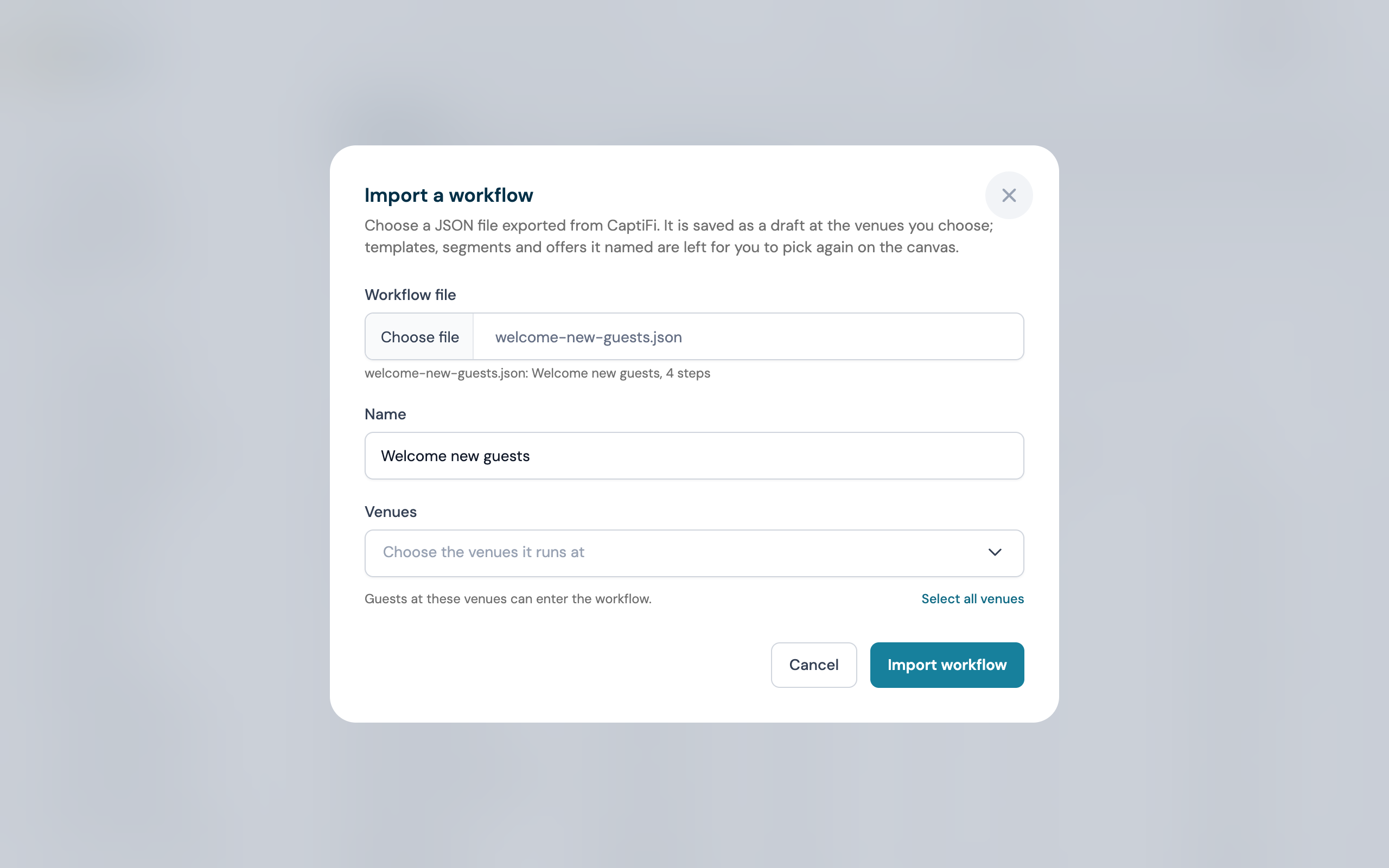
A workflow can be moved between accounts or venues as a file. Export JSON in a workflow's row menu, and Export on its overview, download the draft as a JSON file holding its name, description, trigger, settings and steps; every member can export. The file carries no venue or account ids, and every field that points at something in your account (a template, a segment, an offer, a campaign, a splash design) is emptied on the way out. Import JSON, in the menu beside New workflow, takes such a file, asks for the venues, a name (filled from the file) and any trigger setting the file left empty, such as the segment a scheduled workflow sends to, and creates a draft; the other emptied fields show as warnings on their steps until you pick your own template, offer or design. A file over 64 KB, or one that is not a CaptiFi workflow file, is refused.
Describe it
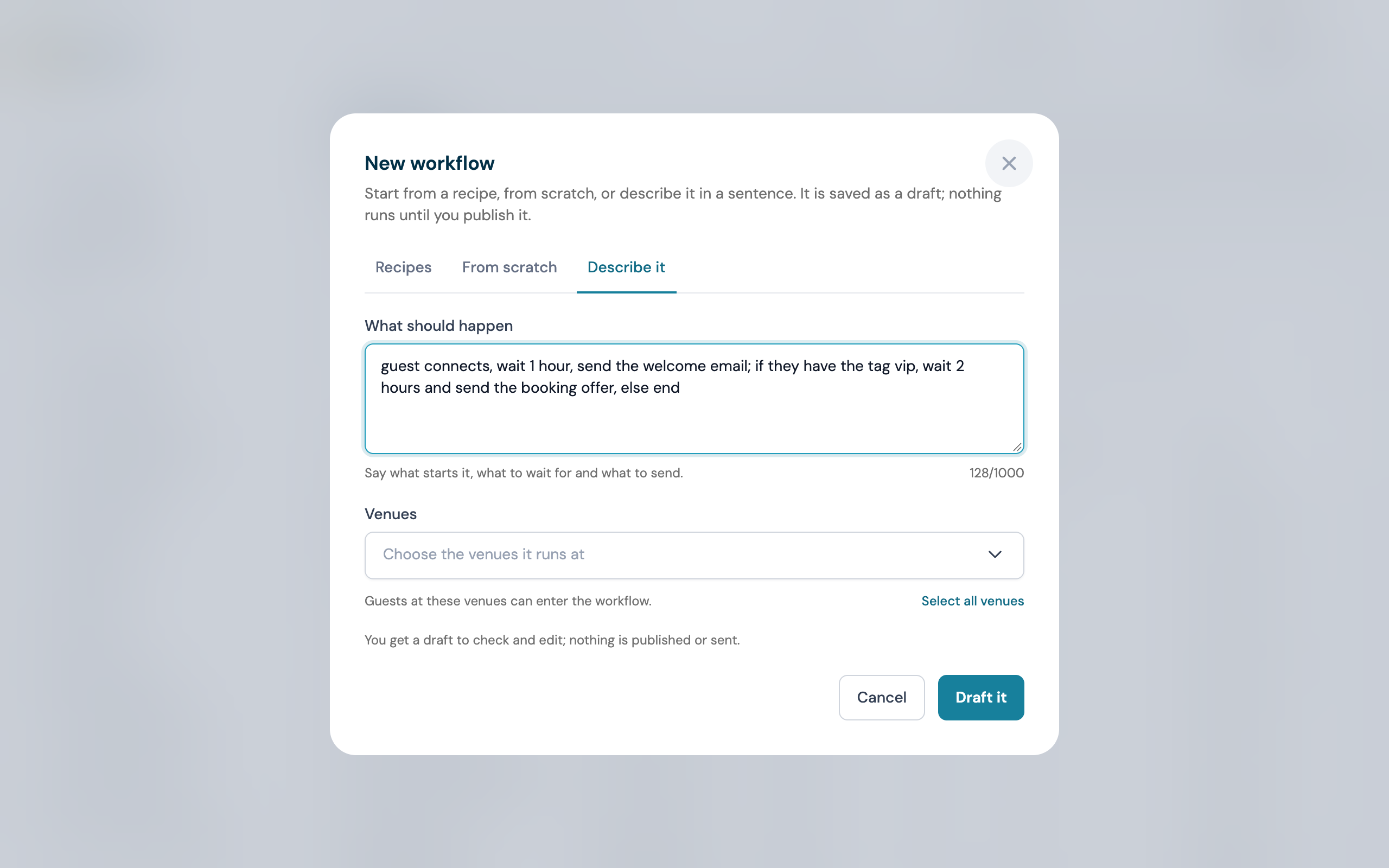
The New workflow window has a third tab, Describe it; a Describe it button sits beside New workflow once you have a workflow, and an account with no workflows yet has a Describe what you want card under the empty state. Type what you want in a sentence of 10 to 1,000 characters, for example guest connects, wait 1 hour, send the welcome email; if they have the tag vip, wait 2 hours and send the booking offer, else end, choose the venues and click Draft. Drafting takes about 20 seconds, and Cancel stops the wait. The canvas then opens on the new draft with a note reading Drafted from your description. Check each step, then publish. and the problems panel open on anything still to settle, such as a template to choose; a step your account cannot use is left out, and the note says how many were. Read the draft through before you publish; it is a starting point, and every step can be changed. Drafting publishes and sends nothing, and it needs Manage workflows.
The canvas
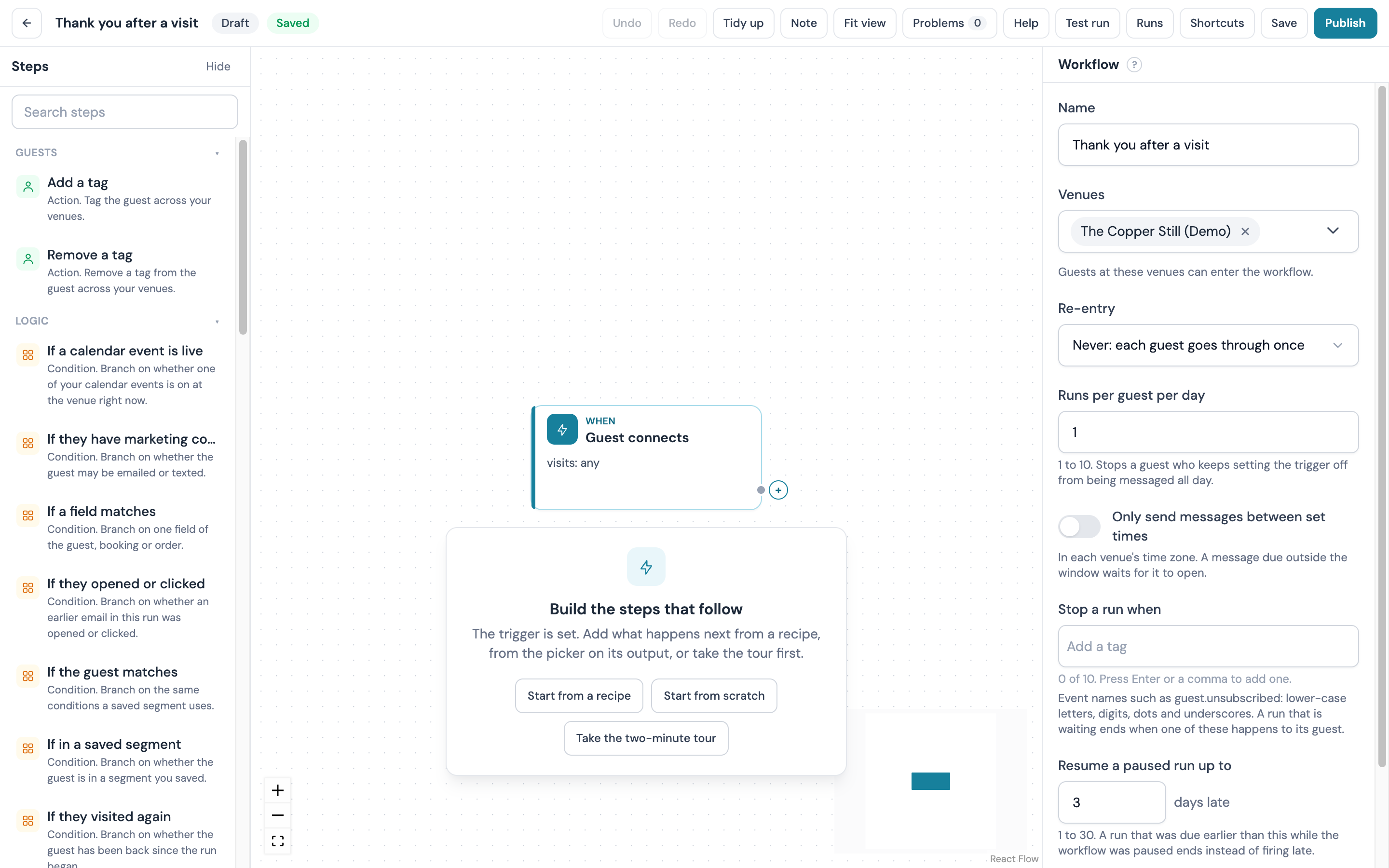
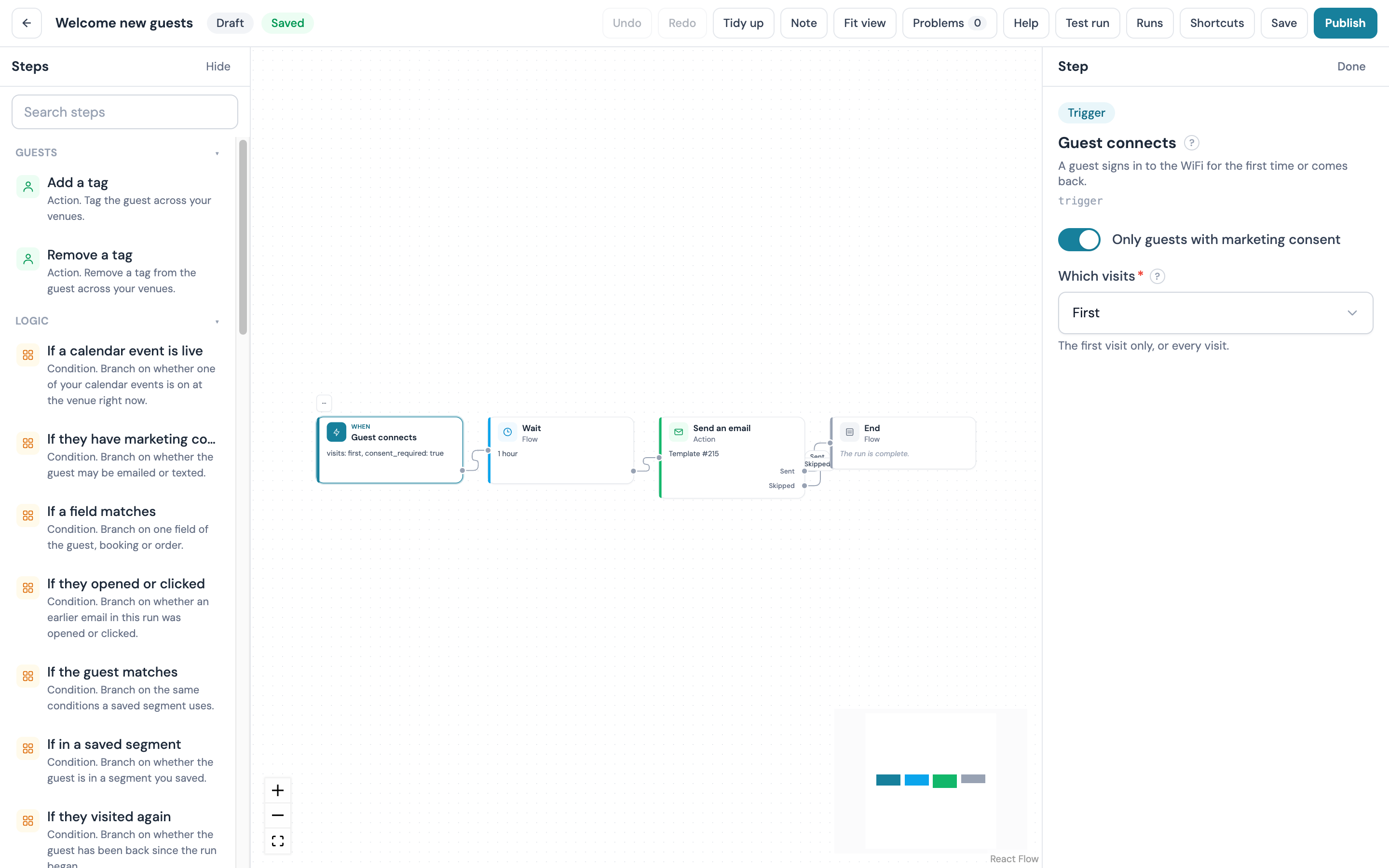
The canvas is where the workflow is built. It opens from a row's name, from Edit in the row menu, and straight after you create a workflow. Three words this guide uses from here on: each step card has one or more exits, called outputs; an arrow from an output to the next card is a connection; the panel where you edit the selected step's settings is the inspector.
From left to right:
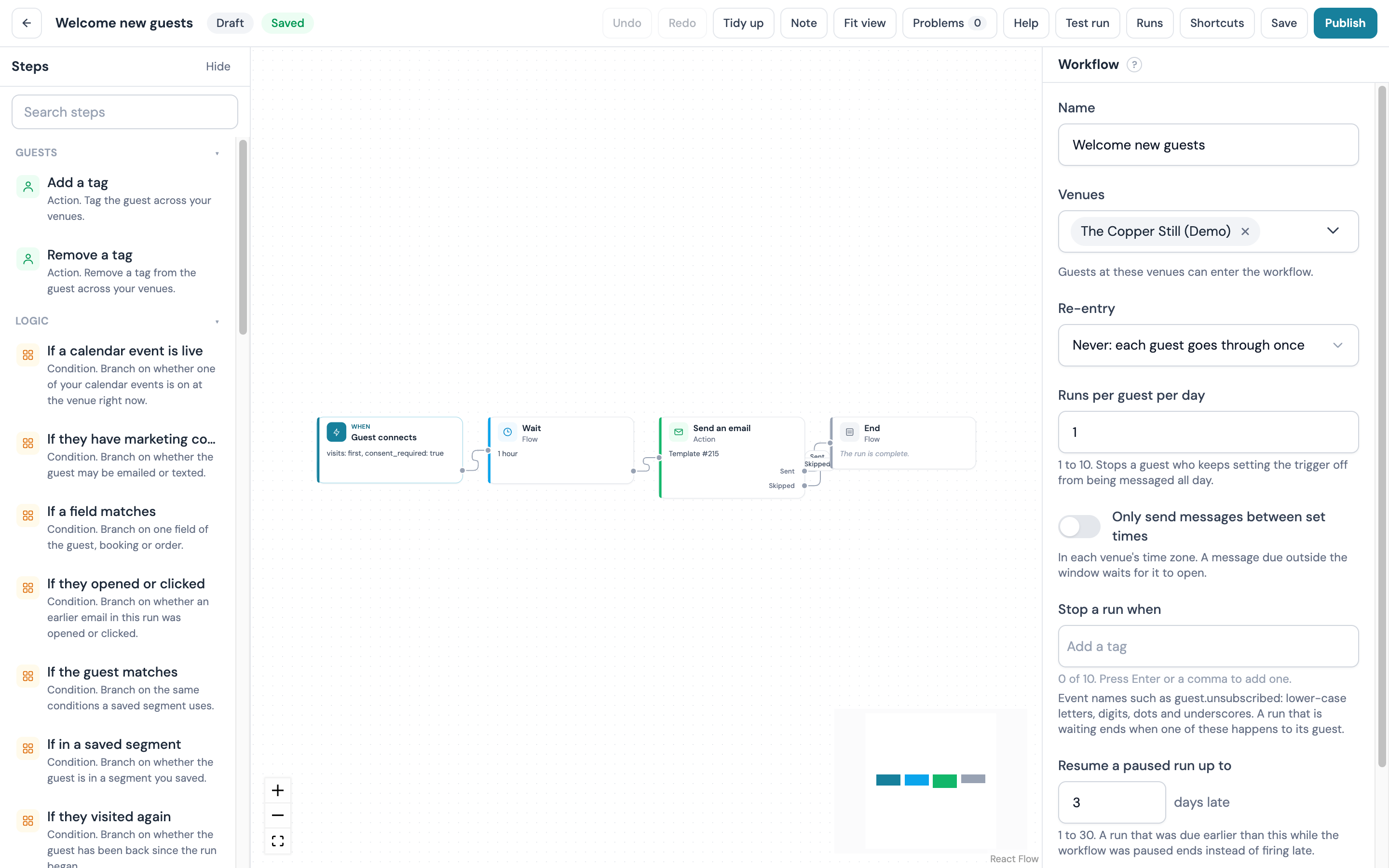
- The palette, a list of every step you can add, grouped by category and searchable. The search matches a step's name and its description, the six steps you added most recently sit at the top under Recently used, and each category folds away. Triggers are never listed here, because a workflow has one and it is set when the workflow is created. A step your account cannot use yet, or one the trigger cannot feed, stays in the list greyed out with the reason
- The canvas itself, a dot grid with one card per step. Each card shows the step's label, a one-line summary of its settings (for example "Wait 1 hour") and, when something is wrong, a red or amber badge
- The inspector, where the selected step's settings are edited. From 1440 px wide it sits beside the canvas; on a narrower screen it opens over it
- The top bar: Back, the name (click it to rename), the status pill, the save chip, the results range (7 days, 30 days, 90 days or All time, shown once a version is published), Undo, Redo, Tidy up, Note, Fit view, Problems with its count, Help, Test run, Runs, Shortcuts, Save now, and Publish, Pause or Resume by status
Your first workflow
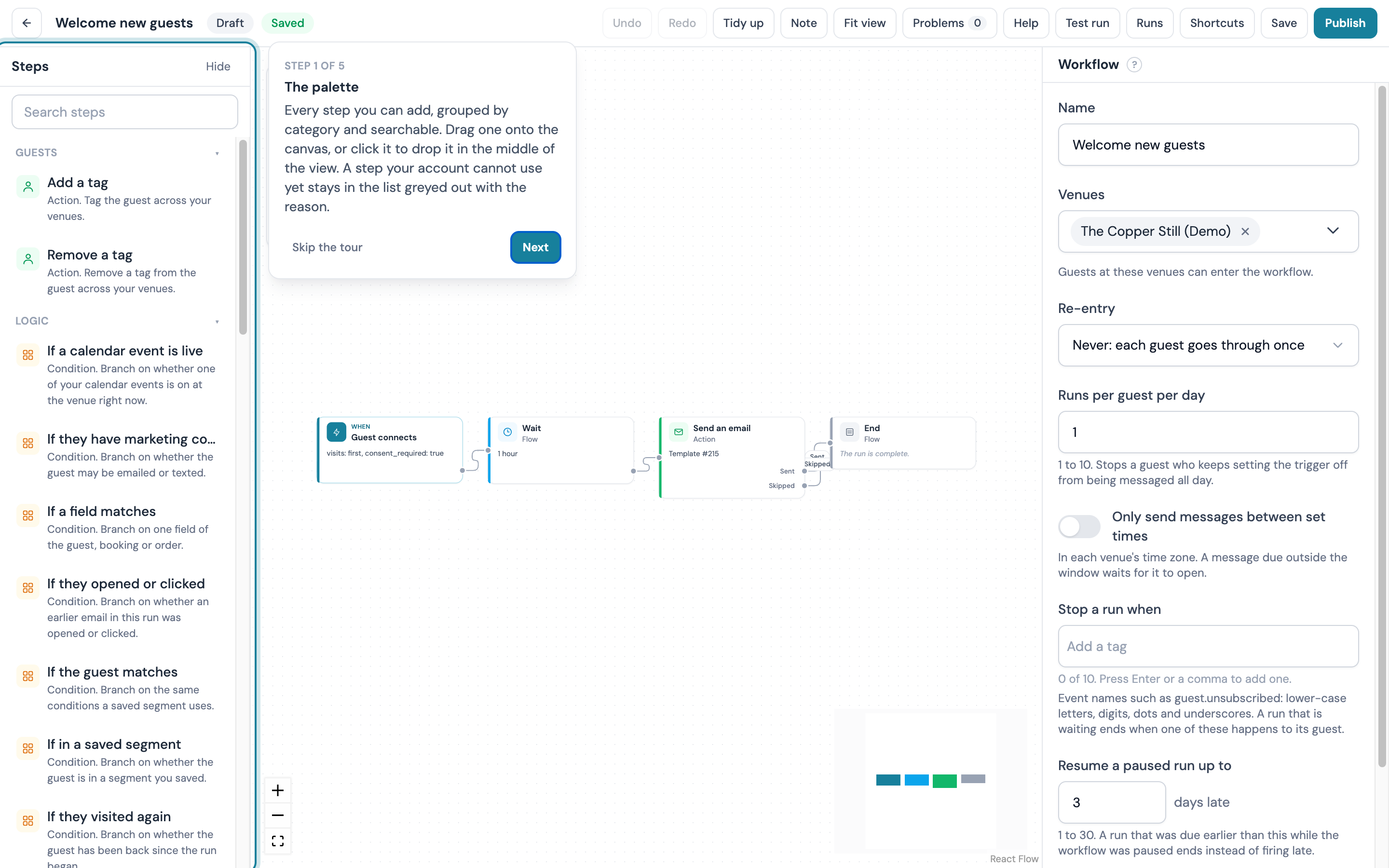
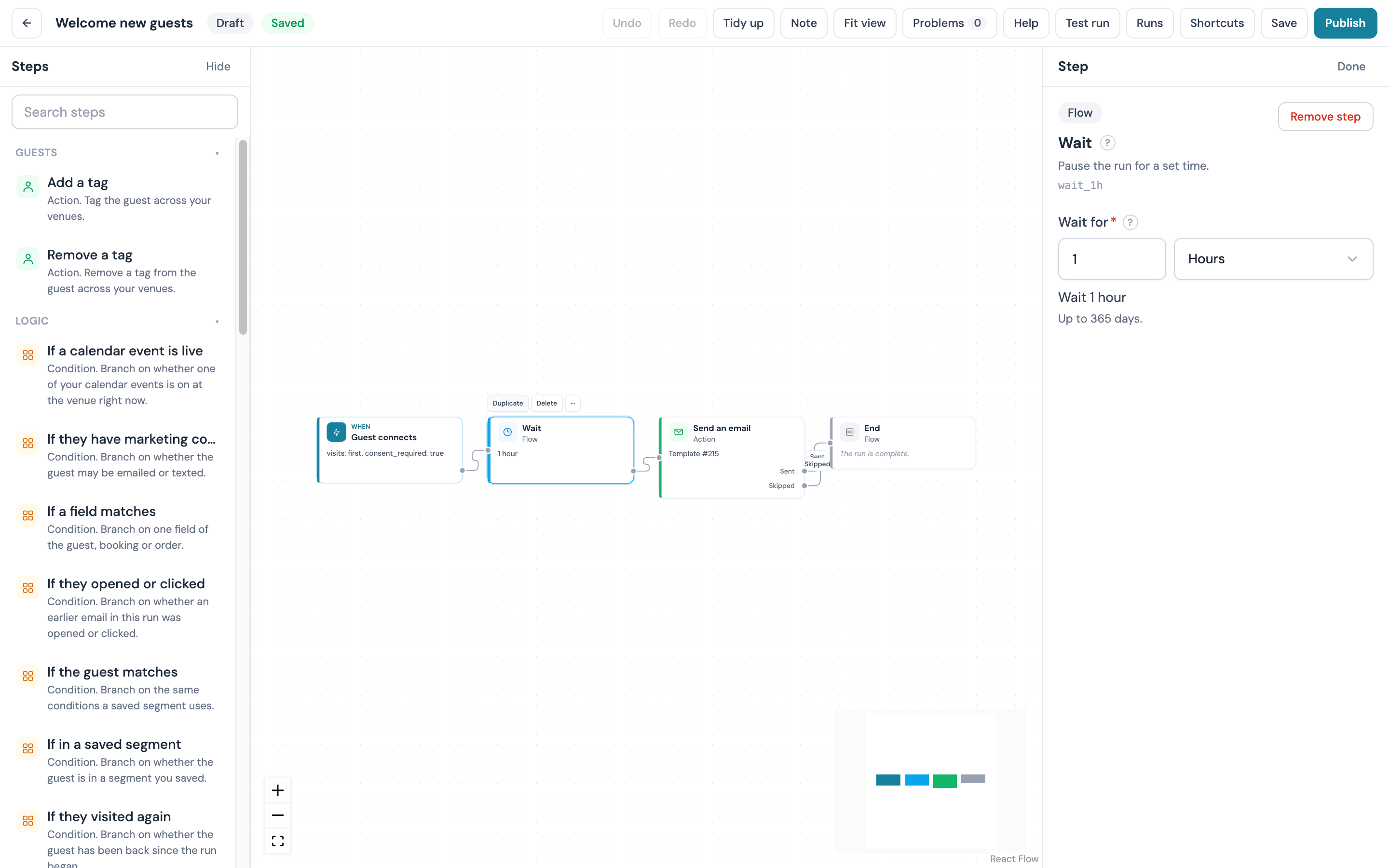
A new draft is its trigger alone, and the canvas shows a card under it headed Build the steps that follow, with three buttons. Start from a recipe opens the recipe gallery from the editor. Start from scratch opens the step picker on the trigger's first output. Take the two-minute tour walks you round five parts of the editor (the palette, the plus on an output, the inspector, the problems count and Publish) with a ring around each and a card that reads Step 1 of 5 and carries Back, Next and Skip the tour. The tour is offered once per person; Skip the tour or Done on the last stop puts it away for good.
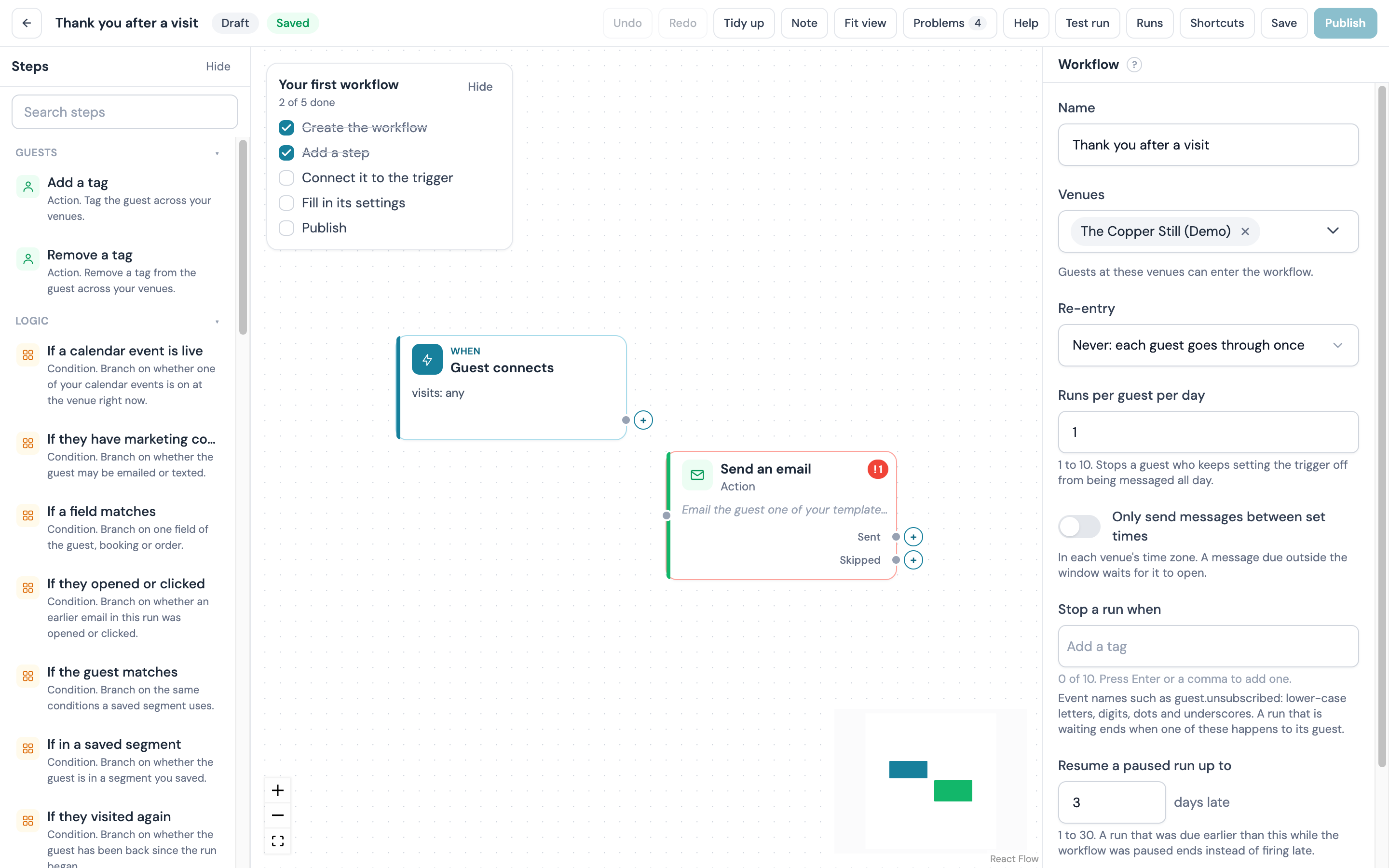
 A Your first workflow card in the top left of the canvas ticks itself as you go: Create the workflow, Add a step, Connect it to the trigger, Fill in its settings and Publish, with a count of how many are done. Hide puts it away for you alone. The starter card, the tour and the checklist do not show on a read-only canvas, on a screen narrower than 1024 px, or while you are viewing a published version.
Adding a step
There are two ways to add a step.
- Every output on a card that has nothing connected to it shows a +. Click it and a picker opens, listing only the steps that can follow that output. The new step lands to the right, already connected
- Drag a step from the palette onto the canvas, or click it to drop it in the middle of the view, then draw the arrow yourself from an output to the new card
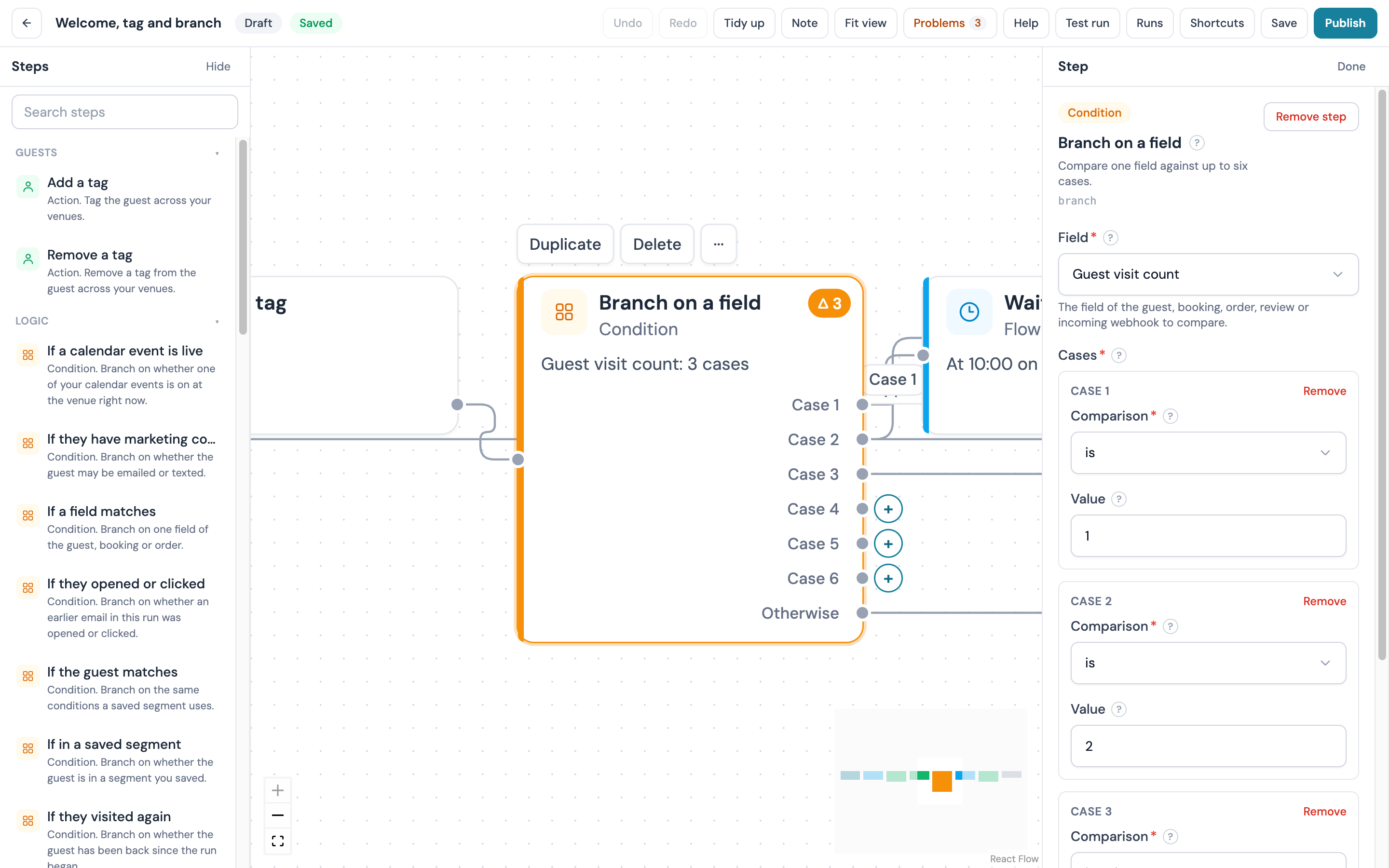
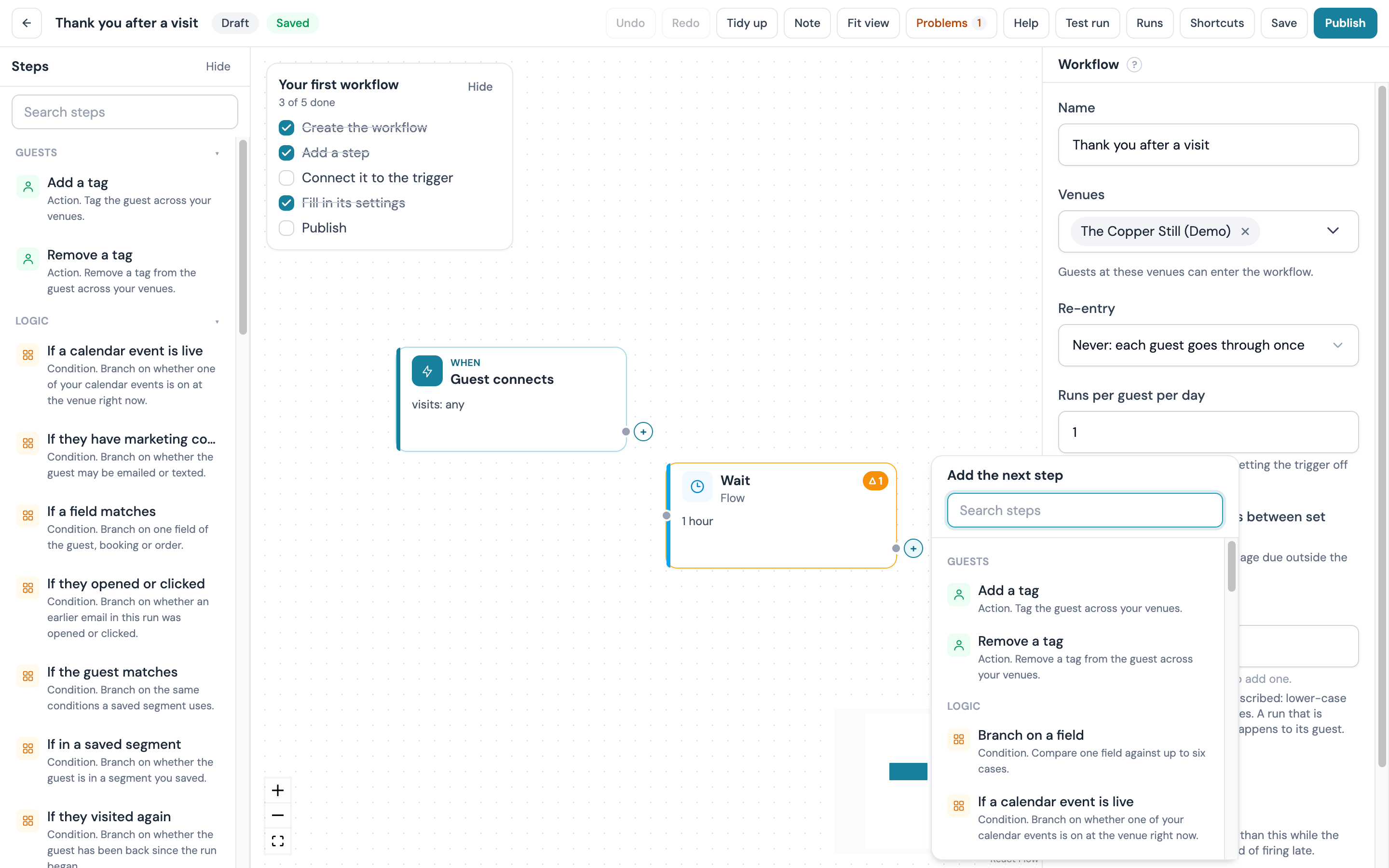 Where a step has more than one output, the arrows carry a label so you can see which is which: Yes and No on a condition, Group A and Group B on a random split, the cases and Otherwise on a branch, It happened and Timed out on a wait for something to happen, Sent and Skipped on a message, Next and No member on points. A single output is labelled Next, or Time reached on a wait until a time of day.
A run that reaches an output with nothing connected to it ends there. That is the ordinary end of a branch, so you do not have to finish every path with an End step; the problems panel does warn you when a step with a choice of outputs (a condition, a split, a branch, a message, a wait with a timeout) has one left open, so a path does not end somewhere you did not intend.
To remove a step, select it and press Delete or Backspace, or use Remove step in the inspector. The trigger cannot be removed. Removing a connection works the same way with Remove connection. Both are undoable.
Sticky notes
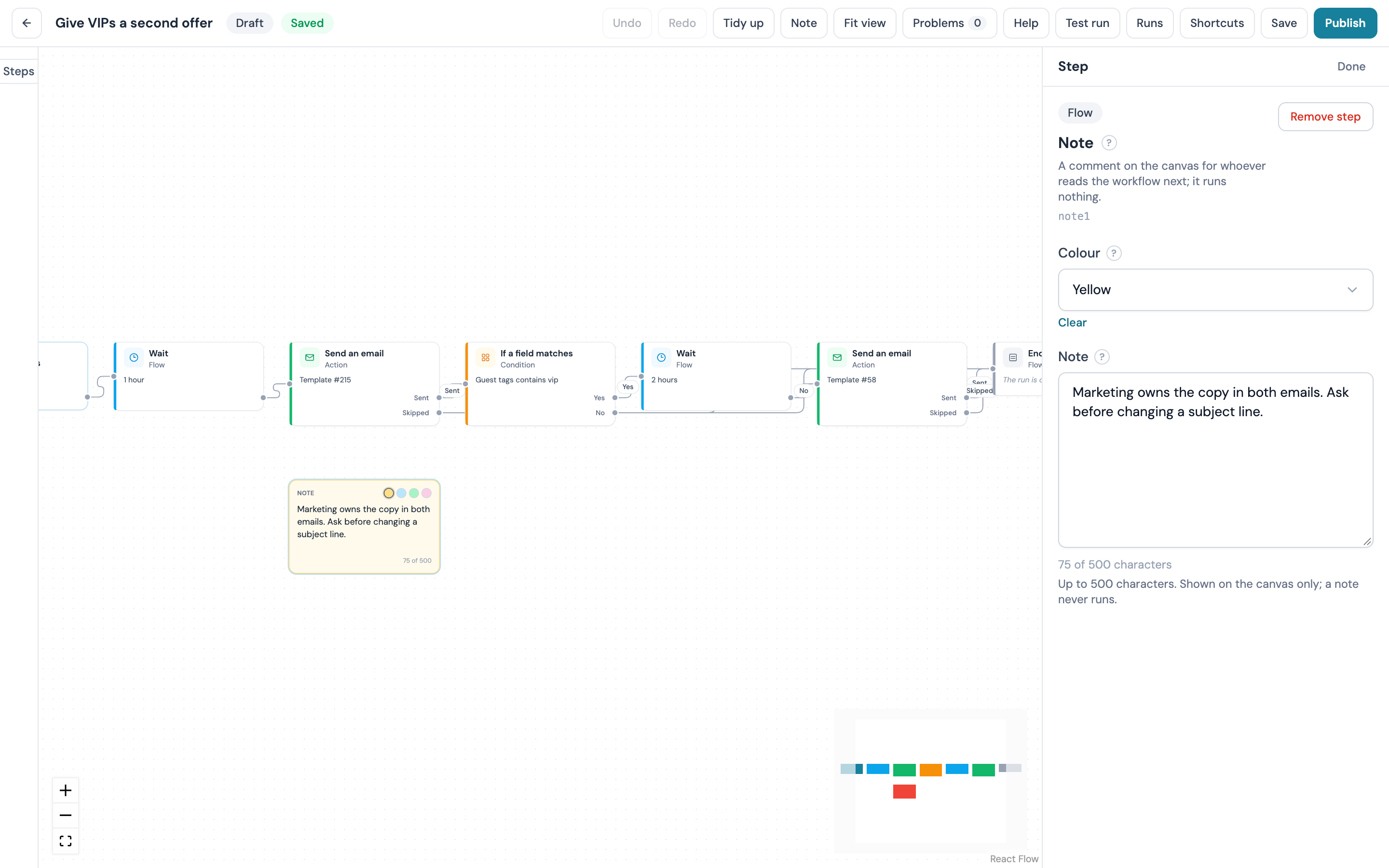
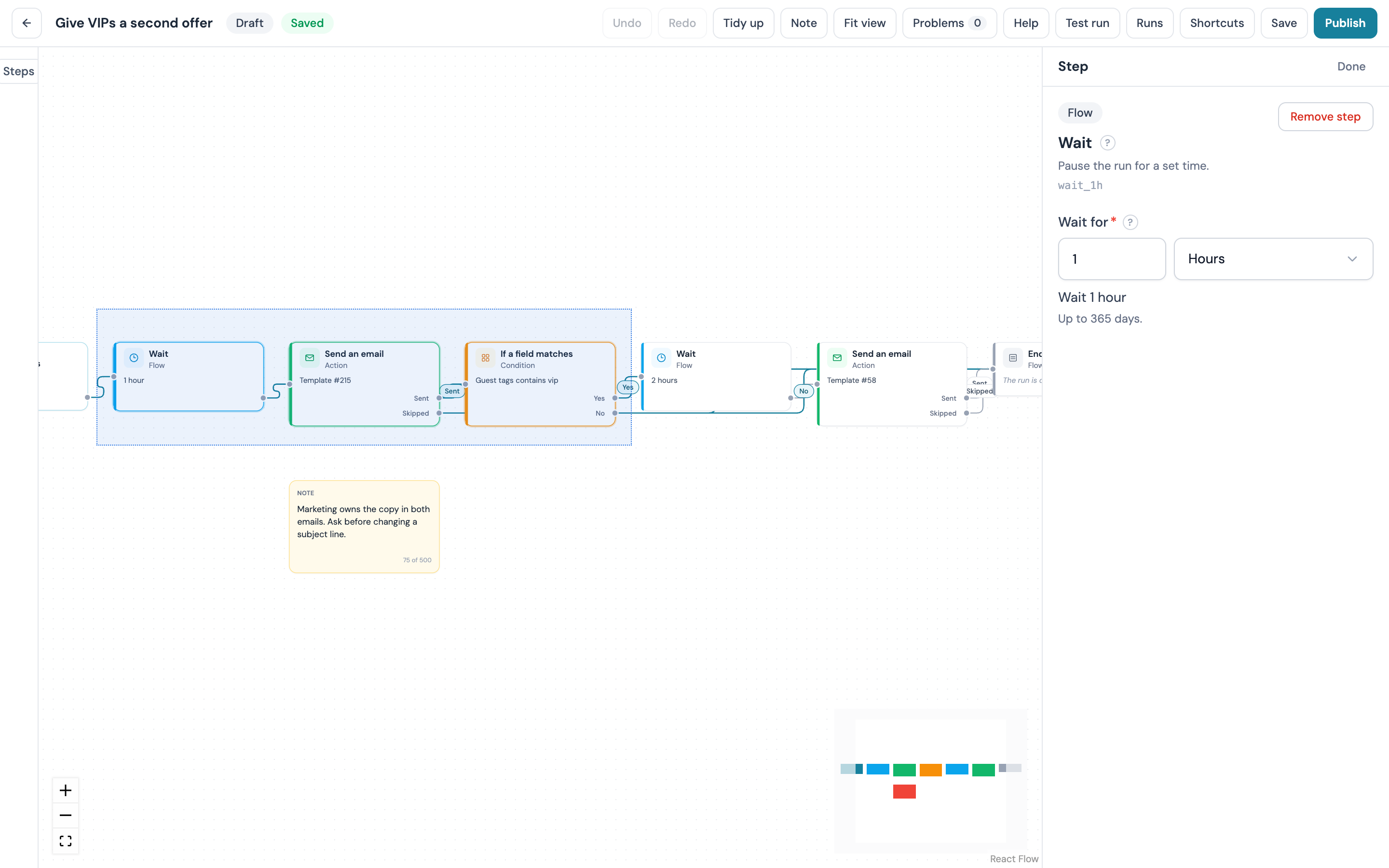
A note is a comment on the canvas for your team: why a wait is two days, who owns the copy, what to change after the launch. Add one with Note in the top bar, from the Note row in the palette, or with Add a note here on the right-click menu over an empty part of the canvas. Type straight into the card; the text is saved with the draft like any other field, holds up to 500 characters and shows a count under it. While the note is selected, four swatches set its colour: Yellow, Blue, Green or Pink. The inspector edits the same text and colour.
A note never runs and cannot be connected: it has no outputs, the picker never offers it, and an arrow drawn into one is refused. Tidy up leaves a note where you put it, and a note is never counted as unreachable or as part of a path. Select it and press Delete to remove it, as with any step.
Selecting several steps
Shift+click adds a step to the selection (Cmd/Ctrl+click does the same), and Shift+drag on an empty part of the canvas draws a box that selects every step inside it. Cmd/Ctrl+A selects every step. A selection moves together when you drag any card in it, and Delete or Backspace removes the whole selection at once, which one Undo restores. The trigger is never removed, whatever is selected with it. Click a connection to select it on its own; Delete removes it.
Duplicate, copy and paste
Select a step and a small toolbar above its card offers Duplicate, Delete and More. Duplicate (Cmd/Ctrl+D) makes a copy of the selected steps a little to the right, with their settings and the connections between them kept. Cmd/Ctrl+C copies the selected steps and Cmd/Ctrl+V pastes them; each further paste lands one step further along, and Paste from the right-click menu lands the copies at the pointer. Steps copied together keep the arrows between them; an arrow to a step outside the selection is not copied. The trigger is never copied or duplicated. The copy, paste and duplicate keys act only while the focus is on the canvas, so Cmd/Ctrl+C over text elsewhere on the page copies the text as usual.
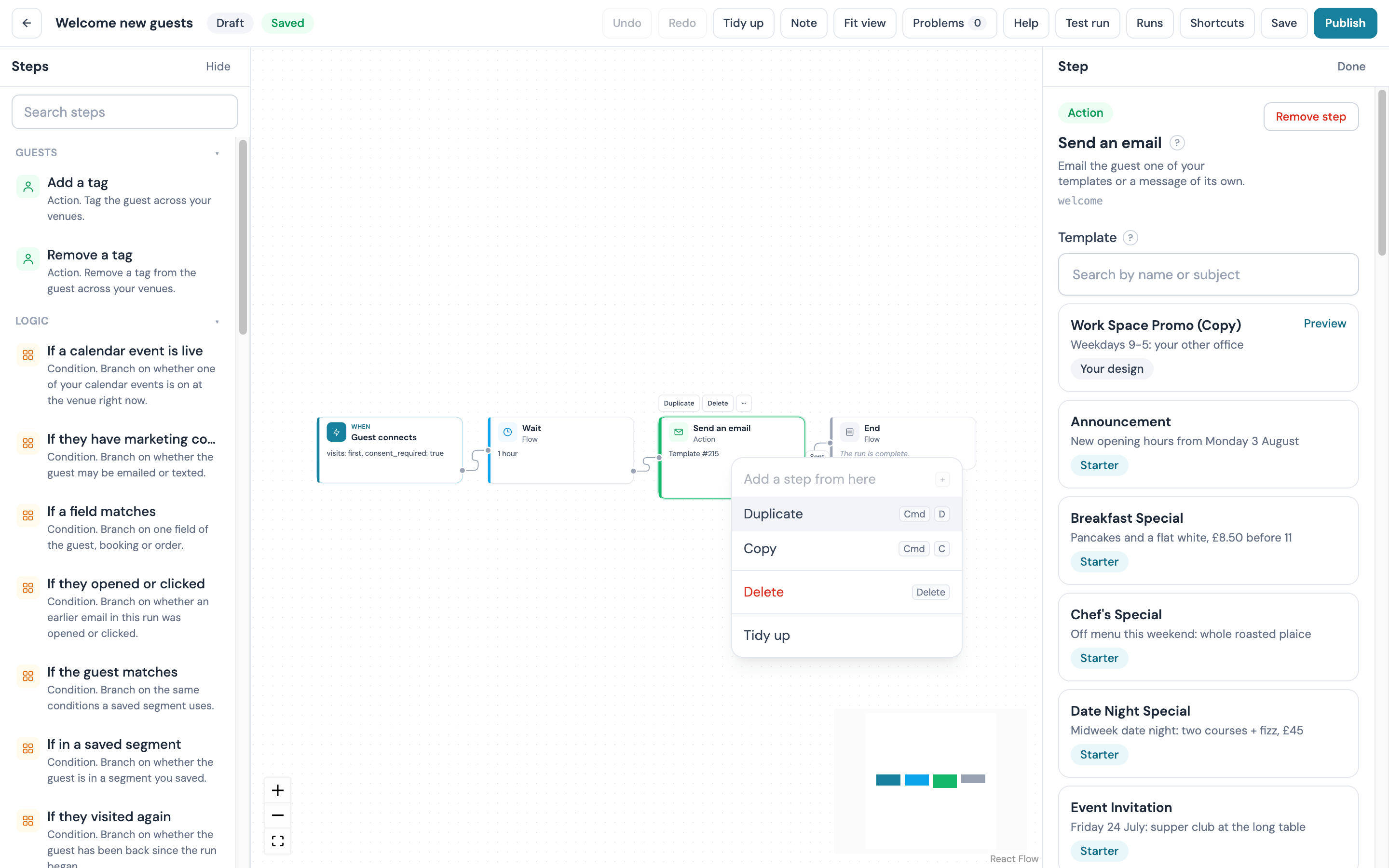
Right-click menus
Right-click a step, a connection or the empty canvas for a menu of what you can do there, each row with its keys:
| Where | Menu |
|---|---|
| A step | Add a step from here, Duplicate, Copy, Delete, Tidy up |
| Several selected steps | The same, with the count in the label, for example Duplicate 3 steps |
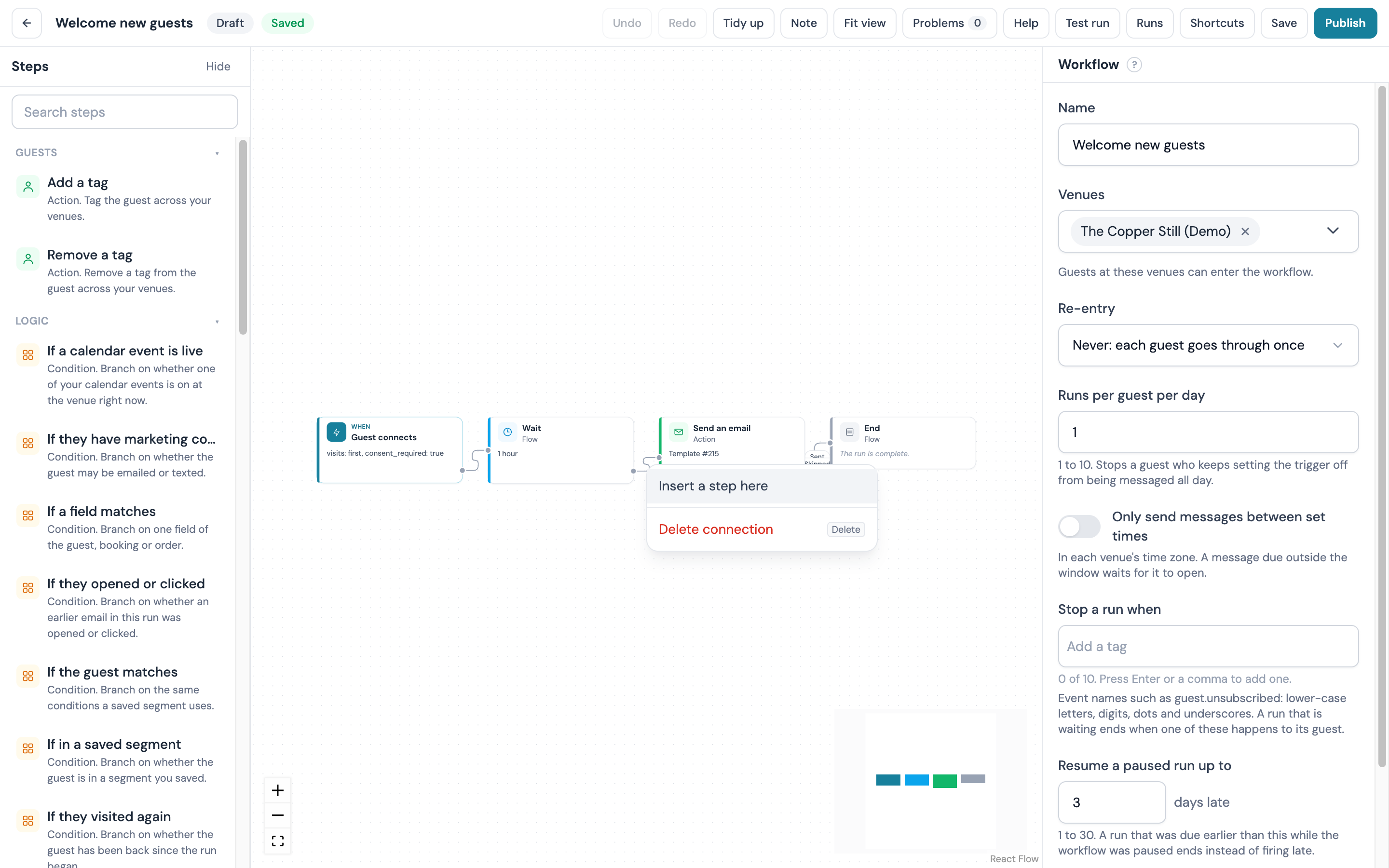
| A connection | Insert a step here, Delete connection |
| The empty canvas | Add a step here, Add a note here, Paste, Tidy up, Fit view, Select all |
Insert a step here opens the picker, puts the new step between the two the arrow joined, and moves the old arrow on to the new step's first output, as one change for Undo. A row that cannot apply stays in the menu greyed out with the reason, for example Every output of this step is already connected. under Add a step from here, or Copy a step first. under Paste.
The inspector
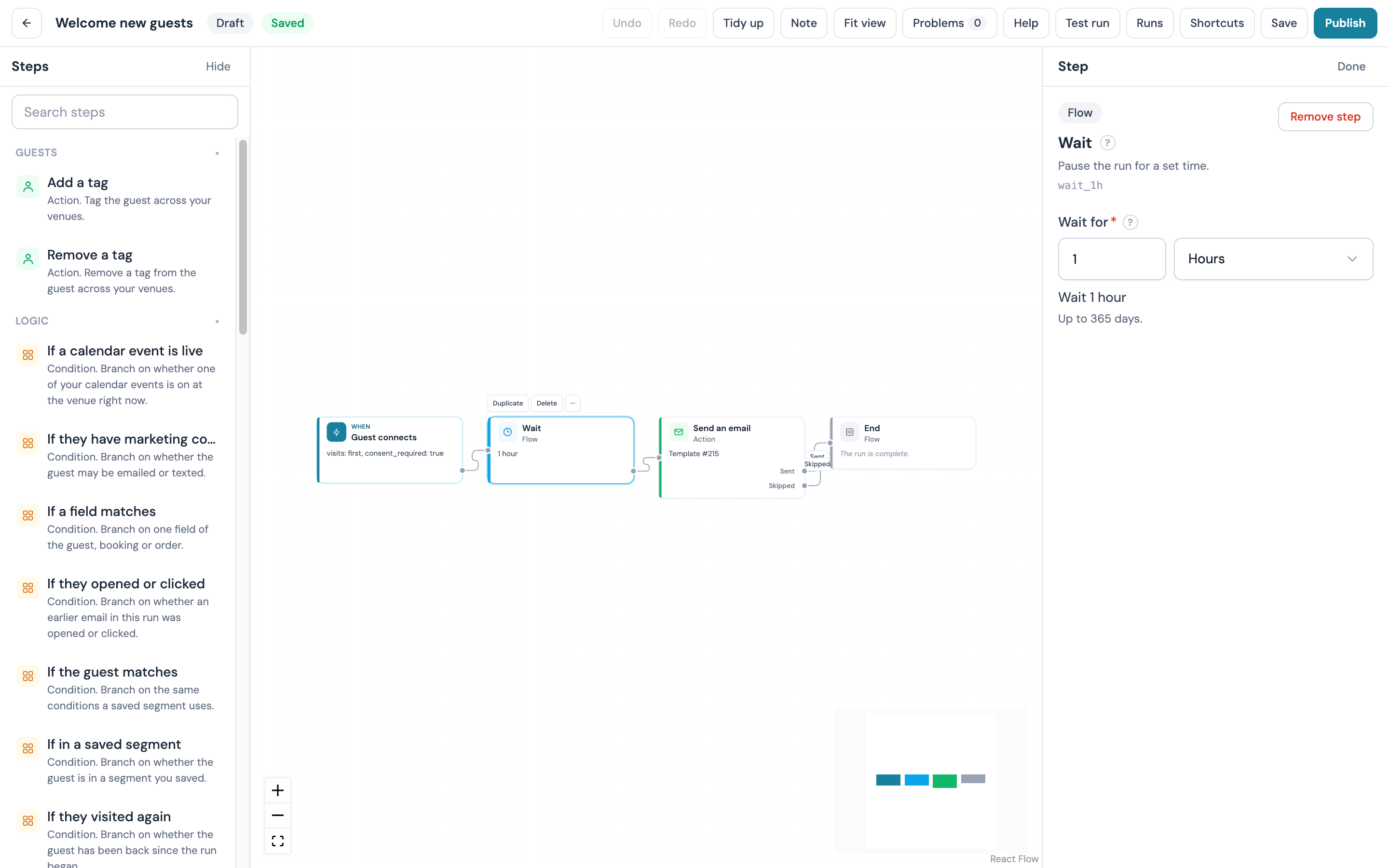
Click a card and the inspector shows its fields, each with a short line under it saying what it takes: a number with its range, a list to pick from, a toggle, a text box. A required field that is empty is marked, and the card carries a badge until it is filled.
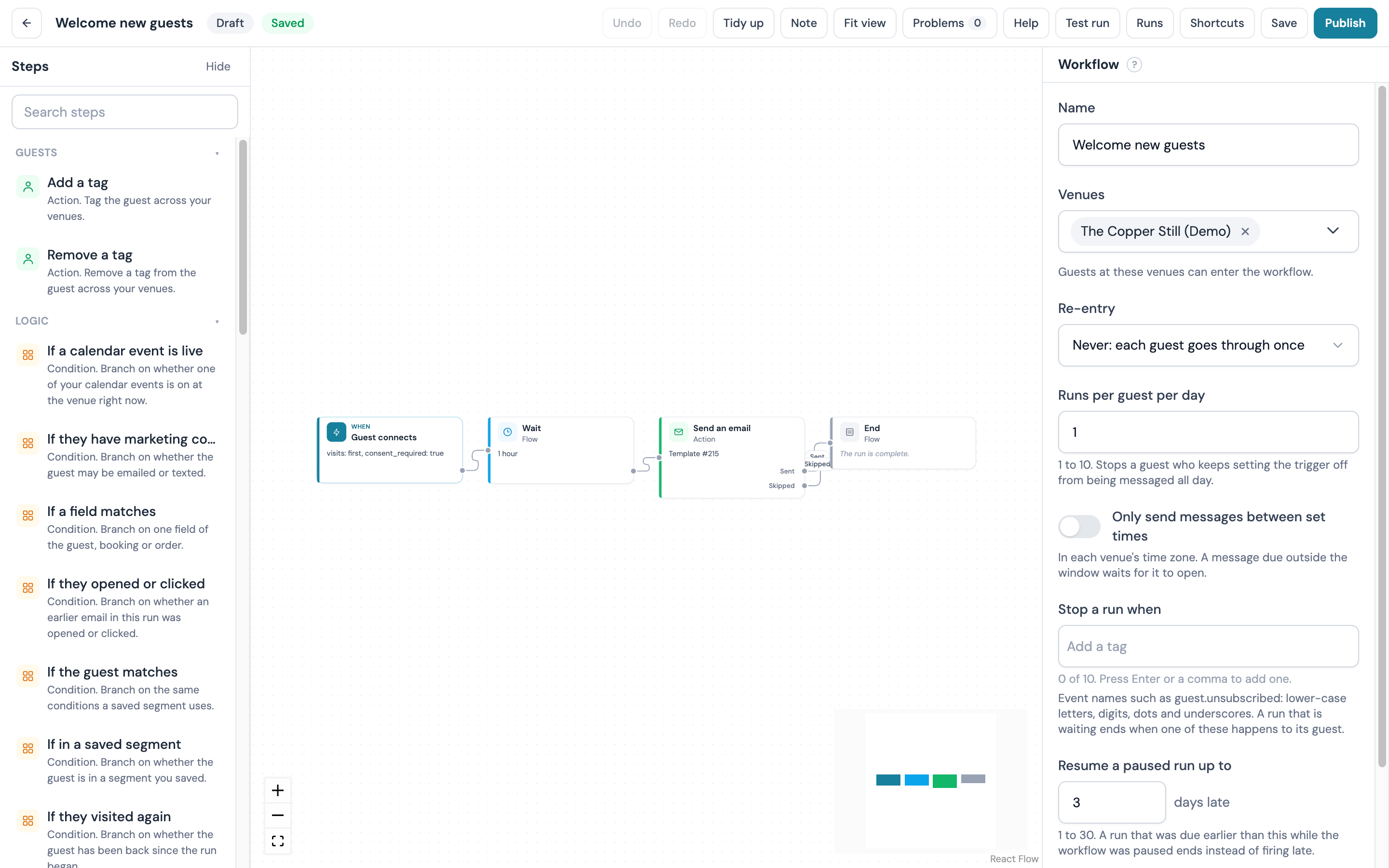
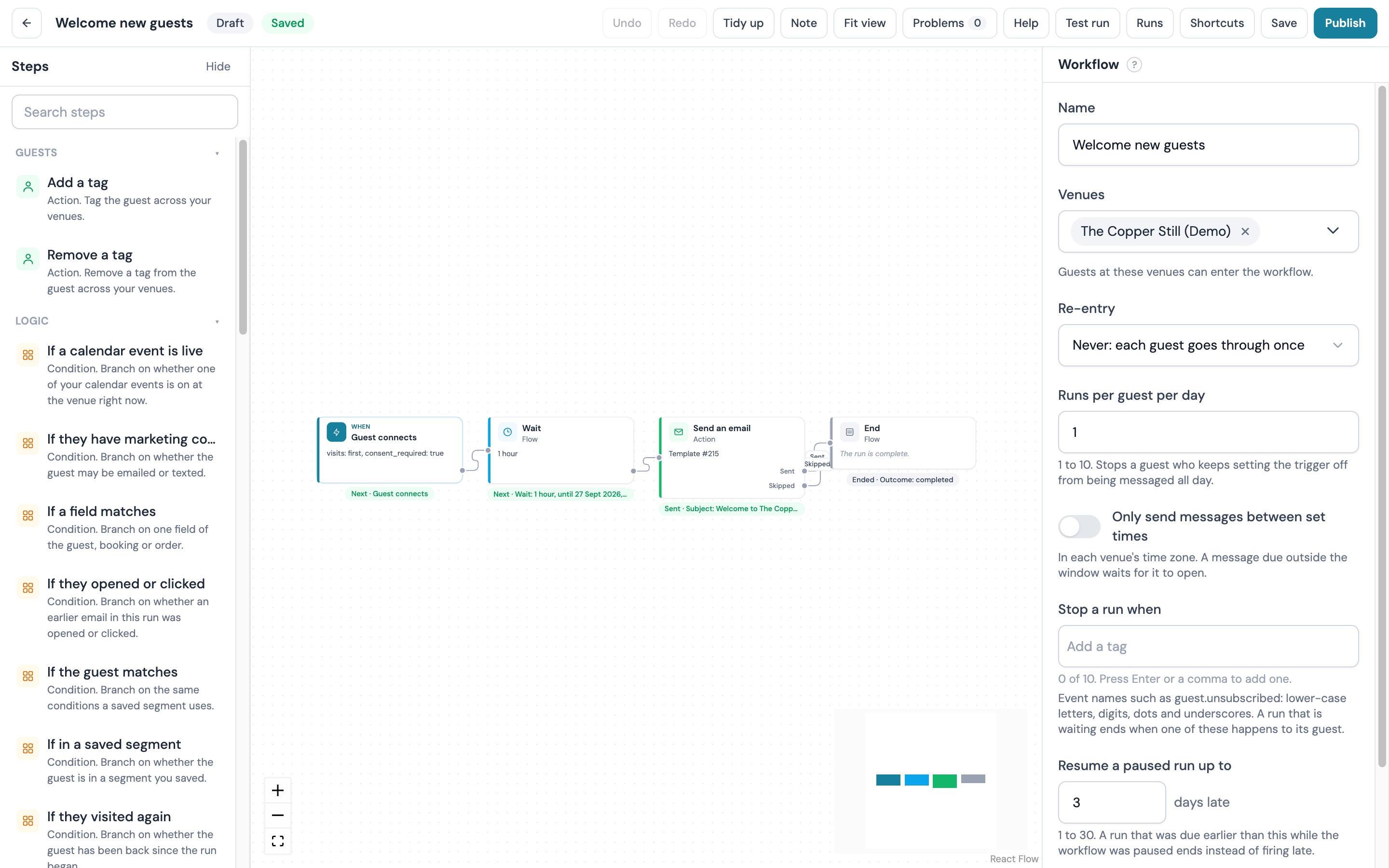
 Click an empty part of the canvas and the inspector shows the workflow itself: its Name, its Venues and its settings. The settings are:
| Setting | What it does |
|---|---|
| Venues | The venues whose guests can enter the workflow. At least one is required |
| Re-entry | Whether a guest who has finished a run can start another: Never: each guest goes through once, Every time it happens, or Again after a number of days (1 to 999). New workflows start on never, except a Birthday workflow, which starts on 300 days, and a Guest has not visited for a while workflow, which starts on the number of days you chose or 30, whichever is greater |
| Runs per guest per day | How many runs one guest may start at one venue in a day, on the venue's clock. 1 to 10; 1 by default |
| Most runs active at once | A ceiling on runs in progress at once, up to 10,000. A guest who arrives while the workflow is at its ceiling is turned away and counted |
| Only send messages between set times | A start and an end time in each venue's time zone. A message due outside the window waits for it to open. It may cross midnight |
| Resume a paused run up to | When you resume a paused workflow, a run that should have moved on more than this many days ago is stopped instead of firing late. 1 to 30; 3 by default |
Help while you build
Every field in the inspector has a line under it saying what it takes, and a ? beside the step's name and beside each field label opens the part of this guide that covers it, in a new tab. The ? on the workflow panel opens The inspector.
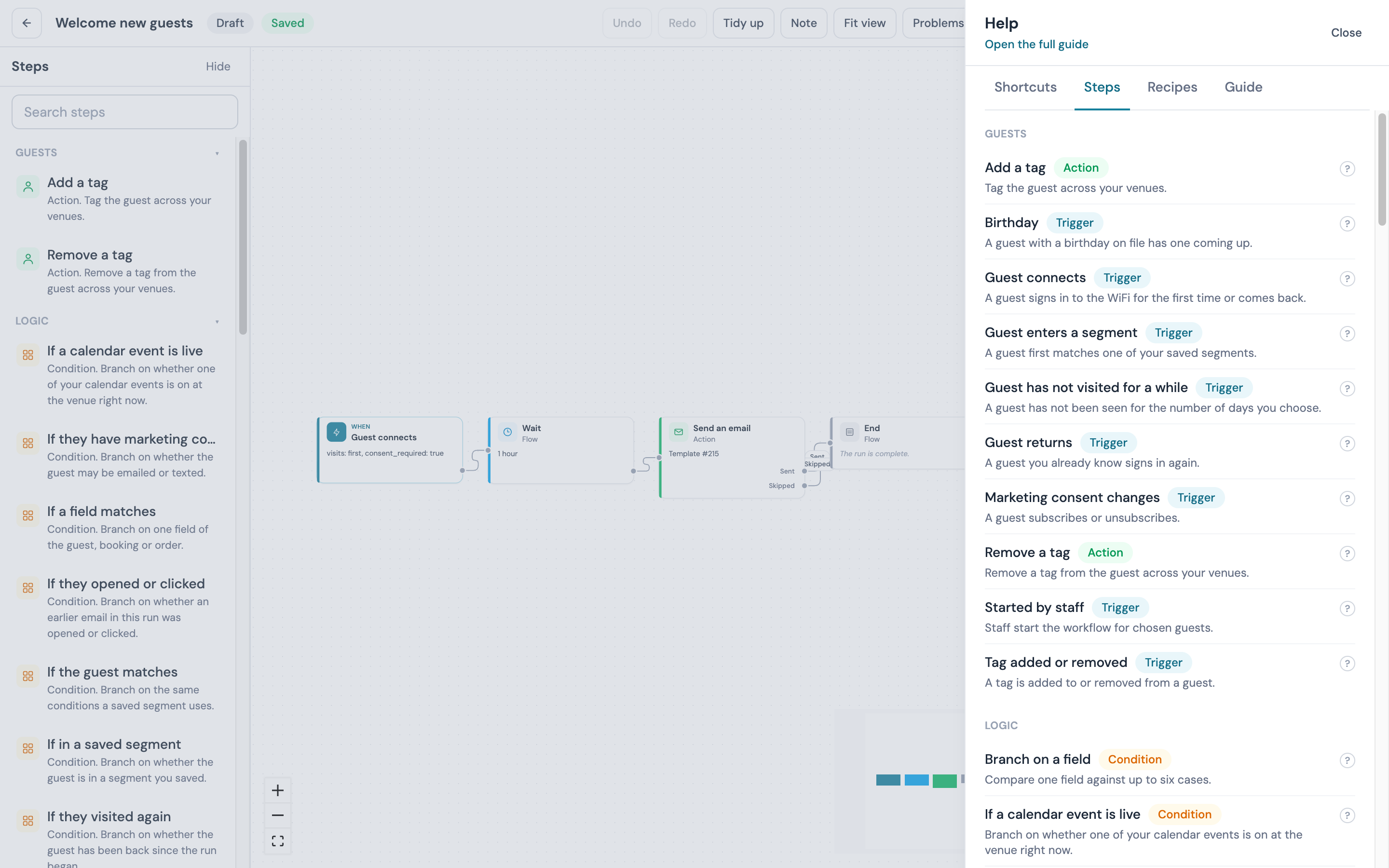
Help in the top bar opens a drawer down the right of the editor with four tabs. Shortcuts lists every keyboard shortcut. Steps lists every step you can add, by category, with its description and a link to its section here. Recipes lists the ready-made workflows; Use on one opens the gallery on that recipe, and the draft you are on stays as it is. Guide links to each section of this page. Close or Escape shuts the drawer.
Previews
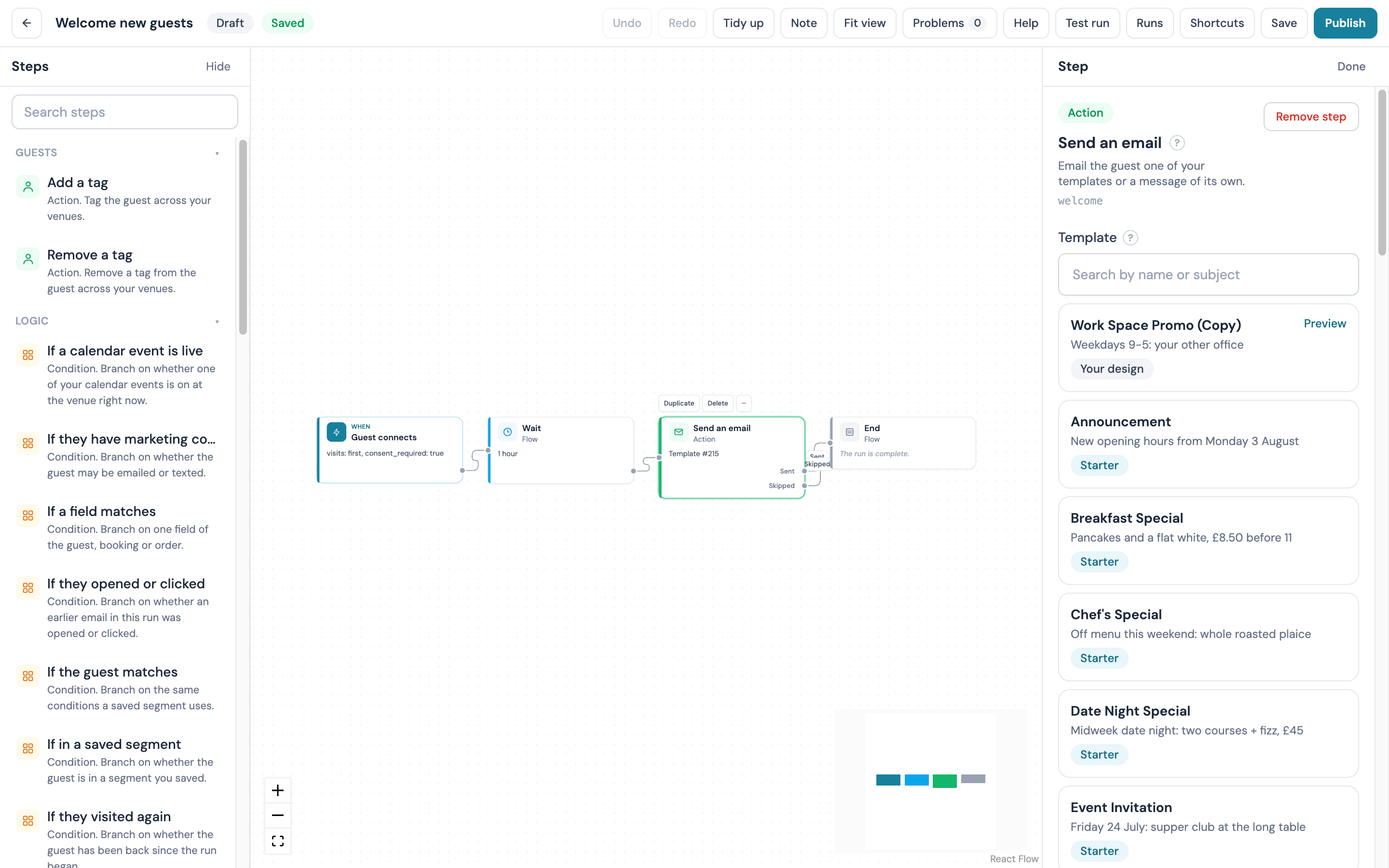
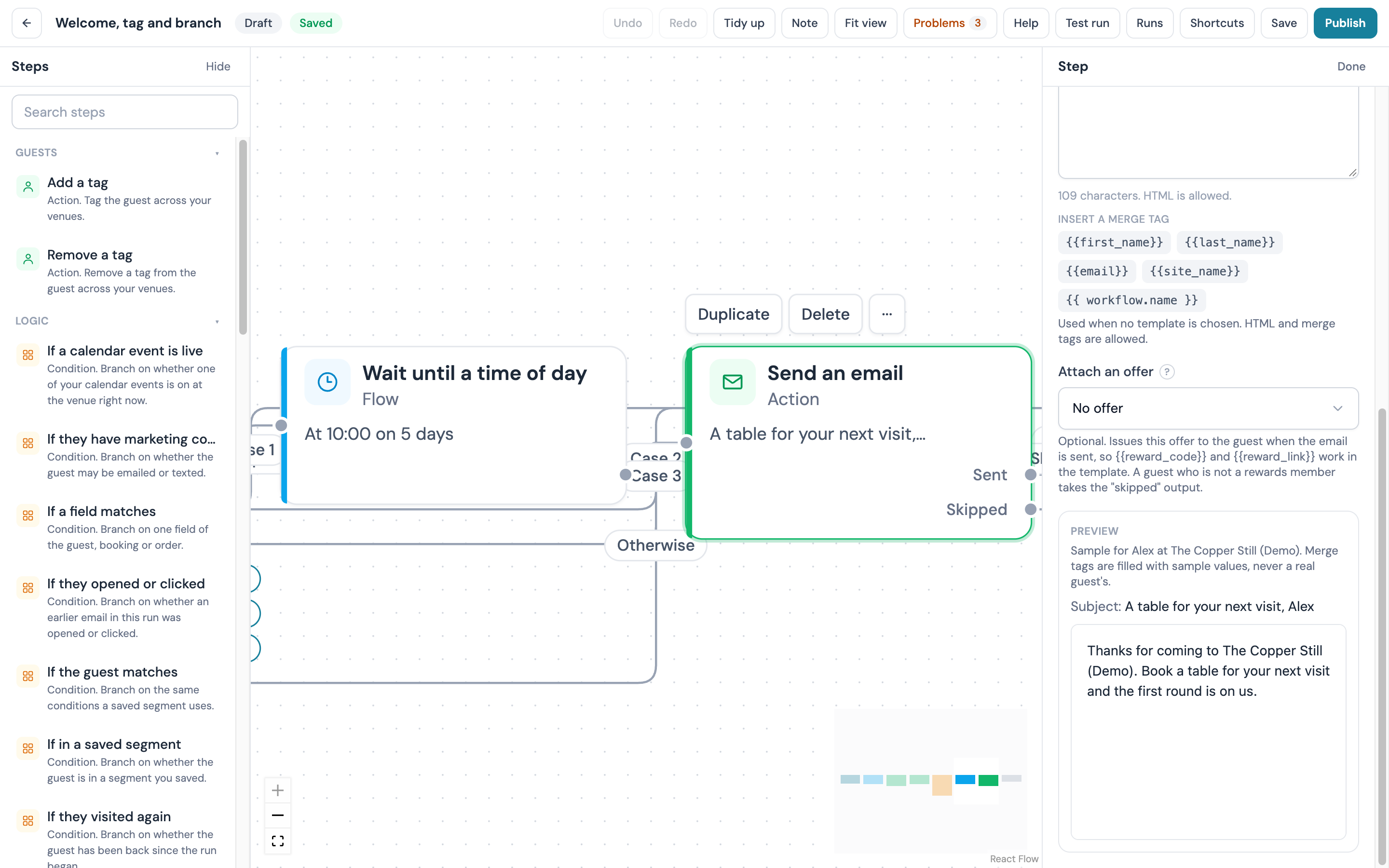
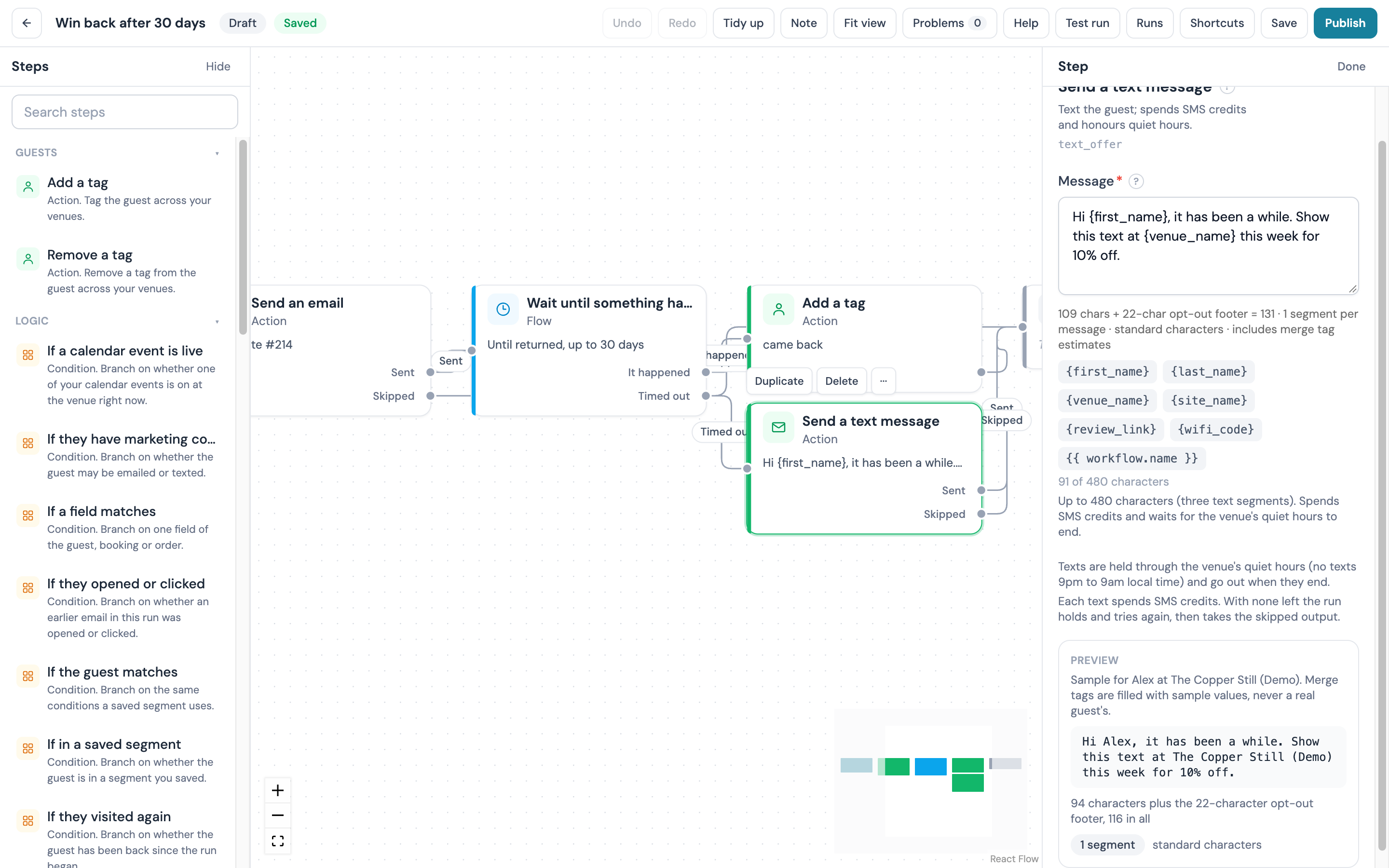
Under a Send an email step and a Send a text message step the inspector shows a Preview of what one guest would receive, filled in for a sample guest called Alex. The line above it reads Sample for Alex at followed by your venue's name, then Merge tags are filled with sample values, never a real guest's. No guest's details are read to draw it. For an email with a chosen template the preview shows the template's name and its filled subject (the template's design is not drawn here; open it from Preview on the template's card); for a subject and body written in the step it shows both. For a text it shows the filled message with its character count, the opt-out footer counted, and the number of segments.
The sample fills the guest tags (first name, last name, name, email and phone), the venue name (the workflow's first venue), the workflow's name, a points balance of 120, a reward code, a voucher code, a review link, the WiFi name and any date tag. A tag it has no value for is left as typed and listed under Not filled in the sample, which is the line to check before you publish.
The problems panel
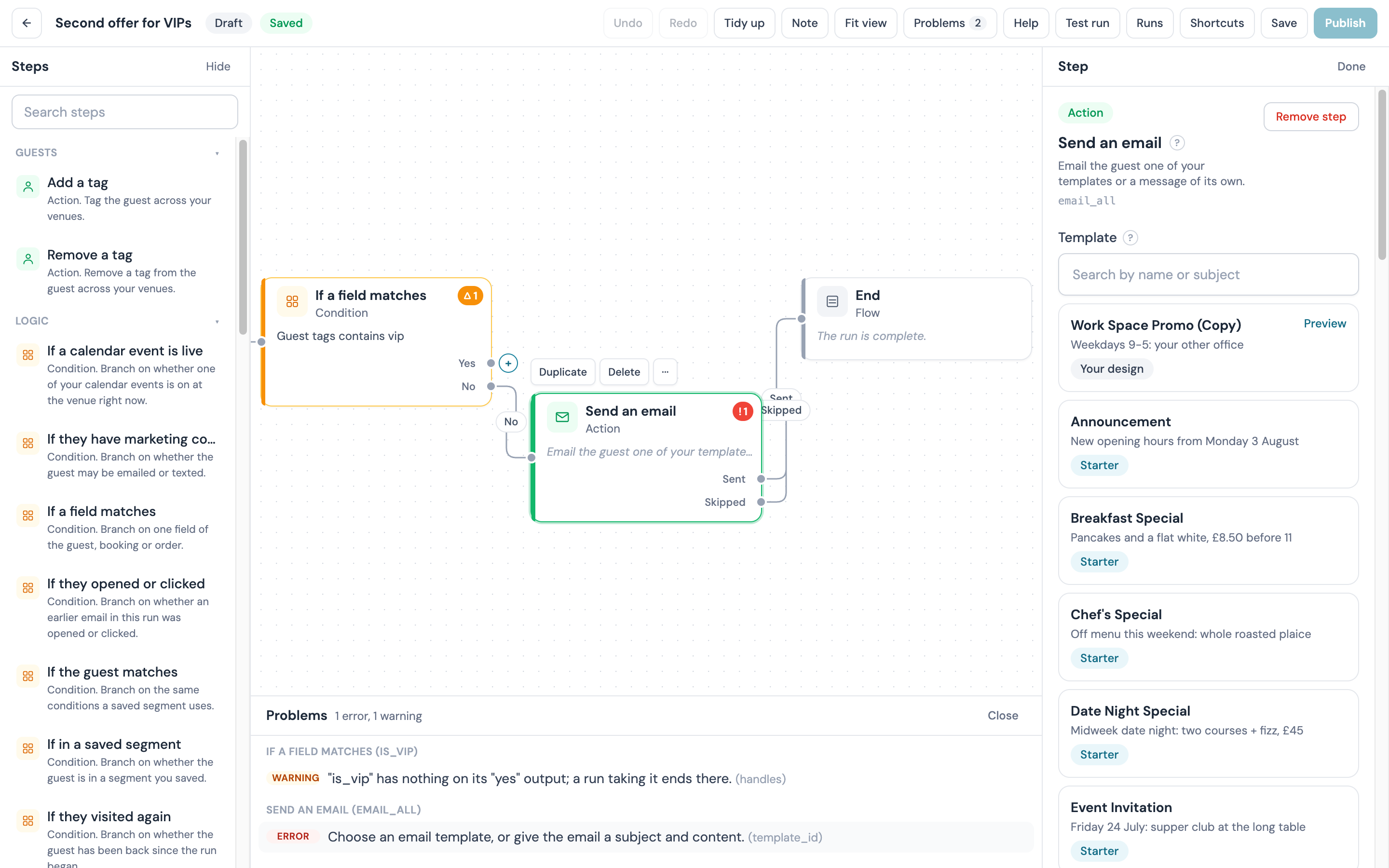
The problems count in the top bar opens a panel listing everything the checker found, grouped by step. Whole-workflow problems come first, then each step's, with errors above warnings. Click a row and the canvas selects that step and pans to it. A draft with problems still saves. Publish stays off until every error is fixed; a warning (an unreachable step, an open output on a step with several, a venue on the default time zone) does not block publishing.
Live counts on steps
Once a version is published, each card carries small chips with its counts: entered, waiting, completed, skipped and failed, with a zero left out. The range control in the top bar sets the window: 7 days, 30 days, 90 days or All time. 30 days is the default and the same window the overview opens on; all time runs from the day the workflow was made and shows at most the last 365 days. The counts refresh every minute while the editor is open, and hovering a chip shows the full number. A draft that has never been published shows neither the chips nor the control.
Test run results on the canvas
Test run in the top bar previews the steps for one guest without sending anything. Pick a guest from the search (it covers the workflow's venues), choose the draft on the canvas or the published version, answer any condition step yourself if you want to steer the run, and run it; it needs View guest data. The panel lists each step with the path it took and what it would have done. After a run, a chip also sits under each step the run walked, naming the output it took (marked (assumed) where you answered the condition) and its first fact, for example the subject of the email, in the colour of its outcome. The chips stay when you close the panel and go on your next edit to the workflow; selecting a card is not an edit, and a second run replaces them. A test run never sends anything, records no run and changes no tag or points, and the panel says so in every state.
Saving
The canvas saves on its own two seconds after you stop making changes. The chip in the top bar tells you where it is:
| Chip | Meaning |
|---|---|
| Unsaved changes | You changed something and the save has not gone yet |
| Saving... | The save is in flight |
| Saved | The draft matches what is on the canvas |
| Invalid | The draft was refused because its structure cannot be stored (for example a connection to a step that does not exist). Read the problems panel; this is rare in ordinary use |
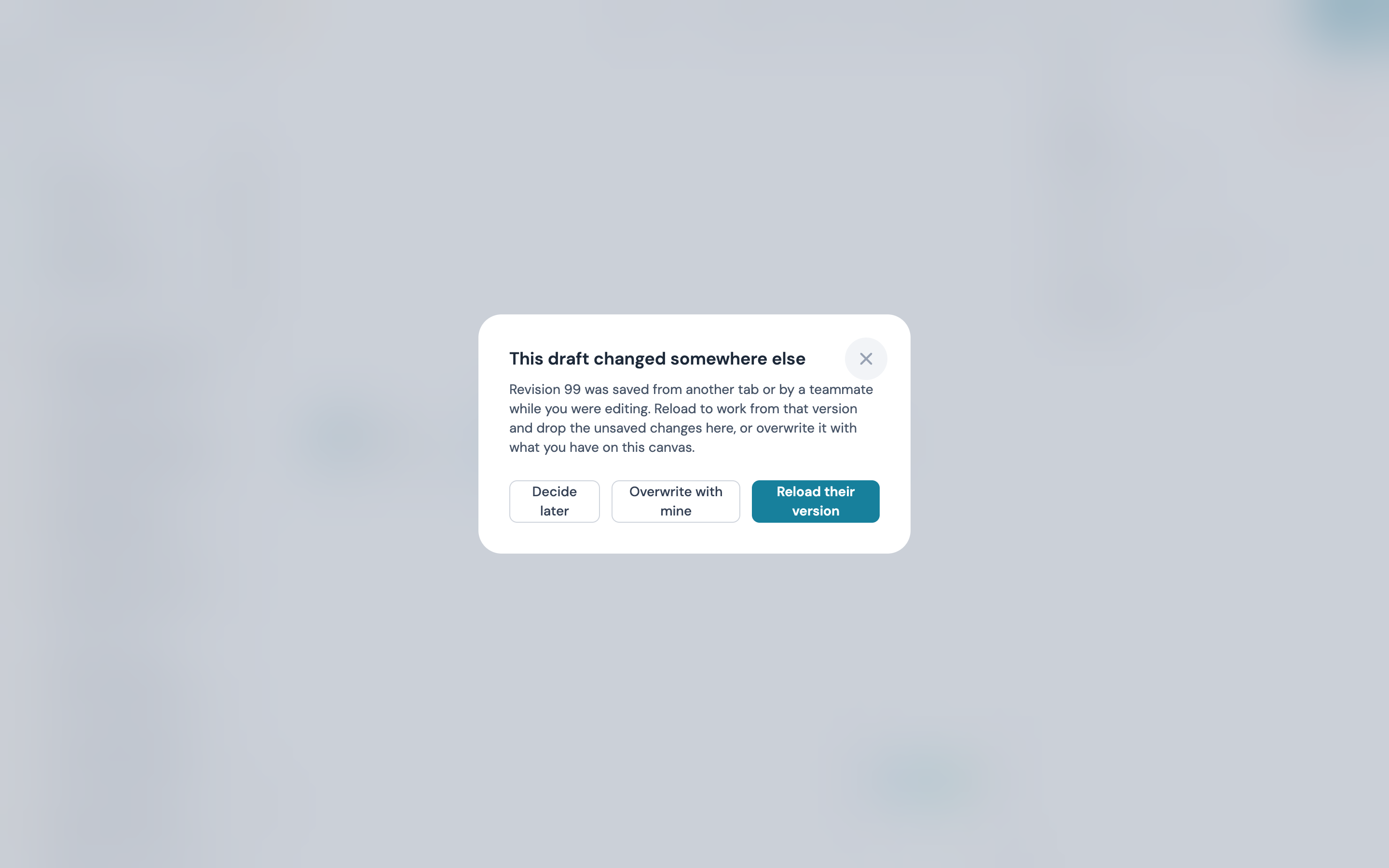
| Stale | Someone else, or you in another tab, saved this draft after you opened it. Saving on its own stops until you choose: a dialog names the revision that was saved from another tab or by a teammate and offers Reload their version (work from that version and drop the unsaved changes here) or Overwrite with mine |
| Save failed | The save did not reach CaptiFi. Try Cmd/Ctrl+S; nothing you drew is lost while the tab stays open |
| Session expired | You have been signed out. Your changes are kept on the canvas: sign in again from another tab, then press Save |
Cmd/Ctrl+S saves at once. Back offers Save and exit when there are unsaved changes, or to leave without saving.
Tidy up, Fit view, undo
Tidy up lays the steps out left to right from the trigger with no overlaps, which is the quickest way to make a busy canvas readable. Fit view zooms so the whole workflow is on screen. Undo and Redo step through your last 50 changes, including removals.
Keyboard shortcuts
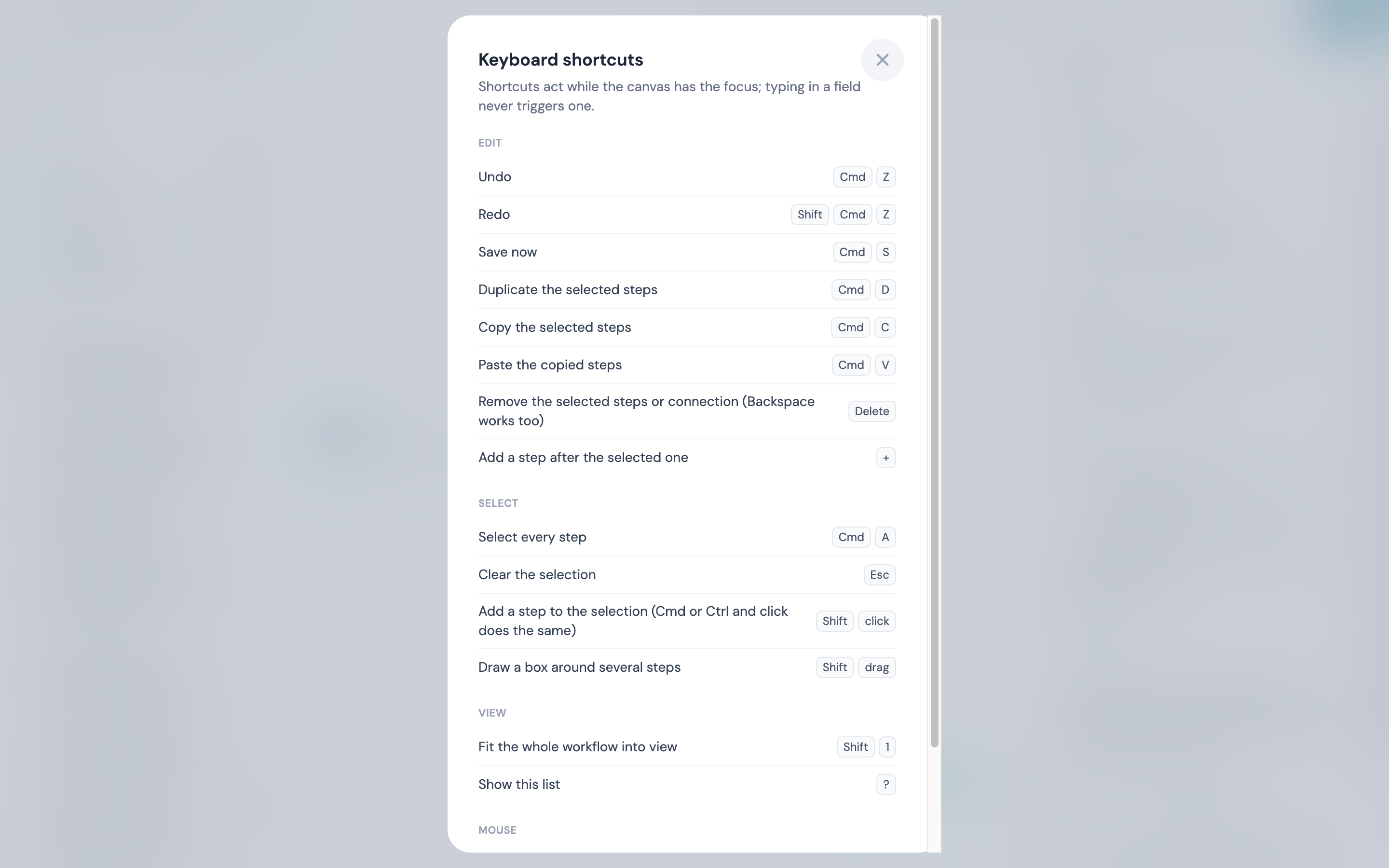
Press ? on the canvas, or click Shortcuts in the top bar, for the sheet below. Shortcuts act while the canvas has the focus; typing in a field never triggers one, and the duplicate, copy, paste, delete and select-all keys act only while a card, a connection or the empty canvas has the focus. The sheet shows Cmd on a Mac and Ctrl elsewhere, and the trigger is never removed.
| Group | Keys | What it does |
|---|---|---|
| Edit | Cmd/Ctrl+Z | Undo |
| Edit | Shift+Cmd/Ctrl+Z | Redo |
| Edit | Cmd/Ctrl+S | Save now |
| Edit | Cmd/Ctrl+D | Duplicate the selected steps |
| Edit | Cmd/Ctrl+C | Copy the selected steps |
| Edit | Cmd/Ctrl+V | Paste the copied steps |
| Edit | Delete | Remove the selected steps or connection (Backspace works too) |
| Edit | + | Add a step after the selected one |
| Select | Cmd/Ctrl+A | Select every step |
| Select | Esc | Clear the selection |
| Select | Shift+click | Add a step to the selection (Cmd or Ctrl and click does the same) |
| Select | Shift+drag | Draw a box around several steps |
| View | Shift+1 | Fit the whole workflow into view |
| View | ? | Show this list |
| Mouse | Right click | Open the menu for a step, a connection or the canvas |
Read-only canvas
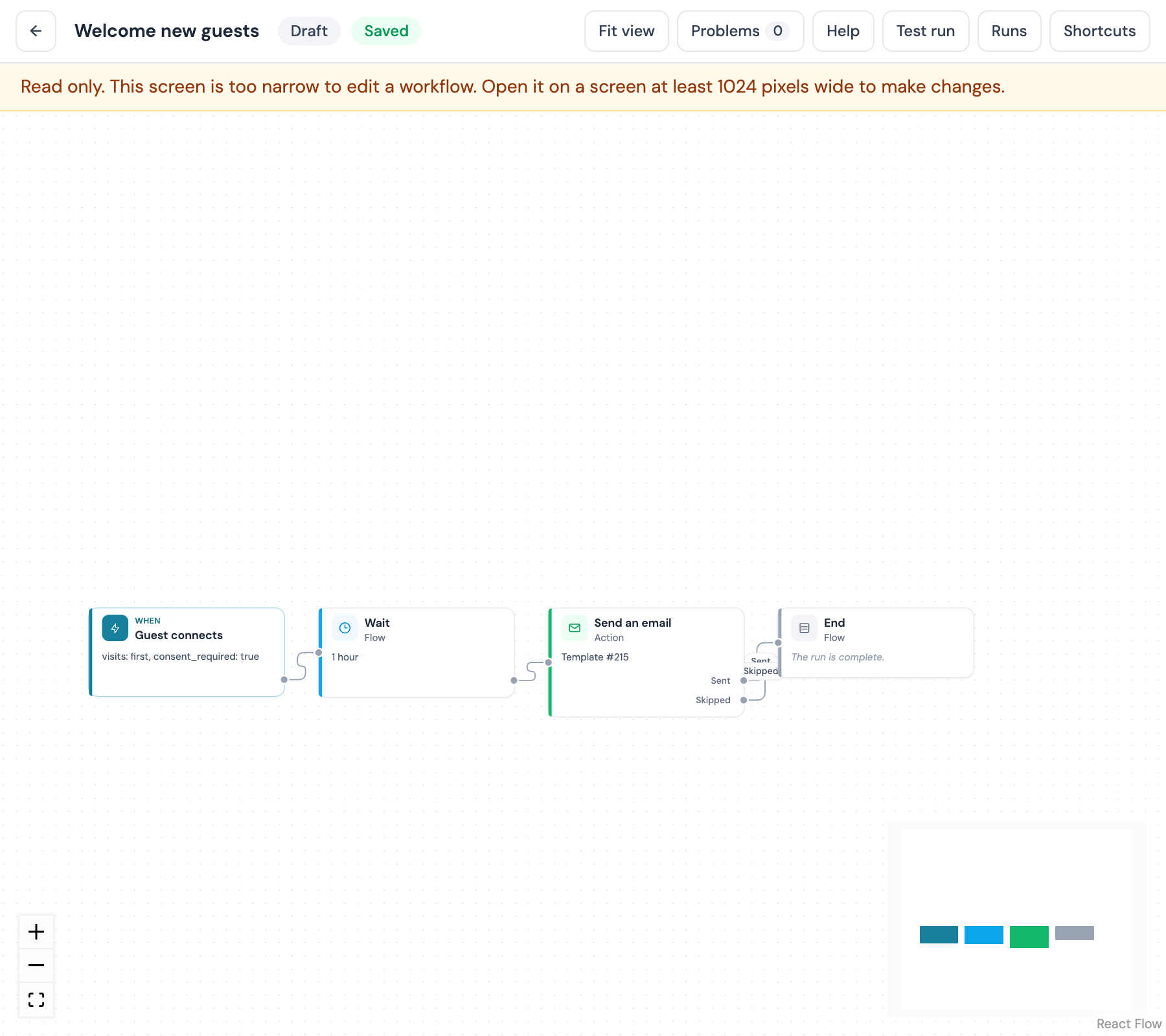
The canvas opens read only, with a banner across the top saying why, in three cases: the window is narrower than 1024 px ("This screen is too narrow to edit a workflow. Open it on a screen at least 1024 pixels wide to make changes."), you do not hold Manage workflows ("You can view this workflow. Ask the account owner for the Manage workflows permission to edit it."), or the workflow is archived. You can pan, zoom and read the cards; the palette and the inspector are not drawn, and nothing can be moved or connected.
What can a workflow do?
A workflow has four kinds of step. A trigger decides who enters and when: a WiFi sign-in, a return visit, a quiet spell, a birthday, a tag, a consent change, a saved segment, a member of staff, or something at the venue: a calendar event or a bank holiday. A condition sends the run down one path or another: a field test, a random split, or a branch on up to six cases. A timing step parks the run: for a set time, until a time of day, or until the guest does something. An action does the work: an email, a text, a tag added or removed, points awarded, or a change at the venue for a while: the WiFi name, the splash design or a message strip. Every path ends when it runs out of steps, or at an explicit End or Stop the run.
Triggers
A workflow has one trigger, chosen when it is created. It decides who enters the workflow and what the later steps know about them. The triggers below are for guests at the workflow's venues. The guest triggers need email marketing on the account, which the Pro and Enterprise plans include.
| Trigger | When it fires | Settings |
|---|---|---|
| Guest connects | A guest signs in to the WiFi | Which visits: the first visit only, or every visit. Only guests with marketing consent: a toggle. With it on, a guest without consent does not enter, and nothing is counted; turn it off if the workflow does something other than marketing, such as tagging |
| Guest returns | A guest you already know signs in again | From visit number, 2 to 100. Leave it empty to start on the second visit |
| Guest has not visited for a while | A guest has not been seen for the number of days you choose. Checked once a day from 10:00 in the venue's time zone | Days since the last visit, 1 to 365 |
| Birthday | A guest with a date of birth on file has one coming up | Days before the birthday, 0 to 30. 0 runs on the day itself |
| Tag added or removed | A tag is added to or removed from a guest | Tag, matched exactly (vip and VIP are two tags). When the tag is added or removed |
| Marketing consent changes | A guest subscribes or unsubscribes | Changes to: subscribed or unsubscribed |
| Guest enters a segment | A guest first matches one of your saved segments. Membership is refreshed once a night, so a guest enters the morning after they first match | Segment, one of your saved segments |
| Started by staff | A member of your team starts the workflow for one guest from its overview. See Start a workflow for a guest | None |
More triggers
| Trigger | When it fires | Settings |
|---|---|---|
| On a schedule | At the times you set, for a saved segment or for every subscribed guest at the venue | Hourly, daily, weekly or monthly, at a time on the venue's clock; the segment or all subscribed guests |
| Campaign opened or clicked | A guest opens or clicks one of your campaigns | The campaign; opened or clicked |
| Review rating submitted | A guest leaves a rating on your review request page | The highest rating that counts, 1 to 5, so a workflow can react to low ratings only |
| Access point offline or back | One of the venue's access points goes offline or comes back | Offline or online; the minimum minutes in that state, 5 to 1440 |
| Incoming webhook | Another system posts to a signed URL that belongs to this workflow. See The incoming webhook | See that section |
On a schedule enrols up to 5,000 guests per occurrence. Incoming webhook needs the CaptiFi API on your plan. With Review rating submitted, If a field matches and Branch on a field offer Review rating as a field, and Wait until something happens can wait for reviewed.
Triggers from Events, Rewards and Bookings
With the matching product switched on, more triggers appear in What starts it, each greyed out with the reason until the product is on your plan and switched on:
- With Events and tickets: Ticket purchased, Ticket refunded, Ticket checked in, Event published, Event cancelled, Before an event (a set number of hours before the doors open, for each ticket holder) and After an event (once it has ended, for the guests who attended, did not show, or both)
- With Rewards: Reward issued, Reward redeemed, Points earned, Points balance reaches a total, Tier changed, Reward about to expire and Joins the rewards programme
- With table bookings: Booking made, Booking attended, Booking no-show, Booking cancelled, Booking amended, Booking reminder is due and Last booked a while ago (a guest's most recent booking was the number of days ago you choose)
These triggers hand the workflow the booking, order or reward as well as the guest, so later steps can branch on the party size or the order total, and a wait can be tied to the event's end or the booking's time.
Wait until before or after a date pauses the run until a set time before or after a date the trigger provides, such as an event's start or a booking's time. Its settings are Date, one of the trigger's dates; How long, 0 to 90 days (0 waits until the date itself); and Before or after. It has two outputs: Time reached, and Already past when the moment has already gone by the time the run arrives, which the problems panel treats like any other second output.
With these triggers, If a field matches and Branch on a field offer Booking party size, Booking status, Booking source, Order event and Order total (minor units) (the total in pence or cents), and Wait until something happens can wait for booked, redeemed, checked in or attended.
Venue triggers: calendar events and bank holidays
These triggers name a venue and no guest, so the steps after them work on the venue: Change WiFi name, Swap splash page, Show message strip and Send a saved campaign. Each fires once per venue for each event or holiday.
| Trigger | When it fires | Settings |
|---|---|---|
| Calendar event starts | An event on your Planner calendar begins at one of the workflow's venues | Event name contains, optional text; Event type, optional: Marketing, Promotion, Holiday or Note |
| Calendar event ends | An event on your calendar ends at one of the workflow's venues | The same two |
| Bank holiday starts | A bank holiday in your region is a set number of days away, from 10:00 on the venue's clock | Region: England and Wales, Scotland or Northern Ireland; Days before the bank holiday, 0 to 7 |
A calendar event or a holiday hands the workflow its end, so Until the event ends on the WiFi name, splash and strip steps closes the window when it finishes; a bank holiday ends at midnight at the end of its date on the venue's clock. Triggers that start from your team's fixtures and from the weather forecast arrive shortly. The recipes built on these triggers are under Venue operations recipes and Fixtures, weather and holiday recipes.
Conditions
A condition sends the run down one of two or more paths. Connect each output you want to carry on; a run that takes an output with nothing on it ends there, and the problems panel warns you about any output left open on a condition.
| Step | What it checks | Outputs |
|---|---|---|
| If a field matches | One field against a value. Field is Guest tags or Guest visit count; fields that belong to a booking, an order or a review are offered only when the trigger provides one. Comparison is one of is, is not, is more than, is at least, is less than, is at most, contains, does not contain, is one of, is not one of, is empty, is not empty. Value is left empty for the two "empty" comparisons, and "is one of" takes a comma-separated list | Yes, No |
| Random split | Draws once per run. Share taking path A is a percentage from 1 to 99; the rest take B. A guest keeps the same side for the whole run | Group A, Group B |
| Branch on a field | One field against up to six cases, checked in order. The first case that matches wins; anything else takes Otherwise | Case 1 to Case 6, Otherwise |
More conditions
| Step | What it checks | Outputs |
|---|---|---|
| If they have marketing consent | Whether the guest may be emailed or texted. Choose the channel | Yes, No |
| If they opened or clicked | Whether an earlier Send an email step in this run was opened or clicked. Pick the step and whether opened or clicked counts | Yes, No |
| If they visited again | Whether the guest has connected at the workflow's venues since the run began. A reconnection within 12 hours of the start is not counted, so the same visit does not count as a return | Yes, No |
| If in a saved segment | Whether the guest is in one of your saved segments right now | Yes, No |
| If the guest matches | The same conditions a saved segment uses, written here without saving a segment | Yes, No |
| If a calendar event is live | Whether one of your Planner calendar events is on at the run's venue right now, with the same Event name contains and Event type filters as the calendar triggers. It works under any trigger, so a guest workflow can act differently during a match or a private hire | Yes, No |
Timing
Waits park the run and pick it up later. A run that is waiting shows as waiting in the runs list.
| Step | What it does | Settings | Outputs |
|---|---|---|---|
| Wait | Pauses for a set time | Wait for, an amount and a unit (minutes, hours or days), from 1 minute to 365 days | Next |
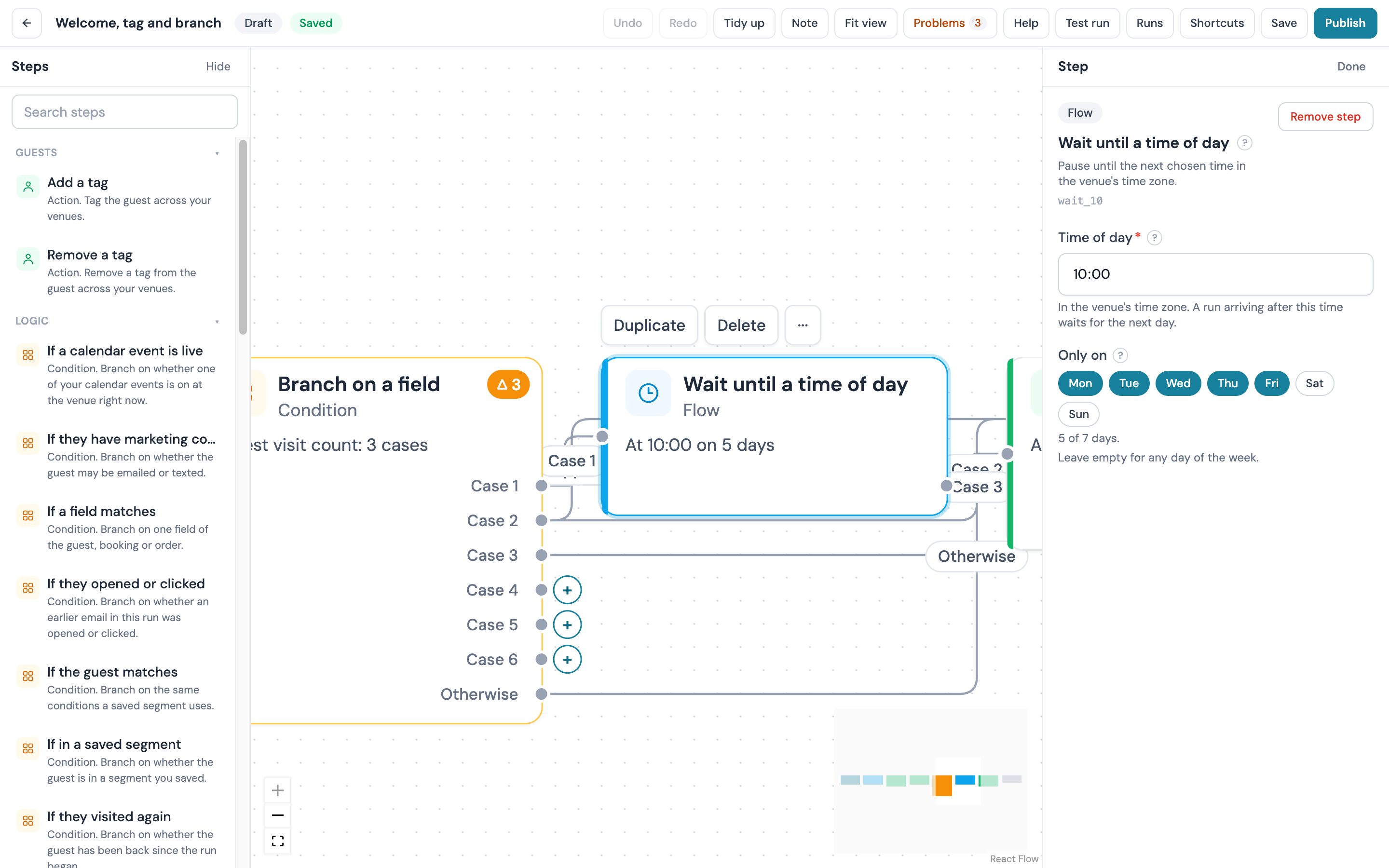
| Wait until a time of day | Pauses until the next chosen time in the venue's time zone. A run that arrives after that time waits for the next day | Time of day; Only on, a choice of weekdays, or empty for any day | Time reached |
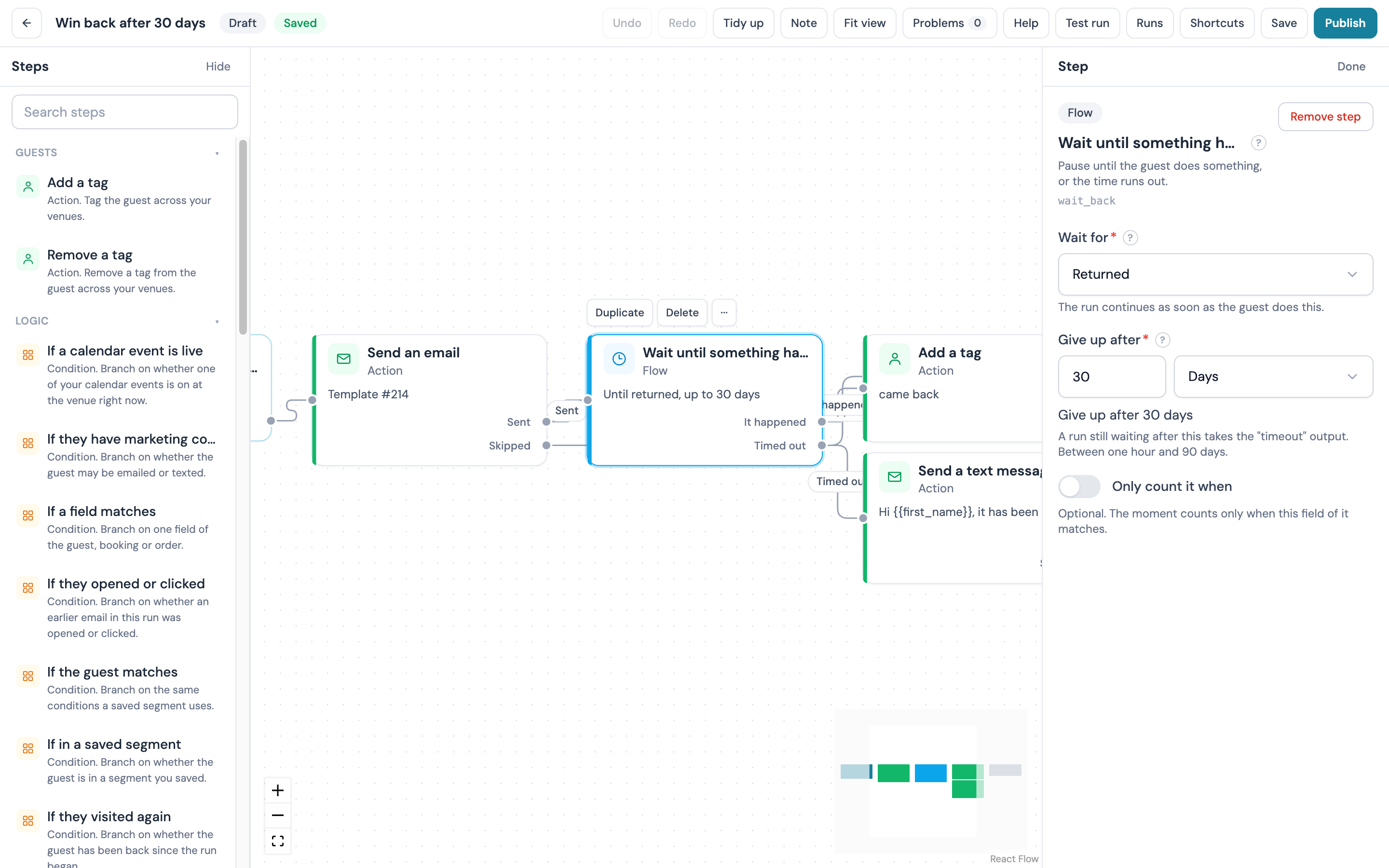
| Wait until something happens | Pauses until the guest does something, or the time runs out | Wait for: returned, opened, clicked or consent changed. Give up after, 1 hour to 90 days. Only count it when, an optional field condition on the moment | It happened when it happens, Timed out when it does not |
Set each venue's time zone
Every wait tied to a clock runs in the venue's own time zone, as do send windows and text quiet hours. If a venue is still on the default, publishing shows a warning naming it. Set the venue's time zone under My Locations.
Actions
| Step | What it does | Settings | Outputs |
|---|---|---|---|
| Send an email | Emails the guest. Choose a Template from your library, or leave it empty and write a Subject and Email body here. Merge tags such as {{first_name}} work in both; the list is under Personalise in the template builder | Template, or subject and body | Sent, Skipped |
| Send a text message | Texts the guest. Up to 480 characters, which is three text segments. Spends SMS credits and waits for the venue's quiet hours to end | Message | Sent, Skipped |
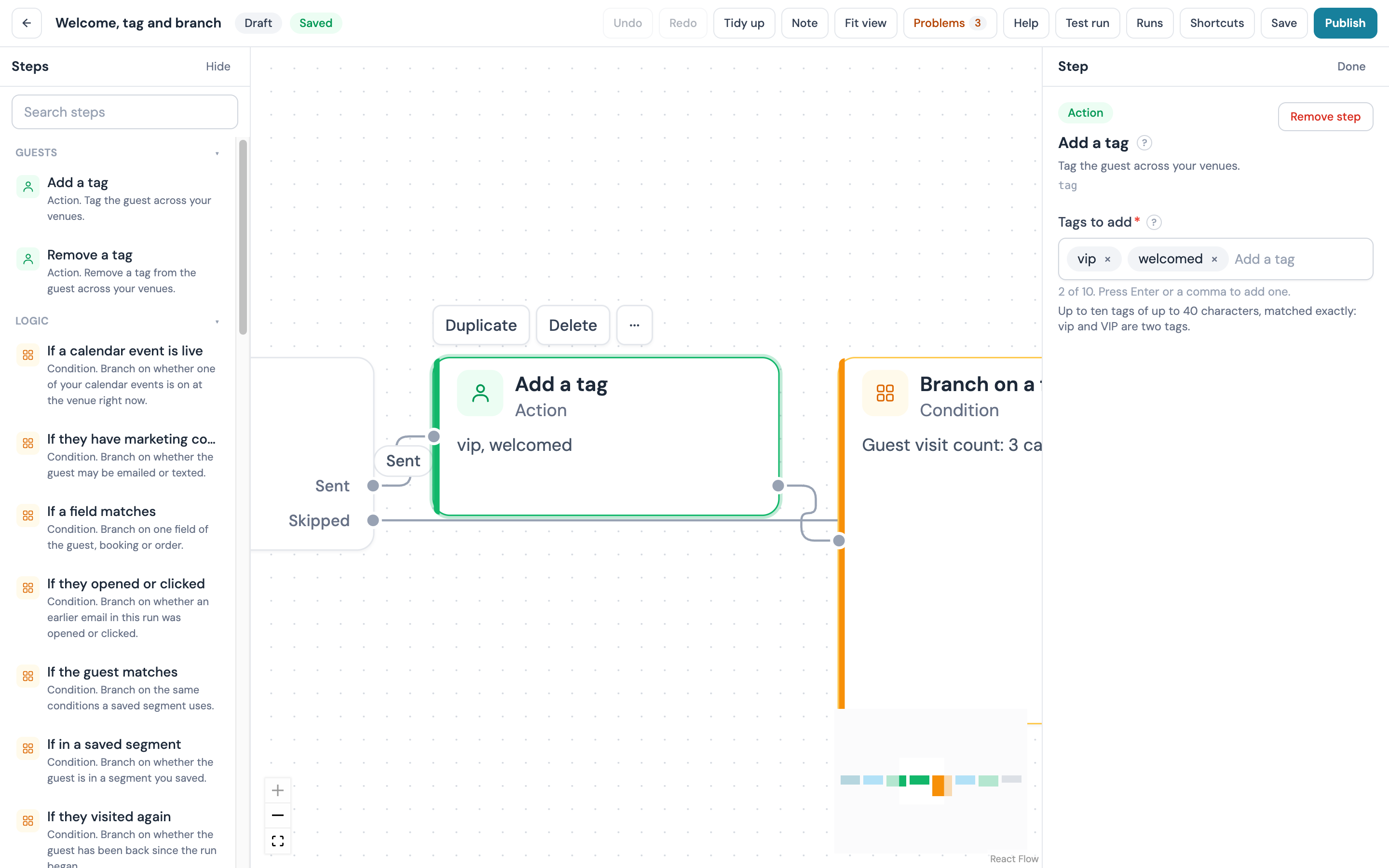
| Add a tag | Tags the guest across your venues. Up to ten tags of up to 40 characters, matched exactly | Tags to add | Next |
| Remove a tag | Removes tags from the guest across your venues, matched exactly | Tags to remove | Next |
| Award points | Credits points to the guest's rewards balance, 1 to 100,000, with a Reason shown on the member's points history. A guest who is not a member takes the No member output. Needs Rewards and can be published by the account owner only | Points, Reason | Next, No member |
The Skipped output on a message is where the run goes when the message could not be sent to this guest: no address, no consent, a suppressed address, no phone, or a text to a guest who has not agreed to texts. Leave it open if nothing else should happen for those guests, or connect a different step if you want to do something else for them. The reasons are listed under Consent, allowance, credits and quiet hours.
A workflow whose trigger fires when a tag is added cannot add the same tag to the same guest again, so a tag step never restarts its own workflow.
More actions
| Step | What it does | Settings |
|---|---|---|
| Give a reward or offer | Issues one of your offers to the guest, like Issue to a guest on the Offers page. The code can be placed in a later email with {{ reward.code }}. Needs Rewards. Under a trigger that is about a venue, such as On a schedule, only the account owner can publish it | The offer |
| Attach a WiFi voucher code | Mints a WiFi voucher for the guest, valid for 1 to 720 hours, and makes it available to a later email as {{ voucher.code }} | The duration, a label |
| Send to your webhooks | Posts the moment to the endpoints you registered under Webhooks, as the event workflow.action, with up to 20 fields you name. The destinations are the endpoints on the Webhooks page | A label, the fields |
| Notify the venue team | Alerts your team in the dashboard, by email (at most 20 emails a day per workflow) or on Slack where the venue has it connected | Title, message, channels |
| Send the guest to an integration | Syncs the guest to a platform connected on your Integrations page | The provider |
| Send a saved campaign | Sends one of your saved campaigns to its audience. Allowed only under a trigger that names a venue, such as On a schedule, for a repeating campaign or a draft; a draft sends once and is refused after that | The campaign |
| Change WiFi name | Renames the guest WiFi at the run's venue for a window, then puts the original name back. Needs hardware that can rename the network; see Which automations work on your hardware | New WiFi name, up to 32 characters (an accented or emoji character counts as more than one); For how many hours, 1 to 168, or Until the event ends |
| Swap splash page | Shows one of your saved splash designs at the run's venue for a window, then restores your default design | Splash design, one of your library designs at that venue; the same window settings |
| Show message strip | Shows a short message across the splash page at the run's venue for a window, then takes it down | Message, up to 200 characters; Style: banner, success, warning or urgent; the same window settings |
Give a reward or offer has a second output, No member, and Attach a WiFi voucher code has Skipped; the recipes connect both to End, and the problems panel warns when either is left open. The three venue steps have Skipped too, taken when the window could not be booked: a WiFi name window already booked at the venue for that time, a design that is not at the run's venue, or a trigger that names no venue. They need a trigger that does, such as a calendar or bank holiday trigger, and publishing them needs Manage splash pages; see Venue operations recipes for how the windows end.
Send an email also gains a reward offer field, so an email can carry a reward of its own as an automation email can; see Rewards in your messaging.
Stop and End
A path ends when it runs out of steps. Two steps let you say so on purpose:
- End finishes the run as completed. Use it where you want the canvas to show that a path is finished on purpose
- Stop the run finishes the run as stopped and records a Reason you type, a short word such as
already_bookedorno_dob. Use it where you want the runs list to show why a guest left the path, for example on the No side of a condition that means "this guest should not get the offer"
Publishing, versions and status
A workflow is in one of four states: Draft, Active, Paused or Archived. The pill in the top bar and the status column on the list show which.
Publishing
- Fix everything in the problems panel. Publish stays off while an error remains
- Click Publish
Publishing checks the workflow once more against your account (every step available to you, every venue accessible, every permission held by you as the publisher), then pins a numbered version and sets the workflow Active. Version 1 is the first publish; each later publish adds one. Guests start entering at once when the trigger fires.
Editing a live workflow
Changes you make to an active workflow are saved to its draft and do not affect what is running. The list marks the row Unpublished changes and the top bar's button reads Publish changes. When you publish, a new version is pinned. Runs already in progress finish on the version they started on; new runs use the new one. So a guest who was two days into a week-long wait when you changed the email gets the email you had published when they entered.
Versions
The overview's Published versions table lists the last 50 versions with who published each and when and how many runs used it. View on a row opens the canvas on that version, read only: a banner names the version, its date and its publisher, with Back to draft, and there is no palette, inspector, save or publish. Restore to draft copies an older version's steps back into the draft, confirmed with one click, and opens the editor on it so you can publish it again; it needs Manage workflows and is not offered on an archived workflow. The version itself is never changed, and the draft it replaced stays recoverable because every published version stays in the list. If a colleague saved the draft while you were looking, the confirmation says so and asks again. Export downloads the draft as a file; see Import and export a workflow.
Pause and resume
Pause stops new guests entering. Runs already in progress stay where they are; a run that was waiting keeps waiting. Resume lets guests in again and moves the parked runs on, with one safeguard: a run that should have moved on more than the workflow's Resume a paused run up to setting (3 days by default) is stopped with the reason paused_expired, so a stale message is never sent weeks late.
Archive, duplicate and delete
Archive takes the workflow out of use for good: new enrolments stop and every run in progress is cancelled. An archived workflow opens read only, and Delete is offered on archived workflows only. Duplicate makes a new draft with a copy of the steps and settings, named with "(copy)", which is the way to try a change without touching the live version or to start a second workflow from a different trigger.
Runs
A run is one guest's passage through the workflow. Finished runs are kept for 365 days, then removed by a nightly clean-up.
The overview numbers
Open a workflow's overview from Runs in the top bar, or from the row on the list. The top of the page shows how many runs there are by status (queued, running, waiting, finished, failed, cancelled) and by outcome (completed, stopped, cancelled, failed), how many emails and texts were sent and how many are holding for allowance, credits, quiet hours or the send window, and how many guests were turned away at the door and why (the reasons under Why was a guest not enrolled?).
The per-step table
Under the counts, one row per step shows how many runs entered it, how many took each output, how many are waiting there now and how many were skipped there with the skip reasons. Click a row to open the runs list filtered to runs that passed through that step. It is the quickest way to see where a workflow loses guests: a Send an email step whose skipped count is high points at consent or missing addresses, a wait whose waiting count is high is doing its job.
The runs list
The runs list shows one row per run with the guest, the venue, the version, when it started, its status and outcome and, for a stopped run, the reason. Filter by status, outcome and the step a run is at now. The runs list and a run's timeline need View guest data; a member without it cannot open them. Cancel on a run in progress ends it as cancelled; it needs both Manage workflows and View guest data.
A run's timeline
Open a run to see each step it took in order: the step, the attempt, its status, which output it took, the outcome or skip reason, any holds, an error code if the step failed, and for an email whether and when it was opened and clicked. Message text and webhook payloads are never shown here, so a run can be read by anyone with the permission to see the guest without exposing what was sent.
Start a workflow for a guest
A workflow whose trigger is Started by staff has a Start for a guest button on its overview. Pick the guest and click Start; one run begins at once, subject to the same re-entry, daily cap and active-run rules as any other. The guest must have signed in at one of the workflow's venues that you can see. It needs Manage workflows.
Why was a guest not enrolled?
When the trigger fired for a guest and no run appeared, one of these turned the guest away. Each is counted on the overview.
| Reason | What happened | What to change |
|---|---|---|
| Already in an active run | The guest has a run in this workflow that is queued, running or waiting | Nothing, or shorten the waits if runs are outliving their usefulness |
| Re-entry | The guest finished a run before and the workflow's re-entry setting is never, or the days since that run finished are fewer than the setting | Set re-entry to always or a shorter number of days |
| Daily cap | The guest already started the allowed number of runs today at that venue | Raise the runs per guest per day setting, up to 10 |
| Workflow cap | The workflow is at its most runs active at once ceiling | Raise the ceiling, or look at why runs are not finishing |
| Workflows switched off | Workflows was switched off for the account at the moment the trigger fired | Nothing on your side; if the counter keeps rising, contact support |
| No guest | The moment could not be tied to a guest record | Nothing on your side; a guest record that has been erased cannot start a run |
Nothing is retried after a guest is turned away. A run that started and then sent nothing is explained by the Skipped reasons below.
Consent, allowance, credits and quiet hours
Workflows follow the same rules as campaigns and automations. Nothing in a workflow can bypass them.
Emails
Send an email takes the Skipped output, without failing and without retrying, when the guest has no email address, has been erased, has unsubscribed (a guest who unsubscribed on any of their sign-ins at the workflow's venues counts as unsubscribed), or when the address is undeliverable or on your Suppressions list.
Every email a workflow sends reserves one unit of your plan's monthly email allowance, the same allowance as campaigns and automations. When the allowance is spent, the step holds and tries again once a day, so it goes out once the allowance renews on your billing day; a step that has held for 45 days skips with the reason allowance_exhausted. The email usage meter on the Marketing settings page moves with each workflow email. See Email allowances.
Texts
Send a text message skips for a demo account, a guest with no phone number, a guest who has not agreed to texts, or a suppressed number. Texts spend SMS credits, one per segment; with no credits left the step holds and tries again every six hours for up to a week, then skips. A text due inside the venue's quiet hours waits for them to end. Credit prices per currency are on SMS Notifications.
Send window
A per-workflow send window (Only send messages between set times, see The inspector) holds both emails and texts due outside it until it opens, on the venue's clock.
Retries and duplicates
A step that fails for a passing reason, such as a timeout, is retried after 1 minute, then 5, then 15, and then fails for good; the owner is emailed at most once a day per workflow. Every send is recorded per run and per step before it leaves, so a retry never sends the same message twice.
The incoming webhook
A workflow with the Incoming webhook trigger gets an address of its own. Any system that can make an HTTPS request can start a run: a booking system when a table is booked, or a form on your website. The trigger needs the CaptiFi API on your plan.
Getting the URL and secret
- Create a workflow with Incoming webhook as what starts it
- Select the trigger and set Match the guest by (email address or phone number) and Where it is in the payload, a dot path to it in the JSON body such as
customer.email. If later steps read the body, list the Fields to keep: up to 20 top-level keys a run keeps as incoming webhook fields - Build the rest of the workflow and click Publish
The first publish creates the endpoint and shows its secret once, in a window with a copy button that stays open until you confirm you have copied it. Afterwards the Incoming webhook card on the overview shows the URL with a copy button, the last four characters of the secret and when it was last rotated, the time and result of the last delivery, how many have been received, the top-level keys of the last body (never their values) and a How to sign requests expander with the recipe below. Rotate secret issues a new secret and shows it once the same way. The old secret stops working at once, so the button holds to confirm, and it is offered to the account owner only.
The secret is shown once
CaptiFi does not keep a readable copy. If it is lost, the owner rotates it and updates the sending system with the new one.
Sending a request
Make a POST to https://app.captifi.io/hooks/w/{public_id} with a JSON body of up to 64 KB, and sign it with the same recipe CaptiFi uses for its own outgoing webhooks:
- Take the current Unix time in seconds as
t - Build the string
{t}.{raw body}, the timestamp, a full stop and the exact bytes you are sending - Compute an HMAC-SHA256 of that string keyed with the secret, as lowercase hex, as
v1 - Send the header
X-CaptiFi-Signature: t=<t>,v1=<hex>
CaptiFi accepts a timestamp within 300 seconds of its own clock. Send an Idempotency-Key header (up to 128 characters) with a value unique to the moment, such as the booking id: a repeat with the same key inside 24 hours is answered without starting a second run, whatever the body, so send one key per event. Without the header, the body itself is the key.
The body must be a JSON object and carry the guest's email address or phone number at the path you set on the trigger. The webhook only ever matches a guest who has already signed in at the workflow's venues; it never creates a contact. The top-level fields you listed under Fields to keep are kept on the run (values cut at 200 characters) and can be read by If a field matches and Branch on a field as incoming webhook fields, and placed in an email as {{ webhook.field }}.
What comes back
| Response | Meaning |
|---|---|
202 with status: enrolled and a run_id | A run has started |
202 with status: skipped and a reason | The request was valid and the guest was not enrolled: no_guest when nobody at the workflow's venues matched, replay for a repeated key or body, or one of the reasons under Why was a guest not enrolled?, such as active_run or daily_cap |
415 or 413 | The body was not JSON, or was over 64 KB |
404 | The address is unknown, the workflow is a draft, paused or archived, or the signature did not verify. The same answer is given for all of these on purpose, so a wrong secret cannot be told apart from a wrong URL by whoever is sending. Check the URL and the secret together |
Limits: 60 requests a minute per endpoint from one address, and 600 a minute from one address in all.
Team permissions
Workflows uses the permissions on your Team page.
| What | Who can do it |
|---|---|
| Open the Workflows page and read a workflow on a read-only canvas | Every team member of an account on Pro or above |
| Create, edit, publish, pause, resume, archive, duplicate and delete a workflow; start it for a guest | Manage workflows |
| See the runs list and a run's timeline | View guest data |
| Cancel a run | Manage workflows and View guest data |
| Publish a workflow containing Send a text message | Manage marketing as well |
| Publish a workflow containing Award points | Account owner only |
| Publish a workflow containing Change WiFi name, Swap splash page or Show message strip | Manage splash pages |
| Publish a workflow containing Send a saved campaign | Manage marketing as well |
| Publish Give a reward or offer under a venue trigger such as On a schedule | Account owner only |
| Rotate secret on an incoming webhook | Account owner only |
The Manager and Marketing role presets include Manage workflows. Permissions are checked against the person publishing, so a member who can publish an email-only workflow sees a problem naming the step when they add one that needs more, and the owner can publish it instead.
Limits
| Limit | Value |
|---|---|
| Triggers per workflow | 1 |
| Steps per workflow | 40 |
| Longest path from the trigger | 60 steps |
| Steps one run may take, retries included | 200 |
| Loops | None. A path may never lead back to an earlier step; repeat a workflow through its re-entry setting instead |
| Open outputs | Allowed. A run that takes an output with nothing on it ends there; the problems panel warns about one left open on a step with several outputs |
| Runs in progress per workflow | Up to 10,000 (the workflow's own setting) |
| Runs per guest per venue per day | 1 by default, up to 10 |
| Re-entry defaults | never, except Birthday (after 300 days) and Guest has not visited for a while (after the chosen days, or 30 if greater) |
| Runs kept | 365 days after they finish |
| Versions kept | 90 days after they stop being published, once no run uses them |
Recipes
Eight workflows to build with the product open. Four of the first five use steps every Pro account has today; the regulars recipe also needs Rewards. Each ends with the finished canvas and a line on what the guest gets. Every recipe connects both outputs of each message step, which keeps the canvas readable; a message's Skipped output can also be left open, and the run ends there.
Welcome email one hour after a first visit
An hour after a first sign-in the guest is still at the table or has just left, so the email lands while the visit is fresh. Ask for one thing in it: a follow on social, a booking for next time, or a review.
- Click New workflow, name it
Welcome one hour later, choose Guest connects, pick your venue and click Create workflow - Select the trigger. Set Which visits to the first visit only and turn on Only guests with marketing consent
- Click the + on the trigger's output and choose Wait. Set Wait for to
1and the unit to hours - Click the + on the wait's Next and choose Send an email. Choose your welcome template under Template
- Click the + on Sent and choose End. Click the + on Skipped and choose End
- Click Tidy up, check the problems count reads 0, and click Publish
Every guest who signs in for the first time from now on gets the email an hour later, and the runs list shows each one. Re-entry is never by default, so a guest is welcomed once.
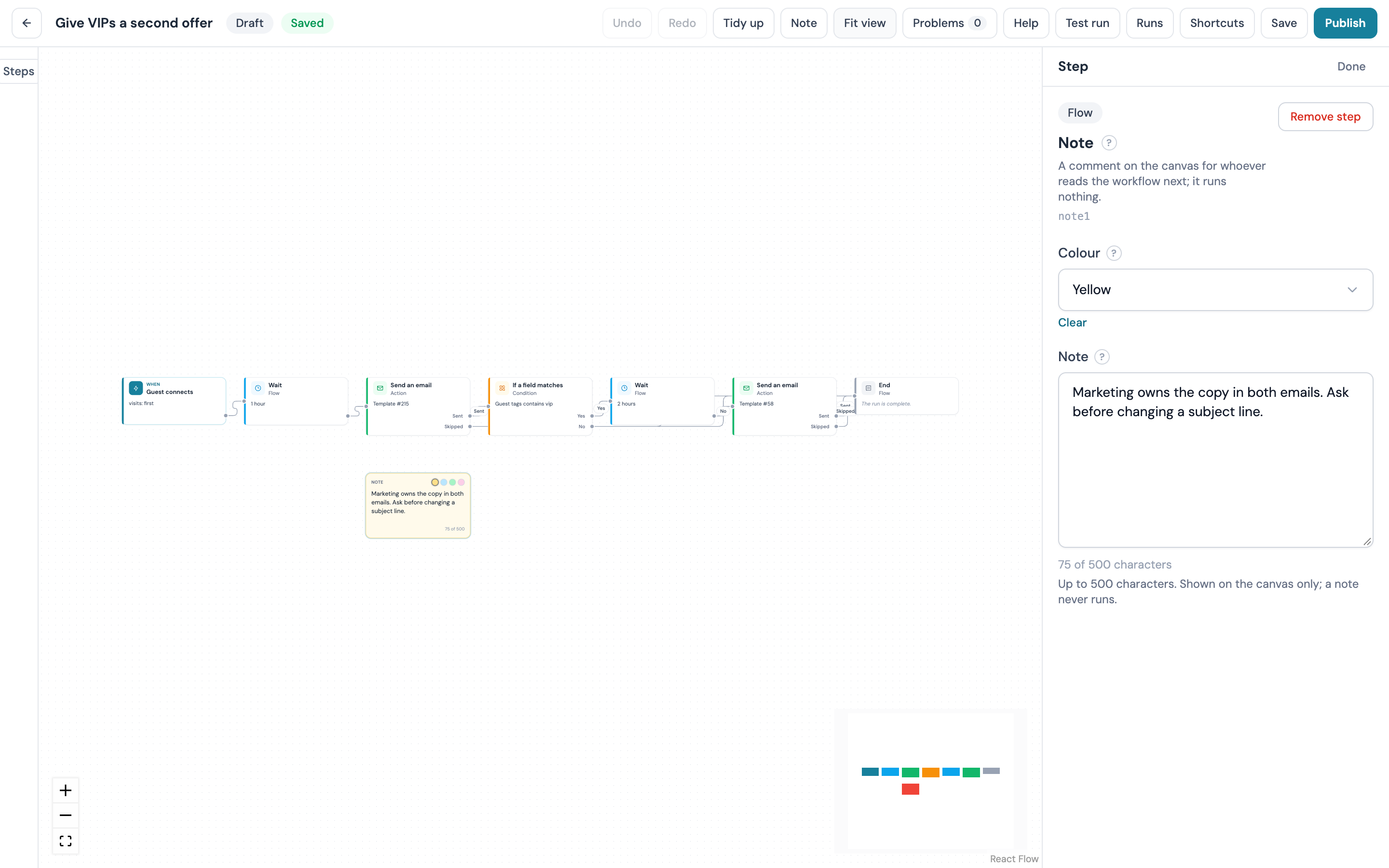
Give VIPs a second offer after the welcome email
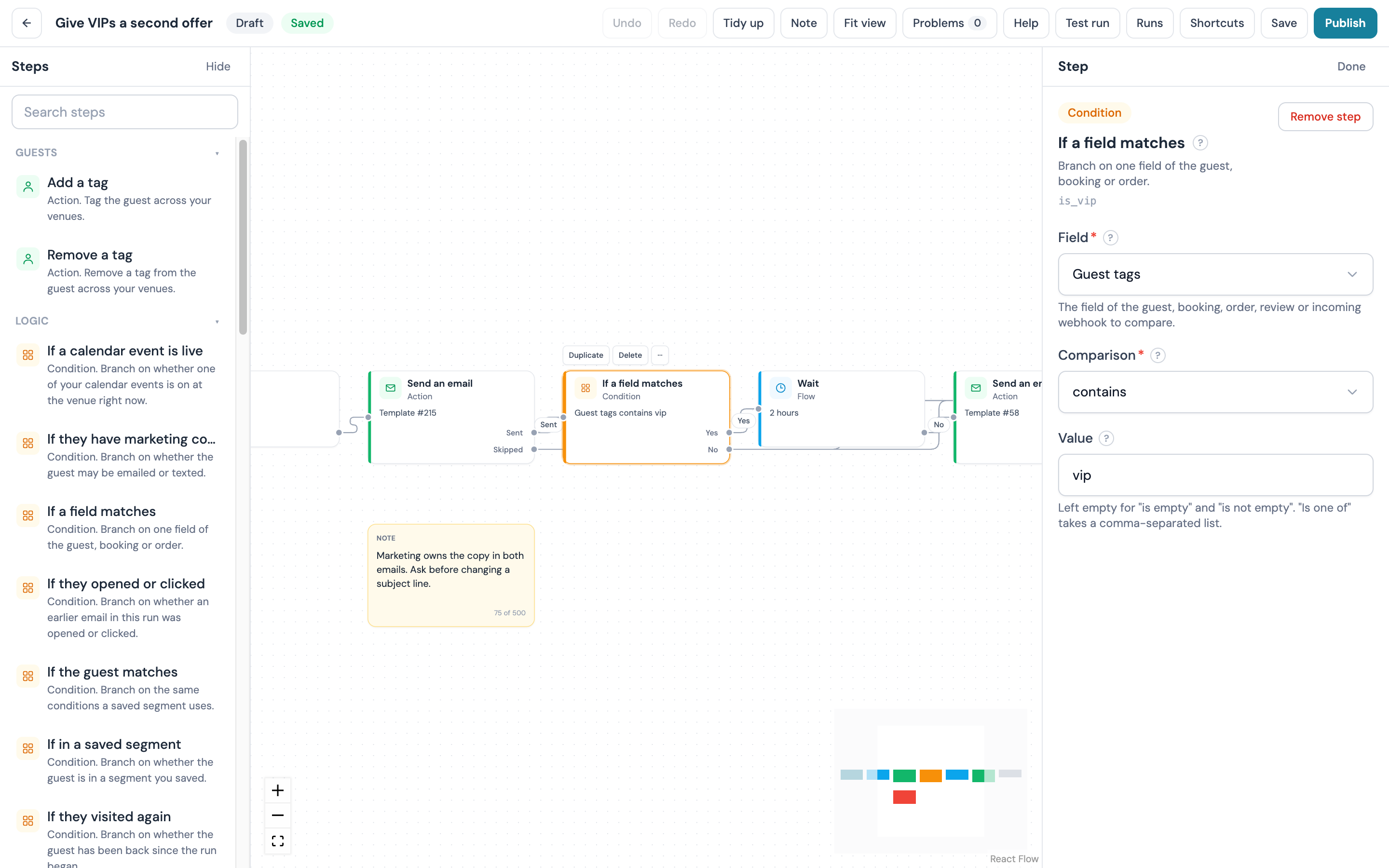
Every guest gets the welcome email an hour after they connect. Guests tagged vip get a second email two hours after that with a table-booking offer; everyone else gets the welcome only.
- Create a workflow named
VIP second offerwith Guest connects and your venue - From the trigger's +, add Wait set to 1 hour
- From Next, add Send an email and choose your welcome template
- From Sent, add If a field matches. Set Field to Guest tags, Comparison to contains and Value to
vip - From Skipped on the welcome email, add End
- From the condition's Yes, add Wait set to 2 hours, then Send an email with your table-booking offer template, then End on both of its outputs
- From the condition's No, add End
- Tidy up, then Publish
VIPs get two emails, everyone else one. Tags are matched exactly, so vip and VIP are different tags. Tags arrive from the Planner, from automations, from Add a tag steps in other workflows and from the guest's profile.
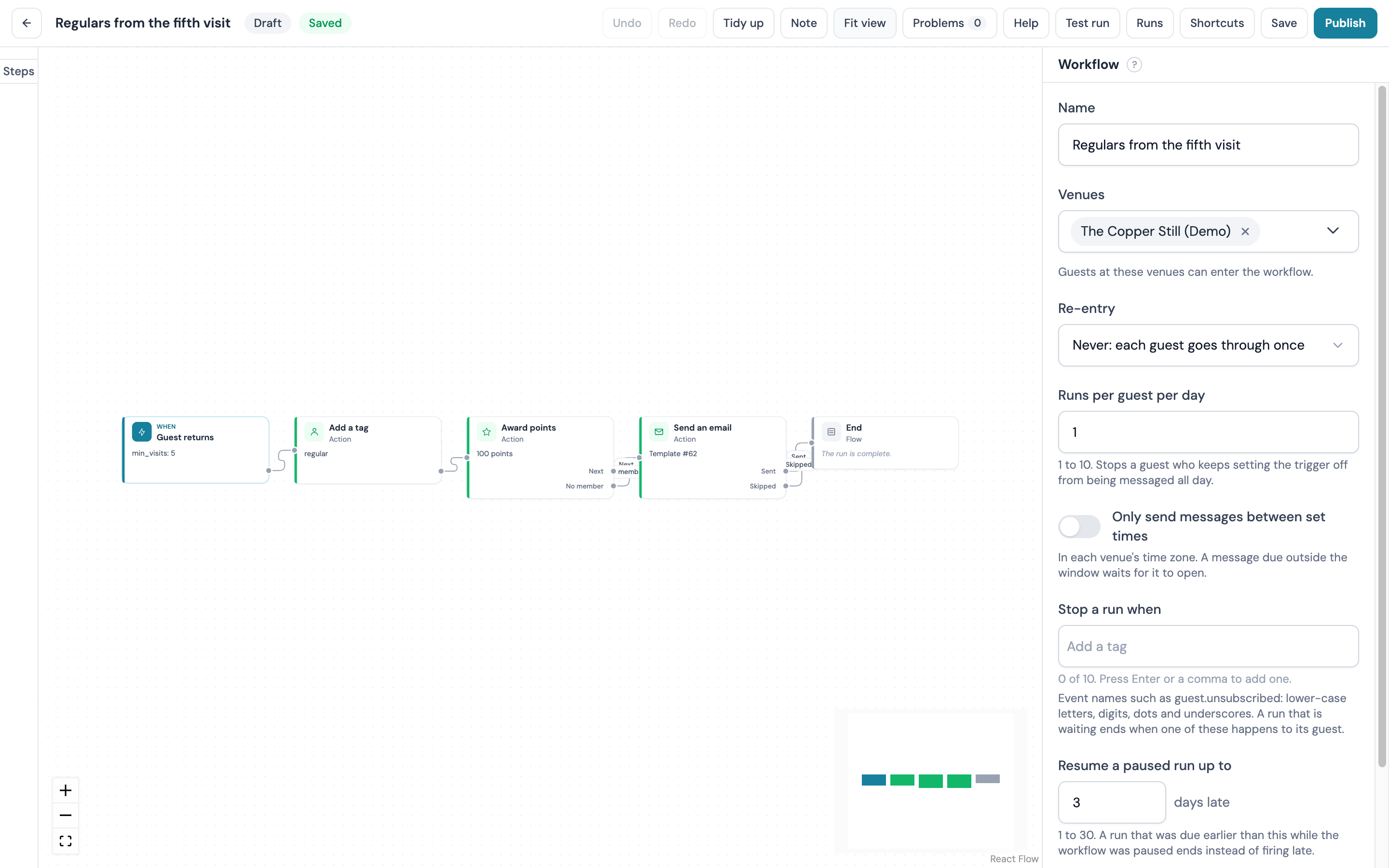
Regulars from the fifth visit: a tag, points and a thank-you
Needs Rewards switched on, and the account owner publishes it because it awards points. On a guest's fifth sign-in they are tagged regular across your venues, credited 100 points, and thanked by email.
- Create a workflow named
Regulars from visit fivewith Guest returns and your venues. Set From visit number to5 - From the trigger's +, add Add a tag with
regularunder Tags to add - From Next, add Award points. Set Points to
100and Reason toFifth visit - From Next, add Send an email with your thank-you template; from No member, add Send an email with the same template, so a guest who has not joined Rewards is still thanked
- Add End on Sent and Skipped of both emails
- Tidy up, then ask the account owner to Publish if you are not the owner
The tag is there whichever of your venues the guest walks into next, and the 100 points show on the member's points history with the reason. Re-entry is never by default, so each guest is made a regular once.
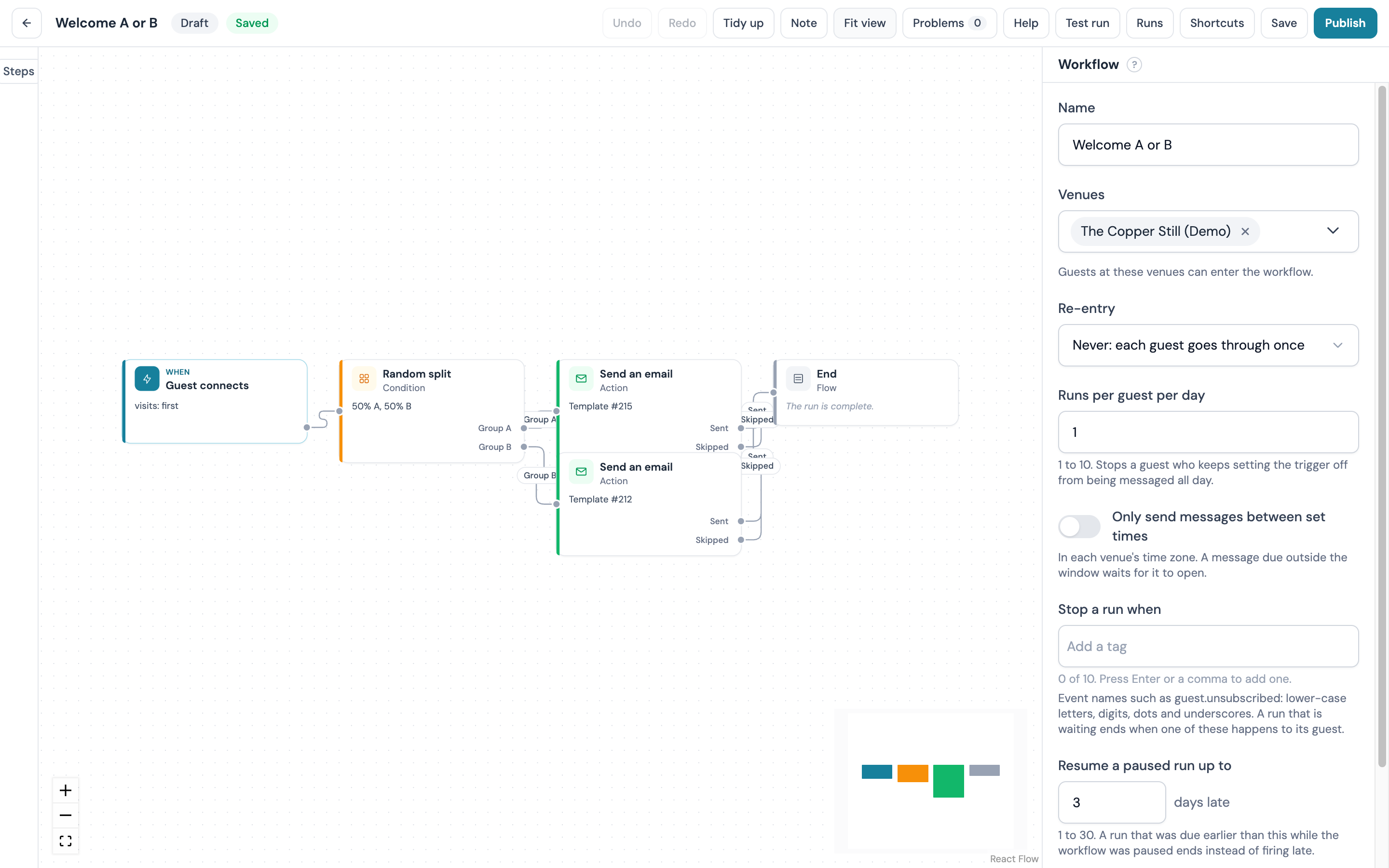
Two welcome emails, split at random
Half of your new guests get one welcome email and half get another. Each run records which side the guest took, so you can compare the two.
- Create a workflow named
Welcome A or Bwith Guest connects and your venue. Set Which visits to the first visit only and turn on Only guests with marketing consent - From the trigger's +, add Random split. Set Share taking path A to
50 - From Group A, add Send an email with the first welcome template, then End on Sent and Skipped
- From Group B, add Send an email with the second welcome template, then End on both outputs
- Tidy up, then Publish
The draw happens once per run, so a guest stays on the same side however many steps follow.
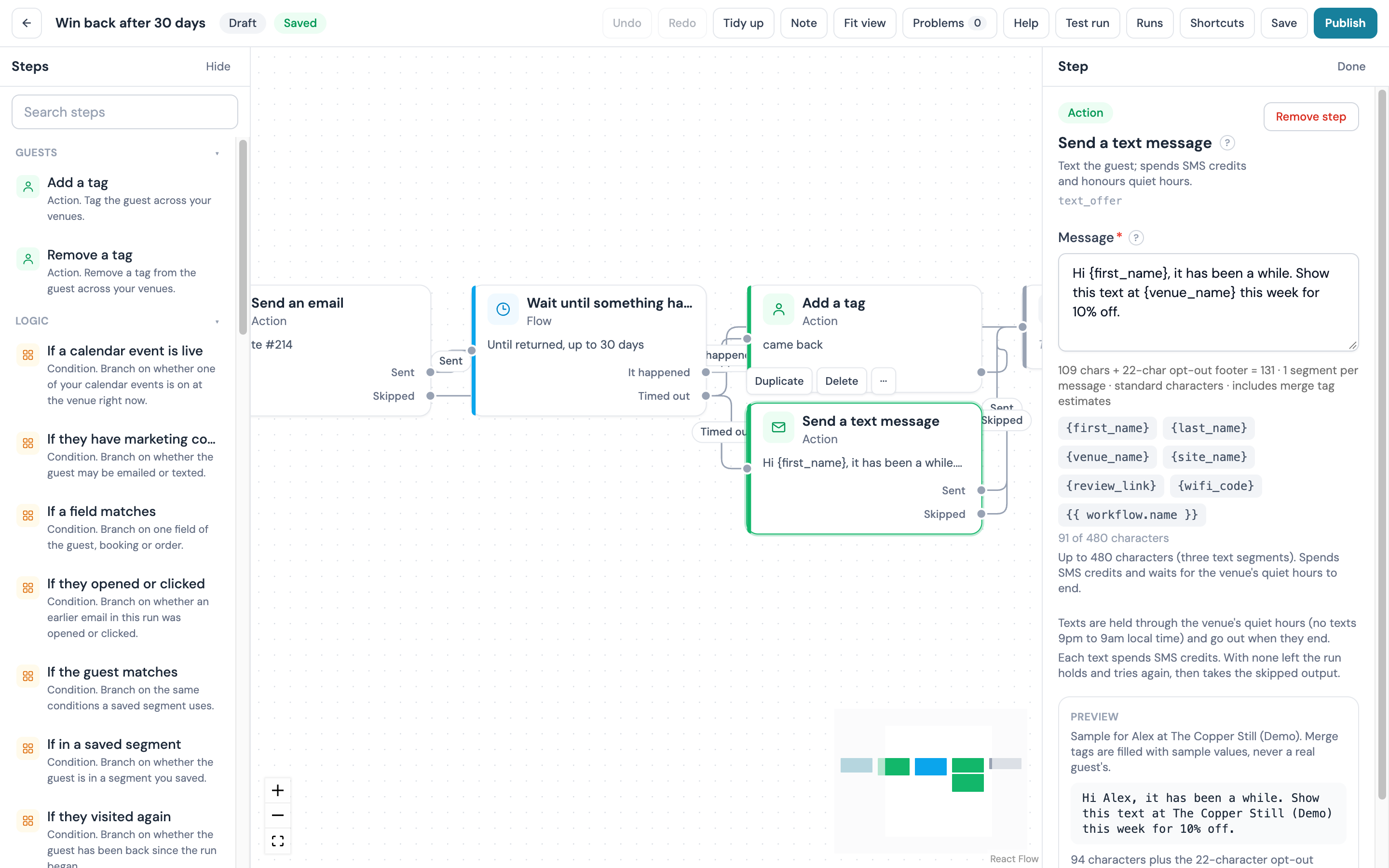
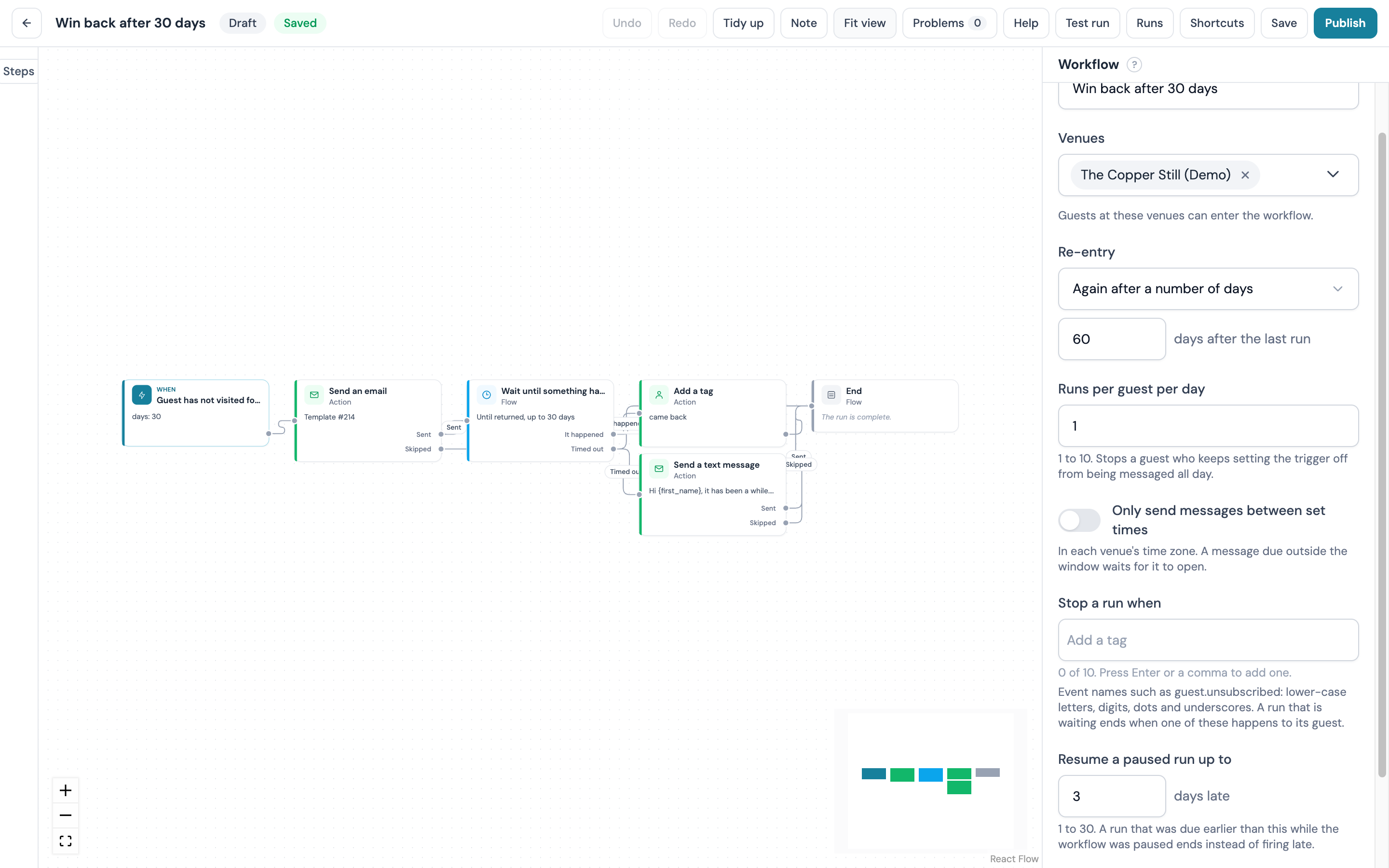
Win back a guest who has been away 30 days
A guest who has not signed in for 30 days gets a "we have missed you" email. If they come back within two weeks the run tags them won-back and ends without another word; if they do not, they get one text with an offer.
- Create a workflow named
Win back after 30 dayswith Guest has not visited for a while and your venue. Set Days since the last visit to30 - From the trigger's +, add Send an email with your win-back template
- From Sent, add Wait until something happens. Set Wait for to returned and Give up after to 14 days
- From Skipped on the email, add End
- From the wait's It happened, add Add a tag with
won-back, then End - From the wait's Timed out, add Send a text message with your offer, then End on Sent and Skipped
- Tidy up, then Publish (a workflow with a text step needs Manage marketing as well)
The text goes only to guests who agreed to texts and waits out the venue's quiet hours if the run reaches it late in the evening. Re-entry on this trigger starts at 30 days, so the same guest is not chased again within a month of the last run finishing.
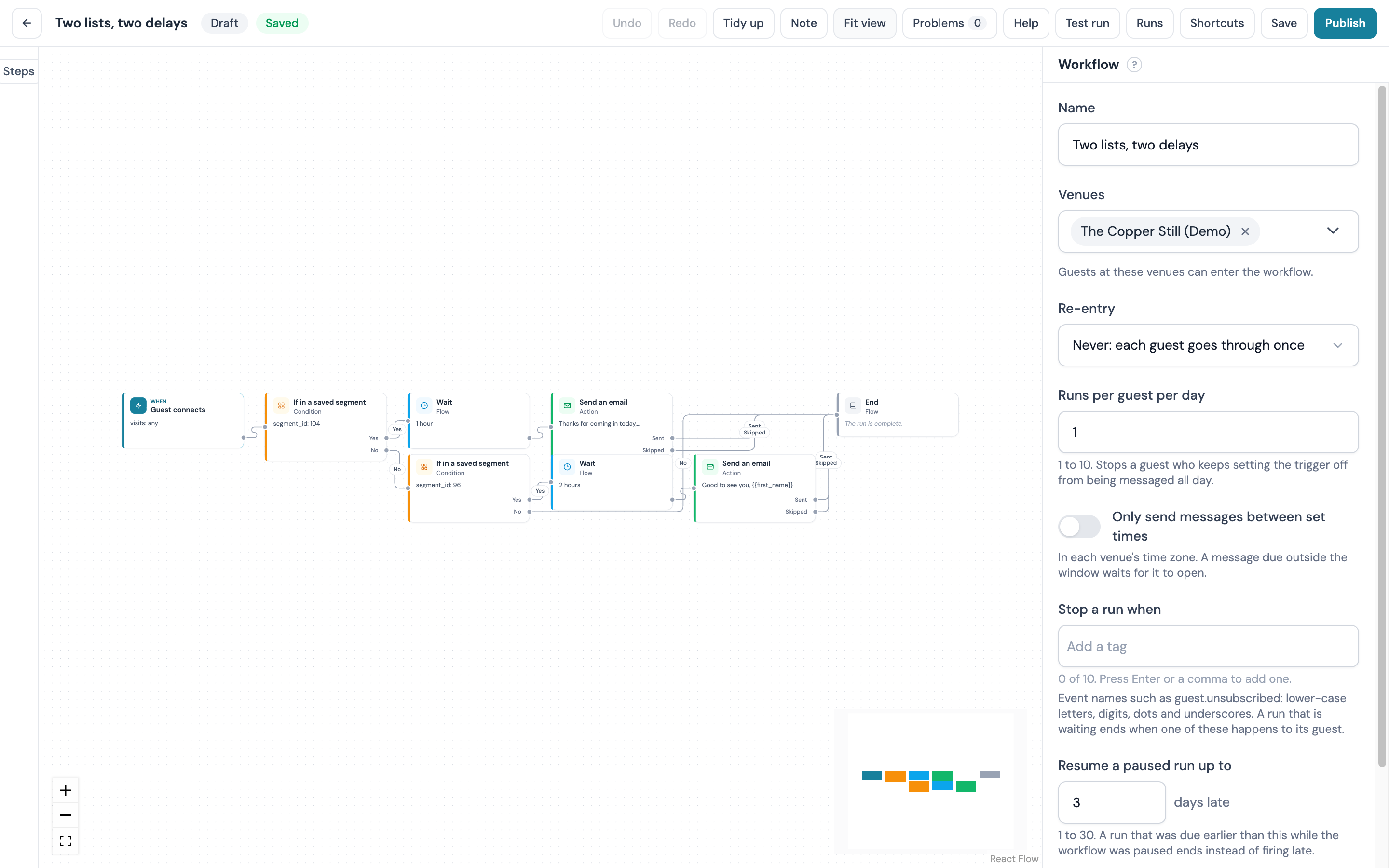
Sunday roast and quiz night: two segments, two delays
Guests in your Sunday roast segment get the roast booking email an hour after they connect; guests in your Quiz night segment get the quiz reminder two hours after. Save both segments under Marketing → Audiences first.
- Create a workflow named
Roast and quizwith Guest connects and your venue. Leave Which visits on every visit if you want regulars too - From the trigger's +, add If in a saved segment and choose the
Sunday roastsegment - On its Yes, add Wait (1 hour), then Send an email with the roast template, then End on Sent and on Skipped
- On its No, add a second If in a saved segment and choose the
Quiz nightsegment - On that Yes, add Wait (2 hours), then Send an email with the quiz template, then End on both outputs
- On that No, add End
- Tidy up, then Publish
A guest in both segments takes the roast path only, because the first condition wins.
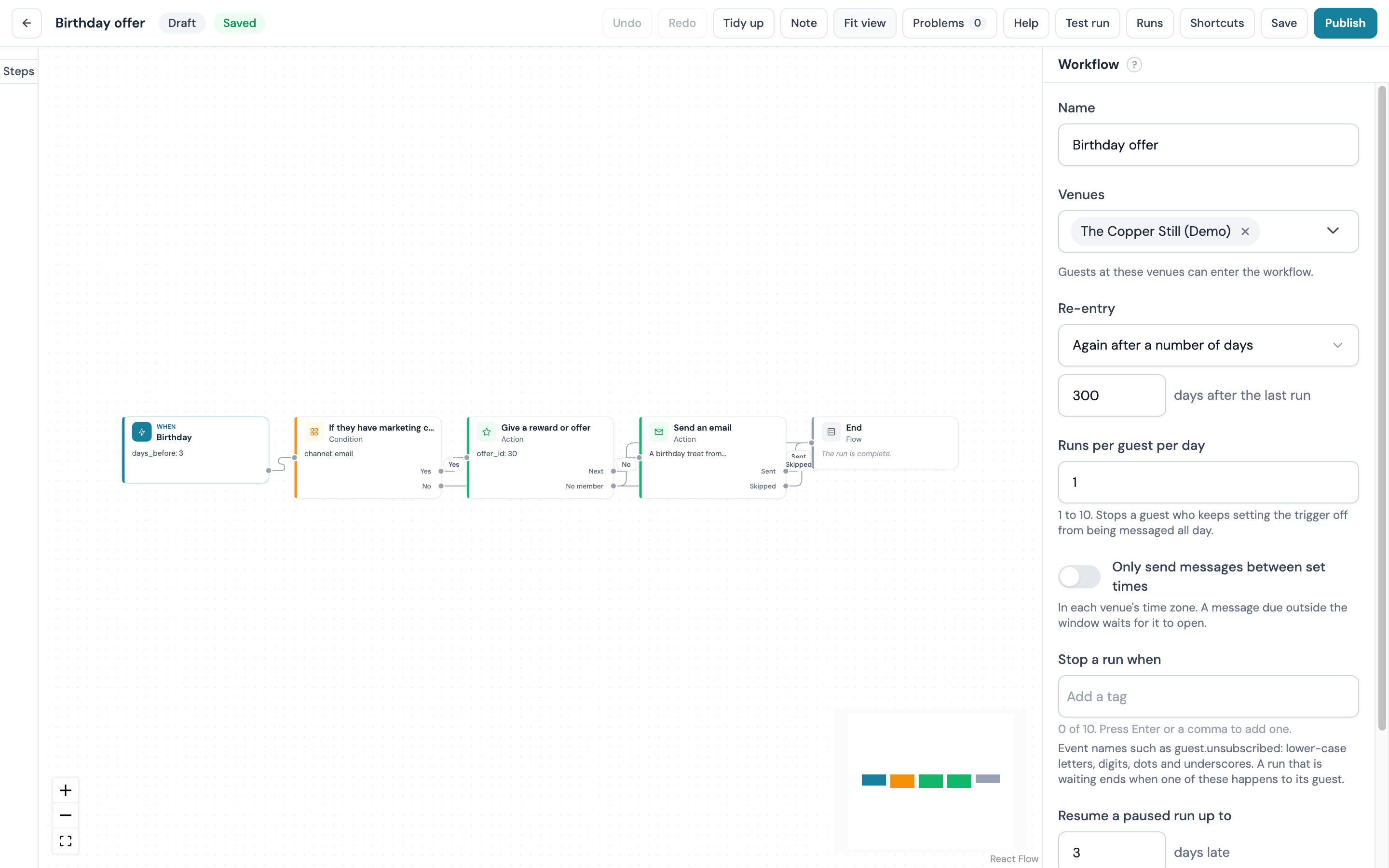
Birthday offer
Needs Rewards switched on and an active offer to give. Three days before the birthday the guest gets an email with a reward code, in time to book the table. The Birthday offer recipe draws this for you; the steps below are the same by hand.
- Create a workflow named
Birthday offerwith Birthday and your venue. Set Days before the birthday to3 - From the trigger's +, add If they have marketing consent and choose email
- From Yes, add Give a reward or offer and choose the offer
- From its first output, add Send an email. Choose a birthday template that shows the reward code with
{{ reward.code }}, or write a subject and body here with the tag in it - From its No member output, add End
- Add End on Sent and on Skipped
- From the condition's No, add End
- Tidy up, then Publish
Re-entry on a Birthday workflow starts at 300 days, so each guest gets the offer once a year. A guest with no date of birth on file never enters; the Date of Birth field on your splash page collects it.
Win-back after a booking is cancelled
Needs table bookings on the account. Two days after a guest cancels a booking they get an email with a 24-hour WiFi voucher and an invitation to rebook; if they rebook before then, the run ends and nobody who has already rebooked is chased. The Win back a cancelled booking recipe draws this; by hand:
- Create a workflow named
Booking win-backwith Booking cancelled and your venue - From the trigger's +, add Wait set to 2 days
- From Next, add Attach a WiFi voucher code valid for 24 hours
- From its first output, add Send an email whose body invites them back and shows the code with
{{ voucher.code }} - From its Skipped output, add End
- Add End on Sent and on Skipped
- Tidy up, then Publish
The recipe also ends the run if the guest books again before the two days are up. In the runs list such a run shows as stopped.
Troubleshooting
The problems panel names most of these; the rest show on the list or in the runs. Where a message begins with a step's name in quotes, the name is left out below.
| Issue | Possible cause | Solution |
|---|---|---|
| A workflow needs one trigger. | The trigger was lost from the draft, which can happen after Overwrite with mine on a stale draft | Reload the canvas; if the trigger is still missing, duplicate the workflow from the list |
| A workflow has one trigger; remove the extra one. | Two triggers on the canvas | Remove one |
| Nothing can lead back into the trigger. | An arrow points at the trigger | Remove that connection |
| is not connected to the trigger and will never run. | No path leads from the trigger to that step | Connect it or remove it. This is a warning; publishing still works |
| The graph loops back on itself | An arrow leads to an earlier step | Remove the loop. To repeat a workflow for the same guest, use the re-entry setting |
| A workflow can have at most 40 nodes or The longest path through the workflow is … nodes; the limit is 60. | Over 40 steps, or a path of more than 60 | Split the journey into two workflows, the second started by a tag the first adds |
| has nothing on its … output; a run taking it ends there. | A step with several outputs has one with nothing connected | Leave it if a run taking that output should end; otherwise click its + and add a step. This is a warning; publishing still works |
| This field is required. or This value is not valid. | A step's setting is empty or out of range | Select the step; the field is marked in the inspector |
| A step is greyed out in the palette, or is not available on this account | The product it belongs to is not switched on or not on your plan, or the trigger does not provide what the step needs | Switch the product on under Integrations, check Plans & Pricing, or start from a trigger that provides it |
| Only a member of this account can publish it., Publishing … needs the … permission. or Only the account holder can publish … | The step needs a permission you do not hold, or is owner-only | Ask a member with that permission, or the owner, to publish |
| Choose at least one venue the workflow runs at. | The venues list is empty | Add a venue in the inspector with nothing selected |
| has no time zone set, so venue-time steps will use … | That venue is on the default time zone and the workflow waits on a clock, or sends texts | Set the venue's time zone under My Locations. This is a warning; publishing still works |
| The email step says the template is missing | The template was deleted or is not visible to you | Pick another, or write the subject and body in the step |
| The canvas is read only, with a banner across the top | The banner says why: your role lacks Manage workflows, the window is narrower than 1024 px, or the workflow is archived | Ask the account owner for the permission, open the canvas on a wider screen, or duplicate the archived workflow |
| Publish is greyed out with no problems showing | Your role cannot publish workflows (hover the button and it says so) | Ask a member with Manage workflows to publish |
| The save chip reads Stale | The draft was saved in another tab or by a colleague | Reload their version to take the newer one, or Overwrite with mine to keep yours |
| The save chip reads Session expired | You were signed out | Sign in again from another tab, then press Cmd/Ctrl+S |
| No runs appear after publishing | The trigger has not fired yet, every guest was turned away (re-entry, daily cap, active run), or the trigger's consent toggle is on and the guests had not consented | Read the turned-away counters on the overview; see Why was a guest not enrolled? |
| Runs reach the email step and take Skipped | No address, no consent, a suppressed address, or the allowance is spent | Read the skip reason on the run's timeline; see Consent, allowance, credits and quiet hours |
| Runs sit waiting longer than the wait says | A send window or quiet hours are holding the message, or the allowance or credits ran out | The run's timeline shows the hold and its reason |
A run ended stopped with paused_expired | The workflow was resumed after its runs had been overdue for longer than its Resume a paused run up to setting | Nothing to fix; raise the setting before the next pause if late sends are acceptable to you |
| A run failed | A step failed three retries. The owner receives one email a day per workflow about it | Open the run; the timeline shows the error code on the step |
| The Workflows entry is missing from the sidebar | Plan below Pro, or Workflows is not switched on for the account | See Who can use Workflows?. If your plan qualifies and the entry is still missing, contact support |
FAQ
What is a WiFi marketing workflow?
A WiFi marketing workflow is a set of steps CaptiFi runs for one guest at a time, started by something that happens on your venue WiFi: a first sign-in, a return visit, a quiet spell, a birthday, a tag or a saved segment. You draw the steps on a canvas: waits, conditions, emails, texts, tags and points. Each guest who qualifies gets a run of their own.
How is a workflow different from an email automation?
An automation is one trigger, one template and up to five follow-ups in a straight line. A workflow can branch, wait for the guest to do something, split guests at random, and mix emails and texts with tags and points, and you can read each guest's path step by step. Both count against the same monthly email allowance.
Which plan includes Workflows?
Pro and Enterprise. On Essentials and Growth the page shows a card with a View plans link.
Do workflows use the same email allowance as campaigns?
Yes. Every workflow email reserves one unit of the monthly allowance, alongside campaigns and automations. See Email allowances.
What does a workflow with texts cost?
Emails count against your plan's monthly allowance. Texts spend SMS credits, one per segment, and a message of up to 480 characters is at most three segments. The credit price per currency is on the SMS Notifications page.
Can a guest be in two workflows at once?
Yes. The active-run rule is per workflow: a guest can have one run in progress in each.
Can a workflow run for imported contacts?
Guest connects, Guest returns and Guest has not visited for a while start from WiFi visits, so an imported contact enters those only after they connect at one of the workflow's venues. Started by staff can start a run for a guest who has signed in at one of the workflow's venues you can see.
What happens to runs when I publish a change?
They finish on the version they started on. New runs use the new version.
Can I test a workflow before publishing?
Test run in the top bar previews the steps for one guest without sending anything, and leaves a chip under each step it walked; see Test run results on the canvas. Nothing is sent until the workflow is published. To check the real sends safely, publish it with a single venue you control ticked and sign in to the WiFi there yourself, then add the other venues. You can also build it on the Started by staff trigger and start it for one guest. Either way, read that run step by step to check each step took the output you expected before adding the other venues.
Does pausing lose runs?
No. Runs wait where they are. On resume, only runs overdue by more than the workflow's Resume a paused run up to setting (3 days by default) are stopped instead of continuing.
Does deleting a guest remove their runs?
Yes. Erasing a guest under Guest Visits removes their workflow runs and their segment memberships along with the rest of their record. See GDPR & Compliance FAQ.
Where did my Email Automations go?
They are still under Marketing → Audiences, on the Automations tab, and keep running. Workflows is a second tool beside them.
Related features
- Email Automations covers a single trigger, a template and up to five follow-ups, for the journeys that do not branch
- Email Campaigns holds one-off and repeating sends, the template library and the segment builder whose segments Guest enters a segment uses
- Email Template Builder makes the emails a Send an email step picks from, and lists the merge tags under Personalise
- Rewards in your messaging explains points, offers and the reward merge tags
- SMS Notifications covers credits, quiet hours and consent for Send a text message
- Webhooks covers the endpoints your account sends events to
- Team Members lists the permissions used above
- GDPR & Compliance FAQ answers consent and erasure questions