

Appearance
How to set up the Toast POS integration with CaptiFi
Follow every step below and your Toast orders will be matched back to the guests who signed in to your WiFi, so you can see who actually spends money at your venue and market to them accordingly.
Time needed: a few minutes in Toast Web to create your API credentials, then about 10 minutes in CaptiFi.
What this integration does
- Your Toast orders are matched to your WiFi guests. CaptiFi reads your Toast orders every 15 minutes and links each one to a guest by email address. Toast includes the guest's email on online, pickup and delivery orders and on orders that come through Toast Tables, and orders rung up at the till normally carry none, so those are the orders that can match. There is no phone number fallback. Guests who never signed in to your WiFi stay unmatched, and their revenue shows separately as anonymous.
- You get a Toast Spend dashboard. Matched spend, match rate, average spend per guest, order count, your top spender and a 12-week trend, all filtered to the window you choose.
- Guests are ranked and tiered by spend. Every matched guest gets a tier: VIP, Regular or Casual, based on their total spend with you.
- Spend appears on the guest profile. Open any guest and you see what they have spent alongside their visit history.
- You can email your lapsed high spenders. Filter to guests above a minimum spend who have not visited recently, then send that exact group a campaign.
- You can export the data. Download a CSV of matched guests and spend for the selected window.
- Matched orders earn Rewards points. At a venue in a live Rewards programme, each closed order matched to a member earns points at your programme's rate, once per order, in the venue's programme currency. See Points from Toast and Square orders.
- Redemptions can be matched to Toast checks. Staff redeem CaptiFi rewards on the CaptiFi Redeem screen and type the Toast check number with each one. See Redeem CaptiFi rewards for a Toast check.
The order sync reads orders and never writes to Toast. CaptiFi never changes prices, takes payments or edits orders.
Before you start
- A Toast account with at least one restaurant location
- Standard API access credentials for that restaurant, created in Toast Web: a Client ID, a Client Secret and the Restaurant GUID (see Part 1)
- Standard API access on your Toast account. In the US it comes with Toast's Restaurant Management Suite Essentials or higher; international and MSA customers pay for it as a separate subscription
- A CaptiFi plan that includes integrations (Growth or above)
- Guests signing in to your WiFi with an email address, since email is the only match key
Online, pickup, delivery and Toast Tables orders are the ones that match
A Toast order can only be linked to a guest when it carries an email address that matches a WiFi sign-in. Toast normally passes no guest details on orders rung up at the till, so most dine-in tabs show up as anonymous revenue. That is normal, and it is not an error.
Part 1: Create your Toast API credentials
Toast calls these Standard API access credentials. You create them yourself in Toast Web, and they give read-only access to the data the scopes you tick allow.
Step 1: Create Standard API credentials in Toast Web
- Sign in to Toast Web and go to Integrations → Toast API access → Manage credentials
- Open the Create new credentials menu with its down arrow and choose Standard API
- Give the credentials a name you will recognise, for example CaptiFi
- Tick three scopes: orders:read, guest.pi:read and restaurants:read
- Select your restaurant locations, then click Confirm. One set of credentials can cover several locations
Tick guest.pi:read
Without the guest.pi:read scope, Toast leaves the customer details off every order, so no order can be matched to a WiFi guest. orders:read lets CaptiFi read the orders, and restaurants:read lets Test connection confirm the restaurant.
Step 2: Collect the three values CaptiFi needs
| Value | What it looks like | Where it comes from |
|---|---|---|
| Client ID | A long identifier string | The Credentials table on the Manage credentials page in Toast Web |
| Client Secret | A long secret string | The same credentials in Toast Web |
| Restaurant GUID | A UUID such as 1a2b3c4d-... | The email Toast sends when Standard API access is switched on, which lists the name and GUID of each location you selected |
If you cannot find that email, Toast's support chat assistant gives you the GUID when you ask for it. Start a chat in Toast Web, the Toast Now app or on the web; you can ask for several locations in one chat.
Keep the Client Secret safe
Treat the Client Secret like a password and store it somewhere safe. If it is lost or exposed, rotate it from Manage credentials in Toast Web and enter the new one in CaptiFi.
Step 3: Leave the environment on production
Credentials you create in Toast Web read your live restaurant, so the environment stays on production. Only choose sandbox if you were given sandbox credentials to test with: they read fake data and never show real guests or spend.
Part 2: Connect Toast in CaptiFi
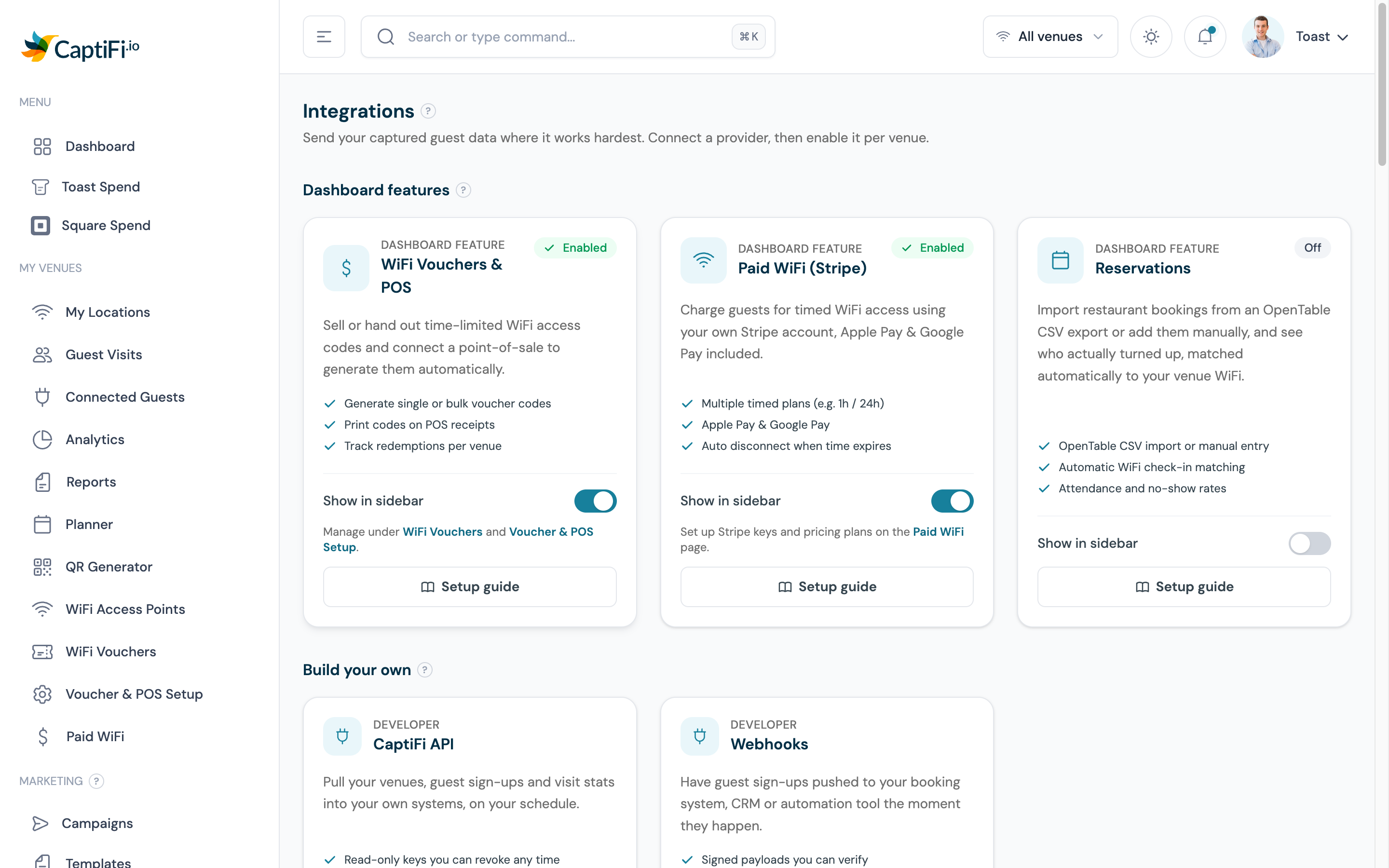
Step 4: Open the Integrations page
Log in to my.captifi.io and click Integrations at the bottom of the left sidebar.
Step 5: Find the Toast POS card and click Configure
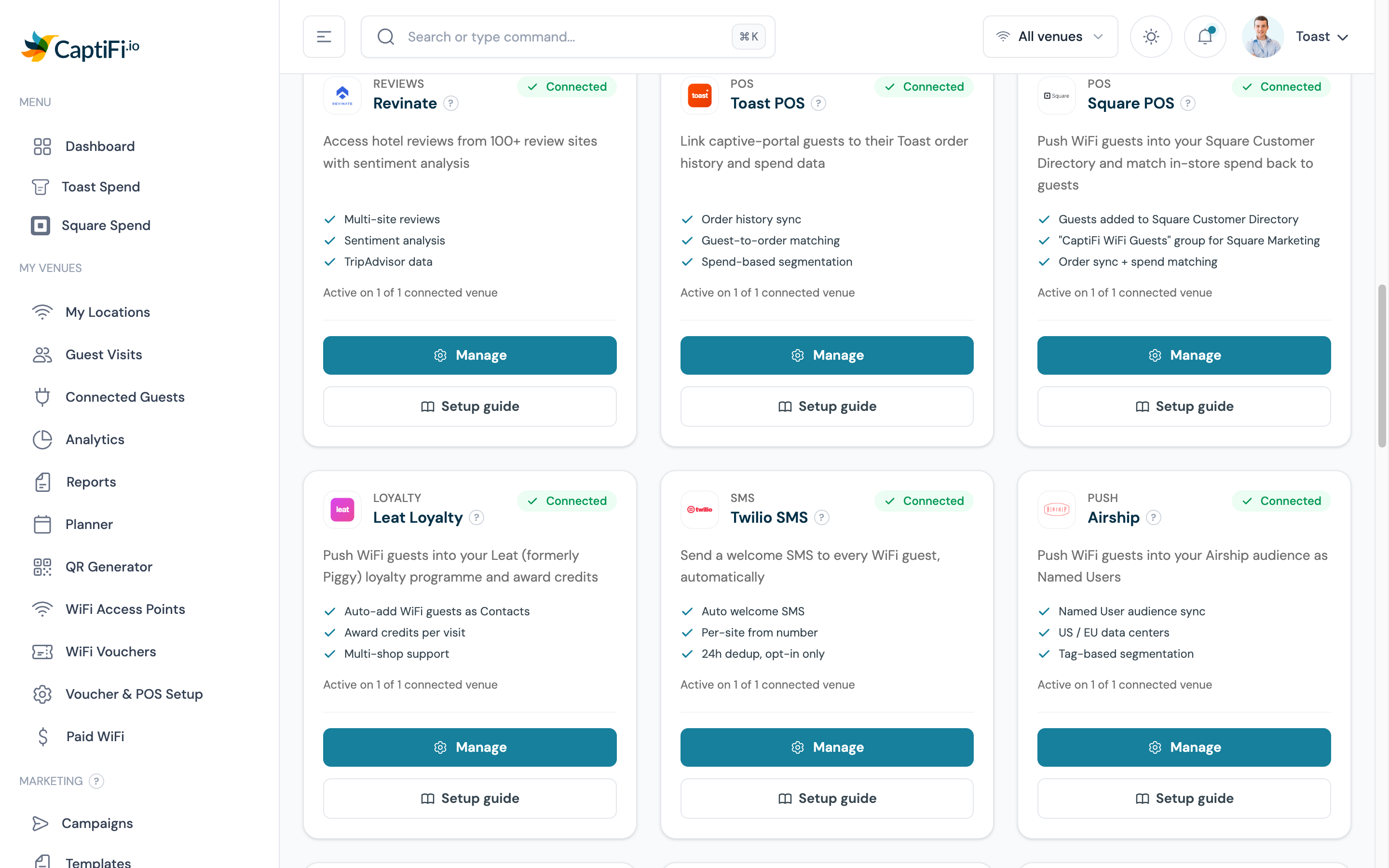
Scroll down to the provider cards. The Toast POS card is labelled POS and lists what the integration does. Click Configure (it reads Manage once Toast is connected).
Step 6: Enter your credentials for the venue
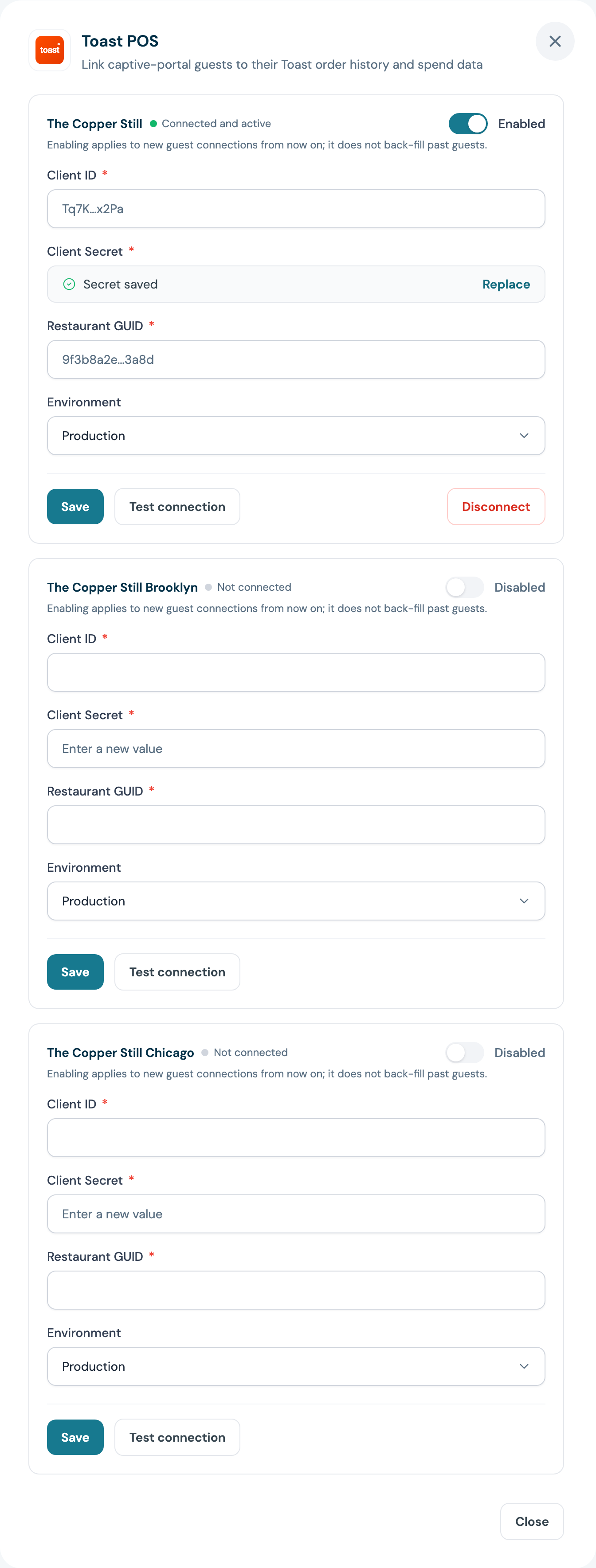
The panel shows one section per venue you manage, so a multi-site group connects each restaurant separately with its own Restaurant GUID. For the venue you are connecting, fill in:
- Client ID from Step 2
- Client Secret from Step 2
- Restaurant GUID from Step 2
- Environment, left on production unless Toast told you otherwise
The Client Secret is write-only: once saved, CaptiFi only shows Secret saved with a Replace link, never the value back.
Step 7: Save and enable the venue
Click Save, then flip the venue's toggle to Enabled. The card then shows Connected and how many of your venues it is active on.
Step 8: Wait for the first sync
CaptiFi checks for new and updated Toast orders every 15 minutes, and each check looks at the last 60 minutes of orders (a deliberate overlap so nothing is missed if a sync is delayed). The first sync runs at the next quarter hour and reads the hour before it, and Toast Spend appears in the sidebar, under Insights, once it succeeds. Earlier orders are not imported automatically. If you want earlier days on the dashboard, contact CaptiFi support, who can load past Toast orders for a range of dates.
Part 3: Use the spend data
Step 9: Open the Toast Spend dashboard
Toast Spend appears in the left sidebar, under Insights, once the integration is connected. Pick a window at the top right (the default is the last 90 days).
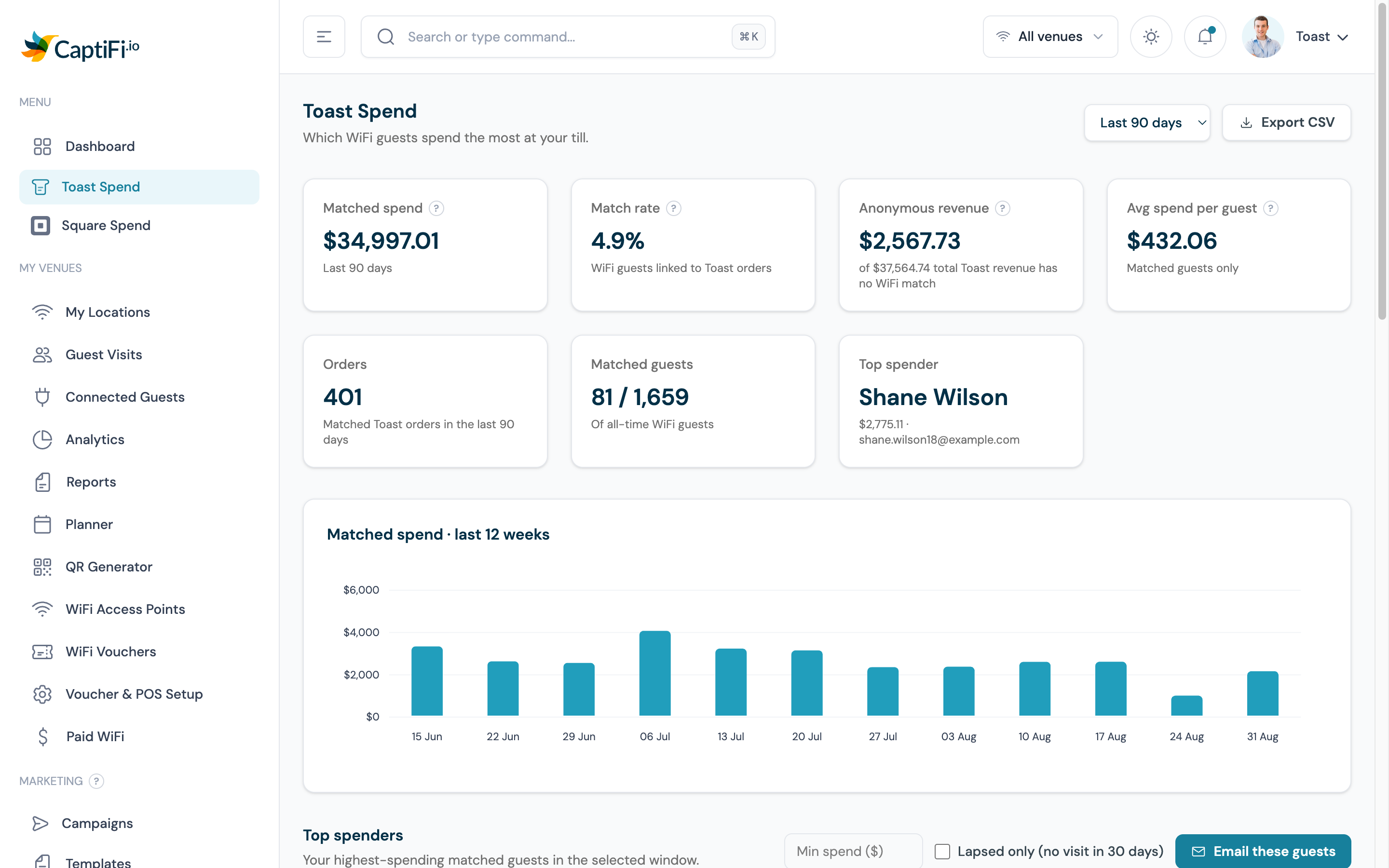
What each figure means:
| Figure | What it tells you |
|---|---|
| Matched spend | Total value of orders CaptiFi could link to a WiFi guest, in the selected window |
| Match rate | The share of your WiFi guests who have a linked Toast order |
| Anonymous revenue | Toast revenue with no WiFi match, shown against total revenue so you can see the gap |
| Avg spend per guest | Matched spend divided by matched guests, so it describes identified guests only |
| Orders | Matched Toast orders in the window |
| Matched guests | Matched guests against all-time WiFi guests |
| Top spender | Your single highest-spending matched guest, with their total |
A low match rate is normal
Match rate only counts guests who signed in to your WiFi and also placed an online, pickup, delivery or Toast Tables order with the same email. Orders rung up at the till normally carry no guest details, so a venue that sells mostly at the table sees a rate in the single digits. It grows as more regulars sign in and order ahead or book through Toast Tables.
Step 10: Read the top spenders table and the tiers
Below the chart, Top spenders ranks your matched guests by total spend, with their order count, last order and venue. Each guest carries a spend tier:
| Tier | Total spend with you |
|---|---|
| VIP | 200 or more |
| Regular | 50 up to 200 |
| Casual | Under 50 |
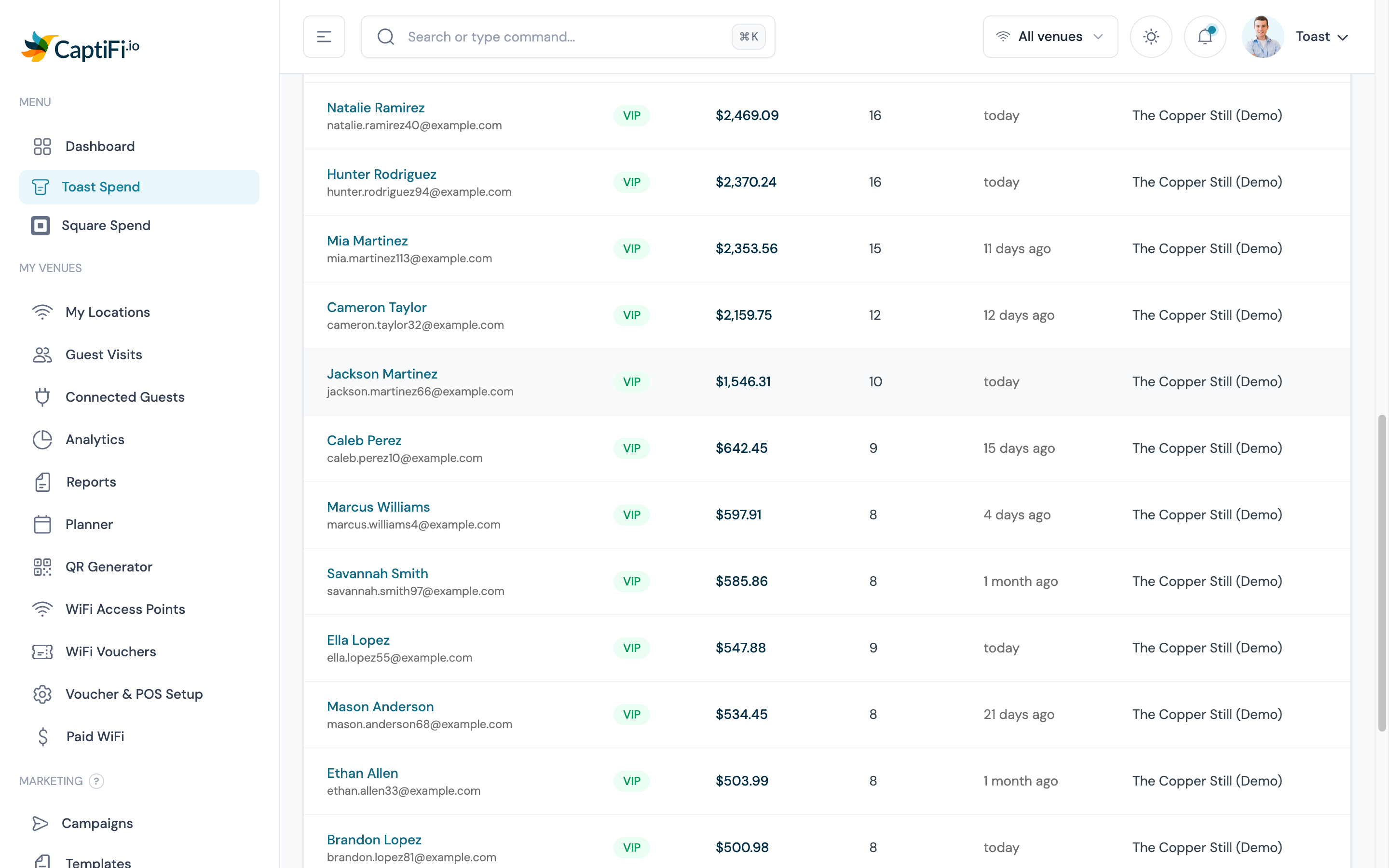
The table and the top spender card name each guest, so a team member needs View guest data to see them, and Export data as well to download the CSV.
Step 11: Email your lapsed high spenders
This is the payoff. Above the table:
- Set Min spend to the threshold you care about, for example 100
- Tick Lapsed only (no visit in 30 days)
- Click Email these guests
CaptiFi turns that filtered list into a saved audience and takes you into the campaign flow, so you are emailing exactly the people who used to spend well and have stopped coming. The audience is a snapshot of the guests you filtered, so it stays stable while you write the campaign.
Step 12: Export the data if you want it elsewhere
Export CSV at the top right downloads the matched guests and spend for the selected window, for your own reporting or accountant.
Step 13: Check spend on an individual guest
Open Guest Visits and click any guest. Their Toast spend appears on the profile next to their visit history, so a staff member looking someone up sees both how often they come and what they are worth: total spent, average order, the last order, the items they order most, and each recent order. See The Guest Profile.
Multi-venue notes
- Each venue takes its own Restaurant GUID, because a GUID identifies one Toast location. One set of Toast credentials can cover several locations if you selected them all in Toast Web.
- The Toast Spend dashboard respects the venue selector at the top of the dashboard, so you can look at one restaurant, or all of them at once on Pro and above.
- Switching the integration off for one venue leaves the others running.
Redeem CaptiFi rewards for a Toast check
Staff redeem a guest's CaptiFi Rewards on the CaptiFi Redeem screen. Before tapping Redeem, they type the Toast check number in Till check number (optional). CaptiFi keeps it with the redemption, so each redemption can be matched to its check on the redemptions CSV.
Matched Toast orders earn Rewards points through the order sync; see Points from Toast and Square orders.
If Toast rejects your sign-in details
Toast can revoke or rotate the credentials it issued you. When Toast rejects the saved Client ID, Client Secret or Restaurant GUID, CaptiFi pauses syncing for that venue until you re-enter them, and tells you in three places:
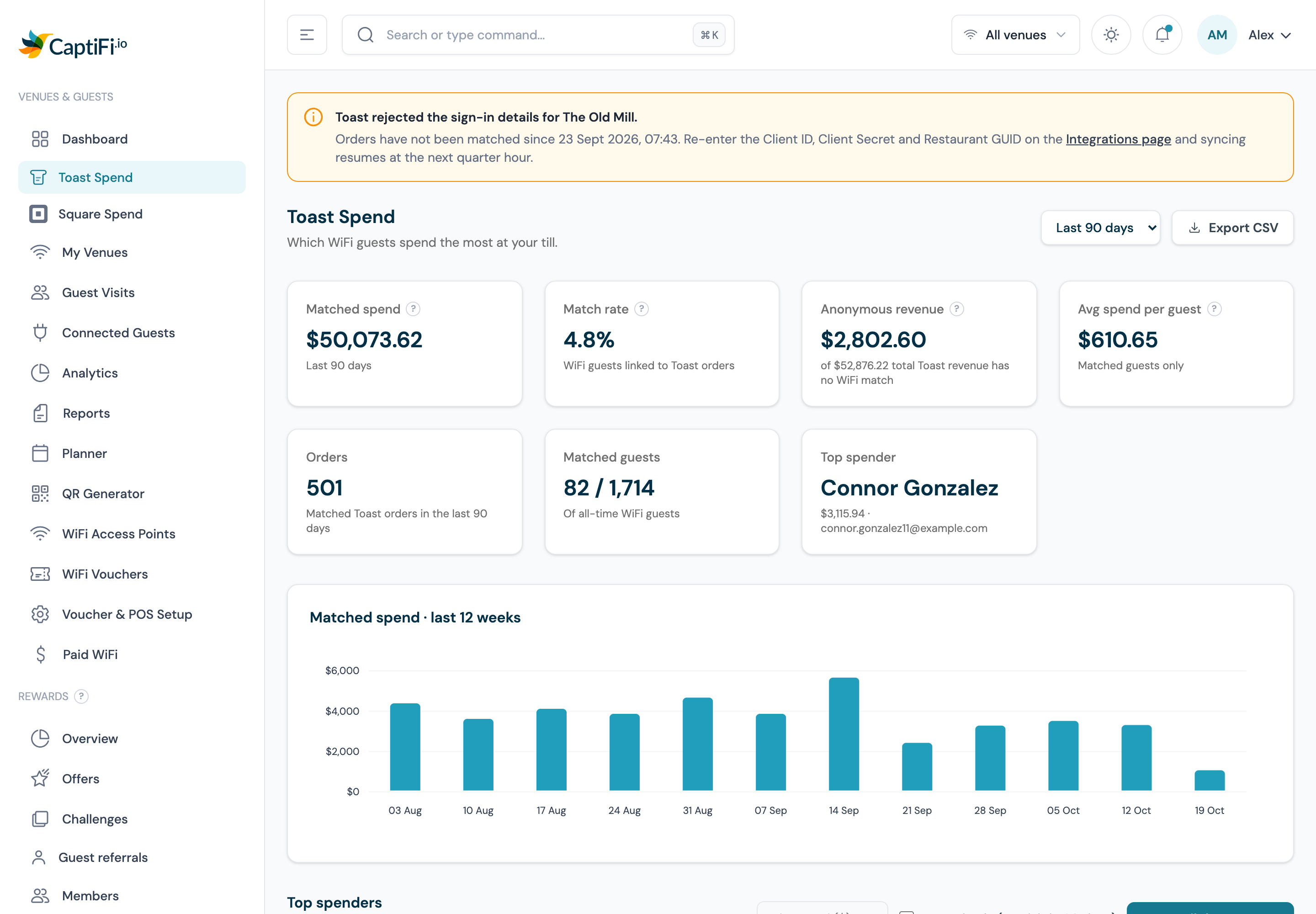
- The Toast Spend page shows a warning at the top naming the venue and the time orders stopped being matched, with a link to the Integrations page.
- The Toast POS card on the Integrations page, and the top of its Manage panel, carry the same warning.
- The venue's account owner receives one email, with the subject "Toast has stopped syncing for" followed by the venue's name, at most once a week.
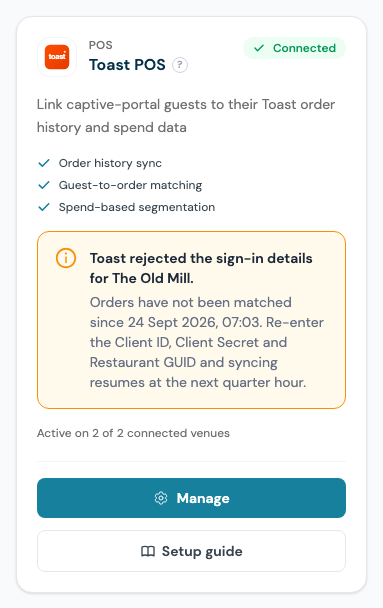
Your other venues keep syncing. To restart the paused one:
- If the client secret was rotated, copy the current credentials from Manage credentials in Toast Web.
- Open Integrations, click Manage on the Toast POS card and find the venue named in the warning.
- Re-enter the Client ID, Client Secret and Restaurant GUID, then save.
The warning clears once the details are saved, and syncing resumes at the next quarter hour. Each sync still reads only the last 60 minutes of orders, so orders placed while syncing was paused are not picked up automatically. Contact CaptiFi support if you want them loaded for those dates.
Troubleshooting
| Issue | Solution |
|---|---|
| The card still says Not connected | The credentials saved but the venue toggle is still off. Open Manage and switch the venue on |
| No orders after 30 minutes | Check the Restaurant GUID belongs to the venue you connected, and that you were issued production credentials rather than sandbox |
| Sync worked, then stopped | Toast credentials can be revoked or rotated by Toast. When Toast has rejected them, the Toast Spend page and the Toast card say so: see If Toast rejects your sign-in details. Otherwise ask Toast to confirm the credentials are still active, then re-enter them under Manage |
| Match rate is 0% | Check that your Toast credentials include the guest.pi:read scope: without it Toast leaves the customer off every order. If they do, the orders so far were rung up at the till, which normally carry no guest details. Matches come from online, pickup, delivery and Toast Tables orders placed with the email a guest used on your WiFi, so also check your splash page asks for an email address |
| Test connection fails | Check the credentials include the restaurants:read scope and cover the location whose Restaurant GUID you entered |
| Spend looks lower than my Toast reports | The dashboard shows matched spend only. Compare against the anonymous revenue figure to see the unmatched remainder |
| A guest's spend looks wrong | CaptiFi matches on email only. A guest who orders under a different email, or gives a phone number and no email, is counted as a separate, anonymous customer |
| The Toast Spend menu item is missing | It appears once at least one venue has Toast connected and enabled and has synced in the last 30 minutes |
Related pages
- Integration Hub: every integration and how the cards work
- Square POS: the same spend matching for Square, if you run both
- Email & SMS Campaigns: sending to the audiences this integration creates
- Guest Analytics: guest profiles, where spend appears per guest