

Appearance
Embed your events on your website
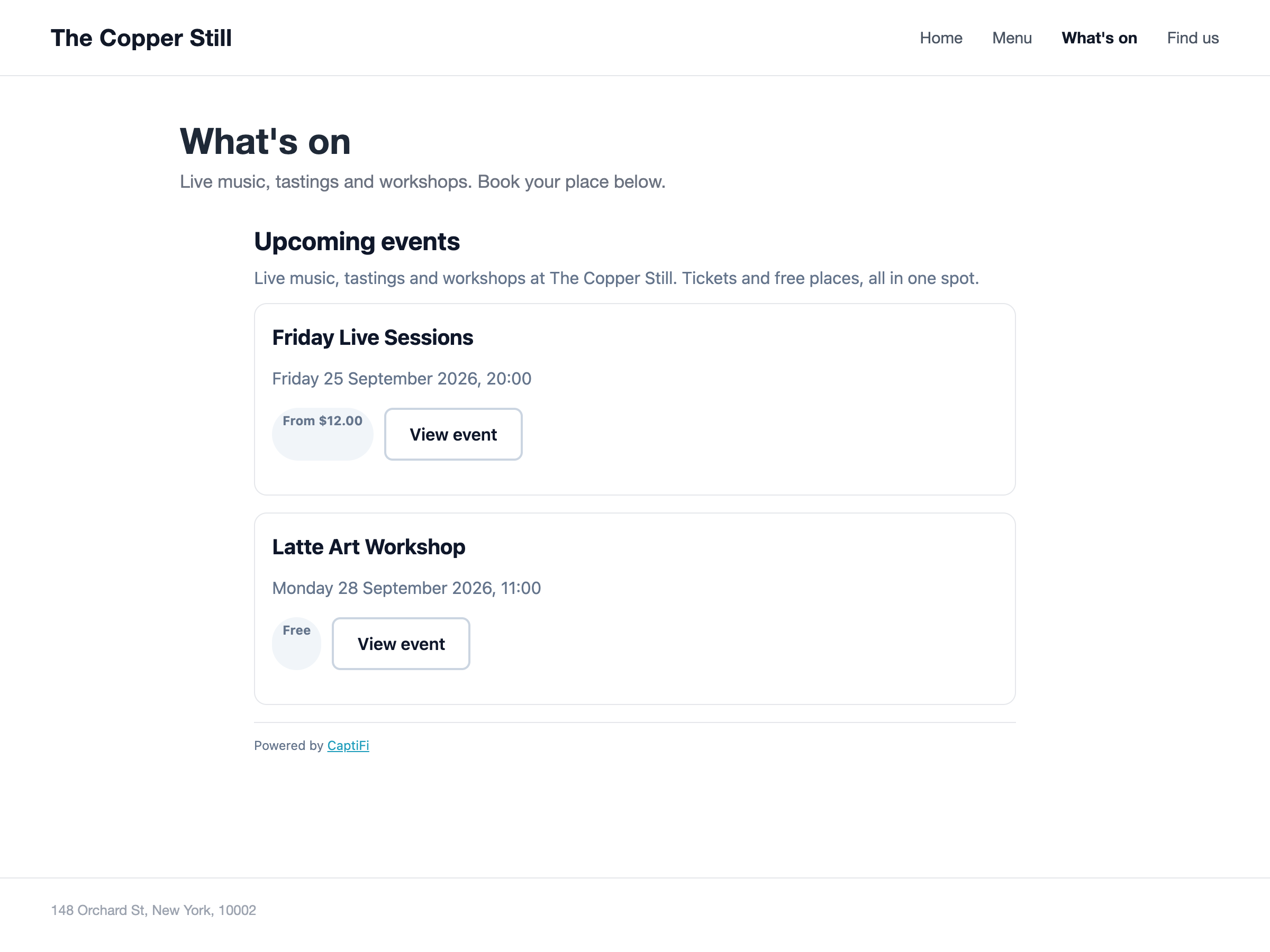
The events widget puts your venue's upcoming events on your own website. You paste one snippet where the events should appear, and visitors see the same list your events page at app.captifi.io/events/your-venue shows, with each event's tickets. Get tickets opens the event on app.captifi.io in a new tab, where the buyer pays as usual. Tickets, orders and the door work exactly as they do for a sale from your events page; the widget is one more way onto it.
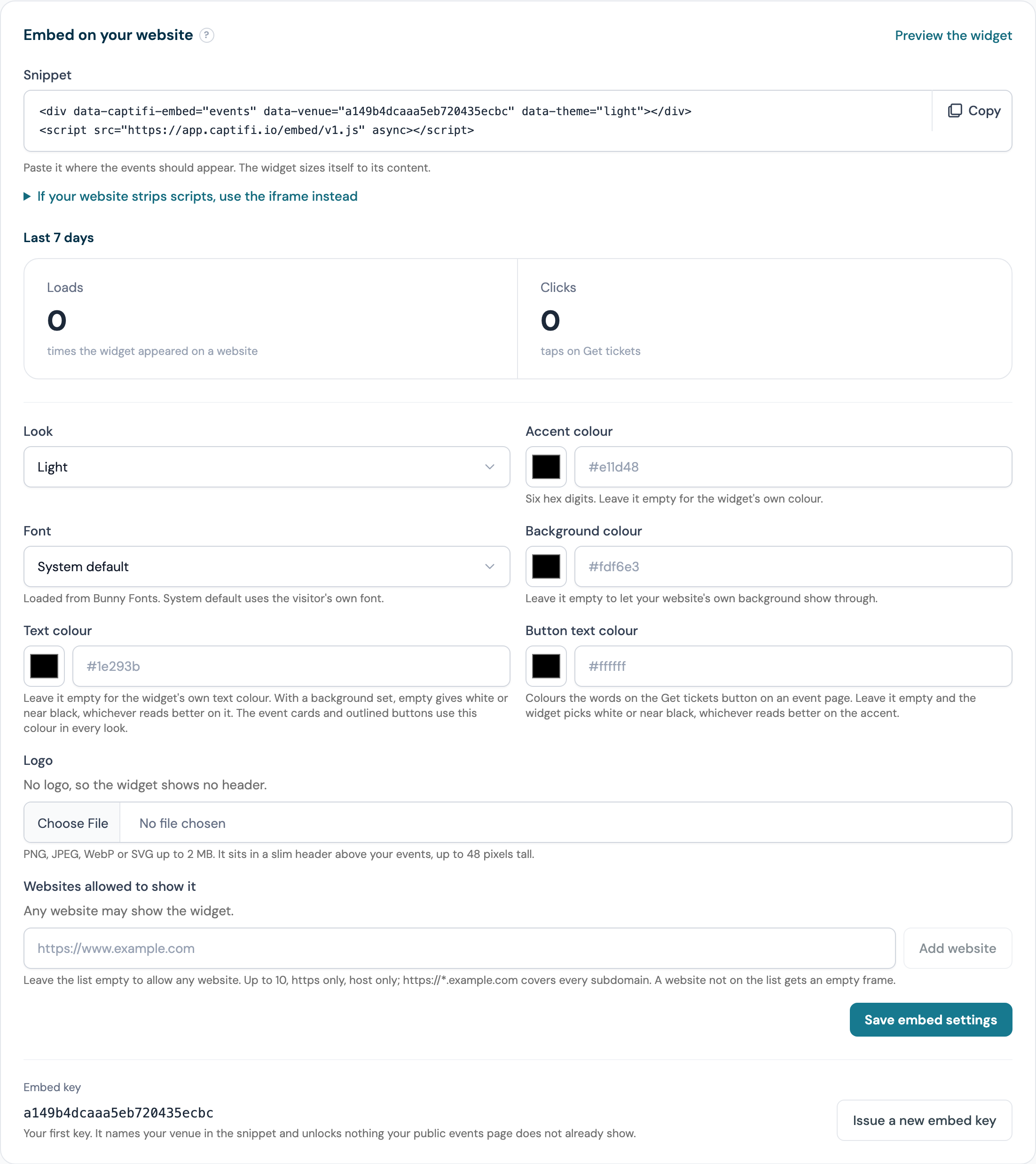
The widget is set up under Settings then Events settings, in the Embed on your website card, just above Location for wallet passes at the bottom of the page.
What the widget shows
The list is headed Upcoming events. It shows your events page introduction when you have written one, then each upcoming public event: its image, name, date and time, a From price or Free or Sold out badge, and a View event button. It lists up to 12 events; when there are more, a See all events button opens your events page on app.captifi.io in a new tab. When nothing is on sale it reads "No events are on sale right now. Check back soon." A Powered by CaptiFi line sits at the foot.
Clicking an event opens it inside the widget: the image, when and where (your venue name and address), the description, and under Tickets each ticket type with its price, the booking fee line when you pass the fee on, how many are left when 20 or fewer remain, and Sold out, On sale from or Ticket sales have closed where they apply. A Get tickets button opens the event's page on app.captifi.io in a new tab. All events at [venue] at the bottom returns to the list, and the event's terms are under Event terms. A cancelled event shows its cancelled notice, a draft never appears, and the list holds public events only.
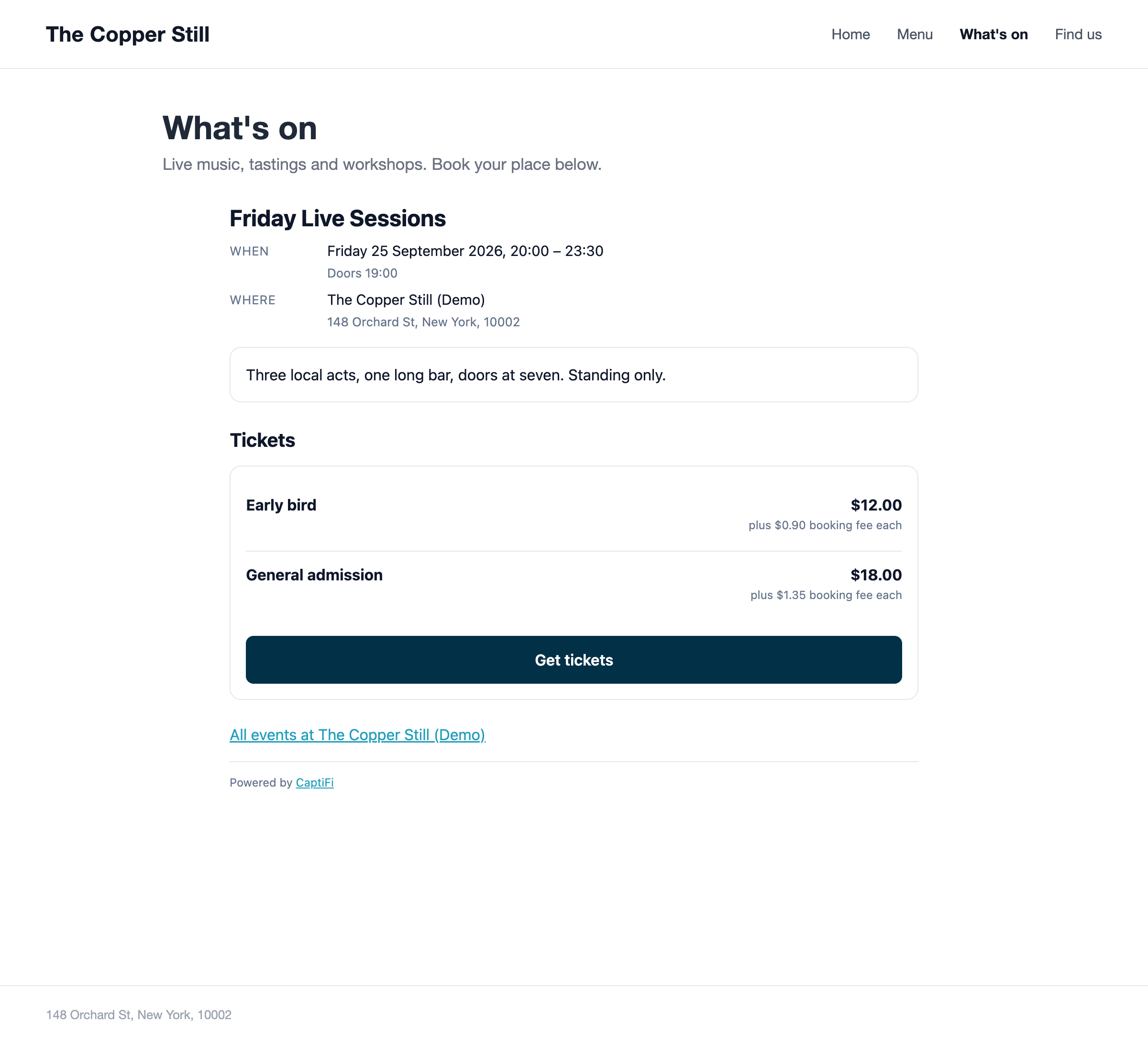
The widget never shows an order form and never takes a payment on your website. Payment happens on app.captifi.io because Apple Pay and Google Pay need the page they run on to be registered with Stripe, and because browsers block the cookies a checkout needs inside a frame on another website. The widget follows the languages you have enabled for the venue (see Guest languages), sets no cookies, and asks search engines not to index it.
Requirements
- Events is included on the Growth plan and above.
- Events is switched on: Integrations, then the Events and tickets card. See Events and tickets.
- The venue's events page is live. Events page is live on Events settings turns on when you publish your first event. Until then the Embed on your website card holds the snippet back and says so: "Set the events page live to get your snippet", and you can still choose the look and the allowed websites in the meantime. A venue that has never saved its events settings is told the snippet appears once the page has been saved and set live.
The account holder, and a team member with Manage events and tickets, can change the look and the allowed websites. Everyone with access to Events can see the snippet and the key. Only the account holder can issue a new embed key.
Getting the snippet
- Go to Settings then Events settings. With more than one venue, pick the venue at the top of the page first.
- Find the Embed on your website card near the bottom of the page. It holds the snippet ready to paste.
- Click Copy, inside the snippet field. The button reads Copied! for a moment.
- To check how it will look, click Preview the widget at the top of the card; it opens in a new tab. Loads in the preview are not counted.
The snippet is two lines. Your own venue's key replaces the example:
html
<div data-captifi-embed="events" data-venue="3f9a1c2e4b5d6f708192a3b4" data-theme="light"></div>
<script src="https://app.captifi.io/embed/v1.js" async></script>
The first line marks where the events go; the script draws them there in a frame that grows and shrinks with its content, so there is no height to set. The 24-character value in data-venue is your venue's embed key. It is shown in the card as Embed key, with the date it was issued if you have ever issued a new one (Your first key until then). The key identifies the venue's events page and nothing more; it cannot be used to see orders, buyers or settings.
Under If your website strips scripts, use the iframe instead is a second snippet, a plain frame:
html
<iframe src="https://app.captifi.io/embed/e/3f9a1c2e4b5d6f708192a3b4" title="Events" style="width:100%;min-height:640px;border:0" loading="lazy"></iframe>Use it where a page builder does not allow scripts. It shows the same events and keeps the height you set: 640 pixels unless you change min-height. Make it tall enough for your list, or keep the list short with the limit option below.
Pasting it into your website
Paste the snippet where the events should appear on the page, in an HTML or code block. A normal text box turns the tags into visible text. If your page builder does not allow scripts, the frame snippet works instead. The snippet can go on more than one page, and two copies on one page each draw the widget; the script notices it is already loaded.
WordPress
- Edit the page and add a Custom HTML block where the events should appear.
- Paste the snippet into the block and update the page.
Squarespace
- Edit the page and add a Code block where the events should appear.
- Paste the snippet and save.
Wix
- Add the Embed HTML element where the events should appear.
- Paste the snippet into the element's code box and apply it.
Webflow
- Add an Embed element where the events should appear.
- Paste the snippet, save, and publish the site.
Plain HTML
Paste the snippet into the page's HTML where the events should appear, anywhere inside <body>. The script tag can stay next to the <div> or move to the end of the page.
Options
The widget has four settings. Look and Accent colour are in the Embed on your website card and are written into the snippet when you copy it: change them, click Save embed settings, the card's own button, and copy the snippet again, or edit the attribute in the snippet already on your site. The other two are set only in the snippet.
| Setting | In the snippet | Values |
|---|---|---|
| Look | data-theme | light (the default), dark, or auto (Match the visitor's device in the form), which follows the visitor's light or dark setting |
| Accent colour | data-accent | A six-digit hex colour such as #e11d48, used on buttons and links. Leave it empty in the form for the standard colours. A colour swatch sits beside the field |
| How many events | data-limit | 1 to 50; 12 when left out |
| Language | data-lang | en, fr or es, and only a language enabled for the venue. Without it the widget follows the visitor's browser within your enabled languages, then the venue's default |
A value the widget does not recognise is ignored and the saved setting, or the default, is used instead, so the widget still renders. To set an option on the frame snippet, add it to the address after a ?, joining more than one with &, for example https://app.captifi.io/embed/e/3f9a1c2e4b5d6f708192a3b4?theme=dark&limit=6. For the accent write %23 in place of #, as in accent=%23e11d48.
Your font, logo and colours
The widget can carry your own font, logo and colours. They are saved on CaptiFi and read by the widget every time it loads, so the snippet already on your website picks up a change on its next load. There is nothing to paste again, and the frame snippet behaves the same.
The fields sit in the Embed on your website card, next to Accent colour:
- Font: pick one from the list. System default uses the font of the visitor's device. The others are Inter, Poppins, Montserrat, Lato, Open Sans, Raleway, Oswald, Lora, Playfair Display and Merriweather, loaded from Bunny Fonts. A font outside the list cannot be set.
- Background colour: the colour behind the whole widget. Leave it empty and your website's own background shows through, as before.
- Text colour: the colour of headings and text. The event cards and the outlined View event and See all events buttons take it too, whatever the Look, with borders and secondary text such as dates in a softer shade of it. Leave it empty for the widget's own text colour, which follows Look. With a background colour set, an empty text colour is white or near black instead, whichever reads better on the background. While Accent colour is empty, the links take the text colour as well, such as All events at your venue on an event page and the CaptiFi link at the foot.
- Button text colour: the colour of the words on the Get tickets button on an event page. Leave it empty and, when you have set an accent colour, the widget picks white or near black, whichever reads better on the accent.
- Logo: choose a file and it uploads at once. It sits in a slim header above your events, up to 48 pixels tall, on the list and on each event. PNG, JPEG, WebP and SVG files up to 2 MB are accepted, and an animated WebP is refused. CaptiFi stores every logo as a PNG it draws itself, so an SVG is turned into a picture first, and one that runs scripts or loads other files is refused. With no logo there is no header. To remove the logo, press and hold Hold to remove logo until it completes.
Each colour is a six-digit hex colour such as #fdf6e3, with a colour swatch beside the field; anything else is refused with a message under the field and nothing is saved until you fix it. Click Save embed settings to save the font and the colours; the logo saves on its own when you choose the file. After a font or colour change the card says the widget shows it on its next load; a change to Look or Accent colour asks you to paste the new snippet instead, because those two travel in the snippet. Use Preview the widget to check the result.
The font, logo and colours are set only in the card. They have no snippet attribute or address option.
Allowed websites
By default any website may show your widget, because it shows only what your public events page shows. The Embed on your website card says so: "Any website may show the widget."
To limit it, type each of your website addresses into Websites allowed to show it, clicking Add website or pressing Enter after each; each one becomes a chip with a cross to remove it. Then click Save embed settings:
- Use
https://and the host only, such ashttps://www.example.com. No path, and nohttp://. https://*.example.comcovers every subdomain of example.com. It does not coverhttps://example.comitself; list that too if your site answers on both.- Up to 10 entries. Case and a trailing slash do not matter; the list is tidied when you save.
An entry the widget cannot be limited to is refused with "is not a website address the widget can be limited to" and nothing is saved until you fix it. Once saved, the card shows the list as chips.
On a website that is not on the list the browser refuses to draw the frame and the space stays blank; the page's developer console records a frame-ancestors error. The preview on Events settings keeps working whatever the list says, and your public events page is not affected. To allow any website again, remove every entry and save.
What buyers see
Everything a buyer does happens on app.captifi.io. Get tickets opens the event's public page in a new tab, where the buyer picks quantities, gives their details and pays by card, Apple Pay or Google Pay as described in Events and tickets. Payment never happens inside your website. Their tickets arrive by email in the same way, they appear in your guest list, and the door scans them as any other ticket.
An order that started from the widget carries embed as its Source under Events then Ticket orders, so you can see which sales your website brought in.
Loads and clicks
The Embed on your website card shows two tiles under Last 7 days, Loads and Clicks. A load is counted each time the list or an event opens inside the widget on a visitor's page; a click each time a visitor presses Get tickets. The figures cover today and the six days before it, for the venue you have picked. The preview counts nothing.
Issuing a new embed key
Issue a new key when the snippet has ended up somewhere it should not be, such as a website you no longer work with or a page that copied yours. Only the account holder can do it, and the button appears once the events page is live.
- Open Settings then Events settings and pick the venue.
- Click Issue a new embed key, beside the embed key in the card.
- Read the confirmation: "Every website carrying the current snippet stops showing your events until you paste the new one, and the loads and clicks counts start again from zero. The old key cannot be brought back." Press and hold Hold to issue new key until it completes, as a short click does nothing.
- Copy the new snippet and replace the old one on every page of yours that carries it.
The old key stops working at once: every copy of the old snippet shows an empty frame from then on. The loads and clicks for the venue start again from zero, and the card shows the new key with the date it was issued. A team member sees "Only the account owner can issue a new embed key" in place of the button, and the shared demo account cannot issue one.
Troubleshooting
| What you see | Likely cause | What to do |
|---|---|---|
| Nothing where the widget should be, no frame at all | The page builder does not allow scripts | Paste the frame snippet from If your website strips scripts, use the iframe instead |
| An empty frame | The events page is not live | Turn on Events page is live on Events settings and save, or publish an event |
| An empty frame | A new key has been issued since the snippet was pasted | Copy the current snippet from Events settings and replace the old one |
| An empty frame | The website is not on Websites allowed to show it | Add the site's address, https:// and host only, and save. www. and the bare domain are different entries |
| An empty frame | The key in the snippet was changed while pasting | It must be exactly the 24 characters shown as Embed key on Events settings; copy the snippet again |
| "No events are on sale right now. Check back soon." | No public event is on sale or sold out with its time still ahead | Publish an event, or check its visibility is Public |
| The bottom of the widget is not visible | The frame snippet is in use at a height too small for the list, or the page builder gave the widget a fixed height | Raise min-height in the frame snippet, or make the element taller in the builder |
| The colours or the look did not change | The value is not one the widget accepts | Use light, dark or auto for the look and a six-digit hex colour such as #e11d48 for the accent |
| The font, logo or colours did not change | The settings were not saved, or the page in the browser is from before the change | Click Save embed settings after changing the font or a colour, then reload your website's page |
| The widget is in the wrong language | The language asked for is not enabled for the venue | Enable it under the venue's guest languages, or remove data-lang |
When the widget still shows nothing after these checks, open the page's developer console: the loader writes a line beginning "CaptiFi embed:" that says what it found wrong with the snippet.