

Appearance
Capi, your CaptiFi helper
Capi is the CaptiFi bird in the corner of your dashboard. Ask it how to do something, such as limiting guest speed or changing your splash page, and it answers from these help guides, then offers to show you where to click. It can also tell you how many guests came in over a day, a week or a month.
Capi comes with Growth and every plan above it (Pro and Enterprise), on computers and tablets. It doesn't show on phones.
Where to find it
- Log in to my.captifi.io
- Click the round Capi button with the bird, bottom right of any page
You can also open Capi from Help → Ask Capi in the sidebar, or type your question in the search bar at the top and pick the Ask Capi row at the bottom of the results.
When you open Capi for the first time it suggests a few questions to start with. Type your own in the box at the bottom and click Send. New chat (top of the panel) starts a fresh conversation, and the panel picks up your last conversation when you come back within a day.
If you have the Setup guide, it is in the Capi panel too, just under the title.
What you can ask
- How to do something in the dashboard: "How do I limit guest speed on the WiFi?", "How do I add a colleague?", "Where do I change my splash page?"
- Guest numbers: "How many guests came last week?", "How did this month compare with last month?"
- Whether something works with your setup: Capi knows which WiFi system each of your venues uses, so it tells you when a setting won't apply on your hardware (for example guest speed limits on Cisco Meraki).
Capi answers from the CaptiFi help guides and your own account. When the guides don't cover something it says so, and offers to pass the question to our team.
Capi only sees your own account, so it can't tell you anything about other venues or businesses on CaptiFi, and it sticks to questions about CaptiFi and your guest WiFi. It can't agree to refunds, discounts or other changes to your bill; use Ask the team for those.
When you have more than one venue
If you ask about one venue's guest numbers, whether its WiFi is working, or its current settings, and you haven't said which venue, Capi asks Which venue? and lists your venues in the chat. Pick one and it answers for that venue, and keeps to it for the rest of the conversation until you start a New chat. On Pro and Enterprise you can also pick All venues for guest numbers, which totals every venue; on Growth Capi gives you one venue at a time, the same as the dashboard. If you already have a venue selected in the venue switcher at the top of the dashboard, Capi uses that one and doesn't ask.
Questions that are the same for every venue, such as how to change a splash page or what your plan includes, get an answer straight away.
The buttons under an answer
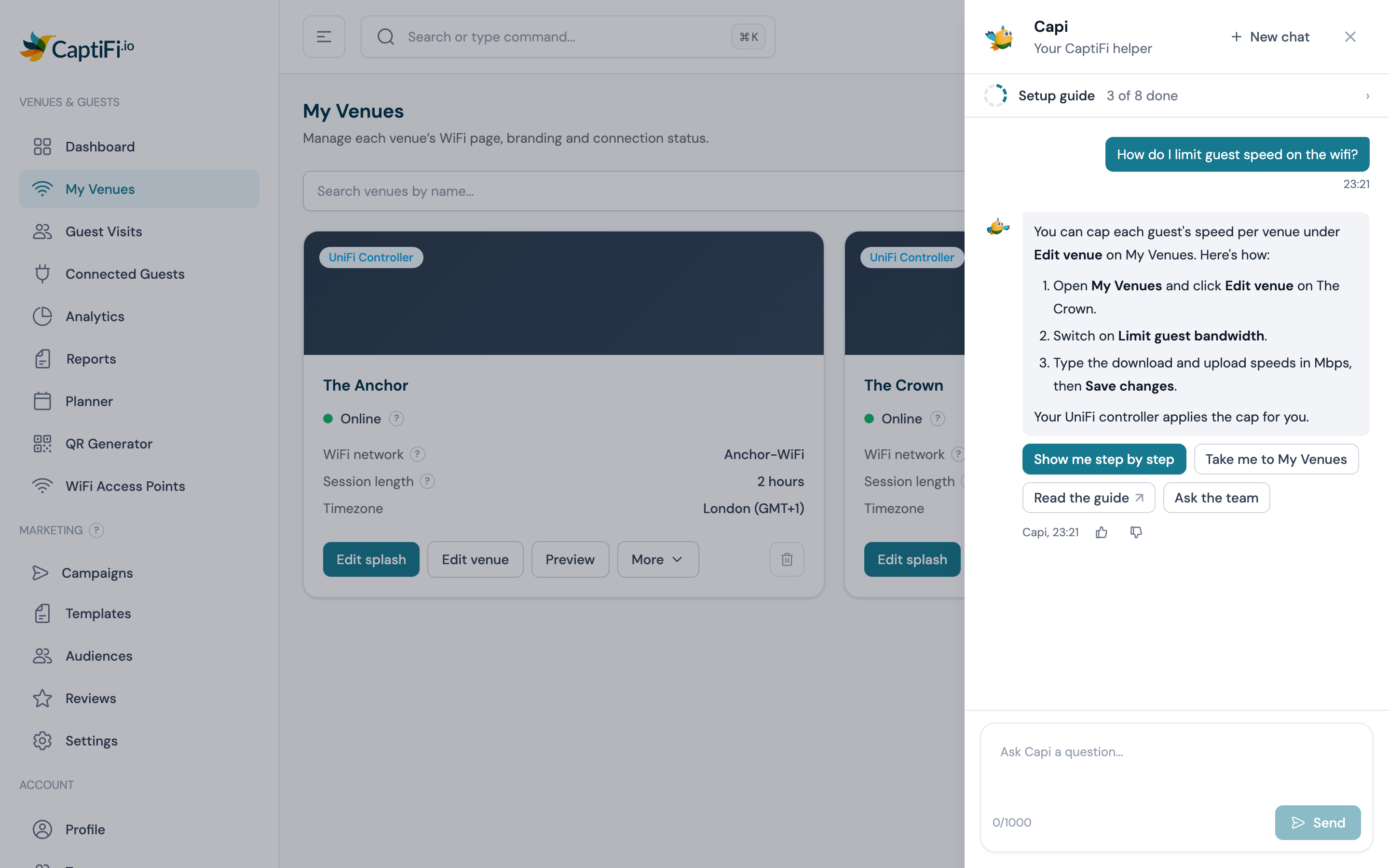
- Show me step by step starts a walkthrough of the task (see below)
- Take me to a page opens that page and points to it in the sidebar
- Read the guide opens the help guide section Capi used, in a new tab
- Ask the team opens a support ticket with your question and Capi's answer already filled in, ready for you to add detail and send
Use the thumbs up and thumbs down under an answer to tell us whether it helped.
Walkthroughs
A walkthrough dims the page and highlights the button or box to use next, with a card beside it saying what to do. You click the real button yourself; Capi never changes a setting for you. When you have done that step, the next one lights up.
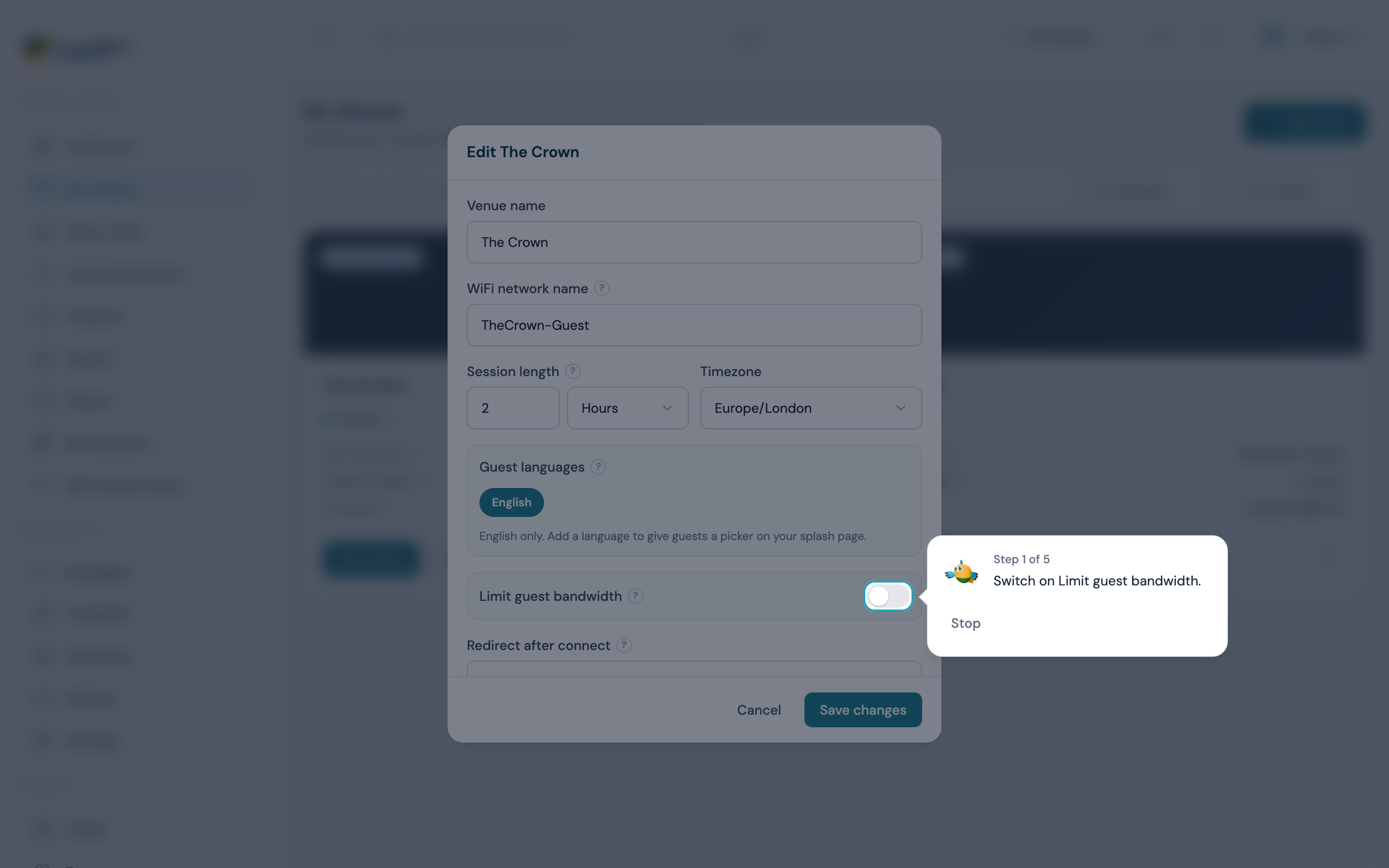
On the card:
- Step 2 of 5 shows how far through you are
- Back goes to the step before, where that step can be done again
- Skip passes over an optional step, such as a data allowance you don't need
- Next moves on where Capi can't tell you have finished (after typing in a box, for example)
- Stop ends the walkthrough. Escape does the same
When the task is done, for example once the venue saves, Capi shows a short done message in the corner. If you have more than one venue and the task is for one of them, Capi asks Which venue? first. If Capi can't find a button on the page, it stops and gives you the steps written out instead.
Walkthroughs cover:
- Limit guest speed
- Add a venue
- Change a splash page (it takes you to the Edit splash button, which opens the splash builder)
- Invite a team member
- Export guests
- Send an email campaign
- Create WiFi vouchers
- Sell WiFi passes
- Create a rewards offer
- Print a WiFi QR code
- Create an API key
Capi only offers walkthroughs and pages your plan and your login can open.
Guest numbers
Capi gives totals only: sign-ins, unique guests, new and returning guests and marketing opt-ins, for one venue, or for all of them at once on Pro and Enterprise. It never shows a guest's name, email or phone number. Days run midnight to midnight in the venue's own time zone, and weeks start on Monday.
A team member needs the View guest data permission to see them (see Team Members).
Limits
Each account can ask Capi 30 questions a day, shared by everyone on the account. The count starts again at midnight UK time. If Capi says it is busy, wait a moment and ask again.
Conversations are kept for 90 days. The CaptiFi team can read them, to answer your support questions and to improve Capi's answers.
Troubleshooting
| Issue | Solution |
|---|---|
| No Capi button | Capi comes with Growth and above, so it doesn't show on Lite or Essentials (compare plans). It doesn't show on phones either, so open the dashboard on a computer or tablet. Otherwise Capi isn't switched on for your account yet; contact support |
| Capi says today's questions are used up | Your account has asked 30 questions today. It starts again at midnight UK time |
| A walkthrough can't find a button | Capi switches to written steps. The button may be hidden for your plan or your team permissions, or the page may still be loading |
| Numbers look different from Analytics | Check you are comparing the same venue and dates. For a venue outside the UK, Capi counts the day in the venue's own time zone |
Related features
- Setup guide: the checklist that gets a new account live
- Guest Analytics: charts and totals for your guest WiFi
- Contact Support: human help when you need it