

Appearance
Rewards in your messaging
Once Rewards is switched on, your offers plug into the tools you already send with. Attach an offer to an email campaign, an email automation or one of its follow-ups, an SMS campaign or an SMS automation, and every recipient gets a reward of their own, placed in the message by merge tags. Three triggers start automations from rewards activity, four segment conditions pick members out by their points, tier and rewards, and four webhook events push that activity to your own systems.
Plan requirement: Rewards is included on the Growth plan and above, and the account owner switches it on under Integrations → Dashboard features. The controls below appear only once both are true. See Switching Rewards on.
The controls appear only while your account has Rewards: on the Growth plan or above, with Rewards switched on under Integrations. Without it they are hidden, with two exceptions: an automation on a Rewards trigger keeps its trigger on the edit form, and an automation or follow-up with an offer attached shows the offer in a greyed-out picker. Saving other changes leaves both in place. An offer paused or archived after it was attached is listed in the picker as its name followed by "(no longer active)"; other changes to the automation or the campaign draft still save, and at send time the offer refuses each recipient, so pick another offer or No offer before the next send.
What happens at send time
- A reward is minted for a recipient when the message shows one:
{{reward_link}},{{reward_code}}or{{reward_expires}}in an email's subject or body, or{reward_link}in a text. A message that only prints{{points_balance}}or{{rewards_link}}mints nothing, even with an offer attached - One reward per recipient per send. A retry, a resend or a second render of the same message returns the reward already minted. A repeating campaign mints a fresh reward on each run, within the offer's own limits, so a code redeemed after one run is never mailed again on the next
- The reward goes to the member behind the guest: the member linked to their sign-in, or the member whose email address or phone number matches. A recipient who has not joined the programme still gets a reward, held against their email address or phone number, and can show it at the till like any other. The offer's Per member and Cooldown limits apply to members only, so Max issued is the only cap on non-members. A throwaway email address gets nothing
- When the offer refuses (its Max issued is reached, the date is outside its Starts and Ends, the venue is not in the programme, the programme is off, or the offer has been paused), the recipient is skipped and nobody is sent a message with an empty reward. A campaign counts them as skipped, an automation lists them under Skipped in its Results, and an SMS campaign counts them as failed. An email skipped this way is handed back to your monthly allowance
- Previews and test sends show sample values and mint nothing
- Consent rules are unchanged. A reward attached to a message never changes who receives it: campaigns and automations still go only to guests who opted in to marketing, texts only to guests who agreed to texts
Attach an offer to an email campaign
- Go to Marketing → Campaigns, create a campaign and work through to the Template step
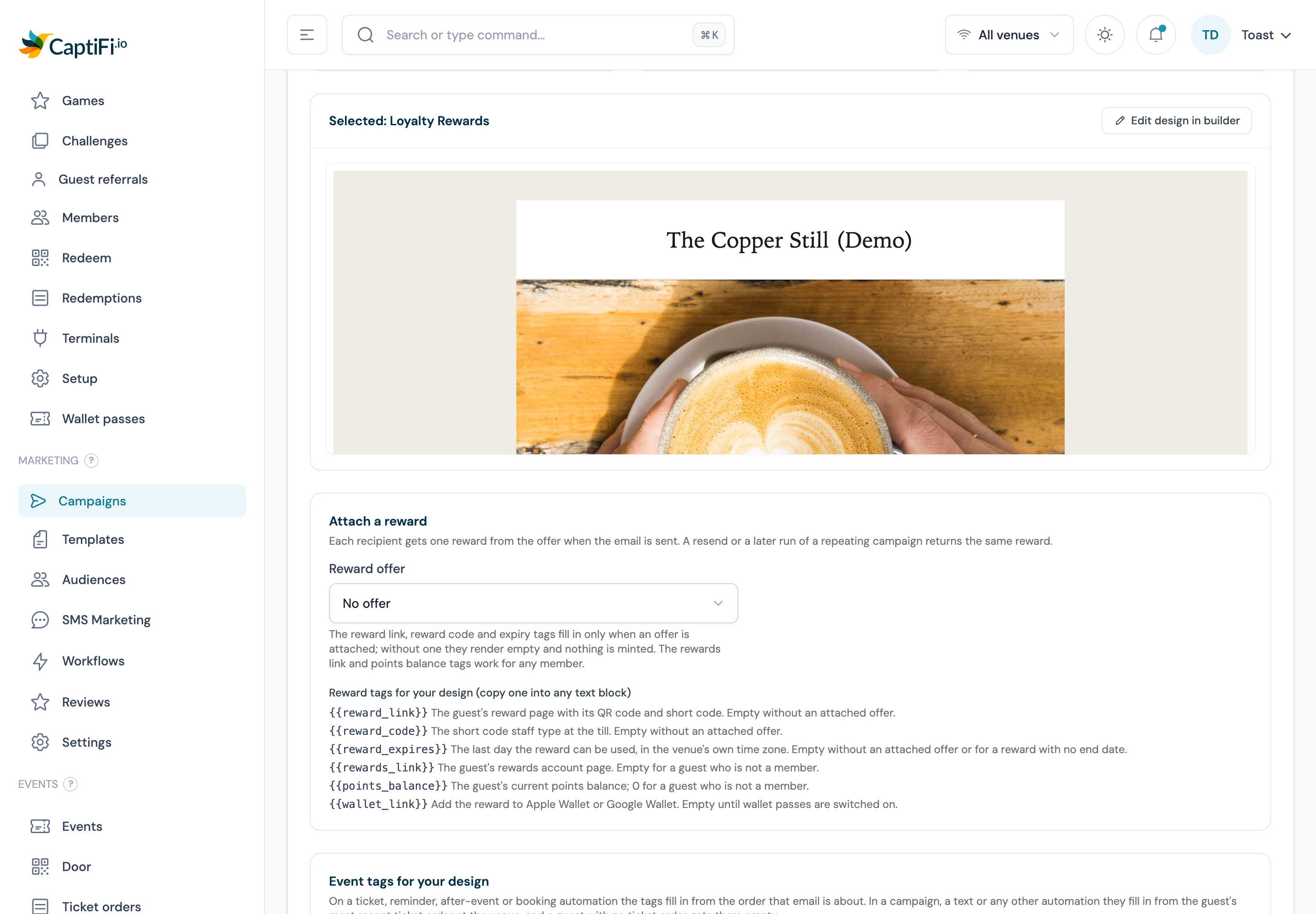
- Under Attach a reward, pick the offer from Reward offer. Only active offers are listed, each shown as its name and what the guest gets, for example "Welcome treat: 10% off". The line under the picker reads "The reward link, reward code and expiry tags fill in only when an offer is attached; without one they render empty and nothing is minted. The rewards link and points balance tags work for any member."
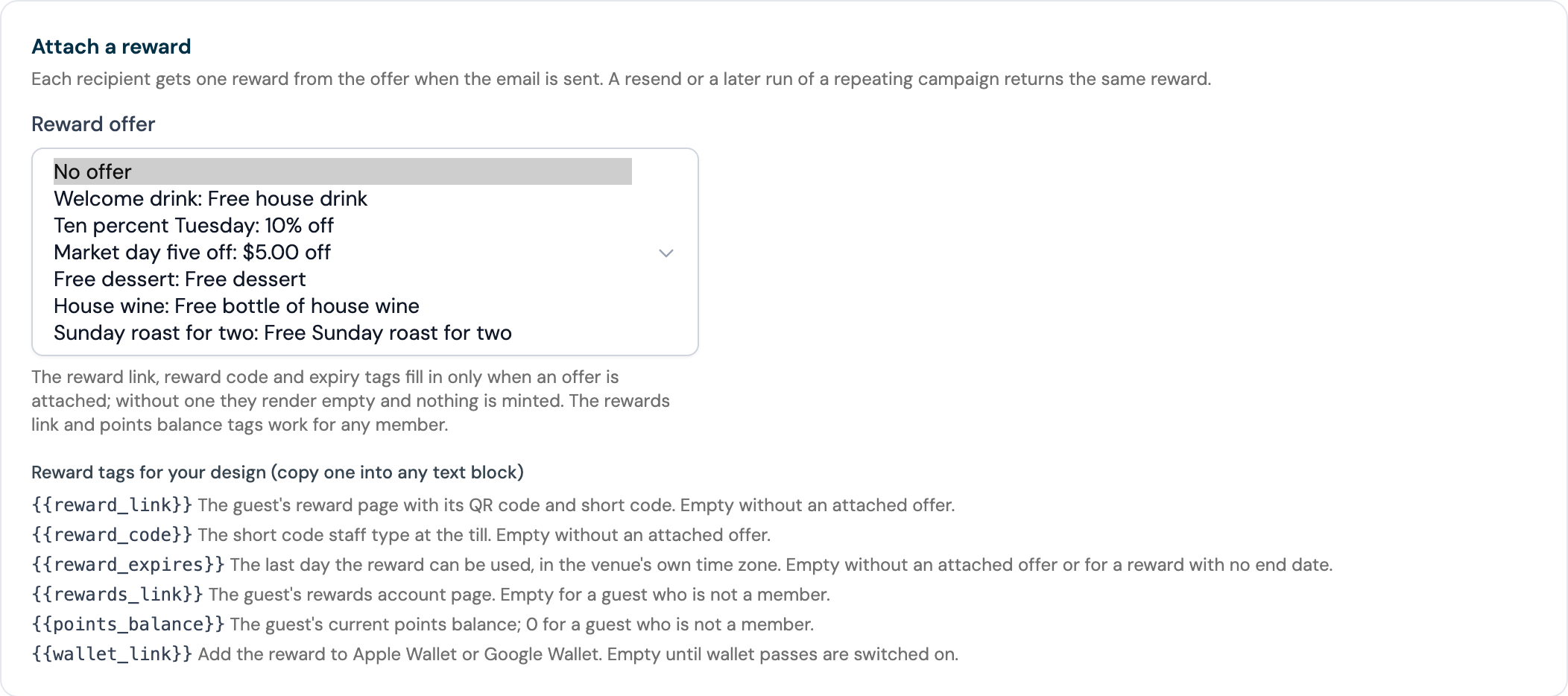
- Below the picker, Reward tags for your design lists the six tags with what each one renders. Copy the ones you want, open the design with Edit design in builder and paste them into any Text or Heading block, or into the Subject box. The email must show at least one of
{{reward_link}},{{reward_code}}or{{reward_expires}}for a reward to be minted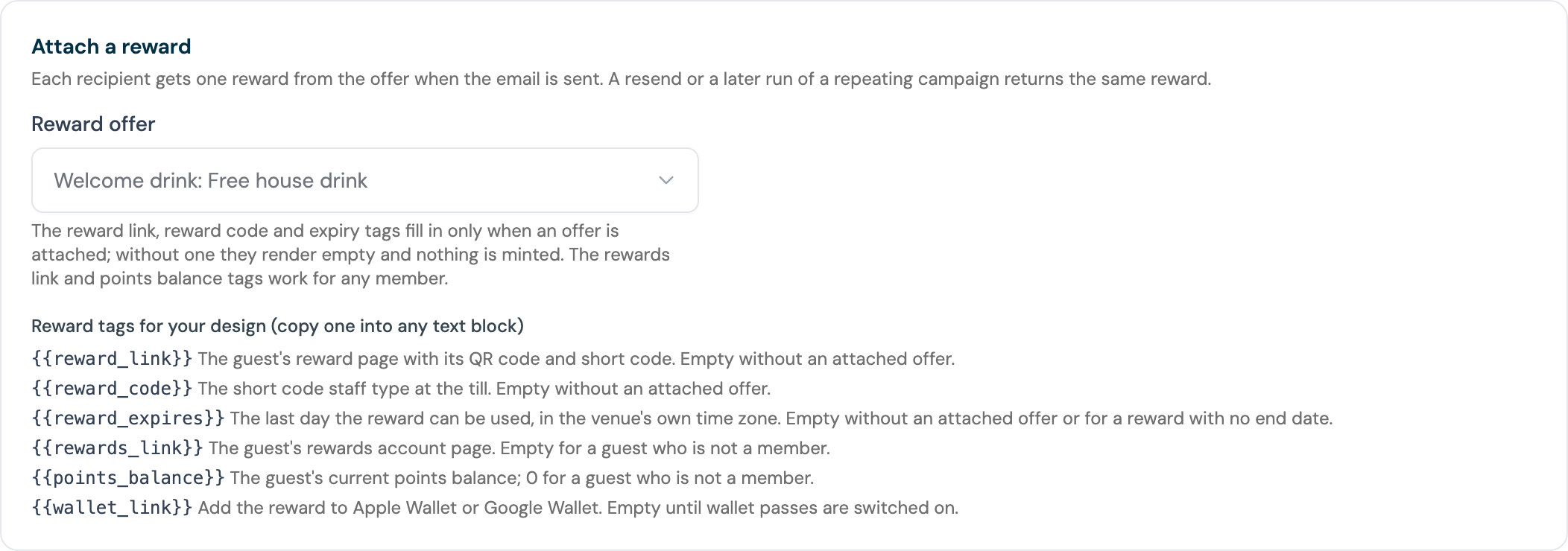
- On the Review & send step the summary shows a Reward line with the offer's name. Send or schedule as usual
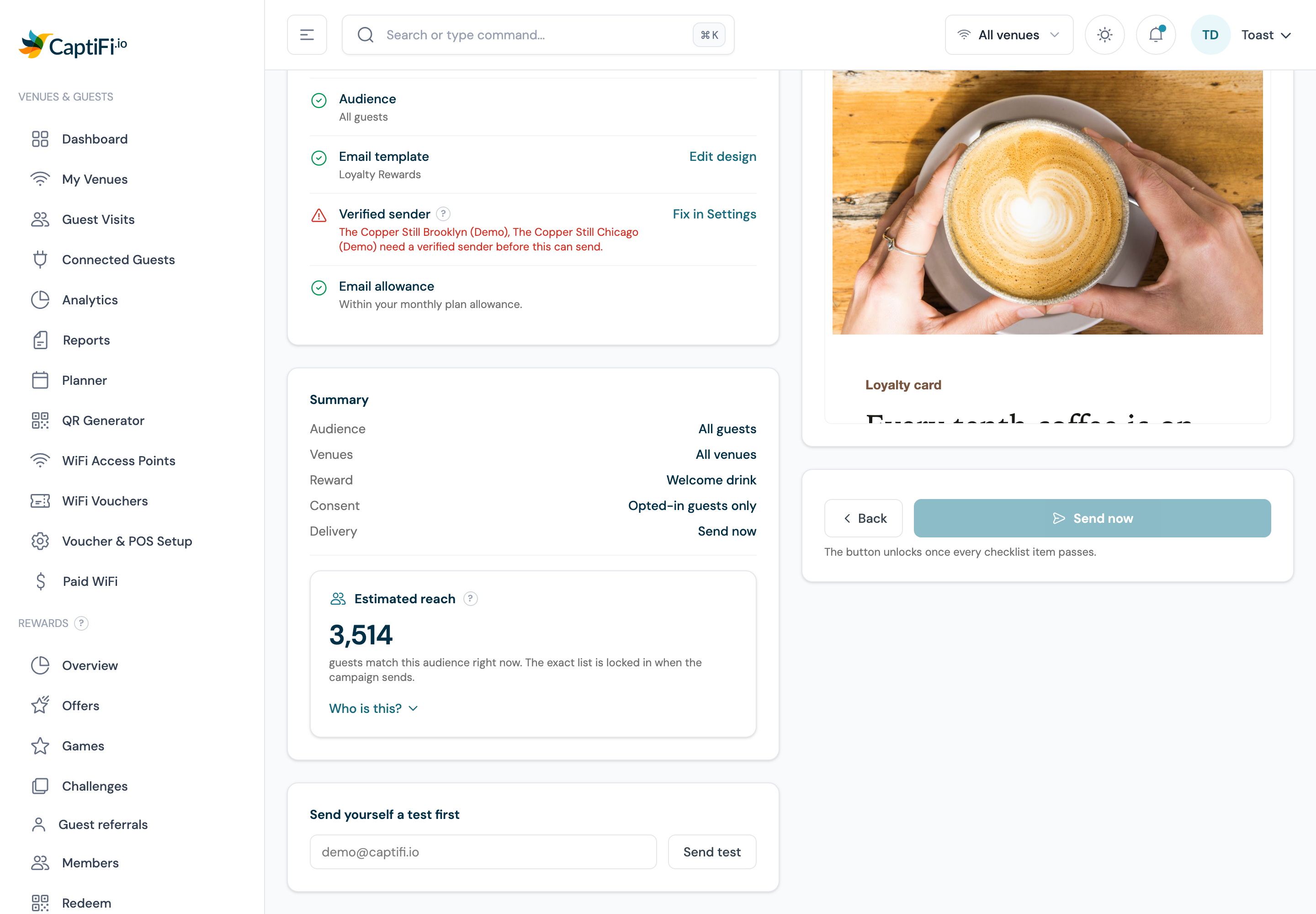
The offer is saved to the draft the moment you pick it, so leaving for the builder never loses it. If the offer is paused or archived between picking it and sending, a message shows under the picker; pick another offer or No offer and save again. The campaign's own page shows Reward and the offer's name beside the template, and Duplicate as a new draft copies the offer with the campaign.
Attach an offer to an email automation
- Go to Marketing → Audiences, open the Automations tab and click New automation, or Edit on an existing one
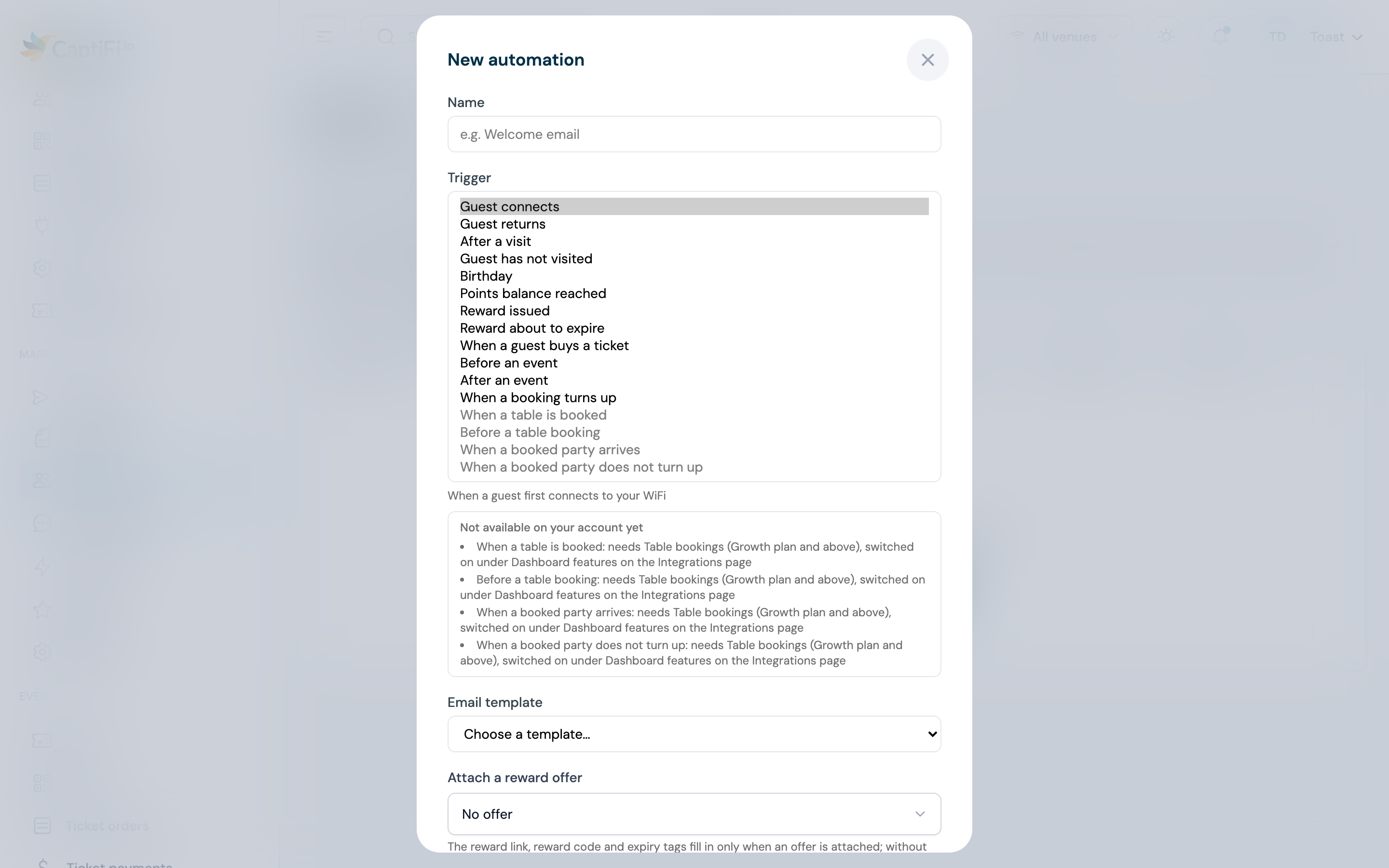
- Set the trigger and its timing as usual, or pick one of the reward triggers
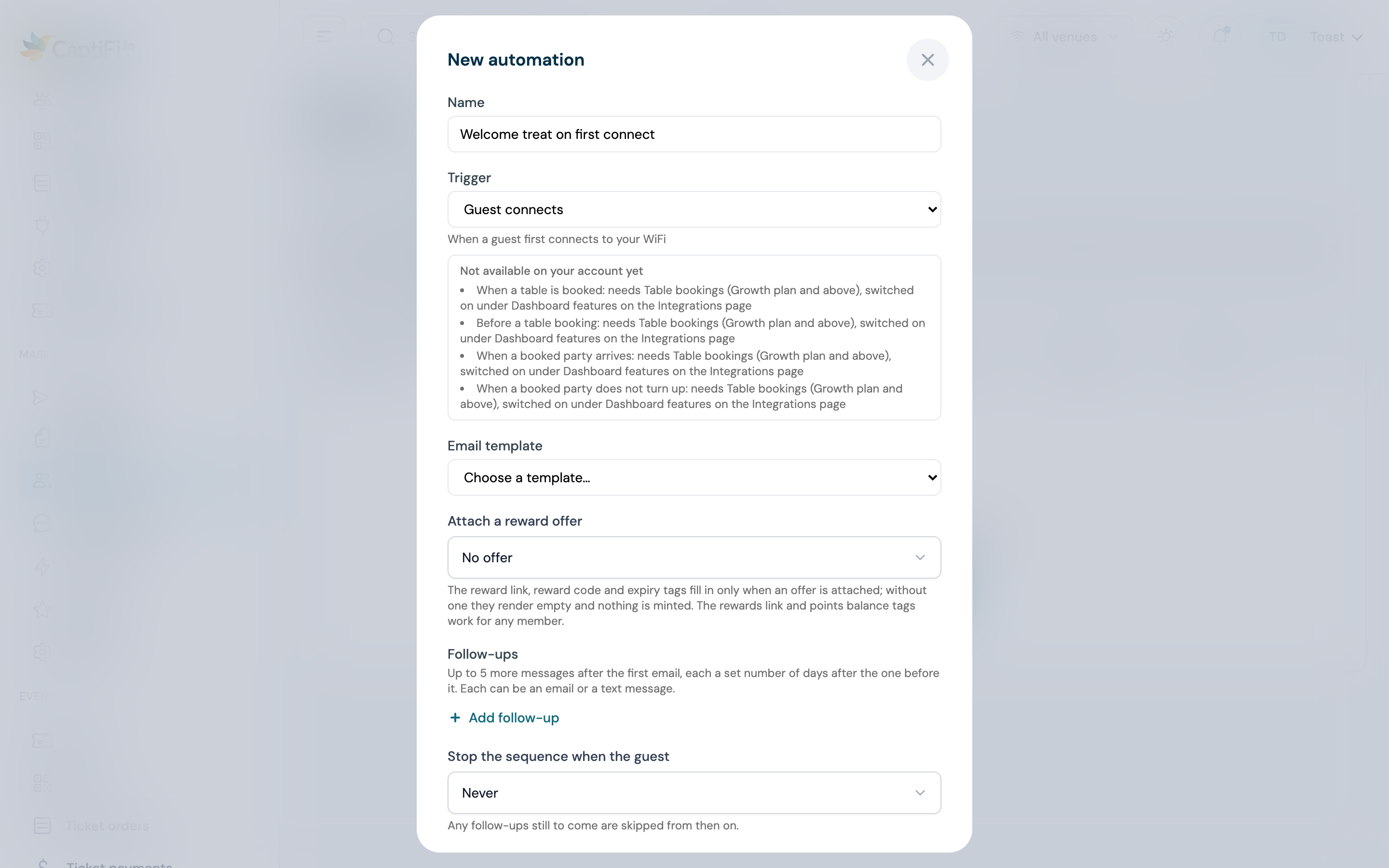
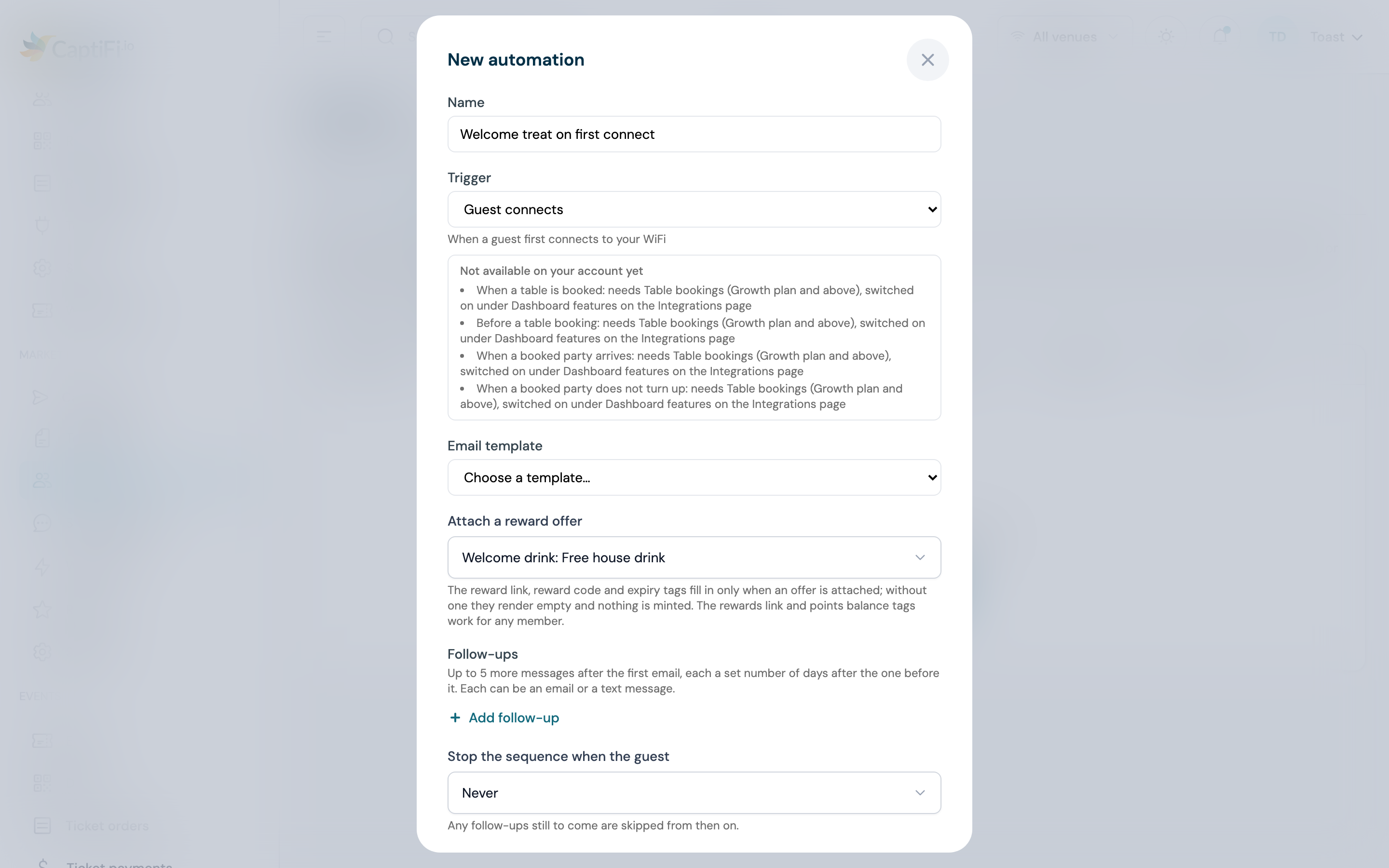
- Under Attach a reward offer, pick the offer. No offer clears it
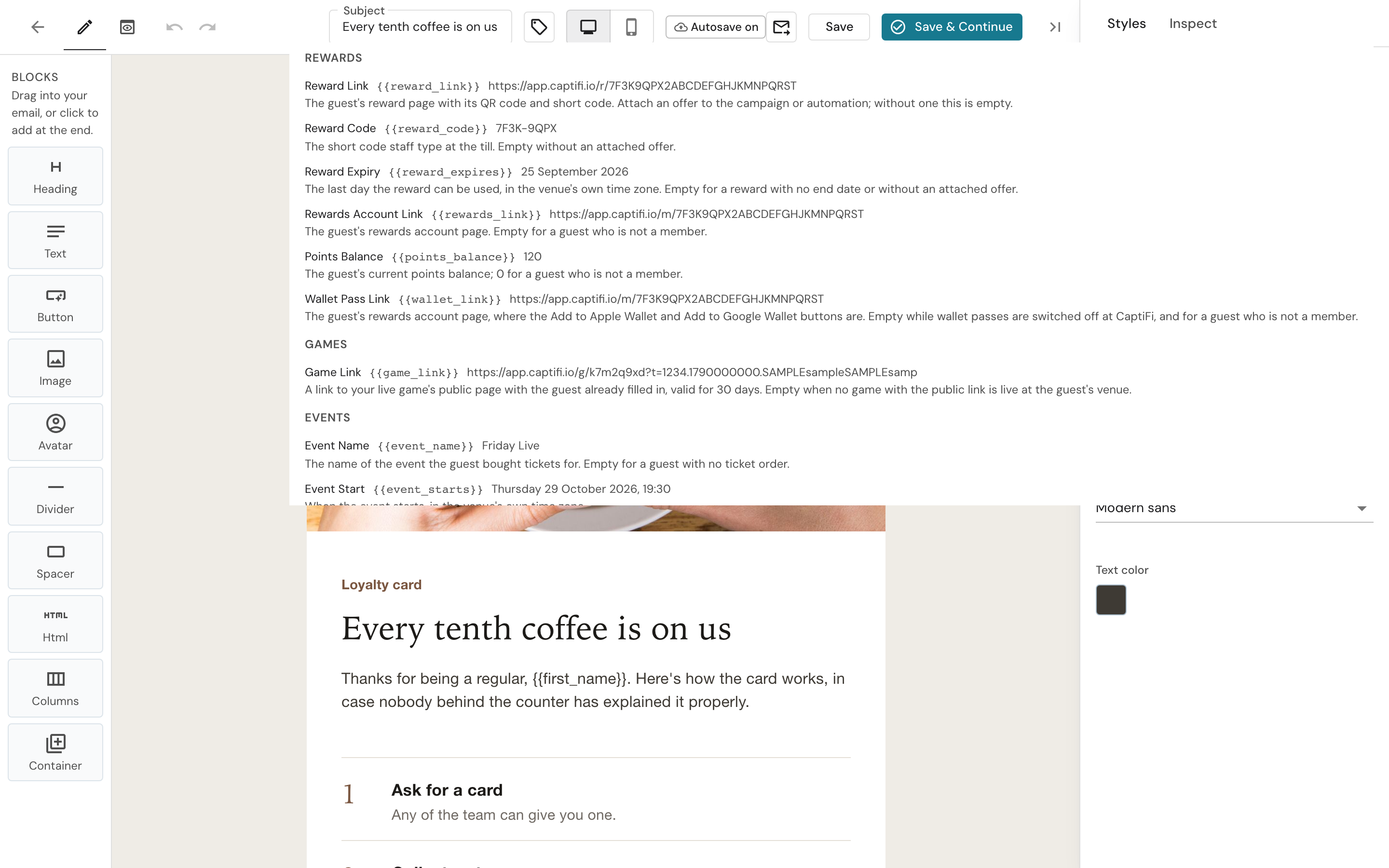
- Pick an Email template that carries a reward tag. Any template in your library can be edited in the Email Template Builder to add one; the Personalise menu lists the tags under Rewards
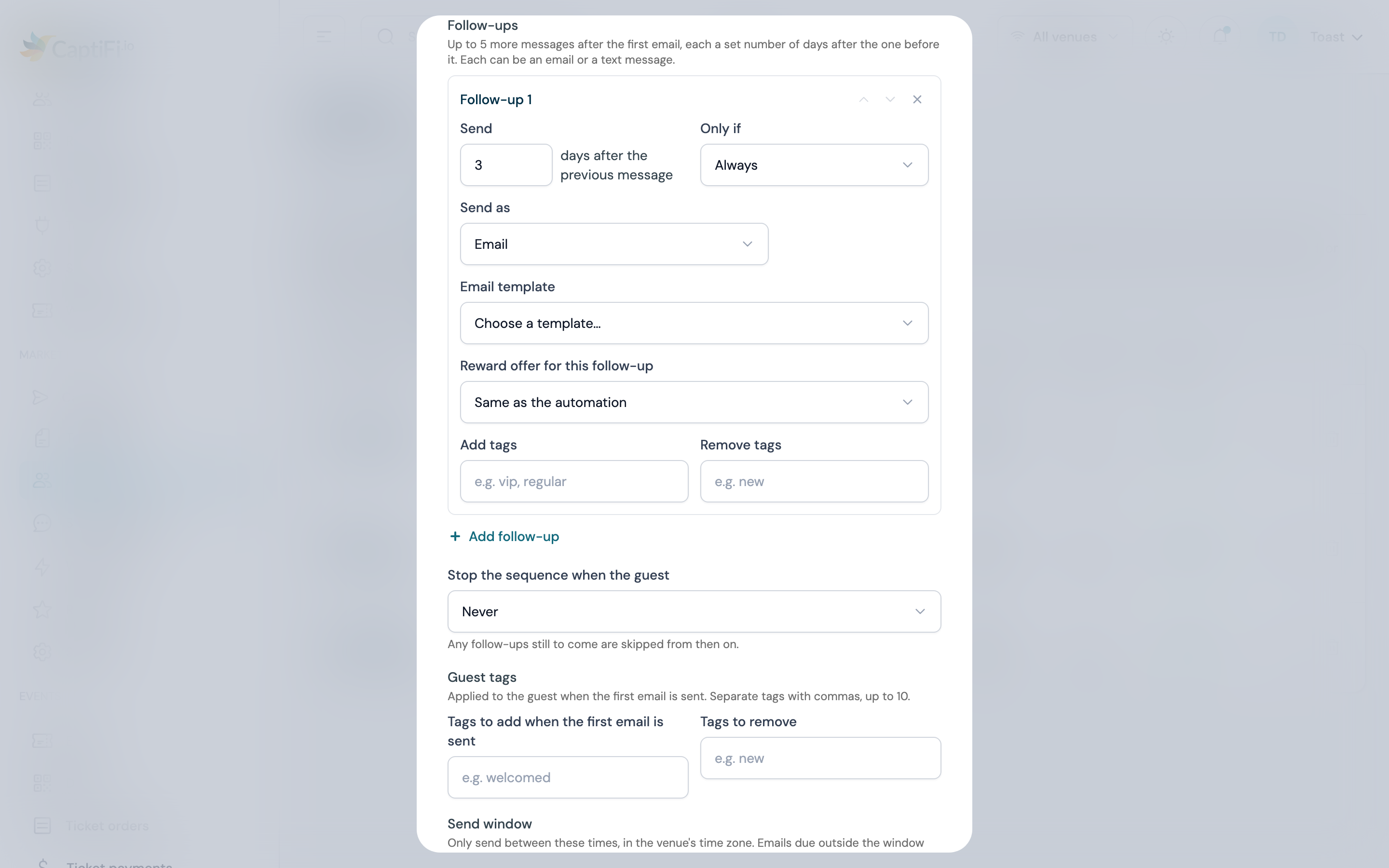
- For each follow-up, Reward offer for this follow-up is set to Same as the automation. Leave it, or pick a different offer for that step. A follow-up whose email or text shows a reward tag mints its own reward, separate from the first email's
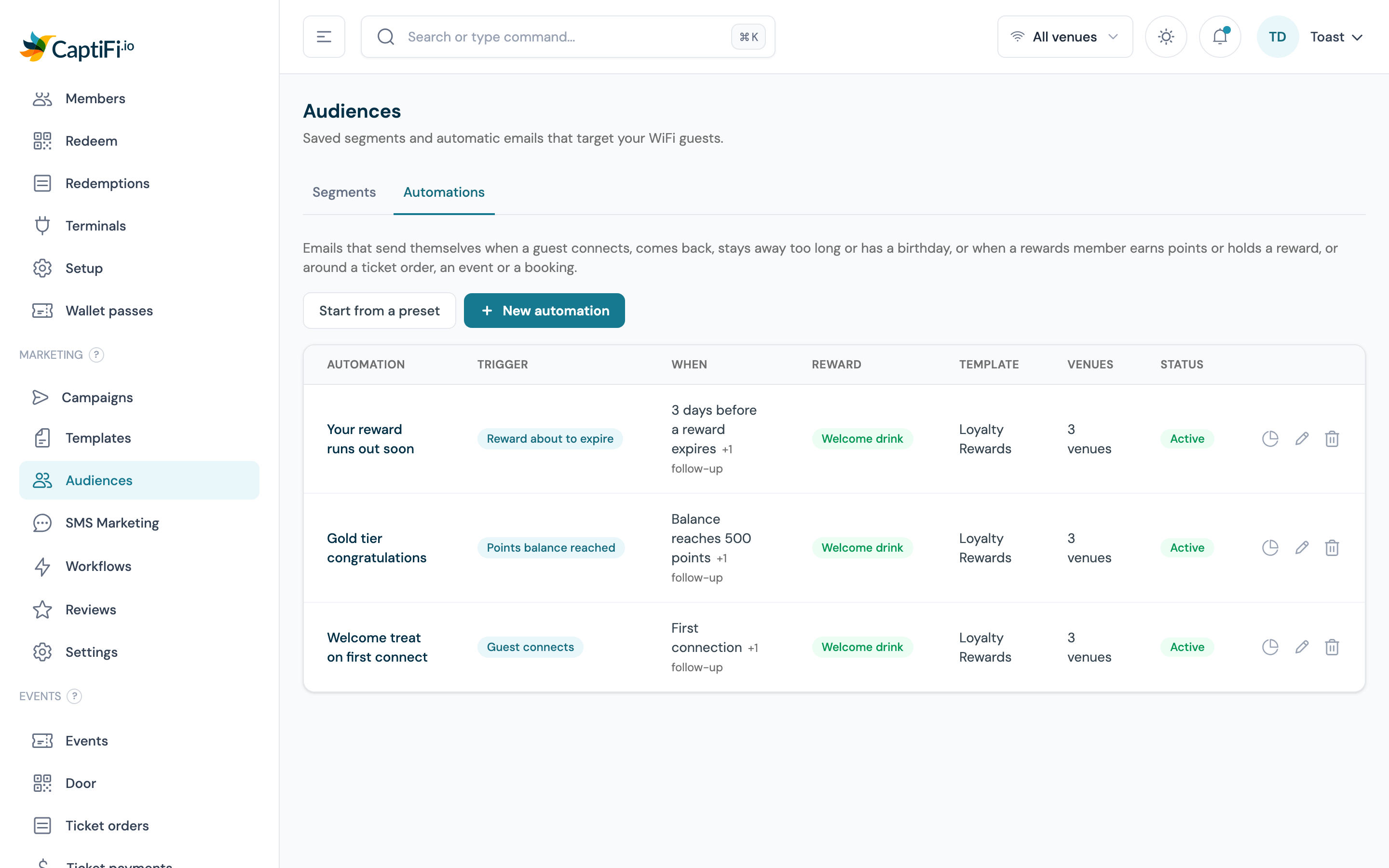
- Click Create automation or Save changes. The list shows the attached offer's name in its Reward column, next to When; an automation with no offer shows a dash there
An automation started by Reward issued or Reward about to expire renders the reward that started it, in the first email and in every follow-up, and mints nothing even with an offer attached.
Attach an offer to a text
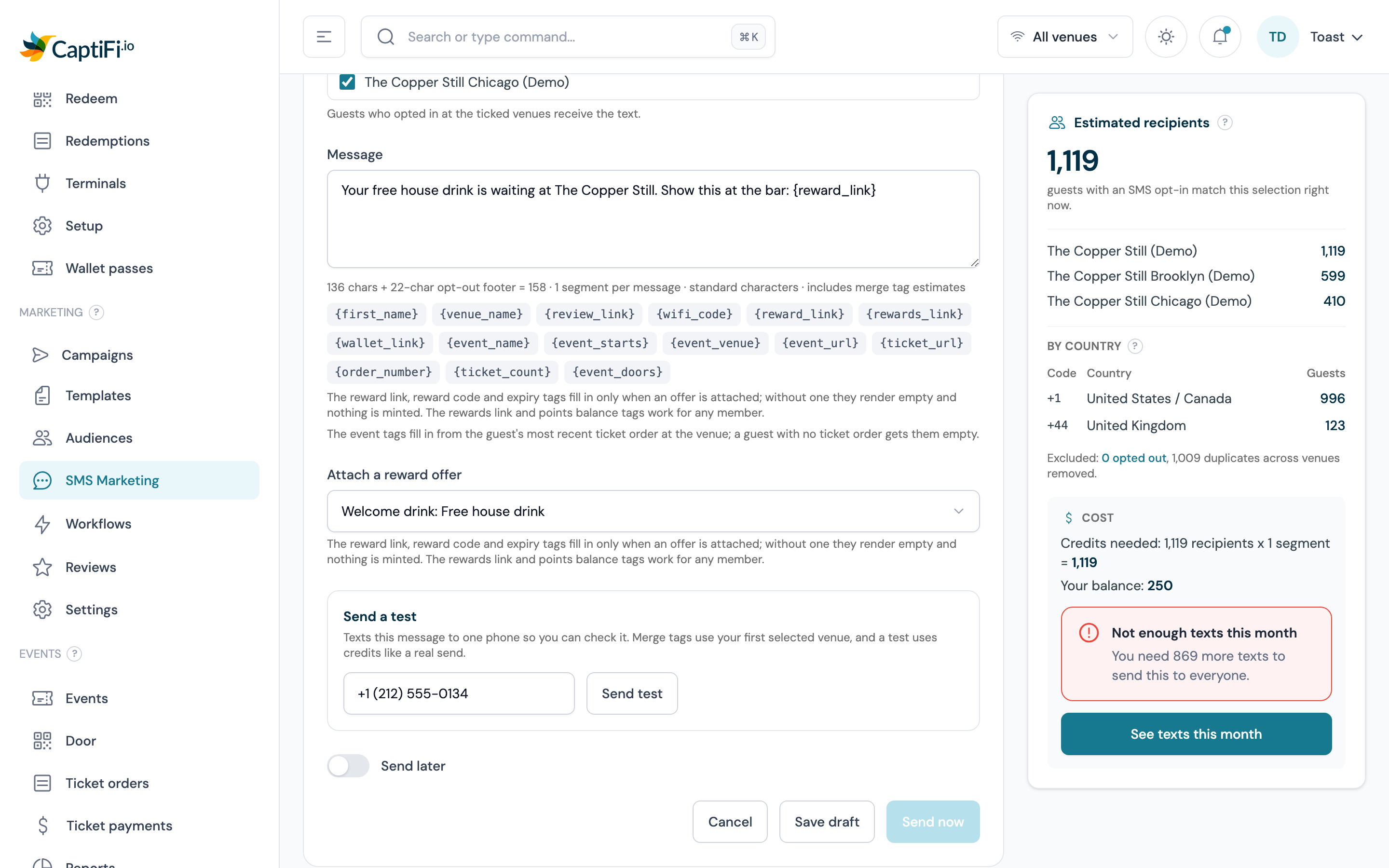
A text campaign and a text automation each take one offer, and the message carries the reward with {reward_link}.
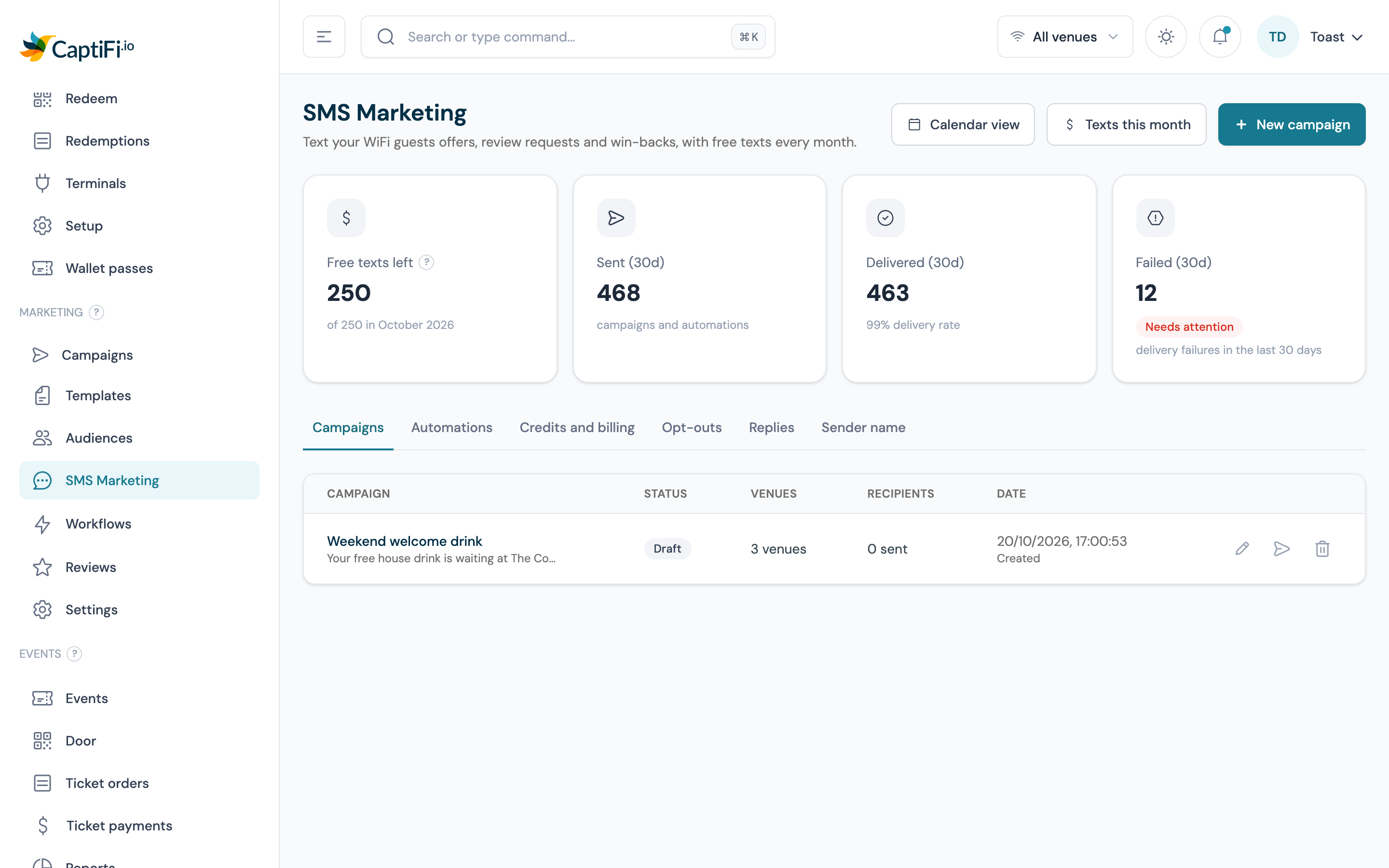
- Go to Marketing → SMS Marketing and open the campaign composer, or the Automations tab and the automation builder
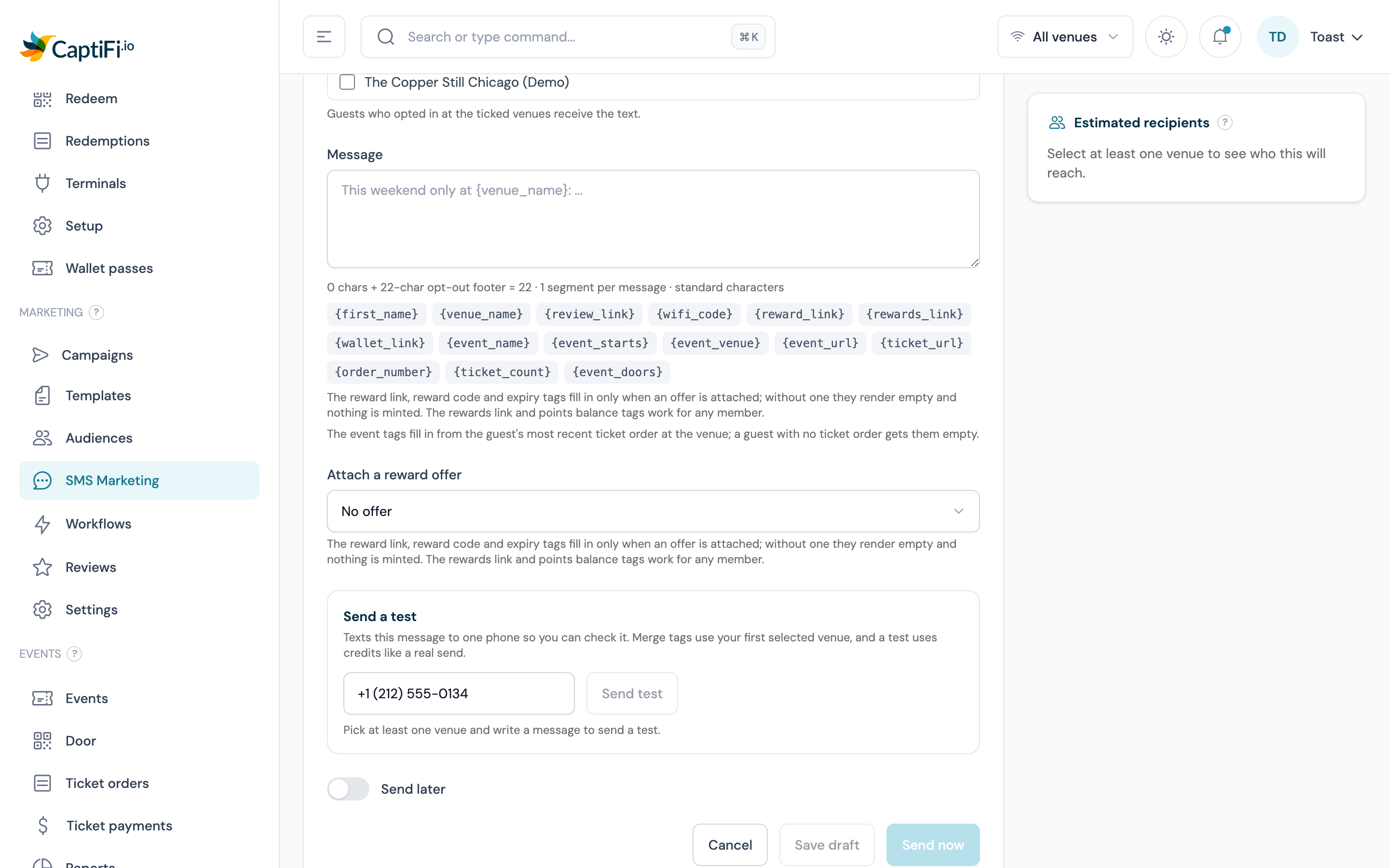
- Under Attach a reward offer, pick the offer
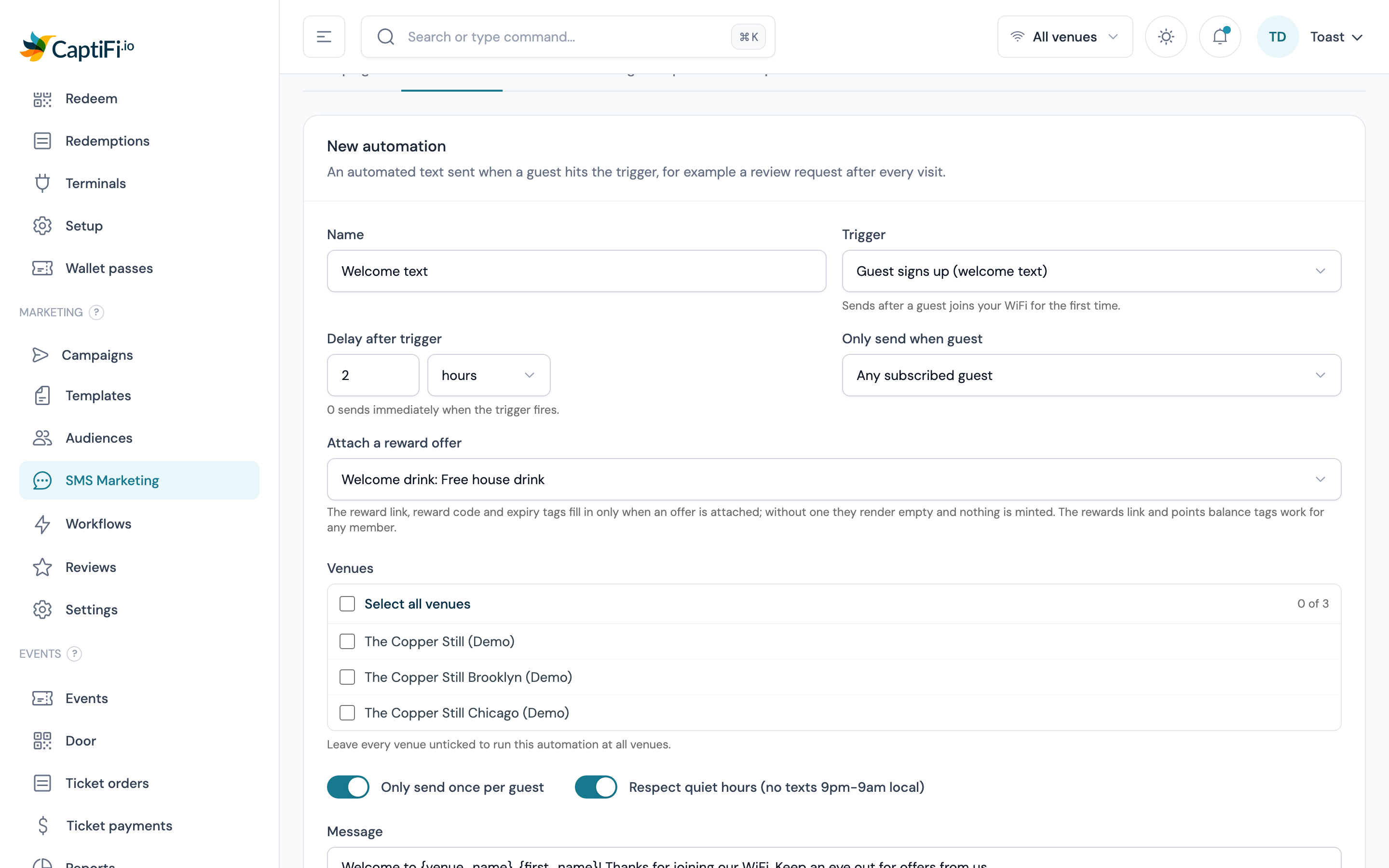
- Write the message and tap the {reward_link} chip where the link should go. The chips {rewards_link} and {wallet_link} sit beside it, and the line under the chips reminds you that the tags need an attached offer. The counter prices each reward link at 60 characters, so the segment count you see is the most a guest can cost
- Save, schedule or send as usual
A text follow-up inside an email automation offers the same three chips and uses the follow-up's offer, or the automation's when the follow-up says Same as the automation. Every text is still sent only after CaptiFi has re-read the guest's consent and checked they have not replied STOP; a reward minted for a text held for quiet hours is reused when the text goes out.
The merge tags
| Tag | Where | What it renders | Example |
|---|---|---|---|
{{reward_link}} | A link to the recipient's reward page: the offer, a QR code, the short code, the expiry date and your terms. Empty without an attached offer | https://app.captifi.io/r/7F3K9QPX2ABC... | |
{{reward_code}} | The eight-character code staff type at the till. Empty without an attached offer | 7F3K-9QPX | |
{{reward_expires}} | The last day the reward can be used, in the issuing venue's time zone. Empty for a reward with no end date or without an attached offer | 25 September 2026 | |
{{rewards_link}} | A link to the recipient's own rewards page: balance, member number, tier, rewards and activity. Empty for a guest who is not a member | https://app.captifi.io/m/7F3K9QPX2ABC... | |
{{points_balance}} | The recipient's current points balance; 0 for a guest who is not a member | 120 | |
{{wallet_link}} | A link to the recipient's rewards account page, where the Add to Apple Wallet and Add to Google Wallet buttons are. Empty while wallet passes are switched off at CaptiFi, or for a guest who is not a member | https://app.captifi.io/m/H2M7... | |
{reward_link} | Text | As {{reward_link}} | |
{rewards_link} | Text | As {{rewards_link}} | |
{wallet_link} | Text | The same rewards account page link. Empty while wallet passes are switched off at CaptiFi, or for a guest who is not a member | https://app.captifi.io/m/H2M7... |
The email tags are listed in the builder's Personalise menu under a Rewards heading, and under the campaign wizard's offer picker. They work in the subject line as well as the body. Test sends and previews fill them with sample values.
Tags with no offer attached
{{reward_link}}, {{reward_code}}, {{reward_expires}} and {reward_link} render as empty text when no offer is attached, and nothing is minted. The message still goes out, so check the design before you send: a sentence such as "Show this code at the bar: " with nothing after it is what the guest reads. {{rewards_link}} and {{points_balance}} do not need an offer; they read the recipient's membership and are empty or 0 for a guest who has not joined.
Automations that start from rewards
With Rewards on, the trigger list in Marketing → Audiences → Automations and in SMS Marketing → Automations gains three entries.
| Trigger | When it sends | Setting |
|---|---|---|
| Points balance reached | Once per member, when their balance climbs from below a number you set to that number or past it | Points balance to reach, a whole number from 1 to 1,000,000 |
| Reward issued | When a guest is given a reward outside your messaging, for example on WiFi sign-in or by staff from an offer's page. Rewards minted by campaigns and automations do not count | None |
| Reward about to expire | At 09:00 in the venue's time zone, to each member holding an unused reward that runs out within a window you set, once per reward | Days before the reward expires, from 1 to 365, 3 by default |
For all three, the guest emailed is the member's most recent sign-in at the automation's venues that gave an email address and accepted marketing (for a text, a mobile number and agreement to texts). A member with no such sign-in is not messaged. The venue where the reward was issued or the points were earned must be one of the automation's venues; a reward issued by hand with no venue never starts Reward about to expire. The Results view works as for any other trigger.
Points balance reached
- Click New automation and choose Points balance reached as the trigger
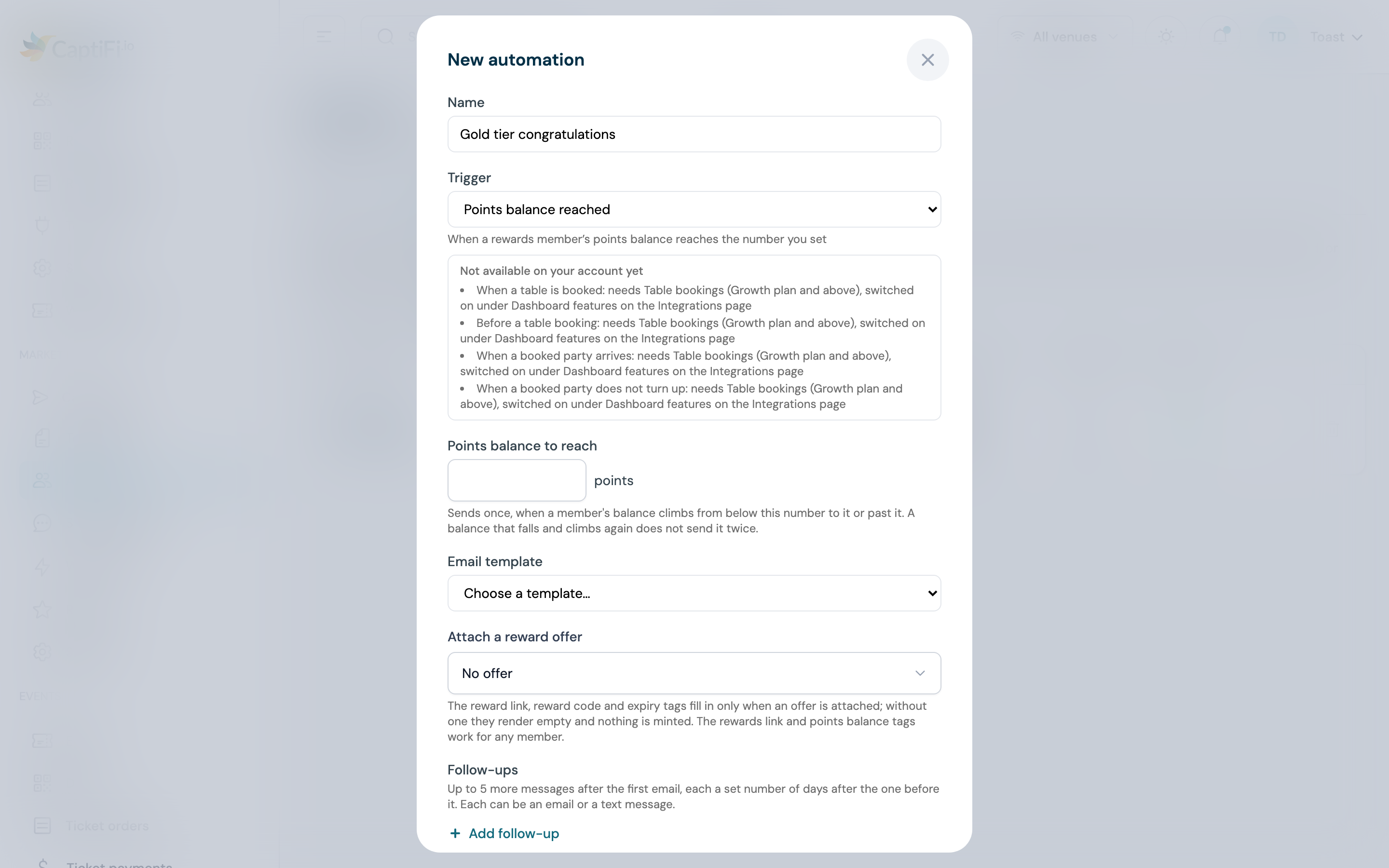
- Enter Points balance to reach. The line under it reads "Sends once, when a member's balance climbs from below this number to it or past it. A balance that falls and climbs again does not send it twice"
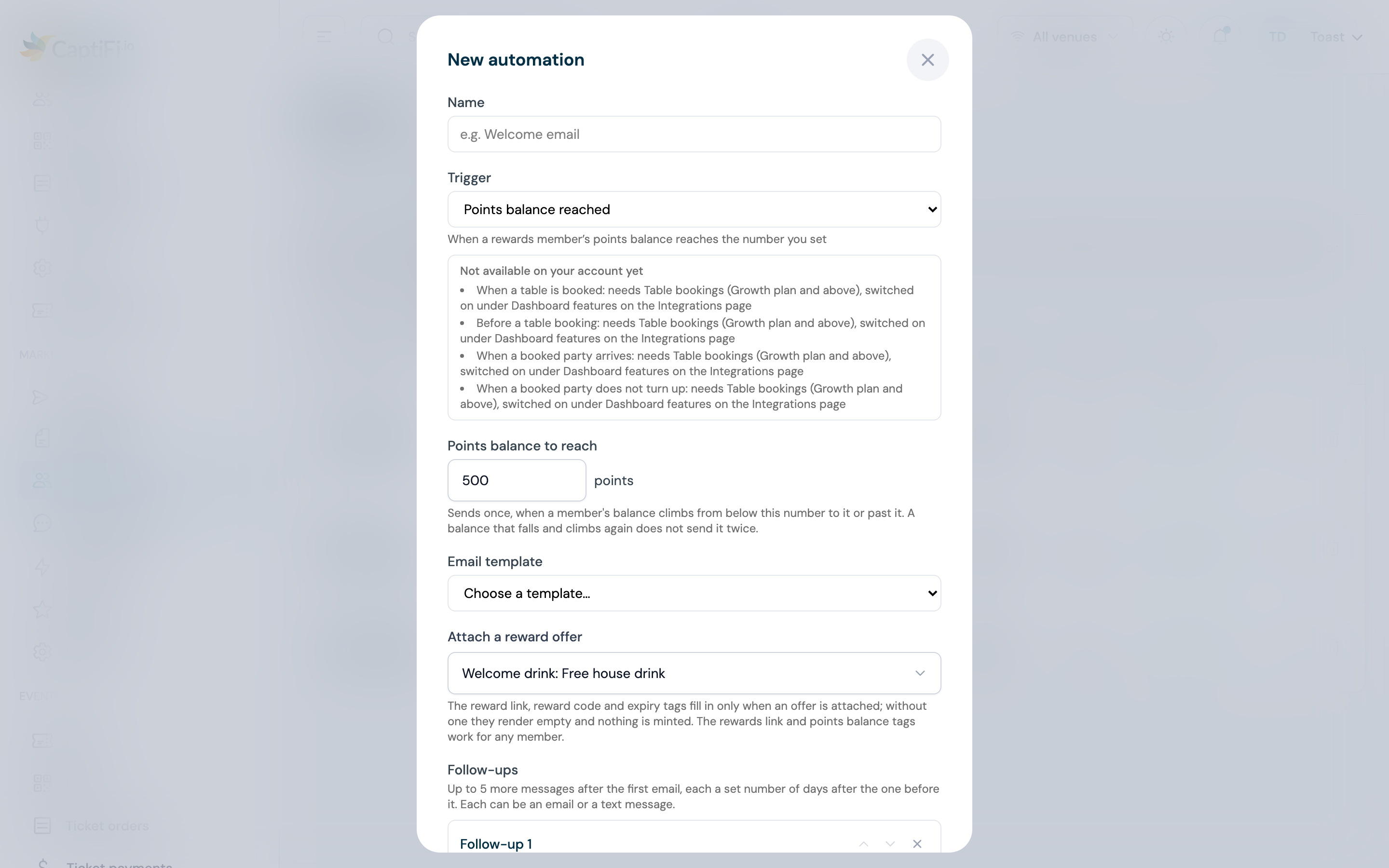
- Optionally attach an offer under Attach a reward offer, so the email that congratulates the member also hands them a reward
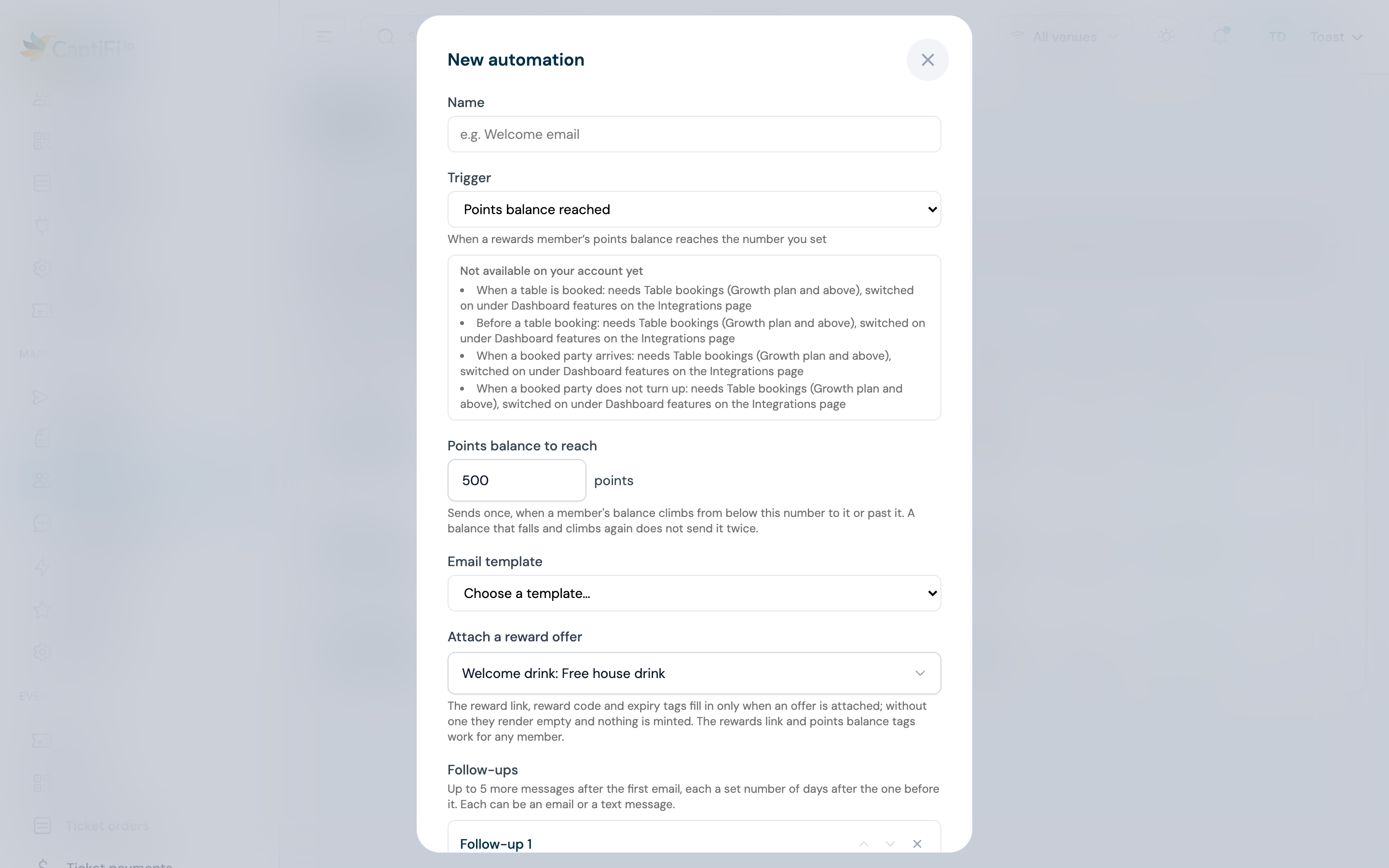
- Pick the template, tick the venues and save
The automation fires on the earn that carries the balance across the number. If you raise the number later, a member who crosses the new one is messaged again; lowering it does not message members already past it. The SMS twin has the same Points balance to reach field and a ready-made message, Points milestone, that carries {rewards_link}.
Reward issued
Choose Reward issued as the trigger; there is no timing to set. The automation runs for each reward issued to a guest on WiFi sign-in or by staff, at the automation's venues, once per reward. Its email renders that reward through the reward tags, so a template with {{reward_code}} and {{reward_expires}} is a reminder of the reward the guest already holds. Nothing is minted, even if an offer is attached, in the first email or in any follow-up. The SMS twin has a ready-made message, Your reward, that carries {reward_link}.
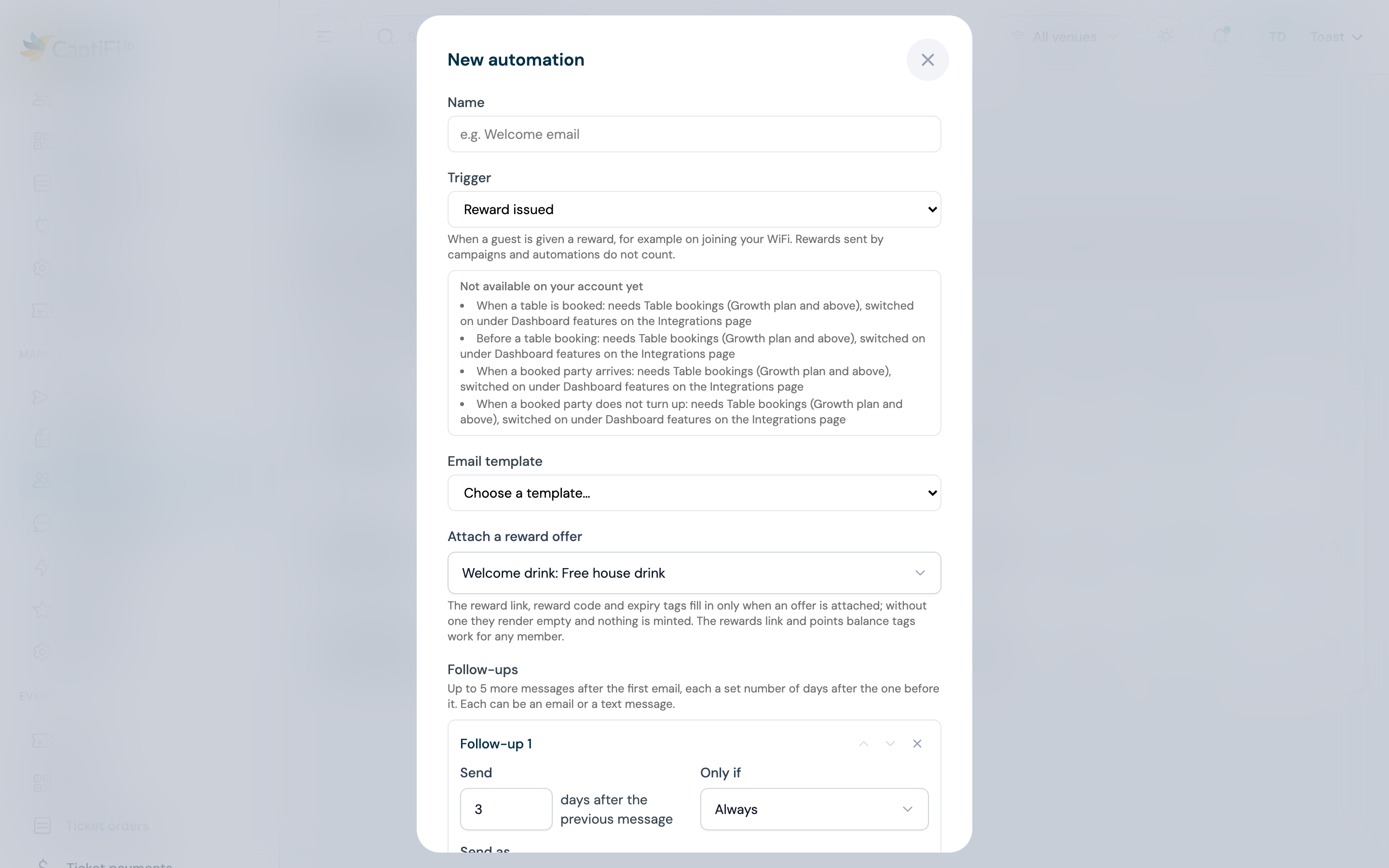
Reward about to expire
- Choose Reward about to expire as the trigger
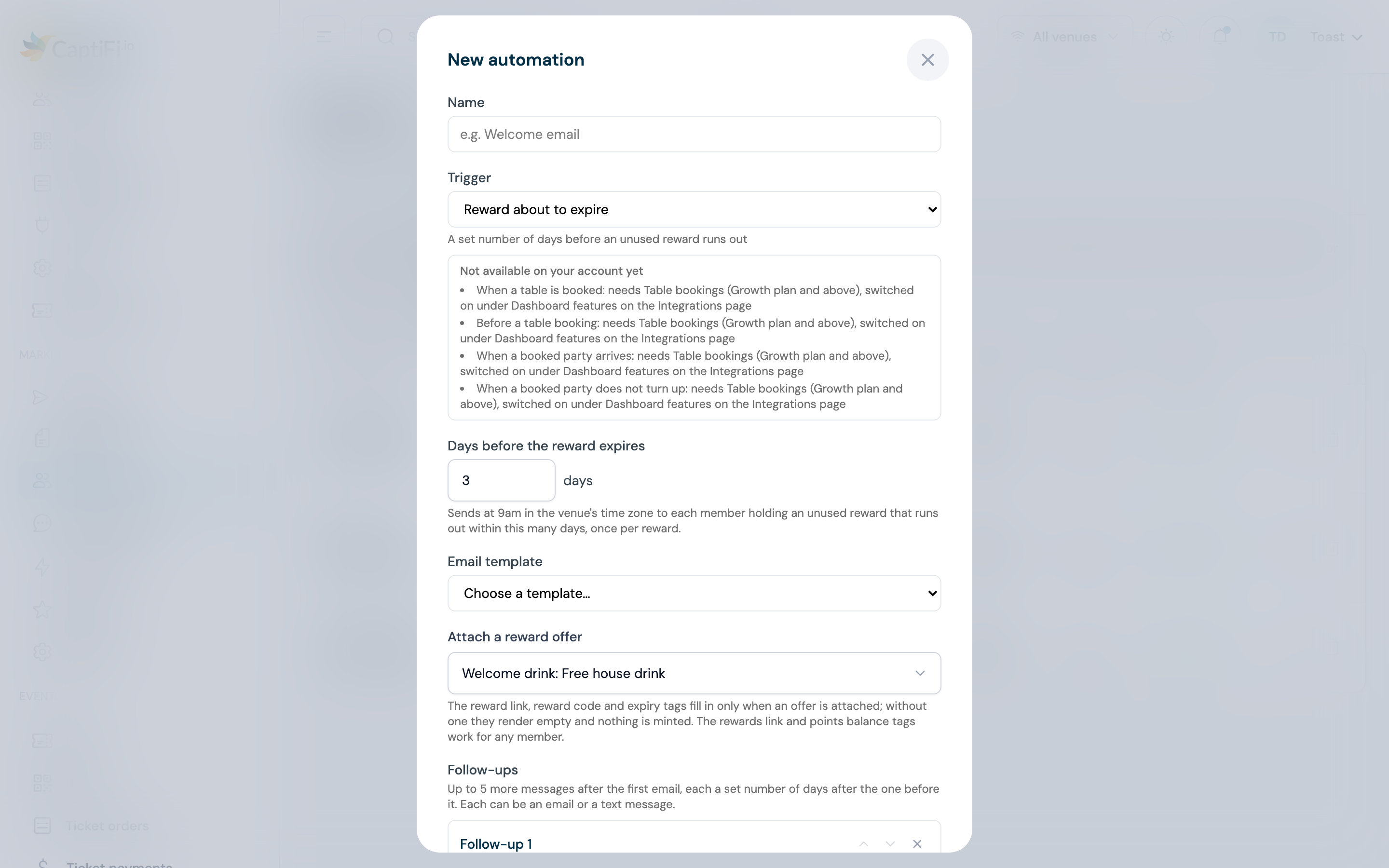
- Enter Days before the reward expires, from 1 to 365. The line under it reads "Sends at 9am in the venue's time zone to each member holding an unused reward that runs out within this many days, once per reward"
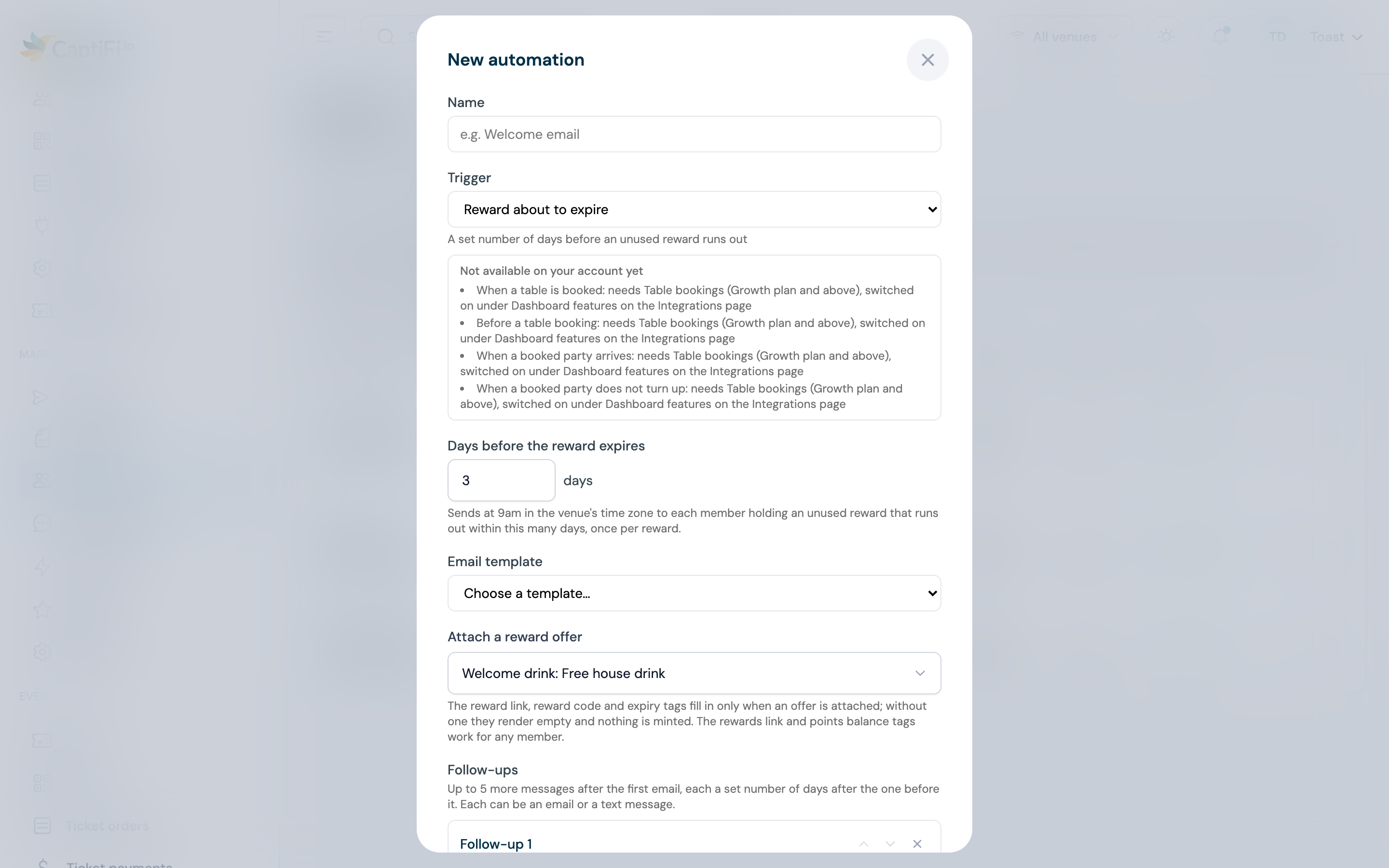
- Pick a template that shows the reward, for example with
{{reward_code}}and{{reward_expires}}, tick the venues and save
Each day at 09:00 in each venue's time zone, every issued reward at that venue whose expiry falls within the window is handed to the automation, once. A reward already used or cancelled is not. The SMS twin has the same field and a ready-made message, Reward expiring soon.
Rewards conditions in segments
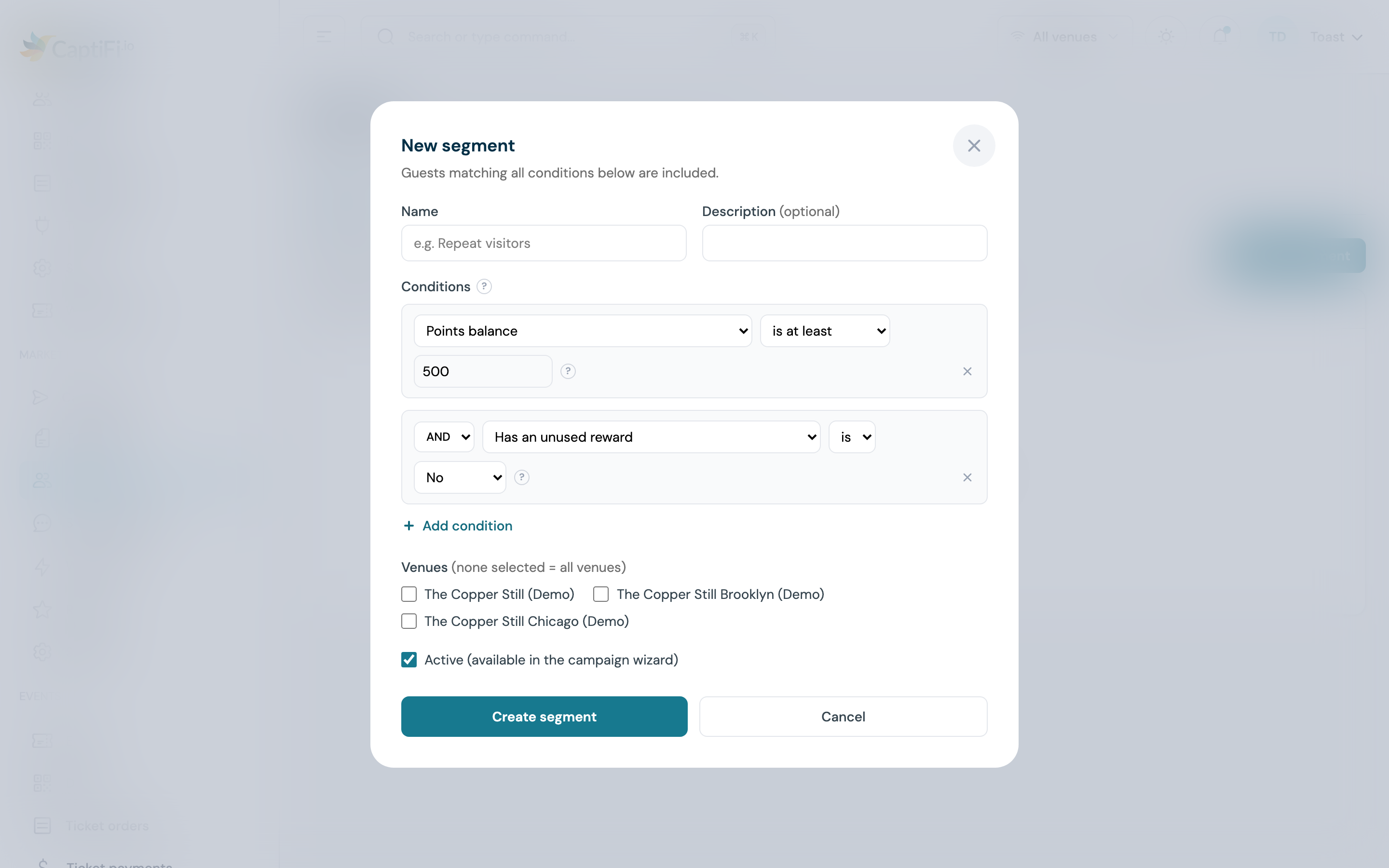
The segment builder under Marketing → Audiences → Segments gains four conditions when Rewards is on.
| Condition | Operators | Value |
|---|---|---|
| Points balance | equals, does not equal, is more than, is less than, is at least, is at most | A whole number of points |
| Rewards tier | is, is not | One of your programme's tiers, listed by name |
| Rewards member | is | Yes or No |
| Has an unused reward | is | Yes or No. Yes means the member holds a reward that has not been redeemed and has not expired |
Conditions are read per guest, through their membership. A guest who has not joined the programme never matches Points balance, Rewards tier or Has an unused reward, whichever way the condition is written, and matches Rewards member is No. Counts refresh as for every other segment; see Audiences and segment sizes.
A segment of Points balance is at least 500 joined with AND to Has an unused reward is No is a list of members with a healthy balance and nothing to spend it on, ready for a campaign with an offer attached.
Webhook events
Endpoints on your Webhooks page can subscribe to four Rewards events. Payloads carry ids, the display code staff type, amounts in minor units (pence or cents) with their currency, and dates; never a reward link or a token.
| Event | Fires when |
|---|---|
reward.issued | A reward is issued to a guest, by any route |
reward.redeemed | A reward is redeemed at one of your venues |
reward.redemption_voided | A manager voids a redemption |
points.earned | A member earns points |
The Send test button on an endpoint has a sample for each. The full payloads are on the Webhooks page.
Troubleshooting
| Issue | Possible cause | Solution |
|---|---|---|
| No Attach a reward block, offer picker or Rewards triggers | Rewards is not on the plan, or is switched off | The account owner switches it on under Integrations → Dashboard features; Growth plan and above |
| The picker says you have no active offers | Every offer is a draft, paused or archived | Activate an offer under Rewards → Offers |
| The offer picker is greyed out | Rewards was switched off, or the plan changed, after the offer was attached | The saved offer is kept and shown read-only. Switch Rewards back on under Integrations to change it |
| An offer is listed as "(no longer active)" | It was paused or archived after it was attached | Pick another offer or No offer. Left as it is, the offer refuses every recipient at send time |
| A reward tag came out blank | No offer attached, or the tag is {{rewards_link}} or {{points_balance}} for a guest who is not a member | Attach an offer, or use the member tags only in messages to members (a Rewards member is Yes segment) |
| Some recipients were skipped | The offer refused them: Max issued reached, outside its dates, paused, or a throwaway address | Check the offer's limits and status. Skipped emails are handed back to your allowance |
| A follow-up handed out a second reward | It shows a reward tag, so it minted against its own offer or the automation's | Remove the reward tags from that step's template, or detach the offer from the automation and attach it to the one step that should carry the reward |
| Points balance reached did not fire again | It sends once per member per number | Raise the number and it fires again at the new crossing |
| Reward about to expire never fires for a reward | The reward was issued by hand with no venue, or the venue is not one of the automation's | Tick the venue on the automation; hand-issued rewards with no venue are not covered |
| A reward trigger is missing from the SMS list | Rewards is off | The needs setup badge on the Automations tab says so; switch Rewards on under Integrations |
Related features
- Rewards & Offers: the programme, offers, points and tiers
- Email Campaigns: the wizard and the segment builder
- Email Automations: triggers, follow-ups and Results
- Email Template Builder: the Personalise menu and the merge tags
- SMS: text campaigns and automations
- Webhooks: signatures, retries and the full payloads