

Appearance
The Guest Profile
Every guest who signs in to your WiFi has a profile. Click a guest's name anywhere it appears (the Guest Visits log, the dashboard's recent guests, a campaign's recipient list) and the profile opens. It pulls everything CaptiFi knows about that person into one page, so a manager or a member of floor staff can look someone up and know how to treat them in a few seconds.
Opening a profile
- Go to Guests → Guest Visits
- Search for the guest by name or email, or filter the list
- Click their name
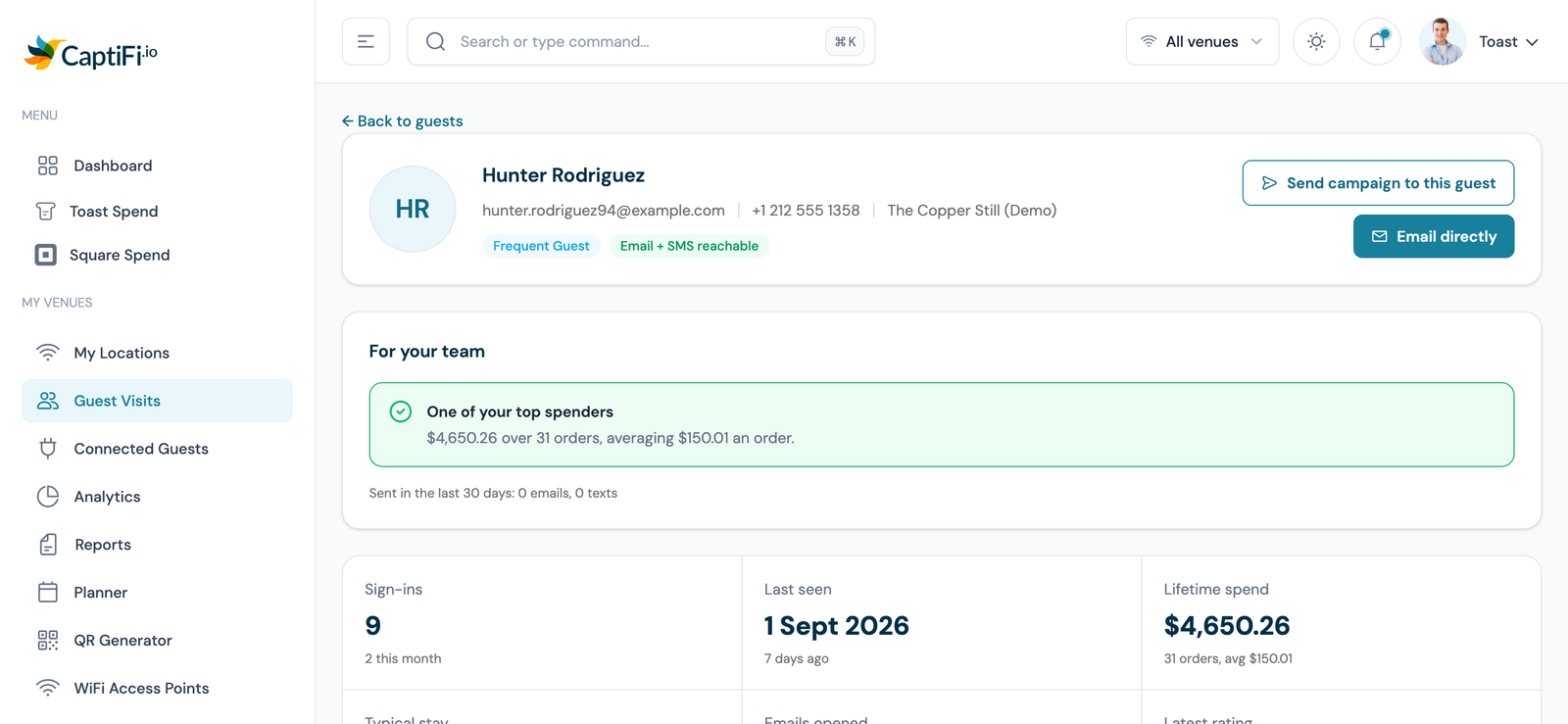
What the profile shows
The header
The guest's name, email and phone number (with a Verified tick when they confirmed their number by text), their home venue and, for multi-venue accounts, how many of your venues they have been seen at. Up to four badges sit beside the name:
- Guest tier, from New Guest through Returning, Regular and Frequent to VIP Guest. Hover the badge to see the two biggest reasons behind it (visit count, recency, spend, a registered birthday and so on)
- Reachability, whether you can lawfully message this guest right now: Email + SMS reachable, Email reachable or SMS reachable in green; Texts on hold in amber, for a US or Canadian number that marketing texts skip until the guest ticks the SMS box on your sign-in form and gives a date of birth at the texting age; Unsubscribed or No marketing consent in grey; Email bounced, Marked as spam or Texts stopped in red. Grey means the guest declined marketing, which is their right. Red means a message would not land
- One time-sensitive badge, shown only when it matters: a birthday within the next 14 days, a booking today, or a low rating left in the last 90 days
- Imported, when the contact came from a list you uploaded rather than a WiFi sign-in
The buttons at the top right are Send campaign to this guest, Email directly, and Kick off WiFi or Block device (Unblock device once blocked) where your hardware supports it (see Guest Analytics).
For your team
A short list of prompts written in plain English, each one derived from a stated rule over real data, with the numbers in the text so you can judge it yourself. Examples:
- Email address bounced: messages to this address cannot be delivered, ask for a fresh one
- Left a low rating: they rated their visit below your Minimum stars for a public review, with their feedback quoted if they left any
- Birthday in 6 days
- Spender drifting away: they have spent a meaningful amount at the till but have not ordered for 30 days or more
- Regular gone quiet: at least three visits, nothing for 45 days or more (after 90 days it reads Regular not seen for months)
- Overdue by their own rhythm: a guest who usually comes back every week has not been in for more than twice that
- Big spender you cannot message: a top-tier spender with no marketing consent, worth asking next visit
- Has a regular slot, N weeks running, One of your top spenders, Went on to Google after rating you, Brand new guest
The most urgent prompt is highlighted at the top. Nothing here is a prediction: if the data does not support a prompt, it is not shown.
The six headline tiles
| Tile | What it shows |
|---|---|
| Sign-ins | Total WiFi sign-ins, with this month's count underneath. An imported contact who has never connected reads Never connected |
| Last seen | The most recent sign-in or WiFi session, in your venue's local time, and their usual slot (for example Fridays, evening) once a habit is clear |
| Lifetime spend | Their total at the till across Toast and Square, in your venue's currency, with the order count and average order. Only shown when a point-of-sale is connected; otherwise the tile shows Days as guest |
| Typical stay | The median length of their WiFi sessions, once there are at least three complete sessions to go on. Otherwise the tile shows this week's visits |
| Emails opened | Opened of sent for your marketing emails and automations. A percentage appears from three sends onwards |
| Latest rating | Their most recent review-request rating and when they gave it, or the reason no request has gone out |
Spend at your venue
Shown when the venue has Toast or Square connected. Every amount is in your venue's currency and the card says so. Without a till connected, a card reads Connect Toast or Square to see what this guest spends, with an Open integrations link.
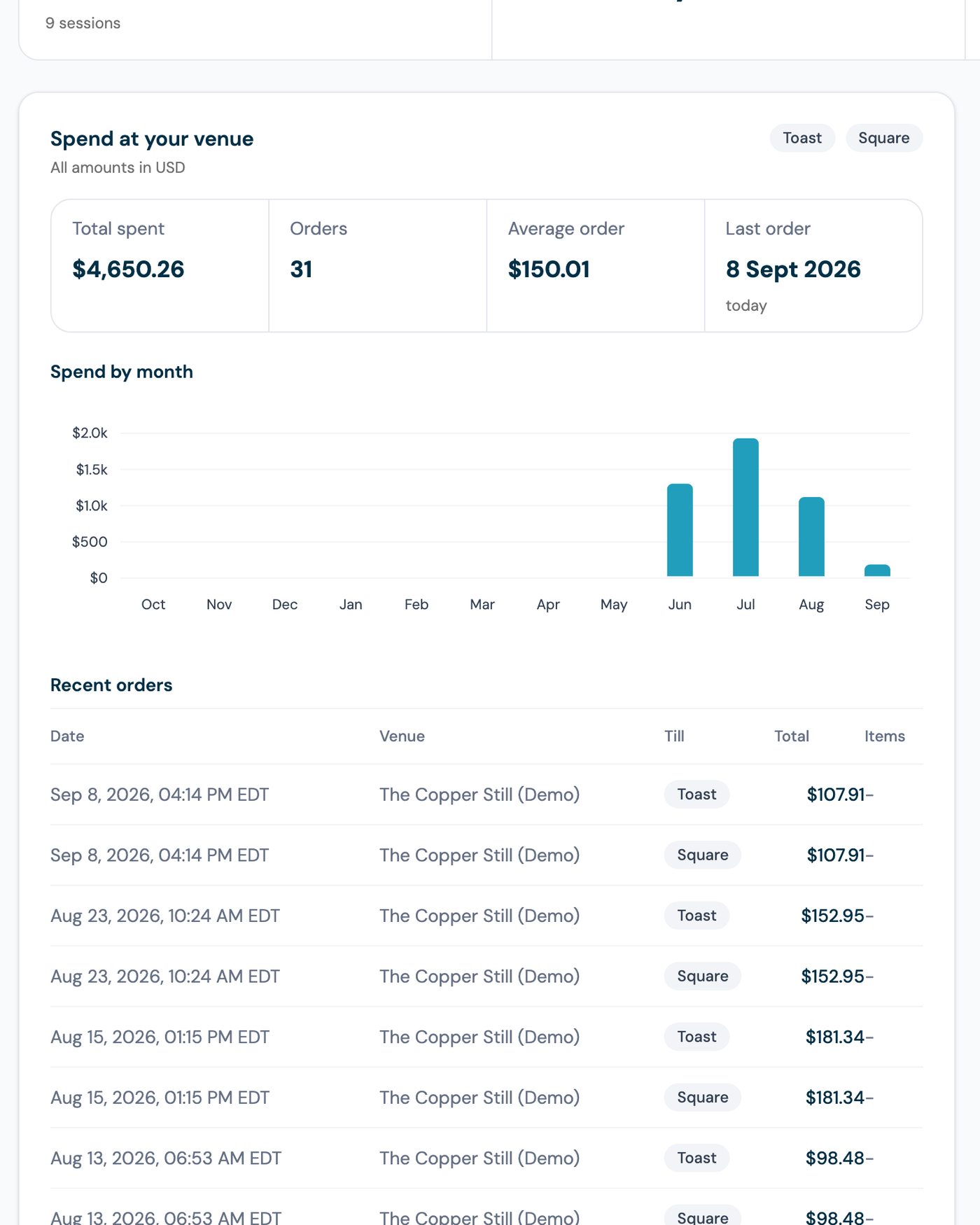
- Total spent, number of orders, average order and the date of the last order
- What they order: the items that appear in most of their orders, with how many orders each appeared in. This only appears once at least three of their orders carry line items, and it is drawn from their most recent 50 orders
- The ten most recent orders with the date, venue, provider and total, plus a summary of the items on each
- A warning if the point-of-sale has not synced in the last 30 minutes, so you know whether the figures are current
Orders are matched to a guest by the receipt email they gave the till, or by the link CaptiFi made when the order synced. A guest who never gives the till an email will show no spend even if they are a regular. When nothing has matched yet, the card says so rather than showing zeros as if they were facts.
Visits and rhythm
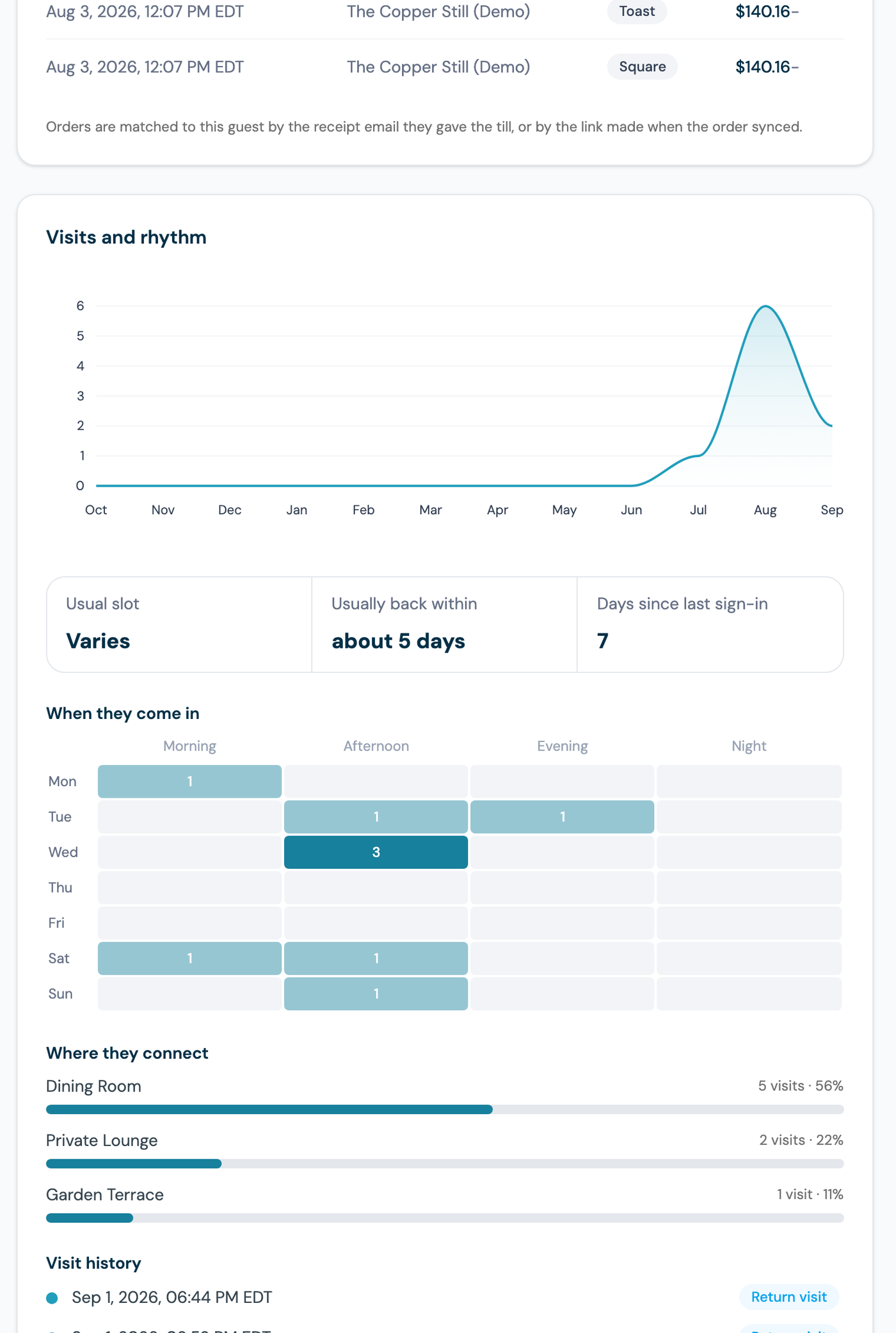
- Sign-ins per month for the last twelve months
- Usual slot: the weekday and time of day they most often come in, only claimed once they have visited at least four times and that slot accounts for at least 40 percent of their visits. Otherwise it reads Varies
- Usually back within: the average gap between their visits
- A weekday-by-time-of-day grid showing when they tend to visit
- N weeks running when they have signed in every week for three weeks or more
- The access points (zones) they connect through most, by the names you gave them under WiFi Access Points. An access point you have not named shows as Unnamed access point
- The full list of their sign-ins, newest first
Time in venue
For venues on UniFi or CaptiFi access points, the typical and longest length of their WiFi sessions. Sessions still open, sessions shorter than five minutes and sessions longer than twelve hours (a phone left on a table overnight) are left out, and nothing is shown until there are three complete sessions.
Activity
One timeline of everything that has happened with this guest: sign-ins, orders, the emails and texts you sent them (with Opened or Clicked for emails, Delivered or Failed for texts), review requests and the ratings that came back, bookings, paid WiFi passes, and consent changes. Use the tabs to see one kind at a time.
Contact and consent
Their email and phone, their email marketing state (Subscribed, Unsubscribed on a date, or Not opted in), their SMS state (Opted in, On hold with the reason for a US or Canadian number that marketing texts skip for now, Not opted in, Stopped after a STOP reply, or No phone), how they signed in, whether they were captured on your WiFi or imported, and whether they accepted your terms. A bounced or complained address is flagged in red here as well.
When a returning guest was not asked the marketing question, or the SMS box, because they had already said yes at one of your venues (see Returning guests), Carried consent lists where that yes came from, one line each, for example "Email consent carried from The Anchor on 3 Oct 2026": the venue they said yes at and the date they said it. A team member who has not been given that venue reads "another of your venues" in place of its name.
Tags and Owner notes
Two cards: Tags holds the tags you or the Planner applied, and Owner notes holds your own private notes about the guest. Guests never see these. Team members with limited access do not see them either. A tag added or removed here can start a workflow.
Feedback and reviews
Their latest rating with the date, any feedback they wrote, and whether they went on to Google after rating you. A Clicked through to Google badge appears only when the guest rated at or above your Minimum stars for a public review, left no private feedback, and clicked through to your Google page. Below that, how many review requests were sent, opened and rated. If no request has ever gone out, the card tells you why: reviews are off for this venue, the attended-only rule applies, the email bounced, or no email was captured. See Reviews.
Bookings
When Reservation Check-in is on, or the guest has bookings on record: the next booking with party size, then how many they attended, missed or cancelled, and their typical party size. Attendance is worded by how it was confirmed: Seen on WiFi around the booking, Confirmed by the booking provider, or Marked by staff. A booking the guest made on your CaptiFi booking page, or your team took from the diary, is labelled Table booking; see Table bookings.
Occasions
Their birthday (day and month) and how many days away it is, and how long they have been a guest.
Splash answers and details
The answers they gave on your splash page, the device they usually connect with, a count of other email addresses that have signed in from the same device (the addresses themselves are not listed), and any paid WiFi passes they have bought, one total per currency.
Technical details
Collapsed at the bottom: the connection source, device identifiers and the raw record details, for troubleshooting with support.
Limited-access team members
A team member you gave limited access sees the same layout with personal data withheld: the email and phone are masked, the order line items, review feedback text and other addresses are hidden, and the Tags and Owner notes cards do not appear. Spend totals, visit counts and the prompts for your team still show, because none of those identify the guest.
Currency
All money on the profile is shown in the venue's own currency, worked out from the venue's country, then its paid WiFi currency, then the account's billing currency. Square orders carry their own currency and are shown in it. If a guest has spend in more than one currency, the totals are shown per provider rather than added together.
Related
- Guest Analytics for the Guest Visits log and venue-wide reports
- Toast and Square for connecting a point-of-sale
- Reviews
- Reservation Check-in