
Appearance
Ruckus Setup
Connect CaptiFi to your Ruckus Wireless access points. Ruckus integrates with CaptiFi using a Hotspot (WISPr) portal plus RADIUS authentication: guests are redirected to your CaptiFi splash page, and CaptiFi's RADIUS server tells your controller when to let each guest online.
This guide covers Ruckus Unleashed (self-serve setup in the CaptiFi dashboard), plus SmartZone and ZoneDirector (same values — contact support if you'd like a hand).
Important
The portal URL, RADIUS details, and shared secret must be entered exactly as shown in your CaptiFi dashboard. Incorrect values will prevent the captive portal from working.
Prerequisites
- Ruckus access point(s) running Unleashed, or managed by SmartZone or ZoneDirector
- Controller firmware up to date
- Admin access to your Ruckus management interface
- CaptiFi account at my.captifi.io with a Ruckus site created — CaptiFi provides your site ID, RADIUS shared secret, and NAS identifier
Overview
The Ruckus integration involves five steps:
- Create the site in CaptiFi — Get your portal URL and RADIUS credentials
- Add CaptiFi as a RADIUS server — So guests actually get online after signing in
- Configure the Hotspot (WISPr) portal — Redirect guests to your CaptiFi splash page
- Walled Garden — Allow pre-authentication access to CaptiFi domains
- Test — Verify everything works end to end
Step 1: Create the Site in CaptiFi
- Log in to my.captifi.io
- Go to My Locations → Add location (or choose your hardware during onboarding) and select Ruckus
- Give the controller a name and finish the wizard
- The wizard's Activate your WiFi step shows your portal URL and the allowed domains with copy buttons. Under the portal URL, the RADIUS server block lists the server, Authentication port, Accounting port, NAS identifier and Shared secret for your venue, with a line saying where they go in Unleashed. The secret is masked until you click Show, and Copy works either way
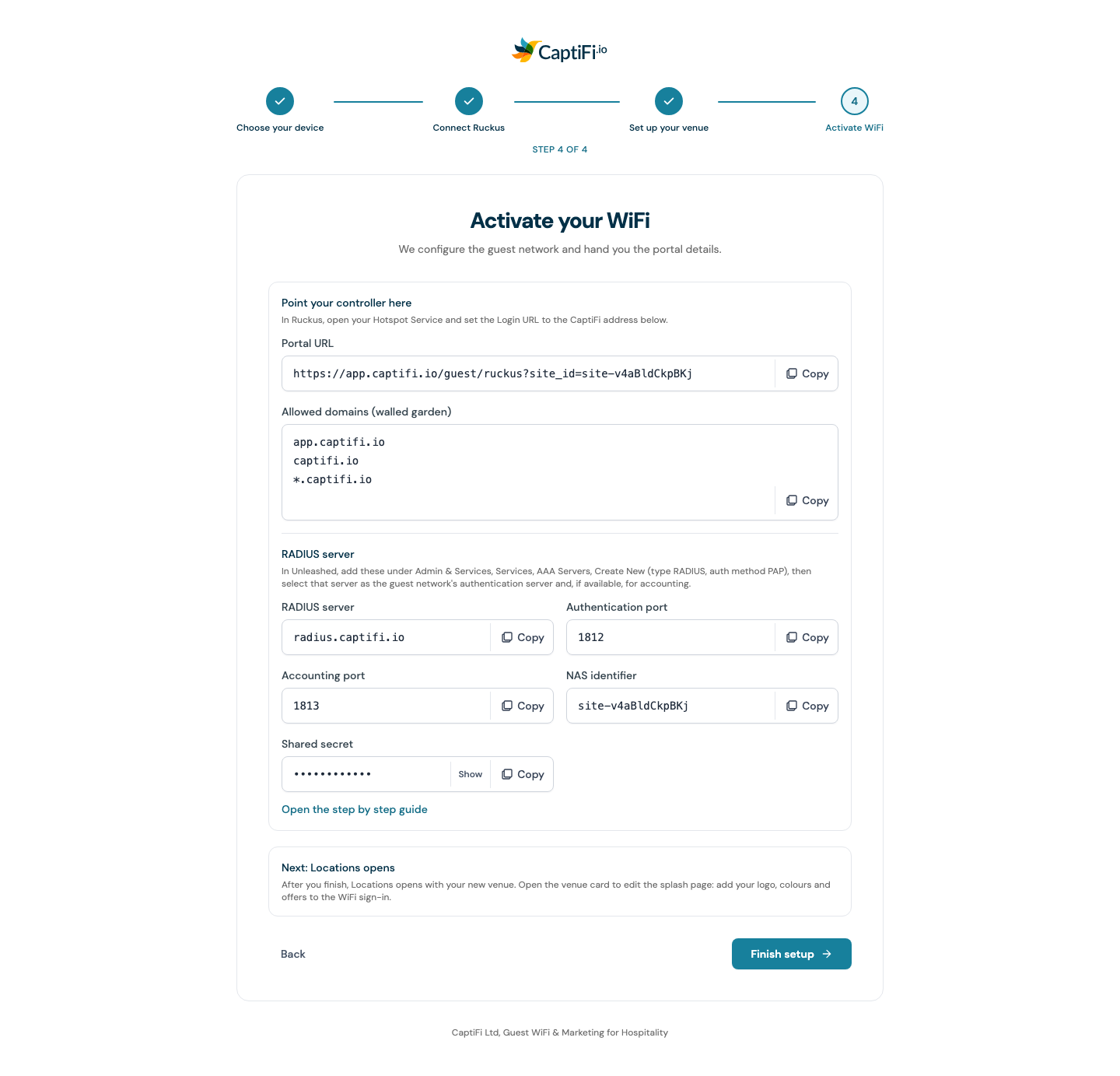
After set-up, the same values are on the venue's card under My Locations: click Controller settings.
Your portal URL has this form (replace YOUR_SITE_ID with the site ID from your dashboard):
https://app.captifi.io/guest/ruckus?site_id=YOUR_SITE_IDYour access point automatically appends the guest's MAC, SSID and other details to this URL, so do not add anything after site_id.
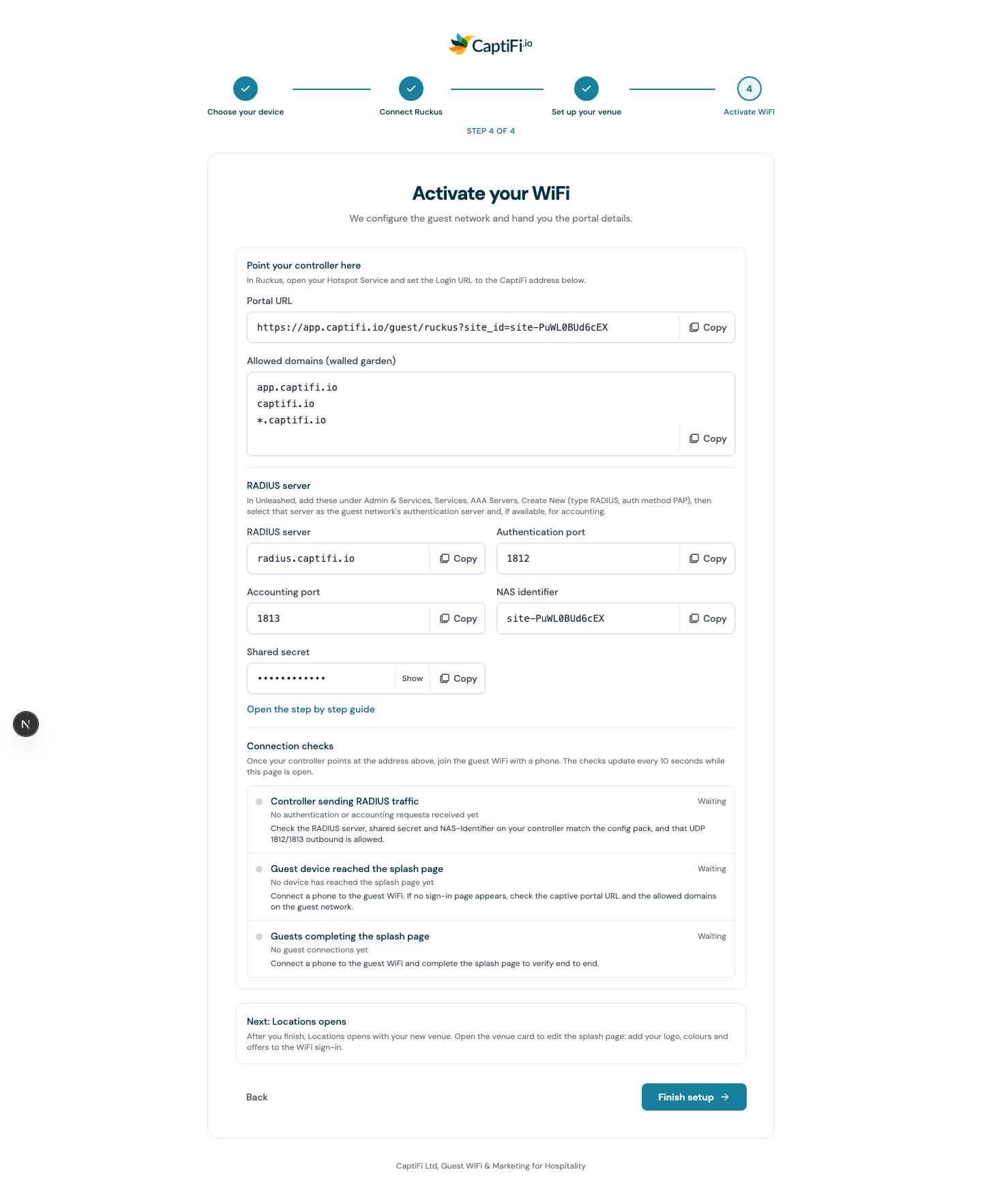
Connection checks in the set-up wizard
The WiFi step of the wizard lists three checks under the portal URL: Controller sending RADIUS traffic, Guest device reached the splash page and Guests completing the splash page. Once Steps 2 to 4 are done, join the guest SSID with a phone. The first turns green when your controller's first RADIUS request arrives, the second when the sign-in page loads and the third when the form is completed. They update every 10 seconds while the page is open.
Step 2: Add CaptiFi as a RADIUS Server
Ruckus puts guests online using RADIUS. After a guest submits the splash form, your controller asks CaptiFi's RADIUS server whether to let that device on — without this step guests see the splash page but never get internet.
| Setting | Value |
|---|---|
| Type | RADIUS |
| Auth Method | PAP |
| Server / IP | radius.captifi.io |
| Authentication Port | 1812 |
| Accounting Port | 1813 |
| Shared Secret | Shown on the wizard's Activate your WiFi step, and under Controller settings on the venue's card in My Locations afterwards |
Where to add it:
- Unleashed: Admin & Services → Services → AAA Servers → Create New
- SmartZone / vSZ: Services & Profiles → Authentication → AAA Servers
- ZoneDirector: Services → AAA Servers
Step 3: Configure the Hotspot (WISPr) Portal
Unleashed
- Go to WiFi Networks → create or edit your guest network
- Set Usage Type to Hotspot Service (WISPr)
- Create a new Hotspot Service:
- Login/Portal URL: your CaptiFi portal URL from Step 1
- Authentication Server: the CaptiFi RADIUS server from Step 2 (also select it for Accounting if available)
- Save and apply
SmartZone / vSZ
- Create a Hotspot (WISPr) profile:
- Login URL: your CaptiFi portal URL
- Smart Client Support: None
- Edit your guest WLAN:
- Authentication Type: Hotspot (WISPr)
- Select the WISPr profile and the CaptiFi AAA server (authentication + accounting)
- Save and apply
ZoneDirector
- Go to Services → Hotspot Services → Create New
- Login Page URL: your CaptiFi portal URL
- Authentication Server: the CaptiFi RADIUS server
- Edit your guest WLAN and set Type to Hotspot Service (WISPr), then select the Hotspot Service
- Save and apply
No redirect-back URL
There is no separate "Redirect URL" to configure. Ruckus authorises guests over RADIUS, not via a redirect-back URL.
Step 4: Configure Walled Garden
The Walled Garden allows guests to reach CaptiFi's servers before they log in. Without these entries, the splash page cannot load.
In your Hotspot Service configuration, find the Walled Garden section and add:
| Domain |
|---|
app.captifi.io |
captifi.io |
*.captifi.io |
TIP
If your controller version only supports IP-based entries, add the IP address 46.62.168.7 as well.
Step 5: Test
- Connect a device (phone or laptop) to the guest WiFi
- The CaptiFi splash page should appear automatically
- If on mobile, you may need to open a browser and visit any HTTP site (e.g.,
http://example.com) - Complete the login form — you should get internet access within a few seconds
- Check Guest Visits in your CaptiFi dashboard — the guest should appear in your logs
Troubleshooting
| Issue | Solution |
|---|---|
| Splash page not appearing | Verify the guest WLAN's usage/authentication type is Hotspot Service (WISPr) and the Hotspot Service login URL matches your dashboard exactly |
| "Portal unreachable" error | Check the Walled Garden includes *.captifi.io and app.captifi.io; add IP 46.62.168.7 if needed |
| Guests can't get online after login | Check Step 2: the CaptiFi RADIUS server (radius.captifi.io, ports 1812/1813, auth method PAP) must be added and selected as the guest WLAN's authentication server |
| "Access denied" after login | The RADIUS shared secret doesn't match — copy and paste it directly from your CaptiFi dashboard |
| No entries in CaptiFi dashboard | Select the CaptiFi server for RADIUS Accounting as well as Authentication |
| Settings not taking effect | After changes, re-provision access points from the controller; allow 1-2 minutes to propagate |
| HTTPS sites not triggering redirect | Guests may need to visit an HTTP site first (e.g., http://example.com) to trigger the portal redirect |
Multiple Sites
If you manage multiple Ruckus locations:
- Each location can have its own splash page design in CaptiFi
- Each location has its own portal URL and NAS identifier
- Manage per-location settings in My Locations on your CaptiFi dashboard (each additional CaptiFi location beyond the one included in your plan is charged at your currency's extra-venue rate)
Next Steps
Need Help?
Ruckus setups can vary depending on your controller type and firmware version. SmartZone and ZoneDirector setups in particular — we're happy to walk through it with you:
- Email: hello@captifi.io
- Live Chat: Available on captifi.io
- Ruckus Documentation: Ruckus Support