
Appearance
Team Members
Give colleagues their own login to your CaptiFi dashboard, and control exactly what each of them can access, without sharing your password.
Where to Find It
- Log in to my.captifi.io
- Go to Account → Team in the sidebar
Team members are included on every plan from Essentials up. They are not on Lite.
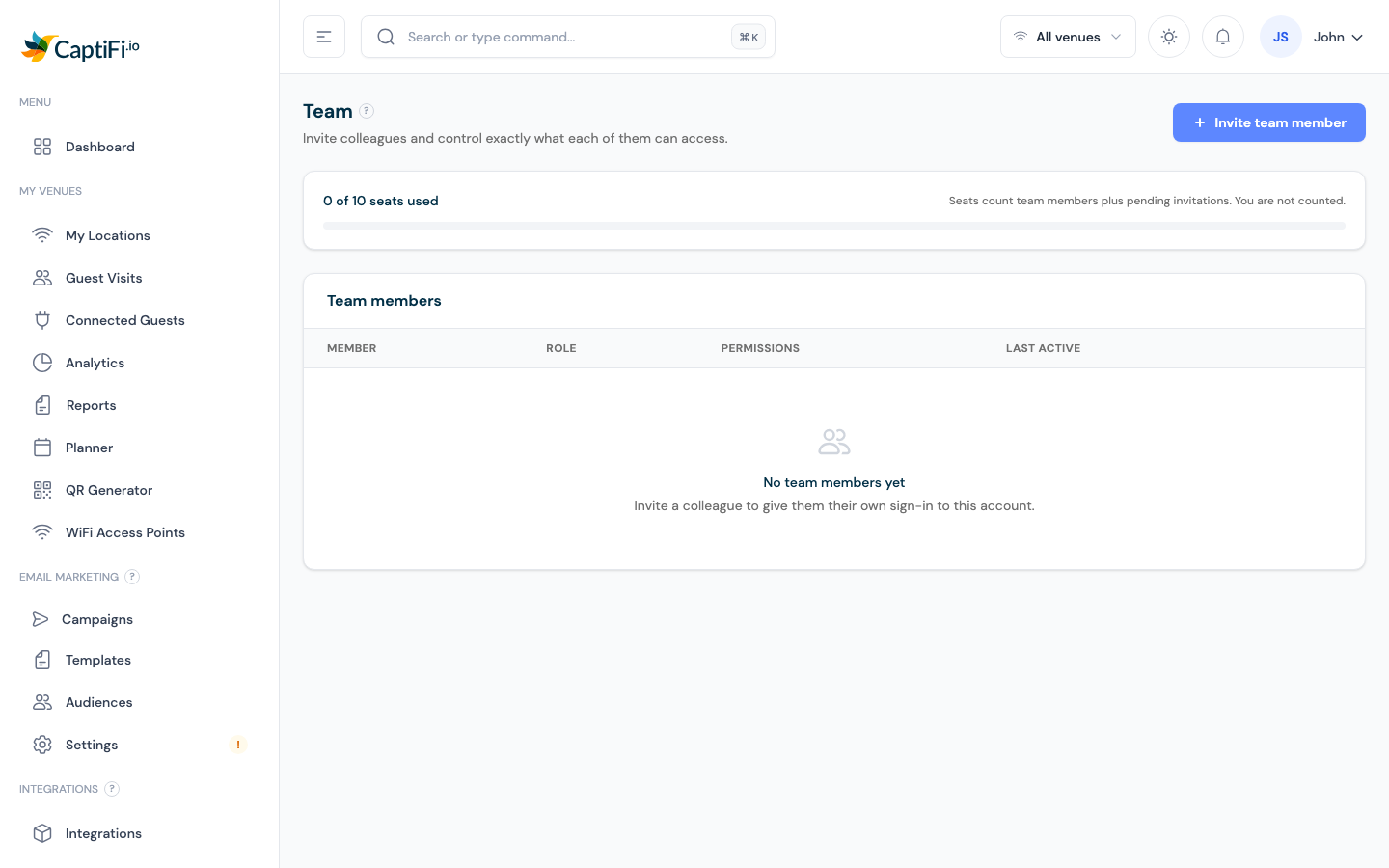
The page shows your seat usage (up to 10 seats per account: team members plus pending invitations; you're not counted), your Team members table, and any Pending invitations.
Inviting a Team Member
- Click Invite team member (top right)
- Enter their Email address and optionally their Name
- Pick a Role. It pre-fills a sensible set of permissions, and a line under the picker says what that role can do. Pick Redeem only for bar and door staff who should see nothing but the redeem screen (see below)
- Choose their Venue access: All venues, or Specific venues with a checklist of your locations. A member scoped to specific venues only ever sees data, analytics, guests and settings for those venues, across the whole dashboard
- Fine-tune the individual permission toggles if needed (each has a short description, e.g. team management, billing access)
- Click Send invitation
The invitee receives an email link where they set a password to create their account. Invitations expire after 7 days. Use Resend to email a fresh link, or Revoke to cancel one.
Seats full?
If the invite button is disabled with a "team is full" warning, remove a member or revoke a pending invitation first. Team members are included in your plan at no extra cost.
Editing or Removing Members
In the Team members table:
- Edit (pencil): change their role, individual permissions or venue access; their email can't be changed
- Remove (bin): revokes their access immediately after you confirm
The table also shows each member's permission summary (e.g. "Full access", "View only"), their venue access ("All venues" or a venue count) and when they were last active.
What Team Members See
Team members log in at my.captifi.io like you do, with their password or the Continue with Google, Microsoft or Apple buttons, but only see the pages their permissions allow. For example:
- Without billing access, the Billing page shows "Billing is managed by your account owner"
- Without team management, the Team page is restricted
- Without Export data, a member cannot download or email a report, or see the report email list on the Reports page
- A member scoped to specific venues sees only those venues everywhere: the venue switcher, guest lists, analytics, reports and integrations
- Members can never grant themselves more access than they have, including venue access: a member limited to certain venues cannot invite someone with broader access
Redeem-only logins for bar and door staff
Staff who only redeem rewards or check tickets at the door should not see your guests, campaigns, billing or settings. Give them the Redeem only role when you invite them, or change an existing member to it with Edit. The role grants one permission, Scan and check in at the door or till, and nothing else.
A Redeem-only member who signs in to my.captifi.io lands on Rewards → Redeem and sees only that screen: the venue they are at, the code box and the Scan button, with Sign out in the header. There is no sidebar, no search and no notifications, and typing any other address brings them back to Redeem. The same applies to what their login can fetch: CaptiFi refuses every request outside the redeem screen for that account, so the restriction holds even outside the browser. If your account is paused, they see a short notice asking them to speak to the account owner.
If a member later needs more, tick any further permission on Edit and they get the full dashboard on their next sign-in.
Events permissions
Two permissions cover Events and tickets:
- Manage events and tickets (in the Marketing group, included in the Marketing role) lets a member create, edit and publish events and ticket types, change the events page settings and resend tickets.
- Scan and check in at the door or till (in the Operations group, included in the Operations role) lets a member work the Door check-in page and the Rewards redeem screen.
Ticket orders and attendee lists carry buyer details, so opening them, and seeing names on the door page, also needs View guest data. Without it the door shows ticket and order numbers instead of names, and Admit all for a whole order is not offered. Connecting Stripe, the selling currency, the booking fee mode and the fee terms stay with the account holder and cannot be granted to a member.
Workflows permission
Manage workflows (in the Marketing group, included in the Manager and Marketing roles) lets a member create, edit, publish, pause, resume, archive, duplicate and delete a workflow, and start one for a guest. Every member of an account on Pro or Enterprise, or on a free trial, can open the Workflows page and read a workflow on a read-only canvas without it.
Runs carry guest details, so the runs list and a run's timeline need View guest data, and cancelling a run needs both. Two steps look at who is publishing: a workflow with Send a text message needs Manage marketing emails and texts as well, and a workflow with Award points can be published by the account owner only. A member who lacks the permission a step needs sees a problem naming that step on publish.
Integrations permission
Manage integrations (in the Operations group, included in the Manager and Operations roles) lets a member connect, change, test, switch on or off and disconnect an integration on the Integrations page, and change the Review requests settings on the Reviews page. It also covers WiFi vouchers and the Paid WiFi settings.
A member without it can still open an integration and read its settings. They show read-only, with no Save, test, switch or Disconnect, and a line saying the member's role does not include managing integrations. The account owner can grant it by editing the member's permissions on this page.
Reservations and table bookings permissions
Two permissions cover Table bookings and Reservation check-in:
- View guest data is needed to see the Bookings pages and the Reservations page at all, because a booking carries the guest's name, email address and phone number. It is included in the Manager, Marketing and Operations roles. Without it the Bookings group and the Reservations entry are not in the member's sidebar, and the pages themselves show a restricted card.
- Manage table bookings (in the Operations group, included in the Manager and Operations roles) lets a member take, amend and cancel table bookings, run the diary (arrive, seat, complete, no-show and walk-in), handle enquiries, and add, edit and remove services, areas, tables and closures under Bookings settings. It is also needed to add, change, import or delete a reservation and to use Mark attended and Mark no-show on the Reservations page.
A member with View guest data and not Manage table bookings reads everything: the diary, the list, each booking's page, the enquiries, the reports and the settings. Where the buttons would be, the Bookings pages read "Only team members with the Manage table bookings permission can take or change bookings." and the Reservations page reads "Only team members with the Manage table bookings permission can add or change reservations." Export CSV on Bookings reports needs Export data as well as View guest data. Switching Table bookings on or off and the deposit terms stay with the account holder and cannot be granted to a member.
Related Pages
- Account Settings: your own profile and security
- Dashboard Overview: what each dashboard section does
- Table bookings: the pages the Manage table bookings permission covers