

Appearance
Door check-in
Door check-in is the page your door staff open on a phone on the night. It scans the QR code on a guest's ticket, or takes the ticket number typed in, and answers with a large green Admitted or a red refusal that says why. Each ticket admits once, from any phone, and a mistaken admit can be undone for five minutes by the person who made it.
Print this page for the door if it helps. Door check-in is under Events then Door on my.captifi.io, or from the Door button on an event.
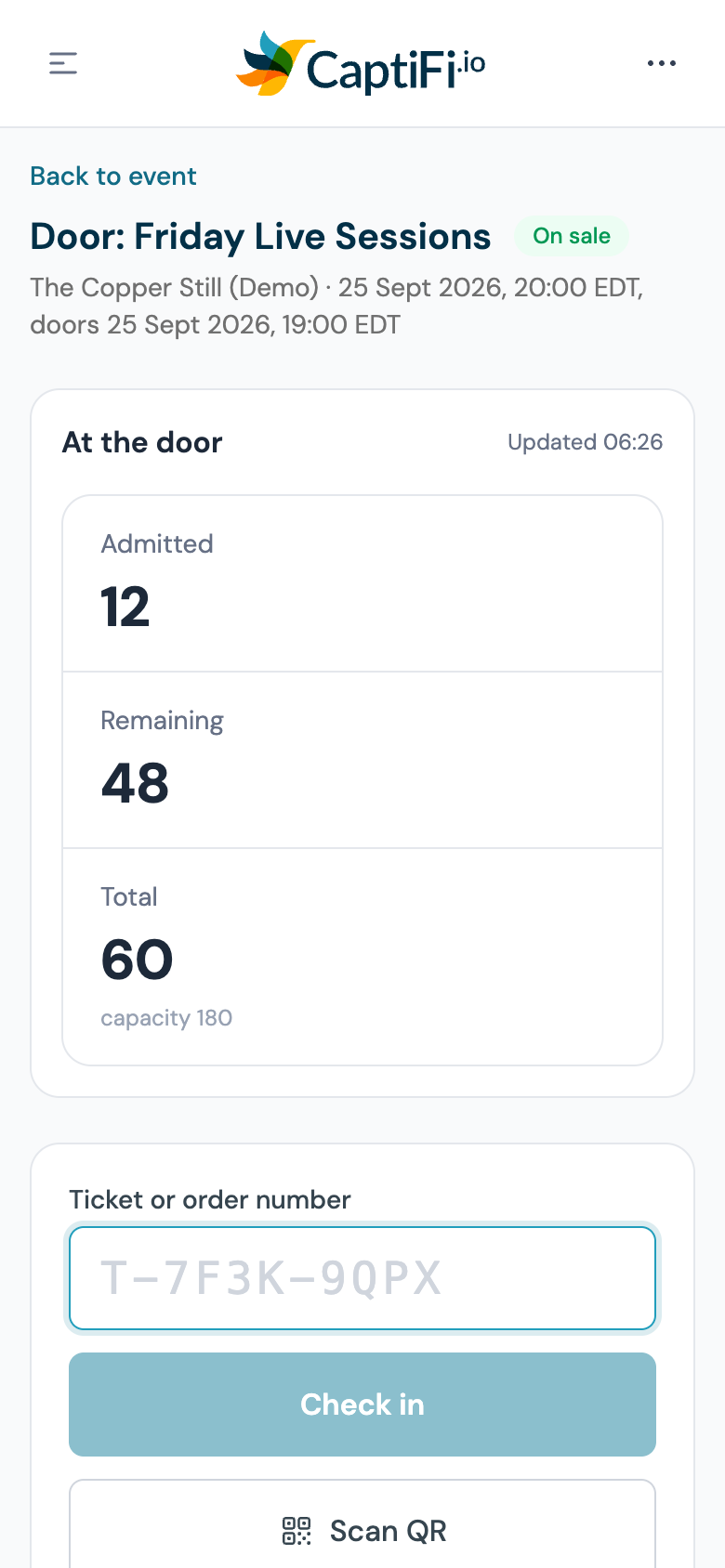
Who can work the door
- The account holder, always.
- A team member with the Scan and check in at the door or till permission. See Team members.
- Buyer names show only to team members who also have View guest data. Everyone else sees ticket and order numbers in their place.
Before doors open
- On your phone, log in to the dashboard as usual and open Events then Door.
- Pick the event you are working. Door lists the events at your venues that start yesterday, today or tomorrow and can take a door (on sale, sold out or finished), tonight's first. When only one event fits, its door opens straight away. When none does, the page reads "No event is on tonight, yesterday or tomorrow." Open the event from Events and use its Door button instead.
If the event has a Door check-in opens time set, every scan before that time is refused with "Check-in for this event opens at 19:00." until then.
Admitting a guest
Scan the QR code
- Tap Scan QR and allow the camera when the phone asks.
- Point the camera at the QR code on the guest's phone, in their Apple Wallet or Google Wallet pass, or on a printout. The phone buzzes when it reads a code.
- Read the result card. Tap Stop camera when you are done.
Camera scanning works on an iPhone or iPad in Safari, on Android and on a desktop. If the phone asks, allow the camera for my.captifi.io; if it was refused earlier, turn it back on in the browser's settings for the site. If the camera will not start, type the number instead.
Type the ticket number
Every ticket carries its number under the QR code, in the form T-7F3K-9QPX. Type it in the box and tap Check in. Dashes and capitals do not matter.
Type the order number
A guest who has lost their phone can read out their order number, CF-7F3K9Q on their confirmation email. Type it in the same box and tap Check in. The page finds the order and filters the door list to its tickets so you can admit them from there.
Reading the result
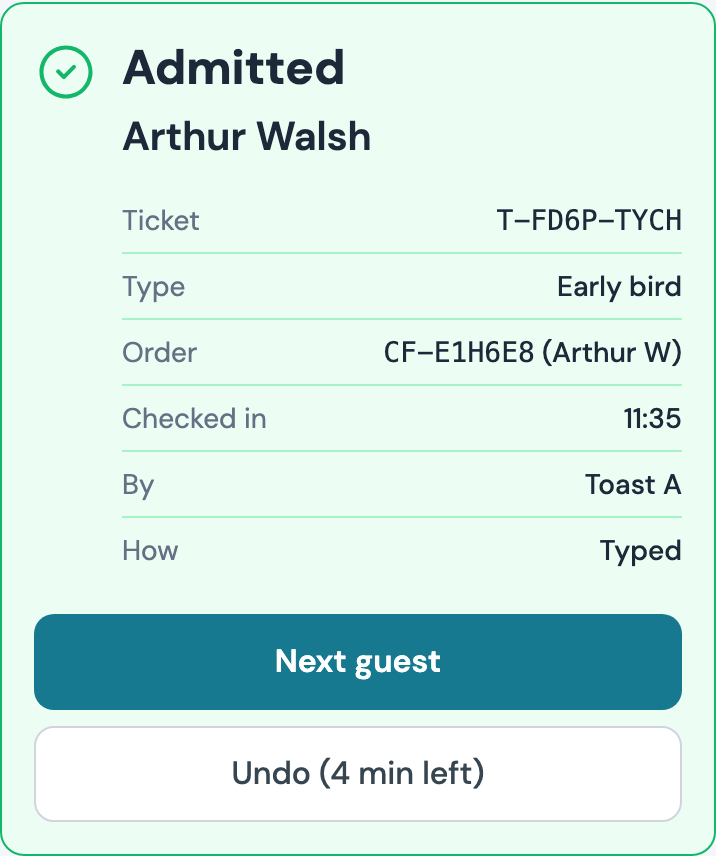
Admitted, in green, shows the guest's name (when you may see names), the ticket number and type, the order, and when, by whom and how it was checked in. Let them in and tap Next guest. Undo stays on the card with the minutes left to undo it.
A refusal is red, with a short title above a sentence that says why:
| The card says | What it means | What to do |
|---|---|---|
| Already checked in, with the time and the staff name beneath | This ticket has been used. The named person admitted it at that time. | Do not admit a second person on it. If they made a mistake within the last five minutes, they can undo it. |
| Wrong event: "This ticket is for [event], not this event." | The QR belongs to another event at your venue. | Switch to that event and scan again. |
| Wrong venue: "This ticket is for a different venue." | The ticket was sold by another of your venues. | Check which venue the guest's event is at. |
| Refunded: "This ticket was refunded, so it no longer admits." | The order was refunded. | Do not admit. |
| Cancelled: "This ticket was cancelled, so it no longer admits." | The order was cancelled. | Do not admit. |
| Void: "This ticket is void, so it no longer admits." | The ticket was voided. | Do not admit. |
| Order not paid: "The order behind this ticket is pending, not paid." | The checkout never completed. | Do not admit; the guest can buy again if tickets remain. |
| Event cancelled: "This event was cancelled." | The event is cancelled. | Do not admit. |
| Not open yet: "Check-in for this event opens at 19:00." | It is too early. | Try again at that time. |
| Not found: "No ticket matches that code." | Nothing matches the code. | Check the number and try again, or search the door list. |
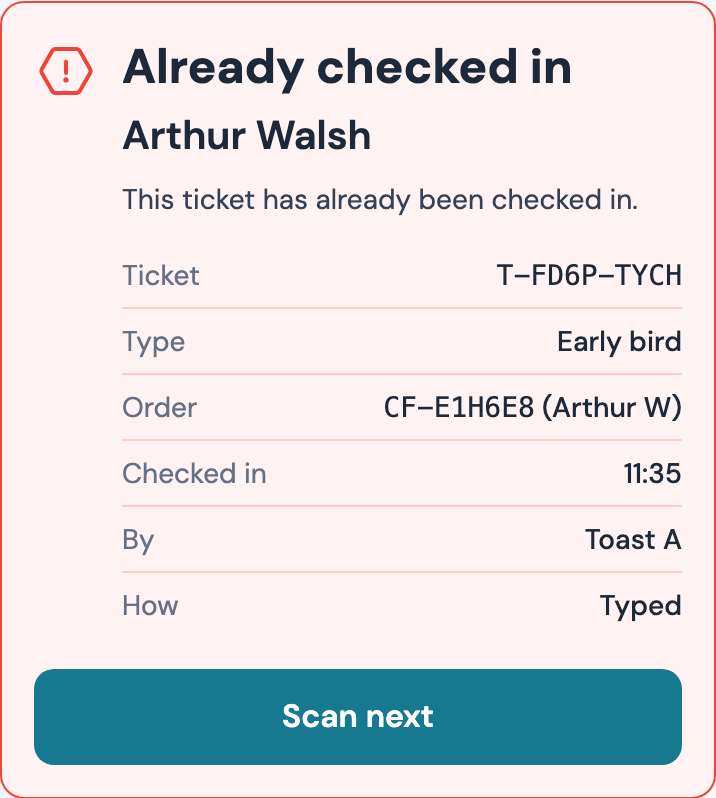
Tap Clear to dismiss the card and carry on.
Undo
Tap Undo on the result card, or beside the ticket under Recent admits, within five minutes of admitting it. The ticket becomes valid again and will admit once more. Only the person who admitted the ticket can undo it, and after five minutes the button disappears.
Counts and recent admits
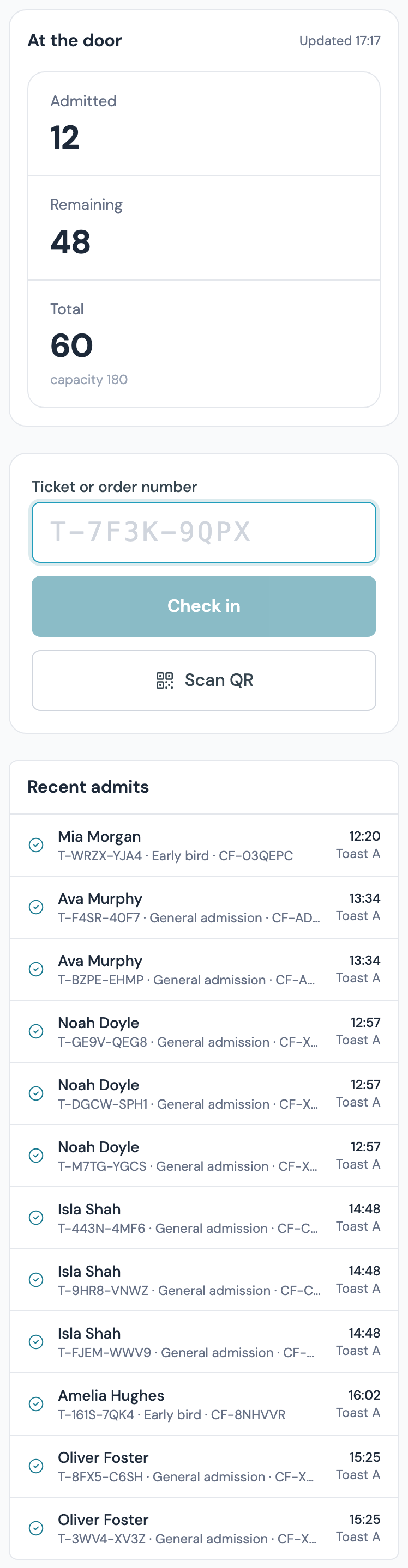
Above the ticket box, At the door shows Admitted, Remaining and Total, refreshed every ten seconds while the page is open, so two phones on two doors see the same figures. Under the scanner, Recent admits lists the last tickets admitted, each with its ticket number, ticket type and order number, the time and who admitted it.
The door list
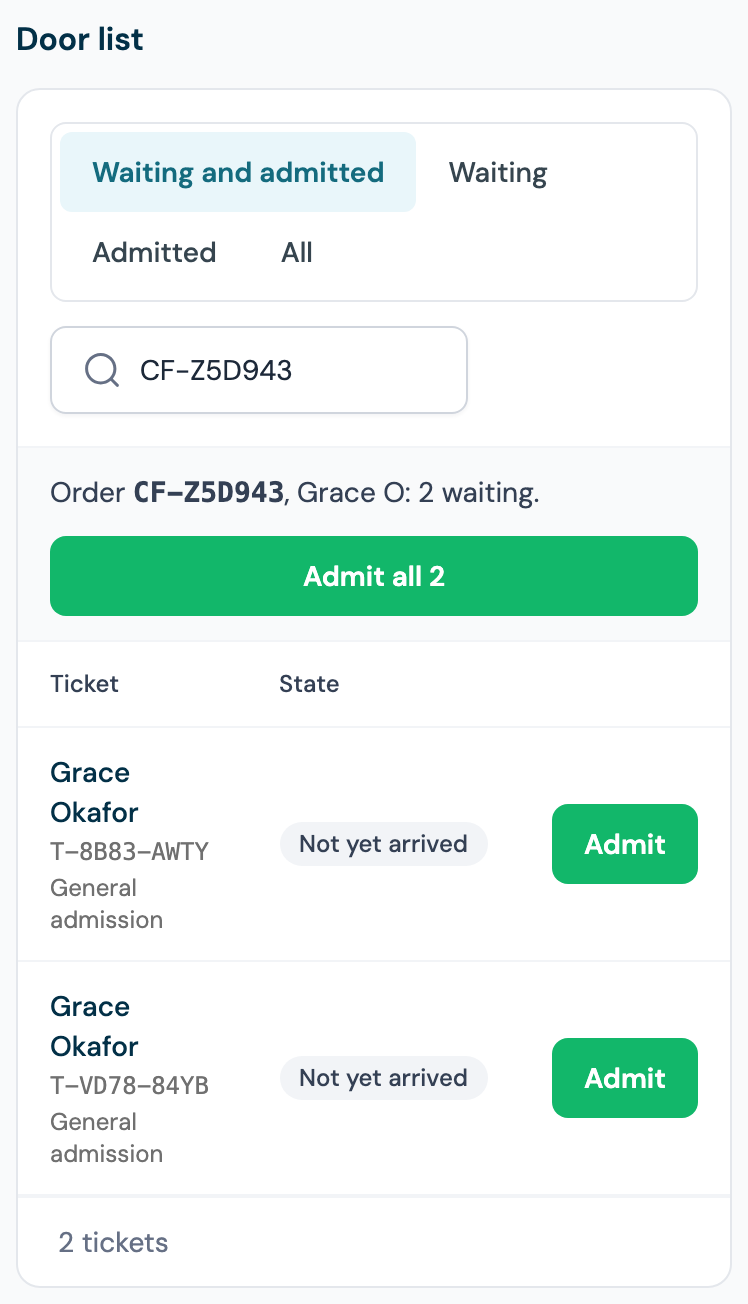
The Door list at the bottom holds every ticket on the event. Use it for a guest who arrives without their phone.
- Search by name (if you may see names), order number or ticket number.
- Choose what to show: Waiting and admitted, Waiting, Admitted or All.
- Tap Admit on the guest's ticket.
Search for an order number and, when that order has tickets still waiting, a bar above its tickets names the order and offers Admit all with the number waiting, which admits every waiting ticket on the order in one tap; it needs the View guest data permission, because it names the buyer. A ticket that cannot be admitted is listed with the reason.
Good to know
- Each ticket admits one person once, whichever phone scans it. Two phones scanning the same ticket at the same moment cannot both admit it; the second sees who got there first.
- Admitting a ticket marks the buyer's reservation for the event as attended, so review requests and follow-ups treat them as a real visit.
- If one phone scans too fast for too long, the page asks it to wait a moment. This stops a stuck scanner flooding the list.
- The shared demo account can browse this page but cannot check anyone in.
- A ticket a guest has added to Apple Wallet or Google Wallet carries the same QR code as their ticket page, so scan the pass as you would the page. Admitting it marks the pass used on the guest's phone, and an undo brings it back. A refunded or cancelled ticket's pass is marked void and is refused like the ticket. See Tickets in Apple Wallet and Google Wallet.