

Appearance
How to set up the Leat loyalty integration with CaptiFi
Follow every step below and each new opted-in WiFi guest will be added to your Leat loyalty programme as a contact, with loyalty credits awarded automatically.
Leat was previously called Piggy. If your account still says Piggy, this guide still applies.
Time needed: about 10 minutes.
What this integration does
When a guest connects to your WiFi and accepts marketing, CaptiFi:
- Creates or finds that person in Leat as a contact, matched on their email address, in the shop you nominate.
- Stamps three attributes on the contact so you can segment on them in Leat:
wifi_connected,last_visit_site(the CaptiFi venue ID) andsource(alwayscaptifi). - Adds your chosen number of credits to that contact, if you set a credits amount above zero.
Any Leat automation that triggers on a new contact, or on a credit balance changing, fires from there.
Credits are added on every consenting sign-in
CaptiFi sends a guest to Leat each time they complete your splash page with the marketing question accepted, and adds your Credits per visit amount each time. A returning guest who signs in again with the same email is matched to the same Leat contact and receives the credits again. Set the amount to 0 if you only want contacts created, and use Leat's own rules for anything more elaborate.
Before you start
- A Leat (or Piggy) account with at least one shop
- A CaptiFi plan that includes integrations (Growth or above)
- Your venue live in CaptiFi with a splash page that collects an email address
Part 1: Get your Leat credentials
Step 1: Create an API key in Leat
Log in to Leat, open your business settings and go to the developer or API section. Create a new API key and give it a name you will recognise later, for example CaptiFi WiFi.
Copy the key as soon as it is shown. Leat treats it as a secret and may not display it again.
Step 2: Copy the Shop UUID
Still in Leat, open the shop that WiFi guests should be added to. The Shop UUID is the long identifier in the form 00000000-1111-2222-3333-444444444444. Copy it.
If you run several venues and each has its own Leat shop, note the correct UUID for each one. CaptiFi stores the shop per venue, so a group can point each venue at its own shop.
Part 2: Connect Leat in CaptiFi
Step 3: Open the Integrations page
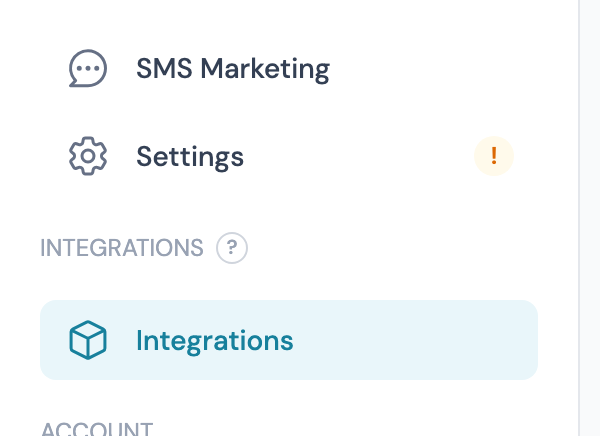
Log in to my.captifi.io and click Integrations at the bottom of the left sidebar.
Step 4: Find the Leat Loyalty card
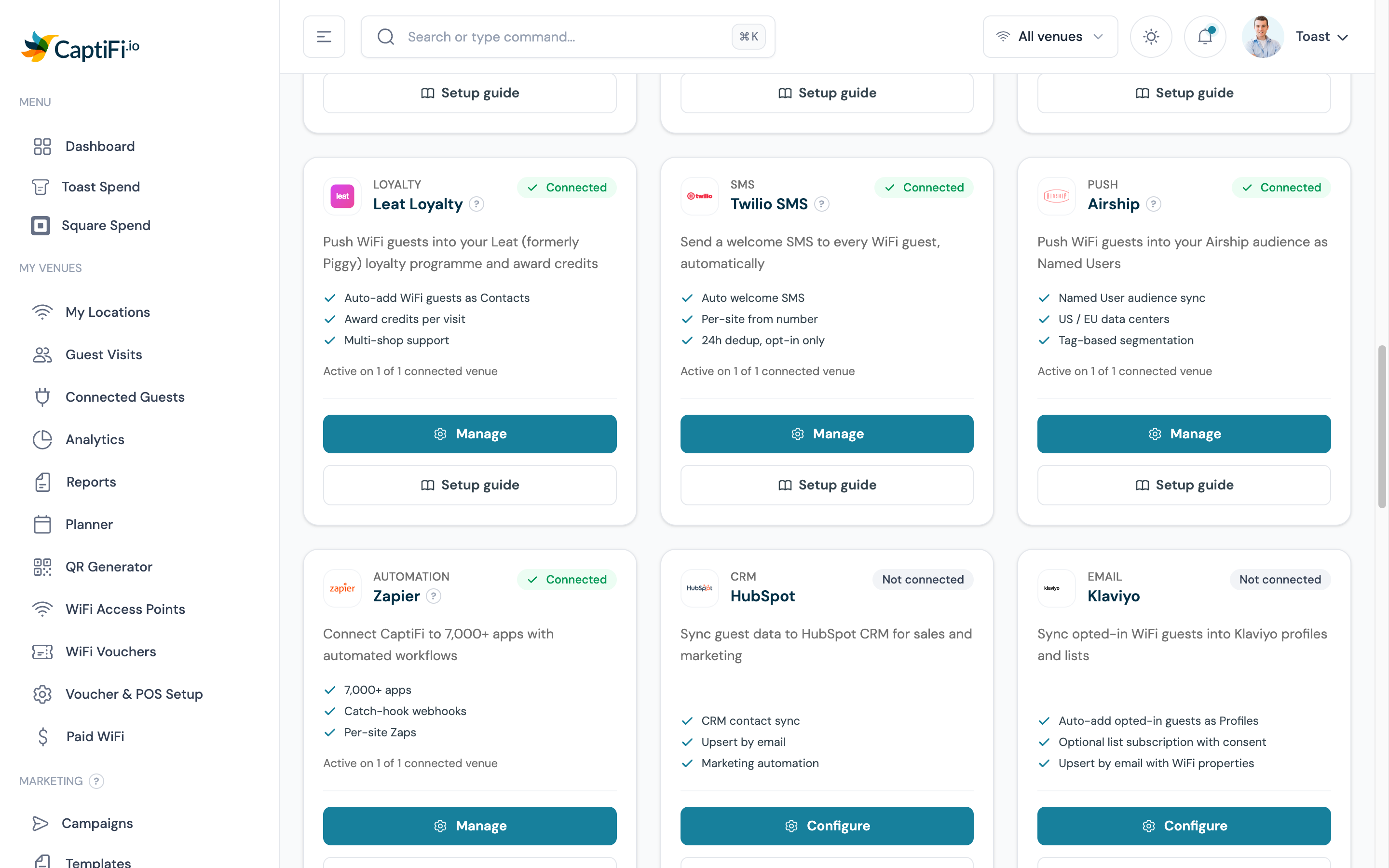
Scroll to the provider cards. A provider you have never connected shows Not connected and a Configure button. Once connected it shows Connected, how many venues it is active on, and a Manage button.
Step 5: Enter your API key and Shop UUID
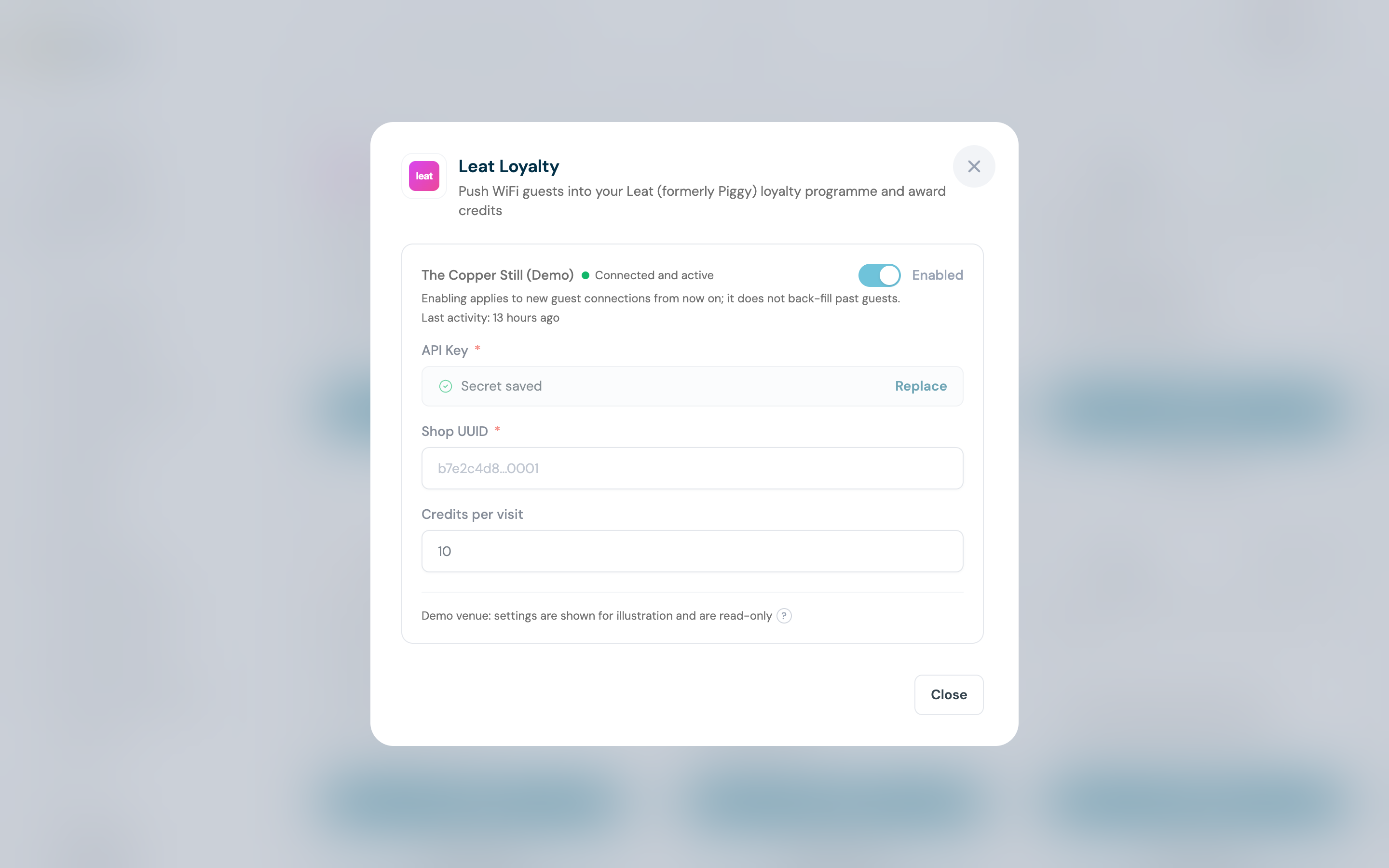
Click Configure (or Manage) to open the settings panel for the venue.
- API Key is required. It is write-only: once saved, CaptiFi shows only a Secret saved confirmation with a Replace link, and never displays the key again.
- Shop UUID is required, up to 64 characters.
- Credits per visit is optional. Leave it at
0to add contacts without awarding any credits.
Step 6: Save, then test the connection
Test connection fetches the shop you nominated using your key, so a wrong key and a wrong Shop UUID are both caught here. On success it names the shop it reached, for example Connected to The Copper Still.
Step 7: Switch the venue on
The venue reads Connected but paused until you flip the toggle to Enabled.
Enabling is not retrospective
Enabling applies to new guest connections from that moment on. Guests already in your CaptiFi guest list are not back-filled into Leat.
Part 3: Test it end to end
Step 8: Sign in as a guest
Forget the WiFi on a phone, reconnect, and complete the splash page with an email address you have never used at this venue before. Accept marketing when the splash page asks.
A brand new email keeps the test clean: a fresh contact appearing in Leat is easier to spot than a change in an existing balance.
Step 9: Check the contact in Leat
Open your Leat shop and search for that email. Within a few minutes the contact appears, carrying the source: captifi attribute, with your credits amount added to its balance.
What gets synced
| Data | Notes |
|---|---|
| Email address | Lowercased, and used as the matching key in Leat |
| First and last name | Whatever your splash page collected, blank if it collects neither |
wifi_connected attribute | Always true |
last_visit_site attribute | The CaptiFi venue ID the guest connected at |
source attribute | Always captifi, so WiFi contacts stay separable in Leat |
| Credits | Your Credits per visit amount, reason WiFi connection (CaptiFi) |
Important notes
- Only opted-in guests are synced. A guest who declines marketing is never sent to Leat, which is what keeps this GDPR-safe.
- Guests without an email address are skipped. If your splash page only collects a name, nothing can be matched in Leat.
- Sync happens within minutes of the WiFi sign-in, and retries three times over roughly 20 minutes if Leat is unreachable.
- Each venue holds its own key, shop and credits amount, so venues can point at different Leat shops.
- Disconnecting a venue clears the stored key, shop and credits from CaptiFi. It does not remove contacts already in Leat.
Using Leat alongside CaptiFi Rewards
CaptiFi has its own loyalty module, Rewards & Offers. The two can run at the same time, and this is how they share a venue:
- At a venue that is not in a live Rewards programme, nothing changes: contacts and credits go to Leat exactly as described above.
- Once a venue is ticked and active in a live Rewards programme, CaptiFi still creates the Leat contact for every consenting guest but stops adding Credits per visit at that venue. The guest earns points in CaptiFi instead, so one visit is never credited twice. The help text under Credits per visit on the Leat card says so.
- If you want Leat to carry the balance as well, tick Leat mirror on the venue's row on Settings → Rewards setup and click Save venues. Every earn at that venue is then pushed to Leat as the same number of credits, on the contact matching the member's email address: visits, Toast and Square orders, till sales, the sign-up and birthday bonuses and staff awards. Adjustments, refunds and expiries are not mirrored, and a member with a phone number and no email address cannot be. See Running Leat alongside Rewards.
Troubleshooting
Test connection returns HTTP 401 - the API key is wrong, was revoked, or belongs to a different Leat business. Create a fresh key (Step 1) and use Replace to save it.
Test connection returns HTTP 404 - the key is valid but the Shop UUID does not match a shop on that account. Re-copy the UUID (Step 2).
Contacts appear but no credits are added - check Credits per visit is above 0. Credits are added in a second call after the contact, so a contact can arrive even when the credit award fails; if it keeps happening, confirm your Leat plan allows credit adjustments through the API.
A returning guest got no new credits - check they accepted the marketing question on this visit (it is asked every time), and whether the venue is in a live CaptiFi Rewards programme, which takes over crediting (see Using Leat alongside CaptiFi Rewards).
Nothing arrives at all - confirm the venue toggle is Enabled (Step 7), that the guest accepted marketing, and that your splash page collects an email address.