
Appearance
Managing Your Subscription
Everything you need to know about managing your CaptiFi subscription.
The Billing Page
- Log in to my.captifi.io
- Go to Account → Billing in the sidebar
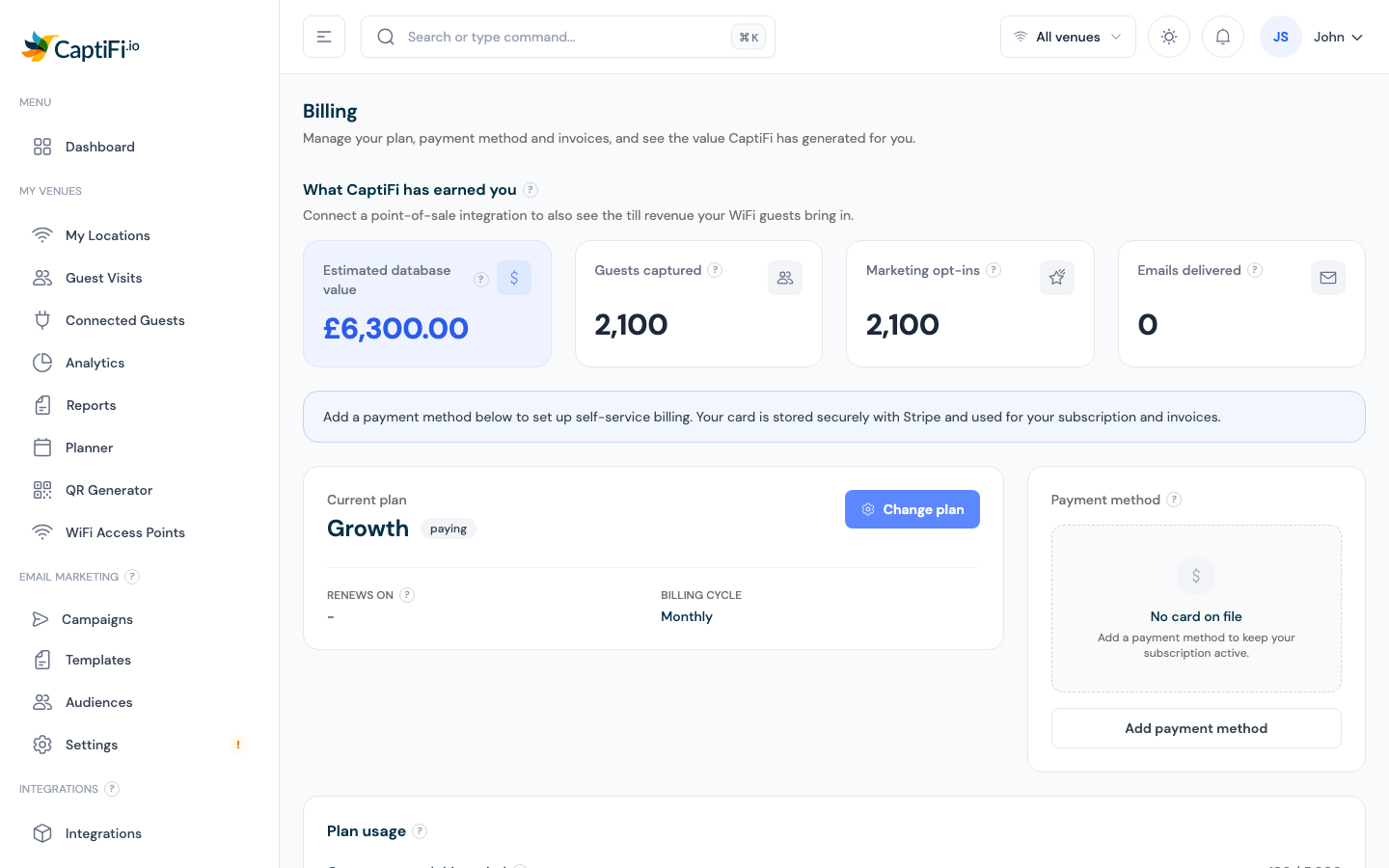
Here you can see:
- What CaptiFi has earned you — attributed revenue, guests captured, opt-ins, and emails delivered
- Current plan — plan name, status, price, and your renewal date
- Payment method — the card on file
- Plan usage — new guests captured and marketing emails used this period, with the date your allowances reset
- Invoices — your billing history with PDF downloads
Team members
Billing is only visible to the account owner (and team members granted billing access). Others see "Billing is managed by your account owner".
Changing Your Plan
You pick your plan in the dashboard itself, no redirect:
- On the Billing page, click Change plan
- Choose Monthly or Yearly at the top of the plan picker
- Click the button on the plan you want, for example Switch to Pro
- CaptiFi charges the card on file and prints your receipt
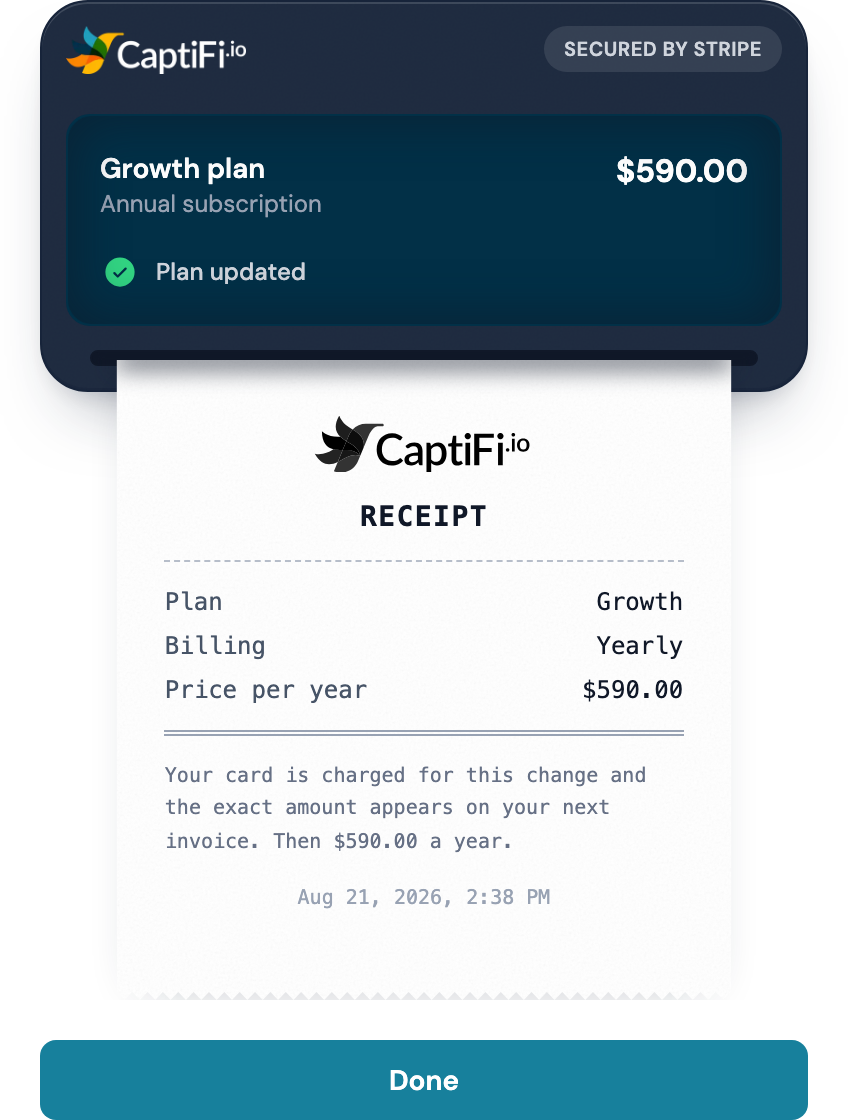
The receipt shows your new plan, whether you pay monthly or yearly, and your plan price in your own billing currency. Because a mid-period change is prorated, the exact figure taken today lands on your invoice rather than on the receipt. Click Done to close it, then open Invoices on the same page for the invoice.
Upgrades take effect immediately (prorated); downgrades apply at the end of the current billing period. See Plans & Pricing for what's in each plan.
On Lite you upgrade to Essentials, Growth or Pro the same way. On a paying Essentials, Growth or Pro subscription Lite is not offered in the plan picker: email hello@captifi.io to move to it, or see Switch to Lite instead.
No usable card on file
If your account has no card, or the charge is declined, the card form opens first. As soon as your card is saved CaptiFi retries the plan change for you, so you do not have to pick the plan again.
Upgrading From a Locked Feature
When you open something your plan does not include, such as advanced analytics or the multi-venue dashboard, the panel in its place has an upgrade button. That route shows exactly what is taken today before you commit, and the receipt prints the total:
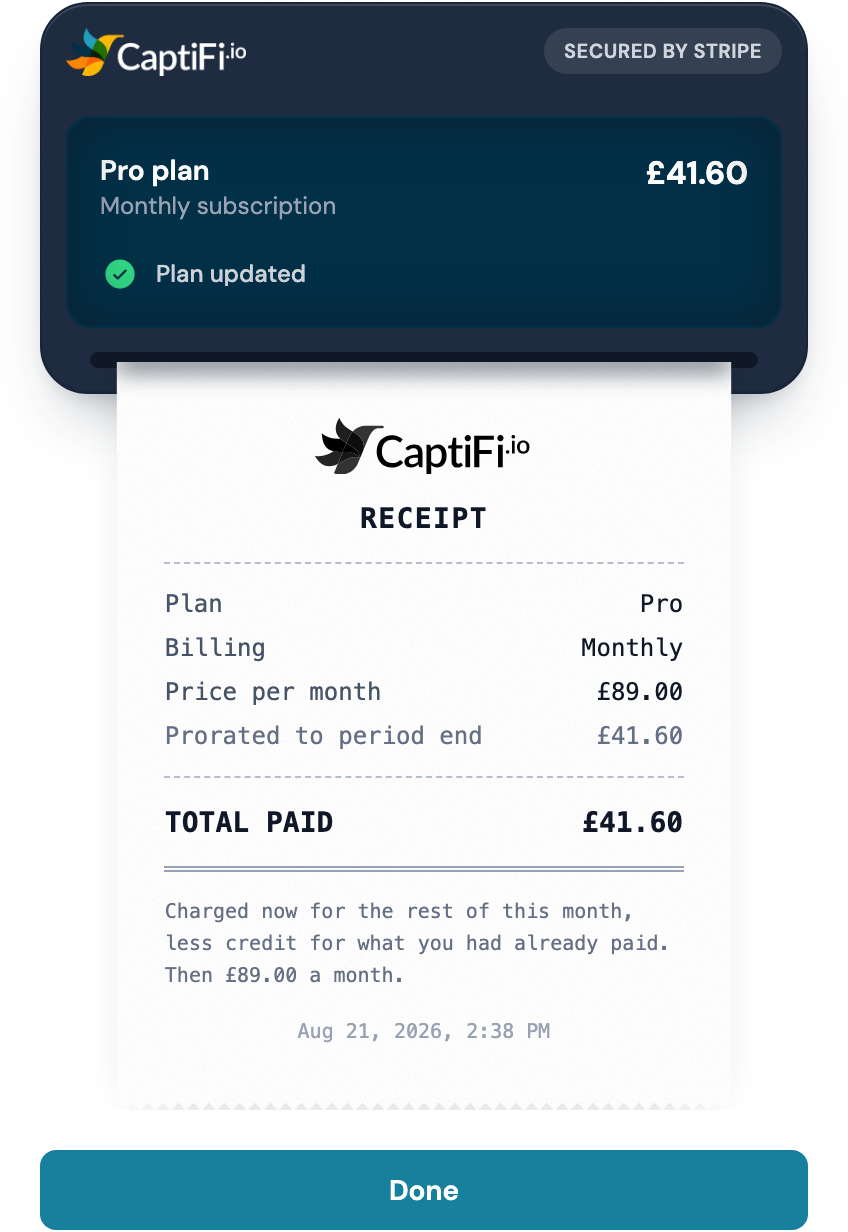
Everything the new plan includes unlocks straight away, with no reload needed.
On Lite, a page outside the Lite menu shows a locked card in its place, with an upgrade to Essentials.
Updating Your Payment Method
- On the Billing page, click Update payment method (or Add payment method)
- Enter the card in the secure form
- Click Save card
Card details go straight to Stripe, so CaptiFi never sees or stores your card number. Nothing is charged when you add a card, and the receipt says so outright:
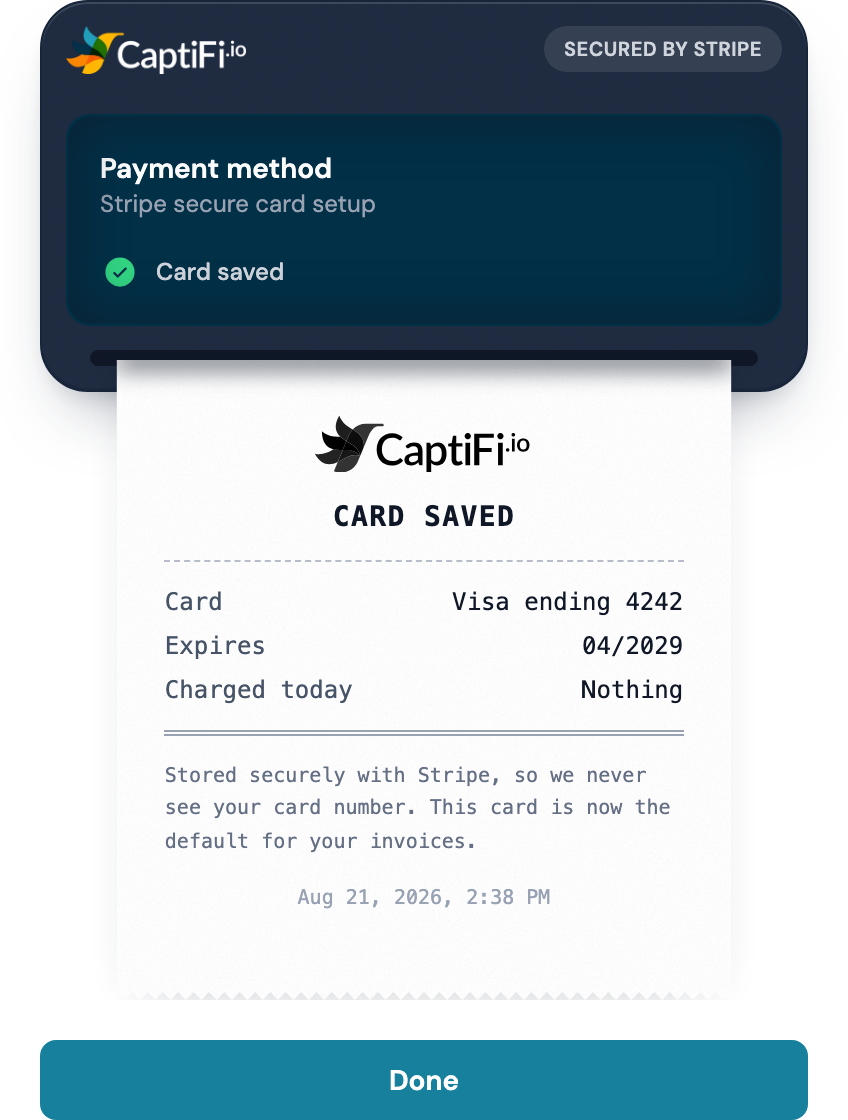
The new card becomes the default for your invoices and your subscription.
Viewing Invoices
The Invoices table on the Billing page lists every invoice with its date, amount, and status. Click Download for a PDF, or open the Stripe billing portal to see your complete history.
Adding Extra Venues
Every plan includes one venue. On every plan from Essentials up, additional venues are charged at the extra-venue rate for your billing currency (£25, $35, €30, C$45, A$49 or NZ$59 per month) and on a monthly plan you add them yourself:
- Go to My Venues → My Locations
- Click Add location and follow the wizard
The charge is prorated from the day you add the venue, and removed (with credit for unused time) when you delete it. See Multi-Venue Management.
Lite is for one venue. On Lite, Add location offers an upgrade to Essentials.
Guest Allowances
Each plan includes a monthly allowance of NEW guests (500 on Lite, 1,000 on Essentials, 5,000 on Growth, 15,000 on Pro, 50,000 on Enterprise). Return visits by guests we can recognise, and regulars captured in earlier months, do not count against it: see what counts as a guest. Track where you are on the New guests captured figure on the Plan usage card.
The allowance is always monthly and resets on your own billing day each month. If you pay annually, that does not change: you still get your monthly allowance back on the same day of every month, and the Allowances reset on date on the Plan usage card shows the next reset. Only unused guest capacity does not roll over.
If you reach your monthly allowance, new guest sign-ins are paused until the allowance resets on your next billing day. Existing guests already connected are not affected. If you are regularly close to the limit, upgrading gets you more headroom plus extra features, and takes effect immediately.
Trial
During your 30-day trial the Billing page shows the days remaining and an Add payment method shortcut. Your subscription starts automatically when the trial ends; cancel before then and you pay nothing.
If your trial has already ended when you add your card, whether from the Billing page or from the link in our email, the first payment is taken straight away rather than at some later date, and your billing day then follows your original trial end date. See Payments and Billing.
Card reminder emails
If there is no card on your account yet, CaptiFi emails you before the trial ends so your guest WiFi is never interrupted:
- around two weeks before your trial ends
- around one week before
- a final reminder about two days before
Each email shows your trial end date, the days remaining and the guest contacts you have collected so far, and includes a secure one-click link that takes you straight to Stripe checkout to add your card. No login is needed. The link is personal to you and expires after 14 days; if it has expired, log in and open Billing instead.
You are not charged when you add the card: your first payment is only taken after the trial ends, and you can cancel at any time before then without paying anything. Once a card is on your account, the reminders stop.
If your trial ends before a card is added, your account is paused and the trial-ended email includes the same secure link so you can reactivate in one click.
If your account has one venue, no venue on paid WiFi or voucher access and no team members, Lite is one of the plans you can choose when you subscribe after the trial has ended. See Lite.
Cancelling
Cancellation is self-serve from the Billing page, with no notice period. See Cancellation & Returns, which also covers switching to Lite instead on an eligible account.