

Appearance
Rewards & Offers
Rewards is CaptiFi's built-in loyalty module. One programme covers every venue on your account. You define offers: a percentage off, a fixed amount off, a free item, or a shared discount code such as SUMMER20. A guest who joins at WiFi sign-in receives a reward by email or text, with a link to a page that shows a QR code and a short code. Any member of staff redeems it from a phone by scanning the QR or typing the code, and a trader with no device redeems with a PIN typed on the guest's own phone. Guests earn points for visits and for what they spend at the till, move up tiers as they earn, and the members catalogue lets them swap points for an offer.
Every reward is single use. Every redemption is logged with a reference, and each bar, trader or till that honours rewards gets its own settlement figure in the venue's currency.
Three more parts build on the programme and its offers: Games (six instant-win games and prize draws with your offers as prizes), Challenges, stamp cards and badges for members who keep coming back, and Guest referrals for members who invite friends.
Plan requirement: Rewards is included on the Growth plan and above. See Plans & Pricing.
How it works
A guest connects to your WiFi and ticks Join on the sign-in form (or is joined automatically, if you choose that mode). They become a member. One member spans every venue on your account, so a balance earned at one bar can be spent at another
If an offer is set to be given on WiFi sign-in, a reward is issued and sent to the guest by email, or by text for phone-only members when you switch that on. The connected screen tells the guest where the reward went; the code itself never appears on the splash page
The link opens a reward page with the offer, an eight-character code such as
7F3K-9QPX, a QR code of the same link, the expiry date in the venue's local time and your terms. When wallet passes are on, the page also offers Add to Apple Wallet and Add to Google Wallet; see Rewards wallet passes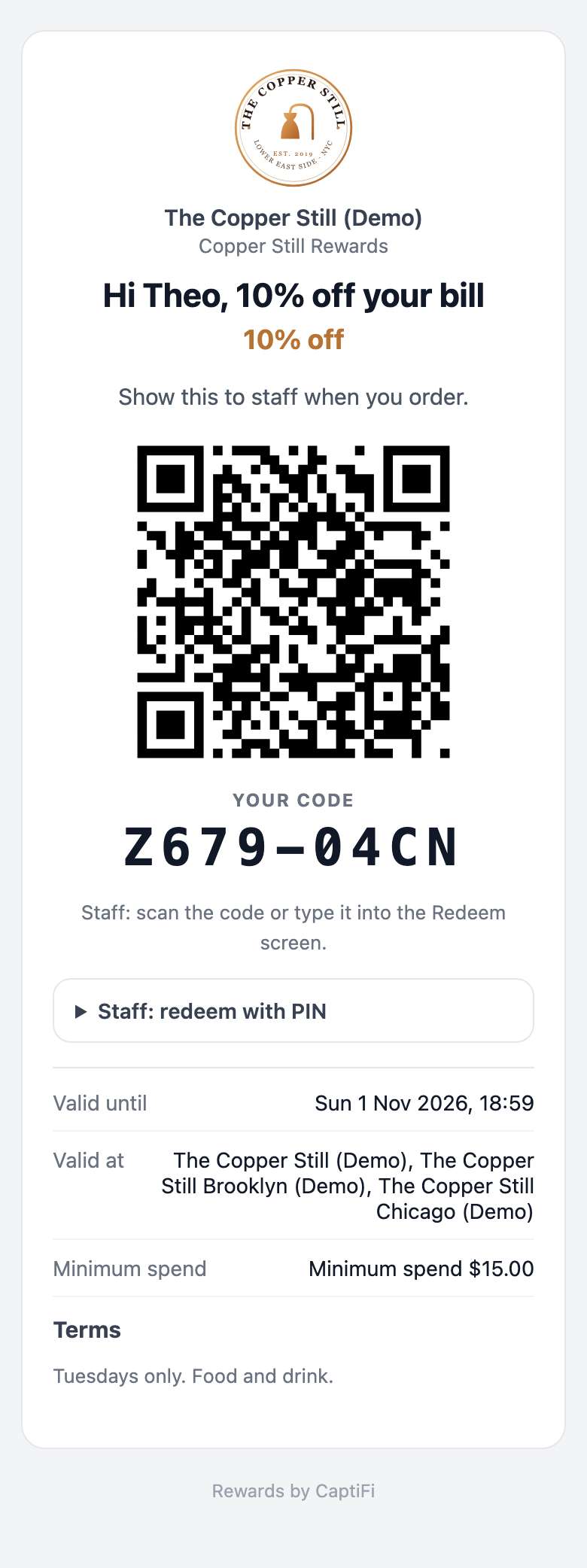
At the bar, staff open Rewards → Redeem on a phone, scan the QR or type the code, check the card and tap Redeem. A trader without a phone asks the guest to open the reward and types the trader's PIN on the guest's screen
The code is marked used the moment it is redeemed. A second attempt shows when, where, how and by whom it was first redeemed
The redemption lands in your log and in the settlement report for that bar or trader
Switching Rewards on
Rewards is off by default and only the account owner can switch it on.
On my.captifi.io:
- Go to Integrations
- Under Dashboard features, find the Rewards & Offers card and switch it on
- A Rewards group appears in the sidebar; see Finding Rewards in the sidebar
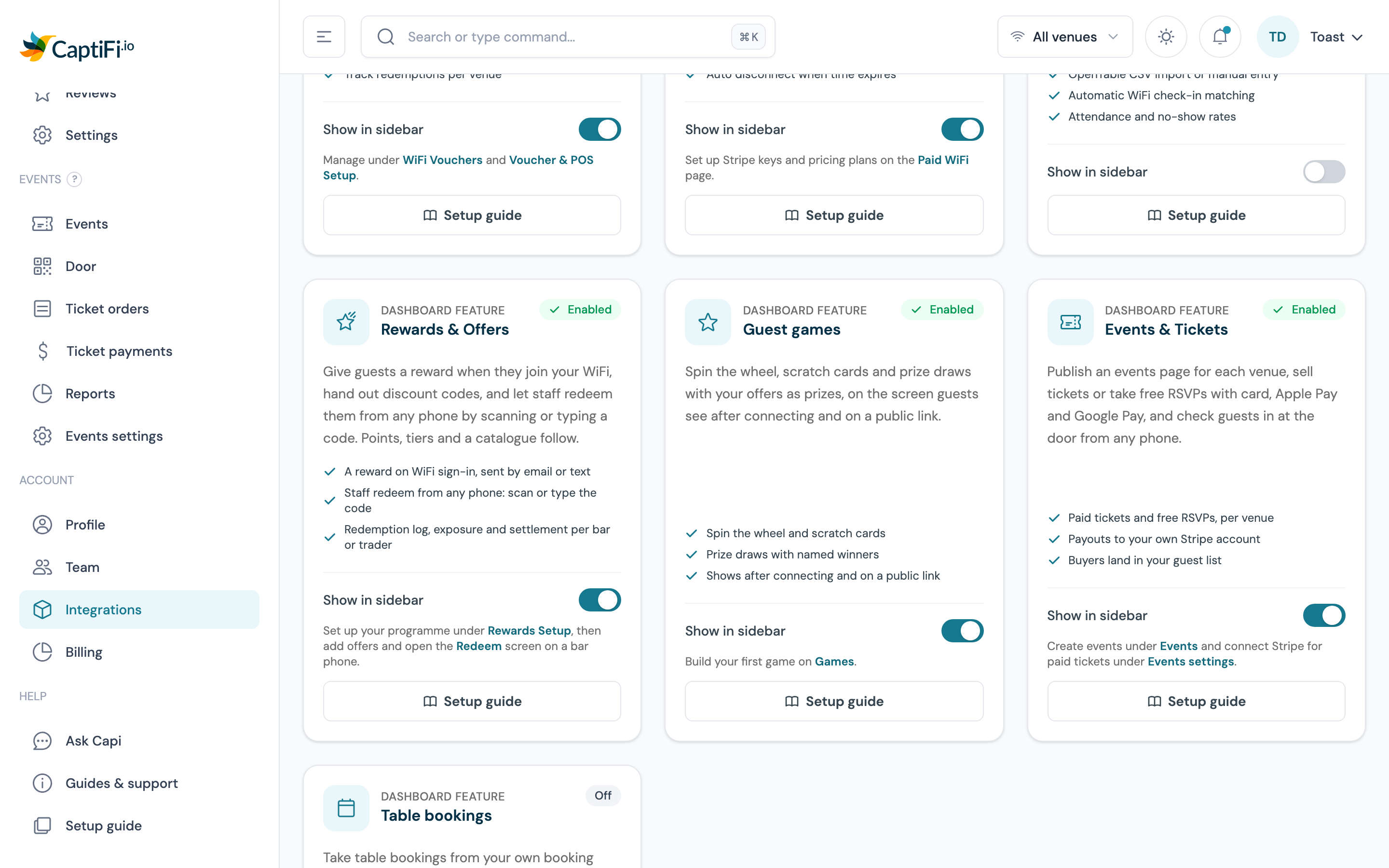
On a plan below Growth the card shows a plan badge and a View plans link instead of the switch.
Finding Rewards in the sidebar
The Rewards group has Overview, Offers, Games & challenges, Members, Redeem, Redemptions and Wallet passes. Wallet passes shows once wallet passes are on for your account.
Games, Challenges and Guest referrals share one row when you have two or more of them, with a tab for each across the top of the page, so you move between them from there. Games joins once the account owner switches Guest games on under the same Dashboard features, and Challenges and Guest referrals once each is switched on for your account. The row is called Games & challenges when Games and Challenges are both there; otherwise it carries the names of the ones you have, such as Challenges & Guest referrals. With only one of the three, it has a row of its own under its own name.
The programme's settings are on the Settings page, at the bottom of the sidebar: Rewards setup (the programme, its venues and the points) and Rewards terminals. The gear at the top right of Rewards → Overview also opens Rewards setup.
Team members see the Rewards pages as soon as the owner has switched the module on. What each of them can do is set by their permissions; see Team permissions below.
Setting up your programme
Go to Settings → Rewards setup, or click the gear at the top right of Rewards → Overview. The page has three parts: the programme itself, the venues that take part, and the points and value settings.
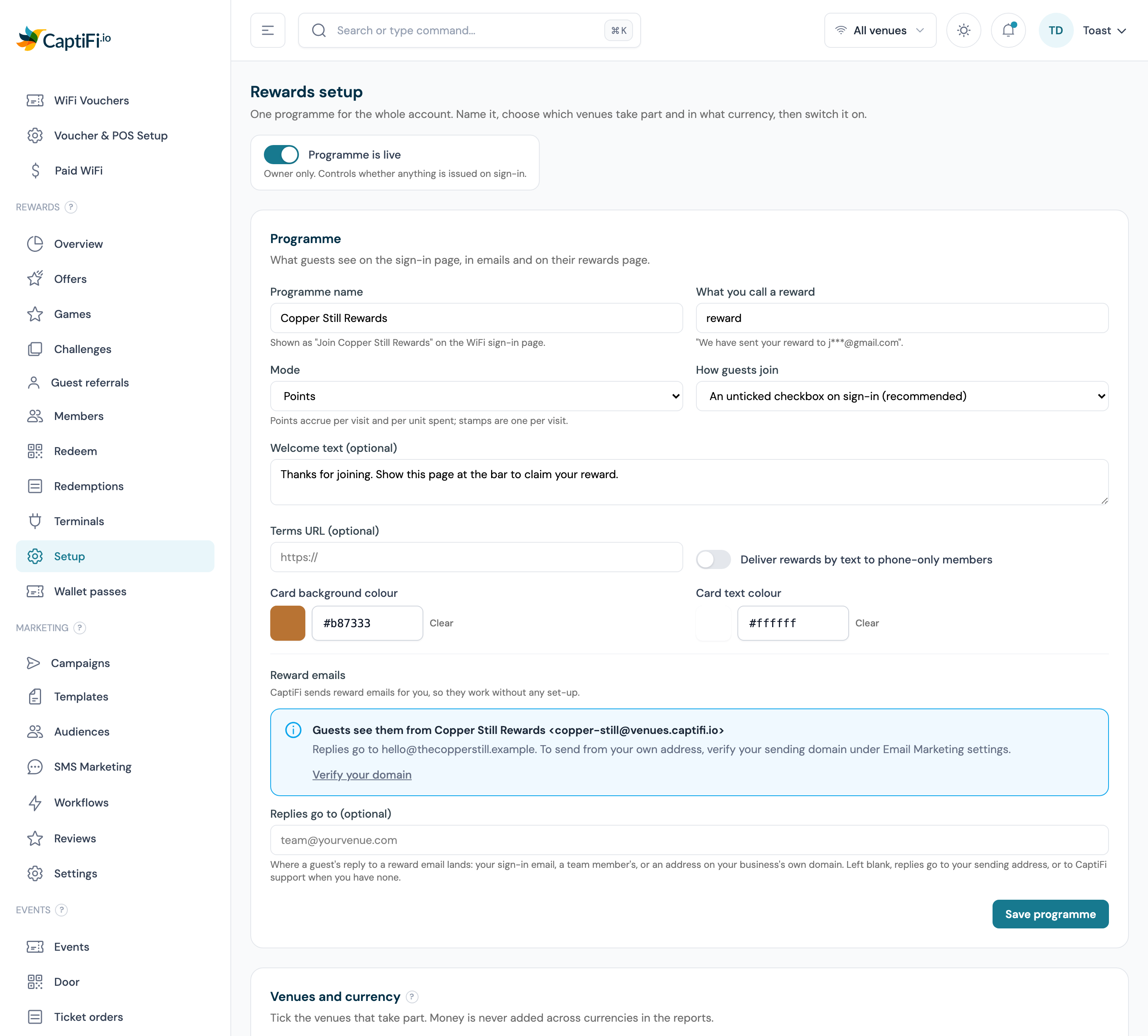
Programme
| Setting | What it does |
|---|---|
| Programme name | What guests see on the sign-in checkbox, in emails and on their reward page, for example "Copper Still Rewards" |
| What you call a reward | The word used in guest-facing text. Leave it as "reward" or write your own, such as "treat" or "perk" |
| Mode | Points (points accrue per visit and per unit spent) or Stamps (one per visit). Both use the same balance underneath |
| Stamps per card (optional) | In Stamps mode, from 3 to 20: members see their stamps as a card with this many spaces on their rewards page, the splash welcome back and their wallet pass. Blank means no card. See The stamp card |
| How guests join | An unticked checkbox on sign-in (recommended) or Connecting joins them, which replaces the checkbox with a sentence on the form saying so |
| Welcome text | Shown on the guest's rewards page, for example "Show this page at the bar to claim your reward" |
| Terms URL | A link to your programme terms, shown on the reward page |
| Deliver rewards by text to phone-only members | Guests who gave a phone number and no email get their reward by SMS. Off by default; each text counts towards your monthly texts (see Texts and what they cost) |
| Card background colour | The background of the pass your members add to Apple Wallet or Google Wallet; see Rewards wallet passes. Click the swatch to pick a colour or type six hex digits such as #B87333. Clear the field to use the wallet's default look |
| Card text colour | The text colour on that pass. Clear it and Apple Wallet picks black or white against the background; Google Wallet always chooses its own text colour |
Click Create programme (afterwards the button reads Save programme). There is nothing else to set up before adding venues.
Reward emails
CaptiFi sends reward emails for you, so they work as soon as your programme is live, with no email set-up. The Reward emails section of the Programme form shows exactly who guests see them from and where their replies go.
The sender name is your programme name, for example "Copper Still Rewards". Once your sending address is verified under Settings → Email settings (the Sender & domain tab, see Verify your sending domain), reward emails come from your address. Until then they come from a CaptiFi address, which the section shows. Your other guest emails follow the same rule; see Who your guest emails come from. A Gmail, Outlook or other free email address is never used as the sender, because those providers block mail sent in their name by anyone else, but it can still receive the replies.
Replies go to is the address a guest's reply lands in, for example team@yourvenue.com. It can be the email you sign in with, a team member's, your verified sending address, or any address on your business's own domain. Leave it blank and replies go to your sending address, or to CaptiFi support if you have none, so it is worth filling in.
Reward emails are logged with the rest of your email, and an address that has bounced or complained is not emailed again. Every reward email carries the guest's unsubscribe link, and mail apps such as Gmail show their one-click Unsubscribe button on it. A reward you send unprompted (from a birthday or win-back automation, a campaign, a workflow, a bulk send or an import) reads as an offer, and it is not emailed to a guest who has unsubscribed from your venues or whom you have suppressed.
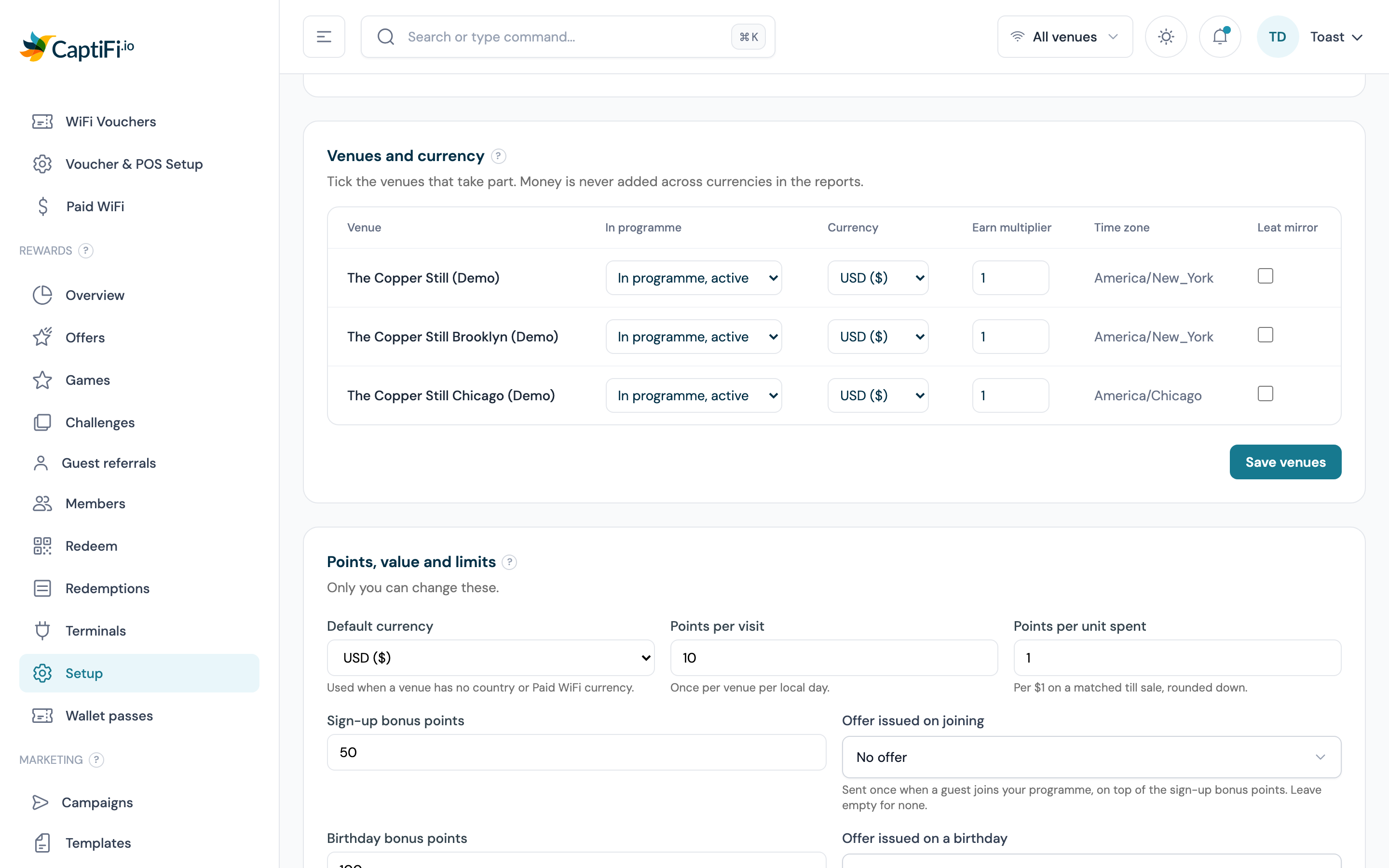
Venues and currency
Each venue row has:
- In programme. Choose Not in programme, In programme, active or In programme, paused. Paused keeps the venue's settings and history but issues nothing there
- Currency. CaptiFi suggests one from the venue's country (or its Paid WiFi currency where Paid WiFi is on). Correct it if the suggestion is wrong. Rewards at that venue are valued, capped and settled in this currency, and money is never added up across currencies in any report
- Earn multiplier. Boosts or dampens what a visit or a spend earns at this venue. Leave it at 1 for a standard venue
Only venues billed to your account can join, and a venue belongs to one programme at a time.
Set each venue's time zone
Reward expiry is worked out at the end of the day in the venue's own time zone. If a venue is still on the default (UTC), the setup page shows a warning and rewards at that venue would expire at midnight UTC. Set the real time zone under WiFi & venues → My Venues → Edit venue for that venue.
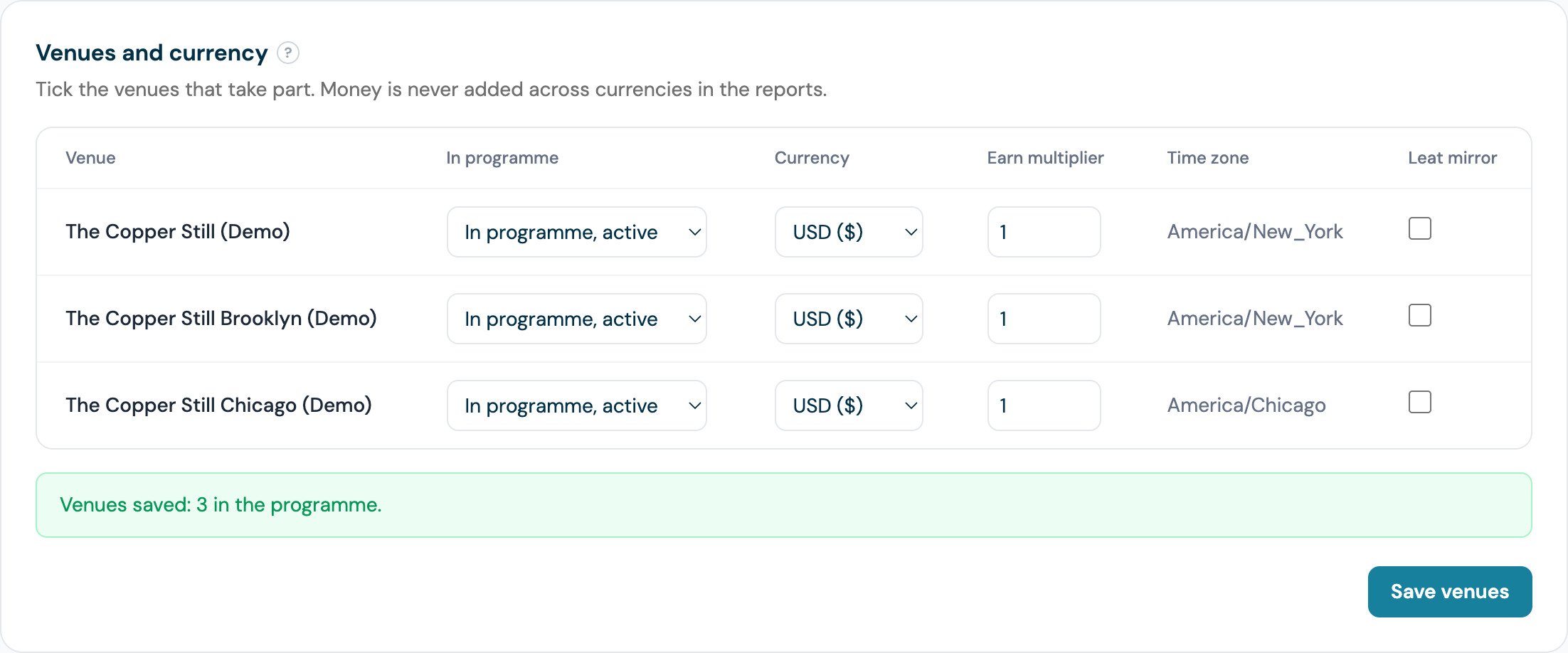
Click Save venues.
Going live
The Programme is live switch at the top of the page is for the account owner only, and you need at least one venue in the programme before you can turn it on. While the programme is off, no guest is joined and nothing is issued at sign-in. Rewards already in guests' hands stay redeemable, so switching off never strands a guest holding a live code.
Points, value and limits (owner only)
This section is visible to team members and editable only by the account owner, because these numbers decide what a visit and a pound or dollar spent are worth, and what your outstanding rewards cost you.
| Setting | What it does |
|---|---|
| Default currency | Used when a venue has no country and no Paid WiFi currency |
| What a point costs you, per currency | Used only for the liability estimate on the Exposure report. Leave a currency blank and no liability is shown for it |
| Points per visit | Earned once per venue per local day when a member signs in to the WiFi |
| Points per unit spent | Earned per pound, dollar or euro of a sale: an order that arrives from your Toast or Square connection, or a sale keyed at the till (see Awarding points for a sale). Rounded down. See Points and tiers |
| Sign-up bonus points | Paid once, when a guest first joins |
| Birthday bonus points | Paid once a year, at 08:00 local time on the member's birthday, to members with a date of birth on file. See The birthday bonus |
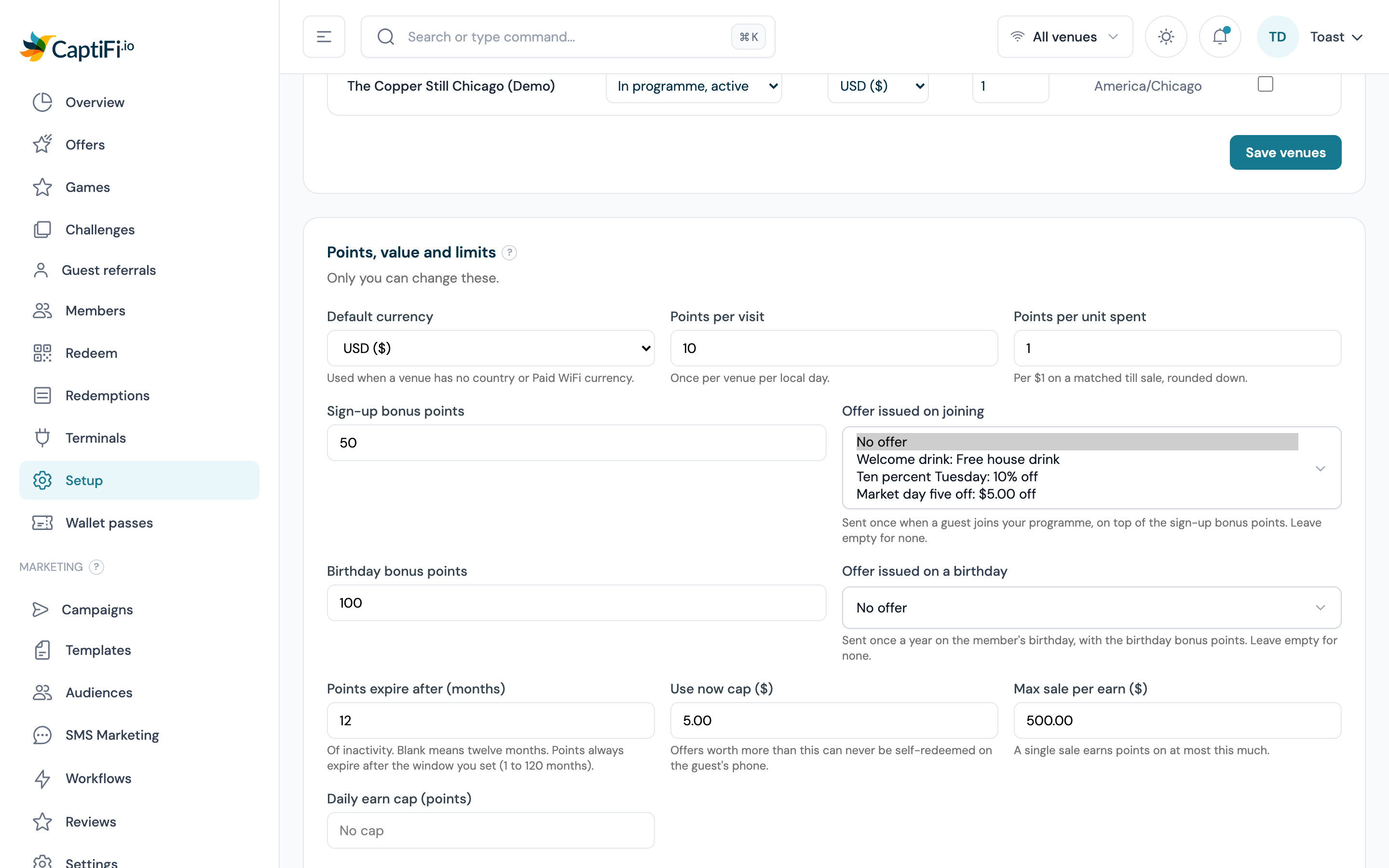
| Offer issued on joining | An offer from your Offers list, issued once with the sign-in that makes a guest a member, on top of the sign-up bonus. No offer means none. See Choosing the two offers |
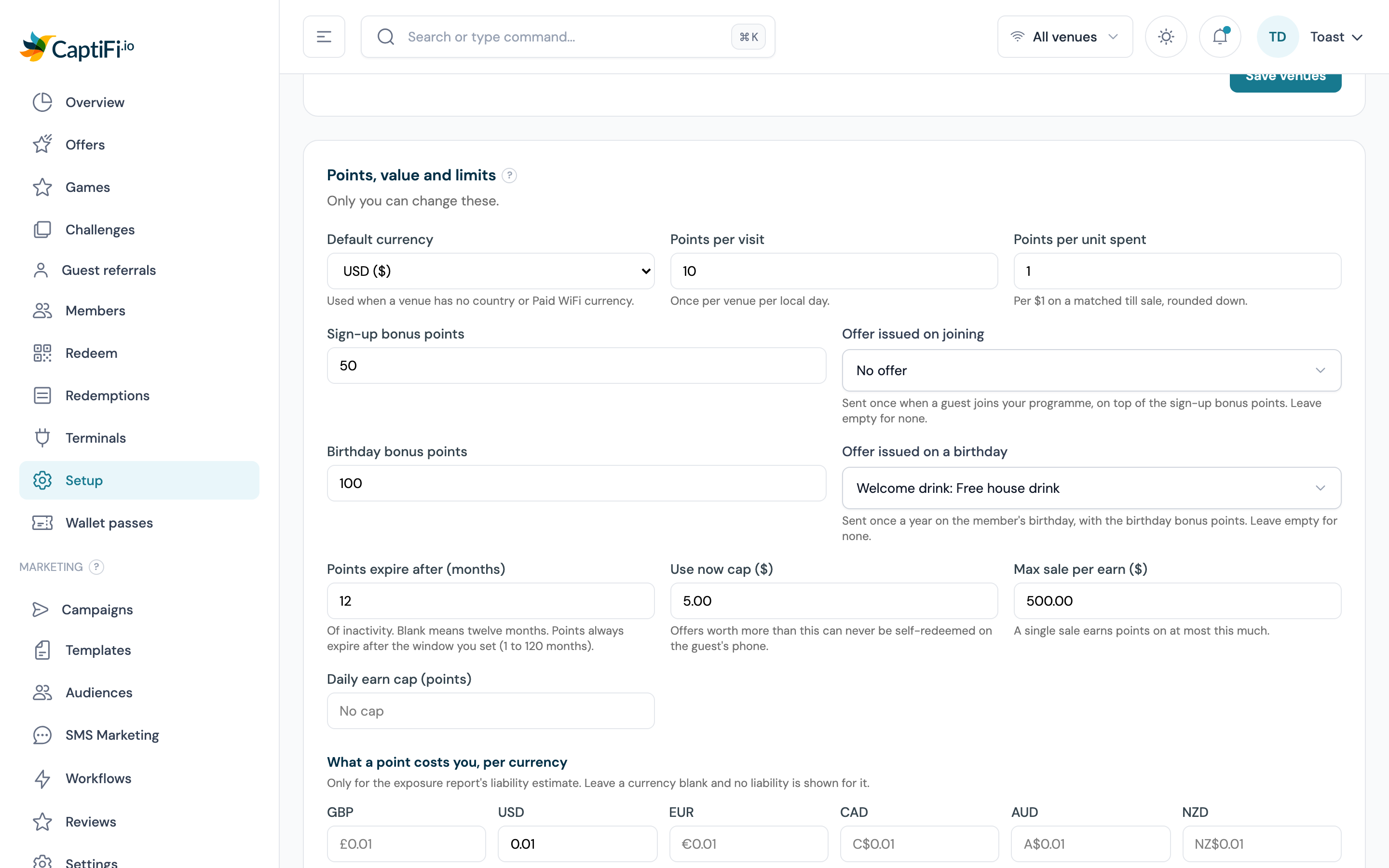
| Offer issued on a birthday | An offer issued once a year on the member's birthday, with the birthday bonus. No offer means none. See Choosing the two offers |
| Points expire after (months) | Of inactivity, from 1 to 120. Blank means 12 months. See Points expiry |
| Use now cap | Offers worth more than this can never be redeemed by the guest alone with Use now |
| Max sale per earn | A single sale earns points on at most this much, so a mistyped bill cannot mint a fortune |
| Daily earn cap (points) | The most one member can earn in a day across all venues |
| Tiers (up to 5) | A name, a threshold of points earned in the last 12 months, and a multiplier applied to the spend points of members in that tier. See Tiers |
Click Save points and limits. How each of these plays out for a member is covered under Points and tiers.
Offers on joining and on birthdays
Besides the two points bonuses, a programme can hand out an offer of its own at two moments: when a guest joins, and on each member's birthday. Each is an ordinary offer from your Offers list, wired to the programme.
The joining offer is issued once, at the sign-in that makes the guest a member, and delivered like an on-connect reward: by email, or by text for a phone-only member when Deliver rewards by text to phone-only members is on. It is booked against the venue they joined at. A return visit never issues it, nor does a sign-in by someone who is already a member (including a member you created from the dashboard who ticks Join later), nor a guest who left the programme and rejoins. If a sign-in earns both the joining offer and an on-connect offer, the guest receives two messages, the joining offer first.
The birthday offer is issued once a year, alongside the birthday bonus, at 08:00 in the local time of the member's home venue (see The birthday bonus), to members with a date of birth on file. It is issued even when Birthday bonus points is 0, and a birthday offer that cannot be issued leaves the points bonus unchanged.
Both follow the offer's own rules. The offer must be active and inside its Starts and Ends window, valid at the venue in question (the sign-in venue for the joining offer, the home venue for the birthday offer), and within its Max issued, Per member and Cooldown limits. A member whose only contact is a throwaway email address is never given either offer, and nothing is issued while the programme is off.
Choosing the two offers
The two pickers sit with the points bonuses on the Rewards setup page. Only the account owner can change them; a team member sees the current picks greyed out.
- Go to Settings → Rewards setup and scroll to Points, value and limits
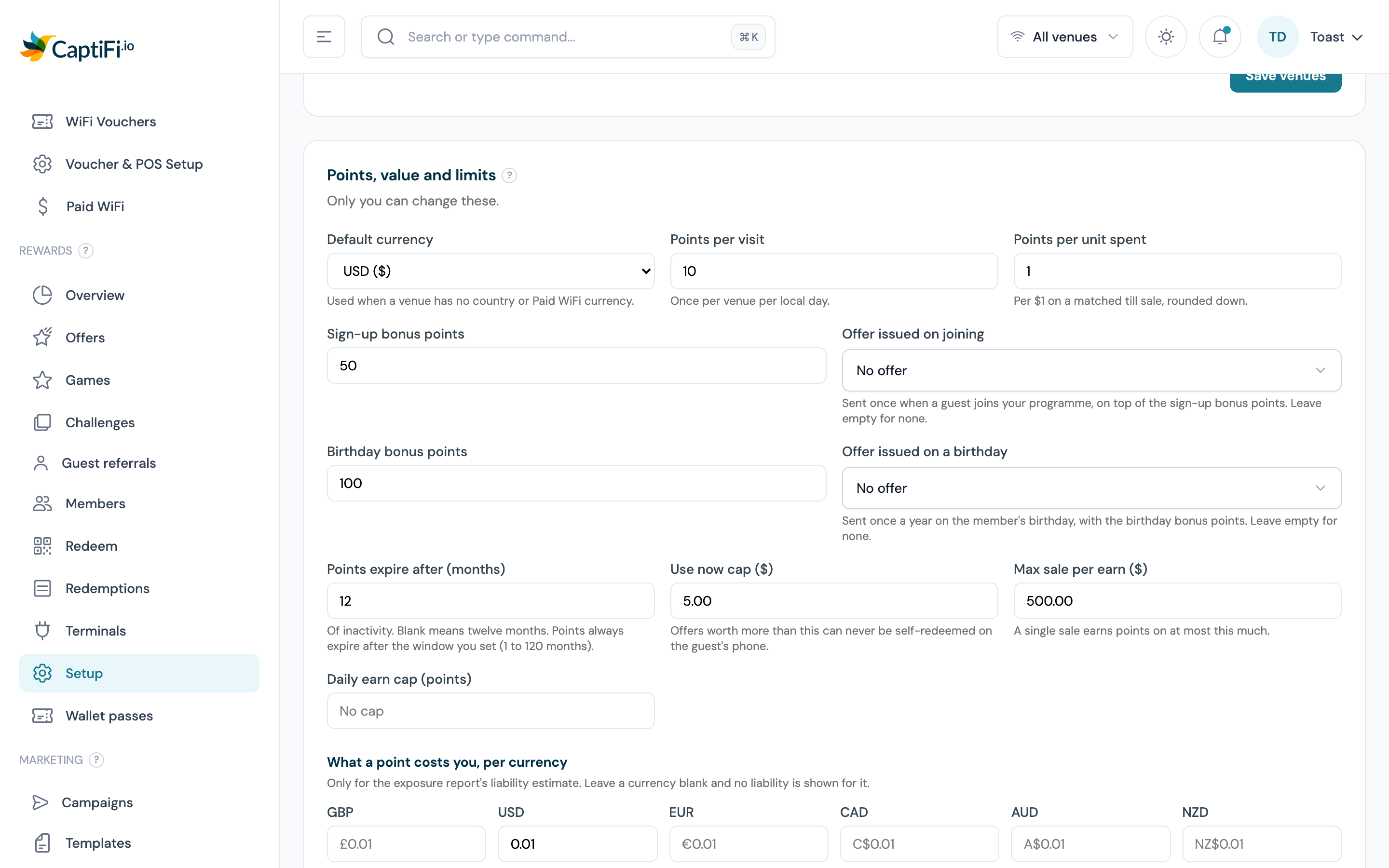
- Under Offer issued on joining, choose an offer. The list holds your active offers, and No offer means none is issued
- Under Offer issued on a birthday, beside Birthday bonus points, choose the same way
- Click Save points and limits
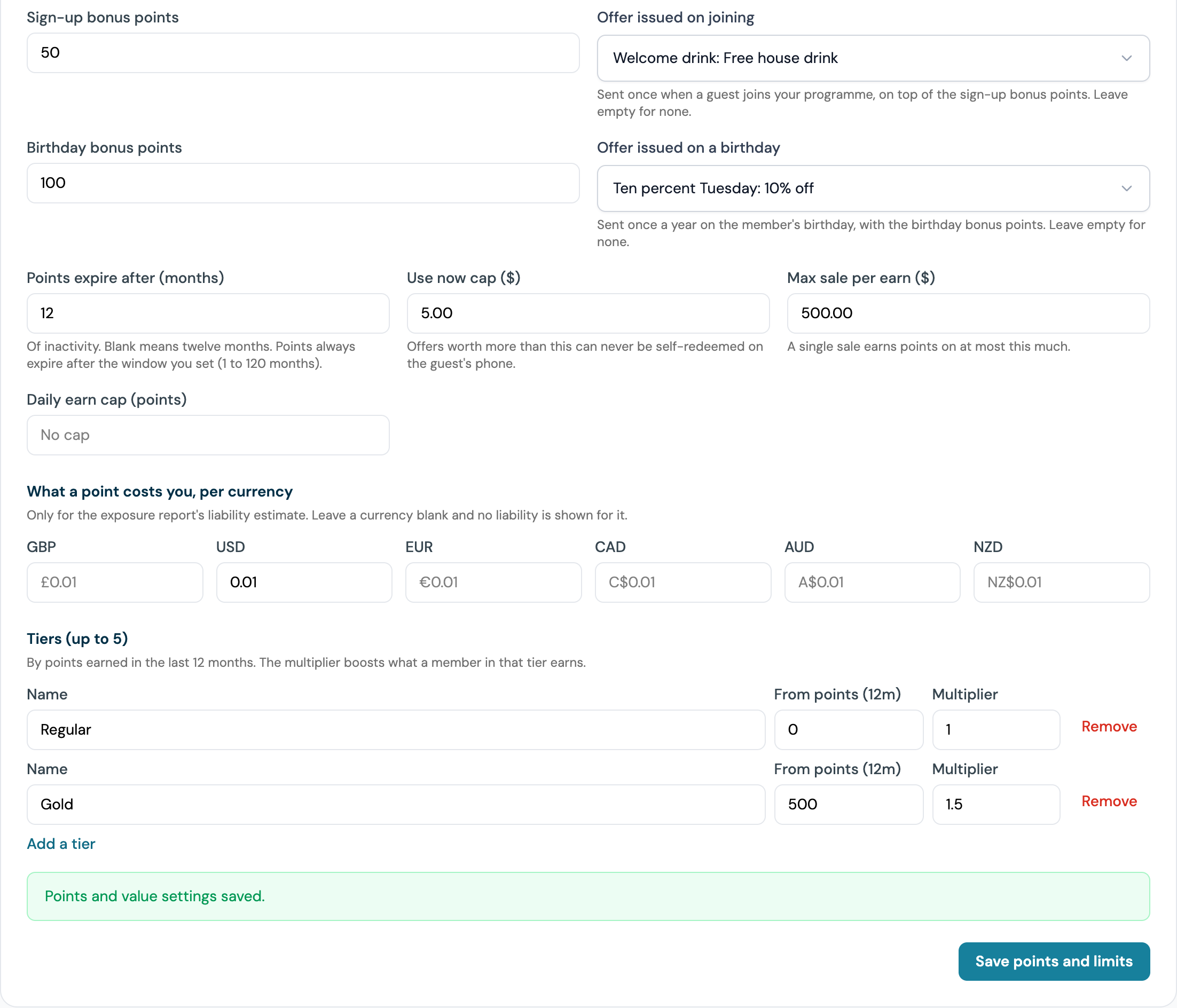
The same rules apply to both pickers:
- A new pick must be one of your active offers. A draft, paused or archived offer is not listed, and a pick the programme cannot use is refused with The selected offer is not available. under that picker. Nothing on the form is saved until you change the pick
- An offer you chose earlier that has since been paused or archived stays selected, marked (no longer active). It issues nothing while it is inactive, and it is kept as it is until you change it, so saving the other points settings never fails because of it
- Choose No offer and save to stop future issues. Rewards already in members' hands are unaffected
Creating offers
An offer is what you define once; a reward is one issued copy of it in a guest's hands. Go to Rewards → Offers. The page has two tabs, Offers and Catalogue (offers with a points price that are shown in the members catalogue), filters for Active, Drafts, Paused, Archived and All, and a search box for names and codes.
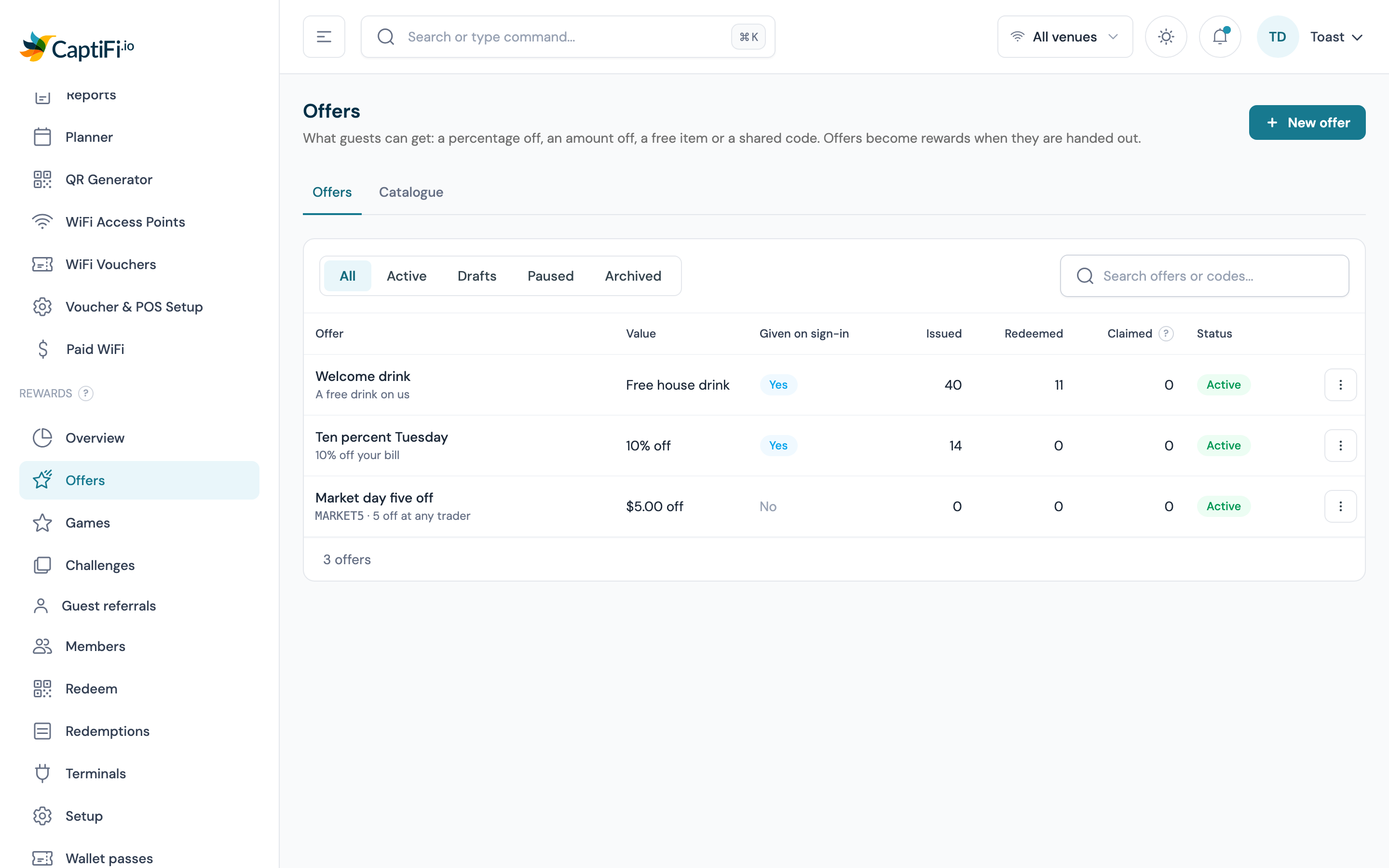
Click New offer. The form is in five sections, and Create offer at the foot saves it.
What guests get
- Internal name, for your lists
- Headline guests see, for example "A free drink on us"
- Kind: Percentage off, Amount off, Free item or Custom perk
- Currency, with the Percent off, Amount off or Free item field the kind needs
- What it costs you per reward. Your estimate of the real cost. It drives the Exposure and Settlement reports and the Use now cap. For an Amount off offer it is filled in from the amount
- Minimum spend (optional). The bill must reach this before the reward can be used
- Terms and Description (optional). Terms appear on the reward page, for example "One per person, not with other offers"
- This reward is alcohol. Tick it for a drink with alcohol in it. Games use it to check where the offer can be a prize and the age players must confirm there
An Amount off, Free item or Custom perk offer is priced in one currency and can only be redeemed at venues trading in that currency. A Percentage off offer is a share of the bill, so it fits every venue in the programme.
Shared code and catalogue
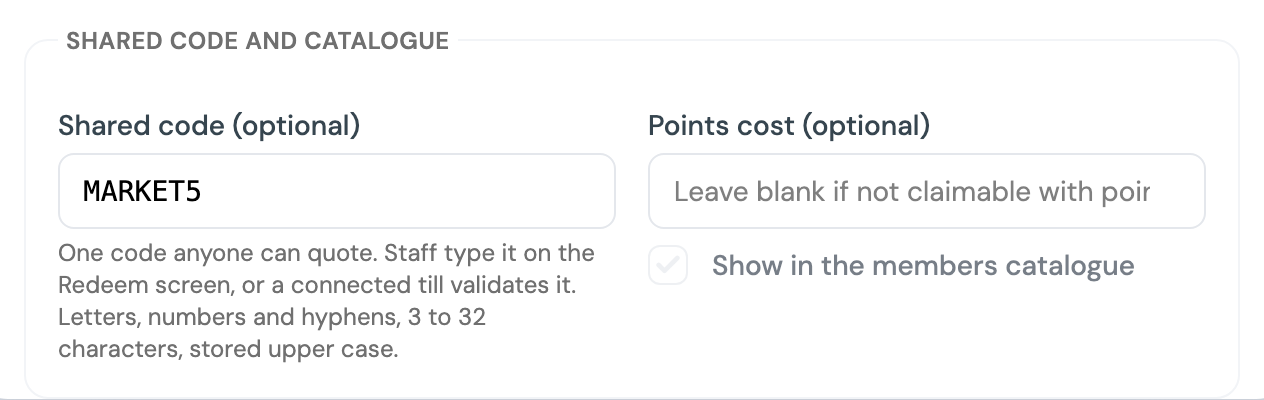
- Shared code (optional), such as
SUMMER20. A shared code is not tied to one guest: anyone can quote it and staff type it on the redeem screen. Codes are stored in capitals and must be unique across your offers. Cap a shared code with Max redeemed below - Points cost (optional) and Show in the members catalogue. Give the offer a points price and tick the box, and it appears on the Catalogue tab and under Spend your points on the rewards page of every member it is valid for, where a member with enough points claims it with their balance; see Claiming an offer with points. The tick only holds while a points cost is entered: clear the cost and the offer leaves the catalogue. An offer with a points cost and no tick is never listed to members, and staff can still hand it out with Issue to a guest
Discount codes such as SUMMER20
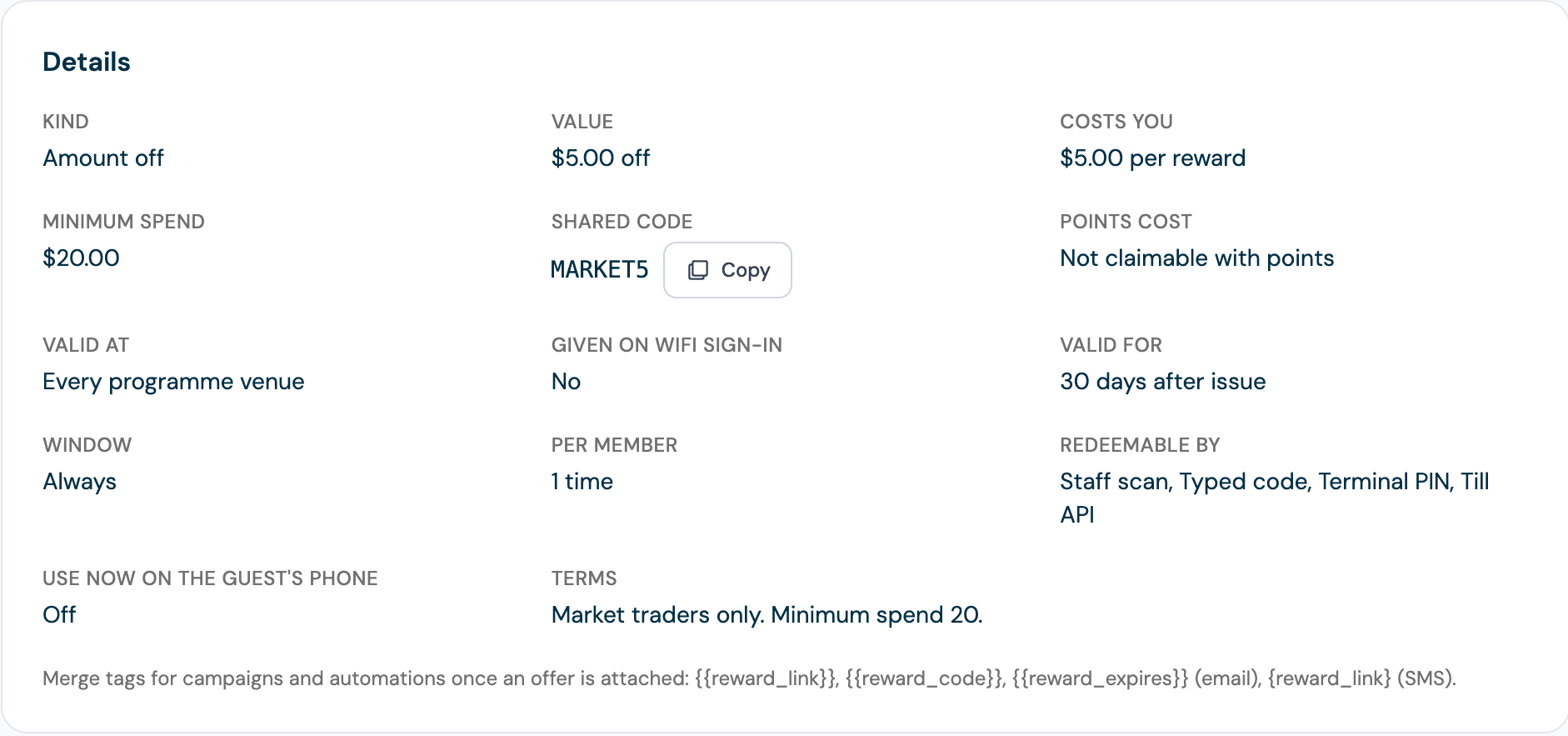
A discount code is an offer with a shared code, so anyone who quotes the code gets the discount and staff never need a guest's own reward.
- Click New offer and fill in What guests get as usual: the kind, the amount and the minimum spend
- Under Shared code and catalogue, type the code in Shared code. Letters, numbers and hyphens, 3 to 32 characters, stored in capitals
- Under Limits, set Max redeemed to cap how many times the code can be used in total
- Under Where and when, choose the venues, and set Starts and Ends if the code runs for a season
- Save and activate the offer
The offer page shows the code with a Copy button, so you can drop it into a campaign, a sign or a social post.
To honour a code, staff type it on Rewards then Redeem. The card reads Shared code with the offer and a Redeem code button, and each use counts towards Max redeemed. A till connected through the Rewards till API validates the same code. Once the cap is reached, the screen says the offer has reached its redemption limit.
Where and when
- Valid at every venue in the programme, or untick it and choose venues
- Give this reward when a guest joins the WiFi, with How often: Once per guest, Every visit, or Every N days with the number of days between rewards. Only active offers are issued, and a throwaway email address (Mailinator and the like) is never given a reward
- Valid for (days after issue). The reward expires at the end of that day in the venue's time zone. Blank means it lasts until the offer's end date, or has no expiry
- Starts and Ends (optional). Outside this window nothing is issued and a shared code is refused
Limits
- Max issued: how many rewards this offer can ever create
- Max redeemed: how many times it can be redeemed in total. This is the cap that matters for a shared code
- Per member: how many times one member can hold it. Default 1
- Cooldown (days): the gap before the same member can be given it again
How it can be redeemed
Tick the ways the offer may be honoured: Staff scan, Typed code, Terminal PIN, Till API and Manager manual. The first four are on by default. At a Toast venue, staff redeem on the Redeem screen and can type the Toast check number in Till check number (optional); see Redeem CaptiFi rewards for a Toast check. A separate switch, Let guests tap Use now on their own phone, is off by default and is only allowed for offers at or below your Use now cap; see Use now.
Saving and activating
A new offer is saved as a Draft. Open the row's actions menu (the three dots at the end of the row) and choose Activate when you are ready; nothing is issued from a draft. Later you can Pause an offer (issuing stops, rewards already issued stay valid until they expire), Resume it, or Archive it. Archiving is permanent because rewards and redemptions refer back to the offer; an archived offer cannot be edited.
The offer page
Click an offer to see how it is doing: Issued, Outstanding (issued and not yet used, with what that is costing you at your estimate), Redeemed, the Redemption rate and Claimed (rewards members bought with points from the catalogue, with the points price), followed by every reward issued from it with its code, holder, issue and expiry dates, status and how it was issued.
Issue to a guest hands one reward to one person: enter an email address, a phone number or pick an existing member. The reward is created, the guest is emailed (or texted) their link, and the code and a Copy link button appear on screen in case they are standing in front of you.
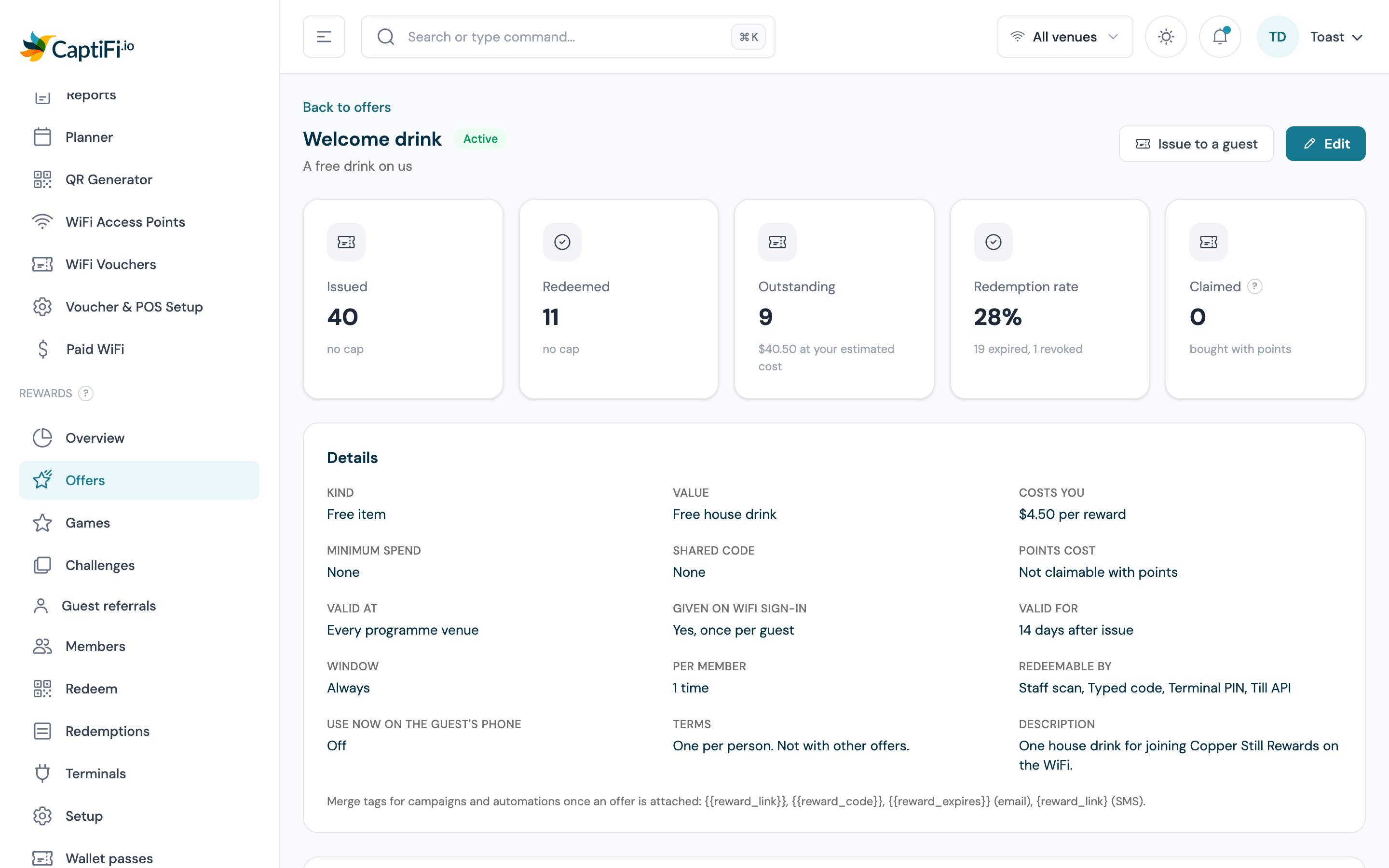
The Offers list has a Claimed column after Redeemed, counting the rewards members bought with points from the catalogue; its help tip reads "Claims with points, net of any staff later cancelled." A claimed reward that has since been redeemed or has expired still counts, and one that staff revoked does not, because revoking gave the points back. Issued counts every reward from the offer, revoked ones included, so the two columns are read separately.
Members
A member is a guest who joined your programme. They are recognised by email address first, then by phone number, and one record follows them across every venue on your account. Each member has a ten-character member number.
Rewards → Members lists them with a search box (name, email, phone or member number) and filters by tier (All tiers to clear it) and by status: All, Active, Left (members who left the programme) and Anonymised.
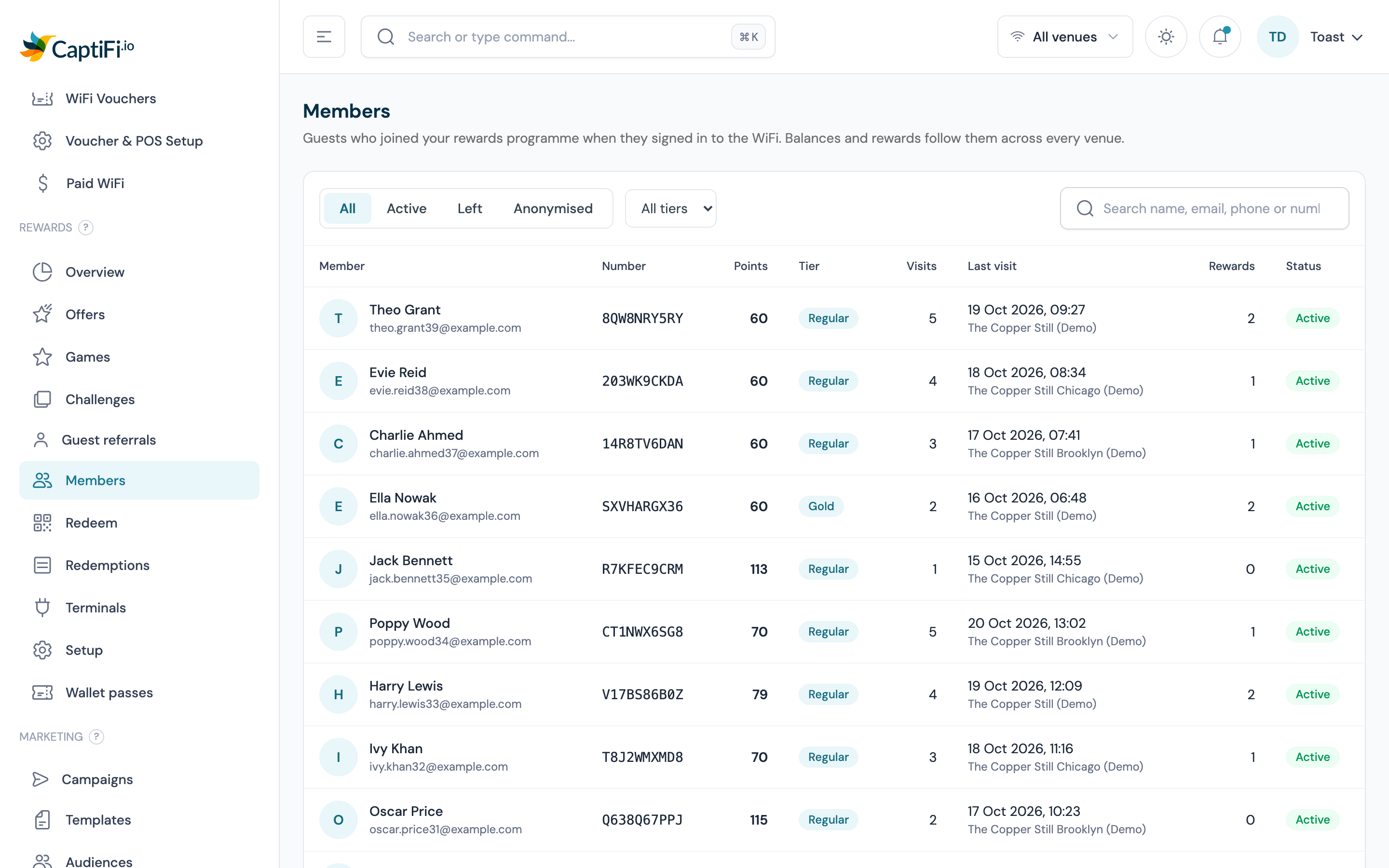
Who can see member details
The Members list and a member's page show names, email addresses and phone numbers, so they need the View guest data permission, the same one that guards Guest Visits. A team member without it can still use the redeem screen, where a lookup shows only the member's name, number and balance.
Click a member to open their page:
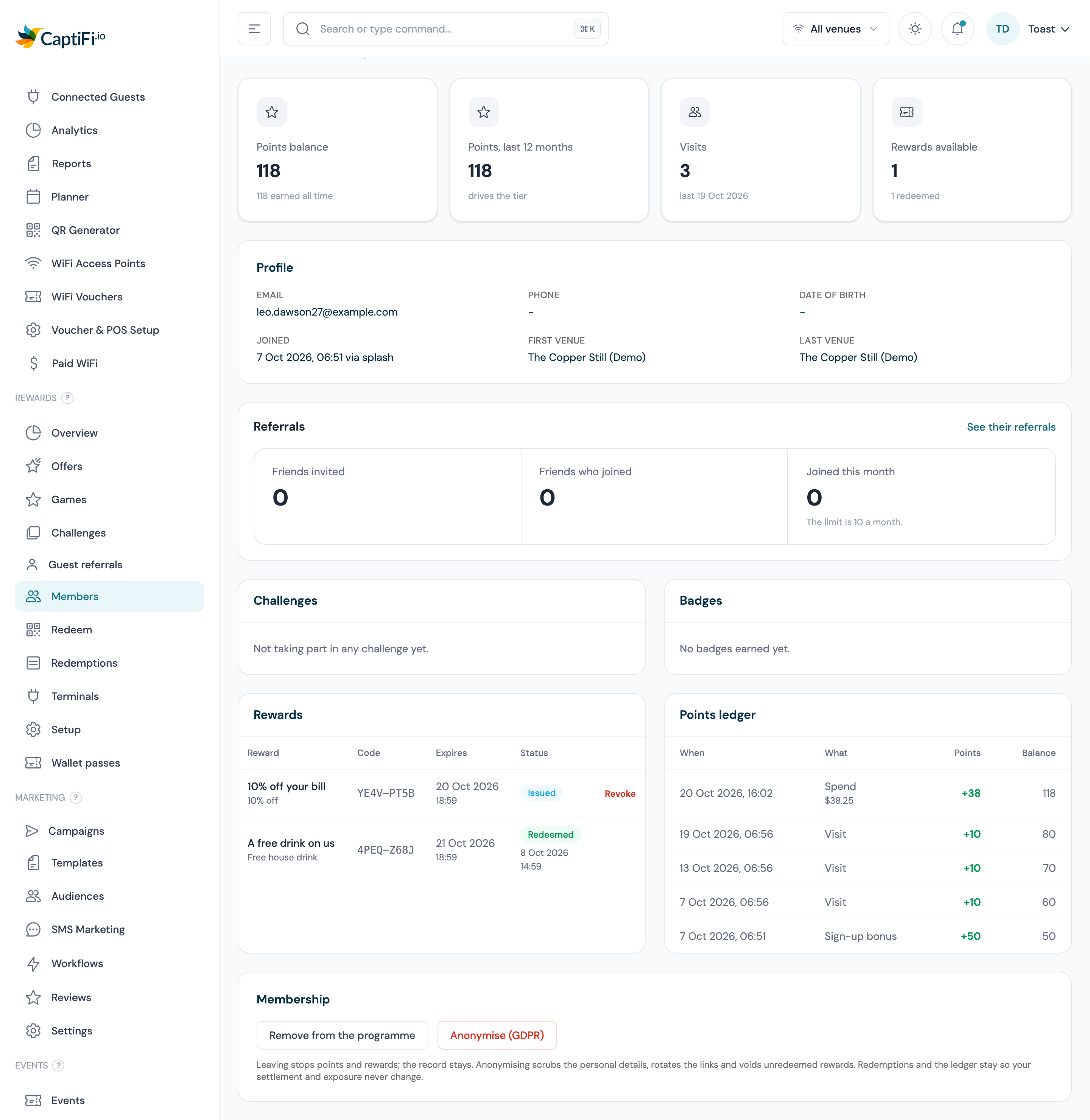
- Profile (email, phone, date of birth where collected) and Membership (when they joined, first venue, last venue)
- Points balance, Points, last 12 months, Visits and Rewards available
- Rewards: every reward they hold or have used, with its status (Issued, Redeemed, Expired or Revoked) and a Revoke action on an unused one; see Revoking a reward
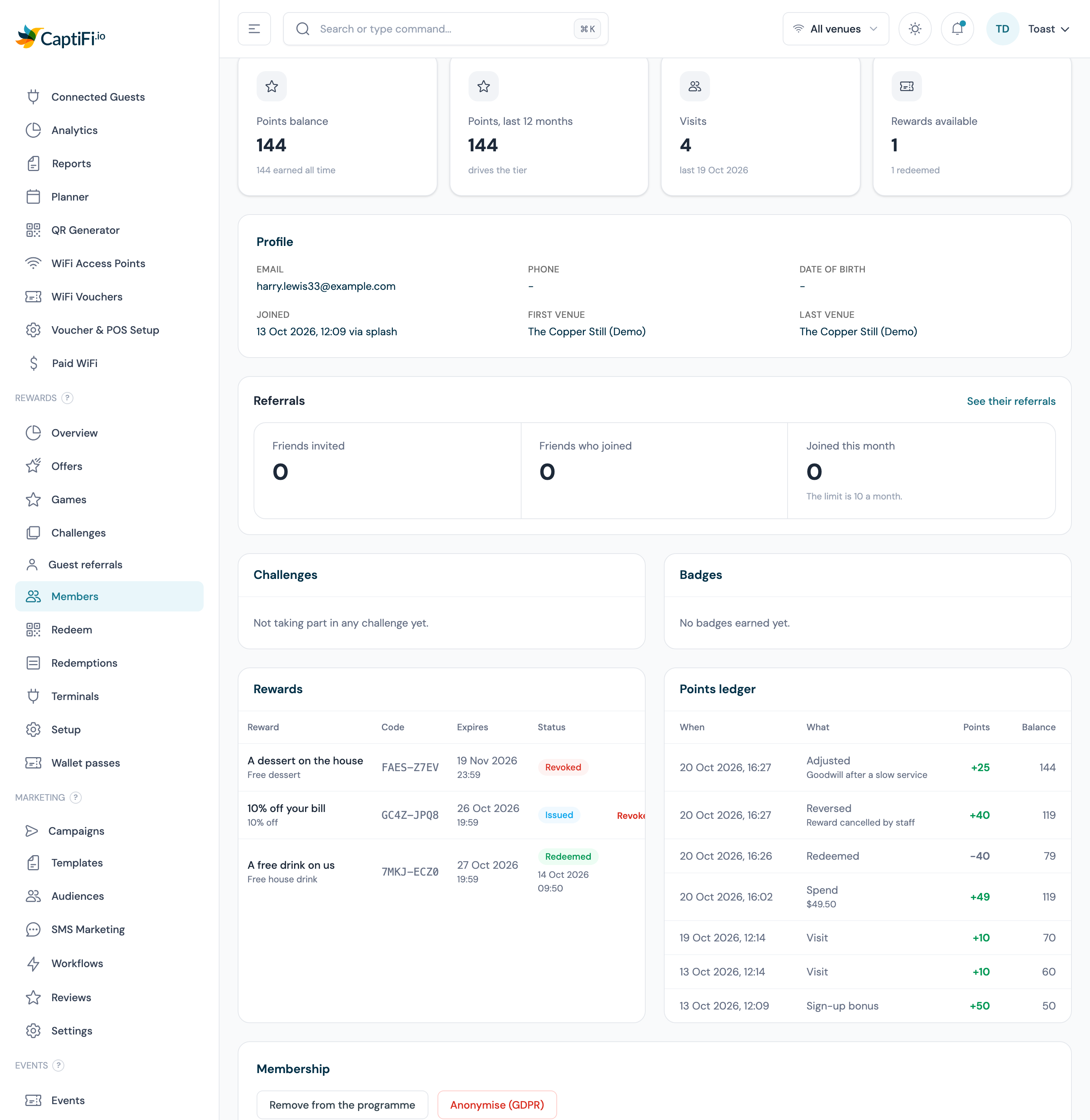
- Points ledger: every earn, spend, expiry and correction with a running balance. The full ledger, with filters by reason and date, is described under Reading a member's ledger
- Referrals, Challenges and Badges, when those parts are on for your account: the friends the member has invited (see Guest referrals), the challenges they are taking part in and the badges they have earned (see Challenges, stamp cards and badges)
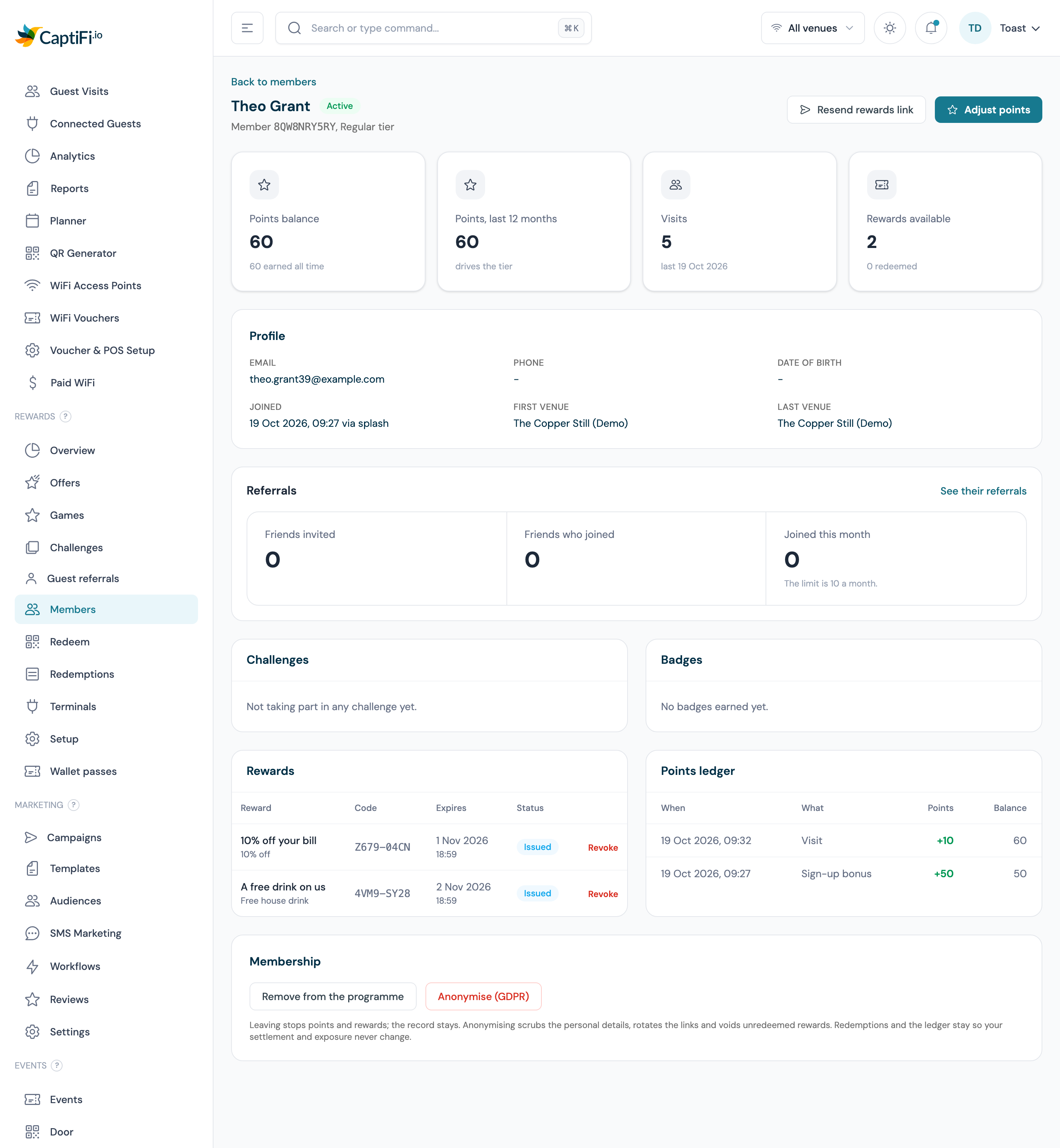
Actions on the member page:
| Action | Who | What happens |
|---|---|---|
| Adjust points | Account owner | Add or take away points with a note of at least three characters. Recorded in the ledger and the audit log |
| Resend rewards link | Manage rewards and offers | Emails the member their rewards page again (and texts it when SMS delivery is on). Limited to three sends an hour per member |
| Remove from the programme | Manage rewards and offers | The member stops earning points and receiving rewards. Their record and redemption history are kept |
| Anonymise (GDPR) | Manage team | Scrubs their personal details; see GDPR and consent |
A guest who asks to leave is taken out with Remove from the programme. Their rewards page has no leave link of its own.
Revoking a reward
Revoking cancels an unused reward. It needs Manage rewards and offers.
- Open the member's page and find the reward under Rewards. Only a reward with the status Issued can be revoked; a used, expired or already revoked one has no action
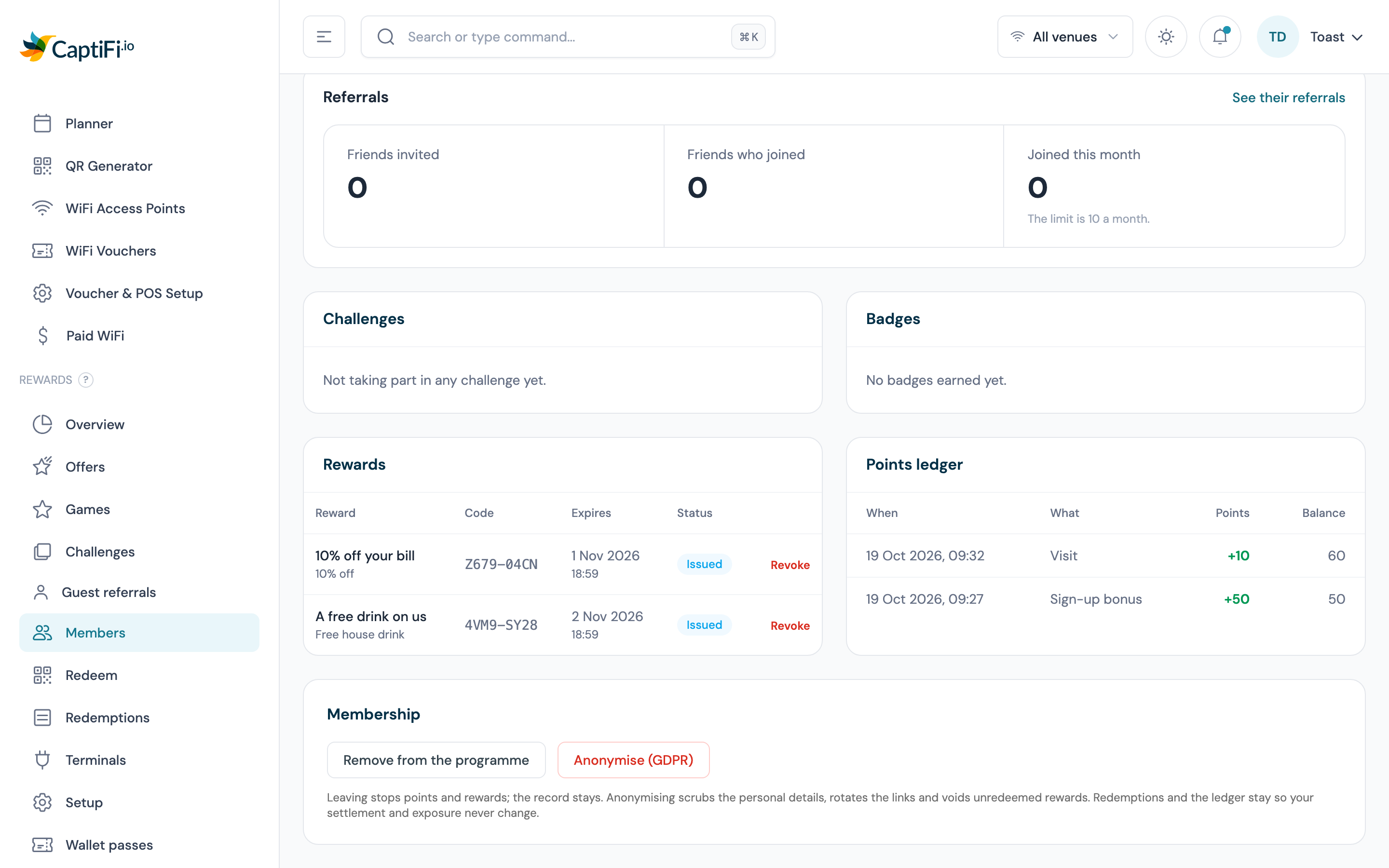
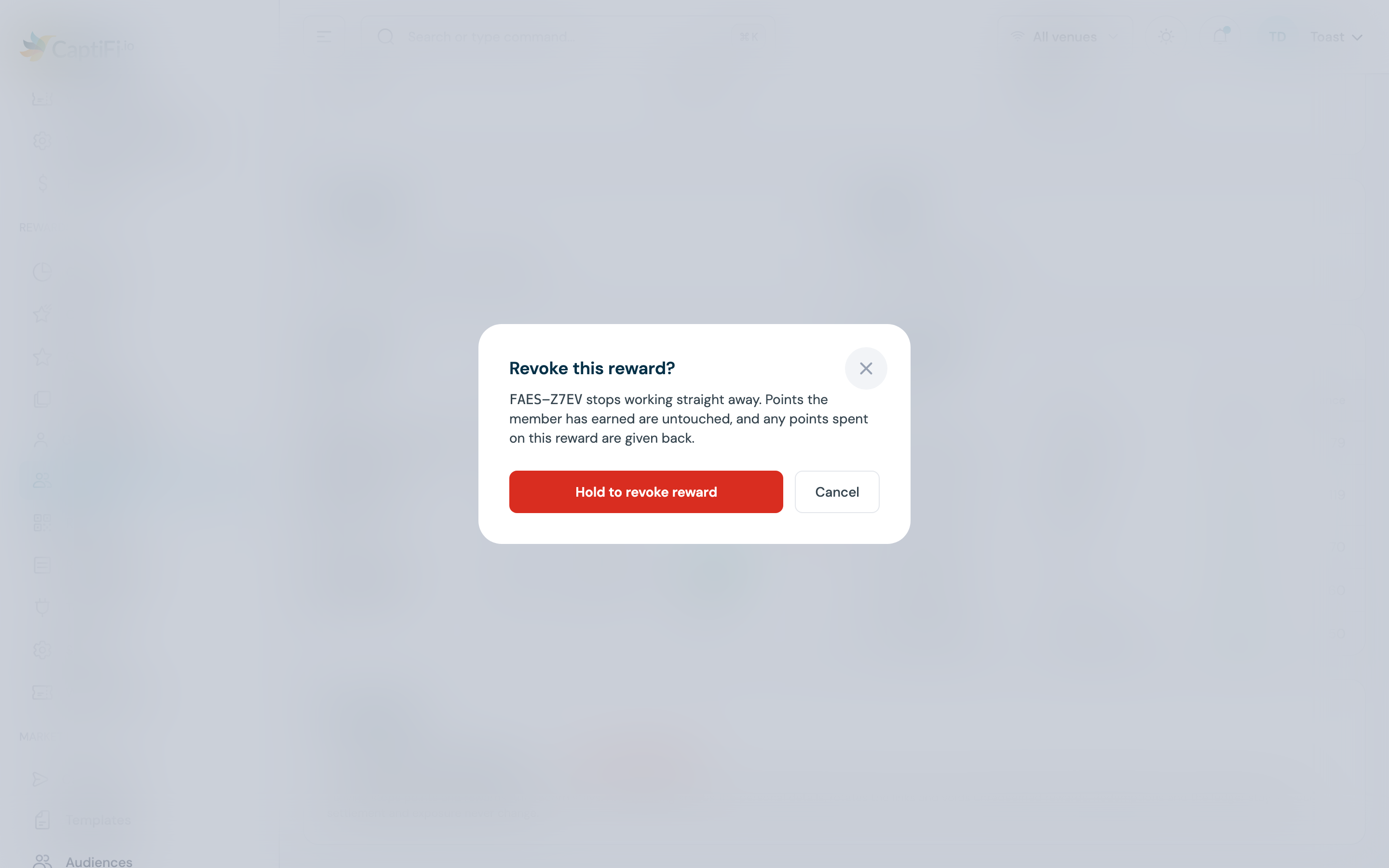
- Click Revoke. The confirmation, Revoke this reward?, names the code and says it stops working straight away. Press and hold Hold to revoke reward until it completes
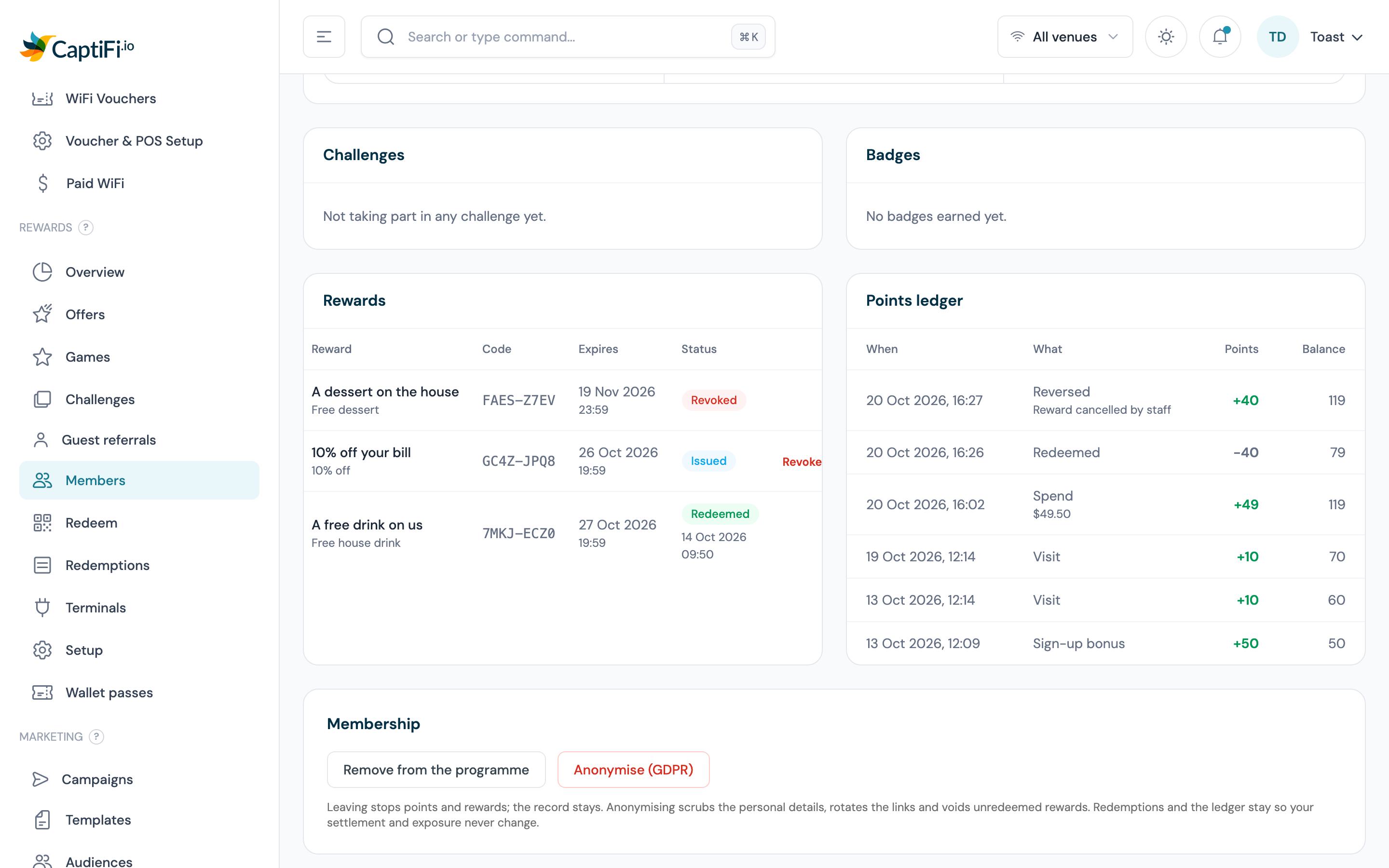
- The row now reads Revoked. Points the member has earned are untouched. If they bought the reward with points from the catalogue, those points go back to their balance as a Reversed row in the ledger, and the offer's Claimed count drops by one
Points and tiers
Every point a member earns or spends is a line in their points ledger, and their balance is the sum of those lines. Points are earned at the venues in your programme in five ways, all priced under Points, value and limits on Settings → Rewards setup (account owner only).
| How | What is earned | Counted once per |
|---|---|---|
| A WiFi visit | Points per visit, times the venue's earn multiplier | Member, venue and local day |
| Spend on a Toast or Square order | Points per unit spent for each pound, dollar or euro of the settled order, times the venue's earn multiplier and the member's tier multiplier | Order |
| A sale keyed at the till | The same rate, on the bill total staff type under Award points for this sale | Receipt number |
| Joining the programme | Sign-up bonus points | Member |
| Their birthday | Birthday bonus points | Member and calendar year |
Points are always rounded down. Max sale per earn caps the spend counted on one order or sale, and the Daily earn cap caps what one member can earn in a day across all your venues from visits, spend, till sales and staff awards. The sign-up and birthday bonuses are paid outside the daily cap and do not use it up. A member who has left the programme or been anonymised earns nothing.
Points from Toast and Square orders
If a venue in your programme has Toast or Square connected, the orders CaptiFi already matches to your WiFi guests earn points without anyone touching the till.
- An order earns points when the guest it is matched to is a member. The match is the one the integration makes (by email address for Toast, by the Square customer record or email address for Square). The points go to the member linked to that guest, or to the member whose email address or phone number matches
- Only a settled order is credited: a Toast order with a closed date that has not been voided or deleted, or a Square order in the COMPLETED state. An open tab waits for the sync that sees it closed, so the points reflect the final total. The total at that moment stands, and a later change to the order neither adds nor removes points
- Each order is credited once, however many times it is synced
- Toast orders carry no currency, so the venue's programme currency is assumed. A Square order in a currency other than the venue's programme currency earns nothing
- Orders are credited from the moment the venue is in a live programme. Orders synced before then are not credited automatically; ask support if you want them credited
The Spend rows in a member's ledger show the amount counted and its currency. The VIP, Regular and Casual labels on the Toast Spend and Square Spend pages are reporting bands based on total spend and are separate from your programme's tiers.
The birthday bonus
Members with a date of birth on file, collected by the Date of Birth field on your sign-in form, receive Birthday bonus points once a year. The bonus lands at 08:00 on the day, in the local time of the member's home venue: the venue they last visited, else the one they joined at, else the first live venue in your programme. A member born on 29 February is paid on 28 February in a year without one. The ledger row reads Birthday bonus. Set the bonus to 0 and nobody is paid.
The bonus itself is points. A programme with a birthday offer wired to it issues that offer at the same moment; see Offers on joining and on birthdays. To send a birthday email or text of your own that carries a reward, use the Birthday trigger in Email Automations or SMS Marketing with an offer attached; see Rewards in your messaging.
Tiers
Tiers group members by how much they have earned in the last 12 months, and can boost what they earn on spend. A programme can have up to five.
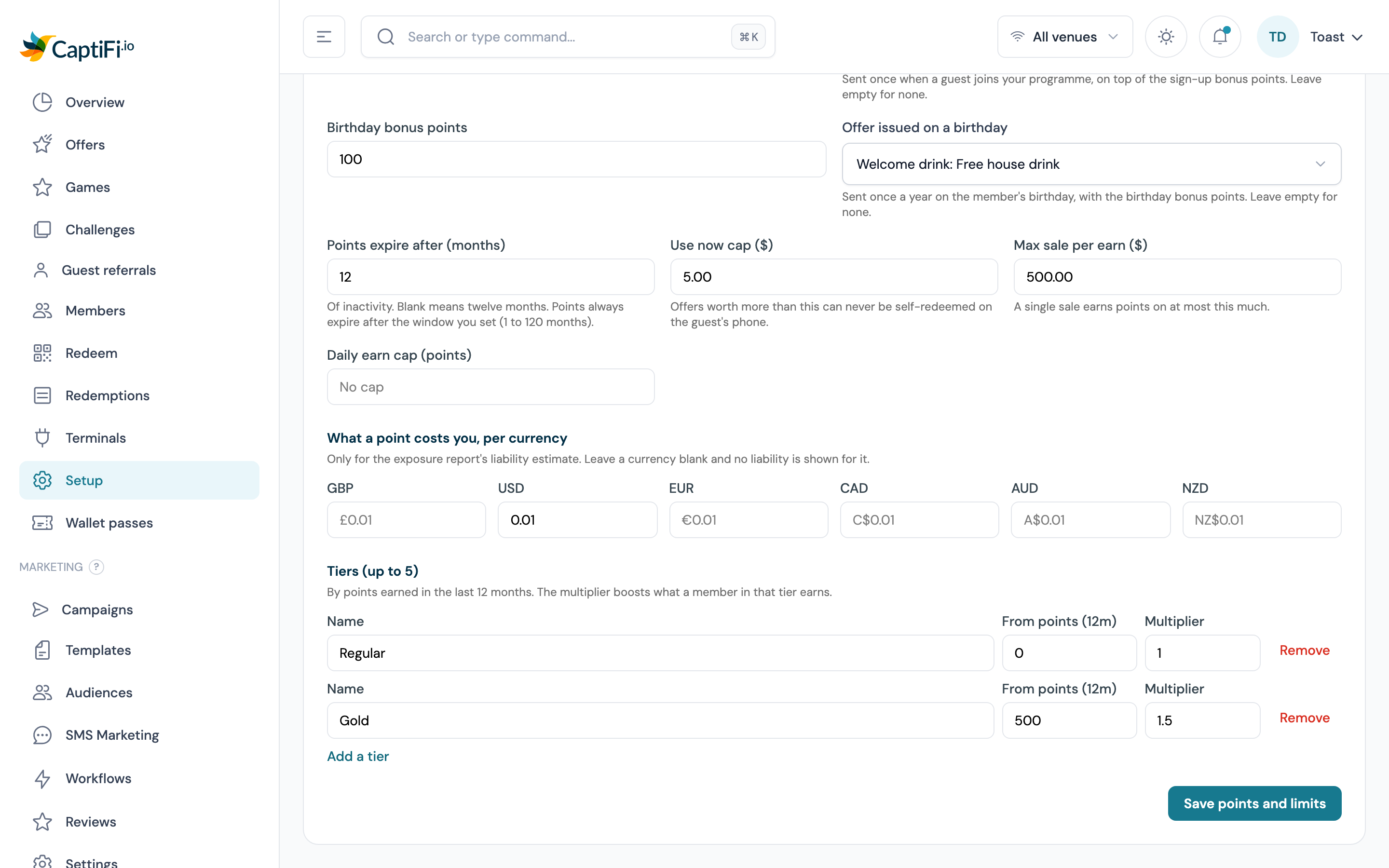
- Open Settings → Rewards setup and scroll to Tiers (up to 5) under Points, value and limits. Only the account owner can edit them

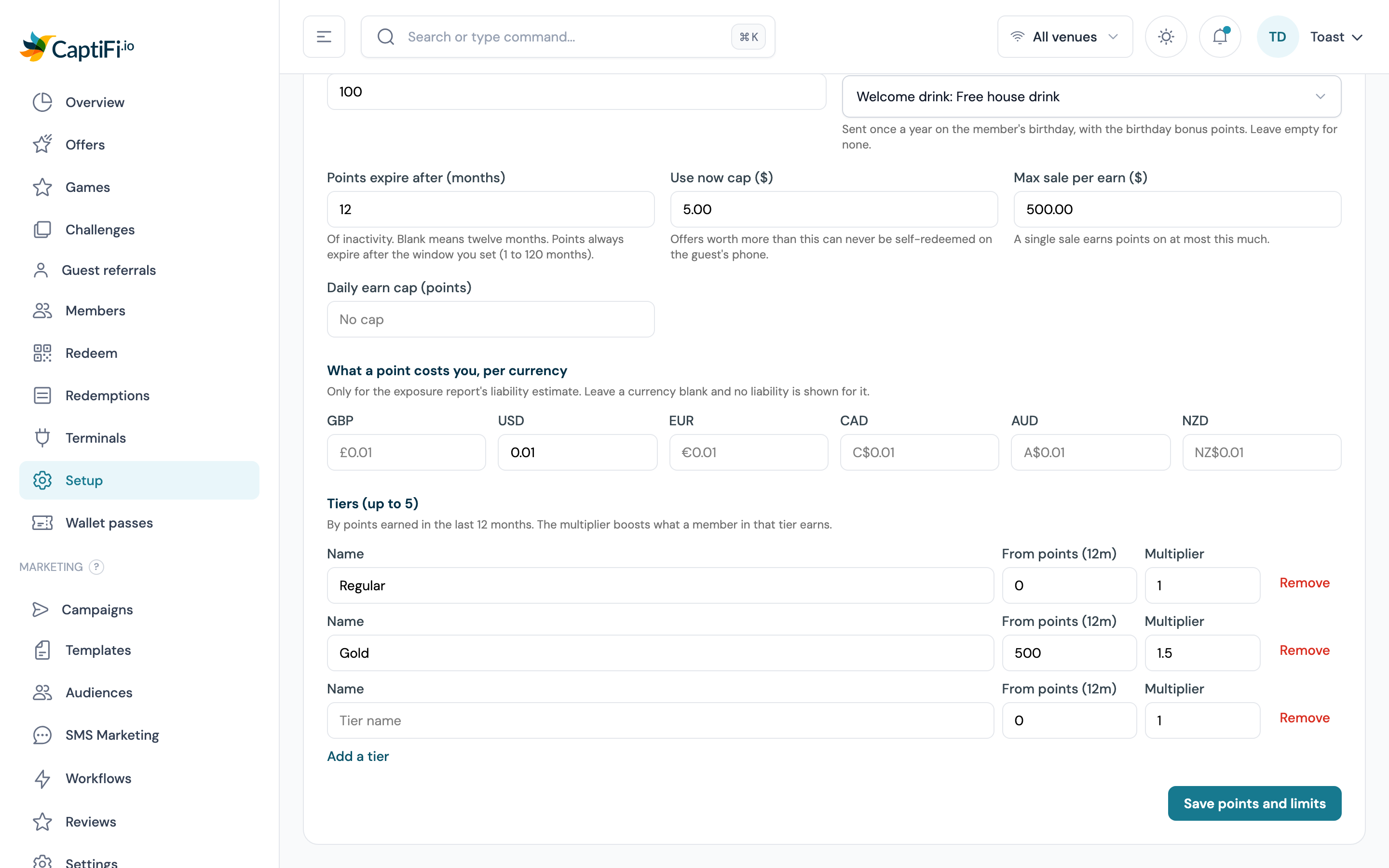
- Click Add a tier and fill in the Name members will see (for example Regular, Silver, Gold), From points (12m) (the points earned in the last 12 months that puts a member in this tier) and the Multiplier (1 for no boost, up to 10)
- Repeat for each tier. Tiers are ranked by their threshold, so the order you add them in does not matter
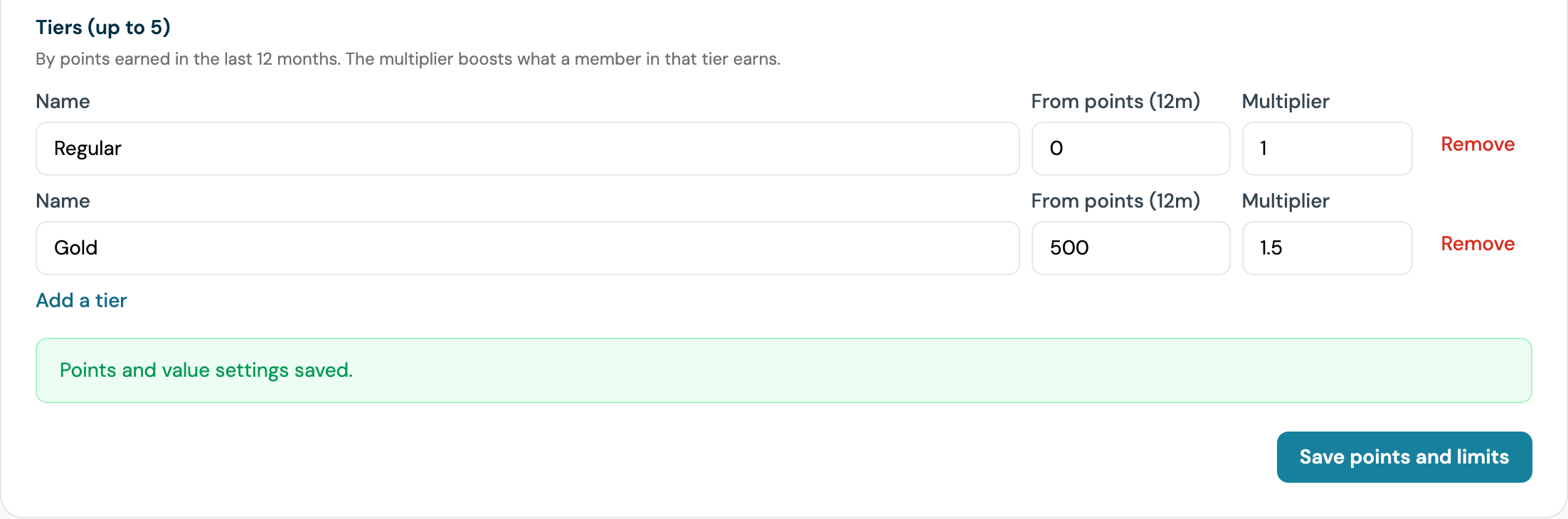
- Click Save points and limits
How a member's tier is decided:
- A member sits in the highest tier whose threshold their points earned in the last 12 months meets. The window rolls: as months drop out of it, the count falls. Points, last 12 months on the member's page is this figure
- Earned means points from visits, Toast and Square orders, till sales, the sign-up and birthday bonuses, other bonuses, points awarded by staff and manual adjustments (an adjustment counts in the direction it was made). Points spent on a catalogue offer, points refunded when a reward is revoked, and expired points do not count, and the points a voided redemption awarded are taken back
- Promotion is immediate: a member's tier is re-checked after every change to their ledger
- A tier is held for 12 months from the day it was reached. During the hold a member can move up but never down; once it lapses, the nightly check (03:30 UK time) drops them to whatever they now qualify for
- The tier multiplier applies to spend points only (Toast and Square orders and till sales), on top of the venue's earn multiplier. Visit points and the bonuses are not multiplied
- If you remove or rename a tier, members who held it are placed afresh at their next check. Removing every tier clears everyone's tier
A member's tier shows in the Tier column and filter on Rewards → Members, beside their name on their member page, on their own rewards page, in the Rewards tier segment condition and in the member_tier field of the reward and points webhooks.
Points expiry
Once a night, at 03:20 UK time, CaptiFi looks for members whose points have gone untouched for Points expire after (months) and writes off their whole balance in one ledger row, Expired, with a note of the date of their last activity.
- Touched means any ledger line other than an expiry (earning, spending or an adjustment), a recorded WiFi visit, or the date they joined. A member who keeps visiting keeps their points even if the visits earn nothing
- The window runs from 1 to 120 months. Left blank, points expire after 12 months (the empty field shows 12 as its placeholder), and there is no setting that stops points expiring altogether
- Members who have left the programme are included; anonymised members are not
- Nobody is told before their points expire. The Reward about to expire trigger covers issued rewards, not points. To remind members yourself, send a campaign to a segment such as Points balance is more than 0 and Last visit was more than N days ago; see Rewards conditions
Expired points appear on the member's own rewards page as Expired and are totalled in your monthly report.
Manual adjustments
The account owner can add or remove points on a member's page with Adjust points: a positive number adds, a negative number removes, and a reason of at least three characters is required. The change is written to the ledger as Adjusted and to your activity log. An adjustment counts towards the member's tier in the direction it was made, sits outside the daily earn cap, and is never mirrored to Leat.
- Open Rewards → Members and click the member
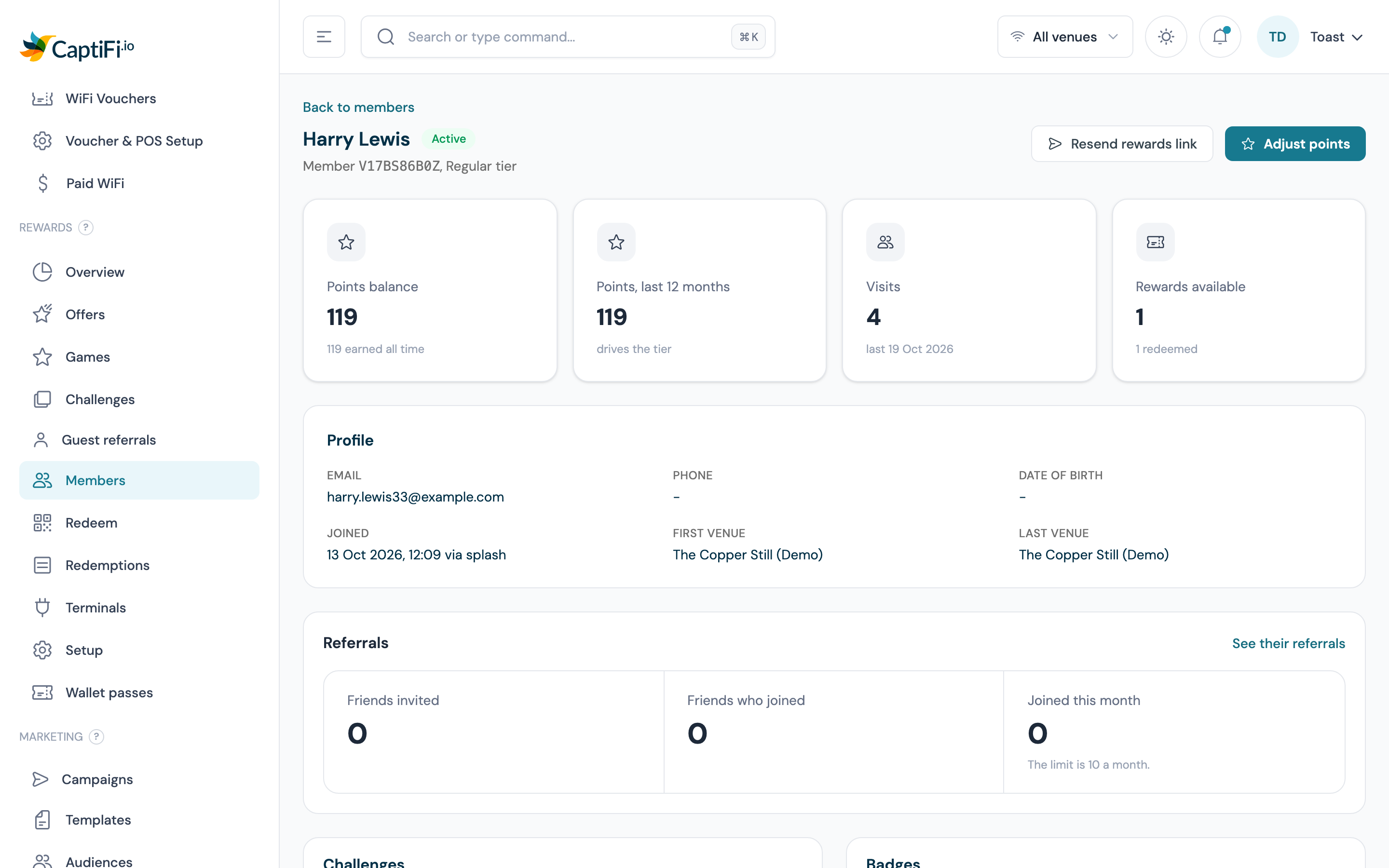
- Click Adjust points, type the points (for example
50or-50) and the reason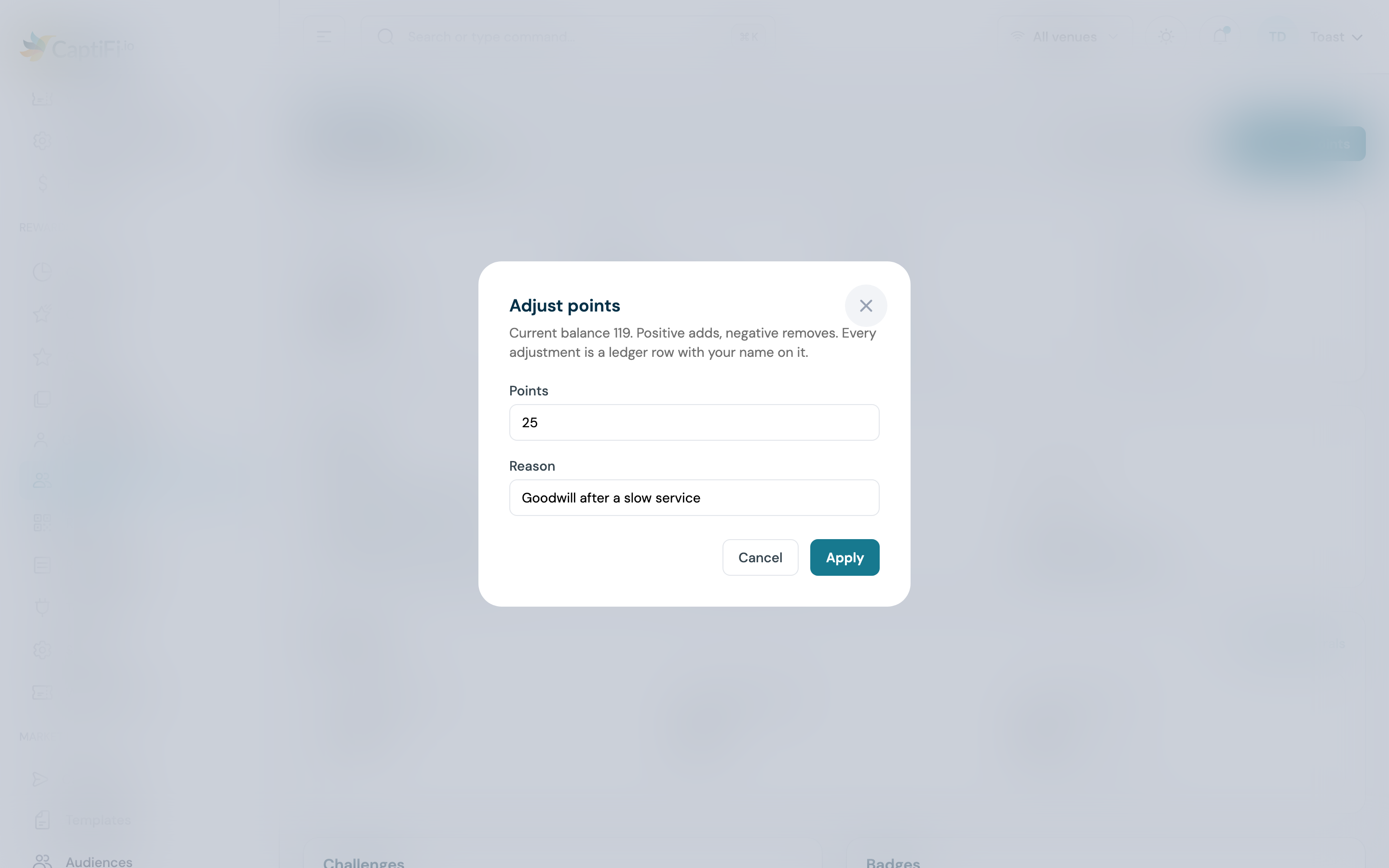
- Click Apply. The new balance shows at once and the ledger gains an Adjusted row
Reading a member's ledger
The Points ledger on a member's page lists every line newest first: when, the reason, the points (plus or minus), the balance after it and the venue. The reasons are Visit, Spend, Sign-up bonus, Birthday bonus, Bonus, Awarded by staff (a sale keyed at the till), Expired, Adjusted, Redeemed (points spent on a catalogue offer; the member's own page calls the same row Reward claimed) and Reversed (points taken back when a redemption is voided, or given back when a claimed reward is revoked).
How members see their points
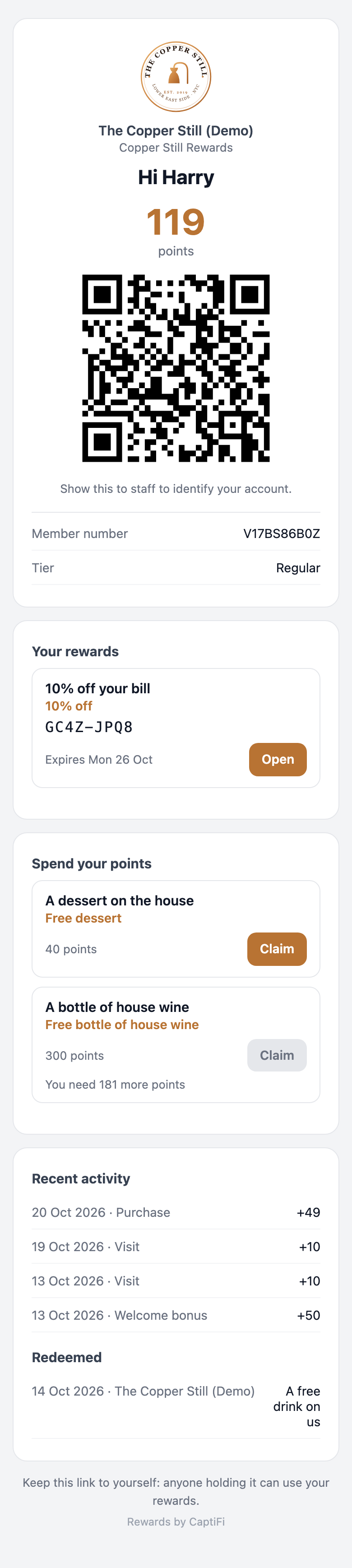
Every member has a rewards page of their own. The link goes out when they join, again with Resend rewards link, and in any email that carries the {{rewards_link}} tag. The page shows their balance as a large number with your unit (points or stamps), a QR code and their member number for the till, a Tier row when they hold one, the rewards they can use with their codes and expiry dates, a Spend your points section (Spend your stamps when your programme counts stamps) listing the catalogue offers they can claim (see Claiming an offer with points), their activity line by line (each earn as a plus, each spend or expiry as a minus) and their redemptions. A returning guest whose phone is recognised on your splash page also sees their balance there, with a Send my rewards link button.
Claiming an offer with points
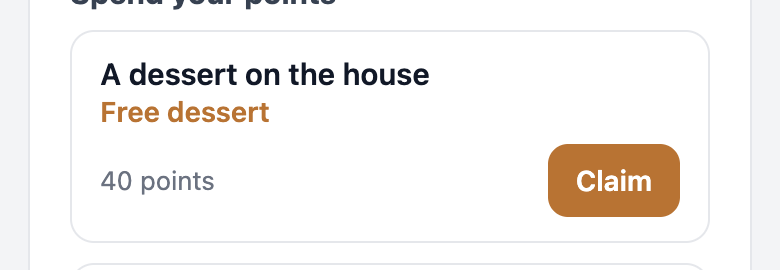
Spend your points on a member's rewards page lists every offer that member can claim right now: the offers in your programme that are active, inside their Starts and Ends window, ticked Show in the members catalogue, priced above zero points, and valid everywhere or at one of the venues the member has been seen at (the venue they last visited, the one they joined at, and any venue on their ledger, counting only venues still active in your programme). Each row shows the headline, the value and the cost in your unit, with a Claim button. When the balance does not cover the cost the button is greyed out and a line underneath reads You need N more points (or stamps; "1 more point" for a shortfall of one), with the shortfall. A balance equal to the cost is enough. The section is absent from the page when there is nothing that member can claim.
- The member opens their rewards page from the link they were sent (a returning guest can ask for it again with Send my rewards link on your splash page) and scrolls to Spend your points
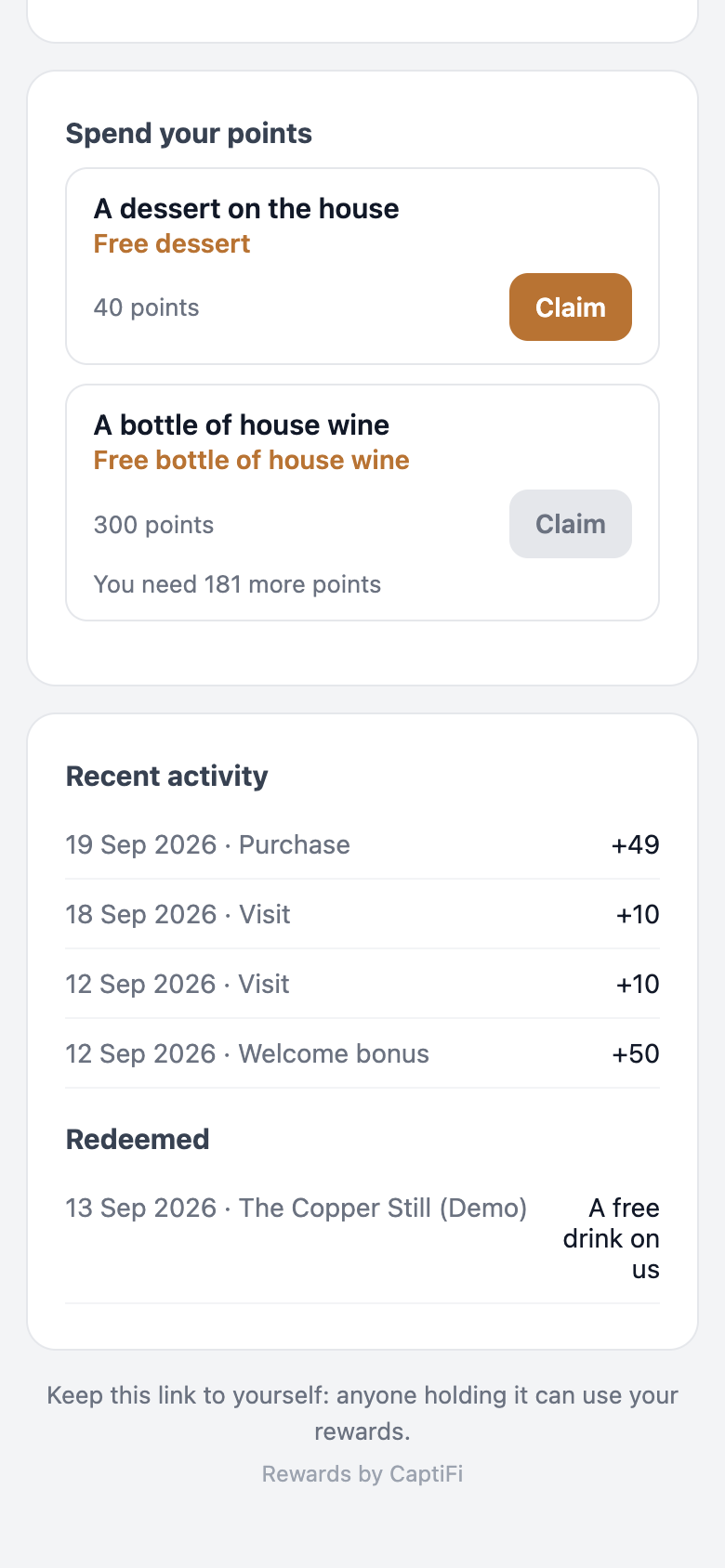
- They tap Claim on an offer they can afford
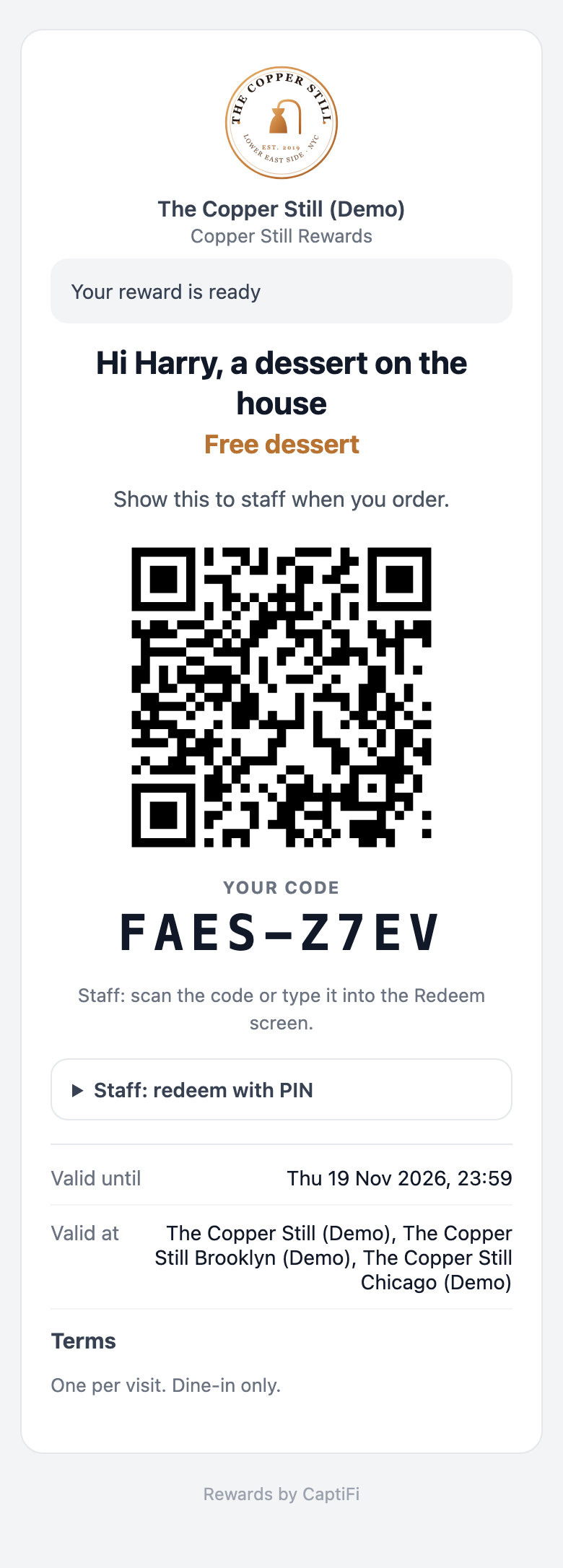
- The points come off their balance and the reward is issued in the same step. The page moves to the new reward with the banner Your reward is ready: the same reward page as any other, with the code, the QR and the expiry, and staff redeem it in the usual ways. It also appears under Your rewards on their account page, and their activity gains a Reward claimed line. No email or text is sent for a claim
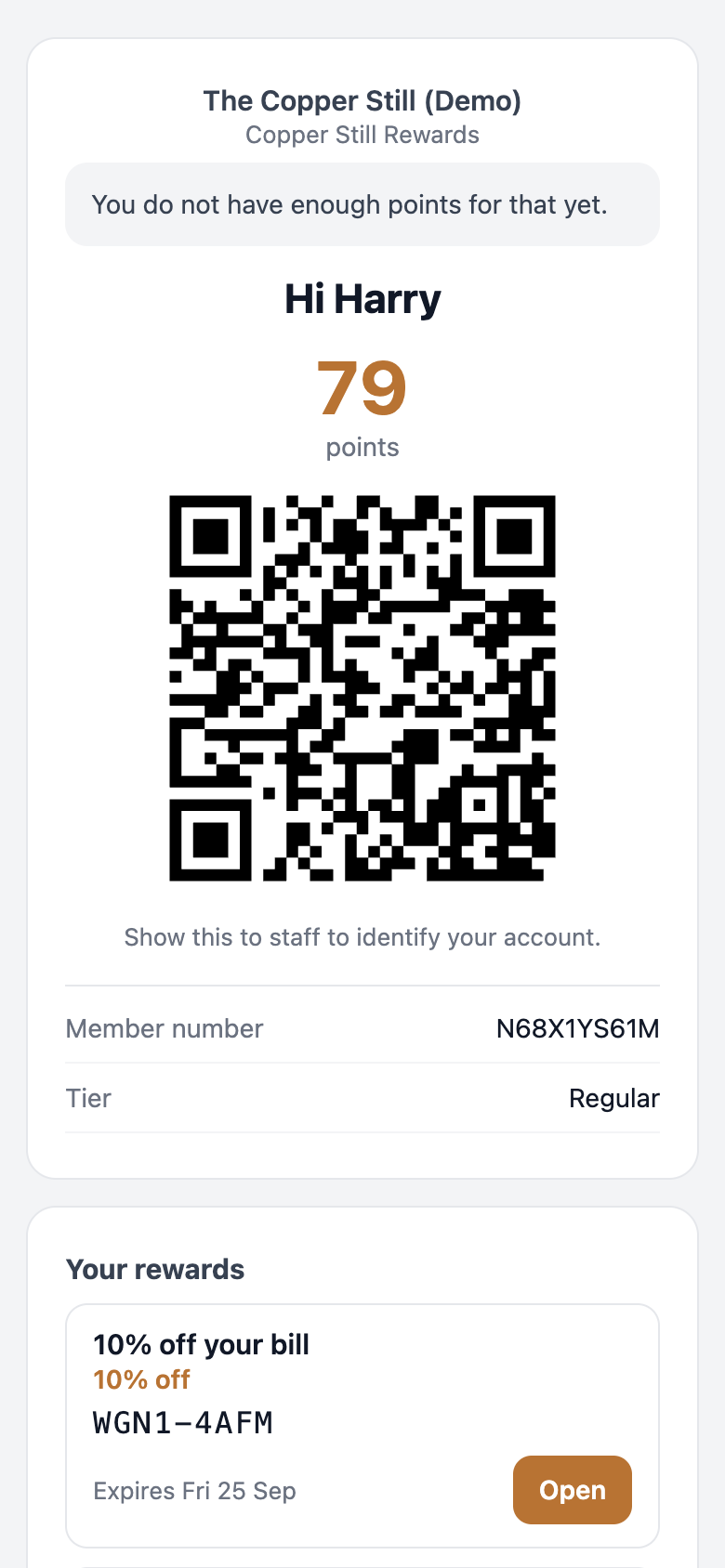
- If the claim is refused, the page returns to their account with a sentence at the top: You do not have enough points for that yet., You have already claimed that offer as many times as it allows. (the offer's Per member, Cooldown or Max issued limit) or That offer is not available right now. (paused, hidden from the catalogue, no points price, outside its window, or not valid at any of their venues). Nothing is deducted when a claim is refused
The reward is booked against the member's most recent venue the offer allows (for an offer valid everywhere, the venue they last visited), which sets its expiry in that venue's time zone and the venue on the ledger row. On your dashboard the reward shows Issued via as points, and the ledger row reads Redeemed. Claims count towards the offer's Per member limit and Max issued like any other issue. Revoking a claimed reward from the member's page returns the points; see Members.
Running Leat alongside Rewards
If a venue also has the Leat integration connected, the two share the venue like this:
- At a venue that is not in a live programme, Leat works exactly as before: a contact per consenting guest, and Credits per visit added on every consenting sign-in
- Once the venue is ticked and active in a live programme, CaptiFi still creates the Leat contact for every consenting guest but stops adding credits at that venue. The guest earns points in CaptiFi instead, so one visit is never credited twice. The help text under Credits per visit on the Leat card says so
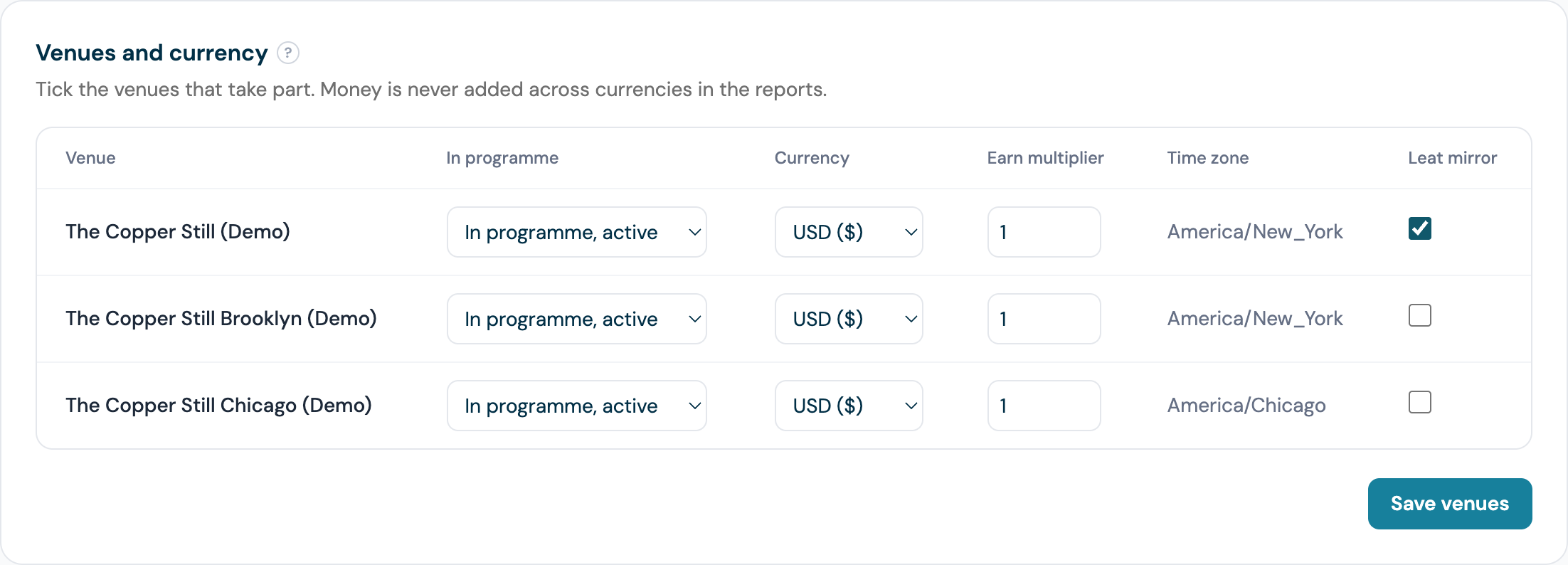
- Tick Leat mirror on the venue's row on Settings → Rewards setup and every earn at that venue is pushed to Leat as the same number of credits, on the Leat contact matching the member's email address: visits, spend, till sales, the sign-up and birthday bonuses and staff awards. Adjustments, refunds and expiries are not mirrored, and a member with a phone number and no email address cannot be mirrored
- Open Settings → Rewards setup and find the venue in the venue table
- Tick Leat mirror on its row
- Click Save venues
Rewards in your monthly report
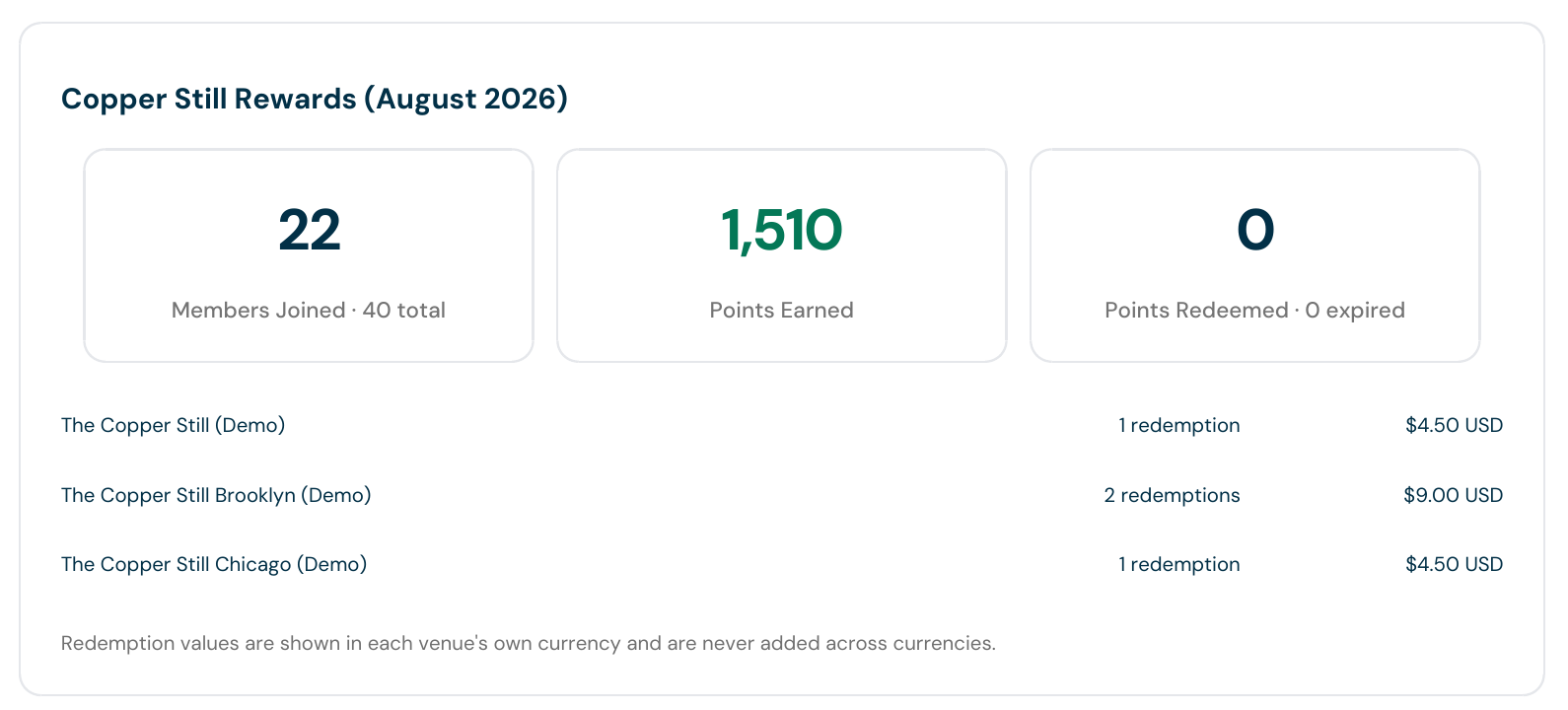
The monthly PDF report gains a section, headed with your programme's name, for any account with a live programme: members joined in the month and the total, points earned, points redeemed and expired, and one line per venue and currency with the number of redemptions and their face value in that venue's own currency. Nothing is added across currencies.
Redeeming
There are three ways a reward is honoured. All of them go through the same single-use check, so a code can never be used twice however it is presented.
On a staff phone
Any phone or tablet that can open the dashboard will do. Bar staff need the Scan and check in at the door or till permission.
- Open Rewards → Redeem
- Check You are at shows your venue. The choice is remembered on that device, so you set it once
- Ask the guest to open their reward (from the email or text they received)
- Tap Scan QR and point the camera at the QR code on their screen. The button appears on any phone whose browser can use the camera, iPhone included; if it does not, type the code and tap Look up instead. The typed box is always there and accepts the eight-character code with or without the dash, a member number, an email address or a phone number
- Read the card: the offer, its value, the venue and the expiry. If the offer has a minimum spend or you want the sale to earn points, type the bill total in the venue's currency
- Tap Redeem. A green Redeemed screen shows the value to take off the bill and the reference, for example
RDM-7F3K9Q - Tap Redeem another
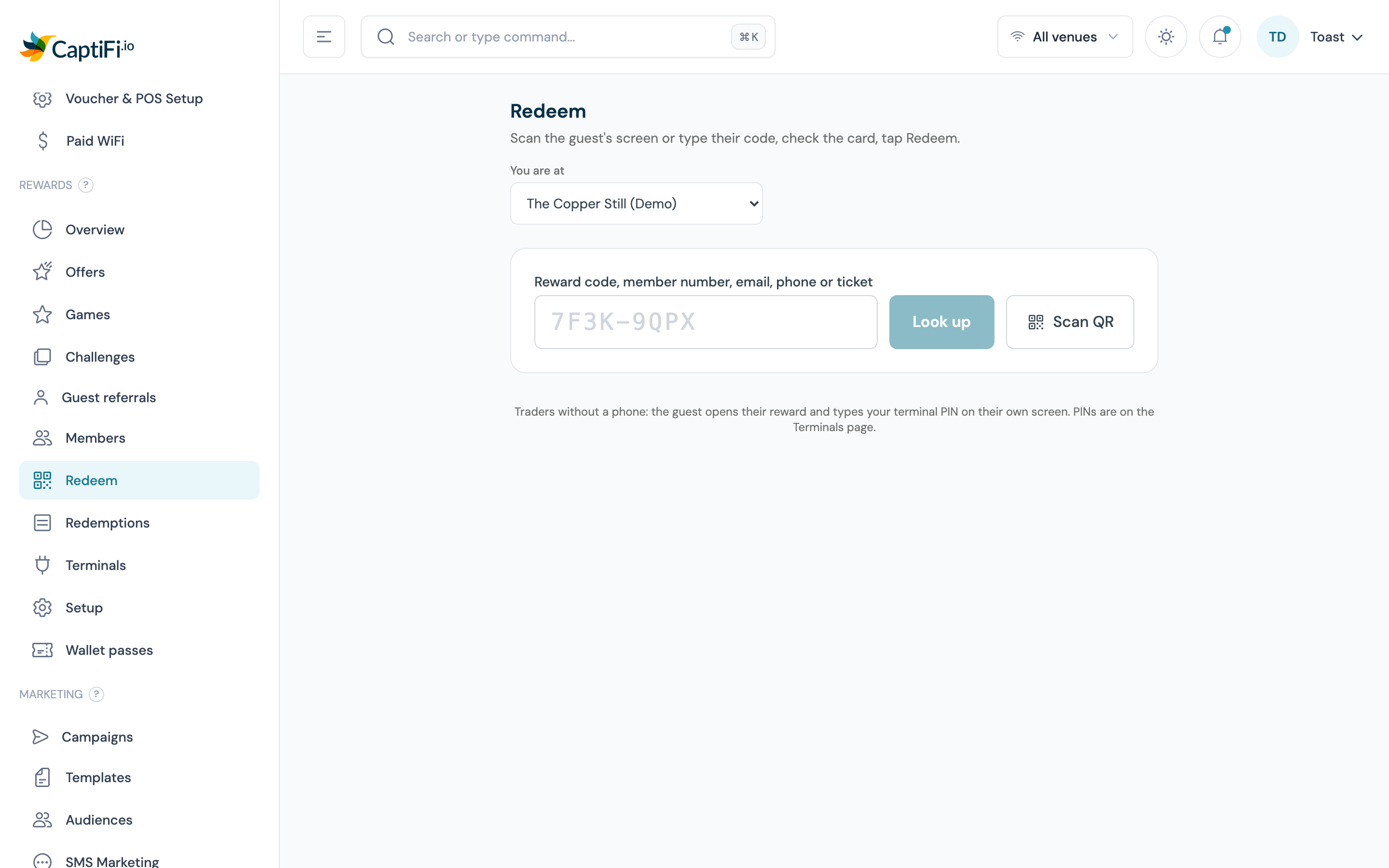
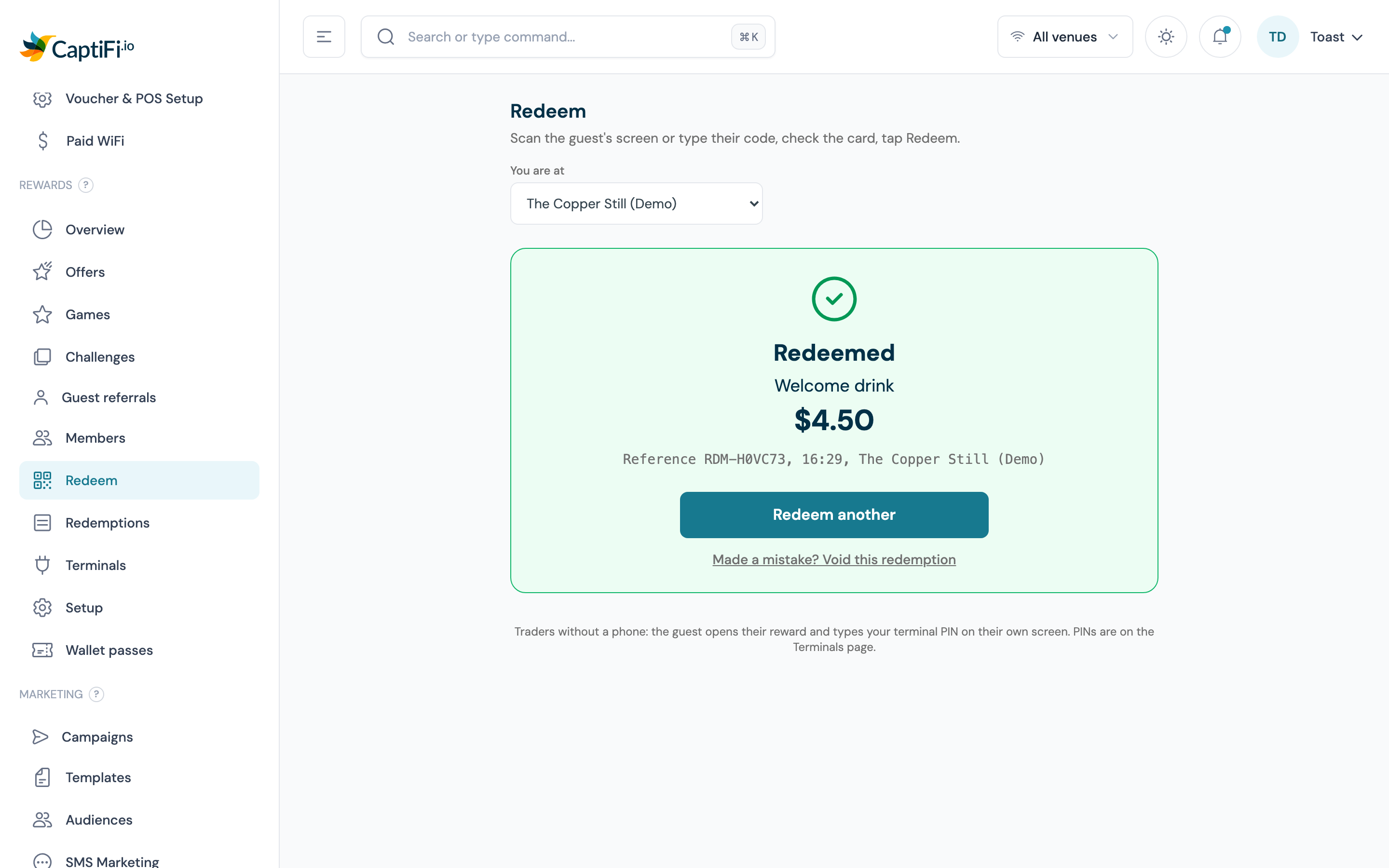
If you type a member number, email or phone instead of a code, the card shows the member, their points balance and every reward they have available. Tap Redeem on the one they want to use. If you type a shared code such as SUMMER20, the card is labelled Shared code and Redeem code applies it.
The second attempt
When a code has already been used, the screen shows an Already redeemed card with when it was first redeemed, at which venue, how (scan, typed code, PIN, till or manual), who redeemed it on a By row when initials were recorded (the ones typed at the till, or those of the staff member who was signed in), plus the reference. Do not honour it again; this card is what stops a screenshot being used twice. Look up another clears it for the next guest.
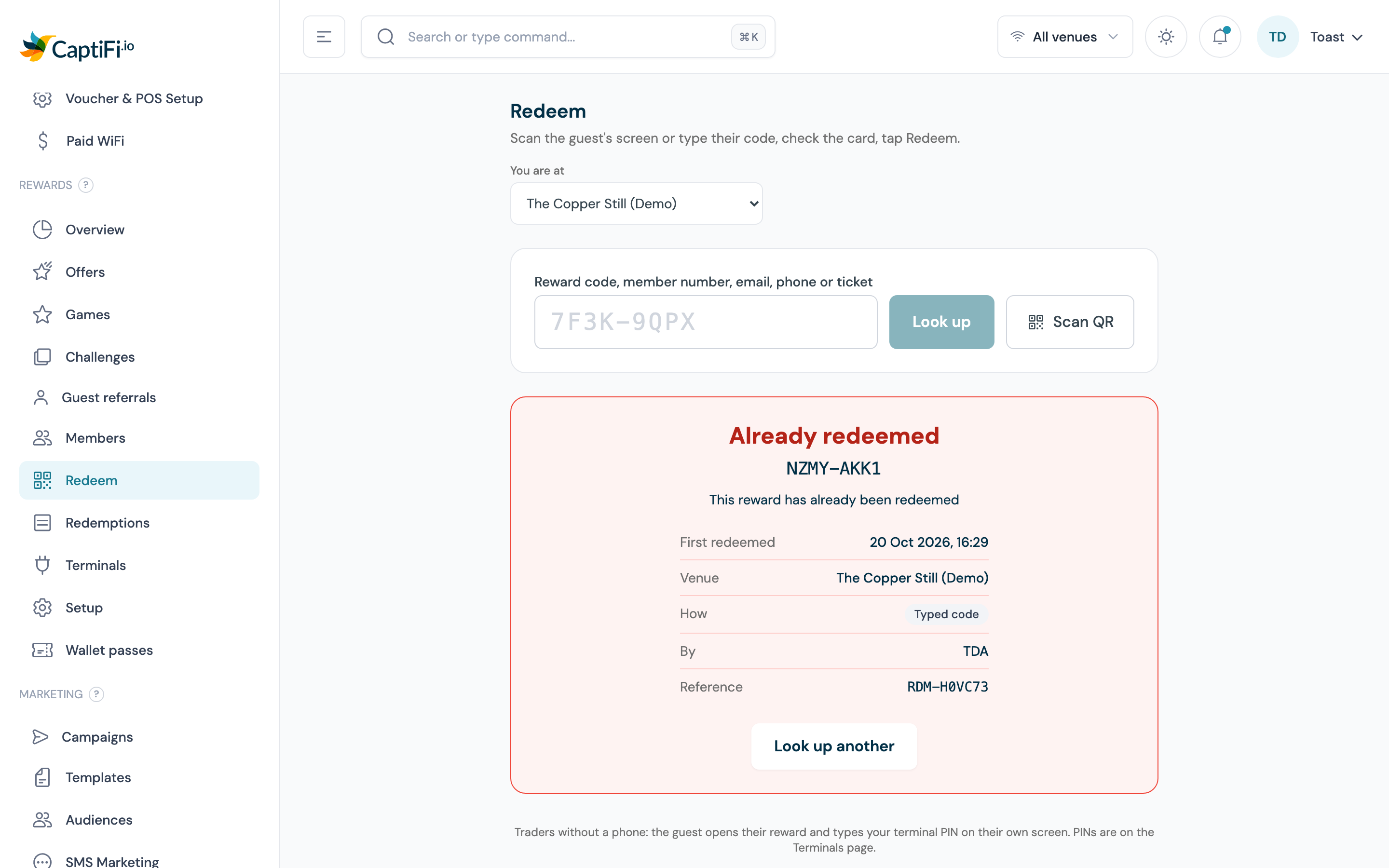
Other refusals the card can show:
| Message | Meaning |
|---|---|
| This reward has expired | Past the end of its validity day in the venue's time zone |
| This reward was cancelled | Revoked by staff, or cancelled when the member was erased. Either way the reward's row reads Revoked |
| This reward is not valid at this venue | The offer is limited to other venues, or you are at a venue that is not in the programme |
| This alcohol prize was won with an age below the drinking age at this venue | A guest game prize won by confirming an age below the drinking age at this venue |
| The basket is below the minimum spend | The bill total you typed is under the offer's minimum |
| This reward is locked after too many wrong PIN attempts | Five wrong PINs were typed on the guest's phone. Scan or type the code yourself instead |
| This reward cannot be redeemed by staff scan or code | The offer does not allow this channel; check How it can be redeemed on the offer |
| The offer has reached its redemption limit | A shared code has hit Max redeemed |
| No reward, member or offer matches that code at this venue | Check the venue and the code. Codes never contain the letters I, L, O or U, so read those as 1, 1, 0 and V |
Awarding points for a sale
When you look a member up, the card also has Award points for this sale: type the bill total and the receipt or order number, then tap Award points. The receipt number stops the same sale being keyed twice; keying it again awards nothing and says so. Points follow your Points per unit spent rate, the venue's multiplier, the max sale per earn and the daily cap.
Manager manual
If a guest's phone is dead, look them up by email, phone or member number, tick Manager manual (guest's phone is dead, redeem without a scan), give a reason of at least three characters and tap Redeem. This needs the Manage rewards and offers permission and is listed on the Anomalies report.
Made a mistake?
On the green screen, Made a mistake? Void this redemption asks for a reason and a held press. Voiding needs Manage rewards and offers; see Voiding and restoring for what it does.
A one-page version of these steps for bar and door staff is at Redeeming at the Till.
With a terminal PIN on the guest's phone
For a market trader or a bar with no device of its own. Each trader is a terminal with a six-digit PIN (see Terminals).
- The guest opens their reward page and taps Staff: redeem with PIN
- If the reward is valid at several venues, they pick the one they are at
- The trader types their PIN on the guest's phone, and optionally their initials
- The page turns to Redeemed with the reference, the terminal's name and the initials if any were typed, and cannot be shown as unused again
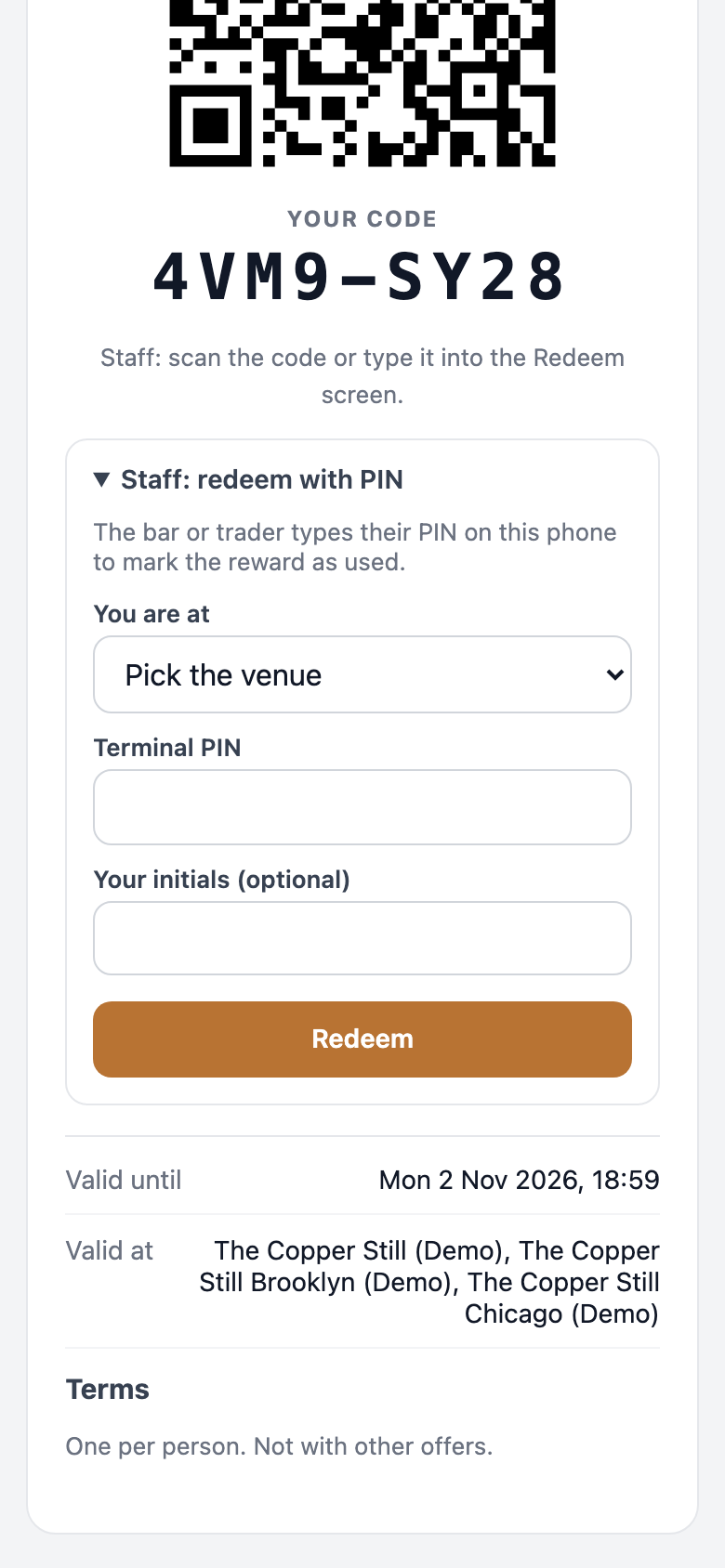
The redemption is recorded against that terminal, so it appears on the trader's line of the Settlement report and in Rewards → Redemptions as Trader PIN. If the PIN belongs to a terminal at a different venue from the one the guest picked, the page says so and the guest picks again. Five wrong PINs lock that one reward for an hour (other guests are unaffected); the page tells the guest to ask staff to scan it instead. Repeated wrong PINs across many rewards at one venue pause PIN redemption at that venue for an hour; staff can still scan or type the code.
Use now on the guest's phone
For low-value perks where you would rather not involve staff at all. Switch Let guests tap Use now on their own phone on for the offer; it is off by default and only allowed at or below your programme's Use now cap. The guest taps Use now, the reward is redeemed there and then, and the page shows a five-minute display with the venue name, a live clock and the reference for staff to glance at. Because the redemption happens at the tap, a screenshot shown later is worthless.
Voiding and restoring
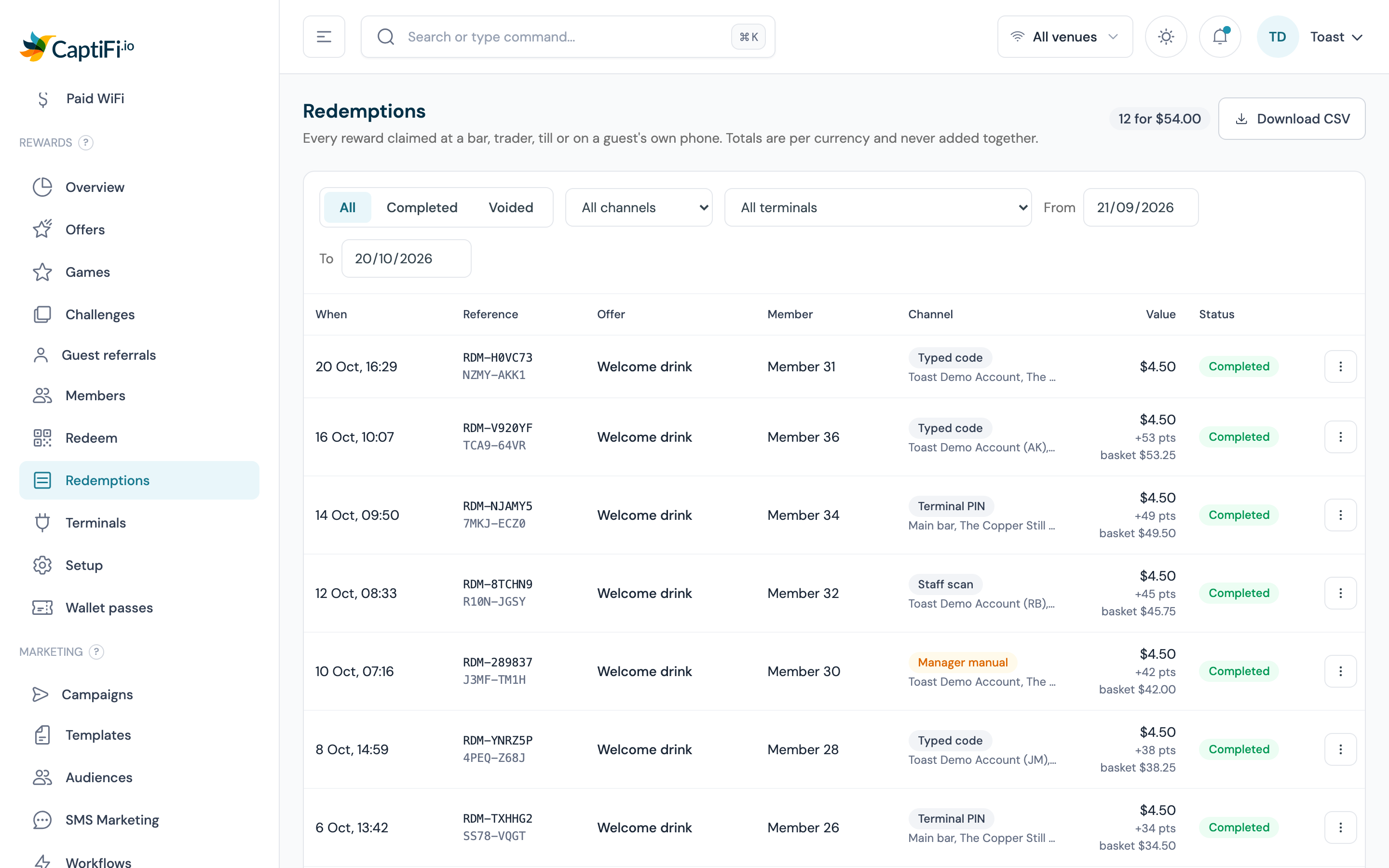
Rewards → Redemptions is the log of every redemption at a bar, trader, till or on a guest's own phone. Filter by status, channel, terminal and date range (the last 30 days by default). Totals per currency count completed redemptions only. Each row shows when, the guest, the offer, the value, the venue, the channel, the reference and the status.
Under the reference, a row shows Till and the till's check or order number when the redemption has one. Staff type it in Till check number (optional) on the Redeem screen, and a till on the till API sends it as order_reference. Both are stored as the redemption's pos_reference, which the CaptiFi API and the reward.redeemed webhook carry, so you can match a discount keyed on the till to its redemption. The number is also the last column of the redemptions CSV.
| Action | Who | What it does |
|---|---|---|
| Void | Manage rewards and offers | Marks the redemption Voided with your reason (at least three characters). It drops out of the totals and the settlement report, and any points awarded with it are taken back. The reward stays used: voiding is an accounting correction, and it does not hand the guest a second go |
| Restore | Account owner | Reverses a void. The redemption counts again, and if the reward has not expired it is re-opened so the guest can use it. Restores are listed on the Anomalies report |
Both actions use a held button, so a stray tap cannot fire them.
Downloading the redemptions CSV
Download CSV, beside the totals, saves the redemptions for the filters on screen: the venue, the dates, the status tab, the channel and the terminal. The file holds every page of the list, newest first, one row per redemption, with these columns:
| Column | What it holds |
|---|---|
| When (venue time) | The date and time of the redemption on the venue's own clock |
| Reference | The redemption's reference, such as RDM-7F3K9Q |
| Offer | The offer's name |
| Member | Member and the member's number, or Guest when no member is attached |
| Channel | How it was redeemed, as the Channel column names it |
| Terminal or staff | The terminal, or the staff member who redeemed it, with any initials typed in brackets |
| Venue | The venue it was redeemed at |
| Value | The reward's value in the row's currency |
| Basket | The bill total, when staff typed one or a till sent one |
| Currency | The currency code, such as GBP or CAD |
| Status | completed or voided |
| Till check number | The check or order number staff typed or the till sent |
The file carries no guest names, email addresses or phone numbers. A range can cover up to a year. The button shows for the account owner and for team members with the Export data permission.
Terminals
A terminal is a bar, trader, kiosk or till that redeems rewards. Terminals give traders their PIN, and they give you a settlement line per party.
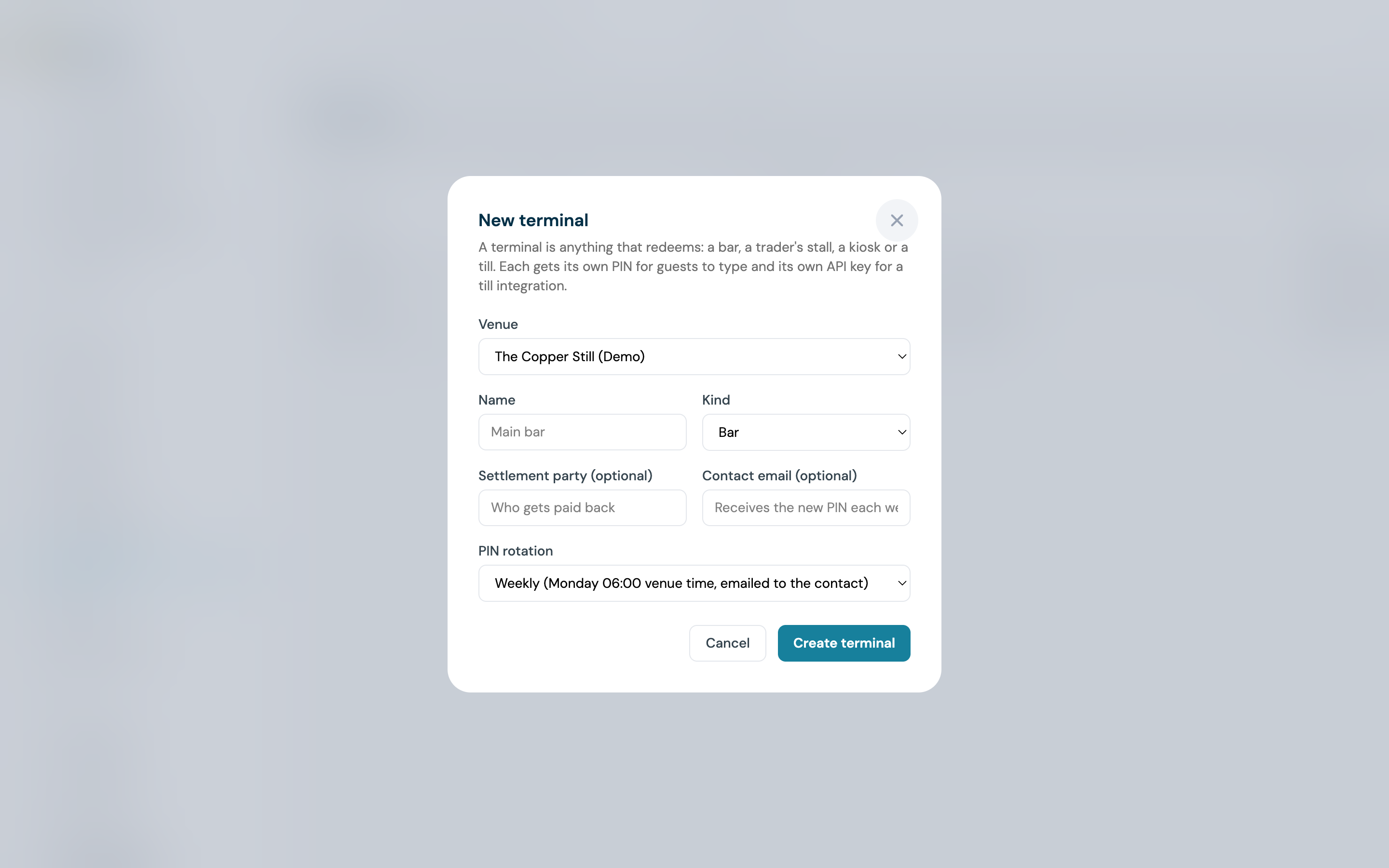
- Go to Settings → Rewards terminals and click New terminal
- Choose the Venue, then fill in Name (for example "Main bar" or the trader's stall), Kind (Bar, Trader, Kiosk or Till (POS)), Settlement party (who gets paid back for the discounts this terminal honours) and Contact email (who receives the new PIN each week)
- Choose the PIN rotation: Weekly (every Monday at 06:00 in the venue's time zone, emailed to the contact) or Manual (only when you rotate it yourself)
- Click Create terminal
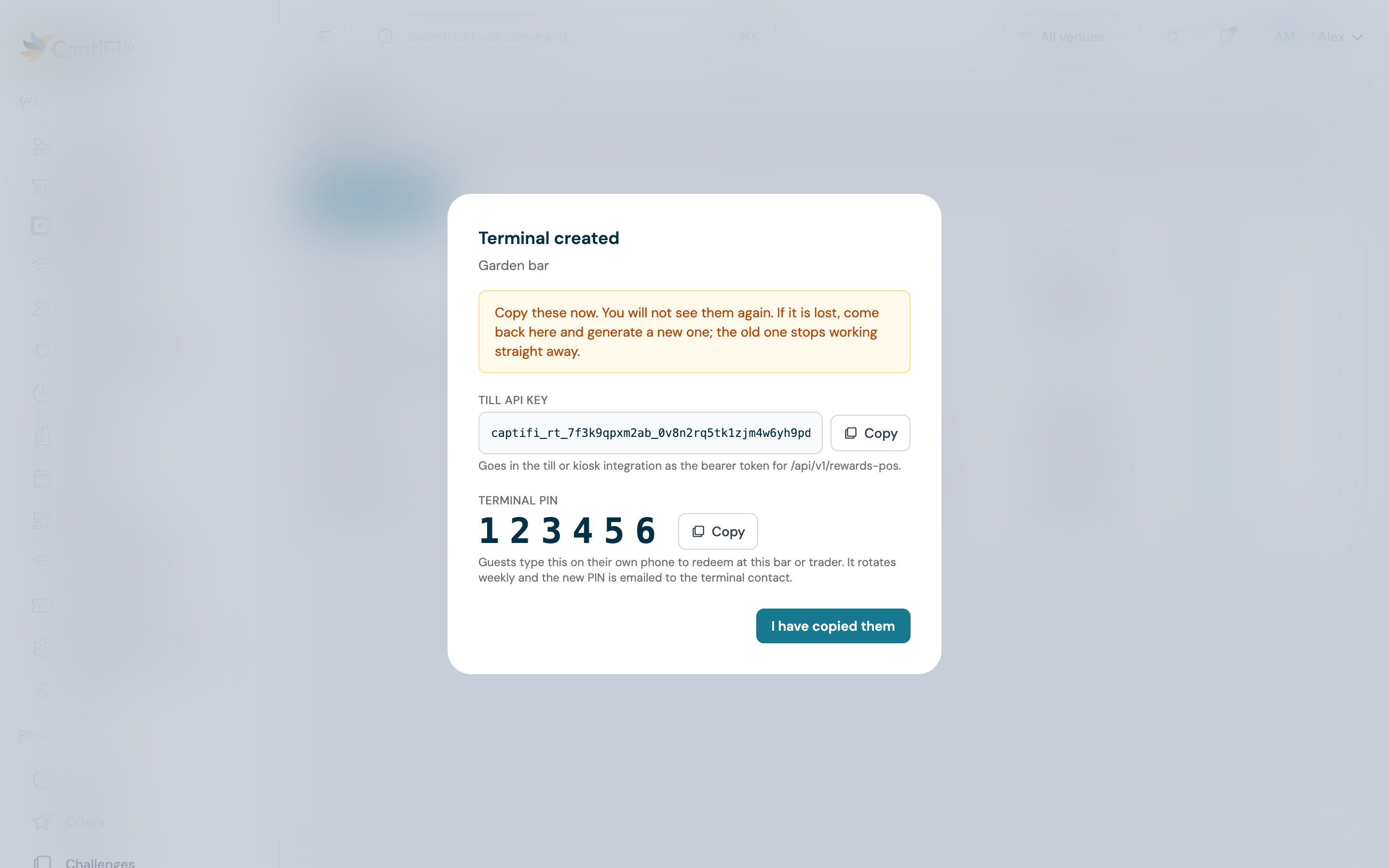
A panel then shows the Terminal PIN once, with a copy button. Copy it now: you will not see it again on this screen. Hand it to the trader in person or by a channel you trust. The panel also shows a Till API key; what that key is, what a till can do today and where the till API stands are on Rewards till API and terminal keys, and the PIN is what bar and trader staff use.
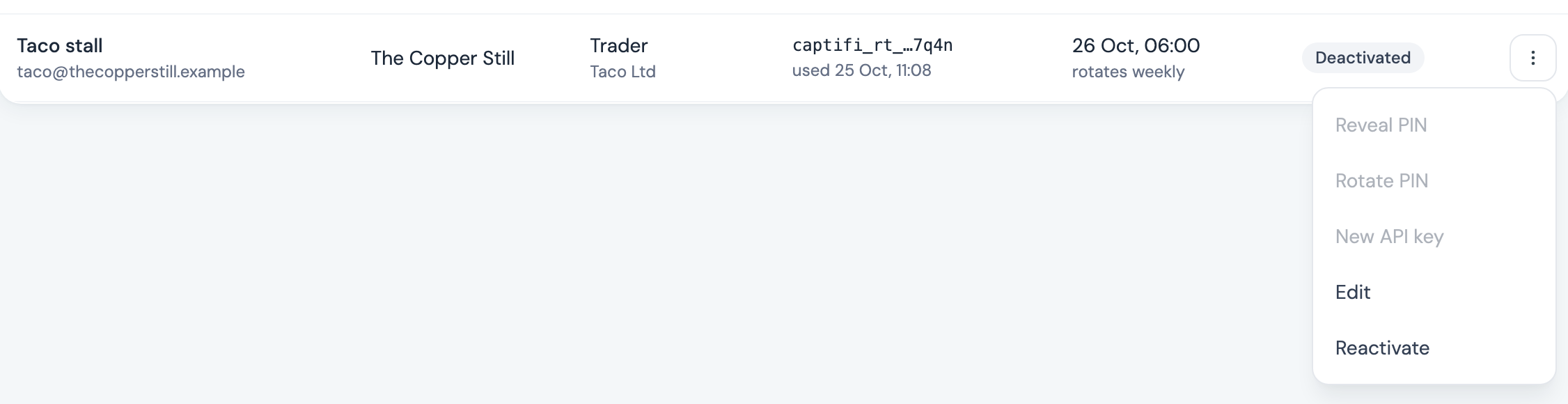
Each row has an actions menu, the three dots at the end of the row, with:
- Reveal PIN. Shows the current PIN to anyone with Manage rewards and offers; every reveal is recorded
- Rotate PIN. Replaces the PIN now and shows the new one once. Guests typing the old PIN are refused from that moment
- New API key. Replaces the till key and shows it once
- Edit the name, kind, settlement party, contact email and rotation
- Deactivate. The PIN and key stop working. The terminal stays in your list and its past redemptions stay in the settlement report
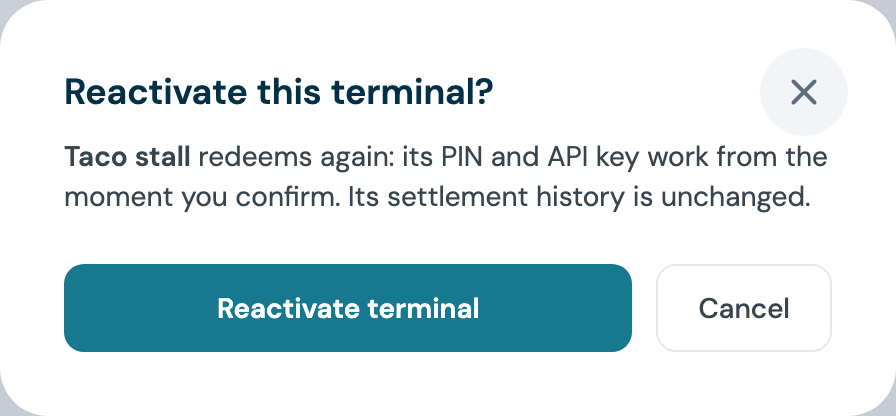
- Reactivate, in place of Deactivate on a terminal you switched off. The same PIN and key work again from the moment you confirm; nothing else about the terminal changes
The weekly PIN email
Each rotation emails the new PIN to the terminal's contact address with the subject "New redemption PIN for {terminal name}". A terminal with no contact email is still rotated, and nobody is told, so give every trader terminal a contact.
Reports
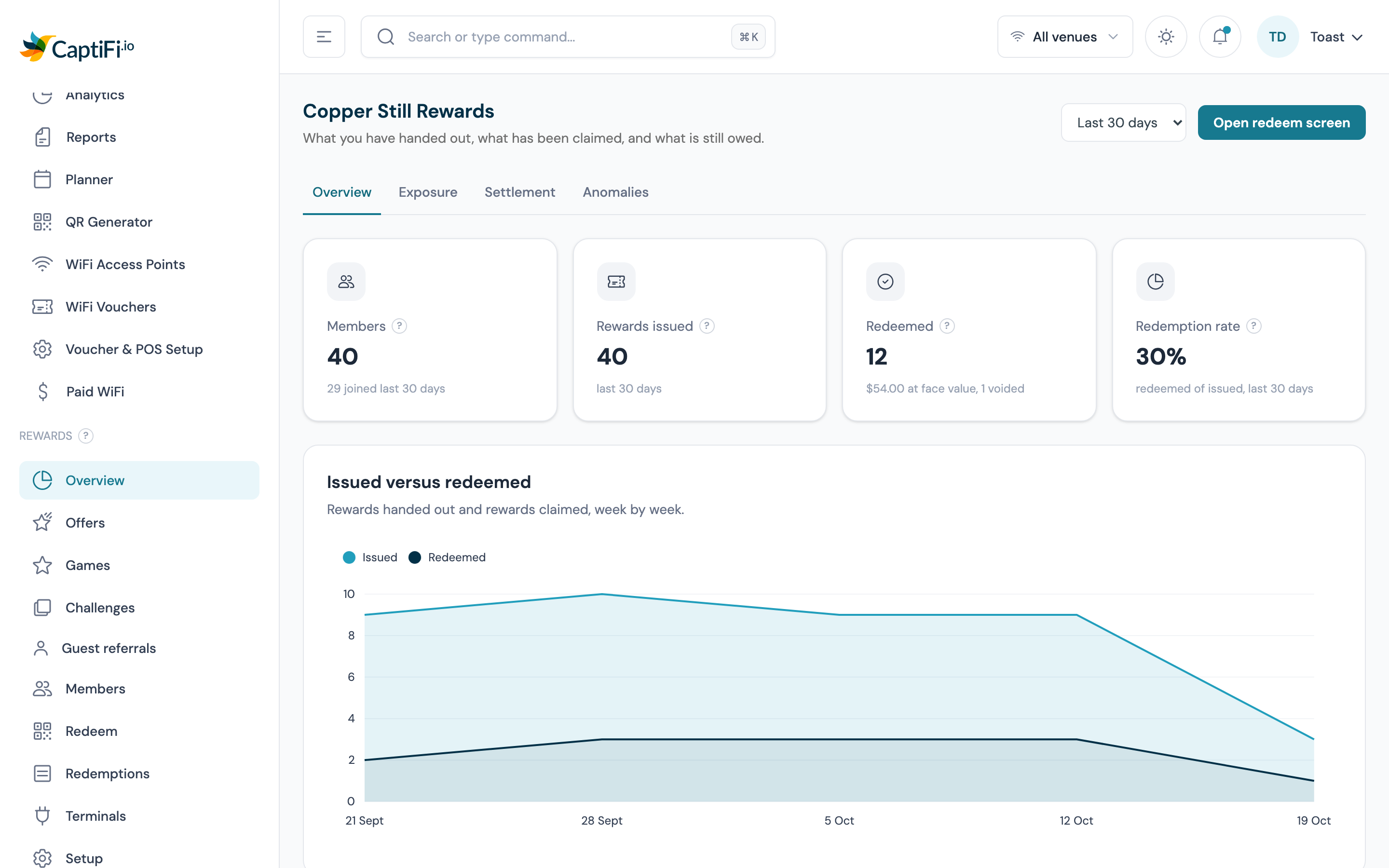
Rewards → Overview carries the reports, with a range picker (Last 7 days, Last 30 days, Last 90 days) and four tabs.
Overview
Members, Rewards issued, Redeemed and Redemption rate for the range, rewards issued against redeemed by week, redemptions by channel, redeemed value per currency, and the most recent redemptions.
Exposure
What is outstanding right now: for each venue and currency, the number of issued, unused, unexpired rewards and their face value. An Amount off reward counts at its amount; everything else counts at What it costs you per reward. Below that, points outstanding across all members and, for each currency where you have set what a point costs you, the liability those points represent. Nothing is added across currencies, and the liability is labelled an estimate because it depends on your own figure.
Settlement
Who honoured what in the range, so a trader can be paid against it. One line per venue, terminal and currency, with the settlement party, the number of redemptions, the face value and the discount given. Redemptions made from the staff redeem screen have no terminal and appear as Staff (dashboard).
Settlement CSV downloads the same rows with the columns Venue, Terminal, Settlement party, Currency, Redemptions, Face value, Discount given, From and To. The download needs the Export data permission.
Anomalies
Things worth a second look, from the last 30 days by default:
| Entry | What triggered it |
|---|---|
| Manager manual redemption | A redemption done without a scan, with the reason given |
| Redemption restored | The owner reversed a void |
| Reward locked after wrong PINs | Five wrong PINs were typed on one reward |
| Repeated already-redeemed scans | One staff login or terminal presented codes that were already used three or more times |
| Well above the venue median | A staff login or terminal redeemed more than three times the venue's typical daily count. Needs a few days of activity at the venue before it can judge |
Team permissions
Rewards uses the permissions on your Team page. Every team member of an account with Rewards switched on can open the Rewards pages and see the reports; what they can change depends on the toggles below.
| What | Who can do it |
|---|---|
| Switch Rewards on or off; switch the programme live; edit Points, value and limits; Adjust points; Restore a redemption | Account owner only |
| Set up the programme and venues; create, edit, pause and archive offers; Issue to a guest; Revoke reward; Resend rewards link; remove a member; Void a redemption; create and manage terminals; Reveal PIN | Manage rewards and offers |
| Look up and redeem a code on the Redeem screen; Award points for this sale | Scan and check in at the door or till |
| Manager manual redemption without a scan | Manage rewards and offers |
| See the Members list and a member's details | View guest data |
| Download the Settlement CSV or the redemptions CSV | Export data |
| Anonymise (GDPR) a member | Manage team |
The role presets set these for you: Manager has both Rewards permissions, Marketing has Manage rewards and offers, and Operations has Scan and check in at the door or till. Every member's toggles can still be edited one by one.
GDPR and consent
Joining the programme is a separate consent from marketing. The Join checkbox on your sign-in form is unticked by default and is not linked to the marketing question: a guest can join your rewards and decline your newsletter, or accept your newsletter and skip the rewards. Rewards a member earns or asks for (joining, points, a game prize, a challenge, a referral) are transactional messages, so they are sent whether or not the guest opted in to marketing. A reward you send unprompted, such as a birthday offer or a campaign offer, carries an unsubscribe link and is not emailed to a guest who has unsubscribed. Campaigns still go only to guests who opted in.
Erasure covers the membership. When you use Delete (GDPR) or Anonymise (GDPR) on the Guest Visits page, the sweep also erases that person's rewards membership on your account. The same erasure runs from Anonymise (GDPR) on a member's page. What is removed: their name, email address, phone number and date of birth, every identifier that linked them to the membership, and the IP address and browser details on their redemptions; every link they were sent stops working; any unused rewards are cancelled; any pass they added to Apple Wallet or Google Wallet is marked void (see Rewards wallet passes). What is kept: their points history and redemption records, stripped of anything personal, so your exposure and settlement figures never change after an erasure.
A guest who asks to leave the programme is taken out with Remove from the programme on their member page. That stops points and rewards; it does not erase the record, which you can do on request as above.
Troubleshooting
| Issue | Possible cause | Solution |
|---|---|---|
| No Rewards group in the sidebar | Rewards not switched on, plan below Growth, or the module was switched off | The account owner switches it on under Integrations → Dashboard features |
| A guest joined but got no reward | No offer is set to be given on WiFi sign-in, the offer is a draft or paused, its frequency says they have already had one, or the programme is off | Check the offer's status and How often, and the Programme is live switch on Rewards setup |
| A guest joined but got no joining offer | Nothing is chosen under Offer issued on joining, they did not tick Join or were already a member, the offer is a draft or paused, its Starts and Ends window is closed, the sign-in venue is excluded from it, a limit was reached, or their only contact is a throwaway email address | Check the pick on Rewards setup, then the offer's status, dates, venues and limits. The joining offer is issued only at the sign-in that created the member |
| A member's birthday offer did not arrive | Nothing is chosen under Offer issued on a birthday, no date of birth on file, the offer is a draft or paused, its window is closed, the member's home venue is excluded from it, or the member has left | Check the pick on Rewards setup and the date of birth on the member's page, then the offer's status, dates and venues. It goes out at 08:00 in the home venue's time zone |
| Offer issued on joining or Offer issued on a birthday is greyed out | The two pickers are for the account owner only, like the rest of Points, value and limits | Ask the account owner to choose the offer. Team members see the current pick for reference |
| Saving Rewards setup came back with The selected offer is not available | The offer you picked is paused, archived or still a draft, or it belongs to another account | Pick an active offer from the list, or Resume or Activate the one you want under Rewards → Offers and pick it again |
| An offer is missing from a member's Spend your points | It needs both a Points cost and Show in the members catalogue ticked, and must be active, inside its Starts and Ends window, and valid at one of the venues that member has been seen at | Check the offer's cost, tick, status, dates and venues. A cleared cost also clears the tick |
| A member sees You need N more points under an offer | Their balance is below the offer's points cost | Nothing to fix. The line shows the shortfall, and the Claim button becomes active once their balance reaches the cost |
| A claim came back with That offer is not available right now | The offer was paused, hidden, unpriced or ran out of its window after the member's page loaded | Nothing was deducted. The member reloads their page to see what is claimable now |
| A guest says the Join box was not there | The venue is not in the programme, the programme is off, or the checkbox is hidden in the splash page builder | Add the venue on Rewards setup, switch the programme live, and check Ask guests to join in the Splash Page Builder |
| Reward emails not arriving | The guest gave a phone number only and SMS delivery is off, or a throwaway email address | Switch on Deliver rewards by text to phone-only members, or ask the guest to sign in with a real address |
| Code not found on the Redeem screen | Wrong venue selected, or a mistyped character | Check You are at, then retype. Codes never contain I, L, O or U |
| An Amount off reward reads "not valid at this venue" | The venue trades in a different currency from the offer | Create a copy of the offer in the venue's currency, or use a Percentage off offer, which works at every venue |
| The setup page warns about the time zone | The venue is on the UTC default | Set the venue's time zone under My Venues → Edit venue |
| A trader did not get the new PIN | No contact email on the terminal, or rotation set to Manual | Add a contact email and set rotation to Weekly, or use Reveal PIN |
| A Toast or Square order earned no points | The guest is not a member, the order is still open, the venue is not in a live programme, or a Square order is in another currency | Check the member exists and the order has closed; a Square order in a different currency from the venue's programme currency never earns |
| A member has not dropped a tier after a quiet year | The 12-month hold from the day the tier was reached has not lapsed | Nothing to do; the nightly check demotes them once it has |
| A member's points vanished | Their balance went untouched for the expiry window | Read the Expired row in their ledger for the last activity date. The owner can give points back with Adjust points |
| Leat is not receiving credits | The venue is in a live programme, which takes over crediting | Tick Leat mirror on the venue's row on Rewards setup if you want points pushed to Leat as credits |
| A team member cannot redeem | Missing permission | Give them Scan and check in at the door or till on the Team page |
| A team member cannot open a member's details | Missing permission | Give them View guest data |
| Cannot download the settlement CSV | Missing permission | Give them Export data |
Related features
- Redeeming at the Till: the one-page guide for bar and door staff
- Rewards till API and terminal keys: what a till or POS can do today, the terminal API key and the WiFi voucher POS endpoints
- Splash Page Builder: the join checkbox and the after-connect screen
- Team Members: the permissions used above, and the Redeem only role for bar and door staff who should see nothing but the redeem screen
- Rewards in your messaging: offers in campaigns, automations and texts, the merge tags, the reward triggers, segment conditions and webhook events
- Games: six instant-win games and prize draws, with your offers as the prizes
- Challenges, stamp cards and badges: visit challenges, the stamp card and member badges
- Guest referrals: members invite friends and both are rewarded
- CaptiFi API: read the programme, members, points ledgers, rewards, redemptions and offers from your own systems
- Leat Loyalty: running Leat alongside Rewards
- GDPR & Compliance FAQ: consent and erasure questions