

Appearance
How to connect Mews to CaptiFi
Connect Mews and your property's stays appear on the Reservations page with each guest's room, check-in, check-out and booking reference. CaptiFi then matches the guests who join your WiFi to their stay, so you can see who is in house and who has left.
Mews is available on the Growth plan and above.
What this integration does
CaptiFi reads your stays from Mews every 15 minutes and lists them on Reservations. Each stay shows the name, email and phone number of the guest the booking is held under, the room Mews assigned, the check-in and check-out, the party size and the booking reference the guest holds. Addresses and documents are not requested, and nothing else Mews holds about the guest is stored.
Only the person the booking is held under in Mews is read. Other guests on the booking are not. A booking with no guest name, email or phone number, such as one held on a company account, is left out, and so is an enquiry that is not yet a booking.
When you connect, CaptiFi reads the stays that ended in the last 7 days through to arrivals 80 days ahead, and checks that range again once a day. A booking made or changed in Mews after that is read within 15 minutes, whatever its dates. A booking made before you connected for a later arrival appears once its stay comes inside that range.
CaptiFi only reads from Mews. It never changes a booking in Mews, and nothing about a WiFi guest is sent there.
Before you start
- A Mews account with access to the Marketplace for your property
- A CaptiFi plan on Growth or above
- The Reservations feature switched on under Integrations > Dashboard features (see Switching it on)
Part 1: Get your access token from Mews
Step 1: Ask CaptiFi support to have Mews switch the connection on
A property can connect once Mews has added CaptiFi to it. Email support@captifi.io with the name of your property as it appears in Mews and the name of the venue in CaptiFi. Support tells you when Mews has added CaptiFi to your property.
Step 2: Copy the access token
Sign in to Mews and open Main menu > Marketplace > My subscriptions. Find CaptiFi in the list and copy the access token Mews issued for your property.
If you run several properties in Mews and the token covers more than one of them (a portfolio token), you will also need the enterprise ID of the property you are connecting. Test connection in Step 6 shows the ID of the property the token reaches by default. For another property in the portfolio, take its ID from Mews.
Part 2: Connect Mews in CaptiFi
Step 3: Open the Integrations page
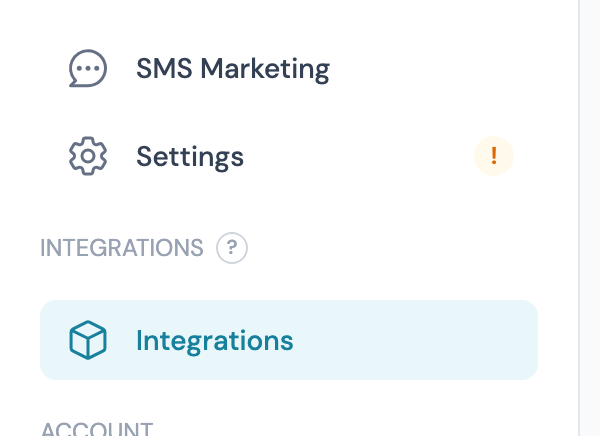
Log in to my.captifi.io and click Integrations at the bottom of the left sidebar.
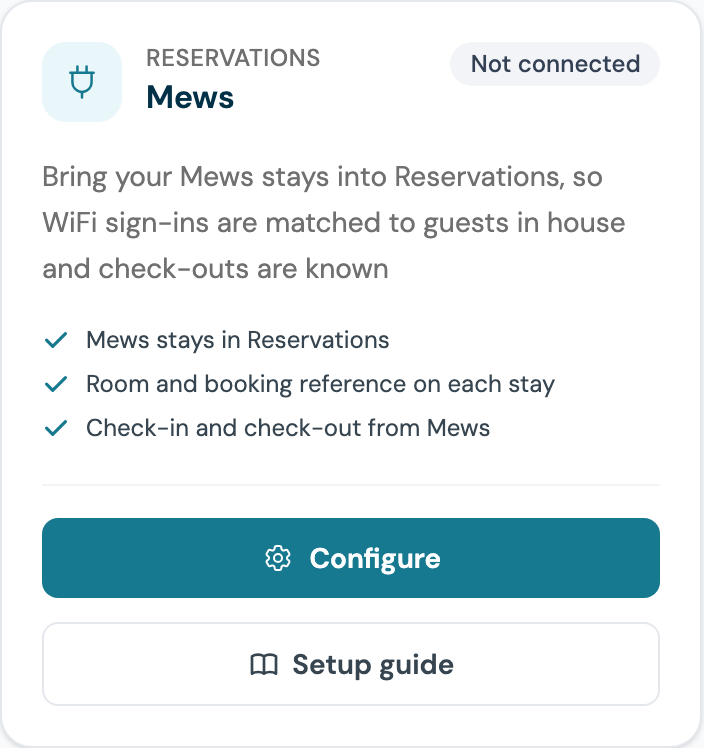
Step 4: Find the Mews card and click Configure
The Setup guide button under it opens this page.
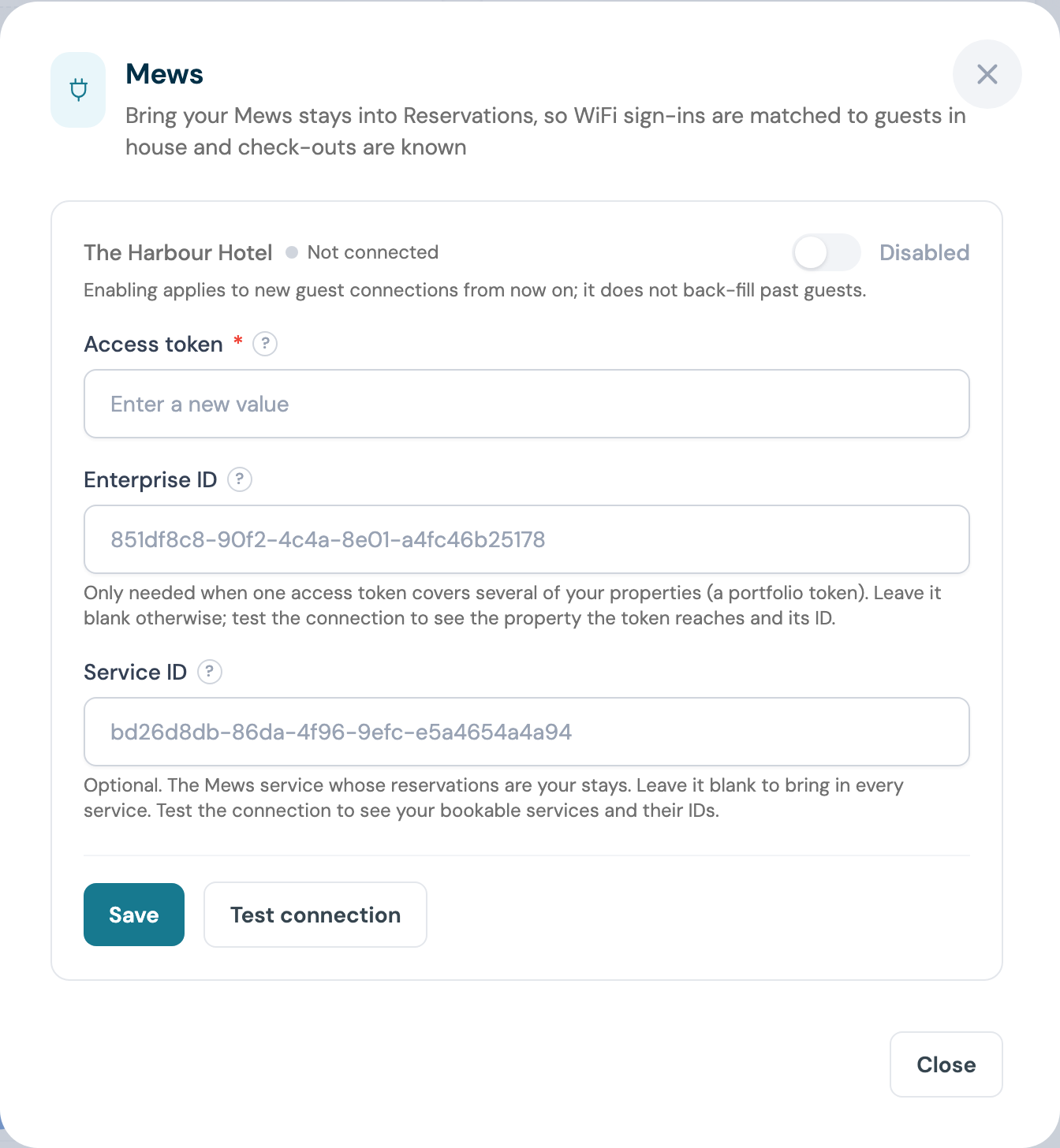
Step 5: Paste your access token
Paste the token from Step 2 into Access token. Leave Enterprise ID and Service ID blank for now.
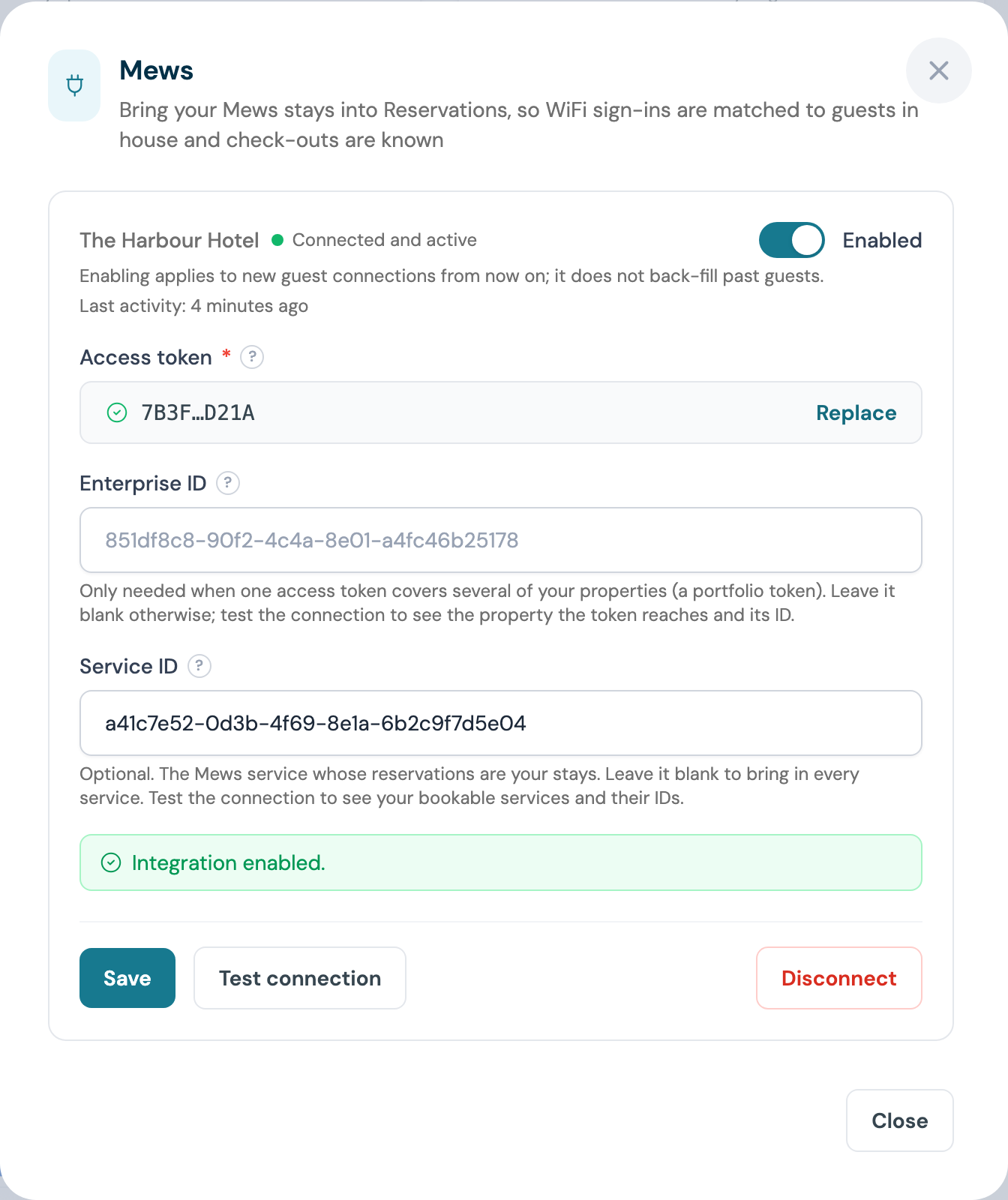
The access token is write-only. Once saved, CaptiFi shows a few of its first and last characters in place of the token, with a Replace button if you ever need to change it.
Step 6: Click Save, then Test connection
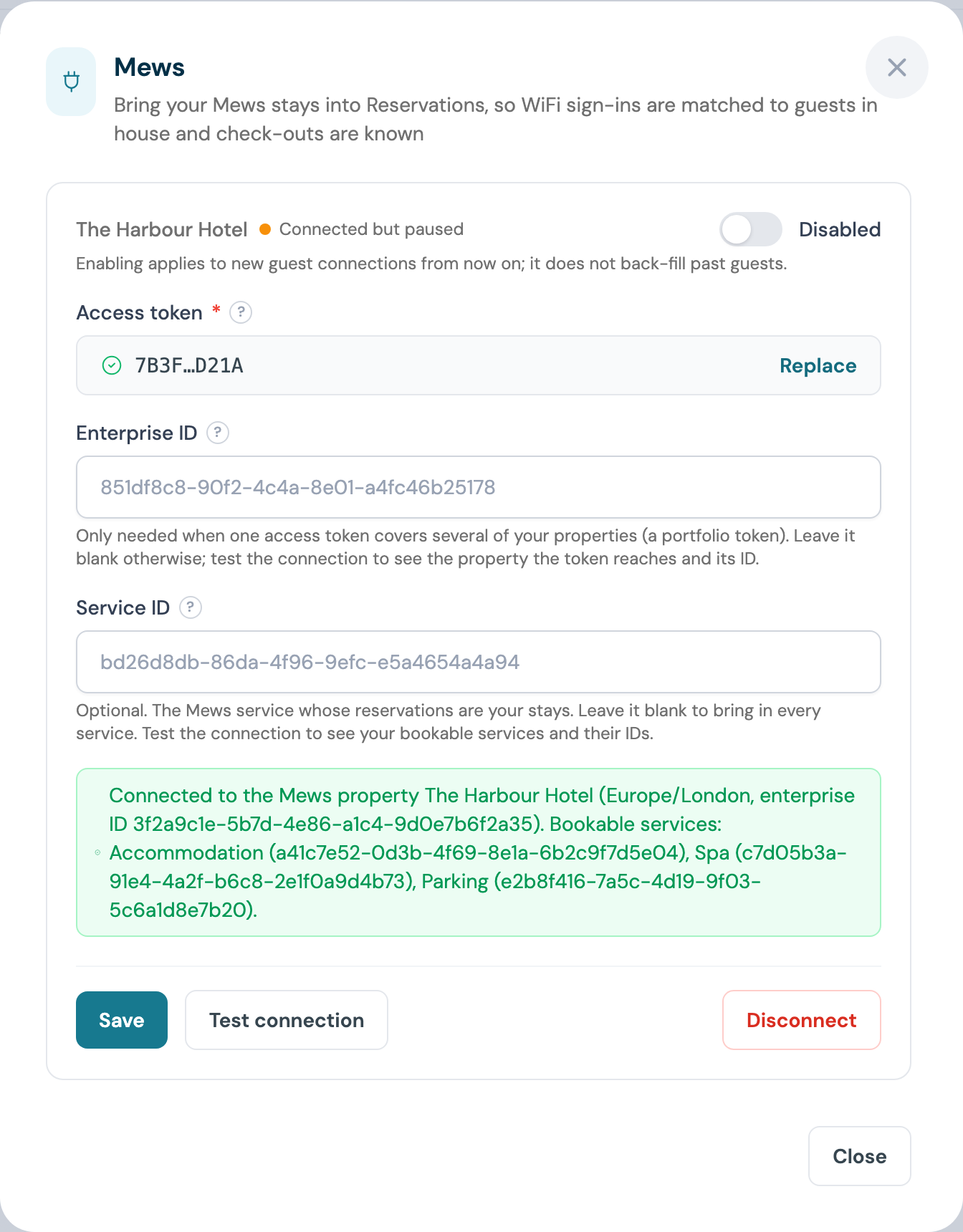
The test reads your property from Mews and lists what it found: the property's name, its timezone, its enterprise ID and each bookable service with its ID. A working connection reads like this:
text
Connected to the Mews property The Harbour Hotel (Europe/London, enterprise ID 3f2a9c1e-5b7d-4e86-a1c4-9d0e7b6f2a35). Bookable services: Accommodation (a41c7e52-0d3b-4f69-8e1a-6b2c9f7d5e04), Spa (c7d05b3a-91e4-4a2f-b6c8-2e1f0a9d4b73), Parking (e2b8f416-7a5c-4d19-9f03-5c6a1d8e7b20).If the test shows anything else, see Troubleshooting.
The venue reads Connected but paused until you switch it on.
Step 7: Choose which service to read
With Service ID blank, CaptiFi reads the reservations of every bookable service at the property. That suits a hotel whose only bookable service is its rooms.
If your spa, parking or function rooms are set up as bookable services in Mews, their reservations would come in as stays too. Copy the ID of your accommodation service from the test result, paste it into Service ID and click Save. Run Test connection again and CaptiFi checks that the ID is an active bookable service at your property.
Enterprise ID is only for a portfolio token. Paste the ID of the property this venue should read and save. The test result shows the ID of the property the token reaches by default. Each CaptiFi venue reads one Mews property.
Part 3: Switch it on
Step 8: Switch the venue on
Flip the venue's switch to Enabled. The venue now reads Connected and active, and your stays arrive on the next read, within 15 minutes.
Step 9: Confirm the card says Connected
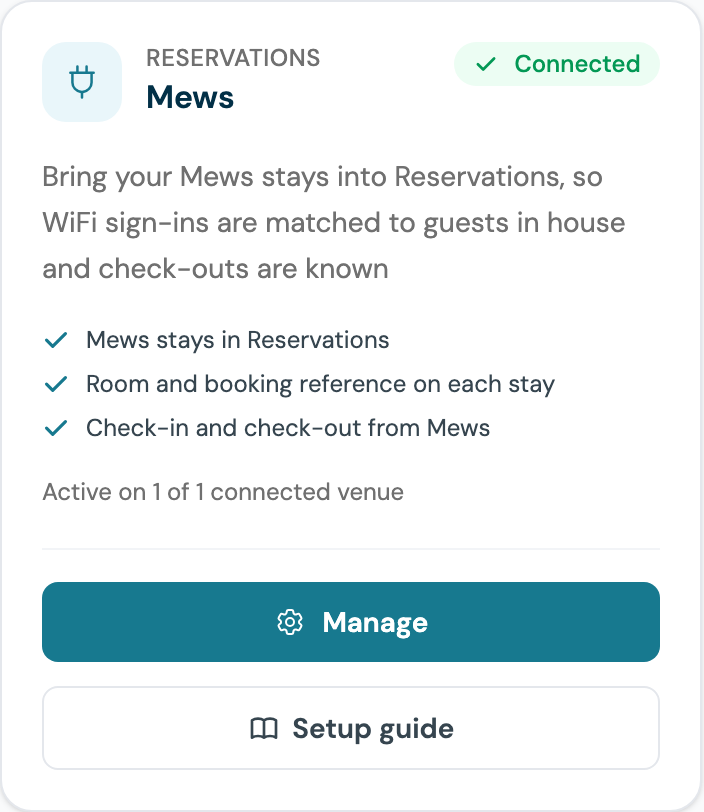
Close the panel. The card now reads Connected, with the number of venues it is active on.
Your Mews stays in Reservations
Open Reservations in the sidebar under Guests. With Mews connected the table reads as an arrivals list: Guest, Room, Check-in, Check-out and Status first, then Booking ref, Party, Source, Venue and Checked in by. Choose Mews in the Source filter to see your stays alone. The table is wider than most screens, so scroll it sideways to reach the last columns.
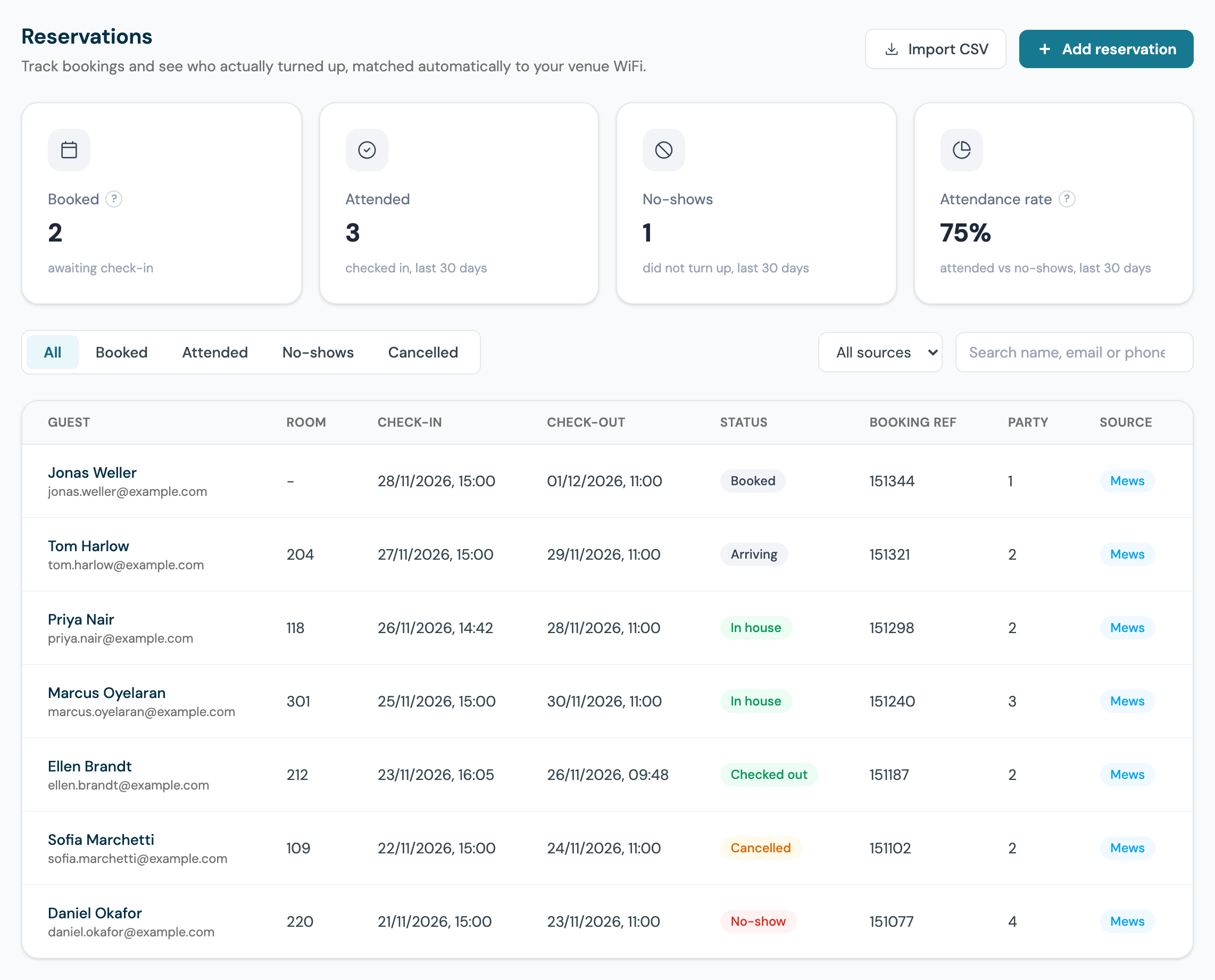
Room shows a dash until Mews assigns one. Once a guest has checked in, Check-in shows the time Mews recorded for it, and Check-out does the same after they leave.
The status follows the state of the reservation in Mews:
| In Mews | Status in CaptiFi |
|---|---|
| Confirmed | Arriving |
| Optional | Booked |
| Started (checked in) | In house |
| Processed (checked out) | Checked out |
| Canceled | Cancelled |
| Canceled as a no-show | No-show |
A stay already marked attended from a WiFi sign-in or by hand stays attended if Mews later cancels it or records a no-show.
How a WiFi sign-in is matched to a stay
A guest is matched when they join your WiFi with the email address or phone number on their Mews booking, any time from 30 minutes before their arrival until their check-out. A table reservation is matched for 3 hours after its time; a stay is matched for its whole length.
A matched stay is marked attended, with WiFi presence under Checked in by.
A guest checked in at your front desk needs no WiFi sign-in. When Mews shows the reservation as Started, the next read marks the stay attended and In house, with Provider under Checked in by. That read sends the reservation.attended event to your webhooks and starts none of your reservation automations.
A stay that is never matched and never checked in at the desk becomes a no-show only after its check-out has passed, so a guest who joins the WiFi on their second night is still matched.
What gets read
| Data | Notes |
|---|---|
| Who | The person each reservation is held under in Mews. Other guests on the booking are not read |
| Name, email and phone number | As Mews holds them for that person |
| Room | The room Mews assigned, by its name or number in Mews |
| Check-in and check-out | The booked arrival and departure, replaced by the times Mews records when the guest checks in and out |
| Booking reference | The confirmation number of the reservation in Mews |
| Party size | The number of people on the reservation |
| Status | Confirmed, Optional, Started, Processed or Canceled, as in the table above |
Troubleshooting
Test connection shows why a connection is not working. If a venue that was working reads Not connected again, run the test to see the reason.
"The Mews connection is not available yet. Contact CaptiFi support."
Contact CaptiFi support with the name of your property.
"Mews rejected the access token. Connect CaptiFi again in Mews and save the new access token here. Stays stop syncing until you do."
Mews no longer accepts the saved token, or has not added CaptiFi to this property. Check Marketplace > My subscriptions in Mews for CaptiFi, copy the access token again, click Replace on Access token, paste it, then click Save and Test connection. If CaptiFi is not in your subscriptions, go back to Step 1.
"Mews refused the request (HTTP 403)"
Mews turned the request down under its own rules. When it gives a reason, that follows the colon. Send the full message to CaptiFi support.
"The service ID is not in the shape Mews uses" or "The enterprise ID is not in the shape Mews uses"
Both IDs are 36 characters in five groups, like bd26d8db-86da-4f96-9efc-e5a4654a4a94. Copy the ID again from the test result, with no spaces before or after it.
"Connected to the Mews property ..., but the service ID is not an active bookable service there."
The ID in Service ID is not one of the services listed after "Bookable services:". Copy the ID of your accommodation service from that list, save and test again.
"Mews accepted the token, but it reaches enterprise ..., not the enterprise ID entered."
The token belongs to a different property from the one in Enterprise ID. Clear Enterprise ID unless the token covers several properties; with a portfolio token, paste the ID of the property this venue should read.
"Mews rate limit reached." or "Waiting for Mews's rate limit."
Mews limits how many requests one access token can make in a short time. CaptiFi waits and tries again by itself, within 15 minutes.
"Could not reach Mews" or "Mews took too long to answer"
Mews did not answer in time. CaptiFi tries again on the next read; contact CaptiFi support if the message keeps coming back.
Spa, parking or function room bookings appear as stays
Service ID is blank, so every bookable service is read. Follow Step 7 to read your accommodation service alone.
Stays missing from Reservations
Check that Reservations is switched on under Integrations > Dashboard features and that the venue's switch on the Mews card reads Enabled. New and changed reservations arrive within 15 minutes. A reservation with no guest name, email or phone number is not shown. A booking that was already in Mews before you connected, for an arrival more than 80 days away, appears once it comes within 80 days.