

Appearance
How to connect ResDiary to CaptiFi
Connect ResDiary and the diners who opted in to your marketing in ResDiary come into CaptiFi with the consent ResDiary recorded for them. Your ResDiary bookings show up on the Reservations page too, where CaptiFi checks who turned up on your WiFi.
ResDiary is available on the Growth plan and above. Setting it up takes about 10 minutes of your time, plus a reply from CaptiFi support with your connection details.
What this integration does
CaptiFi imports the diners in your ResDiary account who opted in to your marketing, by email or by text, and stores nothing about anyone else. Each one is added to your contacts with the tag ResDiary diner, and CaptiFi keeps the opt-in wording and date ResDiary recorded with the contact. A diner who ticked only your restaurant group's box in ResDiary is imported too, since that box covers every venue in the group, and the group's wording is kept as the record of their consent. Diners with no email address are skipped, and so is anyone ResDiary has blocked.
The first import reads your whole ResDiary list. After that, CaptiFi checks ResDiary every night for new diners who opted in and for changes to marketing choices. A diner already in ResDiary who opts in later is picked up the next night when your ResDiary list has up to 2,000 customers, or within a week when it is larger.
When a diner opts out in ResDiary, CaptiFi counts it as an unsubscribe from your venue, so that address is not emailed from any of your venue's guest records. A diner who opts out of your restaurant in ResDiary gets no marketing from your venue, even with a group opt-in still on file, until they opt in to your restaurant again. An unsubscribe made in CaptiFi is never undone by ResDiary.
Imported diners never count towards your monthly new-guest allowance, and they stay out of your guest and visit figures because they have not visited on your WiFi. See Imported contacts vs WiFi guests.
Your ResDiary bookings come into Reservations, checked every hour, and CaptiFi checks a diner in when they join your WiFi around their booking time. Reading your bookings never sends anything to your guests.
CaptiFi only reads from ResDiary. It never changes a booking or a diner in ResDiary and never sends your WiFi guests there.
Before you start
- A ResDiary account with access to ResDiary's Marketplace for your venue
- A CaptiFi plan on Growth or above
- To see your ResDiary bookings, the Reservations feature switched on under Integrations > Dashboard features (see Switching it on)
Part 1: Invite CaptiFi in ResDiary
Step 1: Open Private Integrations in ResDiary's Marketplace
Sign in to ResDiary, open the Marketplace and go to Private Integrations.
Step 2: Create an invite for CaptiFi
Create a new invite and enter accounts@captifi.io as the developer's email address. Choose Data Extraction as the access CaptiFi gets, and choose the venue, or venues, you want to connect. CaptiFi can read only the venues the invite covers.
Step 3: Note your provider ID
Your provider ID is at the top left of your ResDiary diary, shown as ID: followed by a number, for example ID: 3824. Note it down for each venue you invited.
Part 2: Connect ResDiary in CaptiFi
Step 4: Email CaptiFi support
Email support@captifi.io to say you have sent the invite, with your provider ID and the name of the venue in CaptiFi. CaptiFi accepts the invite and creates the connection details for your venue: a client ID, a client secret and a subscription key. Support then enters them on your venue's ResDiary card for you, or sends them to you to paste in yourself.
If support has entered them for you, go straight to Part 3.
Step 5: Open the Integrations page
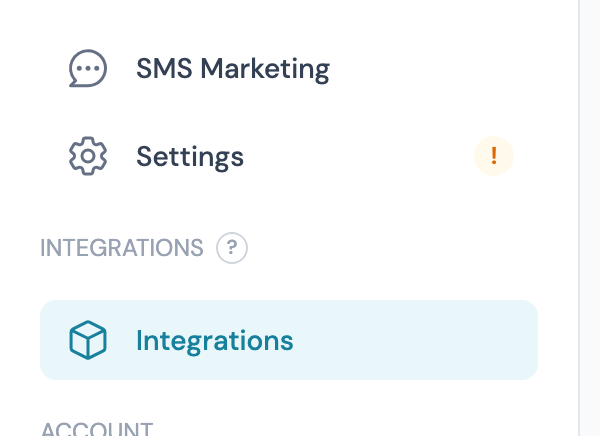
Log in to my.captifi.io and click Integrations at the bottom of the left sidebar.
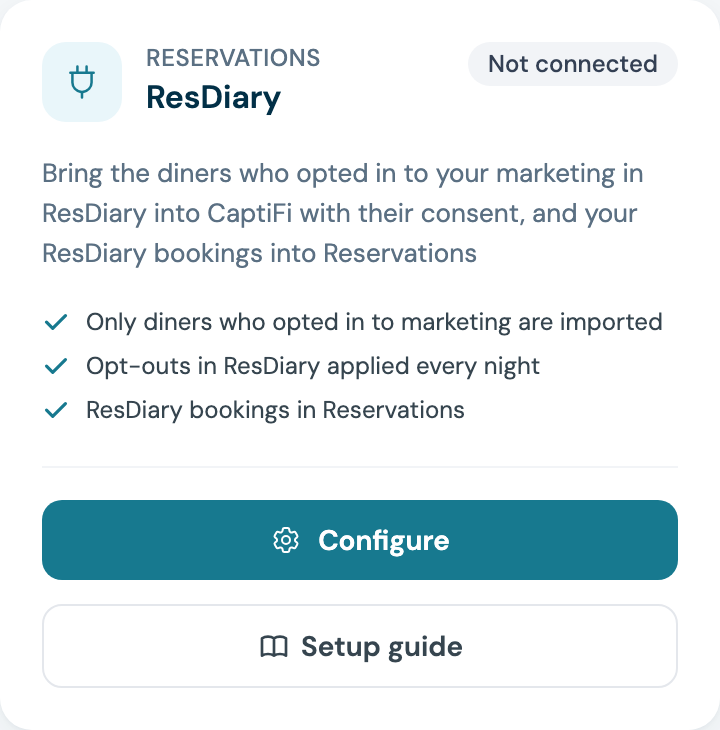
Step 6: Find the ResDiary card and click Configure
The Setup guide button under it opens this page.
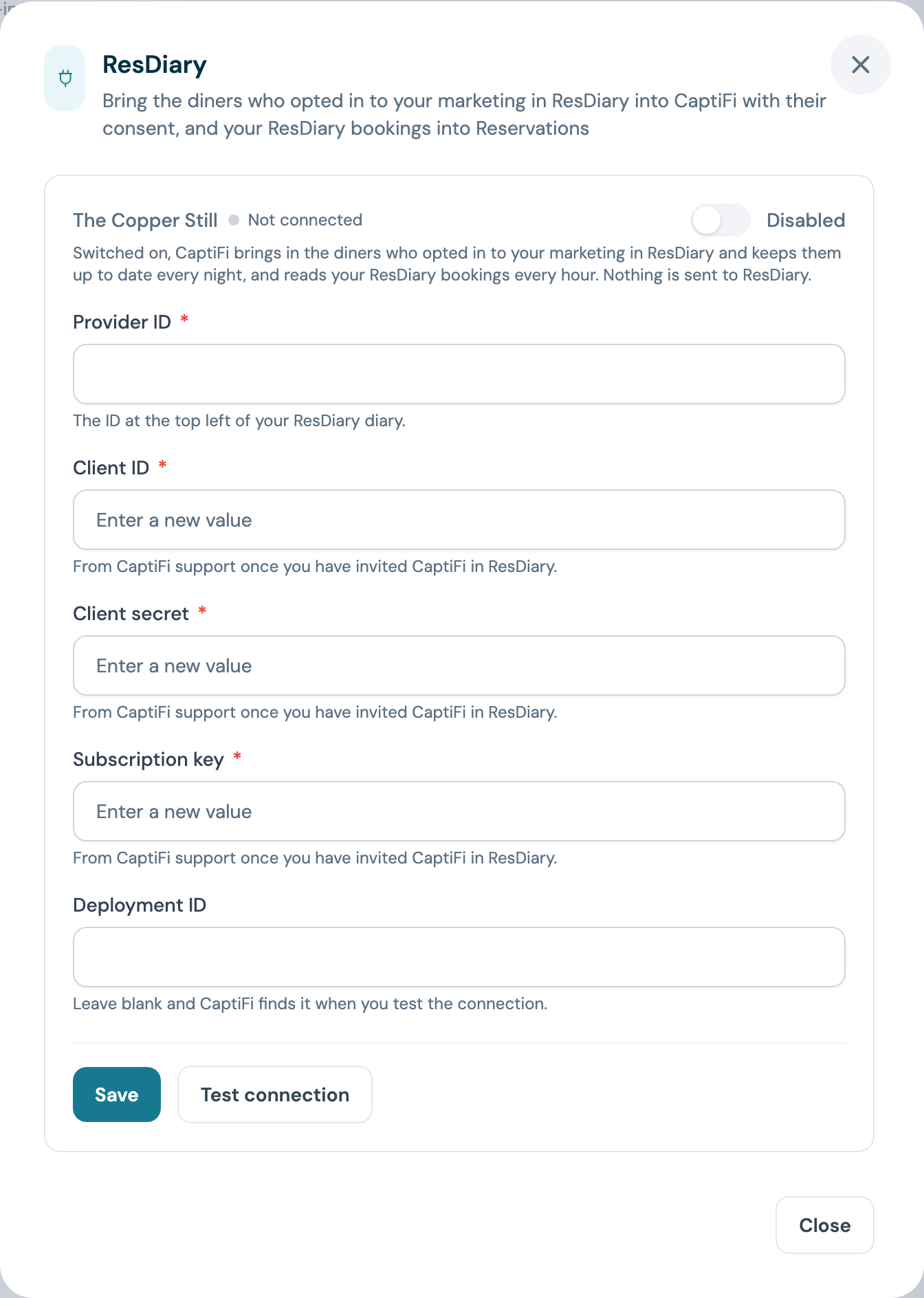
Step 7: Enter your provider ID and connection details
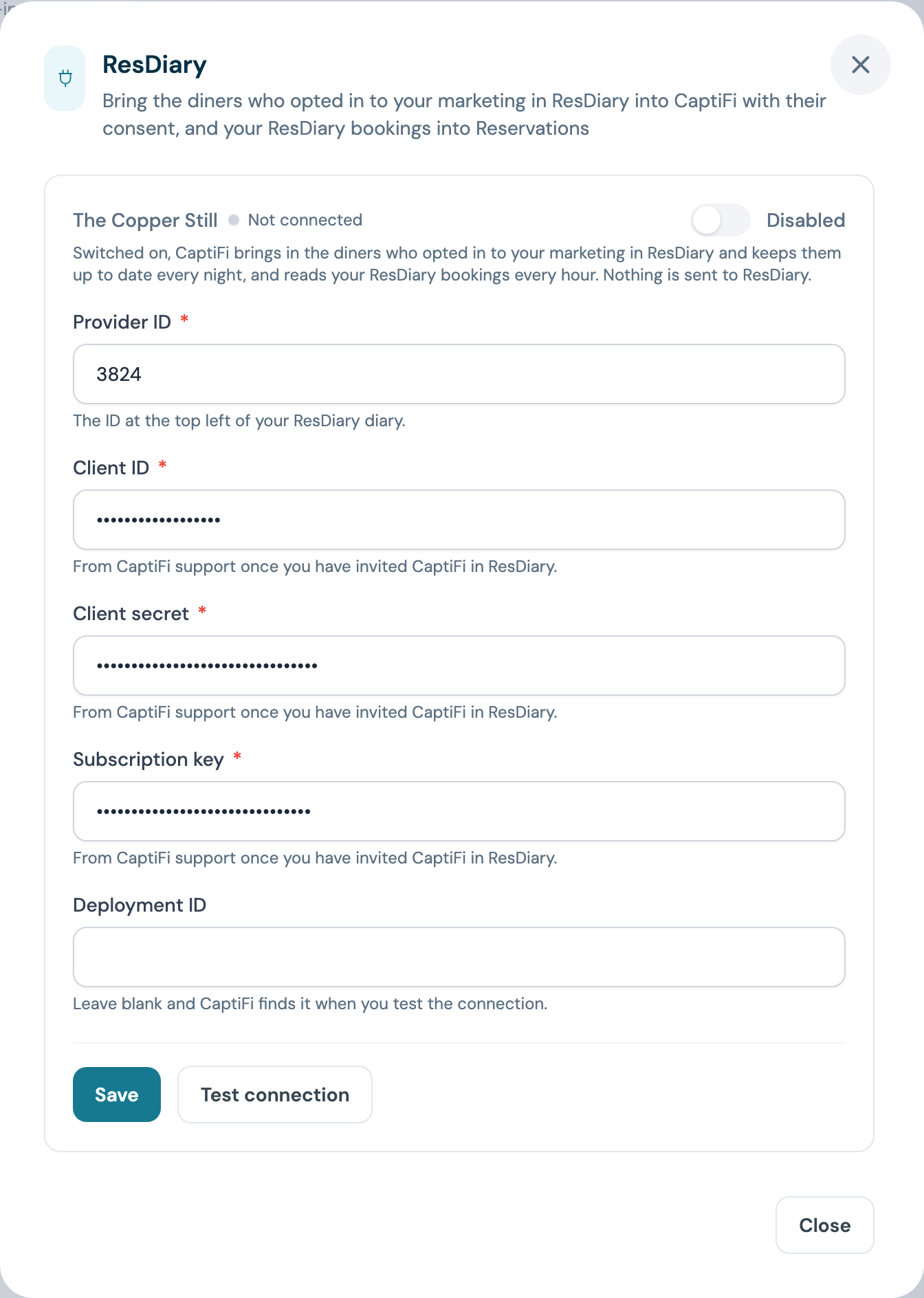
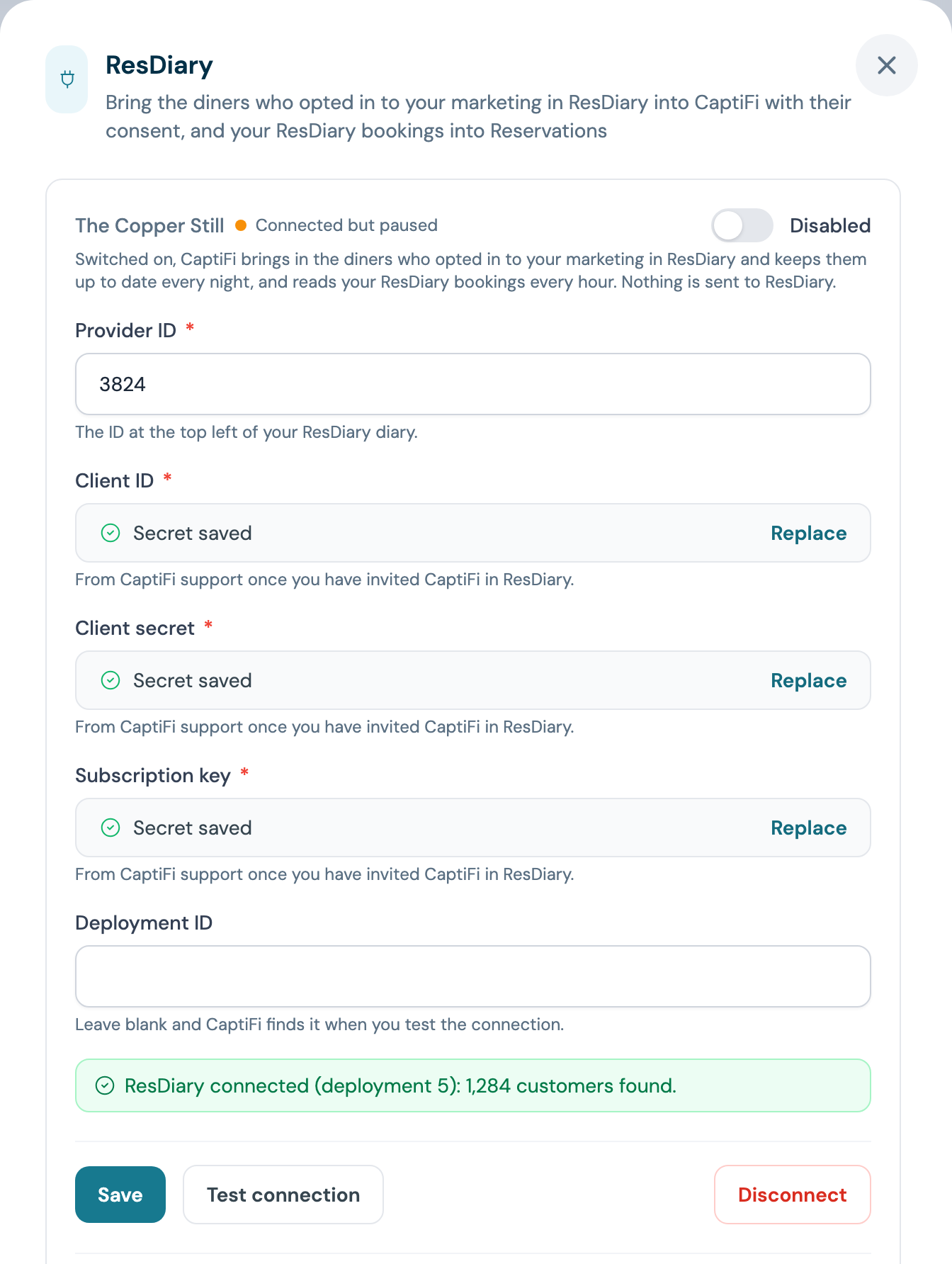
Type the provider ID from Step 3 into Provider ID, then paste the Client ID, Client secret and Subscription key support sent you. Leave Deployment ID blank, because CaptiFi finds it for you in the next step.
The client ID, client secret and subscription key are write-only. Once saved, CaptiFi shows Secret saved in their place, with a Replace button if you ever need to change one.
Step 8: Click Save, then Test connection
Save first. With Deployment ID blank, the test looks up the provider ID you saved, so a test before saving reads "Save the provider ID first, then test the connection."
The test signs in to ResDiary with your details, finds your deployment ID and counts the customers ResDiary holds for your venue. A working connection reads like "ResDiary connected (deployment 5): 1,284 customers found." CaptiFi saves the deployment ID on the venue, so it shows in Deployment ID the next time you open the panel. If the test shows anything else, see Troubleshooting.
The venue reads Connected but paused until you switch it on.
Part 3: Switch it on
Step 9: Switch the venue on
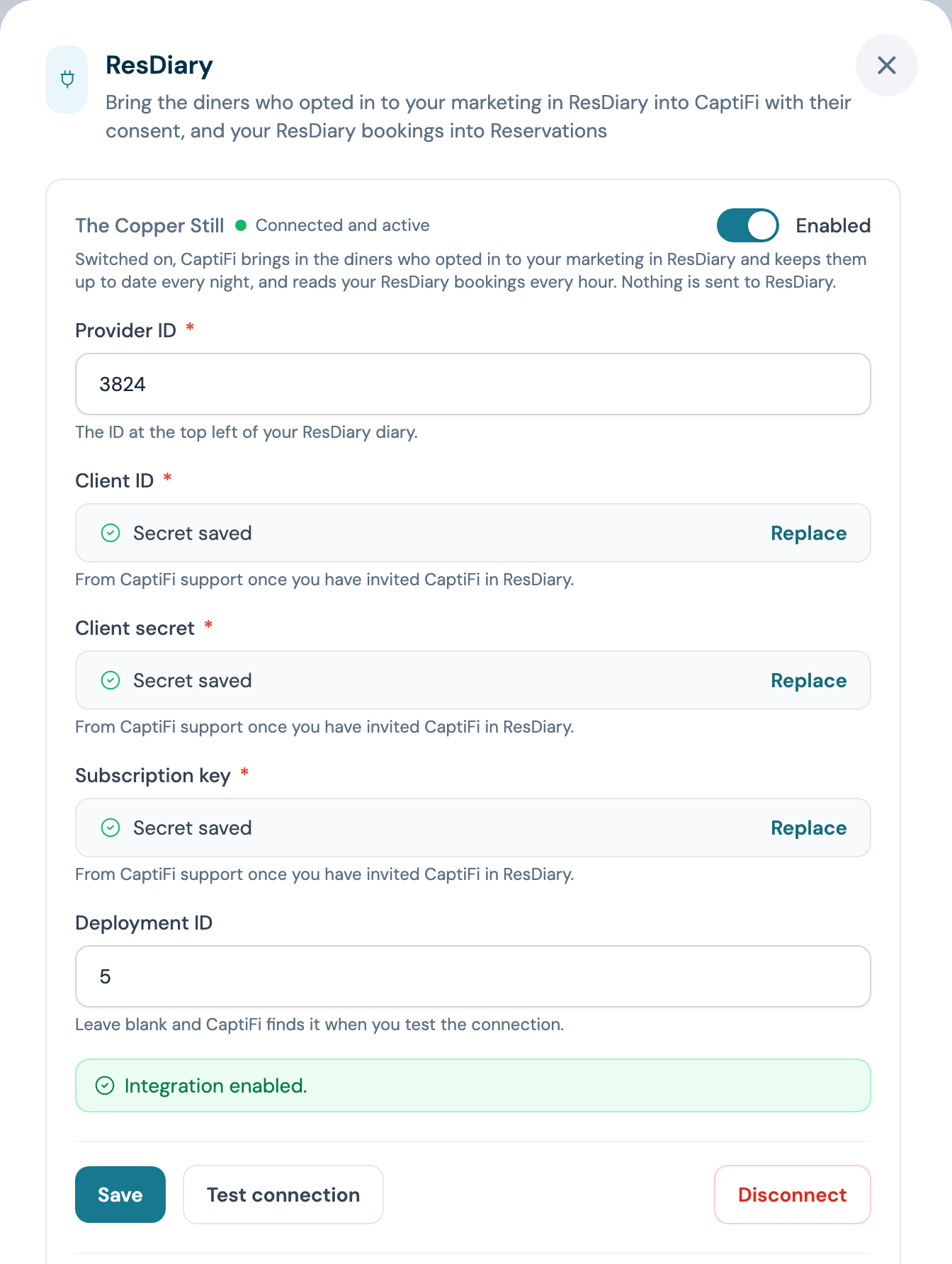
Flip the venue's switch to Enabled. The venue now reads Connected and active, and CaptiFi starts importing the diners who opted in to your marketing straight away. From then on it reads your ResDiary bookings every hour and checks for new diners and consent changes every night.
Step 10: Follow the import
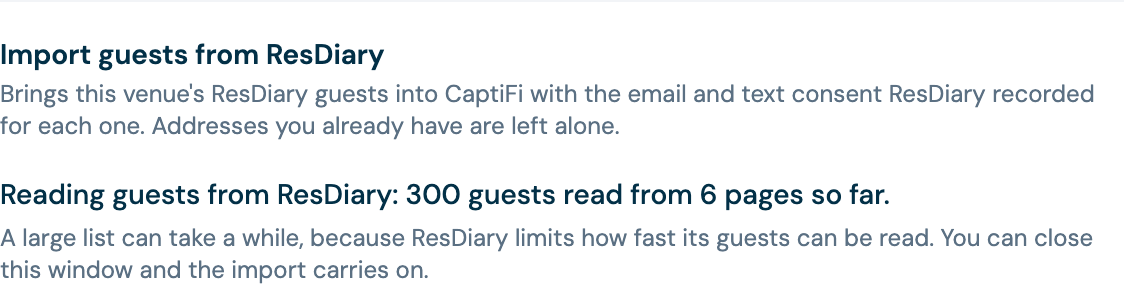
The import shows under the venue, in Import guests from ResDiary, while it runs. It reads your ResDiary list page by page, then adds the diners who opted in to your contacts. You can close the panel and the import carries on.
Step 11: Check the result
When it finishes, the panel shows the number of diners added and how many of them opted in to email and to texts. Diners who were already in CaptiFi are counted separately and left alone.
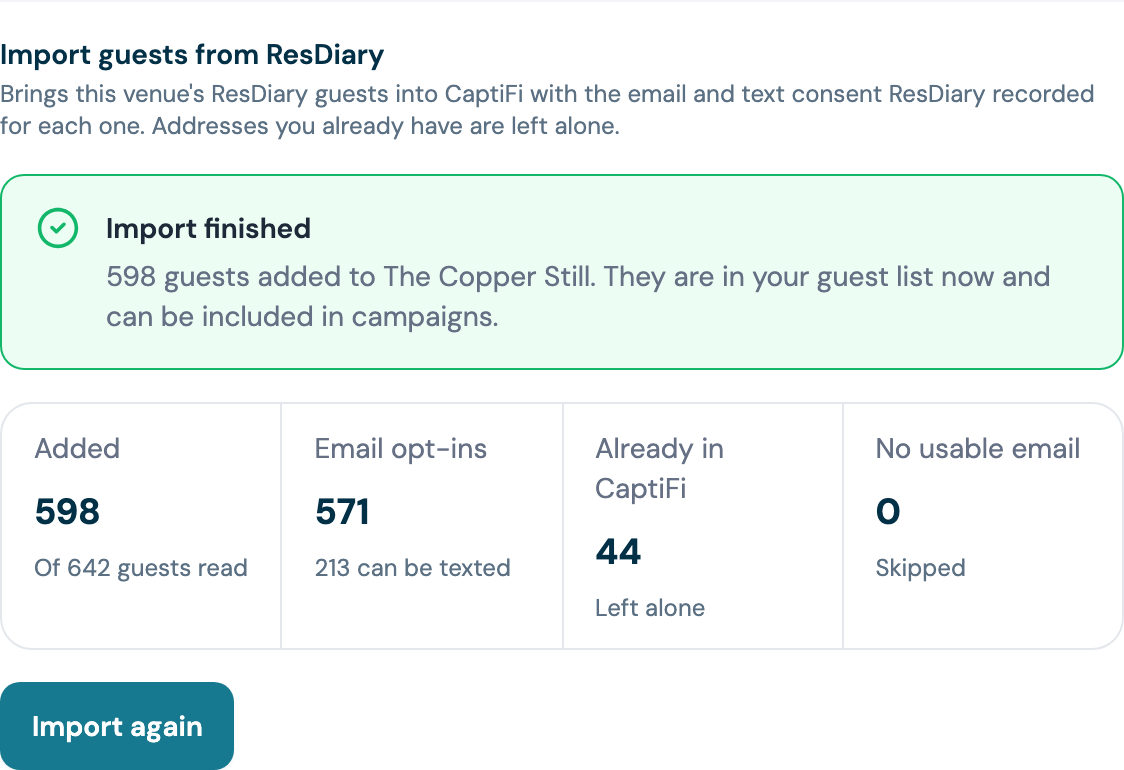
Import again reads the whole list again whenever you like. Diners you already have are left as they are.
Step 12: Confirm the card says Connected
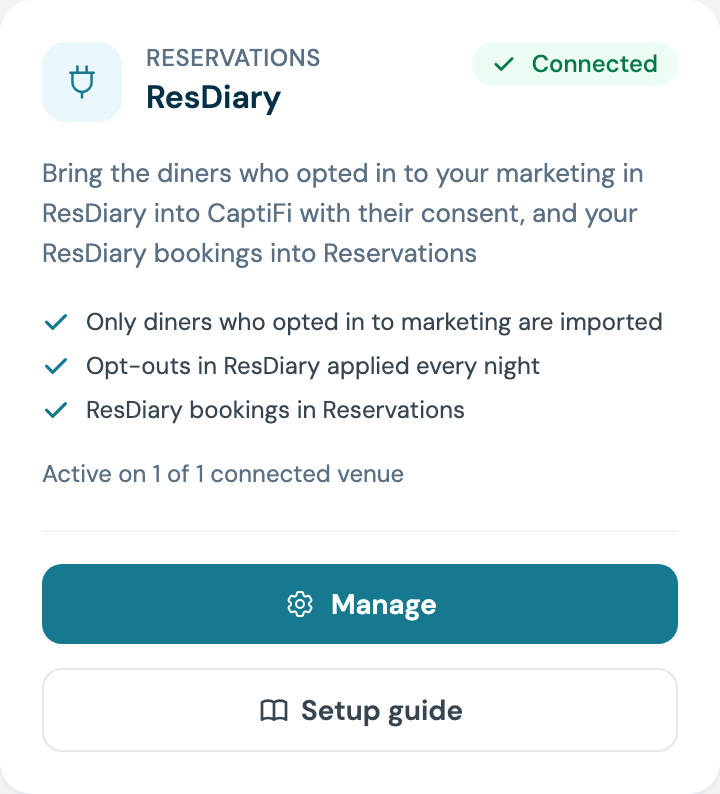
Close the panel. The card now reads Connected, with the number of venues it is active on.
Changing the provider ID or deployment ID later
CaptiFi asks for the client secret again before it saves a new provider ID or deployment ID, so saved connection details are never pointed at another restaurant without it. Click Replace on Client secret, paste the secret, change the ID and click Save in one go.
Your ResDiary bookings in Reservations
With Reservations switched on, your ResDiary bookings appear on the Reservations page with ResDiary as their source. CaptiFi reads today's new and changed bookings every hour, and reads the previous day's once more on the first check after midnight UTC.
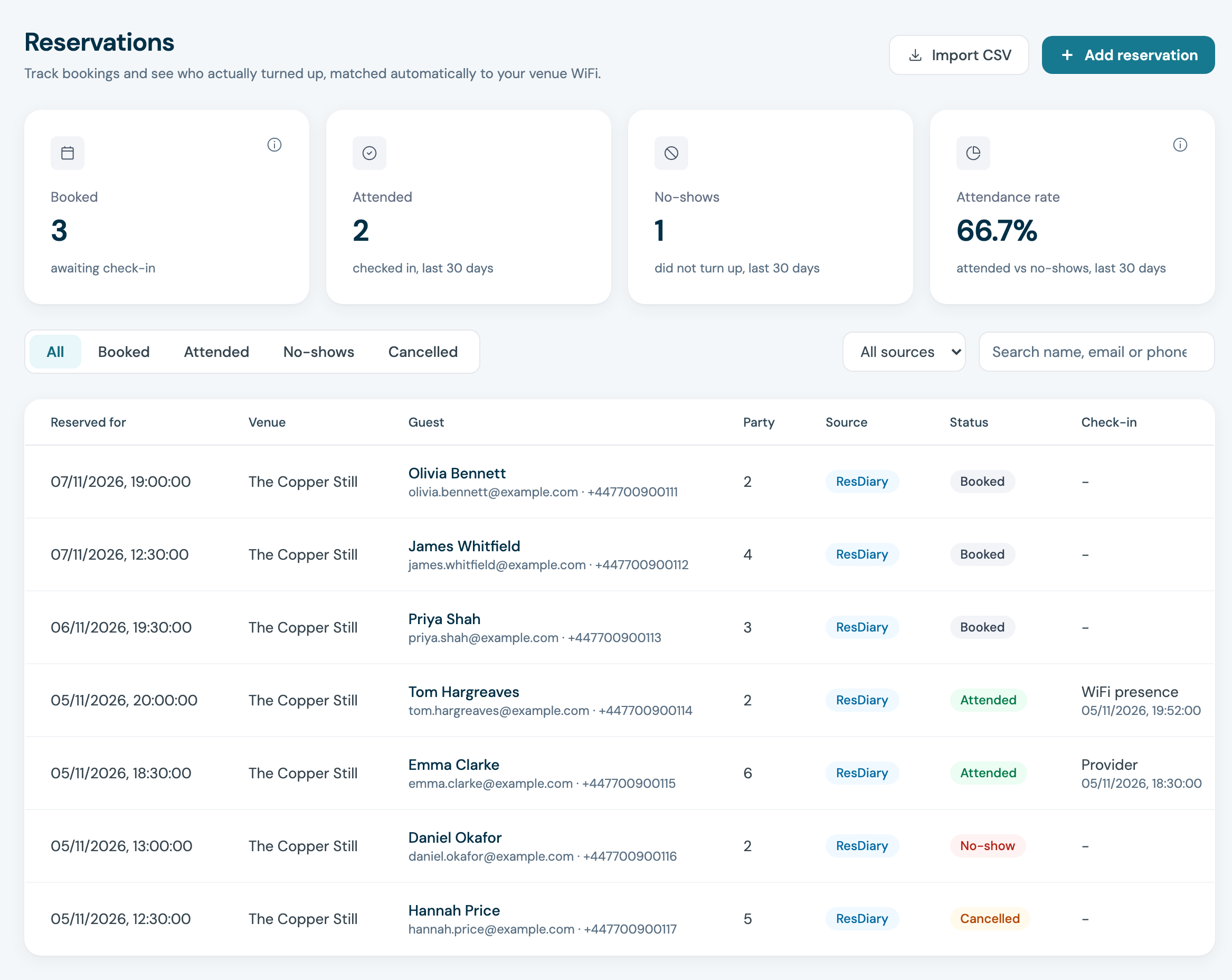
- A booking ResDiary closes with the party arrived or seated shows as attended, with Provider as its check-in. Reading it starts none of your reservation automations and sends nothing to the guest.
- A booking cancelled, declined, bumped or expired in ResDiary shows as cancelled.
- A no-show recorded in ResDiary shows as a no-show once the check-in window has passed, so a diner who arrives late can still be matched first.
- Every other booking waits as booked. When a guest with the booking's email or phone number joins your WiFi in the check-in window, CaptiFi marks it attended with WiFi presence as its check-in, the same as any reservation. See How automatic check-in works.
What gets imported
| Data | Notes |
|---|---|
| Who | Only diners who opted in to your marketing, by email or by text. Diners without an email address are skipped |
| First and last name | As ResDiary holds them |
| Mobile number | When ResDiary has one |
| Email marketing consent | Your restaurant's opt-in in ResDiary, or your group's when the diner ticked only the group box, kept with the opt-in wording and date ResDiary recorded |
| Text marketing consent | Taken from ResDiary's text opt-in in the same way, for diners whose number has not texted STOP to your venue or turned texts down at a later WiFi sign-in |
| Tag | Every diner is tagged ResDiary diner |
A guest you already had from your WiFi is left alone by the import, and a ResDiary opt-out does not change the consent they gave on your splash page.
Troubleshooting
Test connection shows why a connection is not working. If a venue that was working reads Not connected again, run the test to see the reason.
"ResDiary rejected the client ID, client secret or subscription key"
ResDiary no longer accepts the saved connection details, and diners and bookings stop syncing until new ones are saved. Ask CaptiFi support for new details, click Replace on each field, paste them in, then click Save and Test connection. A test that passes with the new details clears the message.
"ResDiary refused the sign-in (HTTP ...)"
ResDiary turned down the sign-in for a reason other than the connection details. Send the full message, including anything after "ResDiary said:", to CaptiFi support.
"ResDiary refused access to this restaurant (HTTP 403)"
The invite to CaptiFi does not cover this venue, or does not include Data Extraction. In ResDiary's Marketplace, under Private Integrations, check that the invite to CaptiFi includes this venue and Data Extraction, then test again.
"ResDiary did not find provider ID ... on any deployment CaptiFi tried" or "ResDiary could not find that provider ID"
The provider ID does not match a venue the connection details can read. Check the ID at the top left of your ResDiary diary and save it again. If it is right, ask CaptiFi support for your deployment ID and enter it in Deployment ID.
"Save the provider ID first, then test the connection."
The test was run with Deployment ID blank before the provider ID was saved. Click Save, then Test connection.
"CaptiFi looked for this restaurant's ResDiary deployment a few minutes ago" or "CaptiFi looked for ResDiary deployments for this account a few minutes ago"
CaptiFi searches for a deployment at most once every 10 minutes for a venue and 5 times an hour across your account. Try again after the number of minutes the message gives, or enter the deployment ID if support has given you one.
"Enter the client secret again to change the provider ID." or "Enter the client secret again to change the deployment ID."
CaptiFi needs the client secret in the same save as a new provider ID or deployment ID. See Changing the provider ID or deployment ID later.
"Enter the provider ID shown at the top left of your ResDiary diary"
Provider ID is empty or is not a number. The provider ID and the deployment ID are numbers only.
"ResDiary's network refused the request for now"
ResDiary turned the request away for a short time. CaptiFi tries again by itself; contact CaptiFi support if the message keeps coming back.
Bookings missing from Reservations
Check that Reservations is switched on under Integrations > Dashboard features and that the venue's switch on the ResDiary card reads Enabled. New bookings arrive within the hour.