
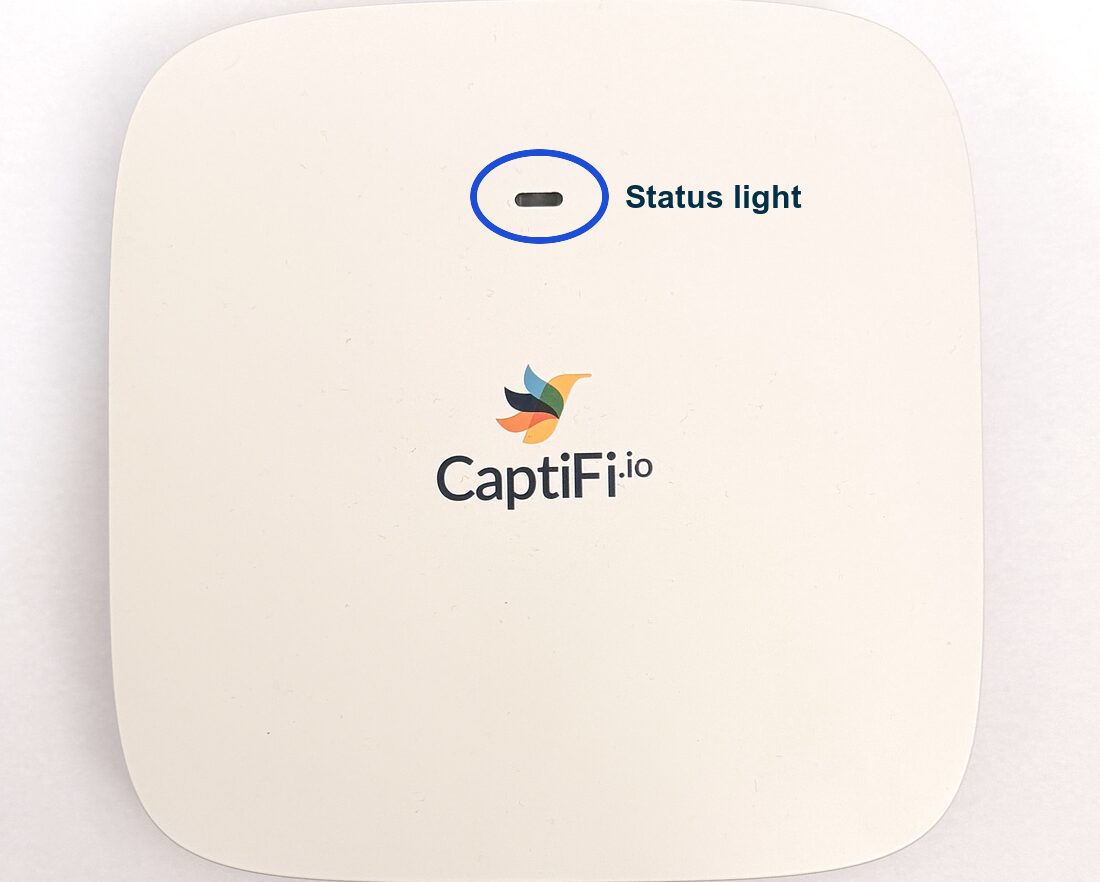
Appearance
CaptiFi Device Setup
Complete setup guide for the CaptiFi plug-and-play WiFi device (the "CaptiFi WiFi Kit").
Under 5 Minutes
Most customers have their CaptiFi device up and running in under 5 minutes. Just plug in, activate with your PIN, and you're live — no networking knowledge required.
Setup Checklist
Before you start, make sure you have everything:
| Done | Item | Where to Find It |
|---|---|---|
| CaptiFi Kit | Access point, PoE injector, 2 Ethernet cables, mounting kit | |
| Ethernet Cable | In your CaptiFi kit box | |
| Activation PIN | In your welcome email, and on your dashboard: My Venues, My Locations, then Show PIN on your venue card (8-digit PIN) | |
| Internet Router | Your venue's existing router (a spare Ethernet port) | |
| CaptiFi Account | my.captifi.io |
Can't find your PIN?
Your 8-digit activation PIN is in your welcome email, and is always available in your dashboard: open My Venues, My Locations and click Show PIN on your venue card. If you can't find it, contact us at hello@captifi.io.
Setting up several devices at one venue?
For batch orders (for example, one device per holiday apartment, or several access points across a large property) we can issue a single shared activation PIN for the whole batch. Enter the same PIN on each device and every unit joins the same venue with the same WiFi name and splash page. Guests only sign in once: after connecting through any of your devices, they can move around the property and connect through the others without seeing the splash page again. Each device needs its own wired connection back to your router or switch. Ask us at hello@captifi.io when placing a batch order.
Physical Setup
1. Plug In the Device
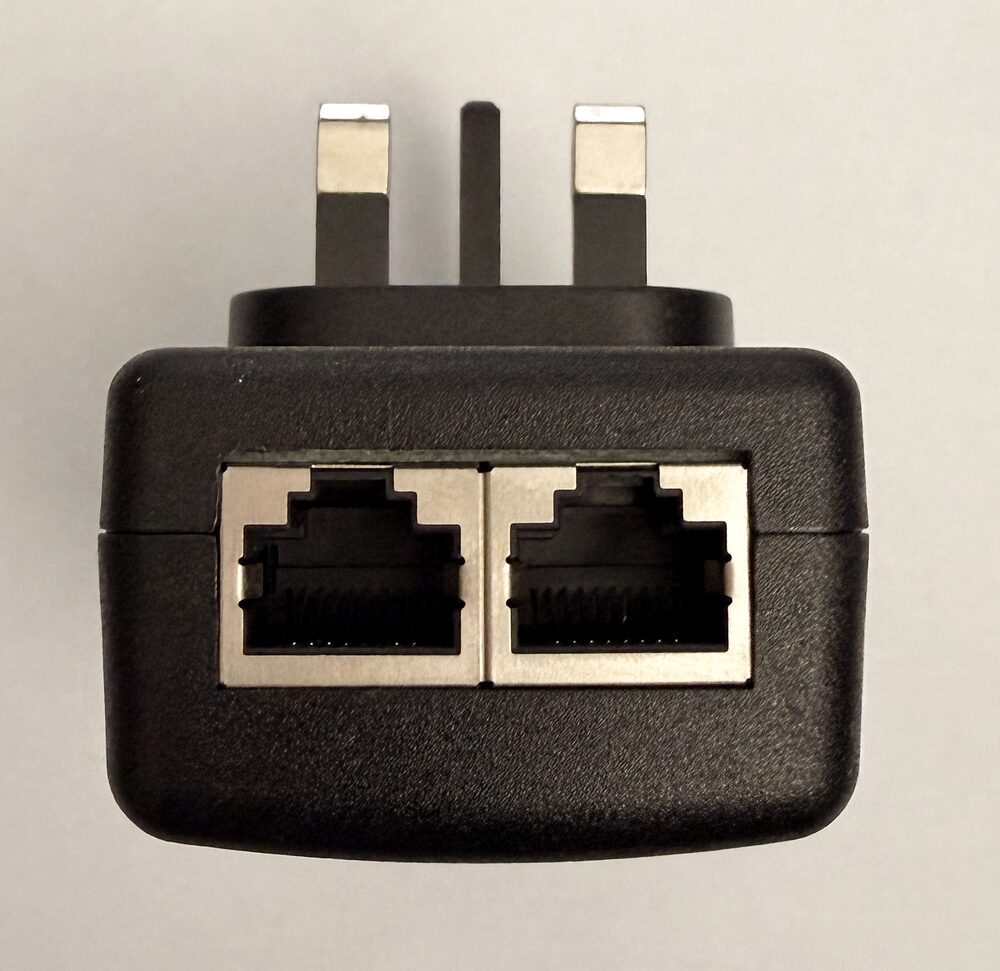
- Connect one Ethernet cable from a spare port on your router (or switch) into the socket marked LAN on the PoE injector
- Connect the second cable from the injector's PoE socket to the socket marked WAN/POE on the underside of the CaptiFi device, then plug the injector into a power socket (or skip the injector and use a PoE switch port)
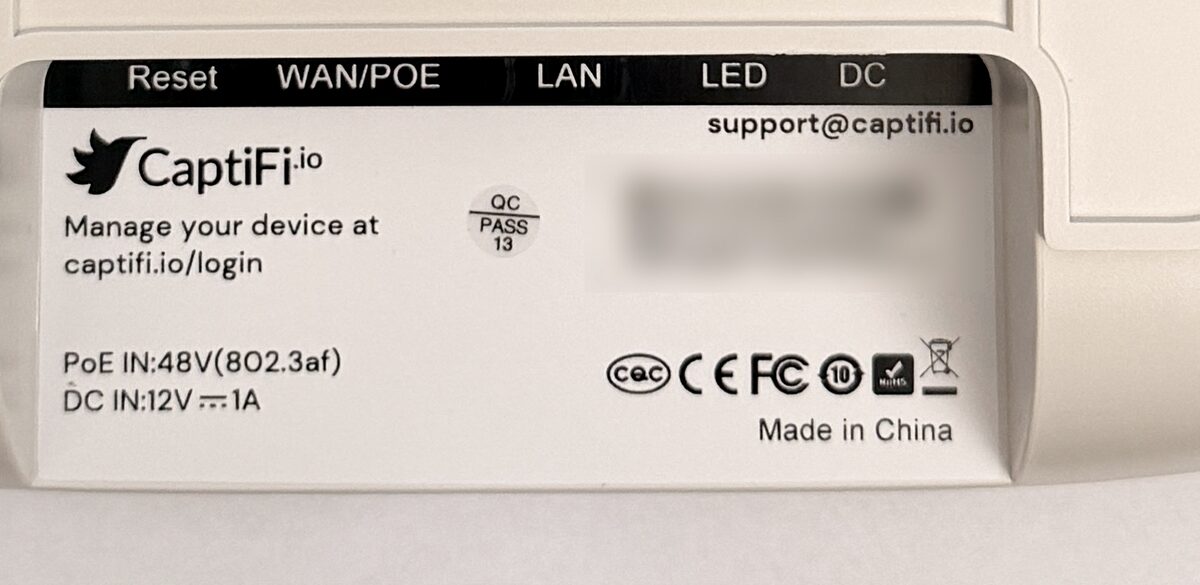
No light at all?
Check the cable to the device is in the injector's PoE socket, not LAN: only the PoE socket carries power.
- Wait for the device to boot: the light flashes yellow for 30 to 60 seconds, then turns solid purple, which means it is up and waiting to be activated
2. Activate With Your PIN
- On your phone or laptop, connect to the device's setup WiFi network (CaptiFi Setup)
- The activation page opens automatically (if not, open a browser and visit any website)
- Enter the 8-digit activation PIN from your welcome email (also on your dashboard)
- The light pulses blue while the device configures itself, then settles on solid green: activated, online, and broadcasting your venue's guest WiFi instead of the setup network
The device then shows as Online (green) in your dashboard under My Locations within a couple of minutes. Your captive portal is now live.
3. Rename Your WiFi Network (Optional)
By default the guest network is named after your venue (e.g. The Crown Pub Free WiFi). To rename it:
- Go to My Locations and open your venue
- Click Edit site and change the WiFi network name (e.g.
Kings Arms WiFi) - Click Save changes — the device updates within about 60 seconds
4. Test the Portal
- On your phone, connect to the guest WiFi network
- Your branded splash page should appear automatically
- Fill in the form and connect — then check the visit appears under Guest Visits in your dashboard
TIP
If the portal doesn't appear automatically, open a browser and go to http://example.com (a non-HTTPS address) to trigger the redirect.
Placement Tips
Optimal Placement
- Mount high — a high wall or shelf gives the best coverage
- Central location — the centre of the area you want to cover
- Away from interference — avoid microwaves, thick walls, metal surfaces
- Line of sight — fewer obstacles means a better signal
Adding More Coverage or Venues
- More coverage at one venue: contact us at hello@captifi.io about additional CaptiFi devices for larger spaces.
- Another venue: add it yourself under My Locations → Add location. Each additional location beyond the one included in your plan is £25/month, and each new venue's device ships with its own activation PIN.
Troubleshooting
| Issue | Solution |
|---|---|
| LED not lit | Check the PoE injector cables and power (or the PoE switch port). Try a different power socket. |
| Light stays red | Red means no internet. Make sure the Ethernet cable is firmly seated at both ends and your router has a working internet connection. |
| Light never turns purple | Wait a full 2 minutes after power-on, then power-cycle the device. See the Device Status Guide. |
| Setup network (CaptiFi Setup) not appearing | Wait the full boot time, then power-cycle the device. If it still doesn't appear, the device may already be activated — check My Locations in your dashboard. |
| PIN not accepted | Double-check the 8-digit PIN from your welcome email or dashboard, and make sure the device's Ethernet cable is connected so it can reach the internet. |
| Device shows Offline in the dashboard | Check cables and power, verify your internet is working, then wait 5 minutes and refresh — devices reconnect automatically. |
| Guest WiFi not appearing | Wait 2-3 minutes after activation; if it's still not visible, unplug the device for 10 seconds and plug it back in. |
| Splash page not appearing for guests | Verify the device shows Online in your dashboard, and try visiting http://example.com on the guest device. |
| Behind a strict firewall | The device needs outbound HTTPS (TCP 443) and WireGuard (UDP 51820) — see Network Troubleshooting. |
Next Steps
Need Help?
The CaptiFi device is designed to be plug-and-play, but if you run into any issues:
- Email: hello@captifi.io
- Live Chat: Available on captifi.io
- Hardware FAQs: Hardware FAQs