
Appearance
Splash Page Builder
The Splash Page Builder is where you design the WiFi login page your guests see. It's a full-screen editor with a live phone preview: every change you make appears instantly, exactly as guests will see it.
Opening the Builder
- Log in to my.captifi.io
- Go to My Venues → My Locations
- On your venue's card, click Edit splash
The builder opens full screen. The left panel lists the page sections; the right side shows a live phone preview. You can also click any part of the preview to jump straight to its settings.
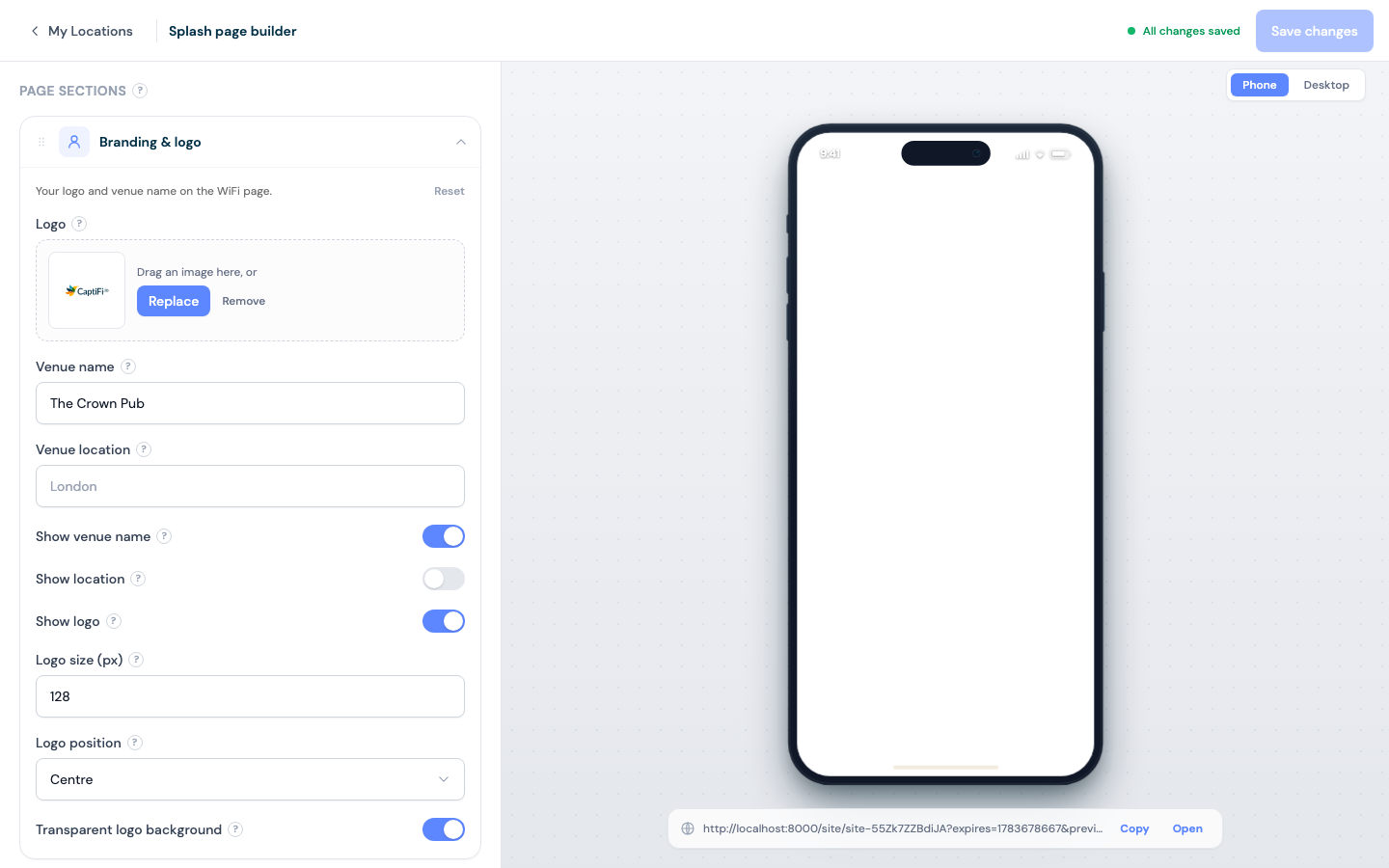
When you're happy, click Save changes (top right). The top bar also shows your live splash page URL with copy/open buttons so you can check the real thing.
Auto-Brand From Your Website
The fastest way to a branded page: at the top of the editor, paste your website address into Auto-brand from your website and click Extract. CaptiFi reads your site and fills in your logo, brand colours, fonts, page title and a background photo automatically (this takes 10 to 30 seconds). The changes land in the live preview first: review them, adjust anything you like, then click Save changes. Nothing is published until you save.
Page Sections
Drag sections in the left panel to reorder them on the page. Each section has a "Reset to default design" option.
Branding & Logo
- Upload your logo, set its size and position (centre/left/right), and optionally give it a transparent background. New venues start without a logo: your venue name is shown until you upload one
- Set the venue name and location text, and choose whether to show them
Background
- Choose a gradient (start/end colours), a solid colour, or a background image (upload)
Welcome Text
- Form title (default "Connect to Free WiFi") and an optional subtitle
- Toggle the connection-time badge on or off
Guest Sign-In Form
Control exactly what guests are asked for:
- First name — show/hide, required or optional, custom placeholder text
- Last name — show/hide, required or optional, custom placeholder text
- Email — show/hide, required or optional, custom placeholder text
- Custom fields — add your own questions (e.g. "How did you hear about us?"). Answers appear as extra columns on your Guest Visits page
Two custom field types deserve a special mention:
- Checkbox - a tick box with your own wording. Set it to required and guests cannot connect until they tick it, ideal for confirmations like "I confirm I am 18 or over" at licensed venues
- Date of Birth - collects the guest's date of birth, with a configurable minimum age (13 to 25, default 13). Guests below the minimum age cannot submit the form. Licensed venues typically set 18. A required Date of Birth field also powers age-gated Klaviyo accounts
Less is more
Only collect the data you actually need — every additional required field reduces completion rates.
Fake email protection
When your form collects email, CaptiFi checks every address as the guest enters it. No setup is needed, the checks run on every splash page automatically:
- Keyboard mash ("fdsk@", "poooopookn@") and filler entries such as test@ or 12345@ are rejected with a polite prompt to enter a real address.
- Throwaway inboxes (Mailinator, YOPmail and thousands of other disposable email services) are not accepted. The blocklist keeps itself up to date automatically.
- Common typos get a "Did you mean...?" prompt: a guest who types gmial.com is nudged towards gmail.com instead of a dead address landing in your list.
- The domain must genuinely be able to receive mail (checked live against DNS).
- Addresses that have already bounced on CaptiFi are rejected on sight, at every venue.
Addresses that still slip through and later bounce are flagged with a Bounced badge on your Guest Visits page, so your list stays clean over time.
Collecting numbers for SMS Marketing
To text guests through SMS Marketing, add a Phone number question under Custom fields (there is a ready-made Phone preset with a country-code selector). Guests who share a number and accept marketing can then be texted, under the same consent that covers your email marketing.
If you would rather make texting strictly opt-in at your venue, also enable the SMS opt-in checkbox in the Terms & Privacy section (you can edit the wording and make it required). The checkbox only appears to guests when the form has a phone question, and once enabled, only guests who tick it can be texted: leaving it unticked counts as a "no", even if the guest accepted email marketing. See who receives your messages for the full permission rules.
Either way, every marketing text carries an automatic "Reply STOP to opt out" footer, and phone numbers are stored in international format automatically, whatever country your guests are from.
Colours
Theme colour, accent colour, text colour, card text colour, and link colour — match them to your brand.
Connect Button
Button text, colour, text colour, and corner radius.
Terms & Privacy
Add venue-specific terms and privacy text. Guests accept your WiFi terms as part of connecting, and marketing consent is captured separately so you stay GDPR-compliant.
- Privacy collection notice - a short notice shown directly on the sign-in form itself, not behind a link. Use it where the law requires you to tell people what you collect and why at the point of collection, for example an APP 5 collection statement under the Australian Privacy Act
- Your privacy policy URL and Your terms of use URL - link your venue's own published policies. When set, they appear as clickable links on the sign-in form and inside the Terms and Privacy pop-ups, alongside any text you have written. Note: some guest devices cannot open external websites until after they connect, so keep your key wording in the collection notice and the Terms and Privacy text as well, and treat the links as the full reference copy
Advanced
- Session length - how long guests stay online before seeing the splash page again. Enter a number and pick a unit (minutes, hours, or days), or choose Unlimited to never ask guests to sign in again. This is a venue-wide setting: it applies whichever design is live, switching designs never changes it, and it is only editable on your live design (or under Edit site in My Locations)
- Redirect after connect - send guests to a URL after login (your website, menu, offers page), with an optional delay
- Google Analytics ID - track splash page visits in your own GA property
Design Library
Each venue keeps a small library of named splash designs, so you can prepare variations ahead of time (a quiz night page, a Christmas page) and switch between them without rebuilding anything. Exactly one design is live at a time.
Opening the library
- Go to My Venues > My Locations
- Find the venue and click Designs & templates on its card
- The library opens over the splash builder, showing every saved design, which one is live, and your design allowance
You can also open it from inside the builder at any time with the Designs button in the toolbar.
Creating a new design
- Open the library (steps above)
- Click New design and give it a name, for example "Quiz Night"
- Your current design is duplicated into the library; edit the copy in the builder
- When you are ready, Activate it (or schedule it for an event window)
From the library you can also:
- Rename designs so you can tell them apart at a glance ("Default", "Quiz Night", "Christmas").
- Activate a design to make it your venue's live splash page. Activating swaps the live page immediately, and guests see the new design the next time they connect.
- Set a default to mark one design as your venue's standard page.
- Delete designs you no longer need. You cannot delete the design that is currently active, the one set as the venue's default, or a design referenced by a scheduled automation (cancel the automation first).
Each venue can keep up to 5 designs on standard plans, or 10 designs on Pro. If you reach the limit, delete an old design to make room for a new one.
Schedule your designs
You can also swap designs automatically for an event window: schedule a splash swap on the Planner and CaptiFi activates the design at the start time and restores your default at the end time.
Designs assigned by CaptiFi support
If CaptiFi support has assigned a custom splash design to your venue, the library shows "Currently live: ... assigned by CaptiFi support" instead of marking one of your own designs as active. Scheduled swaps still work as normal: the assigned design comes back automatically when the event window ends.
Start from a Seasonal Template
Alongside duplicating your own designs, you can create a new design from a CaptiFi-made seasonal template: Christmas, Halloween, Match Day, Valentine's, and New Year. Each is a tasteful, ready-styled variation of the standard splash layout.
When you create a design from a template, CaptiFi applies the template's colours and copy and automatically carries over your venue's logo, background image, and venue name from your default design, so the result already looks like yours. The new design lands in your library as a normal design: edit it in the builder, activate it when the season arrives (or schedule it), and it counts toward your design limit like any other. Browsing templates costs nothing; only designs you actually create count.
Guest Languages
Your splash page can appear in your guest's own language. Guests are detected from their phone's language setting, so most people never have to tap anything.
Setting It Up
- Go to My Locations and open Edit on the venue
- Under Guest languages, pick the languages you want to offer
- If you offer more than one, choose a default language for guests whose phone is set to something you do not offer
- Save
Currently available: English, French (Francais) and Spanish (Espanol).
What Guests See
When you offer more than one language, a small row of language buttons appears at the top of the page, above your sign-in form. One tap switches the whole page, and the choice is remembered on that device for a year.
Everything CaptiFi writes is translated: the sign-in heading, the name and email boxes, the connect button, the terms and privacy links, the session length shown on the badge, and the connecting message.
What Is Not Translated
- Your own custom wording. Anything you typed into the builder stays exactly as you wrote it, in every language. That is deliberate: we will never machine mangle a welcome line you chose. If you want your welcome text in another language, write it that way.
- Your terms and privacy text, for the same reason.
- Emails sent to guests, which are still in English.
If You Only Want English
Leave the setting alone. A venue with only English selected behaves exactly as it always has, and guests see no language buttons at all.
Venues With Paid WiFi
If Paid WiFi is switched on for the venue, guests do not see the sign-in form: they see your paid access page, where they pick a WiFi pass and pay. The builder follows suit:
- The live phone preview shows your paid access page, with your real passes and prices, exactly as guests see it
- An amber notice above the sections reminds you Paid WiFi is on, with a link to the Paid WiFi page where passes and prices are managed
- Your branding, background, colours, button styling, and terms all apply to the paid page, so those edits show up in the preview instantly
- The Welcome text and Guest sign-in form sections are marked "Hidden by Paid WiFi": guests will not see them while Paid WiFi is on. They stay editable, and your edits are kept and apply again if you switch back to the standard splash
Session length from the Advanced section does not apply either: with Paid WiFi, each pass sets its own duration.
Message Strip
Sometimes you do not need a whole new design, just a line of text: "Happy hour 5-7 tonight". A message strip is a short dismissible banner shown on top of your venue's current splash page, whatever design is live. Guests can dismiss it, and it disappears for everyone automatically at its end time.
Message strips are scheduled from the Planner rather than the builder, so they always have a window and clean themselves up. See Message Strip on the Planner page.
Copying a Design Between Venues
Have several venues? On My Locations, use Copy design on a venue card to apply one venue's active splash design to another, then tweak the details per venue.
During Onboarding
The onboarding wizard includes a simplified version of this editor to get your first design live quickly. You can always return to the full builder later via My Locations → Edit splash.
Best Practices
- Keep it simple — a clear headline, brief message, and a prominent connect button convert best
- Use strong branding — logo, brand colours, and a background that represents your venue
- Minimise form fields — every extra required field costs completions
- Set a redirect — send guests to your website, review page, or offers after login
- Check the preview on mobile proportions — the vast majority of guests connect on phones
- Test it live — use the preview URL in the top bar, and connect a real phone to your guest WiFi
Troubleshooting
| Issue | Solution |
|---|---|
| Changes not saving | Check your internet connection and click Save changes — only edited sections are saved |
| Logo not displaying | Check the file format (PNG, JPG) and size; very large images may fail to upload |
| Background image looks stretched | Use an image at least 1080px wide; portrait orientation works best on phones |
| Guests see the old design | Changes apply to new sessions — reconnect the test device to see the update |
| Custom field answers missing | Check the column toggles on Guest Visits — custom questions appear as optional columns |