
Appearance
Partner Payouts
If your account is on CaptiFi's referral programme, this page explains how the commission you see on the Earnings page becomes money in your account: how commission accrues, when it is cleared for payment, how CaptiFi pays it, and where every payout is recorded. For how commission is earned in the first place, see Partner Referrals.
Where to Find It
Payout history and payout details both live on the Earnings page:
- Log in to my.captifi.io
- Go to Partner → Earnings in the sidebar (referral partner accounts only)
The Lifecycle: Pending, Payable, Paid
Every commission moves through three stages, and the Earnings page shows the running total at each one. Who does what, and when:
- Pending: on the 1st of each month, CaptiFi turns every payment your referred clients made during the month just ended into commission at your rate (20% as standard). New commission starts as pending: earned, but not yet confirmed. Nothing is required from you.
- Payable: CaptiFi reviews pending commission and confirms it, moving it to payable, meaning cleared for the next payout. Nothing is required from you at this stage either.
- Paid: CaptiFi pays out your payable balance and records the payout. Payouts are made monthly, by bank transfer or PayPal, to the payout details on your account. Every commission covered by that payout is marked paid and linked to it, so you can always trace which payout settled which commission.
One Commission, Start to Finish
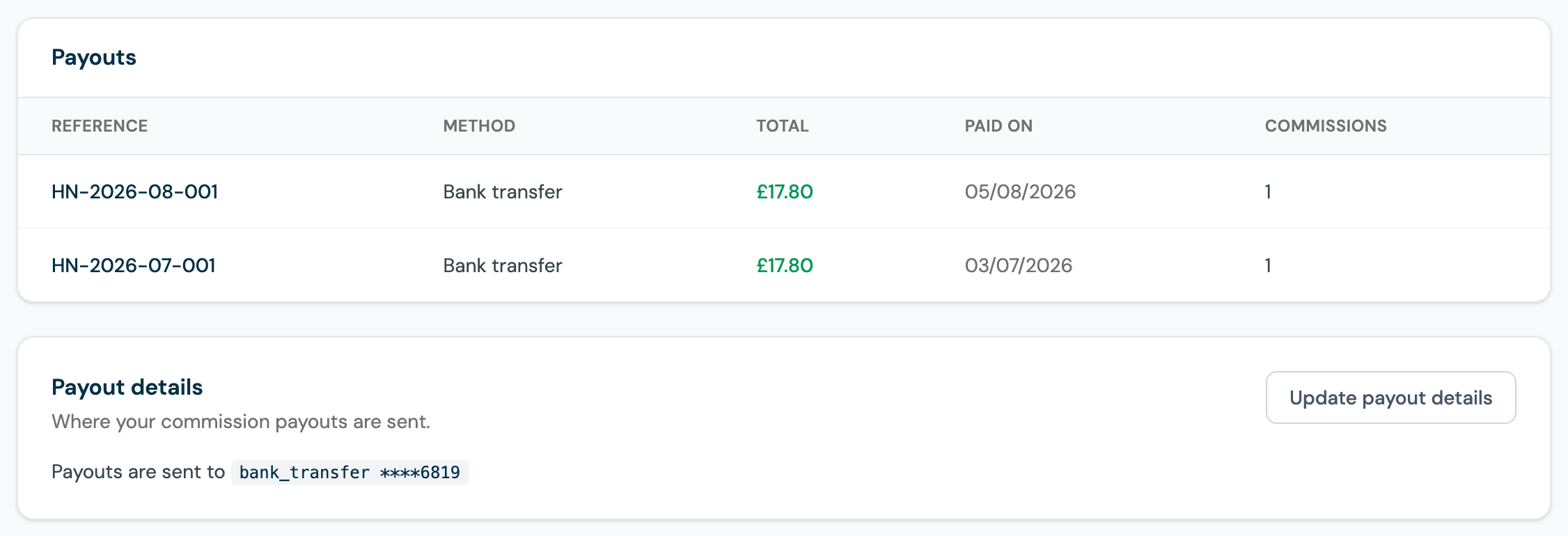
Follow a single commission through the example above. The Anchor Inn, a client Harbour Networks referred, pays its £89 Growth invoice in July.
- 1 August: CaptiFi accrues July's commission. 20% of £89 is £17.80, which appears on the Earnings page as pending, and the monthly statement email lands the same morning with it listed.
- Review: CaptiFi confirms the commission and it moves to payable. The Earnings page now shows £17.80 payable, queued for the next payout.
- 5 August: CaptiFi runs the monthly payout and sends £17.80 by bank transfer under reference HN-2026-08-001, exactly as the payout history above shows. The commission flips to paid and is linked to that payout.
- The same day: the remittance email arrives confirming the amount, reference and method, and HN-2026-08-001 appears on Harbour Networks' bank statement.
The month after, the same client's next invoice starts the cycle again, which is the point of the referral model: one introduction, repeating income.
Your Currency
Payouts are made in your account currency, set when you join. If your referred clients pay CaptiFi in other currencies, their commission is never converted: it is grouped by currency on the Earnings page and paid out separately per currency. A month can therefore bring more than one payout, each in its own currency with its own reference and its own remittance email, and each payout in your history shows its amount in the currency it was paid in.
Payout History
The Payouts section of the Earnings page lists your recorded payouts, newest first. Each payout shows:
- Reference: the payment reference CaptiFi used, so you can match the payout against your bank or PayPal statement.
- Method: bank transfer or PayPal.
- Total: the amount paid.
- Paid on: the day the payment was sent.
- Commissions: how many commission entries the payout settled.
Your monthly commission statement email also lists anything paid out during the statement month, with its reference.
Setting Your Payout Details
Before CaptiFi can pay you, it needs to know where to send the money. Click Update payout details in the payout details panel:
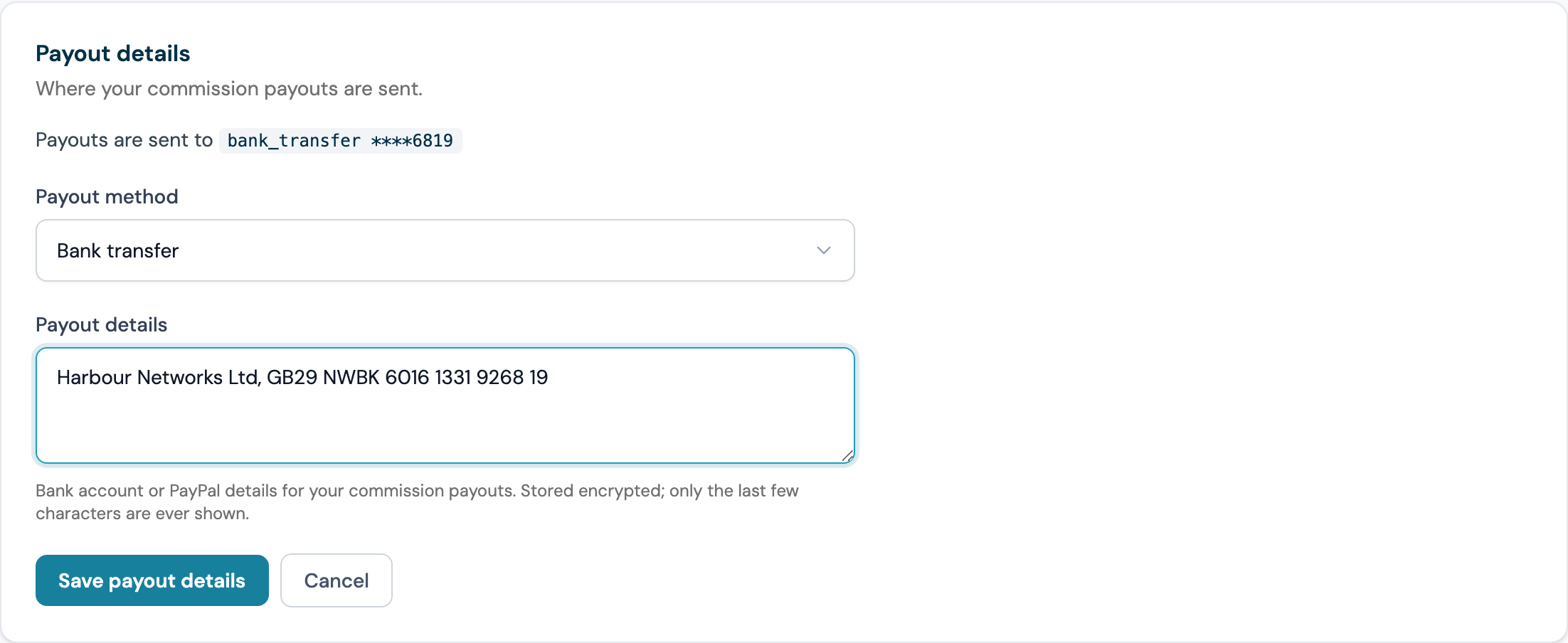
- Choose the method: bank transfer, PayPal or other.
- Enter the details: your account name, sort code and account number (or IBAN) for a bank transfer, or your PayPal email address.
- Click Save payout details.
Once saved, the panel confirms where payouts are sent, showing the method and only the last few characters of the account, as in the screenshot above. Saving new details replaces the old ones: do this whenever you change bank or PayPal account. If your details are missing, the Earnings page shows a reminder and your monthly statement email nudges you, so your payouts are never delayed.
How Your Details Are Protected
- Encrypted: payout details are stored encrypted on CaptiFi's servers. Once saved, they are never displayed in full again anywhere, only the method and the last few characters, so you can confirm which account is on file without the full details ever being shown.
- Account owner only: only the partner account owner can view or change payout details. Staff logins cannot see them at all.
- Changes are logged: every change to payout details is recorded on the account, so an unexpected change can always be traced.
The Remittance Email
Every time CaptiFi records a payout, you receive a remittance email confirming the money has been sent: the amount, the payment reference, the method, the date paid and how many commission entries it settled. It goes to your support address, or your account email if no support address is set, the same inbox as your monthly statements. Keep it with your records: the reference on the email matches the reference in your payout history and on your bank statement.
Refunds and Chargebacks
Commission is only earned on money CaptiFi actually keeps. If a referred client's payment is refunded or charged back, it never earns commission: any commission already accrued on that payment and not yet paid out is removed automatically. If something unusual happens with a payment that was already paid out, CaptiFi will contact you about it directly.