Skip to content

Integrations Hub — Complete Reference

Dashboard Location: Sidebar → Integrations
Navigation Sort: 50
Access: All authenticated users (navigation registration controlled separately)


Overview

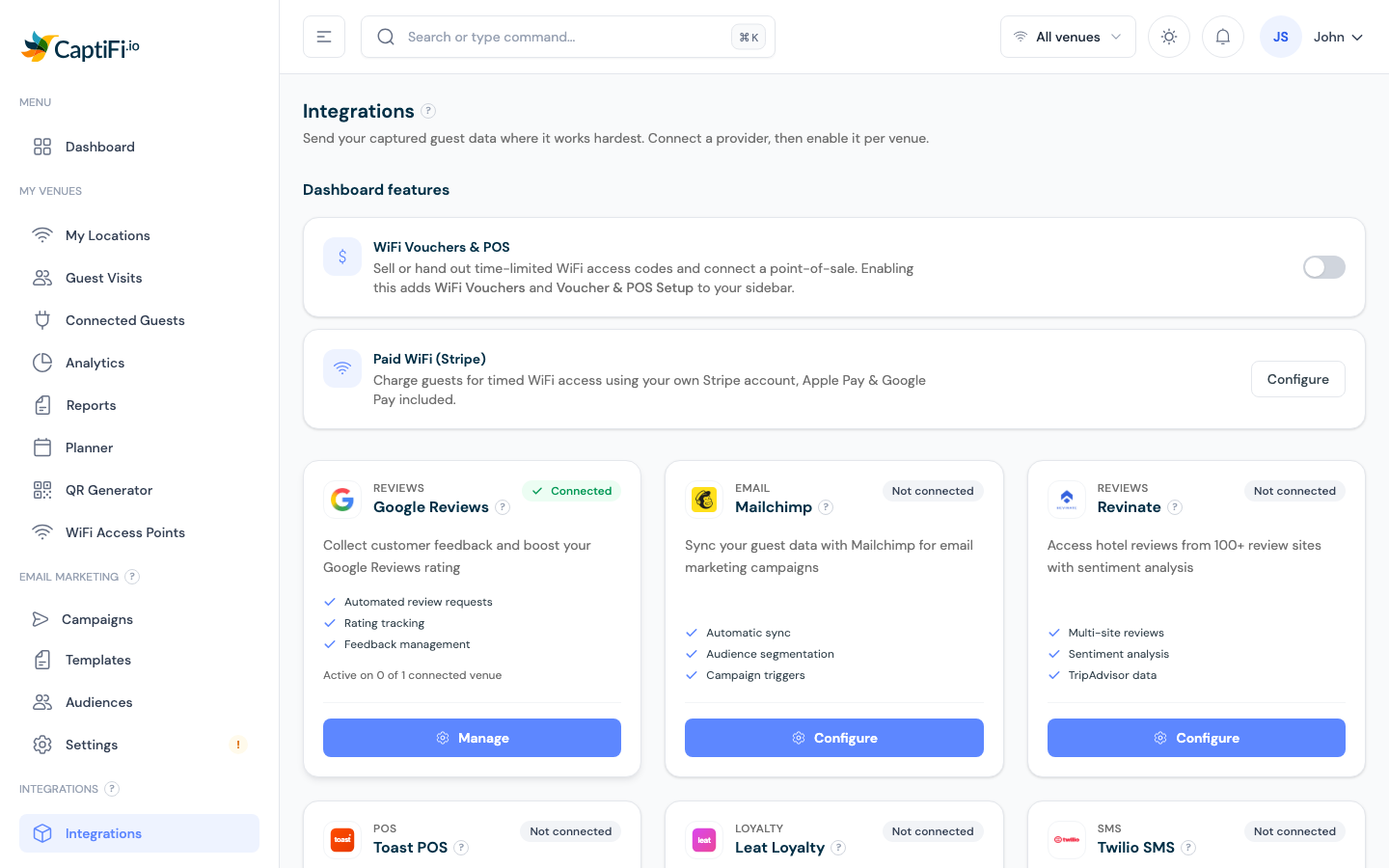
The Integrations Hub is the central page for managing all third-party service connections in CaptiFi. It displays every integration as a card in a responsive grid layout (1 column on mobile, 2 on tablet, 3 on desktop). The page header shows a gradient banner with the count of integrations available on the user's current plan.

Each integration card follows one of three visual states:

StateAppearanceInteraction
Available & ConnectedFull-colour card, green "Connected" badge with pulsing dotClickable → opens integration config page
Available & Not ConnectedFull-colour card, grey "Not Connected" badgeClickable → opens integration config page
Locked (plan upgrade needed)Greyed-out card (75% opacity), lock icon "Upgrade Required" badgeNot clickable; shows "Upgrade to {plan}" email link
Coming SoonGreyed-out card (60% opacity), grayscale logo, purple clock "Coming Soon" badgeNot clickable; shows "Notify me when available" text

Card Anatomy

Every integration card displays:

  • Logo — Brand logo image in a white rounded container (64×64px), centered in a gradient header area (160px tall)
  • Name — Integration name as card title (e.g., "Google Reviews")
  • Description — One-line summary of what the integration does
  • Status Badge — Top-right corner badge showing connection state, plan requirement, or coming soon
  • Features List — 3 bullet points with green checkmark icons (grey when locked/coming soon)
  • Action Footer — Bottom section separated by a border, showing contextual action text:
    • Connected: "Manage Integration →"
    • Not Connected: "Connect Now →"
    • Locked: "Upgrade to Busy Venue" (links to support email)
    • Coming Soon: "Notify me when available" (bell icon)

Integration Count Display

The header shows: {count} integration(s) available on your plan

This count is computed by getAvailableIntegrationsCount(), which counts integrations where available = true and comingSoon is not set.


Live Integrations

1. Google Reviews

PropertyValue
Sluggoogle-reviews
Brand Colour#4285F4
Gradientfrom-white to-gray-100
Logoimages/integrations/google-logo.jpeg
Required PlanBusy Venue (£59/month)
Access Check$user->hasGoogleReviewsAccessFromPlan() or admin
Config PageGoogleReviewsIntegration
Nav GroupIntegrations
Nav Sort51

Features displayed on card:

  • Automated review requests
  • Rating tracking
  • Feedback management

Connection Status Logic:

Connected = user has at least one site with google_place_id NOT NULL
Label = "Connected" or "Not Connected"

Google Reviews Configuration Page

Page Title: Google Reviews Integration
Back Link: ← Back to Integrations (links to IntegrationsHub)

Site Selector:

  • Dropdown shown when user has multiple sites
  • Auto-selects first site when user has only one site
  • Loads site settings on selection change

Settings Fields:

FieldTypeDescription
Google Reviews EnabledToggle (header)Master on/off switch. Displays "Active" or "Inactive" label. Cannot be enabled if site email is not verified.
Google Business NameText input with autocompleteType-ahead search using Google Places API. Minimum 3 characters to trigger search. Selecting a result auto-fetches the Google review URL and saves settings.
Google Review URLAuto-populatedDisplayed in a green info box when found. Shows the direct Google review link.
Send Review Request AfterNumber + Unit selectTwo-field row: delay value (number, min 1) and unit dropdown (Minutes / Hours / Days). Default: 24 hours. Auto-saves on change.
Minimum Stars for Google ReviewStar rating selector (1–5)Visual 5-star picker. Default: 4. Ratings at or above threshold direct guests to Google Reviews. Lower ratings show a private feedback form.
Feedback Email AddressEmail inputWhere low-rating feedback notifications are sent. Placeholder: feedback@yourdomain.com.
Review Emails Sent FromRead-only displayShows the site's verified email address and name. If not verified, shows a red warning box with "Set Up Email Now" button linking to Email Setup page.
Send Test EmailEmail input + buttonEnter an email address and send a test review request email. Creates an EmailLog entry with is_test = true.

Save Action: Saves all settings to the Site model. If Google Reviews are enabled and a business name is provided without a review URL, it auto-searches Google Places to fetch place_id and review_url.

Prerequisites:

  • Site must have a verified custom email address (email domain verification)
  • Without verified email, the toggle will refuse to enable and show an error message

How It Works (displayed on page):

  1. After a guest connects to WiFi, they receive a branded email with star ratings
  2. High ratings (threshold+ stars) are directed to your Google Reviews page
  3. Low ratings show a private feedback form instead
  4. All activity is tracked in your dashboard

2. Mailchimp

PropertyValue
Slugmailchimp
Brand Colour#FFE01B
Gradientfrom-yellow-400 to-yellow-600
Logoimages/integrations/mailchimp-logo.webp
Required PlanBusy Venue (£59/month)
Access Check$user->isOnBusyVenuePlanOrHigher() or admin
Config PageMailchimpIntegration
Nav GroupIntegrations
Nav Sort2
Nav VisibilityAlways shown in Integrations group for customers

Features displayed on card:

  • Automatic sync
  • Audience segmentation
  • Campaign triggers

Connection Status Logic:

Connected = user's mailchimp_api_key is not empty
Label = "Connected" or "Not Connected"

Mailchimp Configuration Page

Page Title: Mailchimp Integration
Back Link: None (navigated from sidebar Integrations group)

Site Selector:

  • Dropdown shown when user has multiple sites
  • Auto-selects first site when user has only one site
  • Loads per-site Mailchimp settings on selection change

Settings Fields:

FieldTypeDescription
Mailchimp EnabledToggle (header)Master on/off switch in the yellow header bar. Shows "Active" or "Inactive". Auto-saves on toggle.
Mailchimp API KeyText input (monospace)Required. Format: xxxxx-us19 (key + datacenter suffix). Placeholder: e.g. abc123def456-us19. Help text: "Find this in your Mailchimp account under Account → Extras → API Keys"
Audience IDText input (monospace)Required. The Mailchimp list/audience ID. Placeholder: e.g. a1b2c3d4e5. Help text: "Find this in Audience → Settings → Audience name and defaults"

Test Connection Button:

  • Validates API key format (must contain exactly one hyphen to extract datacenter)
  • Calls Mailchimp API GET https://{datacenter}.api.mailchimp.com/3.0/ with Bearer token
  • On success: shows account name
  • If Audience ID also provided: validates list by calling GET .../3.0/lists/{listId}
  • Displays connection result with success/warning/error styling

Save Action: Saves mailchimp_enabled, mailchimp_api_key, and mailchimp_list_id to the Site model.

Per-Site Configuration: Each site has its own Mailchimp settings stored on the sites table:

  • mailchimp_enabled — boolean
  • mailchimp_api_key — string
  • mailchimp_list_id — string

How It Works (displayed on page):

  1. When guests connect to your WiFi and provide their email, they're automatically added to your Mailchimp audience
  2. Guest names and email addresses sync seamlessly
  3. Guests can opt-out at any time using Mailchimp's unsubscribe links
  4. Perfect for building your marketing list and staying in touch with customers

Setup Steps:

  1. Navigate to Integrations → Mailchimp
  2. Select your site/location
  3. Enter your Mailchimp API key (found in Account → Extras → API Keys)
  4. Enter your Audience/List ID (found in Audience → Settings → Audience name and defaults)
  5. Click "Test Connection" to verify credentials
  6. Toggle the integration to "Active"
  7. Click "Save Settings"

New guests who connect to WiFi and provide an email will be automatically synced to your Mailchimp audience, respecting their marketing opt-in status.


3. Revinate

PropertyValue
Slugrevinate
Brand Colour#00B4D8
Gradientfrom-cyan-500 to-teal-600
Logoimages/integrations/revinate-logo.png
Required PlanBusy Venue (£59/month)
Access Check$user->isOnBusyVenuePlanOrHigher() or admin
Config PageRevinateIntegration
Nav GroupIntegrations
Nav Sort52
Nav LabelRevinate Export
Special BadgeisNew: true (shown on IntegrationsHub card)

Features displayed on card:

  • Multi-site reviews
  • Sentiment analysis
  • TripAdvisor data

Connection Status Logic:

Connected = user has at least one site with revinate_access_token NOT NULL AND revinate_enabled = true
Label (connected) = "{count} Site(s) Connected"
Label (not connected) = "Not Connected"

For admins, the count includes ALL sites across all users. For customers, only their own sites are counted.

"New" Badge: The integration is flagged with isNew: true. The hub page has a LAUNCH_DATE constant (2026-01-28) and a NEW_BADGE_DAYS constant (7 days), used by isFeatureNew() to determine if the "New" badge should be prominently displayed.

Revinate Configuration Page

Page Title: Revinate Export
Back Link: ← Back to Integrations (links to IntegrationsHub)

Stats Overview (top of page):

StatDescription
Connected SitesCount of sites with revinate_access_token set
Active ExportsCount of sites with token set AND revinate_enabled = true

Add/Configure Site Connection Section:

FieldTypeDescription
Select SiteDropdownLists all user's sites (admins see all sites with owner name). Triggers loadSiteSettings() on change.
Access TokenText input (monospace)The Revinate API access token. Placeholder: 9617d668-8a9b-466f-aa0b-d5f046299611. Help text: "Your Revinate token can be found in the Revinate admin portal under API settings."
Export opted-in guests onlyToggleDefault: ON. When enabled, only guests who opted into marketing are exported.
Enable automatic exportToggleDefault: OFF. When enabled, new guests are exported to Revinate automatically.

Action Buttons:

  • Save Settings — Saves revinate_access_token, revinate_export_opted_in_only, and revinate_enabled to the Site model. Reloads connected sites list and resets form.

Connected Sites Table:

Displays all sites that have a Revinate access token configured. Each entry shows:

ColumnDescription
Site NameWith Active/Paused status badge
Owner(Admin view only) User who owns the site
Token PreviewFirst 8 chars + "..." + last 4 chars of the access token
Last ExportRelative time (e.g., "2 hours ago") from revinate_last_export_at, or "Never"
Guest Filter"Opted-in guests only" or "All guests"

Per-Site Actions:

ButtonAction
EditOpens inline edit panel with access token, opted-in toggle, and auto-export toggle. Save/Cancel buttons.
Pause / EnableToggles revinate_enabled on the site.
RemoveDisconnects site from Revinate (clears token, disables export, clears last export timestamp). Requires confirmation dialog.

Per-Site Database Fields:

  • revinate_access_token — string (nullable)
  • revinate_enabled — boolean
  • revinate_export_opted_in_only — boolean (default: true)
  • revinate_last_export_at — timestamp (nullable)

How It Works: When enabled, CaptiFi automatically exports new WiFi guest data to your Revinate account. This includes guest names, email addresses, and marketing preferences. Use the "Export Now" button to manually sync all existing guests.


Coming Soon Integrations

These integrations are displayed on the Integrations Hub with reduced opacity (60%), greyscale logos, a purple "Coming Soon" clock badge, and a "Notify me when available" footer. They are not clickable.

4. Facebook

PropertyValue
Slugfacebook
Brand Colour#1877F2
Gradientfrom-blue-600 to-blue-800
Logoimages/integrations/facebook-logo.png
DescriptionConnect with customers through Facebook and Instagram marketing

Planned Features:

  • Social WiFi login
  • Check-in prompts
  • Audience targeting

5. Twilio

PropertyValue
Slugtwilio
Brand Colour#F22F46
Gradientfrom-red-500 to-red-700
Logoimages/integrations/twilio-logo.png
DescriptionSend SMS notifications and two-way messaging to guests

Planned Features:

  • SMS campaigns
  • Two-way messaging
  • Delivery tracking

6. Airship

PropertyValue
Slugairship
Brand Colour#00C7B7
Gradientfrom-teal-500 to-teal-700
Logoimages/integrations/airship-logo.png
DescriptionPush notifications and mobile engagement for your guests

Planned Features:

  • Push notifications
  • Mobile engagement
  • In-app messaging

7. Gmail / Google Workspace

PropertyValue
Sluggmail
Brand Colour#EA4335
Gradientfrom-red-400 to-orange-500
Logoimages/integrations/gmail-logo.png
DescriptionSend emails through your Google Workspace account

Planned Features:

  • Google Workspace
  • Domain sending
  • Email tracking

8. ChatGPT / AI Assistant

PropertyValue
Slugchatgpt
Brand Colour#10A37F
Gradientfrom-emerald-500 to-green-600
Logoimages/integrations/openai-logo.png
DescriptionAI-powered guest support and content generation

Planned Features:

  • AI chatbot
  • Content generation
  • Smart responses

9. Zapier

PropertyValue
Slugzapier
Brand Colour#FF4A00
Gradientfrom-orange-500 to-orange-700
Logoimages/integrations/zapier-logo.png
DescriptionConnect CaptiFi to 5,000+ apps with automated workflows

Planned Features:

  • 5,000+ app integrations
  • Automated workflows
  • Custom triggers

10. Slack

PropertyValue
Slugslack
Brand Colour#4A154B
Gradientfrom-purple-600 to-purple-800
Logoimages/integrations/slack-logo.png
DescriptionGet real-time notifications and updates in Slack

Planned Features:

  • Real-time alerts
  • Guest notifications
  • Team updates

11. HubSpot

PropertyValue
Slughubspot
Brand Colour#FF7A59
Gradientfrom-orange-400 to-red-500
Logoimages/integrations/hubspot-logo.png
DescriptionSync guest data to HubSpot CRM for sales and marketing

Planned Features:

  • CRM sync
  • Contact management
  • Marketing automation

Access Control Summary

IntegrationRequired PlanAccess Method
Google ReviewsBusy Venue (£59+)hasGoogleReviewsAccessFromPlan()
MailchimpBusy Venue (£59+)isOnBusyVenuePlanOrHigher()
RevinateBusy Venue (£59+)isOnBusyVenuePlanOrHigher()
All Coming SoonN/ANot accessible (display only)

Admins bypass all plan restrictions and can access/configure all integrations.

Users on lower plans see locked integration cards with greyed-out logos, a lock badge reading "Upgrade Required", and a footer link to email support@captifi.io with a pre-filled upgrade request subject line.


Help Section

The bottom of the Integrations Hub page displays a blue info box:

Need help setting up integrations?
Our support team can help you connect your services. Contact us at support@captifi.io or check our documentation for step-by-step guides.


FilePurpose

CaptiFi — Guest WiFi Marketing Platform