
Appearance
Partner Clients
If your account is part of the CaptiFi partner programme (reseller or white label), the Clients page is where you manage the businesses you resell CaptiFi to. Each client gets its own organisation, optionally its own dashboard login, and its own venues. You bill your clients directly: client accounts never see CaptiFi pricing or a CaptiFi invoice.
Not a partner yet? See captifi.io/partners/msp or contact support.
Where to Find It
- Log in to my.captifi.io
- Go to Partner → Clients in the sidebar (this section only appears on partner accounts)
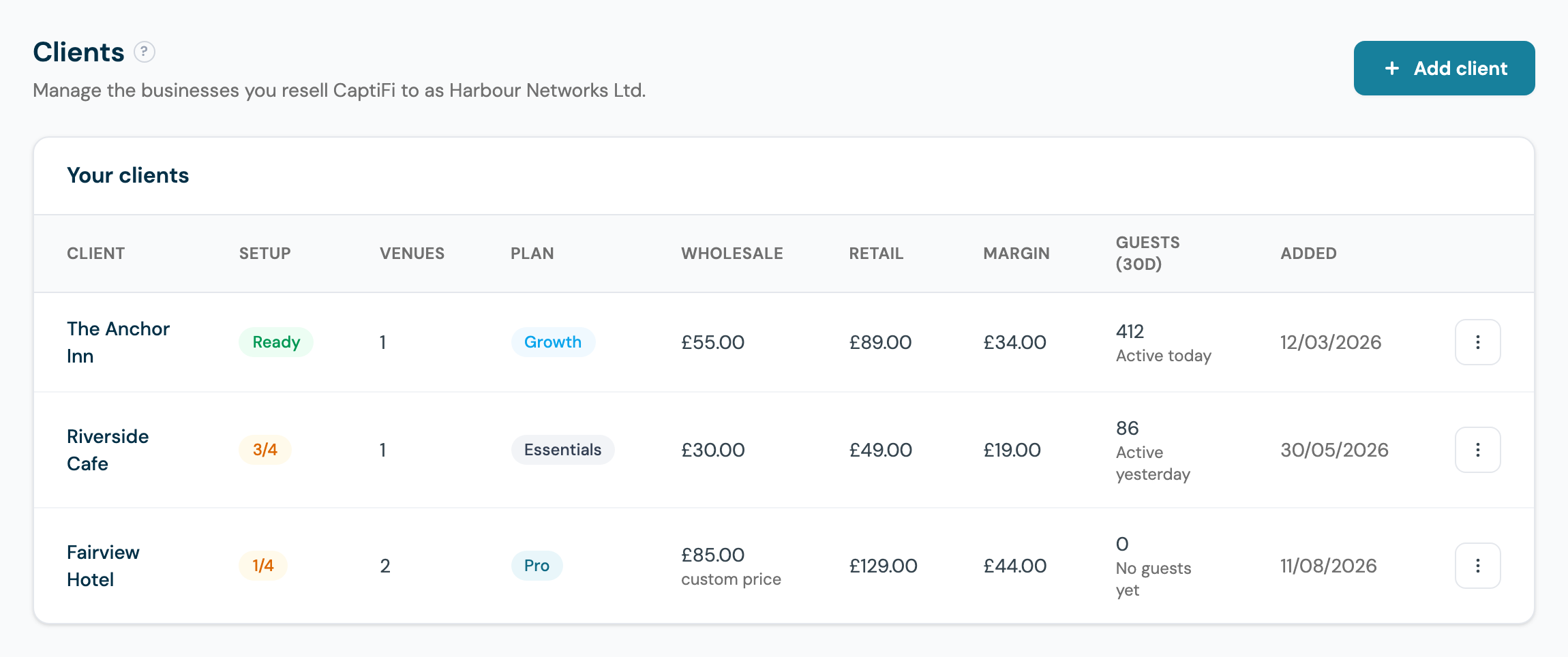
Reading the Client List
One row per client business:
- Setup: a pill showing go-live progress, explained under Going Live below. Green Ready means fully live; an amber count like 3/4 means work remains.
- Venues: how many locations the client has.
- Plan, Wholesale, Retail and Margin: the CaptiFi plan you have put the client on, what CaptiFi bills you for them, what you have recorded as charging them, and the difference you keep. In the example, The Anchor Inn is on Growth: £55.00 wholesale, £89.00 retail, £34.00 margin every month.
- Guests (30d): guest connections in the last 30 days and when the venue was last active. A client showing "No guests yet" may need help finishing their WiFi setup.
- Added: when you created the client.
The Client Lifecycle, Start to Finish
Step 1: Add the Client
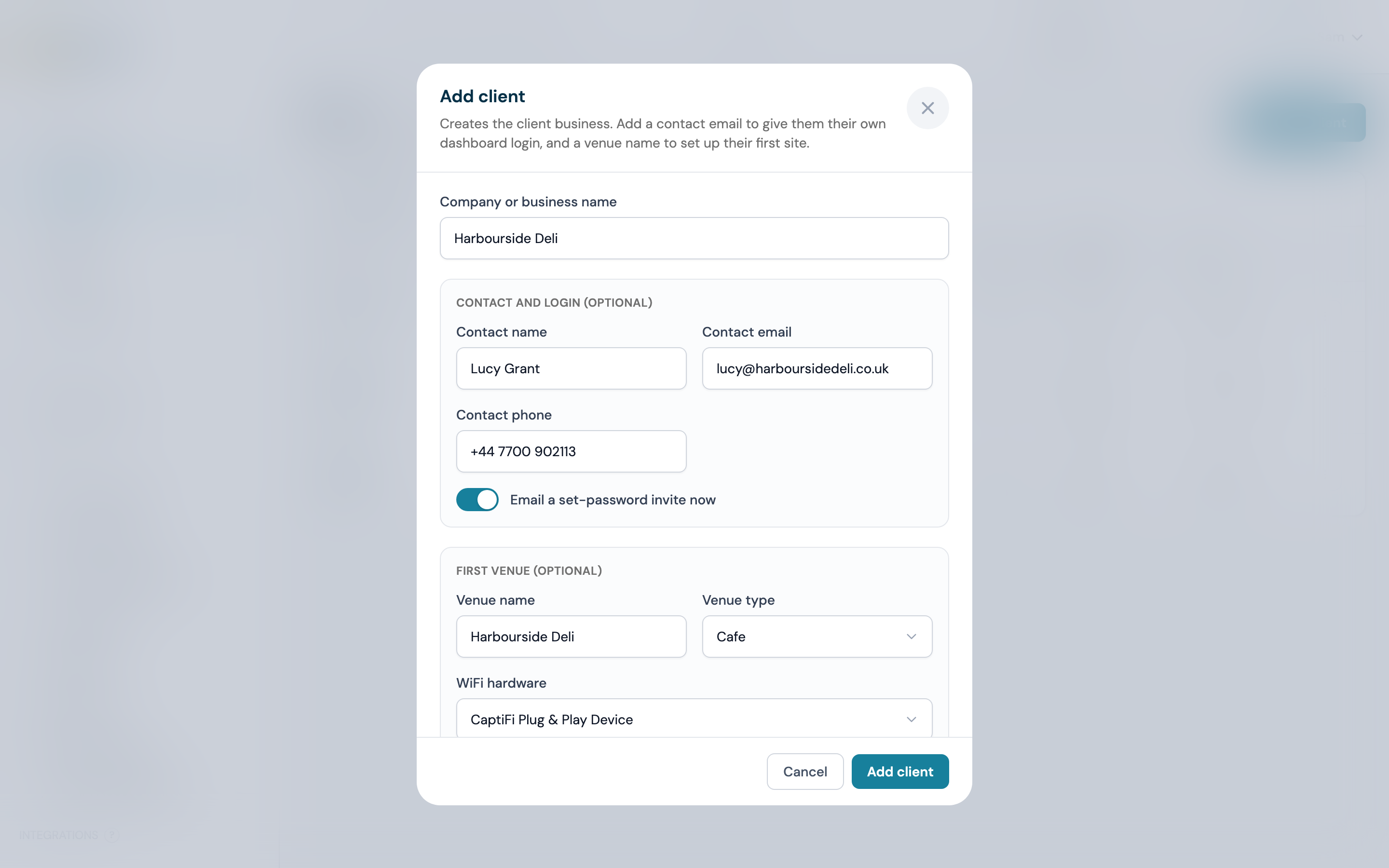
- Click Add client (top right)
- Enter the Company or business name (required)
- Optionally add a contact name, email and phone. Adding an email creates a dashboard login for your client
- Optionally name their first venue, pick a venue type, and choose their WiFi hardware: a CaptiFi Plug & Play device (default) or a controller platform such as UniFi, Omada, Aruba, Meraki, Cisco or Ruckus. Controller venues start in Setup Required state, ready to connect from the venue page. You can add more venues later
- Optionally pick a plan and record the monthly retail price you charge the client
- Leave Email a set-password invite now on to send the client a link to set their password, or turn it off and use Send invite later
Won the client through a splash page demo? Use Convert to client on the demo instead: the form opens prefilled and the demo's splash design carries onto the new venue.
Step 2: Set the Plan and Your Retail Price
The plan sets your wholesale cost from your rate card: Essentials £30, Growth £55 or Pro £95 per month with the first venue included, plus £15 per month for each additional venue. The retail price is yours to set, is recorded for your own margin tracking, and is what you invoice the client for: CaptiFi never bills your clients anything. Open the actions menu on a client row and choose Edit client any time to change the client's name, plan, retail price or your notes.
Wholesale prices are managed by CaptiFi, so the numbers you see always match what you are billed. If you have agreed a custom wholesale price for a specific client with your account manager, it shows with a "custom price" marker, like Fairview Hotel in the screenshot above. Your monthly totals and margins roll up on the Earnings page.
Step 3: Invite Their Login
Client logins are created without a usable password. The Send invite button on each client row emails the contact a set-password link. Use it again any time a client needs a fresh link. A login is optional: plenty of partners run fully managed venues where the client never logs in at all.
Step 4: Order or Connect Hardware
For CaptiFi Plug & Play venues, order the device from the client's detail page with Order device: pick the venue, enter the delivery address, and the order goes to the CaptiFi warehouse. Hardware is billed through your partner agreement, not charged to a card at order time. Track every order on the client's detail page and at the bottom of your fleet Overview:

Each order shows its status as it moves from pending through shipped to delivered, with the courier and tracking number once it ships, so "where is my router" is always one glance away.
For controller venues (UniFi, Omada, Aruba, Meraki, Cisco, Ruckus), no CaptiFi hardware ships: open the venue's page and follow the connection steps for the client's platform, using the setup guides for the controller in question.
Step 5: Going Live, the Setup Pill
Each client row's setup pill tracks the four go-live steps: venue created, device online, splash page live, and first guest connected. Hover an amber count like 2/4 for a tooltip listing exactly what is still to do. In the screenshot above, The Anchor Inn is fully Ready, Riverside Cafe is one step short, and newly added Fairview Hotel has only its venues created so far: reading the pills top to bottom is your installation to-do list. Once the first guest connects, the client is live and starts appearing meaningfully in your fleet health view.
Suspending and Removing Clients
From the actions menu on each client row:
- Suspend client locks the client's dashboard logins on both dashboards. Their venue WiFi and splash pages keep working for guests, so suspension is safe to use in a billing dispute: you switch off their access to the dashboard, not their guests' WiFi. Use Resume client to restore access.
- Remove client offboards a client completely. If the client still has venues, tick Also delete their venues in the confirmation to take their splash pages offline as part of the removal (guest data is retained). The client's login is locked and they disappear from your list. Contact support if you need a removed client restored.
Working on a Client's Venues
You keep full management access to every client venue from your own account: their guest data, analytics, splash pages and devices are all available in your normal dashboard pages, alongside your own venues.
When your dashboard is scoped to a single client's venues, a banner at the top of my.captifi.io shows which client you are viewing, with a View all clients button to widen back out.
What Your Client Sees
A client with a login signs in at my.captifi.io like any CaptiFi customer, but scoped to their own venues only. They see no billing pages, no CaptiFi pricing and no other clients: where a normal customer would see plans and payment settings, your client sees a note that billing is handled by their service provider, meaning you. You keep full management access to every client venue from your own account. White-label partners can go further and put their own logo and colours on everything the client sees: see White Label Setup.
Device Alerts for Client Venues
When a CaptiFi device at a client venue goes offline (or comes back online), a copy of the alert email is sent to your partner support inbox as well as any venue users who have alerts enabled. To set or change your partner support email, contact support or your account manager: for white label partners it is set as part of your branding (see White Label Setup).
Your Margin, Worked Through
Take The Anchor Inn from the screenshots. You put them on Growth, so CaptiFi bills you £55 for the month. You invoice them £89, CaptiFi's published price for the same plan, so you keep £34. Riverside Cafe on Essentials works the same way: £30 wholesale, £49 retail, £19 kept. Two small venues, £53 of recurring margin per month, before you charge for installation, a support contract, or set your own prices above list. Every client you add compounds it, and the Earnings page totals it live.
White Label Branding
White Label partners can put their own identity on the dashboards, guest emails and reports their clients see, remove the Powered by CaptiFi credit from splash pages, and connect a custom dashboard domain. The full walkthrough is in White Label Setup.