
Appearance
Partner Staff
Give your technicians and account managers their own CaptiFi logins instead of sharing one. Staff work across your whole partner account: your clients, demos and fleet, while the sensitive controls (managing staff, payout details) stay with the account owner.
This is different from the venue-level Team page under Account, which gives someone access to a single venue's dashboard. Staff here work across your whole partner account.
Where to Find It
- Log in to my.captifi.io
- Go to Partner → Staff in the sidebar
Managing Your Staff
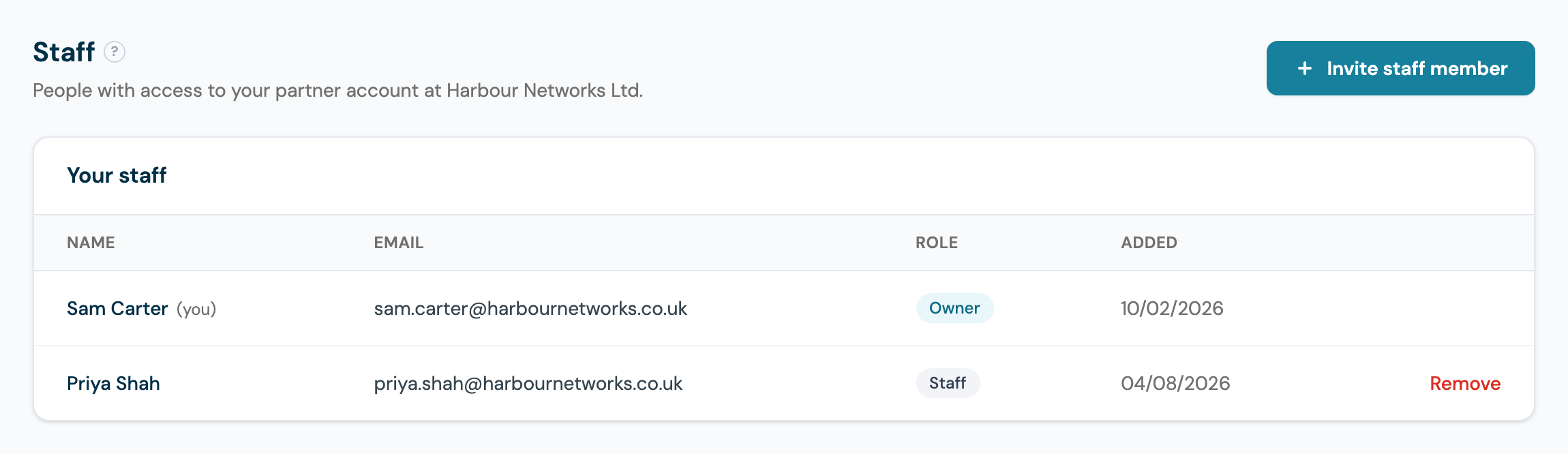
- Invite a staff member with their name and email; they receive a set-password link and sign in with their own credentials.
- Remove a staff member to disable their access immediately. Re-inviting the same email restores it.
- Everyone you invite joins as Staff. There is exactly one Owner: the owner cannot be removed, and only the owner can manage staff.
The list shows each person's role and when they were added, as in the screenshot above: one owner, and a Remove action against each staff seat.
Owner vs Staff: Who Can Do What
| Capability | Owner | Staff |
|---|---|---|
| Fleet Overview, health and alerts | Yes | Yes |
| Clients: add, edit, invite, suspend, remove | Yes | Yes |
| Order devices for client venues | Yes | Yes |
| Demos: generate, send, convert | Yes | Yes |
| Referrals (referral accounts): view and register | Yes | Yes |
| Earnings: view statements and margins | Yes | Yes |
| Invite or remove staff | Yes | No |
| View or change payout details | Yes | No |
| Partner subscription and agreement with CaptiFi | Yes | No |
In short: staff can run the day-to-day partner business end to end, and everything about money leaving or entering your accounts stays with the owner. Payout details are invisible to staff logins, not just locked.
Staff never see any billing prompts of their own: your staff ride your partner agreement with CaptiFi.
Good Habits
- Give every technician their own seat rather than sharing the owner login: removals then revoke one person's access, not everyone's password.
- If a staff member leaves, Remove them the same day: their login stops working immediately.
- Keep the owner seat on a role account you control (such as an owner or director mailbox), since it holds the payout details and the staff list.