
Appearance
How to set up the Google Reviews integration with CaptiFi
Follow every step below and CaptiFi will email your WiFi guests after their visit, send the happy ones straight to your Google listing, and catch the unhappy ones privately before they post.
Time needed: about 10 minutes.
What this integration does
- A guest signs in to your WiFi through your splash page
- After a delay you choose, CaptiFi emails them a review request
- The guest picks a star rating in the email
- 4 or 5 stars sends them straight to your Google Business listing, ready to review
- Below your threshold opens a private feedback form instead, and the feedback lands in your dashboard rather than on Google
Before you start
- A Google Business Profile for your venue
- A CaptiFi plan that includes integrations (Growth or above)
- A splash page that collects an email address
- Your sending domain verified, so the emails do not land in spam. See Email Marketing settings
Part 1: Find your Google Place ID and review link
Step 1: Look up your Place ID
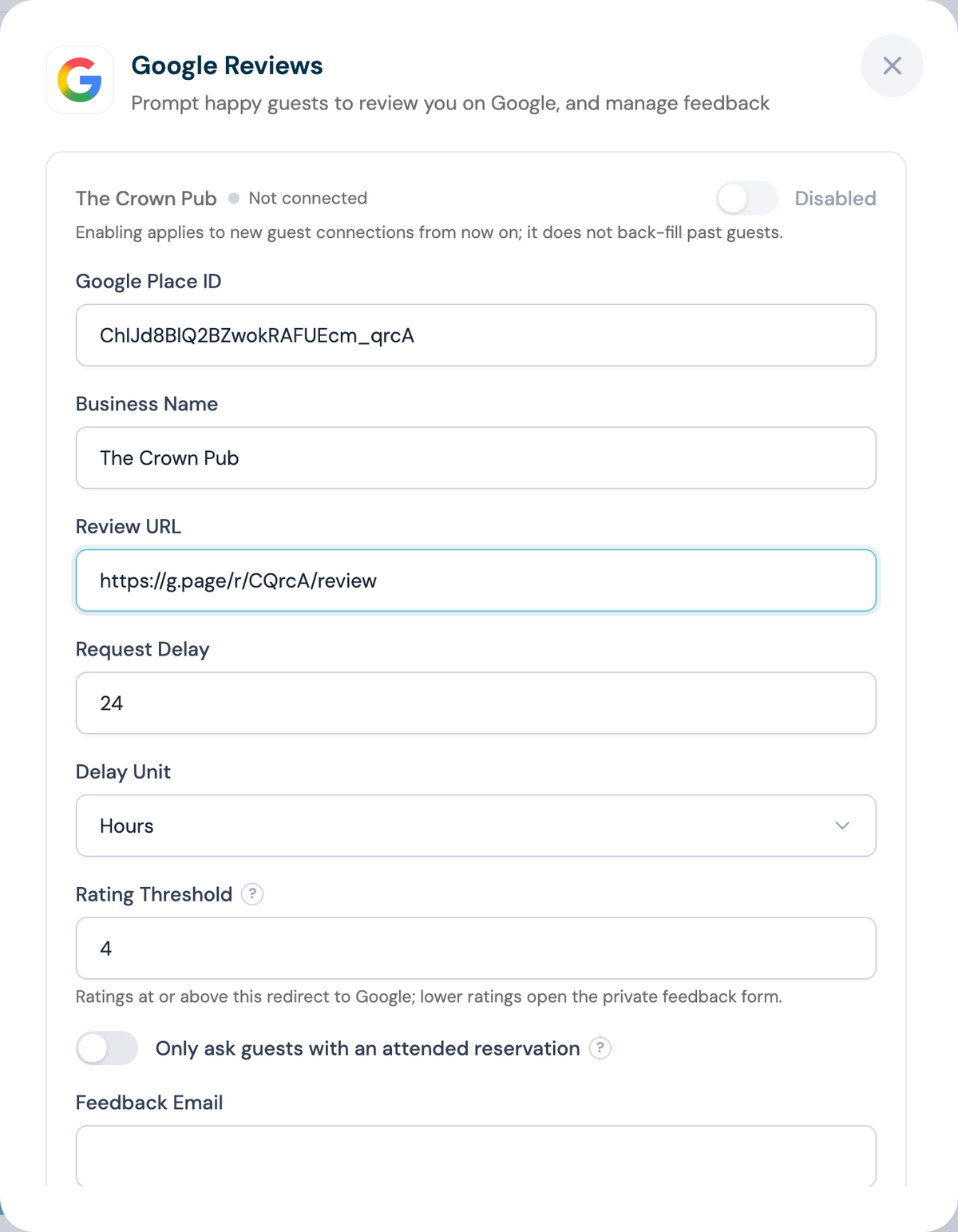
Open Google's free Place ID finder, type your venue name and address, and click your business on the map. Google shows a Place ID that looks like ChIJd8BlQ2BZwokRAFUEcm_qrcA. Copy it.
Step 2: Get your review link
In Google Business Profile, open your venue and click Ask for reviews. Google gives you a short link such as https://g.page/r/CQrcA/review. Copy it.
We can find these for you
If you cannot find either value, contact CaptiFi support with your venue name and address and we will fill them in for you.
Part 2: Configure Google Reviews in CaptiFi
Step 3: Open the Reviews page
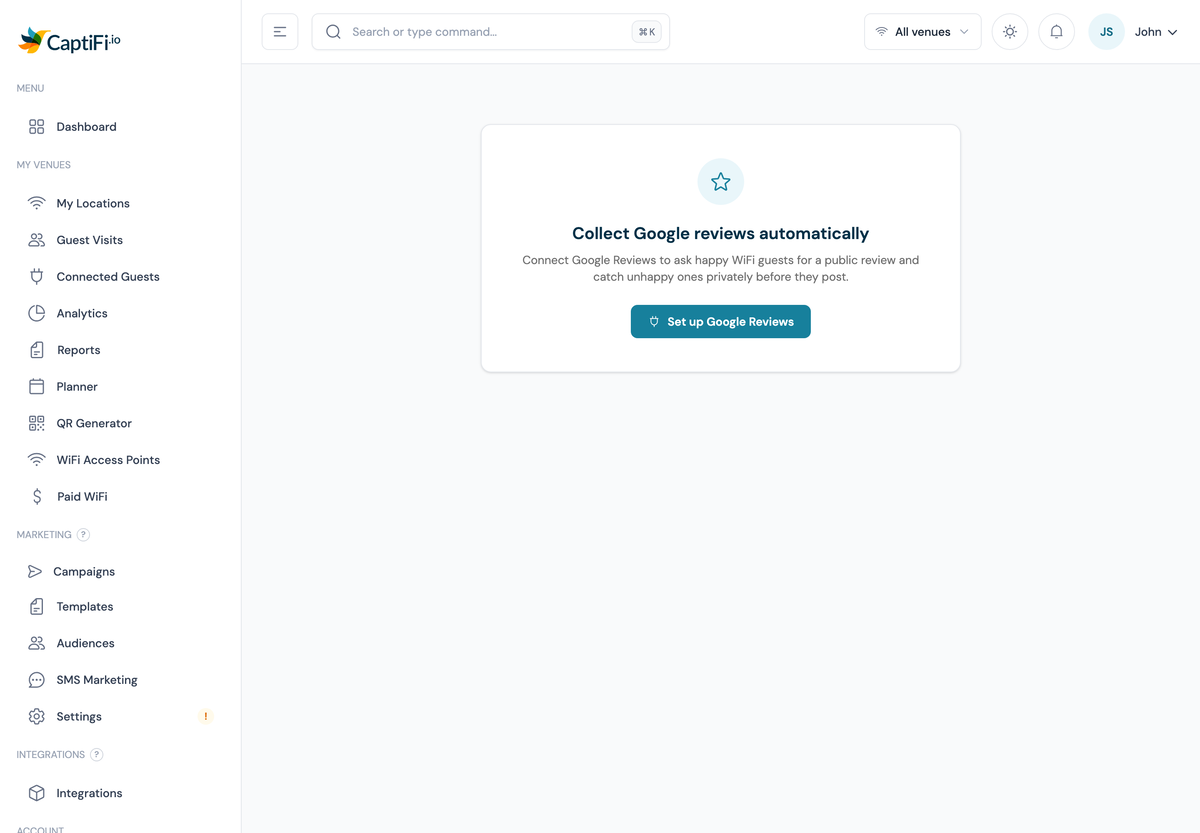
Log in to my.captifi.io and click Reviews in the sidebar. Until the integration is set up you see the prompt below.
Step 4: Open the Google Reviews card
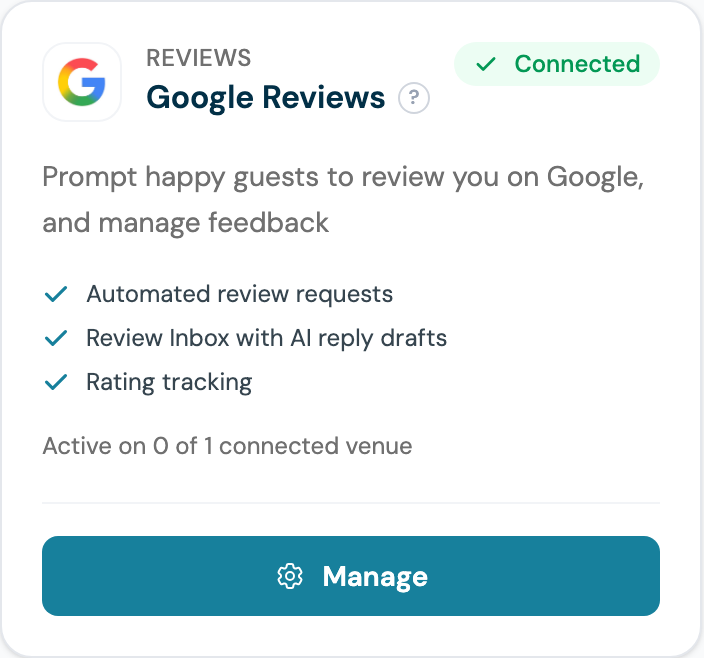
Click Set up Google Reviews, which takes you to Integrations. Find the Google Reviews card and click Manage.
Step 5: Enter your Google Business details
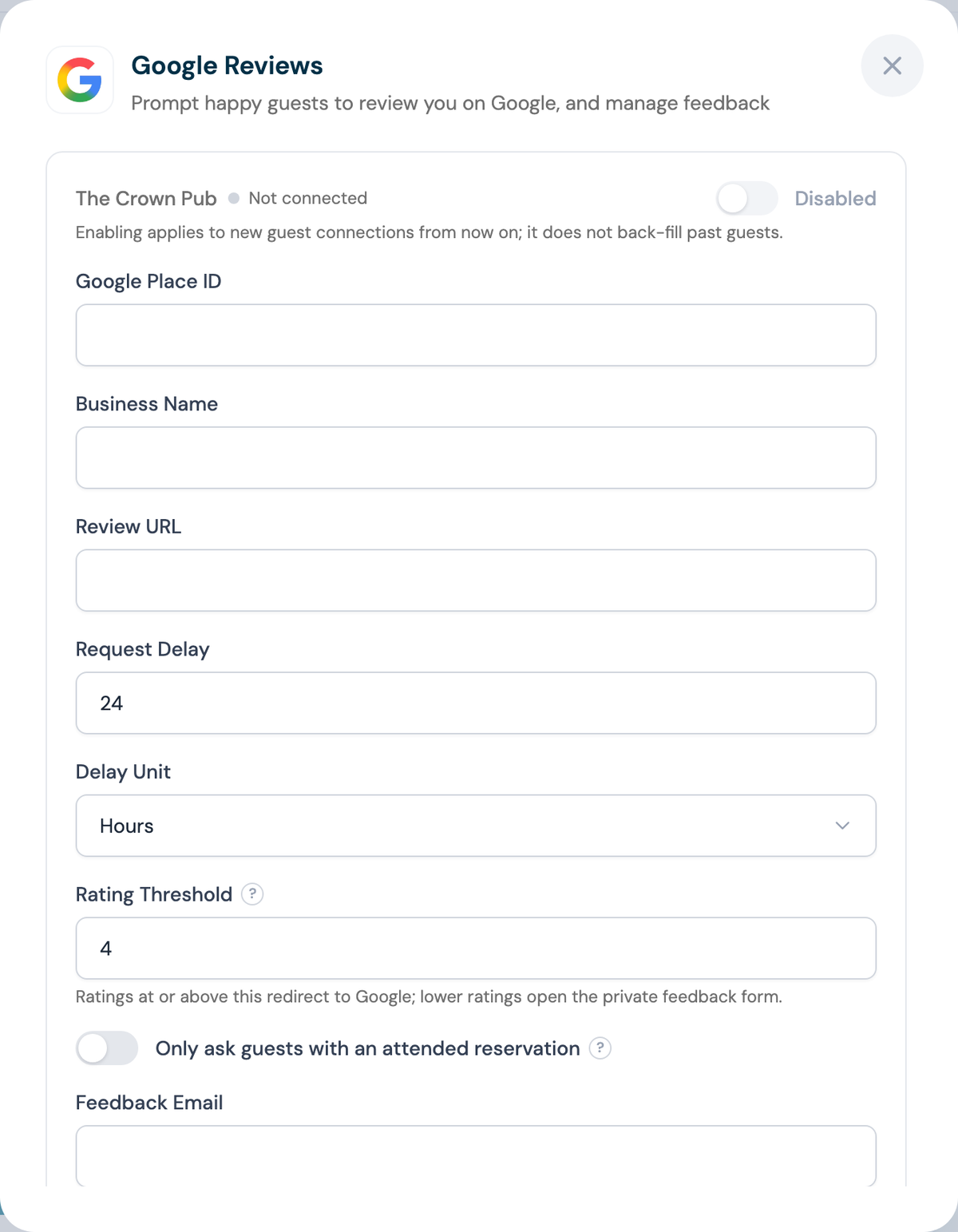
Paste the values from Part 1:
- Google Place ID from Step 1
- Business Name exactly as it appears on your listing
- Review URL from Step 2
Step 6: Set the request delay
Set Request Delay and Delay Unit to control how long after the visit the email goes out. Two to four hours works best: the visit is still fresh, and the guest has left.
Step 7: Set the rating threshold
Rating Threshold decides who is sent to Google. The default of 4 means guests rating 4 or 5 go to your Google listing, and anyone rating 3 or below gets the private feedback form.
Step 8: Set your email addresses
- Feedback Email is where low-rating feedback notifications are sent, usually the venue manager
- From Email is the address guests see the request from; use a verified sending domain
Step 9: Optional, restrict to attended reservations
Switch on Only ask guests with an attended reservation if you only want to ask guests who actually turned up for a booking, rather than every WiFi user.
Step 10: Send yourself a test email
Put your own address in Send test email to and click the test button. Check the wording, the star buttons and that the Google link opens your listing.
Step 11: Save and enable
Click Save, then switch the venue toggle to Enabled.
Part 3: Test it end to end
Step 12: Sign in as a guest
Forget the WiFi on a phone, reconnect, and complete the splash page with a real email address.
Step 13: Wait for the delay, then check both paths
When the email arrives:
- Click 4 or 5 stars and confirm you land on your Google listing
- Repeat with a second test guest, click 1 to 3 stars, and confirm the private feedback form appears and the feedback shows under Reviews in your dashboard
Best practice
- Time it well. Two to four hours after the visit, while the experience is fresh
- One call to action. Do not add offers or newsletters to the review email
- Do not over-ask. CaptiFi limits requests per guest; leave that in place
- Keep the threshold at 4. Routing 3-star guests to private feedback protects your public rating and gives you something you can act on
Troubleshooting
No review emails are being sent - check the venue is Enabled, that your splash page collects email addresses, and that the delay has actually elapsed.
Emails land in spam - your sending domain is not verified. Set it up under Email Marketing settings.
The Google link opens the wrong business - the Place ID belongs to another listing. Repeat Step 1 and pick your venue carefully, then re-save.
Guests report a broken review link - re-copy the link from Ask for reviews in Google Business Profile; Google occasionally reissues it.
Low open rates - shorten the delay so the email arrives while the visit is fresh.