
Appearance
Google Reviews & Customer Feedback
CaptiFi turns WiFi guests into Google reviews. After a guest connects, they receive a branded email asking them to rate their experience: high ratings are directed to your Google review page, while lower ratings go to a private feedback form so you can fix issues before they become public.
Setting It Up
Setup happens on the Integrations page; day-to-day results appear under Reviews in the sidebar, which holds two tabs: Inbox (your public Google and TripAdvisor reviews) and Guest feedback (the ratings and private comments guests leave on your splash page).
- Log in to my.captifi.io
- Go to Integrations and open the Google Reviews card (click Configure)
- Pick the venue you want to configure — each venue links to its own Google Business Profile
- Enter your Google Business details for that venue (business name, Google Place ID, and review link). The classic dashboard at app.captifi.io can find these for you by searching your business name, or ask support and we'll set it up with you
- Configure your settings:
- Delay before the review request email is sent (e.g. 2-24 hours after the guest connects)
- Minimum star rating for sending guests to Google (default: 4 — guests rating below this see the private feedback form)
- Feedback email address — where low-rating notifications are sent
- Use Send test email to see exactly what guests will receive
- Enable the integration and save
Prerequisites
Your venue needs a verified Google Business Profile (business.google.com), your splash page must collect email addresses, and your sending domain should be verified under Email Marketing → Settings.
How the Smart Routing Works
- A guest connects to your WiFi and their email is captured
- After your chosen delay, they receive a branded email asking them to rate their visit (1-5 stars)
- At or above your threshold (default 4-5 stars): they're taken straight to your Google review page to post publicly
- Below your threshold (default 1-3 stars): they see a private feedback form instead — the feedback comes to you, not Google
- Guests aren't asked again within the frequency window, so regulars aren't pestered
If you use Reservation Check-in (an optional feature, switched on under Dashboard features on the Integrations page), you can additionally switch on Only ask guests with an attended reservation in the Google Reviews settings. Review requests are then held back unless the guest matched an attended reservation, so no-shows are never asked to review a visit that did not happen. While Reservation Check-in is switched off this setting is ignored and review requests go out as normal.
A note on review gating
CaptiFi asks every guest for feedback equally — the routing happens after the guest has already given their rating, and the private feedback form always includes links to review you publicly as well, whatever the rating. Review solicitation rules vary by platform; check Google's current policies for your situation.
TripAdvisor Review Prompts
You can prompt happy guests to review you on TripAdvisor as well as (or instead of) Google:
- Go to Integrations and open the TripAdvisor Reviews card with Manage.
- In TripAdvisor Listing URL, paste the address of your venue page on tripadvisor.com. It contains a "-d" segment such as
...-d1234567-.... You can copy it straight from your browser's address bar on your TripAdvisor page. - Choose where happy guests are sent under Happy guests review on:
- Google only (the default)
- TripAdvisor only
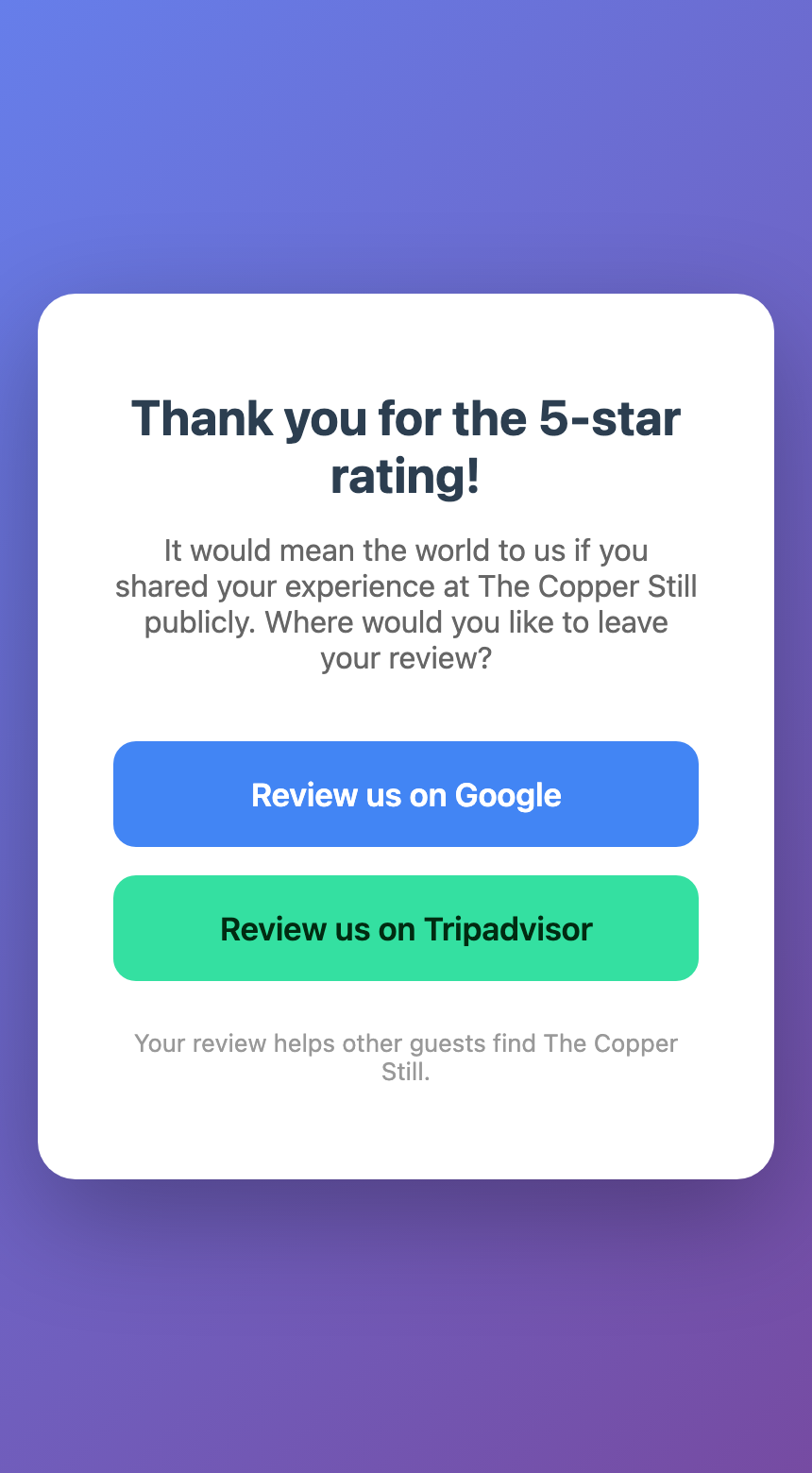
- Let the guest choose: guests whose rating meets your threshold see a simple page with both a Google and a TripAdvisor button
- Click Save. Use Send test email to try the flow on yourself before guests see it.
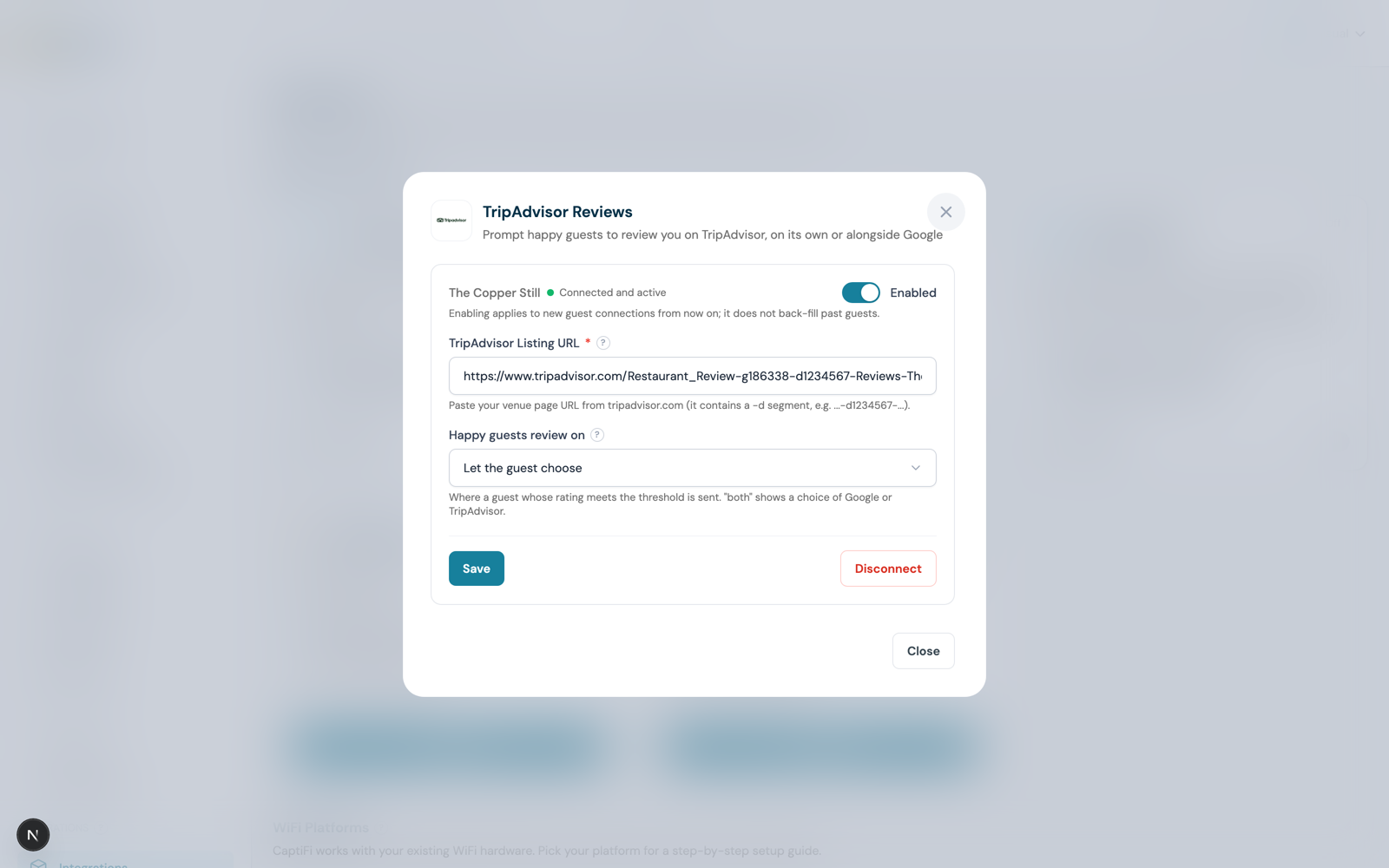
No TripAdvisor account connection or API key is needed for prompts: the guest is simply taken to your public TripAdvisor listing to write their review.
With Let the guest choose switched on, this is what a happy guest sees on their phone after rating you highly:
Review Inbox
The Review Inbox brings your latest Google and TripAdvisor reviews into the dashboard, with AI-drafted replies you can copy and post in one click. Available on the Growth plan and above.
Find it under Reviews on my.captifi.io, on the Inbox tab, or under Integrations, Review Inbox on the classic dashboard.
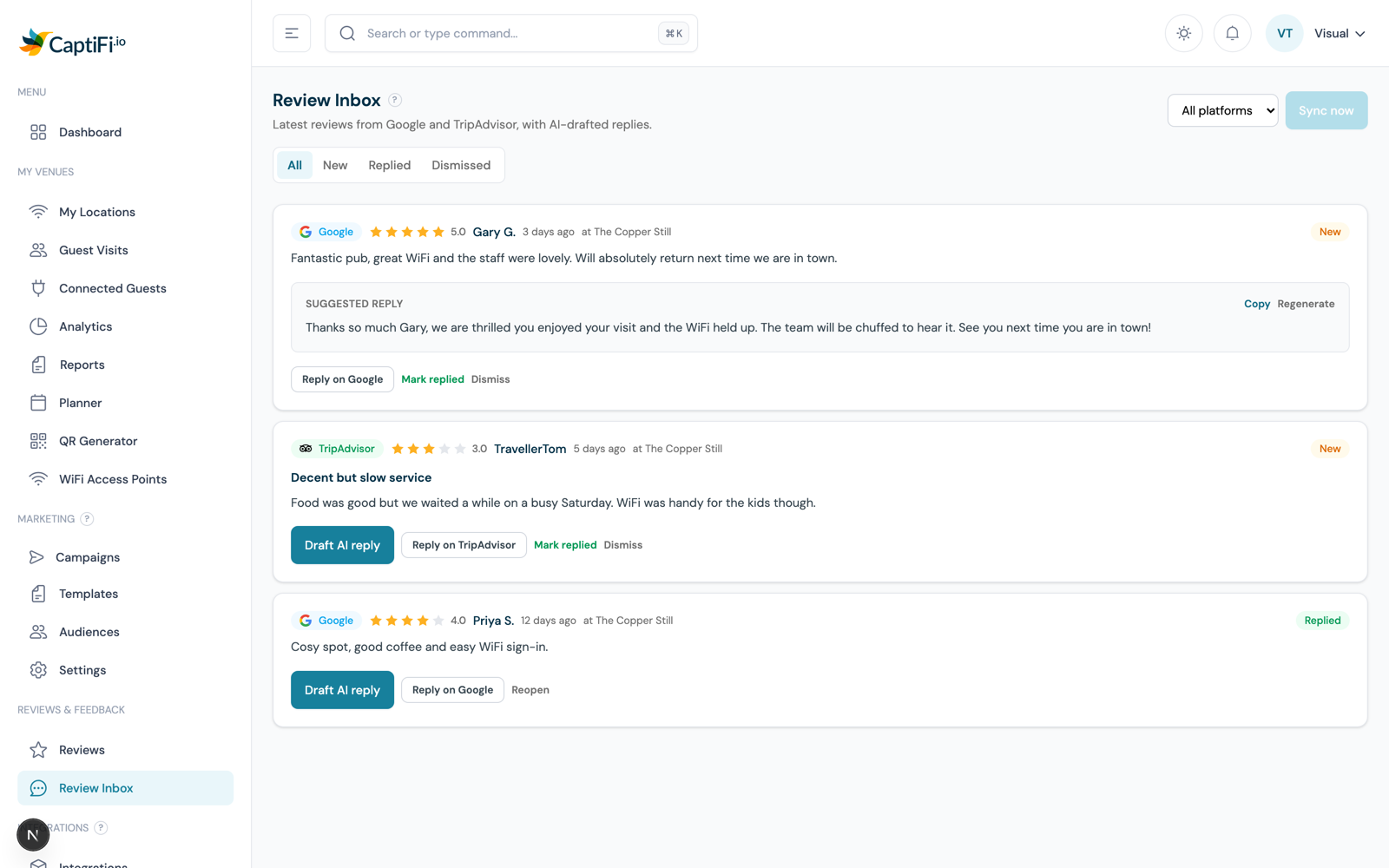
What it does:
- Syncs your most recent reviews from Google (using your Google Place ID) and TripAdvisor (using your listing URL). Reviews refresh automatically every day, and you can pull the latest at any time with Sync now.
- Drafts a reply with AI: click Draft AI reply on any review and CaptiFi writes a short, warm owner response that references what the guest actually said. Regenerate it if you want a different angle, then Copy it.
- Deep links to reply: the Reply on Google / Reply on TripAdvisor button takes you straight to the platform's reply screen, where you paste the draft and post it. CaptiFi never posts anything on your behalf.
- Tracks your progress: mark reviews Replied or Dismiss them, and filter by New, Replied or Dismissed so nothing slips through.
Why copy and paste?
Neither Google nor TripAdvisor allows third-party tools to post owner replies through the APIs CaptiFi uses, so the inbox gets you to one click away: draft ready, reply page open. Posting from your own account also keeps your replies verifiably yours.
Recommended Timing by Venue Type
| Venue Type | Delay | Why |
|---|---|---|
| Café / coffee shop | 1-2 hours | Request while the visit is fresh |
| Restaurant | 2-3 hours | After the meal is finished |
| Bar / pub | 3-4 hours | Later in the visit |
| Hotel / B&B | 24-48 hours | After checkout |
| Gym / fitness | 2-4 hours | After the session |
Monitoring Results
Once configured, Reviews appears in the sidebar. Open the Guest feedback tab for everything your guests submitted on the splash page:
- KPI cards — Average rating, Total reviews, and the share Sent to Google
- The feedback table — every rating collected: guest, stars, written feedback (for private submissions), status (Sent to Google / Private feedback / Rated), venue, and date
- Rating filter — focus on 1-star issues or celebrate the 5-star run
Acting on Private Feedback
| Rating | Suggested action |
|---|---|
| 1-2 stars | Investigate promptly; consider reaching out to the guest directly to resolve it |
| 3 stars | Look for recurring themes — easy wins that push future visits to 4+ |
Troubleshooting
| Issue | Cause | Solution |
|---|---|---|
| Reviews page not in sidebar | Integration not configured | Set it up under Integrations → Google Reviews |
| Venue not found in search | Google listing unverified | Verify and publish at business.google.com |
| No review emails sending | Integration disabled, or emails not collected | Enable it on the Integrations page; make sure your splash page collects email addresses |
| Regular guest didn't get an email | Frequency window | Expected — guests aren't re-asked within the frequency window |
| Emails landing in spam | Sending domain not verified | Verify your domain under Email Marketing → Settings |
| All guests going to private feedback | Genuine satisfaction issues, or threshold too high | Read the feedback for root causes; check your minimum star rating setting |
FAQ
Does CaptiFi post reviews on Google for guests? No. Happy guests are sent to your Google review page, but they write and submit the review themselves.
Can I use this at multiple venues? Yes — each venue connects to its own Google Business Profile with its own settings.
Can guests be sent review requests by SMS? Guest SMS is handled by the Twilio integration — see SMS.
Related Features
- Integrations Hub — where Google Reviews is configured
- Google Reviews via WiFi — strategy guide with copy examples
- Email Campaigns — one-off review pushes to past guests