
Appearance
Partner Fleet Overview
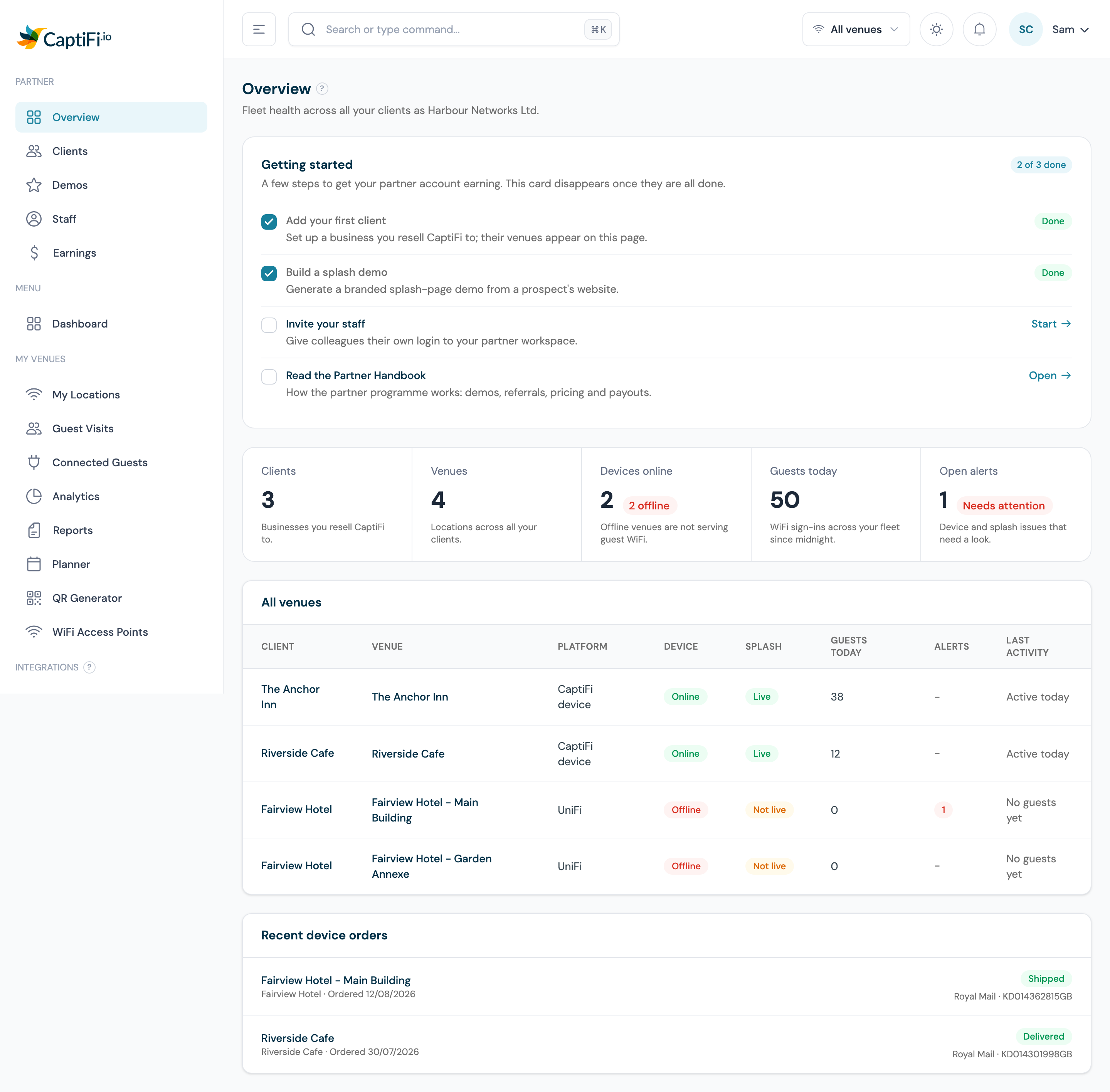
The Overview page is the partner's single pane of glass: every client venue's live health in one table, so you spot problems before your clients call. It is the first page you land on in the Partner section, and for most partners it is the page worth checking each morning.
Where to Find It
- Log in to my.captifi.io
- Go to Partner → Overview in the sidebar
The Fleet Totals
Five tiles across the top summarise your whole client base:
- Clients: how many businesses you resell CaptiFi to. In the example above, Harbour Networks Ltd has 3 clients.
- Venues: locations across all your clients. One client can have several venues, so this number is usually higher: here, 4 venues across 3 clients.
- Devices online: how many venues have working WiFi hardware right now, with an offline count alongside when something is down. Offline venues are not serving guest WiFi, so treat any offline count as today's to-do list.
- Guests today: WiFi sign-ins across your whole fleet since midnight. A healthy fleet keeps this moving every day; a sudden drop at one venue usually shows up here first.
- Open alerts: device and splash page issues that need a look, such as a splash page that stopped authorising guests. Zero is normal.
The All Venues Table
Below the totals, one row per venue across every client:
- Client and Venue: which business and which location. Multi-venue clients appear once per venue, such as Fairview Hotel's Main Building and Garden Annexe above.
- Platform: the WiFi hardware serving the venue, either a CaptiFi device or a controller platform such as UniFi. Controller venues count as online once their controller connection is working.
- Device: whether the venue's hardware is online right now.
- Splash: whether the venue's splash page is live and collecting guest sign-ins.
- Guests today: sign-ins at that venue since midnight.
- Alerts: open WiFi health alerts for the venue.
- Last activity: when a guest last connected, so venues that have quietly gone stale stand out even when the hardware reports online.
Click any row to open that client's detail page: their venues, logins, activity and your notes, with invite and suspend actions in one place.
A useful reading of the example above: The Anchor Inn and Riverside Cafe are healthy (device online, splash live, guests connecting today), while both Fairview Hotel venues are offline with no guests yet: a brand-new client mid-installation, which is exactly what the setup pill on the Clients page tracks.
Getting Started Checklist
New partners see a Getting started card at the top of the Overview page: a short checklist of first steps matched to your programme, such as adding your first client or registering your first referral, building a splash demo, inviting your staff and reading this handbook. Each step links straight to the right page and ticks itself off as you complete it, and the card disappears once every step is done. Use it as your first-week guide: a partner who has added a client, built a demo and invited their staff has seen most of the platform.
Recent Device Orders
When you order CaptiFi devices for client venues, the newest orders appear at the bottom of the Overview page with their status, courier and tracking number, so you can answer "where is my router" without leaving the page. Order details also live on each client's detail page.
Your Partner Demo Licence
While your 6-month partner demo licence is active, a banner runs across the top of the dashboard showing the expiry date:
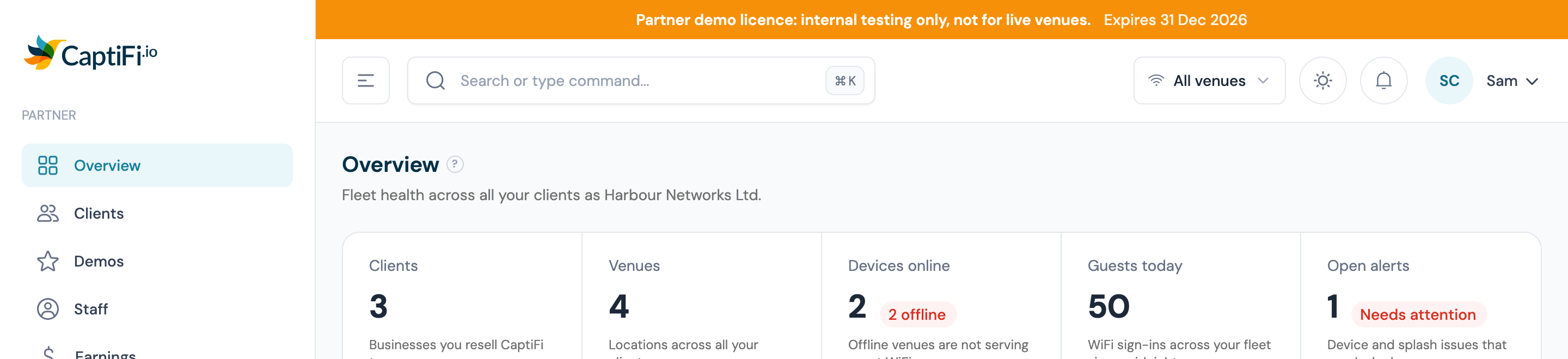
The banner is a reminder of the two licence rules: the licence venue is for internal testing and demonstrations only, never for a live client venue, and the licence expires on the date shown unless you upgrade to a paid partner arrangement. You get reminder emails 30 days and 7 days before the date, and if the licence does expire your dashboard access is paused until you upgrade: expiry never switches off guest WiFi at a live venue.
Health Digest Email
Every morning CaptiFi checks your fleet and emails your support address (or the account owner's email if no support address is set) only when something needs attention: devices offline, open alerts, or venues with no guests for a week. On Mondays you always get a full summary, even when everything is healthy. Between the digest and this page, a venue problem should never reach you via an unhappy client first.