
Appearance
White Label Setup
White label is the reseller model with CaptiFi's identity swapped for yours: your clients log in to a dashboard carrying your logo and colours, their guests receive emails in your branding, their monthly reports arrive under your name, and CaptiFi's billing never appears anywhere they look. This page covers what white label includes and how to set it up. For how the model compares with referral and plain reselling, see Partner Programme Options.
What White Label Includes
- Your brand across the dashboard: once enabled, you and your client accounts see your logo, name and colours on my.captifi.io instead of CaptiFi's, and the support page shows your contact details.
- Your brand on guest and account emails: emails that reach your clients and their guests, such as guest connection notifications, report emails, password resets and demo emails you send to prospects, carry your logo and footer instead of CaptiFi's.
- Your brand on monthly reports: the monthly PDF report your clients receive is produced under your branding (its own toggle, so you can brand the dashboards without touching reports, or both).
- CaptiFi billing hidden from clients: client accounts see no plans, prices or payment pages, only a note that billing is handled by their service provider. This is true for all partner-managed clients, white label or not, and it is what makes the invoice relationship entirely yours.
- The Powered by CaptiFi credit removed from splash pages: white label unlocks hiding the credit on your clients' guest WiFi splash pages whatever plan they are on. Turn it off per venue in the splash page editor, so you choose exactly where it disappears.
Wholesale pricing, clients, margins and the rest of the partner toolkit work exactly as they do for resellers.
Where to Set It Up
Everything is managed on my.captifi.io, on the Branding page:
- Log in to my.captifi.io
- Go to Partner → Branding in the sidebar (white-label partner accounts only)
Any active staff login can view the page, but only the partner account owner can make changes: staff see it read-only.
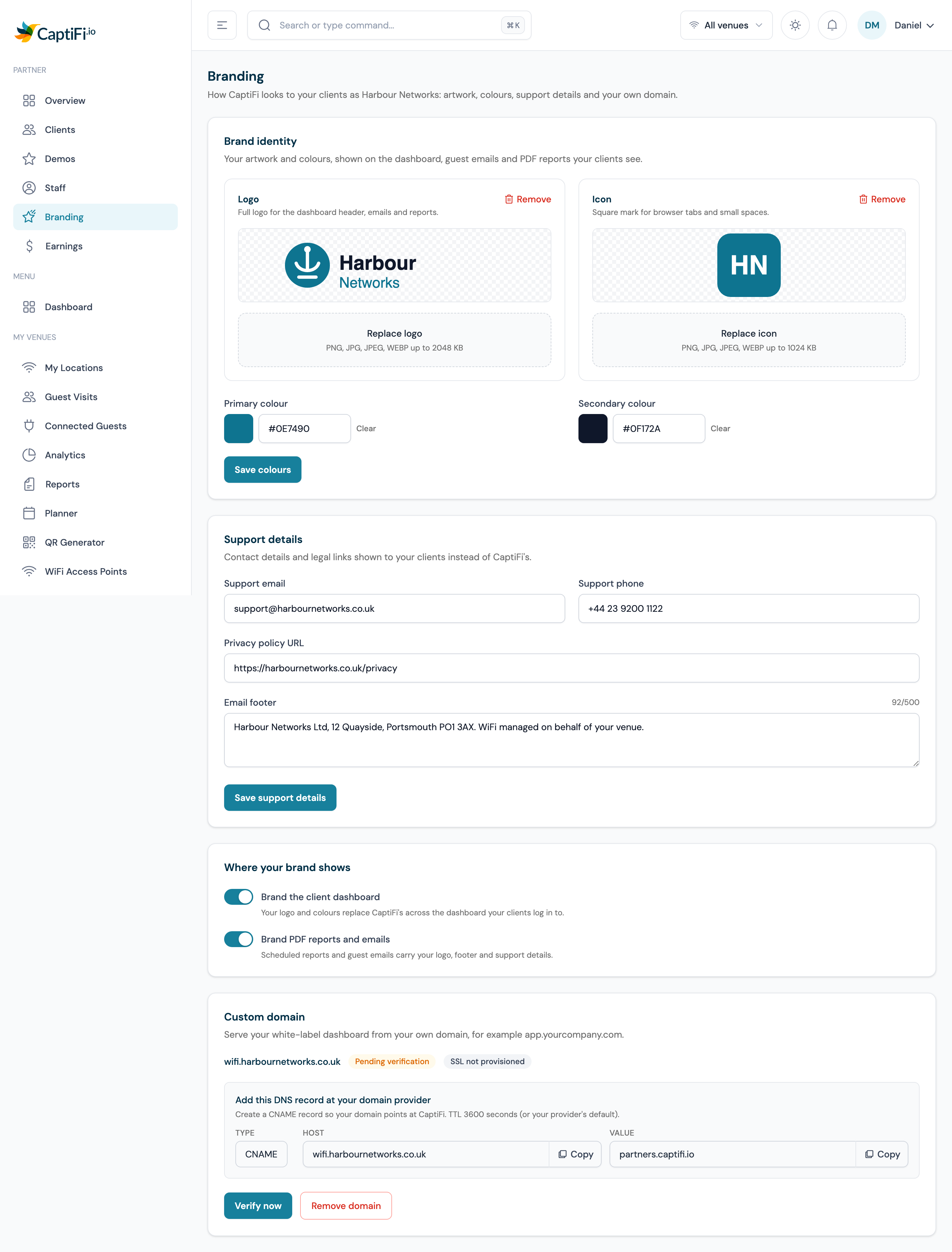
Branding Settings, Field by Field
The Brand identity section holds your artwork and colours:
- Logo: your main logo, shown in the dashboard header and on emails and reports. Upload a PNG, JPG, JPEG or WEBP up to 2048 KB, with a transparent background where possible. Replace or remove it at any time.
- Icon: a square version of your mark, used as the favicon and in small spaces. Same formats, up to 1024 KB.
- Primary and secondary colours: hex values (like #0E7490), applied to buttons, links and accents across the dashboard. Click Save colours after changing them; clear a field and save to remove that colour.
The Support details section holds the contact details and legal links your clients see instead of CaptiFi's:
- Support email and phone: where your clients' support requests and device alert copies go. This is the address the health digest and your statement emails use too.
- Privacy policy URL: your own policy, linked where CaptiFi's would otherwise appear.
- Email footer: the footer line on branded emails, typically your company name and address, up to 500 characters.
Click Save support details to apply. Finally, Where your brand shows has the two branding toggles:
- Brand the client dashboard: your logo and colours replace CaptiFi's across the dashboard you and your clients log in to.
- Brand PDF reports and emails: scheduled reports and guest emails carry your logo, footer and support details.
The toggles are independent, so you can brand the dashboard without touching reports and emails, or both. Changes apply to all your client accounts together: white label is one brand across your whole client base, not a brand per client.
Custom Dashboard Domain
You can serve the dashboard from your own domain, so clients log in at something like portal.yourcompany.co.uk rather than a captifi.io address. The whole flow lives in the Custom domain panel at the bottom of the Branding page:
- Enter a subdomain you own (for example portal.yourcompany.co.uk) and click Add domain.
- The panel shows the exact DNS record to create: a CNAME with your subdomain as the host and partners.captifi.io as the value, TTL 3600 seconds or your provider's default. Copy buttons are provided for the host and value.
- Create that record with your DNS provider, then click Verify now. If the record was already in place when you added the domain, it verifies immediately in the same step.
- Once verified, the SSL certificate is provisioned automatically and the domain goes live. Status badges on the panel show where you are: pending verification, SSL provisioning, then active.
DNS changes can take up to an hour to propagate, so if verification does not succeed first time, check the record and try again shortly. Clicking Verify now on a domain that is already live is safe. Removing a domain stops the dashboard answering on it immediately; you can add it again later, but SSL is provisioned from scratch.
Sender Domains for Guest Email
Branding covers how emails look; sender domains cover the address they come from. Each client account can verify its own sending domain under Email Marketing → Settings on the dashboard, so guest campaigns and automations send from the client's own domain rather than a captifi.io address, which also materially improves deliverability. The steps (sender identity, DNS records, verification) are in the Email Campaigns guide. For a fully white-labelled client, set up their sender domain as part of onboarding.
The Minimum Monthly Commitment
White label carries a minimum monthly commitment, agreed with your account manager when you upgrade. It works as a floor on your monthly wholesale bill: in any month where your clients' wholesale total is below the commitment, you pay the commitment; once your client base grows past it, you simply pay your wholesale total and the minimum stops mattering. Your Earnings page and monthly statement always show when the minimum has applied.
Who White Label Is For
White label earns its commitment when the brand is doing work for you:
- You already resell CaptiFi to a base of clients and support them under your own name.
- Your clients buy "your" WiFi platform, and a captifi.io login or a CaptiFi-branded guest email would raise questions.
- You want prospect demos, onboarding emails and monthly reports to reinforce your brand, not your supplier's.
If you are earlier than that, start as a reseller: the wholesale prices are the same, there is no minimum, and you can upgrade to white label when the client base justifies it. Contact your account manager to upgrade.