
Appearance
How to set up the Incentivio integration with CaptiFi
Follow every step below and opted-in WiFi guests will be added to your Incentivio guest database automatically, feeding your loyalty programme, ordering and marketing.
Time needed: about 5 minutes in CaptiFi, plus however long Incentivio takes to issue your credentials.
What this integration does
When a guest connects to your WiFi and ticks the marketing opt-in, CaptiFi sends them to Incentivio as a guest record with their email, first and last name, and phone number when they provide one. Guests are matched by email address, so a returning guest updates their existing record rather than creating a duplicate. WiFi guests then sit alongside your ordering and loyalty guests, ready for campaigns, offers and guest journey automations.
Before you start
- An Incentivio account with guest data access enabled (ask your account manager about Incentivio Connect)
- Two credentials issued by Incentivio: a Client ID and a Client Secret
- A CaptiFi plan that includes integrations (Growth or above)
Part 1: Get your Incentivio credentials
Incentivio issues API credentials through your account team rather than a self-service screen, so there is nothing to screenshot in this part.
Step 1: Ask Incentivio to enable guest data access
Contact your Incentivio account manager and ask them to enable guest data access for your brand for a server-to-server CRM integration.
Step 2: Collect your credentials
| Credential | What it looks like | Required |
|---|---|---|
| Client ID | A UUID for your brand | Yes |
| Client Secret | A long secret string; treat it like a password | Yes |
| Location ID | Identifies one location within the brand | Optional |
Multi-location brands: ask for a Location ID per venue if WiFi guests should be attributed to a specific site. Leave it blank in CaptiFi for brand-wide guests.
We can do this part for you
Contact CaptiFi support and we will liaise with Incentivio and complete the connection on your behalf.
Part 2: Connect Incentivio in CaptiFi
Step 3: Open the Integrations page
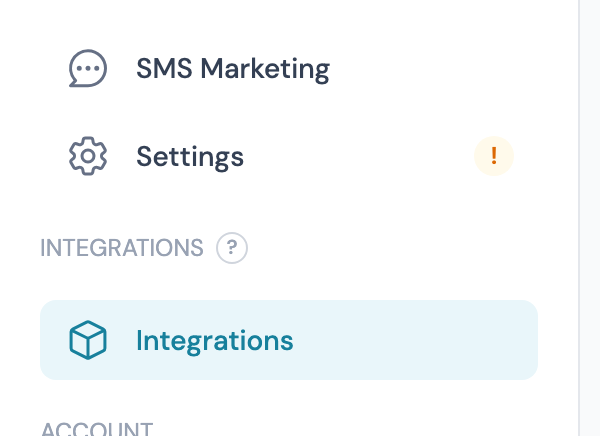
Log in to my.captifi.io and click Integrations in the left sidebar.
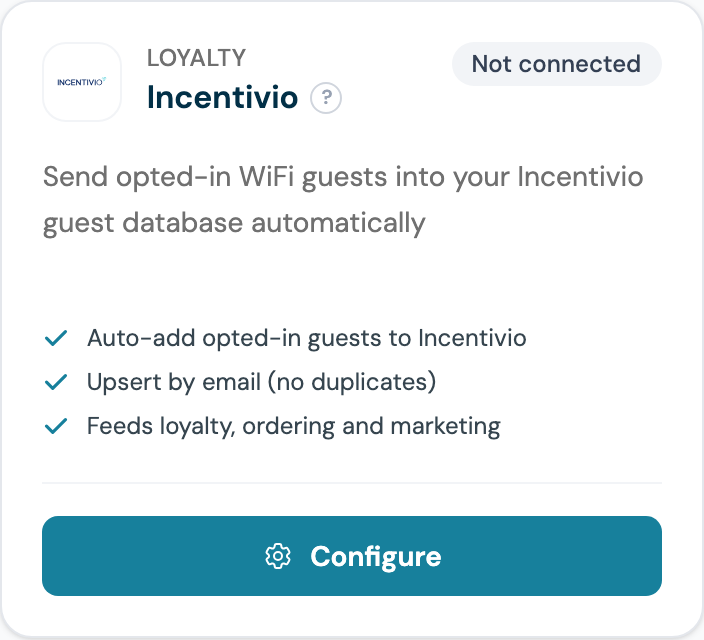
Step 4: Find the Incentivio card and click Configure
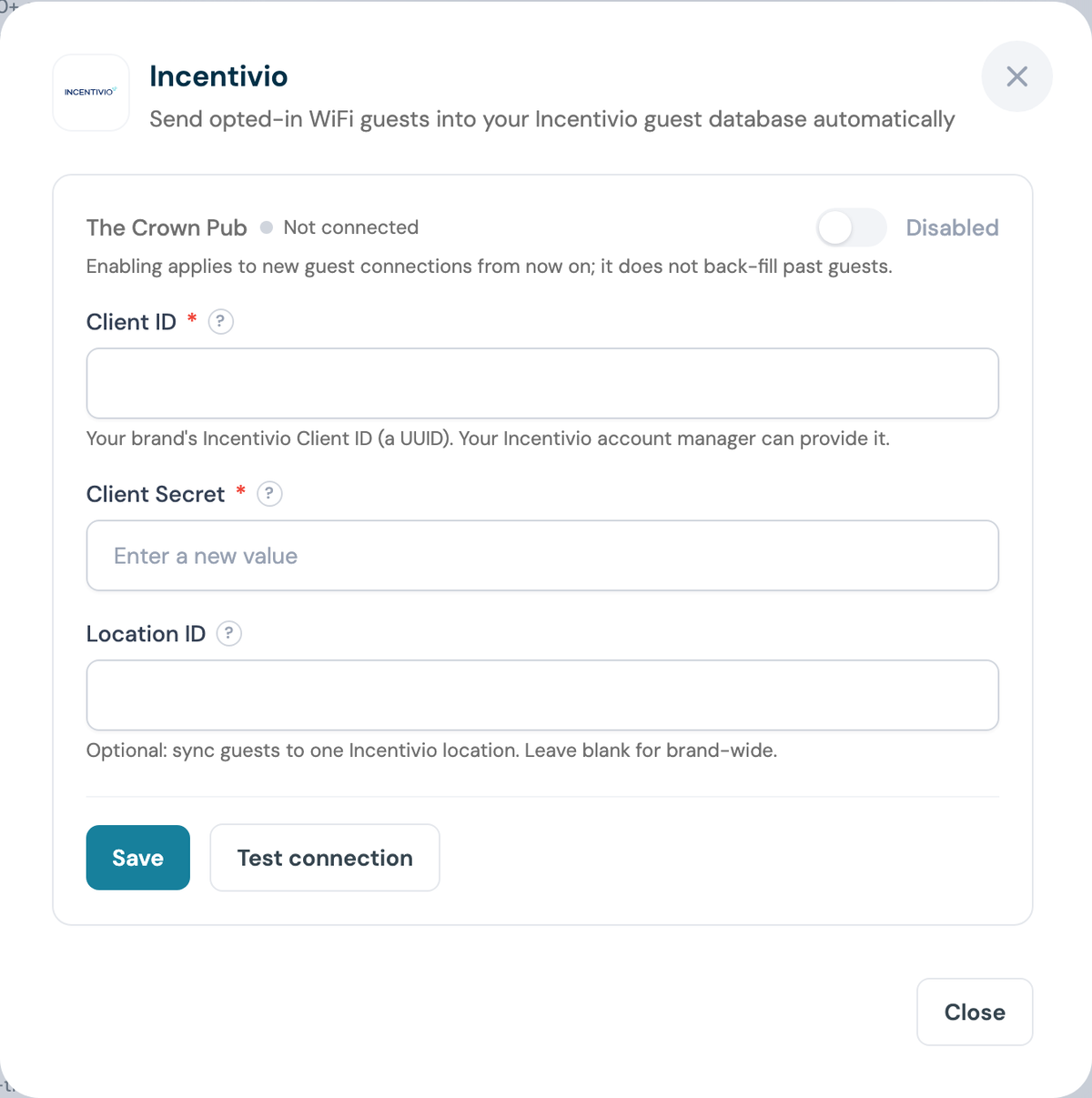
Step 5: Paste the Client ID and Client Secret
The panel shows one section per venue you manage. Both are required. The secret is write-only: once saved, CaptiFi only ever shows a masked confirmation.
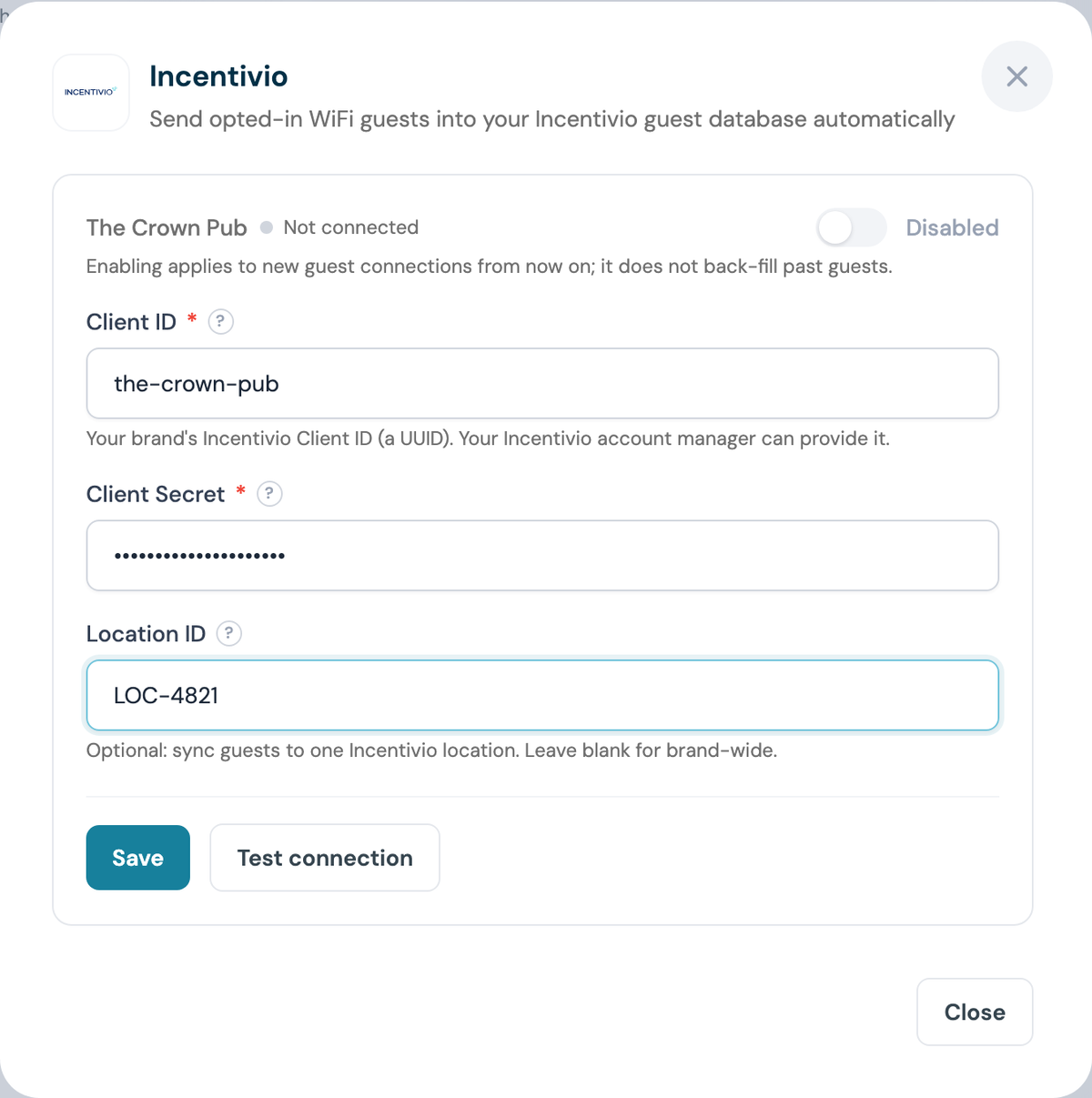
Step 6: Add a Location ID if you have one
Leave Location ID blank to sync guests brand-wide, or paste the ID for this venue.
Step 7: Click Save, then Test connection
The test authenticates against Incentivio, so credentials that have not been activated for guest data access fail here rather than silently later.
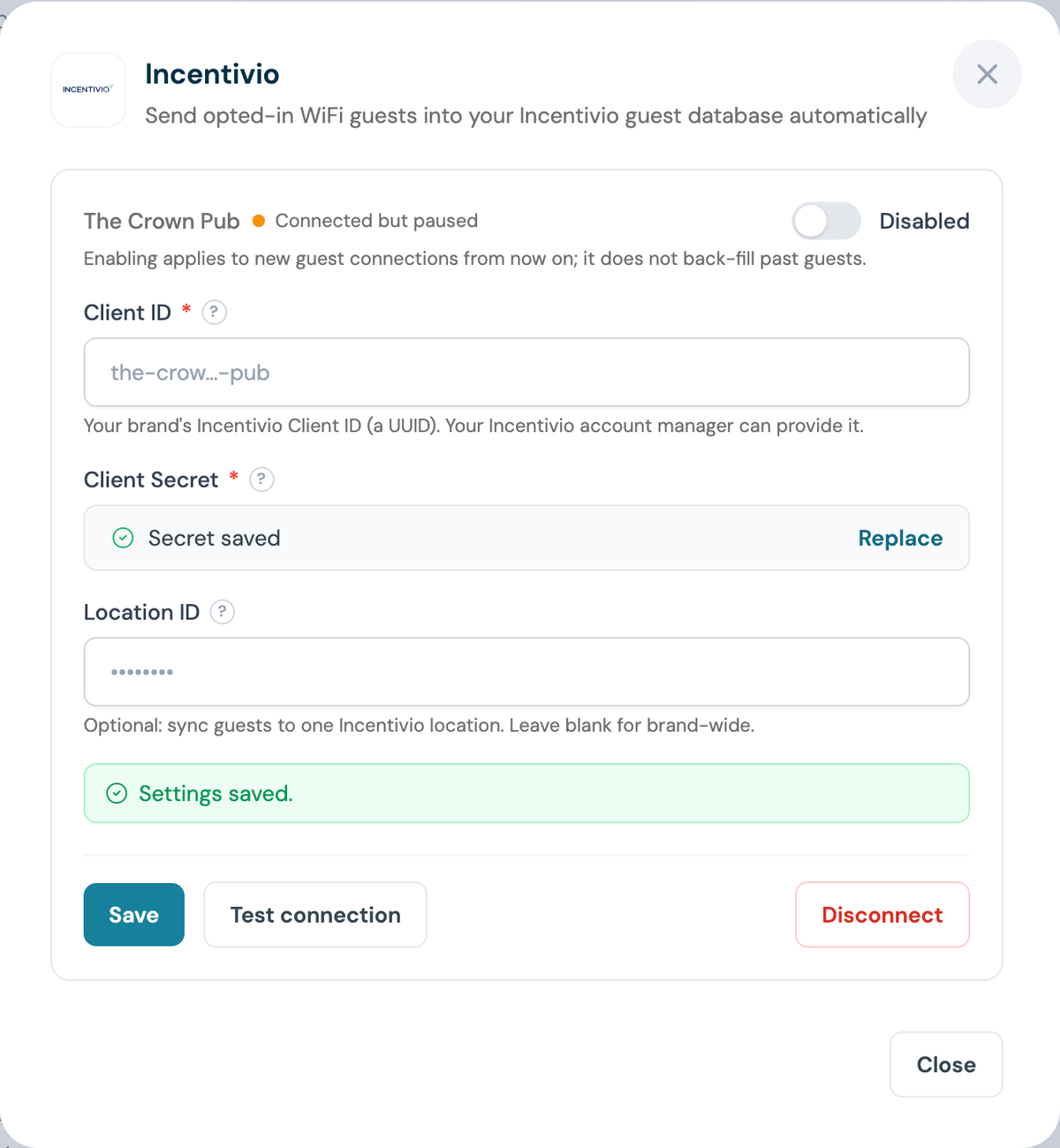
Step 8: Switch the venue on
The venue reads Connected but paused until you flip the toggle to Enabled.
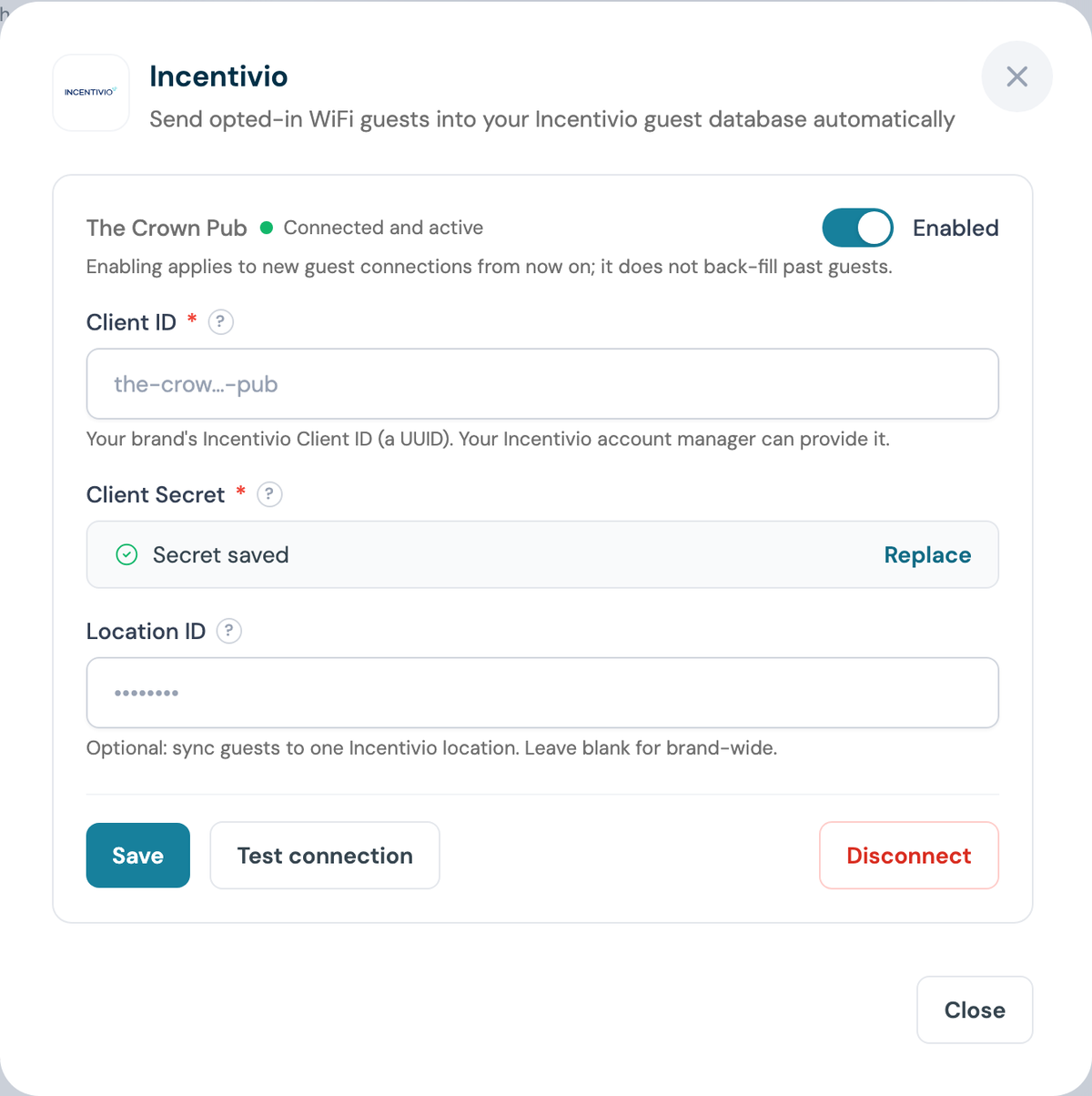
Enabling is not retrospective
Only guests who connect after you enable the integration are sent to Incentivio.
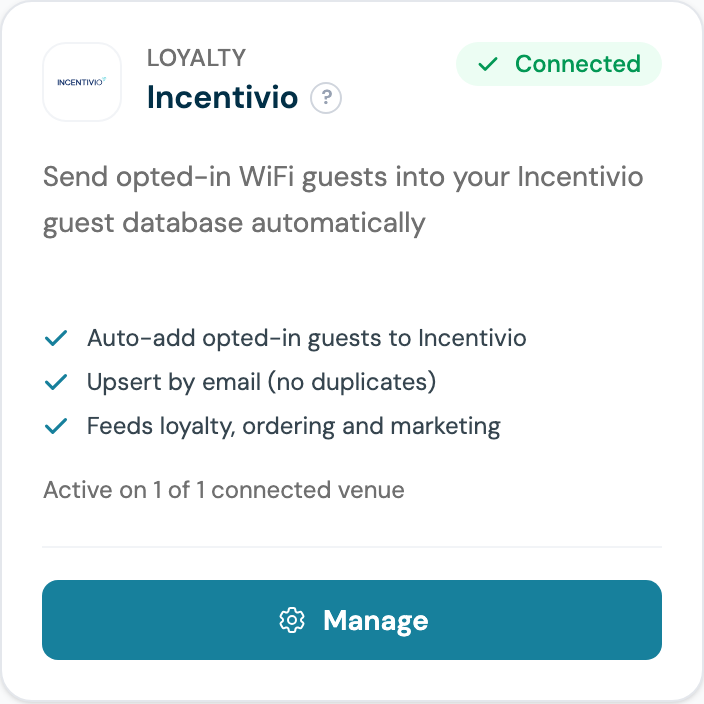
Step 9: Confirm the card says Connected
Part 3: Test it end to end
Step 10: Sign in as a guest
Forget the WiFi on a phone, reconnect, and complete the splash page with a real email address. Tick the marketing opt-in box.
Step 11: Check the guest in Incentivio
Search your Incentivio guest database for that email. Within a few minutes the record appears, tagged as coming from CaptiFi WiFi.
What gets synced
| Data | Notes |
|---|---|
| Email, first and last name | Only guests who tick the marketing opt-in |
| Phone number | When the guest provides one on the splash page |
| Marketing opt-in | Guests are sent with their consent recorded |
| Source | Guests are tagged as coming from CaptiFi WiFi |
| Location | Only when a Location ID is configured |
Important notes
- Only opted-in guests are synced (this respects GDPR consent)
- Guests are matched by email, so repeat visits update the same record
- Sync happens within minutes of the WiFi sign-in
- Several venues can share one brand's credentials with different Location IDs
Troubleshooting
"Incentivio rejected the Client ID / Client Secret" on Test - the credentials are wrong, expired, or not yet enabled for guest data access. Re-check them with your account manager.
Guests not appearing - check the venue toggle is Enabled (Step 8), and remember only guests who tick the marketing opt-in are sent.
Guests land brand-wide instead of at one site - add the venue's Location ID in Step 6.
Not sure about credentials - CaptiFi support can liaise with Incentivio and finish the connection for you.